Page 3 - Symbols used in this Instructions booklet:; Thank you for purchasing a Canon product.; Precautions
● Symbols used in this Instructions booklet: : Warning for preventing camera malfunction. : Supplementary notes for basic camera operation. : Helpful tip for operating your camera and taking pictures. • Page numbers in parentheses indicate where you can find more information. • Also read “Handling P...
Page 6 - Handling Precautions; Camera Care and Storage
Handling Precautions Camera Care and Storage ( 1 ) The camera is a precision instrument. Do not drop it or subject it to physical shock. ( 2 ) This camera is not waterproof and cannot be used underwater. If the camera gets really wet, promptly consult your nearest Canon ServiceCenter. Wipe off any w...
Page 7 - LCD Panel
Handling Precautions (11) After detaching the lens from the camera, put on the lens caps or put down the lens with the rear end up to avoid scratching the lenssurface and electrical contacts. (12) Even when the Main switch is set to < >, a small amount of power is still supplied to the camera’...
Page 8 - About the Battery; Even when
Handling Precautions About the Battery The camera operates only after the battery is properly installed (see page21). Check the battery power in the following cases: (1) After replacing the battery. (2) After not using the camera for an extended period. (3) The shutter does not work. (4) The camera ...
Page 9 - Nomenclature; Reference page numbers are indicated in parentheses.
Nomenclature • Reference page numbers are indicated in parentheses. • In the text, camera controls are indicated by their respective icons. 9 Lens mount Lens mount index (page 23) Focusing screen Lens lock pin Lens release button (page 23) Strap eyelet (page 14) Camera back lock releasebutton (page ...
Page 10 - Side Door Buttons
< > Metering mode button / < >Exposure compensation button (page 54, 97) < > Shooting mode selector (page 30) < > AF mode button (page 34) < > Film advance mode buttons (page 85) < > Film speed button (page 81) < > AEB buttons (page 77) Eyepiece Eyecup Film ...
Page 12 - Viewfinder Information
Spot metering focusing points(Lights at the required point) Exposurecompensationscale Film Counter In-focus indicator Lights when focus is achieved, blinks(8 Hz) when not achieved.During manual focus, lights when focusis achieved and stays off when notachieved. Exposure compensation icon Flash expos...
Page 13 - Conventions Used in this Instructions Booklet; switch is already set to <; CF
Conventions Used in this Instructions Booklet • All the operations described in thisb o o k l e t a s s u m e t h a t t h e < > switch is already set to < >. Before proceeding with any operation, firstt u r n t h e < > s w i t c h t o < > o r < >. • For < > dial o...
Page 14 - Attaching the Strap
• The ( ) icon indicates that the respective function or setting remains effective for 6 seconds after you take off your finger fromthe shutter button. • The ( ) icon indicates that the respective function or setting remains effective for 16 seconds after you take off your fingerfrom the shutter but...
Page 15 - Before You Start
15 Before You Start This chapter explains a few preliminary steps and basic operations whichyou should know before you start taking pictures. If you are a new EOSuser, read this chapter first. If you are familiar with the basic operations of EOS cameras and want tostart using the camera right away, ...
Page 16 - Main Switch; The camera operates only after the <; Shutter Button
1. Basic Operation Main Switch The camera operates only after the < > switch is turned on. This main switch has three settings: < >: Lock position. The camera does not operate. Set to this positionwhen not using the camera. < >: To turn on the camera, set to this position. The “A” ...
Page 17 - Basic Operation; Using the Electronic Dials; There are three ways to use the <
Basic Operation (1) Halfway pressing When the shutter button is pressedhalfway, autofocusing (AF) is activatedt o f o c u s t h e s u b j e c t . A u t o e x p o s u r e(AE) metering is also turned on to setthe correct shutter speed and aperturewhich is displayed in the viewfinderand on the LCD pane...
Page 19 - There are two ways to use the <; Reverting to the Default Settings
Basic Operation There are two ways to use the < >: 1. While holding down a button, turn the < > dial. 2. After pressing and releasing a button, turn the < > dial. 3. Just turn the < > dial. Look at the LCD panel to confirm the setting.To restore the button’s function or to re...
Page 20 - > b u t t o n , t h e n p r e s s t h e
Basic Operation T o r e s e t t h e c a m e r a t o t h e d e f a u l tsettings: Open the side door and press the< > button. This resets the c a m e r a t o t h e d e f a u l t s e t t i n g sshown in the table below. Shooting mode AF mode Metering mode Film advance mode Focusing point selecti...
Page 21 - Installing the Battery and Checking the Battery Level; Installing the Battery; Slide the grip downward to remove.
2. Installing the Battery and Checking the Battery Level The battery is housed in the camera grip. Remove the grip to install one2CR5 lithium battery. Installing the Battery Loosen the grip screw by turning itcounterclockwise as shown in thefigure. Slide the grip downward to remove. I n s e r t t h ...
Page 22 - Installing the Battery and Checking the Battery Level; Checking the Battery Level
Temperature +20 °C –20 °C Rolls 75 (50) 18 (12) Installing the Battery and Checking the Battery Level Checking the Battery Level Set the < > switch to < >. Open the side cover and press the< > button. T h e b a t t e r y l e v e l i n d i c a t o r w i l la p p e a r o n t h e L C ...
Page 23 - Mounting and Detaching a Lens; Mounting a Lens; Remove the front lens cap.; Detaching the Lens
23 3. Mounting and Detaching a Lens Mounting a Lens Remove the rear lens cap and thecamera body cap by turning themas shown by the arrow. Align the red dots on the lens andcamera and turn the lens as shownby the arrow until it snaps in place. On the lens, set the focus modeswitch to AF. • If the foc...
Page 25 - ” will also be displayed; Loading Film
25 Wrong After checking that the film leaderedge is correctly aligned with theo r a n g e m a r k , c l o s e t h e c a m e r aback. Right Wrong • If the edge of the film leader goes beyond the orange mark, rewind some of the filmback into the cartridge. When you close the camera back,t h e f i l m ...
Page 26 - Setting the Film Speed
Setting the Film Speed With DX-coded film, the camera setsthe film speed automatically within arange from ISO 25 to 5000. • To check the loaded film’s ISO filmspeed, press the < > button and < > button simultaneously. The I S O i c o n a n d f i l m s p e e d w i l l b edisplayed on the ...
Page 29 - Quick Start With Program AE
Quick Start With Program AE For quick and easy picture-taking, use the Program AE mode. This modes e t s b o t h t h e s h u t t e r s p e e d a n d a p e r t u r e a u t o m a t i c a l l y t o s u i t t h esubject’s brightness. Anyone can easily take pictures in this mode. Byusing the focusing poi...
Page 30 - W h i l e p r e s s i n g t h e <
In-focus indicator Area AF ellipse Quick Start With Program AE W h i l e p r e s s i n g t h e < > button, turn the < > dial to < P >. A f t e r < P > a p p e a r s o n t h e L C D p a n e l , r e l e a s e t h e < > button. 30 Look through the viewfinder andcover the a...
Page 31 - Shifting the Program; In the Program AE mode <
Quick Start With Program AE If the shutter speed or aperture blinks, it means a standard exposure cannot be obtained.Although the picture can be taken, it may come out too light or too dark. For details, see“Exposure Warning List” on page 130. Shifting the Program In the Program AE mode < P >,...
Page 32 - Dioptric Adjustment Lenses
32 To obtain sharp pictures, hold the camera still to minimize camera shake.• Firmly grasp the camera grip with your right hand.• Hold the lens with your left hand.• Press the camera against your face and look through the viewfinder.• To maintain a stable stance, place one foot in front of the other...
Page 34 - AF Mode Selection; Set the lens focus mode switch to
1. AF Mode Selection AF Mode Selection Set the lens focus mode switch to . While pressing the camera’s < > mode button, turn the < > dial until the desired < > mode is displayed on the LCD panel. 34 Release the < > mode button. 1 2 3 04. C836-E (33~) 28-01-2003 11:10 Pagina 3...
Page 35 - AF Modes
AF Mode Selection AF Modes Different AF modes have different AF operation characteristics. Thecamera has two AF modes: One-Shot AF for still subjects, and AI ServoAF for moving subjects. (AI is an abbreviation for Artificial Intelligence.)Select the AF mode which suits the subject. One-Shot AF for S...
Page 36 - * About Predictive AF
AF Mode Selection AI Servo AF for MovingSubjects W h i l e y o u p r e s s t h e s h u t t e r b u t t o nh a l f w a y , t h e c a m e r a f o c u s e sc o n t i n u o u s l y . T h i s A F m o d e s u i t smoving subjects. With predictive AF,t h e c a m e r a c a n a l s o f o c u s t r a c k asub...
Page 37 - Area AF Ellipse and Focusing Points
2. Area AF Ellipse and Focusing Points The area AF ellipse is an area where the subject is focused. The area AFellipse has 45 focusing points, making AF possible over a wide area in theviewfinder. You can concentrate on composing the picture withoutworrying about whether a focusing point is covering...
Page 38 - The focusing point is selected in one of three ways:; Automatic Selection; You select one of the 45 focusing points manually.; Eye-Control Selection; You select a focusing point by looking at it in the area AF ellipse.; Focusing Point Selection
3. Focusing Point Selection The focusing point is selected in one of three ways: ● Automatic Selection The camera selects the focusing point automatically to suit thesituation. ● Manual Selection You select one of the 45 focusing points manually. ● Eye-Control Selection You select a focusing point b...
Page 39 - > dial to select a left or right; > dial to select an upper or lower focusing point.
Focusing Point Selection • When the dial is turned, the selected focusing point shifts in the following loop: Automatics e l e c t i o n ↔ U p ↔ C e n t e r ↔ D o w n ↔ Automatic selection. • As shown in the figures, the focusing point s e l e c t i o n s h i f t s f r o m s i n g l e ( ) t o d o u ...
Page 41 - AF is especially effective in the following cases:
Focusing Point Selection 41 About Eye-Control AF Eye-Control AF enables you to focus at where you look within the area AFellipse in the viewfinder. The camera instantly detects where your eye islooking and activates the corresponding focusing point (among the 45) tofocus.Eye-Control AF works in both...
Page 42 - Eye-Control Calibration
Set the < > switch to < >. Set the < > switch to < >. • CAL and the calibration channel No. will b e d i s p l a y e d . A b l i n k i n g c h a n n e l N o .means that no calibration data is stored. Ifthe channel No. does not blink, it meansthat calibration data has been sto...
Page 44 - ” is also
After you complete the calibrationprocedure, the channel No. stopsblinking and stays lit. “ ” is also displayed. • If you take too long during the calibration procedure and the blinking focusing pointturns off, press the shutter button and startagain from step 4. A f t e r c o m p l e t i n g t h e ...
Page 45 - the calibration procedure.; Eye-Control Calibration Refinement
Focusing Point Selection 45 Set the < > switch to < > to end the calibration procedure. • The viewfinder display returns to normal. • Calibration may not be possible if you wear mirror-type sunglasses.• If Eye-Control AF cannot be used, use automatic or manual focusing point selection. S...
Page 46 - Deleting Eye-Control Calibration Data; button simultaneously.
Deleting Eye-Control Calibration Data If you need to replace the calibration data in a calibration channel (for adifferent user, eyeglass/contact lens wear, etc.), you must first delete theexisting calibration data by following the procedure below. You can thenregister new calibration data by follow...
Page 47 - Select the shooting mode.
47 4. Eye-Control One-Shot AF Mode Set the < > switch to < >. Turn the < > dial to select a CAL No. • The CAL No. lights if calibration has been completed for that channel. If calibrationh a s n o t b e e n c o m p l e t e d , t h e C A L N o .blinks. Set the < > switch to &l...
Page 50 - AF Sensitivity and the Lens’ Maximum Aperture
The EOS-3’s AF sensitivity in relation to the lens’ maximum aperture is describedbelow. ● AF Sensitivity and the Lens’ Maximum Aperture The EOS-3’s focusing points are all sensitive to horizontal lines. However, depending onthe maximum aperture of the lens, certain focusing points can also be sensit...
Page 51 - When Autofocus Fails; (1) Focus an object at the same distance as the subject and lock the
51 7. When Autofocus Fails Autofocus can fail to achieve focus (the in-focus indicator blinks) withcertain subjects such as the following: (a) Low-contrast subjects.(b) Subjects in low light.(c) Extremely backlit or reflective subjects.(d) Overlapping near and far objects. In such cases, do one of t...
Page 53 - Metering Modes; Evaluative metering
Metering Modes T h e b a s i c m e t e r i n g m o d e s a r e e v a l u a t i v e , p a r t i a l , s p o t , a n dcenterweighted averaging. Spot metering can be at the center of theviewfinder or linked to the active focusing point. There is also multi-spotmetering. Select the metering mode which s...
Page 54 - Selecting a Metering Mode; > d i a l u n t i l t h e
1. Selecting a Metering Mode While pressing the < > button, t u r n t h e < > d i a l u n t i l t h e d e s i r e d m e t e r i n g m o d e i c o nappears. EvaluativePartialSpotCenterweighted averaging Release the < > button. 54 2 1 05. C836-E (53~) 28-01-2003 11:42 Pagina 54
Page 55 - Evaluative Metering (
2. Metering Modes Evaluative Metering ( ) This is an all-around metering modesuited even for backlit subjects. Theviewfinder is divided into 21 meteringz o n e s . A l l t h e f o c u s i n g p o i n t s a r el i n k e d t o t h e e v a l u a t i v e m e t e r i n gz o n e s . A f t e r d e t e c t ...
Page 57 - The following procedure is for taking the sample photo below.
Metering Modes Multi-Spot Metering M u l t i p l e s p o t m e t e r r e a d i n g s c a n b e t a k e n a n d t h e n a v e r a g e dautomatically. Up to eight spot meter readings can be taken for onepicture. The following procedure is for taking the sample photo below. S e t t h e m e t e r i n g ...
Page 61 - Shooting Modes
Shooting Modes You can set the shooting mode which best suits the subject or yourphotographic intention. You can also easily achieve various photographicexpressions. First set the < > switch to < >. If necessary, also set the < > switch to < >. 61 M : Manual (page 73) Tv : Sh...
Page 62 - appears on the LCD panel.; You Set the Shutter Speed; With a fast shutter speed
In this mode, you set the desired shutter speed and the camera sets theaperture automatically to suit the subject brightness.A fast shutter speed can freeze motion, and a slow shutter speed canachieve a blurred effect. 62 W h i l e p r e s s i n g t h e < > button, turn the < > dial unti...
Page 63 - Shutter speed
Shutter Speed-Priority AE (Tv): You Set the Shutter Speed R e l e a s e y o u r f i n g e r f r o m t h e< > button. T u r n t h e < > d i a l t o s e t t h e desired shutter speed. Press the shutter button halfwayand focus the subject. • The shutter speed and aperture will be displayed....
Page 65 - You Set the Aperture; With a large aperture
2. Aperture-Priority AE (Av): You Set the Aperture In this mode, you set the desired aperture and the camera sets theshutter speed automatically to suit the subject brightness.The larger the aperture (smaller F-number like f/1.4) the more blurred thebackground will be. This effect is suited for port...
Page 66 - Aperture; > d i a l t o s e t t h e; Basic Terminology 3
● Aperture The aperture (or F-number) indicatesthe size of the aperture opening in thelens. The aperture displayed on thec a m e r a ’ s L C D p a n e l a n d i n t h eviewfinder can range anywhere from1 . 0 t o 9 1 , d e p e n d i n g o n t h e l e n sattached to the camera. The larger theF-number,...
Page 68 - DEP; You Set the Depth of Field; Select the focusing point.
Release the < > button. Depth-of-field AE with aManually-SelectedFocusing Point 68 W h i l e p r e s s i n g t h e < > button, turn the < > dial until DEP appears on the LCD panel. 3. Depth-of-field AE (DEP): You Set the Depth of Field This mode is for obtaining sharp focus between...
Page 73 - You Set the Shutter Speed and Aperture
Using the Built-inExposure Meter W h i l e p r e s s i n g t h e < > button, turn the < > dial until M appears on the LCD panel. Release the < > button. Set the < > switch to < > 73 T u r n t h e < > d i a l t o s e t t h e shutter speed and turn the < > dia...
Page 75 - Setting Exposure Compensation; > button to set the exposure compensation amount. Any
5. Setting Exposure Compensation Exposure compensation is used to alter the camera’s standard exposuresetting. While looking through the viewfinder, you can use either the < > dial or < > button to set the exposure compensation amount. Any exposure compensation amount that you set can la...
Page 76 - Setting Exposure Compensation; Exposure Compensation with the <; Exposure compensation can also be set with the <
Setting Exposure Compensation Exposure Compensation with the < > Button Exposure compensation can also be set with the < > button and < > dial. 76 Press the < > button and turn the < > d i a l w i t h i n ( ) t o s e t t h e d e s i r e d e x p o s u r e c o m p e n s a...
Page 78 - Canceling AEB
Autoexposure Bracketing (AEB) Take the pictures. The current filmadvance mode will be used. • On the viewfinder’s exposure level scale, the exposure level indicator will mark ther e s p e c t i v e b r a c k e t i n g a m o u n t a s e a c hbracketed shot is taken. • In the continuous shooting mode,...
Page 80 - AE Lock
F o c u s a t t h e d e s i r e d p o i n t ,recompose the shot, and take thepicture. • W h e n t h e s h o t i s r e c o m p o s e d , t h e exposure level indicator will show the newexposure level in real-time relative to thelocked exposure level. AE Lock 80 3 AE lock indicator AE lock exposure le...
Page 81 - Setting the Film Speed Manually; Press and hold down the <
8. Setting the Film Speed Manually If the film is not DX-coded or if you want to set a different ISO film speed,load the film and set the ISO film speed manually. • The ISO film speed can be set manually from 6 to 6400. Press and hold down the < > b u t t o n a n d < > b u t t o n simult...
Page 83 - The setting takes effect after (
Multiple Exposures < > The setting takes effect after ( ) o r w h e n y o u p r e s s t h e s h u t t e rbutton halfway. Set the shooting mode and pressthe shutter button completely foreach multiple exposure. After all the multiple exposures aretaken, the film advances to the nextf r a m e a u...
Page 85 - Switching the Film Advance Mode; Continuous Shooting (
11. Switching the Film Advance Mode The film advance mode can be set to single-frame shooting or continuousshooting. Single-frame Shooting ( ) After a picture is taken, the film advances by one frame automatically. Continuous Shooting ( ) The film advances at a rate of 4.3 frames per second while yo...
Page 86 - Switching the Film Advance Mode; or; ) will blink on the LCD panel. This feature is canceled; Continuous Shooting Rates
Switching the Film Advance Mode When , , , or Blinks If the battery power drops in cold temperatures or the film advanceoperation is slow, it means that the camera is trying to provide filmadvance power rather than speed. This feature is called automatic filmadvance transmission. If this is activate...
Page 88 - Attaching the Eyepiece Cover
Self-timer Operation Attaching the Eyepiece Cover If you take a picture without looking through the viewfinder, stray light mayenter the eyepiece and affect the exposure. To prevent this, detach theeyecup and attach the eyepiece cover (provided on the strap) on theeyepiece before taking the picture....
Page 90 - LCD Panel Illumination
14. Depth-of-field Preview T h e d e p t h o f f i e l d i s t h e r a n g e o facceptable focus in front of and behindthe point of focus. The depth of fieldchanges depending on the aperture.Press the depth-of-field preview buttonto stop down the aperture and previewthis range of acceptable focus. 9...
Page 91 - Flash Photography
Flash Photography A n E O S - d e d i c a t e d E X - s e r i e s o r E Z - s e r i e s S p e e d l i t e m a k e s f l a s hphotography with the EOS-3 as easy as any AE mode. With an EX-seriesSpeedlite, E-TTL autoflash photography as well as wireless E-TTL multi-flash photography is possible.Speedl...
Page 92 - Flash Photography with Speedlite 550EX
1. Flash Photography with Speedlite 550EX With Speedlite 550EX attached to the EOS-3, flash photography is aseasy as any AE mode. You can also use the following features: (1) E-TTL Autoflash With E-TTL autoflash (preflash evaluativemetering), optimum flash exposure can beo b t a i n e d f o r t h e ...
Page 93 - Flash Photography with Speedlite 550EX; Full Auto Flash
Flash Photography with Speedlite 550EX Full Auto Flash Full Auto E-TTL autoflash used with the Program AE mode is describedhere. For details on Speedlite 550EX operations, see the Instructions thatcame with it. Set the camera’s shooting mode to P . Check that the 550EX’s pilot lampis lit. Focus the ...
Page 95 - FE Lock
Flash Photography with Speedlite 550EX FE Lock FE (flash exposure) lock obtains and locks the correct flash exposurereading for the desired portion of the scene. C h e c k t h a t t h e S p e e d l i t e ’ s p i l o tlamp is lit. • The flash mode can be either normal or high-speed sync. FE lock work...
Page 97 - Flash Exposure Compensation; > dial to set the desired
Flash Photography with Speedlite 550EX Flash Exposure Compensation When an EOS-dedicated Speedlite is used, you can set flash exposurecompensation with the camera up to ±3 stops in 1/3-stop increments. While pressing the < > button, turn the < > dial to set the desired f l a s h e x p o ...
Page 98 - Modeling Flash
Flash Photography with Speedlite 550EX FEB (Flash Exposure Bracketing) Three successive flash shots can be bracketed automatically according tot h e b r a c k e t i n g a m o u n t s e t w i t h C a n o n S p e e d l i t e 5 5 0 E X . W i t h o u tchanging the background exposure, you can bracket th...
Page 99 - Wireless Multi-Flash System; The Canon Speedlite 550EX has the following three features:; Wireless multi-flash system
Flash Photography with Speedlite 550EX Wireless Multi-Flash System The Canon Speedlite 550EX has the following three features: (1) E-TTL autoflash(2) Slave unit(3) Wireless master control of other slave-triggered 550EX units By using the above features, you can set up a wireless E-TTL autoflashsyste...
Page 102 - Depth of Field; (3) A longer distance between the camera and subject increases the; Basic Terminology 4
102 Taken with an f/22 aperture. Taken with an f/2 aperture. ● Depth of Field This is the range in front of and behind the plane of optimum focuswhere acceptable focus can be achieved. The smaller the aperture (thelarger the F-number), the greater the depth of field will be. And thelarger the apertu...
Page 103 - Custom Functions
Custom Functions Y o u c a n c u s t o m i z e c a m e r a f u n c t i o n s w i t h t h e c a m e r a ’ s C u s t o mFunctions.In the previous text, the CF symbol was used to point out a relevantCustom Function. In this chapter, all the Custom Functions are describedin detail. First set the < &g...
Page 104 - Setting and Canceling Custom Functions; Setting a Custom Function
1. Setting and Canceling Custom Functions Setting a Custom Function Open the side door and press the< > button. • The Custom Function No. appears on the LCD panel. T u r n t h e < > d i a l u n t i l t h e d e s i r e d C u s t o m F u n c t i o n N o .appears. T h e n p r e s s t h e &l...
Page 105 - Setting and Canceling Custom Functions; the setting returns to
Setting and Canceling Custom Functions Canceling a CustomFunction Select the Custom Function No.whose setting is to be canceled,then press the < > button until the setting returns to on the LCD panel. Press the shutter button halfway.T h e L C D p a n e l r e t u r n s t o t h enormal display....
Page 106 - Custom Function Settings
2. Custom Function Settings Custom Function CF-0 makes the camera’s built-in exposure metercompatible with the focusing screen. Be sure to set this Custom Functionto suit the focusing screen installed in the camera.Custom Functions CF-1 to CF-17 can be set to suit your preferences. 106 Custom Functi...
Page 109 - Custom Function Settings
Custom Function Settings 109 Remarks Page This is convenient if you develop the film yourself.• If 1 is set, the shutter speed will always be 1/8000 sec. if you release the shutter with the camera back open. This is effective if you want to set the film speed yourself.You can be relieved from settin...
Page 122 - Using Custom Functions CF-4 and CF-7 Together
CF-7 Custom Function Settings Using Custom Functions CF-4 and CF-7 Together If Custom Functions CF-4 and CF-7 are used together, the availability ofelectronic manual focusing will be as follows: 122 Custom Function CF-4 No. Setting 0 1 2 0, 2 × / O × / × × / × 1, 3 O / O O / × × / × Before focus/Aft...
Page 123 - Using Custom Functions CF-5 and CF-11 Together
CF-11 Custom Function CF-5 No. Setting 0 1 2 3 1, 3 Aperture: Set with < > dial. Shutter speed: (1) Set with < > dial, (2) Or with < > button and < > dial. Aperture: Set with < > dial. Shutter speed: (1) Set with < > dial, (2) Or with < > button and < >...
Page 124 - Index of Custom Functions
CF-1 CF-1 CF-1 CF-2 CF-3 CF-8 CF-4 CF-4 CF-4 CF-4 CF-4 CF-7 CF-7 CF-10 CF-10 CF-10 CF-11 CF-11 3. Index of Custom Functions 124 Film Transport Custom Functions No. Setting 1 No auto film rewind. 2 High-speed film rewind. 3 Quiet film rewind. 4 Leave out film leader after rewind. 5 Set film speed man...
Page 125 - Index of Custom Functions
Index of Custom Functions 125 CF-5 CF-5 CF-6 CF-6 CF-9 CF-9 CF-13 CF-13 CF-16 CF-16 CF-15 CF-11 CF-5 CF-14 CF-12 Picture-Taking Custom Functions No. Setting 1 Enable the < > dial to set the aperture in manual exposure mode. 2 Enable the aperture to be set with the camera even withthe lens deta...
Page 127 - Reference Section
Reference Section This section helps you understand your camera and enjoy photographybetter. It gives reference information and introduces system accessories. 127 09. C836-E (127~) 28-01-2003 13:03 Pagina 127
Page 128 - Troubleshooting Guide
1. Troubleshooting Guide If there is a problem, first refer to this Troubleshooting Guide. If theproblem still persists, take the camera to your nearest Canon ServiceCenter. Canon Service Centers are listed on the back of this booklet. 128 Nothing isdisplayed onthe LCD panel. The film doesnot load. ...
Page 129 - Troubleshooting Guide
Troubleshooting Guide 129 The shutterdoes notrelease. The film doesnot rewindautomatically. “ ” blinks on the LCD panel. Problem Probable Cause Solution Page The film has not been loadedproperly. (< > blinks on the LCD panel.) Rewound film is still in thecamera. (The < > icon is blinking...
Page 130 - Exposure Warning List
30” shutter speed and maximumaperture 8000 shutter speed and minimumaperture Maximum aperture Minimum aperture 30” shutter speed 8000 shutter speed Current aperture 30” shutter speed and maximumaperture 8000 shutter speed and minimumaperture 2. Exposure Warning List 130 P Tv Av DEP Mode and Dial Ico...
Page 131 - Program Line Description
3. Program Line The program line below applies when the camera is used in the ProgramAE ( P ) mode with an EF 50mm f/1.4 USM lens. Program Line Description The bottom horizontal axis represents the shutter speed and the rightvertical axis represents the aperture. On the left edge and top edge of the...
Page 132 - Shutter Speed and Aperture Readouts; Shutter speed readout
1/3-stop Increments Half-stop Increments Full-stop Increments Shutter speed Aperture Shutter speed Aperture Shutter speed Aperture 4. Shutter Speed and Aperture Readouts ● Shutter speed readout The shutter speed is normally displayed in 1/3-stop increments. Numbers from “4” to“8000” denote the denom...
Page 133 - Interchanging the Focusing Screen; P r e s s t h e <
5. Interchanging the Focusing Screen The camera’s focusing screen can be interchanged to suit the picture-taking application. You must also set Custom Function CF-0 so that thestandard exposure standard suits the focusing screen. Open the side door and press the< > button. • The Custom Functio...
Page 134 - Interchanging the Focusing Screen; Ec-series Interchangeable Focusing Screens
Ec-A: Standard microprism Compatible with all EFlenses. Lenses with am a x i m u m a p e r t u r esmaller than f/5.6 willc a u s e t h e f o c u s i n gscreen’s microprism todarken. Ec-B: New split screen Compatible with all EFlenses. Lenses with am a x i m u m a p e r t u r esmaller than f/5.6 will...
Page 140 - Major Specifications; Type
Major Specifications 140 ■ Type Type: 35mm AF/AE single-lens reflex with focal-plane shutter andbuilt-in motor drive. Picture size: 24 mm × 36 mm Compatible lenses: Canon EF lenses Lens mount: Canon EF mount ■ Viewfinder Type: Eye-level pentaprism Picture coverage: 97 percent vertically and horizont...
Page 141 - Exposure Control
Major Specifications 141 ■ Exposure Control Metering modes: TTL max. aperture metering with a 21-zone silicon photocell.(1) Evaluative metering (linkable to any focusing point)(2) Partial metering (approx. 8.5% of viewfinder at center)(3) Center spot metering (approx. 2.4% of viewfinder at center) (...
Page 143 - Film Transport
Major Specifications 143 ■ Film Transport Film loading: Automatic loading with a sprocketless system. After film isloaded and the back is closed, the film advances to frame 1automatically, taking about 1 sec. Film advance system: Automatic film advance with built-in motor.(1) EOS 3: Single and conti...
Page 145 - Custom Function Symbols
Custom Sticker Function No. 0 1 2 3 CF-0 CF-1 CF-2 CF-3 CF-4 CF-5 CF-6 CF-7 CF-8 Custom Sticker Function No. 0 1 2 3 CF-9 CF-10 CF-11 CF-12 CF-13 CF-14 CF-15 CF-16 CF-17 Custom Function Symbols 145 • A sticker is provided for the Custom Functions. Affix it to the side door on the inside.• For detail...


 Canon 3637C001 User Manual
 Canon EOS 1D Manual
 Canon EOS 1D C Manual
 Canon EOS 1D Mark IV User Manual
 Canon EOS 1Ds Mark III Manual
 Canon EOS 1D X Mark III Manual
 Canon EOS 5 Manual
 Canon EOS 5D Manual
 Canon EOS 5D Mark II Manual
 Canon EOS 5D Mark III Manual
 Canon EOS 7D Manual
 Canon EOS 10D Manual
 Canon EOS 50D User Manual
 Canon EOS 60D Manual
 Canon EOS 90D Manual
 Canon EOS 100D Manual
 Canon EOS 450D User Manual
 Canon EOS 500D User Manual
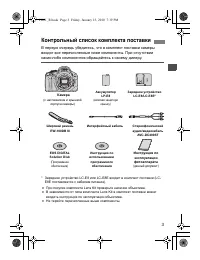 Canon EOS 550D User Manual