Yamaha Network- Manuals
Yamaha Network– Installation Manual in PDF format online.
Manuals:
Installation Manual Yamaha Network


Summary
Network-MIDI Driver Installation Guide 2 5. LIMITATION OF LIABILITY YAMAHA’S ENTIRE OBLIGATION HEREUNDER SHALL BE TO PERMIT USE OF THE SOFTWARE UNDER THE TERMS HEREOF. IN NO EVENT SHALL YAMAHA BE LIABLE TO YOU OR ANY OTHER PERSON FOR ANY DAMAGES, INCLUDING, WITHOUT LIMITATION, ANY DIRECT, INDIRECT, ...
Network-MIDI Driver Installation Guide 3 Network-MIDI Driver is software for Mac that transfers MIDI data back and forth between your computer and your Yamaha device via Ethernet cable.To operate your device from your computer via Ethernet, you'll need to install the Network-MIDI Driver software. Co...
Network-MIDI Driver Installation Guide 4 1 Start the computer and log in to the Administrator account. Exit any open applications and close all open windows. 2 After the downloaded compressed file is properly extracted, double-click the file “Yamaha Network-MIDI Driver V***.pkg.” *** represents the ...
Yamaha Manuals
-
 Yamaha NS AW150
User Manual
Yamaha NS AW150
User Manual
-
Yamaha NS AW150
Installation Manual
-
 Yamaha NS AW350
User Manual
Yamaha NS AW350
User Manual
-
Yamaha NS AW350
Installation Manual
-
Yamaha NS AW350
Manual
-
 Yamaha CLP 825
User Manual
Yamaha CLP 825
User Manual
-
 Yamaha CLP 835
User Manual
Yamaha CLP 835
User Manual
-
Yamaha CLP 845
User Manual
-
Yamaha CLP 865GP
User Manual
-
Yamaha CLP 875
User Manual
-
Yamaha CLP 885
User Manual
-
Yamaha CLP 895GP
User Manual
-
 Yamaha NS IW470WH
Installation Manual
Yamaha NS IW470WH
Installation Manual
-
Yamaha NS IW470WH
User Manual
-
 Yamaha CS500
User Manual
Yamaha CS500
User Manual
-
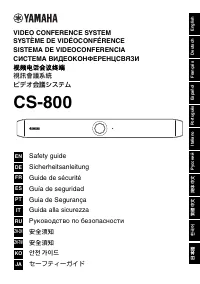 Yamaha CS 800
Manual
Yamaha CS 800
Manual
-
 Yamaha NS F210BL
User Manual
Yamaha NS F210BL
User Manual
-
 Yamaha ATS C300
User Manual
Yamaha ATS C300
User Manual
-
 Yamaha PASC9
User Manual
Yamaha PASC9
User Manual