Yamaha ES - Manuals
Yamaha ES – Manual, User Manual in PDF format online.
Manuals:
Manual Yamaha ES


Summary
Bring Home the Magic of Music Yamaha portable keyboards put musical creativity at your fingertips The Yamaha lineup of portable electronic keyboards is a musician’s dream come true, giving you the power to sound exactly the way you want. It starts with a new level of instrument realism thanks to a l...
I c o n s Special icons indicate at a glance the major features available on each instrument. The glossary below explains what each icon stands for. XG Yamaha XG MIDI extends GM voice selection, expression and control. 64-Note Polyphony Up to 64 notes can be reproduced simultaneously for intricate m...
S Y S T E M E X P A N S I O N The XG Advantage Sound / Expression Functions / Controls MORE VOICES GREATER POLYPHONY MORE PARAMETERS VH EXPANSION SG EXPANSION VL EXPANSION A/D INPUTS EQ EFFECTS XG Song Data for the PortaTone A large and constantly growing selection of song files is available in XG f...
User Manual Yamaha ES


Summary
■ Checking the version number ・ You can determine the SB168-ES firmware version number by the illumination pattern of the INPUT jack indicators when the power is turned on. Version Illumination pattern 1.0 Each INPUT jack indicator lights in sequence from INPUT 1 to INPUT 8, and INPUT 16 to INPUT 9 ...
■ TCP/IP settings of computer Before you update the SB168-ES firmware, you must modify your computer's TCP/IP settings. After the firmware update procedure is complete, return the TCP/IP settings to their original settings. Windows Vista / 7 1. Select [Start] → [Control Panel], then click or double-...
Windows XP 1. Select [Start] → [Control Panel]. The "Control Panel" is displayed. 2. If the control panel appears as category view, click [Switch to Classic View]. 3. Double-click [Network Connections] → [Local Area Connection]. The "Local Area Connection Status" dialog box will be d...
Yamaha Manuals
-
 Yamaha NS AW150
User Manual
Yamaha NS AW150
User Manual
-
Yamaha NS AW150
Installation Manual
-
 Yamaha NS AW350
User Manual
Yamaha NS AW350
User Manual
-
Yamaha NS AW350
Installation Manual
-
Yamaha NS AW350
Manual
-
 Yamaha CLP 825
User Manual
Yamaha CLP 825
User Manual
-
 Yamaha CLP 835
User Manual
Yamaha CLP 835
User Manual
-
Yamaha CLP 845
User Manual
-
Yamaha CLP 865GP
User Manual
-
Yamaha CLP 875
User Manual
-
Yamaha CLP 885
User Manual
-
Yamaha CLP 895GP
User Manual
-
 Yamaha NS IW470WH
Installation Manual
Yamaha NS IW470WH
Installation Manual
-
Yamaha NS IW470WH
User Manual
-
 Yamaha CS500
User Manual
Yamaha CS500
User Manual
-
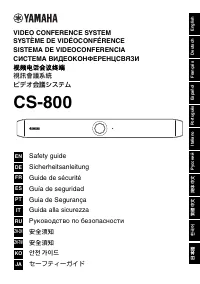 Yamaha CS 800
Manual
Yamaha CS 800
Manual
-
 Yamaha NS F210BL
User Manual
Yamaha NS F210BL
User Manual
-
 Yamaha ATS C300
User Manual
Yamaha ATS C300
User Manual
-
 Yamaha PASC9
User Manual
Yamaha PASC9
User Manual