Yamaha CL Editor- Manuals
Yamaha CL Editor– Installation Manual in PDF format online.
Manuals:
Installation Manual Yamaha CL Editor


Summary
CL Editor Installation Guide 2 5. LIMITATION OF LIABILITY YAMAHA’S ENTIRE OBLIGATION HEREUNDER SHALL BE TO PERMIT USE OF THE SOFTWARE UNDER THE TERMS HEREOF. IN NO EVENT SHALL YAMAHA BE LIABLE TO YOU OR ANY OTHER PERSON FOR ANY DAMAGES, INCLUDING, WITHOUT LIMITATION, ANY DIRECT, INDIRECT, INCIDENTAL...
CL Editor Installation Guide 3 The CL Editor enables you to prepare the CL mixing console (CL5, CL3, and CL1: subsequently called CL) settings beforehand by editing the parameters offline, and also remotely monitor/control the CL online. For subsequent operations, refer to the PDF manual from the [H...
CL Editor Installation Guide 4 Minimum System Requirements The system requirements below may differ slightly depending on the particular operating system. Windows 7 Mac OS X NOTE The Minimum System Requirements described above are applied to the CL Editor version 1.0.0. Keep in mind that the softwar...
Yamaha Manuals
-
 Yamaha NS AW150
User Manual
Yamaha NS AW150
User Manual
-
Yamaha NS AW150
Installation Manual
-
 Yamaha NS AW350
User Manual
Yamaha NS AW350
User Manual
-
Yamaha NS AW350
Installation Manual
-
Yamaha NS AW350
Manual
-
 Yamaha CLP 825
User Manual
Yamaha CLP 825
User Manual
-
 Yamaha CLP 835
User Manual
Yamaha CLP 835
User Manual
-
Yamaha CLP 845
User Manual
-
Yamaha CLP 865GP
User Manual
-
Yamaha CLP 875
User Manual
-
Yamaha CLP 885
User Manual
-
Yamaha CLP 895GP
User Manual
-
 Yamaha NS IW470WH
Installation Manual
Yamaha NS IW470WH
Installation Manual
-
Yamaha NS IW470WH
User Manual
-
 Yamaha CS500
User Manual
Yamaha CS500
User Manual
-
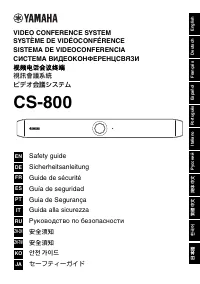 Yamaha CS 800
Manual
Yamaha CS 800
Manual
-
 Yamaha NS F210BL
User Manual
Yamaha NS F210BL
User Manual
-
 Yamaha ATS C300
User Manual
Yamaha ATS C300
User Manual
-
 Yamaha PASC9
User Manual
Yamaha PASC9
User Manual