SteelSeries Arctis Pro + GameDAC - Manuals

SteelSeries Arctis Pro + GameDAC Headphones – User Manual in PDF format online.
Manuals:
User Manual SteelSeries Arctis Pro + GameDAC



Summary
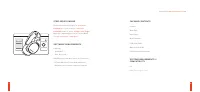
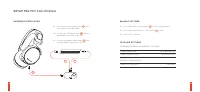
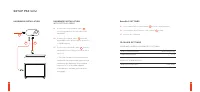
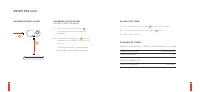
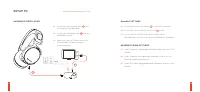
2 CONTENTS WELCOME TO ARCTIS PRO + GAMEDAC History showed us that gaming headsets rarely looked good and sounded worse, so we made Arctis and put all other headsets on notice. Next, the audiophiles said that a gaming headset could never stand up to dedicated headphones, so we made Arctis Pro and cha...
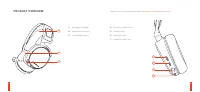
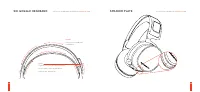
01 Ski Goggle Headband * 02 Airweave Ear Cushions * 03 Clearcast Microphone 5 6 01 02 03 04 05 06 07 PRODUCT OVERVIEW * Find accessories and replacement parts at steelseries.com/gaming-accessories 04 Microphone Mute Button 05 Volume Control 06 Main Cable Jack 07 Headphone Share Jack
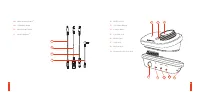
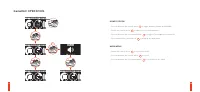
2s 9 10 GameDAC OPERATION HOME SCREEN • Press and release the control wheel 14 to toggle between volume and ChatMix • Rotate the control wheel 14 to adjust the selected parameter • Press and release the Secondary Button 13 to toggle DTS Headphone:X on and off • Press and hold the control wheel 14 to...
SteelSeries Headphones Manuals
-
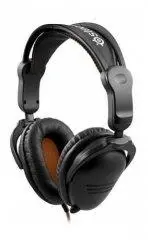 SteelSeries 3HV2
User Manual
SteelSeries 3HV2
User Manual
-
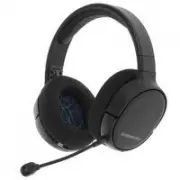 SteelSeries Arctis 1P
User Manual
SteelSeries Arctis 1P
User Manual
-
 SteelSeries Arctis 3 Console Edition
User Manual
SteelSeries Arctis 3 Console Edition
User Manual
-
 SteelSeries Arctis 7 +
User Manual
SteelSeries Arctis 7 +
User Manual
-
 SteelSeries Arctis 7P+
User Manual
SteelSeries Arctis 7P+
User Manual
-
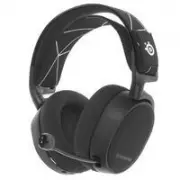 SteelSeries Arctis 9
User Manual
SteelSeries Arctis 9
User Manual
-
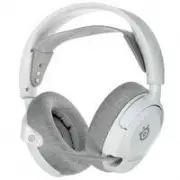 SteelSeries Arctis Nova 1
User Manual
SteelSeries Arctis Nova 1
User Manual
-
 SteelSeries Arctis Nova 3
User Manual
SteelSeries Arctis Nova 3
User Manual
-
 SteelSeries Arctis Nova 7
User Manual
SteelSeries Arctis Nova 7
User Manual
-
 SteelSeries Arctis Nova Pro
User Manual
SteelSeries Arctis Nova Pro
User Manual
-
 SteelSeries Arctis Prime
User Manual
SteelSeries Arctis Prime
User Manual
-
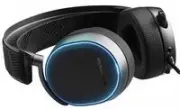 SteelSeries Arctis Pro
User Manual
SteelSeries Arctis Pro
User Manual