Page 2 - Table of contents
2 Dear customer! Thank you for purchasing our product. For safety, it is strongly recommended to read this manual carefully before connecting, operating and/or adjusting the product and keep the manual for reference in the future. Table of contents TABLE OF CONTENTS ....................................
Page 3 - Important safeguards
3 Important safeguards Read carefully through the manual to familiarize yourself with this unit. Keep this manual handy as a reference for operating procedures and precautions. Do not allow persons who have not read through this manual to use this unit. “CLASS 1 LASER PRODUCT” This product contains ...
Page 4 - Accessories
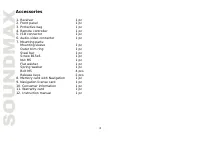
4 Accessories 1. Receiver 1 pc 2. Front panel 1 pc 3. Protective bag 1 pc 4. Remote controller 1 pc 5. ISO connector 1 pc 6. Audio-video connector 1 pc 7. Mounting parts: Mounting sleeve 1 pc Outer trim ring 1 pc Steel bar 1 pc Screw B15x6 1 pc Nut M5 1 pc Flat washer 1 pc Spring washer 1 pc Bolt M5...
Page 5 - Installation/Connections; Mounting
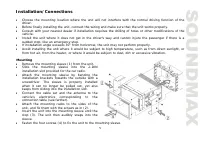
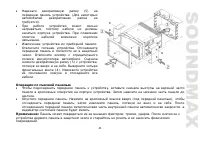
5 Installation/Connections Choose the mounting location where the unit will not interfere with the normal driving function of the driver. Before finally installing the unit, connect the wiring and make sure that the unit works properly. Consult with your nearest dealer if installation requires the d...
Page 6 - the risk of a short circuit or fire.; Detachable control panel; the panel status indicator will blink.
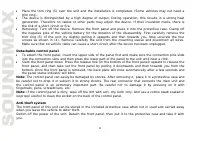
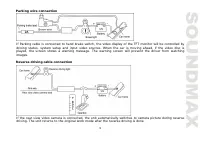
6 Place the trim ring (5) over the unit and the installation is completed. (Some vehicles may not need a trim ring). The device is distinguished by a high degree of output. During operation, this results in a strong heat generation. Therefore no cables or other parts may adjoin the device. If their ...
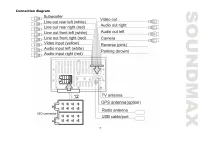
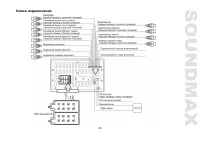
Page 7 - Connection diagram
Page 10 - Panel controls; Front panel; button; Not indicated: Navigation card slot on the
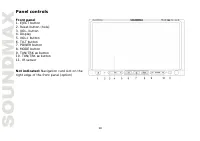
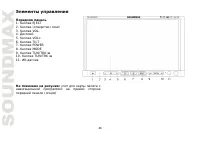
10 Panel controls Front panel 1. EJECT button 2. Reset button (hole) 3. VOL- button 4. Display 5. VOL+ button 6. TILT button 7. POWER button 8. MODE button 9. TUN/TRK button 10. TUN/TRK button 11. IR sensor Not indicated: Navigation card slot on the right edge of the front panel (option)
Page 11 - Inner panel; Panel status indicator
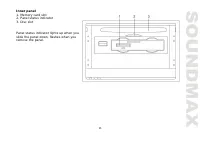
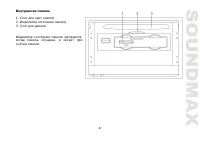
11 Inner panel 1. Memory card slot 2. Panel status indicator 3. Disc slot Panel status indicator lights up when you slide the panel down, flashes when you remove the panel.
Page 12 - Remote controller
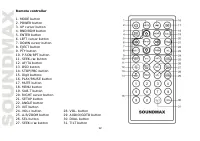
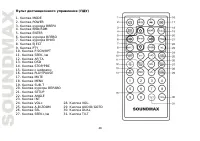
12 Remote controller 1. MODE button2. POWER button3. UP cursor button4. BND/RDM button5. ENTER button6. LEFT cursor button7. DOWN cursor button8. EJECT button9. PTY button10. P.SCN/RPT button11. SEEK-/ button12. AF/TA button13. OSD button14. STOP/PBC button15. Digit buttons16. PLAY/PAUSE button17. M...
Page 13 - battery to give off heat, crack or start a fire.
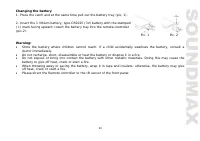
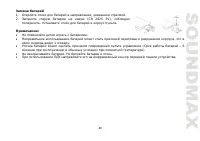
13 Changing the battery1. Press the catch and at the same time pull out the battery tray (pic. 1). 2. Insert the 1 lithium battery, type CR2025 (3V) battery with the stamped(+) mark facing upward. Insert the battery tray into the remote controller(pic.2). Warning: Store the battery where children ca...
Page 14 - General operations; Touch screen
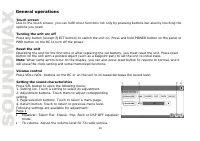
14 General operations Touch screen Due to the touch screen, you can fulfill most functions not only by pressing buttons but also by touching the options you need. Turning the unit on/off Press any button (except EJECT button) to switch the unit on. Press and hold POWER button on the panel or PWR but...
Page 16 - To enable navigation mode, touch NAVI button in the main menu.; Angle setting; amplifier is required.; Dual zone function; play audio or video from disc, USB or memory card.
16 Navigation (option) To enable navigation mode, touch NAVI button in the main menu. Insert Navigation memory card into the Memory card slot of the unit before enabling navigation mode. To access the slot, open the front panel. The device will warn you if the memory card is not properly inserted in...
Page 17 - System setup; Sound page
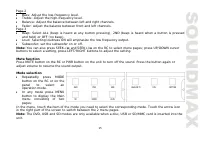
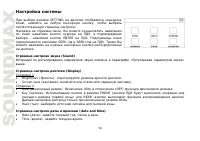
17 System setup When you select SETTING mode, the menu will be displayed, in which you can touch any item to select corresponding setting page: After selecting a menu page you can navigate in the menu by pressing cursor buttons on the RC and confirm your selection by pressing ENTER button on the RC....
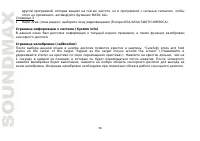
Page 18 - System page; In this menu you can see the current version information.; Calibration page
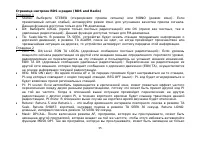
18 DX: Select LOCAL (only local station reception) or DX (local and distant station reception). The function is available only in FM bands. TA: Seek/Alarm. In TA SEEK mode, the unit will seek for traffic announcement program when TA is pressed; in TA ALARM mode, no TA/TP is displayed and the alarm i...
Page 19 - Utilities; Calculator
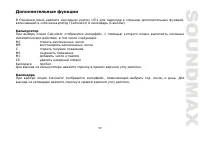
19 Utilities In the main menu touch UTIL item to go to utility menu consisting of Calculator and Calendar items. Touch an item to go to correspondent function. Calculator When you select Calculator an interface will show in which you can perform basic arithmetical operations by touching buttons on t...
Page 20 - Radio operations; User interface of Radio mode
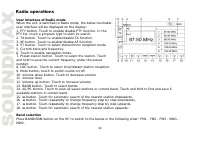
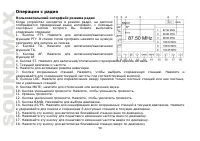
20 Radio operations User interface of Radio mode When the unit is switched to Radio mode, the below touchable user interface will be displayed on the display: 1. PTY button. Touch to enable/disable PTY function. In the PTY list, touch a program type to start its search. 2. TA button. Touch to enable...
Page 22 - automatically exit to normal mode.
22 TA (Traffic alarm) function Touch TA button on the screen or press and hold AF/TA button on the RC to switch on the TA function. When TA is on, the TA displays on TFT, or else, if there is no TP information, the mode will search TP station automatically. When TA is playing, the volume will be adj...
Page 23 - TV operations
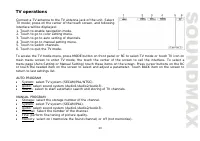
23 TV operations Connect a TV antenna to the TV antenna jack of the unit. Select TV mode; press on the center of the touch screen, and following interface will be displayed: 1. Touch to enable navigation mode. 2. Touch to go to color setting menu. 3. Touch to go to auto setting of channels. 4. Touch...
Page 24 - Note: Do not connect AV inputs on the rear panel at the same; time with the AV input on the front panel. Interference of the
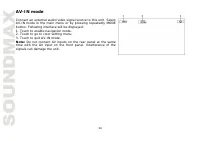
24 AV-IN mode Connect an external audio/video signal source to this unit. Select AV-IN mode in the main menu or by pressing repeatedly MODE button. Following interface will be displayed: 1. Touch to enable navigation mode. 2. Touch to go to color setting menu. 3. Touch to quit AV-IN mode. Note: Do n...
Page 25 - DVD touch interface
25 Disc/USB/SD/MMC operations USB/SD/MMC notes USB format supports 1.1. Capacity: up to 8 Gb. For correct and satisfactory operation, licensed SD/MMC memory cards of famous brands should be used with this unit. Avoid using memory cards of unknown brands. Capacity: up to 8 Gb. Insert/Eject disc Inser...
Page 26 - VCD touch interface
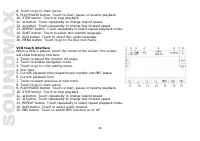
26 8. Touch to go to main menu. 9. PLAY/PAUSE button. Touch to start, pause or resume playback. 10. STOP button. Touch to stop playback 11. button. Touch repeatedly to change rewind speed. 12. button. Touch repeatedly to change fast forward speed. 13. REPEAT button. Touch repeatedly to select repeat...
Page 27 - Color setting
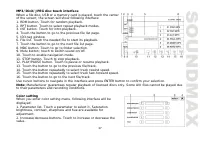
27 MP3/DivX/JPEG disc touch interface When a file disc, USB or a memory card is played, touch the center of the screen; the screen will show following interface: 1. RDM button. Touch for random playback. 2. RPT button. Touch to select repeat playback modes. 3. INT button. Touch for intro playback. 4...
Page 28 - DVD setup
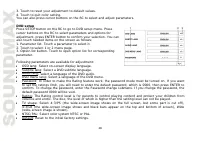
28 3. Touch to reset your adjustment to default values. 4. Touch to quit color setting. You can also press cursor buttons on the RC to select and adjust parameters. DVD setup Press SETUP button on the RC to go to DVD setup menu. Press cursor buttons on the RC to select parameters and options for adj...
Page 29 - Stop playback; the beginning of the disc.; Selecting tracks; button on the panel or on the screen to play; Repeat playback
29 Play/pause The unit will automatically play from the first sound track recorded on a disc/SD/MMC/USB device. To ensure good system performance, wait until the unit finishes reading the disc/device information before proceeding. Press PLAY/PAUSE button on the RC to pause playback, press it again t...
Page 30 - Intro playback; played. Press the button again to cancel intro playback.; GOTO; Press OSD button to display the current playback information.
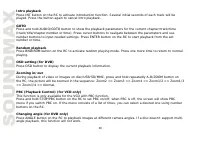
30 Intro playback Press INT button on the RC to activate introduction function. Several initial seconds of each track will be played. Press the button again to cancel intro playback. GOTO Press and hold AUDIO/GOTO button to show the playback parameters for the current chapter/track/time (track/title...
Page 31 - the selected item and start playing.; ID3 Tag function
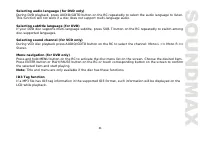
31 Selecting audio language (for DVD only) During DVD playback, press AUDIO/GOTO button on the RC repeatedly to select the audio language to listen. This function will not work if a disc does not support multi-language audio. Selecting subtitle language (for DVD) If your DVD disc supports multi-lang...
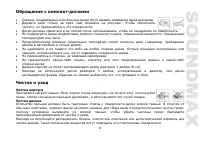
Page 32 - Handling compact discs; Do not insert anything other than a CD into the CD loading slot.; Cleaning; Cleaning the cabinet; weak solution of soapy water, and then wipe clean.; Cleaning discs
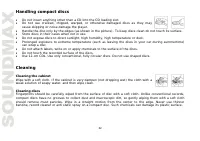
32 Handling compact discs Do not insert anything other than a CD into the CD loading slot. Do not use cracked, chipped, warped, or otherwise damaged discs as they may cause skipping or noise damage the player. Handle the disc only by the edges (as shown in the picture). To keep discs clean do not to...
Page 33 - Troubleshooting guide; Symptom
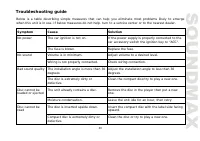
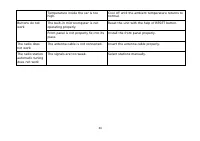
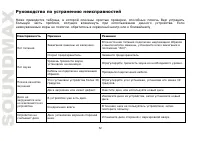
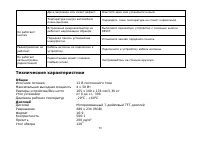
33 Troubleshooting guide Below is a table describing simple measures that can help you eliminate most problems likely to emerge when this unit is in use. If below measures do not help, turn to a service center or to the nearest dealer. Symptom Cause Solution The car ignition is not on. If the power ...
Page 35 - Specification
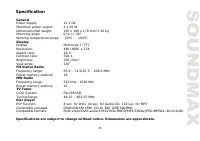
35 Specification General Power supply: 12 V DC Maximum power output: 4 x 50 W Dimensions/Net weight 165 x 100 x 178 mm/3.30 kg Mounting angle 0 to +/-30 0 Working temperature range -20 0 - +60 0 Display Display Motorized 7” TFT Resolution: 480 (RGB) x 234 Aspect ratio: 16:9 Contrast ratio: 500:1 Bri...
Page 44 - ISO
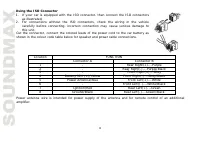
44 ISO 1. ISO, , . 2. ISO , . , . A B 1 - (+)--- 2 - (-)--- 3 - (+)--- 4 12 (+)/ (-)--- 5 (+)--- 6 ((-)--- 7 (+)--- 8 (-)--- .
Page 53 - DUAL
Page 55 - RDS; AF TA
55 RDS (RDS and Radio) 1 Stereo: STEREO ( ) MONO ( ). , . FM- . DX: LOCAL ( ) DX ( , ). FM- . TA: Seek/Alarm. TA SEEK, ; TA ALARM, , , . 2 EON TA: DX/Local. EON TA LOCAL ( ): , . EON TA DX ( ): , (EON TA), . REG: REG ON ( ): AF TA , PI- . REG OFF ( ): PI- . PI: PI sound: , , PI . PI, . PI mute: . Re...
Page 56 - : “Carefully press and hold
56 , , , , MASK ALL. 3 Radio Area ( ): (Europe/USA/ASIA/SOUTH AMERICA). (System info) , . (calibration) : “Carefully press and hold stylus on the center of the target. Repeat as the rarget moves around the screen” (« »). , 1 , . ; . .
Page 63 - USB; DVD
63 /USB/ SD/MMC USB/SD/MMC USB: USB 1.1. : 8 . SD/MMC: . . : 8 . . . . , EJECT. , . . SD/MMC/USB- SD/MMC . USB- USB- . USB. . : USB , . DVD DVD- : 1. , . 2. . 3. . 4. 5. 6.
Page 64 - VCD
64 7. . 8. . 9. PLAY/PAUSE. . 10. STOP. , 11. . 12. . 13. REPEAT. . 14. SUBT. . 15. AUD. . 16. MENU. . VCD VCD- : 1. , . 2. . 3. . 4. 5. 6. 7. . 8. . 9. PLAY/PAUSE. . 10. STOP. , 11. . 12. . 13. REPEAT. . 14. AUD. . 15. PBC. BPC.
Page 65 - ENTER
65 MP3/DivX/JPEG , MP3/DivX/JPEG, : 1. RDM. . 2. RPT. . 3. INT. . 4. . 5. ID3- . 6. . . 7. . 8. MDC. . 9. Mute; . 10. . 11. STOP. . 12. PLAY/PAUSE. ( ) . 13. . 14. . 15. . 16. . ENTER . : . AVI- , .
Page 66 - SETUP
66 : 1. . , . : (saturation), (brightness), (contrast), (sharpness) (hue). 2. . , . 3. . 4. . . DVD SETUP DVD. ; ENTER . : 1. . , . 2. . 3. . , . : : . : DVD. : DVD. : DVD.
Page 67 - NTSC
67 : , « », ( 0000), ENTER. , , . 0000, (4 ). (0000) . : . , , , . : 4:3PS ( , ); 4:3LB ( , ); 16:9 ( ). NTSC/PAL: NTSC PAL. : . , /USB). , . PLAY/PAUSE ; . /USB/ STOP/PBC . PLAY/PAUSE . , . STOP/PBC . SEEK-/ TUN/TRK . SEEK+/ TUN/TRK . (0-9) 0001.
Page 74 - FM
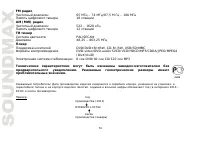
74 FM 65 – 74 /87,5 – 108 18 AM (MW) 522 – 1620 12 PAL/SECAM 48,25 – 863,25 DVD/DVD±R/±RW, CD-R/-RW, USB/SD/MMC DVD-video/DVD-audio/SVCD/VCD/HDCD/MP3/CDDA/JPEG/MPEG4 (DivX/XviD) 8 c DVD/40 CD/120 c MP3 . . ! , , . , ( 2010 – 2019) . : (2011) R31982101-01792 ( )