Page 2 - WARNING
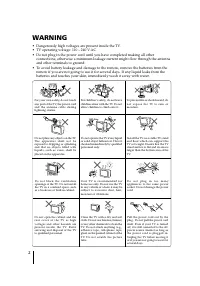
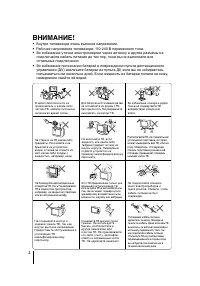
2 Clean the TV with a dry and softcloth. Do not use benzine, thinner,or any other chemicals to clean theTV. Do not attach anything (e.g.,adhesive tape, cellophane tape,glue) on the painted cabinet of theTV. Do not scratch the picturetube. WARNING • Dangerously high voltages are present inside the TV...
Page 3 - Table of Contents
3 GB Securing the TV ............................................................................................................... 4 Getting Started ................................................................................................................ 4 Setting up your TV (“Initial Setup...
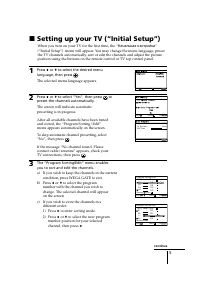
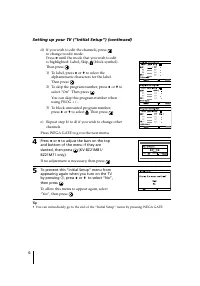
Page 4 - Securing the TV; or; screws; Connect the antenna cable (not supplied) to; Plug in the power cord, then press; Начальная настройкa; Getting Started
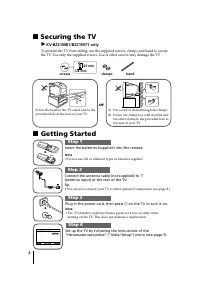
4 x Securing the TV B KV-BZ21M81/BZ21M71 only To prevent the TV from falling, use the supplied screws, clamps and band to securethe TV. Use only the supplied screws. Use of other screws may damage the TV. or Screw the band to the TV stand and to theprovided hole at the rear of your TV. (1) Put a cor...
Page 7 - TV rear panel; TV top control, front and rear panels; TV top control panel; qa
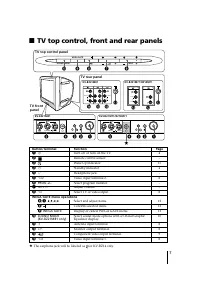
7 2 5 (MONO) (MONO) 1 2 3 L R 2 4 5 (MONO) 1 2 3 L R R 1 L Y C B C R (MONO) (MONO) qs qd qf qa 1 (MONO) (MONO) qs qa qf 4 WEGA GATE PROG SOUND MODE 0 9 8 7 6 KV-BZ21M81 TV rear panel x TV top control, front and rear panels TV top control panel Button/Terminal Function Page 1 ! Turn off or turn on th...
Page 8 - Connecting optional components; Connecting to the video input terminal (; Connecting to the monitor output terminal (
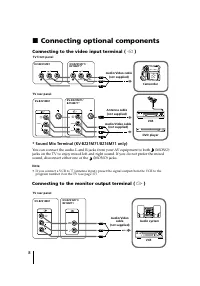
8 x Connecting optional components Connecting to the video input terminal ( t ) * Sound Mix Terminal (KV-BZ21M71/BZ14M71 only) You can connect the audio L and R jacks from your AV equipment to both (MONO)jacks on the TV to enjoy mixed left and right sound. If you do not prefer the mixedsound, discon...
Page 9 - Connecting to the component video input terminal (
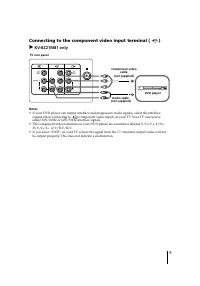
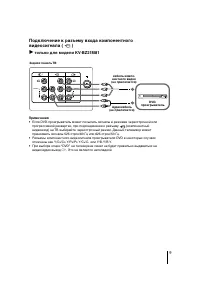
9 DVD player TV rear panel Component video cable (not supplied) Audio cable (not supplied) Connecting to the component video input terminal ( ) B KV-BZ21M81 only Notes • If your DVD player can output interlace and progressive mode signals, select the interlace output when connecting to (component vi...
Page 11 - qj; qg
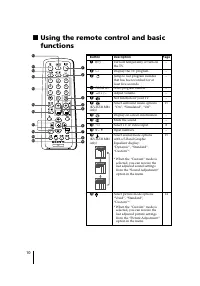
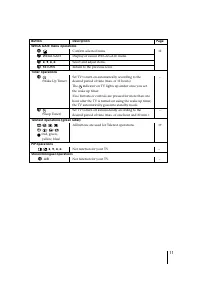
11 Button Description Page WEGA GATE menu operations 6 Confirm selected items. 12 7 WEGA GATE Display or cancel WEGA GATE menu. qj V , v , B , b Select and adjust items. qk RETURN Return to the previous level. Timer operations qg Set TV to turn on automatically according to the – desired period of t...
Page 12 - Introducing the WEGA GATE; external inputs and “Settings” menu.; How to use WEGA GATE
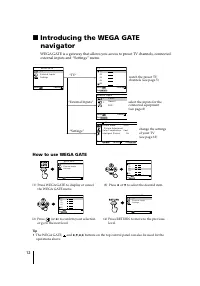
12 0 10 20 30 40 5 T V Confirm Select End x Introducing the WEGA GATE navigator WEGA GATE is a gateway that allows you access to preset TV channels, connected external inputs and “Settings” menu. How to use WEGA GATE (1) Press WEGA GATE to display or cancel the WEGA GATE menu. Confirm Select WEGA GA...
Page 13 - “Settings” Adjustment; “Picture”
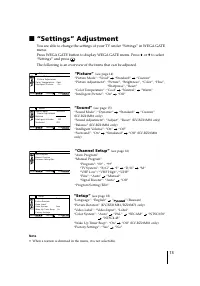
13 x “Settings” Adjustment You are able to change the settings of your TV under “Settings” in WEGA GATEmenu.Press WEGA GATE button to display WEGA GATE menu. Press V or v to select “Settings” and press . The following is an overview of the items that can be adjusted. Confirm End Picture C o l o r T ...
Page 14 - Changing the “Picture” setting; The “Picture” menu allows you to adjust the picture settings.; Selecting “Reset” will set your TV to the factory setting.
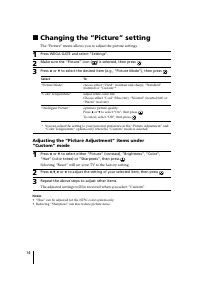
14 x Changing the “Picture” setting The “Picture” menu allows you to adjust the picture settings. 1 Press WEGA GATE and select “Settings”. 2 Make sure the “Picture” icon ( ) is selected, then press . 3 Press V or v to select the desired item (e.g., “Picture Mode”), then press . Select To “Picture Mo...
Page 15 - Changing the “Sound” setting; The “Sound” menu allows you to adjust the sound settings.
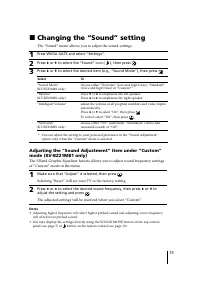
15 x Changing the “Sound” setting The “Sound” menu allows you to adjust the sound settings. 1 Press WEGA GATE and select “Settings”. 2 Press V or v to select the “Sound” icon ( ), then press . 3 Press V or v to select the desired item (e.g., “Sound Mode”), then press . Select To “Sound Mode” choose ...
Page 16 - manually preset channels and sort or edit the channels.
16 x Changing the “Channel Setup” setting The “Channel Setup” menu allows you to preset channels automatically, manually preset channels and sort or edit the channels. 1 Press WEGA GATE and select “Settings”. 2 Press V or v to select the “Channel Setup” icon ( ), then press . 3 Press V or v to selec...
Page 17 - Presetting channels manually; Select the desired channel.
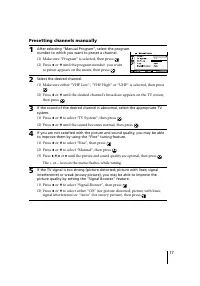
17 0 1 D / K Presetting channels manually 1 After selecting “Manual Program”, select the programnumber to which you want to preset a channel. (1) Make sure “Program” is selected, then press . (2) Press V or v until the program number you want to preset appears on the menu, then press . 2 Select the ...
Page 18 - Changing the “Setup” setting
18 x Changing the “Setup” setting The “Setup” menu allows you to change the menu language, adjust the picture position, label the connected equipment, select the color system, set the wake uptimer beep and reset your TV to factory settings. 1 Press WEGA GATE and select “Settings”. 2 Press V or v to ...
Page 19 - Viewing Teletext; You can use the buttons on the remote to view Teletext.
19 x Viewing Teletext Some TV stations broadcast an information service called Teletext which allowsyou to receive various information, such as stock market reports and news. You can use the buttons on the remote to view Teletext. To Do this display a Teletext Press . Each time you press , the page ...
Page 20 - Troubleshooting; “Factory Settings” function; Press the WEGA GATE button. Choose “Settings” and go to “Setup” (
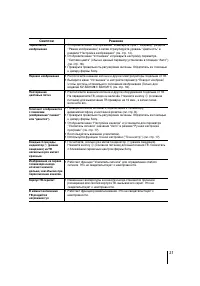
20 x Troubleshooting If you find any problem while viewing your TV, you can either use the “FactorySettings” function or check the Troubleshooting guide below. If the problempersists, contact your Sony dealer. “Factory Settings” function Press the WEGA GATE button. Choose “Settings” and go to “Setup...
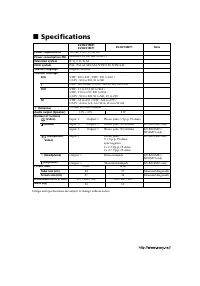
Page 22 - Specifications
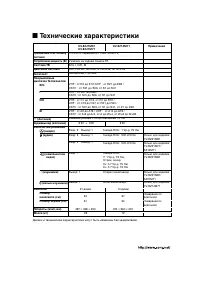
22 110-240 V AC, 50/60 HzIndicated on the rear of the TVB/G, I, D/K, MPAL, PAL 60, SECAM, NTSC3.58, NTSC4.43English, Russian VHF : E2 to E12 /UHF : E21 to E69 /CATV : S01 to S03, S1 to S41UHF : B21 to B68 /CATV : S01 to S03, S1 to S41VHF : C1 to C12, R1 to R12 /UHF : C13 to C57, R21 to R60 /CATV : S...
Page 24 - Содержание
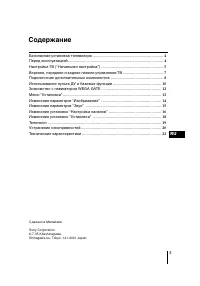
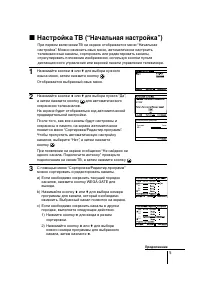
3 RU Содержание Безопасная установка телевизора .................................................................. 4 Перед эксплуатацией ......................................................................................... 4 Настройка ТВ (“Начальная настройкa”) .....................................
Page 25 - Безопасная установка телевизора; Винты; Перед эксплуатацией; Подключите антенный кабель (не прилагается) к; на ТВ для включения телевизора.; или
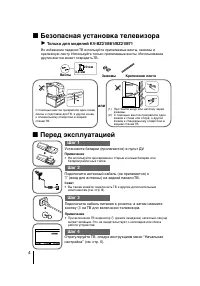
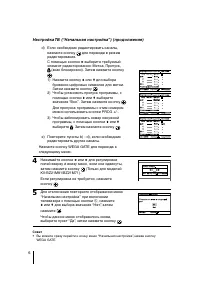
4 x Безопасная установка телевизора B Только для моделей KV-BZ21M81/BZ21M71 Во избежание падения ТВ используйте прилагаемые винты, зажимы икрепежную ленту. Используйте только прилагаемые винты. Использованиедругих винтов может повредить ТВ. 20 мм 3,8 мм Винты Зажимы Крепежная лента b b x Перед экспл...
Page 28 - Главная панель управления ТВ
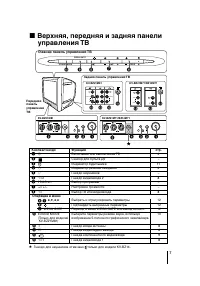
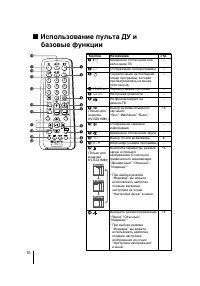
7 x Верхняя, передняя и задняя панели управления ТВ Кнопка/Гнездо Функция 1 ! Включение или выключение ТВ 4 2 Сенсор для пульта ДУ – 3 Индикатор будильника 11 3 1 Индикатор режима ожидания 4 4 i Гнездо наушников – 5 t 2 Гнездо видеовхода 2 8 6 PROG +/– Выбор программы – 7 2 +/– Настройка громкости –...
Page 30 - только для модели KV-BZ21M81
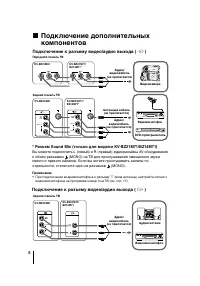
9 DVD- проигрыватель Задняя панель ТВ кабель компо- нентного видео (не прилагается) Аудиокабель (не прилагается) Подключение к разъему входа компонентноговидеосигнала ( ) B только для модели KV-BZ21M81 Примечания • Если DVD-проигрыватель может посылать сигналы в режимах чересстрочной илипрогрессивно...
Page 32 - qs
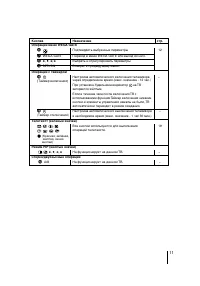
11 Кнопка Назначение стр. Операции меню WEGA GATE 6 Подтвердить выбранные параметры 12 7 WEGA GATE Переход в меню WEGA GATE или выход из него. qj V , v , B , b Выбрать и отрегулировать параметры qk RETURN Возврат к предыдущему меню. Операции с таймером qg Настройка автоматического включения телевизо...
Page 33 - Использование WEGA GATE
12 x Знакомство с навигаторомWEGA GATE С помощью WEGA GATE можно получить доступ к настройкетелевизионных каналов, подключенным внешним устройствам и меню“Установки”. просмотр предварительнонастроенныхтелевизионных каналов(см. стр. 5) выбор входов дляподключенногооборудования(см. стр. 8) “TВ” “Внешн...
Page 34 - Меню “Установки”; “Изображение”
13 x Меню “Установки” В группе “Установки” меню WEGA GATE можно изменить настройкителевизора.Нажмите кнопку WEGA GATE для перехода в меню WEGA GATE. Нажмитекнопку V или v для выбора раздела “Установки”, затем нажмите . Ниже приводятся параметры, которые можно настроить. “Изображение” (см. стр. 14) “...
Page 35 - Изменение параметров “Изображение”; Выбор “Сброс” вернёт ТВ к заводским настройкам.
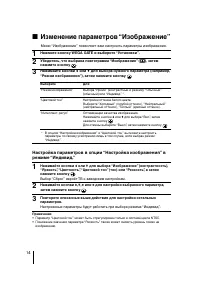
14 x Изменение параметров “Изображение” Меню “Изображение” позволяет вам настроить параметры изображения. 1 Нажмите кнопку WEGA GATE и выберите “Установки” . . 2 Убедитесь, что выбрана пиктограмма “Изображение” ( ), затем нажмите кнопку . 3 Нажимайте кнопки V или v для выбора нужного параметра (напр...
Page 36 - Изменение параметров “Звук”
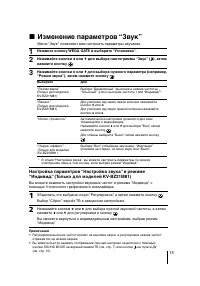
15 Меню “Звук” позволяет вам настроить параметры звучания. 1 Нажмите кнопку WEGA GATE и выберите “Установки” . . 2 Нажимайте кнопки V или v для выбора пиктограммы “Звук” ( ), затем нажмите кнопку . 3 Нажимайте кнопки V или v для выбора нужного параметра (например, “Режим звука”), затем нажмите кнопк...
Page 37 - Изменение установок “Настройка каналов”
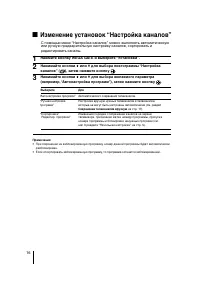
16 С помощью меню “Настройка каналов” можно выполнять автоматическуюили ручную предварительную настройку каналов, сортировать иредактировать каналы. 1 Нажмите кнопку WEGA GATE и выберите “Установки” . . 2 Нажимайте кнопки V или v для выбора пиктограммы “Настройка каналов” ( ), затем нажмите кнопку ....
Page 38 - Выберите нужный канал.
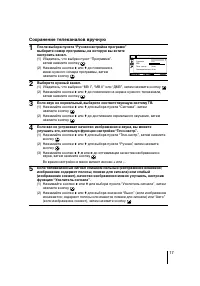
17 Со хранение телеканалов вручную 1 После выбора пункта “Ручная настройка программ”выберите номер программы, на которую вы хотитенастроить канал. (1) Убедитесь, что выбран пункт “Программa” , , затем нажмите кнопку . (2) Нажимайте кнопки V или v до появления в меню нужного номера программы, затемна...
Page 39 - Изменение установок “Установка”
18 x Изменение установок “Установка” Меню “Установка” позволяет изменять язык меню, корректировать положениеизображения на экране, создавать метки для подключенного оборудования, выбиратьсистему цвета, устанавливать сигнал будильника и восстанавливать заводскиенастройки телевизора. 1 Нажмите кнопку ...
Page 40 - eлeтeкст
19 x T eлeтeкст Некоторые телевизионные каналы предоставляют информационную услугу“телетекст”. Teлeтeкст дает вам возможность получать различного родаинформацию, такую, как сводки фондовой биржи и последние известия.Для вывода на экран страниц телетекста вы можете пользоваться пультом ДУ. Чтобы Bыве...
Page 41 - Устранение неисправностей; Функция “Заводские настр.”
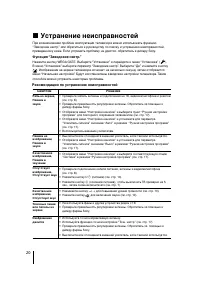
20 Рек омендации по устранению неисправностей x Устранение неисправностей При возникновении проблем эксплуатации телевизора можно использовать функцию“Заводские настр.” или обратиться к руководству по поиску и устранению неисправностей,приведенному ниже. Если устранить проблему не удастся, обратитес...