Page 2 - Contents
Contents 1 Contents ...................................... 1Overview ..................................... 2Getting Started ........................... 3 Fitting SIM card ............................ 3Charging ...................................... 3Switching on ................................ 4Ent...
Page 3 - Overview; Voice Dialling
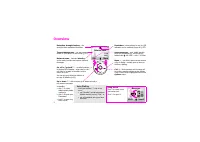
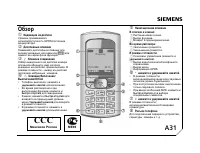
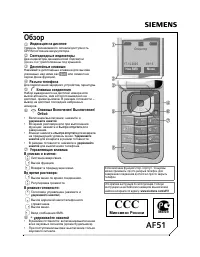
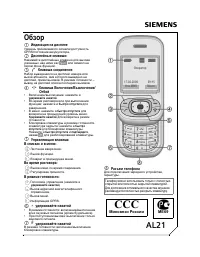
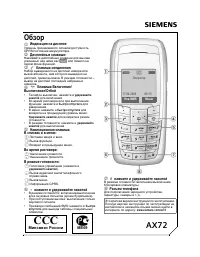
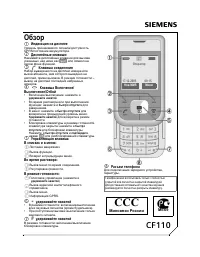
Overview 2 Reception strength/battery – the stronger these indicators the better. Themed background – suit the look and sound of your Xelibri to your mood (p 22). Network name – indicates standby – you’re ready to make and receive calls and messages. On, off or “go back” – do what’s shown at bottom ...
Page 4 - Getting Started; Fitting SIM card
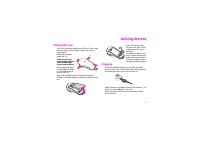
Getting Started 3 Fitting SIM card Your service provider supplies your SIM card. If it’s credit card size, snap out the smaller portion and tidy any rough edges.Remove the charger socket cap (1). Take care to keep small objects like the cap and SIM away from young children. Firmly press both sides o...
Page 5 - Switching on; To switch on your Xelibri; Entering a PIN; To enter a number; Setting the time and date; Options
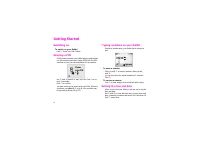
Getting Started 4 Switching on To switch on your Xelibri Hold . Enter your PIN if asked. Entering a PIN A PIN number protects your Xelibri against unauthorised use. Service providers often supply a SIM with the PIN switched on; see your documentation for the number. Use and (below) to ‘type’ the PIN...
Page 6 - Standby; Language; Switching off
Getting Started 5 Standby When a network has been found and its name displayed, your Xelibri is in standby . If you can’t see a network name, please see What if...? on p 28. Language To choose English, dial *#0044# and click . See also p 26. Switching off From standby, hold . Precautions If you use ...
Page 7 - Using your Xelibri; Using your; Three ways to use your Xelibri; Headset use
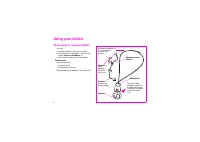
Using your Xelibri 6 Using your Three ways to use your Xelibri You can:• hold your Xelibri to your ear as normal, • use the built-in loudspeaker – during a call, choose Options , Handsfree , or • (for total convenience) use the headset. Headset use Press the talk key:• to answer a call• hold down to...
Page 8 - Making and Taking Calls; Making a call; To make a call using the key; Adjusting call volume; Taking a call; To answer a call
Making and Taking Calls 7 Making and Taking Calls Making a call To make a call using the key Tip: voice dialling (p 8) is often easier! Starting from standby (network name showing), • click or • click to choose Dial , if shown. Use and to enter the phone number (p 4), always including area code. Cli...
Page 9 - Voice dialling; About voice dialling; To dial a number; Voice dialling from the Phonebook; To make a new entry; To call someone
Voice dialling 8 Voice dialling About voice dialling Your Xelibri uses state of the art voice recognition, ena-bling you to • dictate a phone number (your Xelibri recognises most accents) • speak the name of a Phonebook entry you have previ- ously recorded. Choose a quiet environment for voice diall...
Page 10 - Voice dialling tips; Voice commands
Voice dialling 9 Voice dialling tips If you get unexpected results from voice dialling, you can• try alternative commands from the list (below), or• personalise your Xelibri to improve recognition. See Personalising voice dialling on p 24. Voice commands The full list of voice commands is as follows...
Page 11 - More ways to call; More ways to; Dialling internationally and in China; To call someone in your Phonebook; Redialling numbers; To redial a number you called earlier; Retrying a busy number
More ways to call 10 More ways to Dialling internationally and in China From standby, click to dial, and to enter “+” and type the country code or click ( +List ) and select the country or Chinese city from the list.Enter the area code (in many countries omitting the first digit – e.g. “0”) and phon...
Page 12 - Call features; Voice mail; To listen to voice mails; Sending key tones; Receiving a second call
Call features 11 Call features Voice mail If you need to set up your answering service, see p 24. To listen to voice mails Service providers may alert you to a new voice mail by text message ( ] ), the \ symbol or a phone call. To dial your voice mailbox, click to choose \ , if shown. Otherwise, • c...
Page 13 - ‘Party’ calls
Call features 12 ‘Party’ calls When you have two calls on the go, choose Options , Join to connect them together. Then, if you want, choose Options , Add call to add somebody else to the party. You can join up to five calls together.Click to end the call for everybody or (where availa- ble) choose O...
Page 14 - Phonebook; Making a Phonebook entry; To ‘type’ a new entry in your Phonebook; Typing in the Phonebook; To type a name; Updating an entry; Mar; Back
Phonebook 13 Phonebook Making a Phonebook entry The Phonebook makes it simple to call your favourite numbers and to recognise incoming calls.You can save Phonebook entries by ‘typing’ or voice dial-ling them (p 8). To ‘type’ a new entry in your Phonebook From standby, click and enter a number as usu...
Page 15 - Identifying callers; To add/update a voice sample; Further Phonebook features
Phonebook 14 Save more than one number for a person by adding a letter at the end of their name: “H” for a home number, “M” for a mobile number, etc.To use your Phonebook abroad, use the “+” country code even for saving local numbers. See Dialling inter- nationally and in China on p 10. Identifying ...
Page 16 - Text messages; messages; Receiving a text message; To view a message; Writing a text message; To start a new message
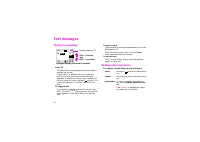
Text messages 15 messages Receiving a text message Your Xelibri can send and receive standard (SMS) and multimedia (EMS) messages including text, pictures, ani-mations and sound. To view a message When you receive a message, you’ll see the ] symbol. Click to view the message and to go back and for- ...
Page 17 - Typing in a message; Using T9; Writing other characters; For spaces, capital letters and punctuation; Maria
Text messages 16 Typing in a message Using T9 T9 enables you to write messages with fewer clicks by selecting just the ‘key’.To type, click to highlight the key you want and click to confirm, then repeat for the next letter, regardless of whether the word’s correct. At the end of the word, check it ...
Page 18 - To switch T9 on/off, type numbers or Chinese; Sending a message; To send; Managing messages; Service centre
Text messages 17 To switch T9 on/off, type numbers or Chinese For an unfamiliar word or a name, you may want to switch T9 off. You may also want to type a long number, or use Chinese.Choose Options , Input Mode and select the option you want.Without T9, ‘typing’ is as in the Phonebook (p 13). To rev...
Page 20 - Cards; Happy Birthday
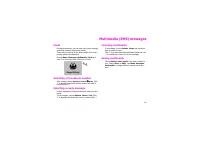
Multimedia (EMS) messages 19 Multimedia messages Cards On special occasions, you can send your friends greeting cards that include a picture and melody.These can be received on the latest models from most prestige phone manufacturers.Choose Menu , Messages , Multimedia , Cards and click to choose th...
Page 21 - Activities; Using the radio; To switch radio on and off; Using the alarm clock; To set the alarm; Using the calendar
Activities 20 Activities Using the radio Your Xelibri incorporates an FM radio with the ability to program your favourite stations. You must use the headset (p 6) to use the radio. To switch radio on and off Choose Menu , Activities , Radio . To switch off, click for Off or (in standby) Radio and Of...
Page 22 - Recording a voice memo
Activities 21 Recording a voice memo You can record a message to yourself of up to 30 sec-onds in length.Choose Menu , Activities, Voicememo . If there is a recording, click to play it, otherwise choose Record . Choose Options to re-play, delete or re-record a voice memo.
Page 23 - Features; Themes; To switch off ring tones
Features 22 Themes Suit your Xelibri to your mood with different themes, that include display background, symbols, ringer melo-dies and screensaver. Choose Menu , Themes and click to preview. Click to use the highlighted theme. Note that a theme may replace custom settings you have made. Ring tones ...
Page 24 - Record your own ring tone!; Network name
Features 23 Record your own ring tone! Choose Menu , My Xelibri , Audio , My Sounds . Choose <New Sound> and when you’re ready click to start recording. Click to stop when done. Choose Save (or click to cancel). Choose Options , Ringer For to use a recorded ring tone (as above).You can record ...
Page 25 - Settings; Setting up voice mail; To personalise voice dial
Settings 24 Setting up voice mail If you subscribe to your service provider’s answering service (voice mail), they will usually have included it on your SIM.If not, they will provide:• a phone number you can redirect calls to (the divert number). Choose Menu , Stay in Touch , Voice mailbox to enter ...
Page 26 - Symbols; Display symbols; Reminders
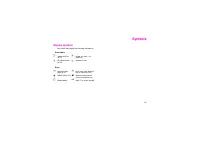
Symbols 25 Display symbols Your Xelibri may display the following information: Reminders Keys y Alarm clock on (p 20) j Ringer off: hold to switch on n All calls diverted (p 24) Headset in use ] New text mes-sage (p 15) \ New voice mail (depend-ing on network, p 11) Missed call (p 10) Missed announc...
Page 27 - Menu Summary; Summary; Messages; Display
Menu Summary 26 Summary This section summarises the menu options on your Xelibri. Messages See p 15. Stay in Touch Phonebook See p 13. Calls missed/received/dialled See p 10. Voice mailbox See p 24. Activities See p 20. My Xelibri Display Audio Language Choose the language in which to display your X...
Page 28 - My voice
Menu Summary 27 My voice See p 24. Time & date Setup Themes See p 22. Set time & date Set the time and date and the date dis-play format. Alarm clock See p 20. Calendar See p 20. Divert See p 24. Call waiting Switch call waiting on or off. Auto key lock Automatically disable the key to preve...
Page 30 - Damage
What if...? 29 Damage No entries possi-ble in Phonebook. Phonebook is full. Delete entries in Phonebook (p 13). Phonebook en-tries missing Changing SIM from an-other phone. Entries may be in other phone memory. Voice mail does not work Call divert to the mail-box not set. Set call divert to the mail...
Page 31 - Precautions
Precautions/Maintenance 30 Precautions/Maintenance Precautions Interference Like any radio transmitter, a mobile phone can interfere with electrical equipment. You must always switch off your Xelibri: • in hospitals and near medical equipment. If you have a heart pacemaker, keep your Xelibri a minim...
Page 32 - Xelibri Service/Accessories; Accessories; Service; Travel Charger; Car Charger
Xelibri Service/Accessories 31 Accessories Service Please refer to our troubleshooting guide on p 28, or our web site at www.xelibri.com . If repair work is necessary please contact one of our service centres: We are adding new numbers all the time. Please see our web site or (in Europe) call +800-4...
Page 33 - Specifications; Technical data; SAR
Specifications 32 ca- Declaration of conformity Xelibri is brand of Siemens Infor-mation and Communication Mobile which hereby declares that the phone described in this user guide is in compliance with the essential requirements and other relevant provisions of European Directive 1999/5/EC (R&TT...
Page 34 - Index
Index 33 A Activities menu ............................. 26alarm clock ................................... 20 B battery ........................................... 3 C calendar ....................................... 20call waiting ............................. 27, 29calls dialled, received or misse...
Page 36 - Box contents
THAT’S SO TOMORROW! © Siemens AG 2003All rights reserved. Subject to availability.Rights of modification reservedWWW.XELIBRI.COM Issued byInformation and Communication mobileHaidenauplatz, D-81667 Munich, GermanyRef. No: A31008-H9270-A45-2-7619 U A A SOMEONE IS WAITING FOR YOUR CALL! 1 Box contents ...