Page 2 - Contents
Contents 1 Contents of box ............. rear coverOverview ..................................... 2Getting Started ........................... 3 Fitting battery.............................. 3Fitting SIM card ............................ 3Charging ...................................... 3Switching on...
Page 3 - Overview
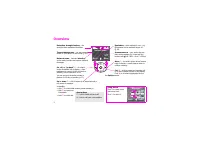
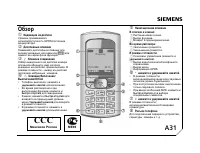
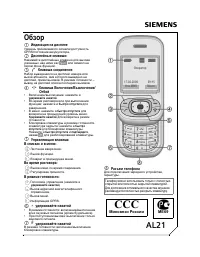
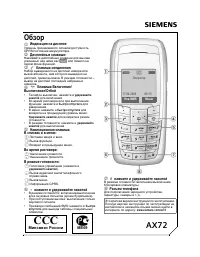
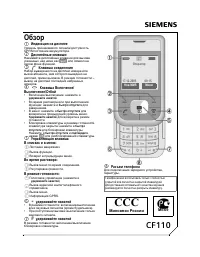
Overview 2 Reception strength/battery – the stronger these indicators the better. Themed background – suit the look and sound of your Xelibri to your mood (p 16). Network name – indicates standby – you’re ready to make and receive calls and messages. On, off, or “go back” – do what’s shown at bottom...
Page 4 - Getting Started; Charging
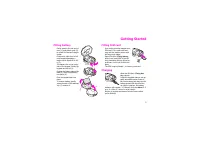
Getting Started 3 Fitting battery Gently press in the left end of door (1) and slide it open (2) to reveal SIM slot and charger socket.Continue to slide door to left until keypad disengages – maybe use a fingernail to lift it (3).The battery fits on the under-side of the keypad. Gently flip keypad i...
Page 5 - OK
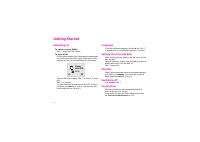
Getting Started 4 Switching on To switch on your Xelibri Hold . Enter your PIN if asked. To enter a PIN A PIN number protects your Xelibri against unauthorised use. Service providers often supply a SIM with the PIN switched on; see your documentation for the number. Type the PIN on the keypad. Click...
Page 6 - Making and Taking Calls; Making a call; Adjusting call volume; Taking a call; Options
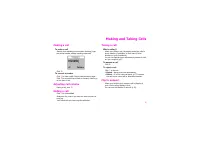
Making and Taking Calls 5 Making and Taking Calls Making a call To make a call Starting from standby (network name showing), type the phone number, always including area code. Click . To correct a number Click to clear a digit. Hold to clear all earlier digits. Click to move the cursor back or forwa...
Page 7 - More ways to call; Dialling internationally and in China; Voice dialling; Redialling numbers; Retrying a busy number
More ways to call 6 More ways to Dialling internationally and in China Hold 0 to enter “+” and type the country code or click and select the country or Chinese city from the list.Type the area code (in many countries omitting the first digit – e.g. “0”) and phone number and click . Phonebook To make...
Page 8 - Voice mail; Noting a phone number; ‘Party’ calls
Call features 7 Call features Voice mail If you need to set up your answering service, see p 17. To listen to voice mails Service providers may alert you to a new voice mail by text message ( ] ), the \ symbol or a phone call. To dial your voice mailbox, hold the 1 key or click to choose \ , if show...
Page 9 - Making a Phonebook entry; Typing in the Phonebook; Updating an entry
Phonebook 8 Phonebook Making a Phonebook entry The Phonebook makes it simple to call your favourite numbers and to recognise incoming calls. To make a new entry From standby, type the number on the keypad.Choose Options , Save . Type the name (see below) and click to choose OK . Typing in the Phoneb...
Page 10 - Identifying callers; Further Phonebook features
Phonebook 9 Identifying callers So you can tell when your friends are calling, assign a special ring tone and picture to people in your Phone-book.Edit the Phonebook entry and choose Options , Associ- ate Ringer or Assoc. Graphics . Click to preview the item you want to use and click to select. You ...
Page 11 - Text messages; Receiving a text message
Text messages 10 messages Receiving a text message Your Xelibri can send and receive standard (SMS) and multimedia (EMS) messages including text, pictures, ani-mations and sound. To view a message When you receive a message, you’ll see the ] symbol. Click to view the message and to go back and for- ...
Page 12 - Writing a text message; Maria
Text messages 11 Writing a text message To start a new message Choose Menu , Messages , Write message . You can also choose Options , Send whenever you have a phone number or Phonebook entry on your display. Using T9 to type T9 enables you to write text messages by pressing each number key just once...
Page 13 - Writing other characters; Sending a message; Managing messages
Text messages 12 Writing other characters Spaces, punctuation and numbers To switch T9 on or off, type in capitals or lower case letters For an unfamiliar word or a name, you may want to switch T9 off. You may also want to type capitals, lower case letters or a long number.Press the # key repeatedly...
Page 15 - Cards; Happy Birthday
Multimedia (EMS) messages 14 Multimedia messages Cards On special occasions, you can send your friends greeting cards that include a picture and melody and in which you can add a personal message.These can be received on the latest models from most prestige phone manufacturers.Choose Menu , Messages...
Page 16 - Using the alarm clock; Using the calendar
Activities 15 Activities Using the alarm clock Your Xelibri provides a daily alarm that works even with your Xelibri switched off. To set the alarm Choose Menu , Activities , Alarm clock . Click to choose On/Off . Click to confirm the time shown, or type a new time (24 hour clock) and choose Set . W...
Page 17 - Features; Themes; Tokyo
Features 16 Themes Suit your Xelibri to your mood with different themes, that include display background, symbols, ringer melo-dies and screensaver. Choose Menu , Themes and click to preview. Click to use the highlighted theme. Note that a theme may replace custom settings you have made. Ring tones ...
Page 18 - Settings; Setting up voice mail; Network name
Settings 17 Setting up voice mail If you subscribe to your service provider’s answering service (voice mail), they will usually have included it on your SIM.If not, you may need to enter your voice mailbox number. Your Xelibri prompts you for it the first time you hold 1 to retrieve your voice mail....
Page 19 - Symbols; Display symbols
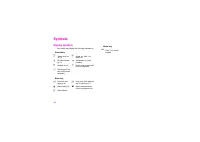
Symbols 18 Display symbols Your Xelibri may display the following information: Reminders Back key Menu key y Alarm clock on (p 15) j Ringer off: hold * to switch on n All calls diverted (p 17) ± Autoanswer on (with headset) Headset in use Home zone (special tariff in some networks) *!* Ciphering off...
Page 20 - Menu Summary; Messages
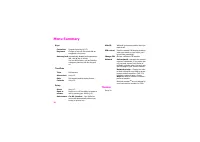
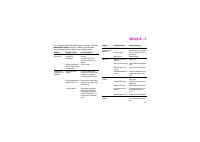
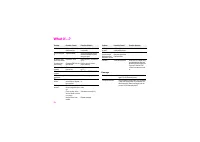
Menu Summary 19 Summary This section summarises the menu options on your Xelibri. Messages See p 10. Stay in Touch Phonebook See p 8. Calls missed/received/dialled See p 6. Voice mailbox See p 17. Activities See p 15. My Xelibri Display Audio Language Choose the language in which to display your Xel...
Page 24 - Precautions/Maintenance; Precautions
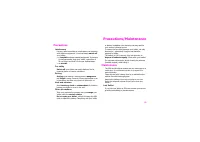
Precautions/Maintenance 23 Precautions/Maintenance Precautions Interference Like any radio transmitter, a mobile phone can interfere with electrical equipment. You must always switch off your Xelibri:• in hospitals and near medical equipment. If you have a heart pacemaker, keep your Xelibri a minimu...
Page 25 - Xelibri Service; Service
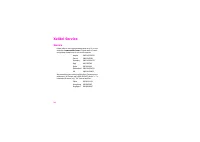
Xelibri Service 24 Service Please refer to our troubleshooting guide on p 21, or our web site at www.xelibri.com . If repair work is neces- sary please contact one of our service centres: We are adding new numbers all the time. Please see our web site or (in Europe) call +800-4935427, where “+” is i...
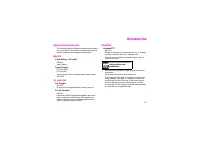
Page 26 - Approved accessories; In your car; Headset
Accessories 25 Accessories Approved accessories The following Xelibri and Siemens accessories will enhance use of your Xelibri. Use of other non-approved accessories, especially batteries and chargers, may damage it. Basics Li-Ion Battery (510 mAh) EBA-620Spare battery. Travel Charger ETC-500 (Euro)...
Page 27 - Specifications; Declaration of conformity; SAR
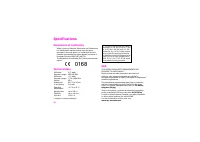
Specifications 26 ca- Declaration of conformity Xelibri is brand of Siemens Information and Communica-tion Mobile which hereby declares that the phone described in this user guide is in compliance with the essential requirements and other relevant provisions of European Directive 1999/5/EC (R&TT...
Page 28 - Index
Index 27 A Activities menu ............................. 19alarm clock ................................... 15Archive ......................................... 10audio profiles ................................ 16 B battery ........................................... 3box contents .......................
Page 30 - Box contents
THAT’S SO TOMORROW! © Siemens AG 2003All rights reserved. Subject to availability.Rights of modification reservedWWW.XELIBRI.COM Issued byInformation and Communication mobileHaidenauplatz, D-81667 Munich, GermanyRef. No: A31008-H9240-A45-2-7619 Box contents 7 Xelibri X6 7 510mAh Li-ion battery 7 sta...