Page 2 - See also Index at the end of this User Guide
© Contents 1 See also Index at the end of this User Guide Safety precautions ..................... 3Phone overview ......................... 5Display symbols ......................... 8Getting started ........................... 9 Insert SIM card/battery ............. 9Charge battery ..................
Page 4 - Safety precautions; Information for parents
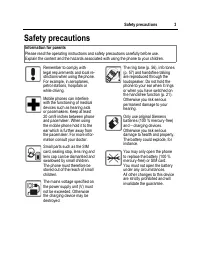
© 3 Safety precautions Safety precautions Information for parents Please read the operating instructions and safety precautions carefully before use. Explain the content and the hazards associated with using the phone to your children. Remember to comply with legal requirements and local re-strictio...
Page 6 - Phone overview
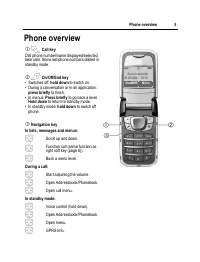
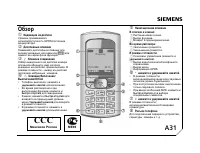
© 5 Phone overview Phone overview 1 A Call key Dial phone number/name displayed/selected, take calls. Show last phone numbers dialled in standby mode. 2 B On/Off/End key • Switched off: hold down to switch on. • During a conversation or in an application: press briefly to finish. • In menus: Press b...
Page 7 - §Text§
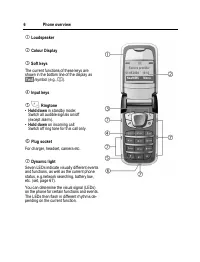
Phone overview 6 1 Loudspeaker 2 Colour Display 3 Soft keys The current functions of these keys are shown in the bottom line of the display as §Text§ /symbol (e.g., Q ). 4 Input keys 5 * Ringtone • Hold down in standby mode: Switch all audible signals on/off (except alarm). • Hold down on incoming c...
Page 8 - Auto answer
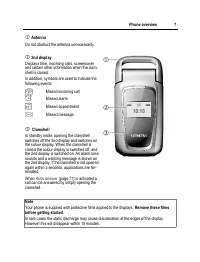
© 7 Phone overview 1 Antenna Do not obstruct the antenna unnecessarily. 2 2nd display Displays time, incoming calls, screensaver and certain other information when the clam-shell is closed.In addition, symbols are used to indicate the following events: ¿ Missed incoming call Ø Missed alarm Missed ap...
Page 9 - Display symbols; with
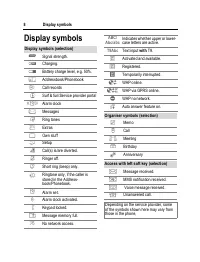
Display symbols 8 Display symbols Display symbols (selection) _ Signal strength. h Charging. d Battery charge level, e.g. 50%. è Addressbook/Phonebook Z Call records É Surf & fun/Service provider portal Alarm clock ] Messages Ring tones Extras Ñ Own stuff m Setup n Call(s) is/are diverted. j Rin...
Page 10 - Getting started; Insert SIM card/battery; downwards
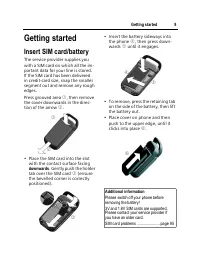
© 9 Getting started Getting started Insert SIM card/battery The service provider supplies you with a SIM card on which all the im-portant data for your line is stored. If the SIM card has been delivered in credit-card size, snap the smaller segment out and remove any rough edges.Press grooved area 1...
Page 11 - Charge battery; Dynamic light; ging; a d g
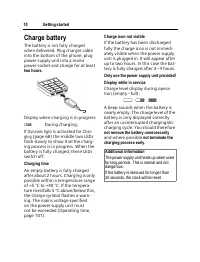
Getting started 10 Charge battery The battery is not fully charged when delivered. Plug charger cable into the bottom of the phone, plug power supply unit into a mains power socket and charge for at least two hours . Display when charging is in progress h During charging. If Dynamic light is activat...
Page 12 - down; Enter PIN; Only to be used in real emergencies!; without; Time zones; Additional information
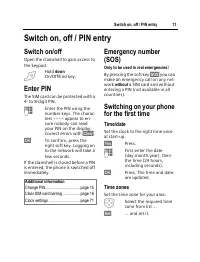
© 11 Switch on, off / PIN entry Switch on, off / PIN entry Switch on/off Open the clamshell to gain access to the keypad. B Hold down On/Off/End key. Enter PIN The SIM card can be protected with a 4- to 8-digit PIN. J Enter the PIN using the number keys. The charac-ters **** appear to en- sure nobod...
Page 13 - Phonebook or Addressbook; Copy into; Signal strength
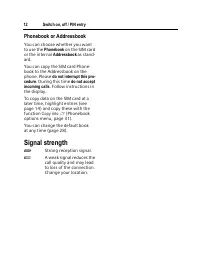
Switch on, off / PIN entry 12 Phonebook or Addressbook You can choose whether you want to use the Phonebook on the SIM card or the internal Addressbook as stand- ard. You can copy the SIM card Phone-book to the Addressbook on the phone. Please do not interrupt this pro- cedure . During this time do ...
Page 14 - General instructions; User guide; KZK; Calls missed; Standby mode
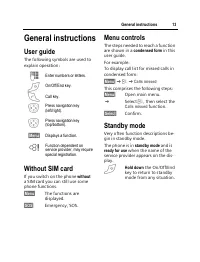
© 13 General instructions General instructions User guide The following symbols are used to explain operation: Without SIM card If you switch on the phone without a SIM card you can still use some phone functions. §Menu§ The functions are displayed. §SOS§ Emergency, SOS. Menu controls The steps need...
Page 15 - Standard functions; Option menus; §Options§; §Options§; Phonebook
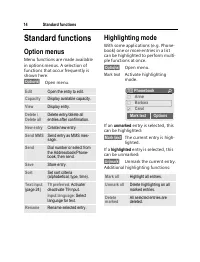
Standard functions 14 Standard functions Option menus Menu functions are made available in options menus. A selection of functions that occur frequently is shown here. §Options§ Open menu. Highlighting mode With some applications (e.g. Phone-book) one or more entries in a list can be highlighted to ...
Page 16 - Security; Codes; KmK; Security; PIN control; current; Change PIN2; Change PIN
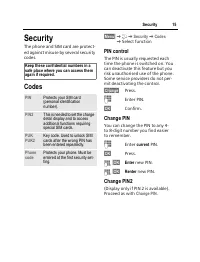
© 15 Security Security The phone and SIM card are protect-ed against misuse by several security codes. Codes §Menu§ KmK Security K Codes K Select function PIN control The PIN is usually requested each time the phone is switched on. You can deactivate this feature but you risk unauthorised use of the...
Page 17 - Change phonecode; Clear SIM card barring
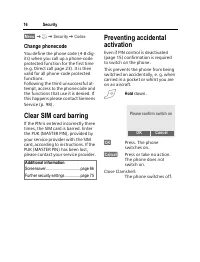
Security 16 §Menu§ KmK Security K Codes Change phonecode You define the phone code (4-8 dig-its) when you call up a phone-code protected function for the first time (e.g. Direct call page 23). It is then valid for all phone-code protected functions. Following the third unsuccessful at-tempt, access ...
Page 18 - My phone; Service provider portal
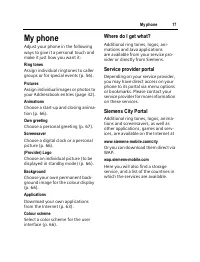
© 17 My phone My phone Adjust your phone in the following ways to give it a personal touch and make it just how you want it: Ring tones Assign individual ringtones to caller groups or for special events (p. 56). Pictures Assign individual images or photos to your Addressbook entries (page 32). Anima...
Page 19 - Calling; §Clear§; End call
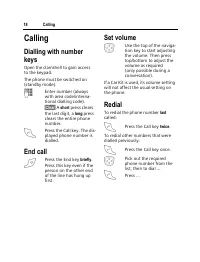
Calling 18 Calling Dialling with number keys Open the clamshell to gain access to the keypad.The phone must be switched on (standby mode). J Enter number (always with area code/interna-tional dialling code). §Clear§ A short press clears the last digit, a long press clears the entire phone number. A ...
Page 20 - If the number is busy; §Auto dial§; Call back; §Call back§; Reminder; §Prompt§; §Country§
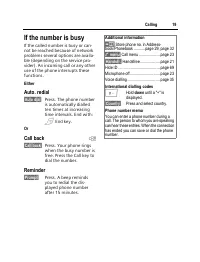
© 19 Calling If the number is busy If the called number is busy or can-not be reached because of network problems several options are availa-ble (depending on the service pro-vider). An incoming call or any other use of the phone interrupts these functions. Either Auto. redial §Auto dial§ Press. The...
Page 21 - Accept call; §Answer§; Reject call; §Reject§
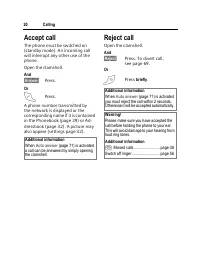
Calling 20 Accept call The phone must be switched on (standby mode). An incoming call will interrupt any other use of the phone.Open the clamshell. And §Answer§ Press. Or A Press. A phone number transmitted by the network is displayed or the corresponding name if it is contained in the Phonebook (pa...
Page 22 - Handsfree; §Yes§; Swap between 2 calls; Establish a second connection; menu§; Swap
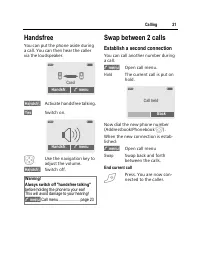
© 21 Calling Handsfree You can put the phone aside during a call. You can then hear the caller via the loudspeaker. §Handsfr.§ Activate handsfree talking. §Yes§ Switch on. I Use the navigation key to adjust the volume. §Handsfr.§ Switch off. Swap between 2 calls Establish a second connection You can...
Page 23 - Incoming calls during a call; Accept the waiting call; Conference; End; All
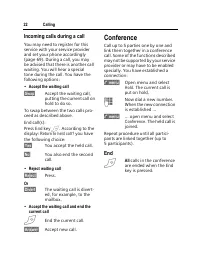
Calling 22 Incoming calls during a call You may need to register for this service with your service provider and set your phone accordingly (page 69). During a call, you may be advised that there is another call waiting. You will hear a special tone during the call. You have the following options:• ...
Page 24 - Call menu; one; Switch on; Please note this code down; Apply; hold; Switch off
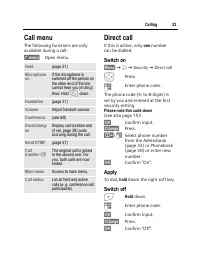
© 23 Calling Call menu The following functions are only available during a call: y menu§ Open menu. Direct call If this is active, only one number can be dialled. Switch on §Menu§ KmK Security K Direct call E Press. J Enter phone code. The phone code (4- to 8-digits) is set by you and entered at the...
Page 25 - Text entry; Text entry without T9; Special characters; §Select§; Input menu; Text format
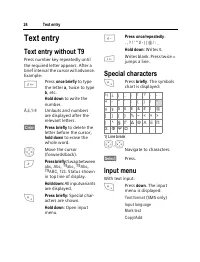
Text entry 24 Text entry Text entry without T9 Press number key repeatedly until the required letter appears. After a brief interval the cursor will advance. Example: 2 Press once briefly to type the letter a , twice to type b , etc. Hold down to write the number. Ä,ä ,1-9 Umlauts and numbers are di...
Page 26 - Text entry with T9; Activate, deactivate T9; Select Input language; Write a word using T9; once only
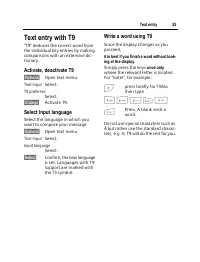
© 25 Text entry Text entry with T9 "T9" deduces the correct word from the individual key entries by making comparisons with an extensive dic-tionary. Activate, deactivate T9 §Options§ Open text menu. Text input Select. T9 preferred Select. §Change§ Activate T9. Select Input language Select t...
Page 27 - T9 word suggestions; §highlighted§; §Spell§; At 8 pm we are
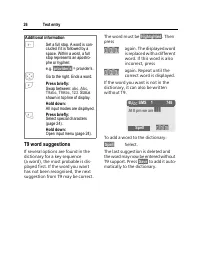
Text entry 26 T9 word suggestions If several options are found in the dictionary for a key sequence (a word), the most probable is dis-played first. If the word you want has not been recognised, the next suggestion from T9 may be correct. The word must be §highlighted§ . Then press » again. The disp...
Page 28 - Correct a word; not; Write text modules; Text modules; Text modules
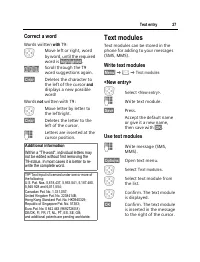
© 27 Text entry Correct a word Words written with T9: F Move left or right, word by word, until the required word is §highlighted§ . » Scroll through the T9 word suggestions again. §Clear§ Deletes the character to the left of the cursor and displays a new possible word! Words not written with T9: F ...
Page 29 - Default book; §Menu§; KèK; Show entries; Default book; Addressbook; Groups; §Save§; Information numbers
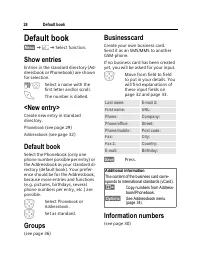
Default book 28 Default book §Menu§ KèK Select function. Show entries Entries in the standard directory (Ad-dressbook or Phonebook) are shown for selection. J / I Select a name with the first letter and/or scroll. A The number is dialled. <New entry> Create new entry in standard directory. Pho...
Page 30 - VIP; Location; SIM; Protected SIM
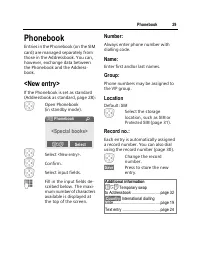
© 29 Phonebook Phonebook Entries in the Phonebook (on the SIM card) are managed separately from those in the Addressbook. You can, however, exchange data between the Phonebook and the Address-book. <New entry> If the Phonebook is set as standard (Addressbook as standard, page 28): H Open Phone...
Page 31 - Only; Call using record no.; Change
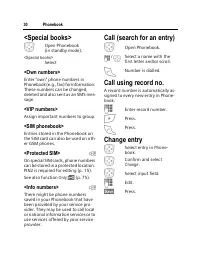
Phonebook 30 <Special books> H Open Phonebook (in standby mode). <Special books> Select <Own numbers> Enter "own" phone numbers in Phonebook (e.g., fax) for information. These numbers can be changed, deleted and also sent as an SMS mes-sage. <VIP numbers> Assign impor...
Page 32 - Phonebook menu
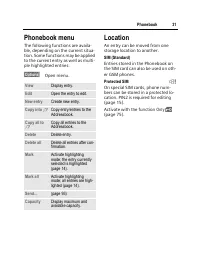
© 31 Phonebook Phonebook menu The following functions are availa-ble, depending on the current situa-tion. Some functions may be applied to the current entry as well as multi-ple highlighted entries: §Options§ Open menu. Location An entry can be moved from one storage location to another. SIM (Stand...
Page 33 - Group
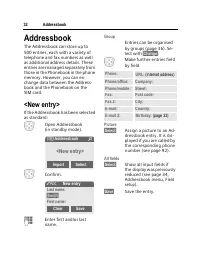
Addressbook 32 Addressbook The Addressbook can store up to 500 entries, each with a variety of telephone and fax numbers as well as additional address details. These entries are managed separately from those in the Phonebook in the phone memory. However, you can ex-change data between the Address-bo...
Page 34 - Change entry; Edit
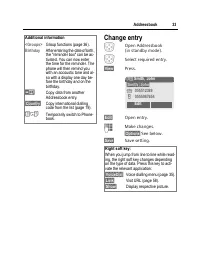
© 33 Addressbook Change entry H Open Addressbook (in standby mode). H Select required entry. §View§ Press. §Edit§ Open entry. J Make changes. §Options§ See below. §Save§ Save setting. Additional information <Groups> Group functions (page 36) . Birthday After entering the date of birth, the �...
Page 35 - Addressbook menu; own
Addressbook 34 Call (search for an entry) H Open Addressbook (in standby mode). J / I Select a name with the first letter and/or scroll. A The number is dialled. If an Addressbook entry has several numbers stored: I Select phone number. A The number is dialled. Addressbook menu Depending on the actu...
Page 36 - Voice dialling; Record; Voice dialling menu; Apply voice dialling; New
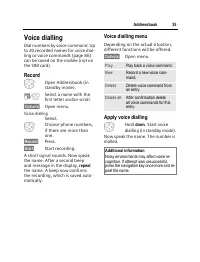
© 35 Addressbook Voice dialling Dial numbers by voice command. Up to 20 recorded names for voice dial-ling or voice commands (page 86) can be saved on the mobile (not on the SIM card). Record H Open Addressbook (in standby mode). J / G Select a name with the first letter and/or scroll. §Options§ Ope...
Page 37 - Group menu; Group symbol; §OK§
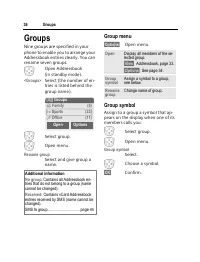
Groups 36 Groups Nine groups are specified in your phone to enable you to arrange your Addressbook entries clearly. You can rename seven groups. H Open Addressbook (in standby mode). <Groups> Select (the number of en-tries is listed behind the group name). H Select group. E Open menu. Rename g...
Page 38 - Use the Phonebook; and
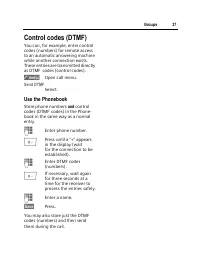
© 37 Groups Control codes (DTMF) You can, for example, enter control codes (numbers) for remote access to an automatic answering machine while another connection exists. These entries are transmitted directly as DTMF codes (control codes). y menu§ Open call menu. Send DTMF Select. Use the Phonebook ...
Page 39 - Records; Call list menu
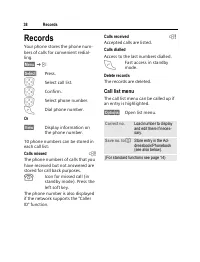
Records 38 Records Your phone stores the phone num-bers of calls for convenient redial-ling. §Menu§ KZ §Select§ Press. I Select call list. E Confirm. I Select phone number. A Dial phone number. Or §View§ Display information on the phone number. 10 phone numbers can be stored in each call list: Calls...
Page 40 - Charge setting; Currency; Auto display
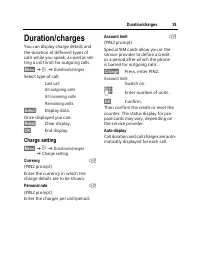
© 39 Duration/charges Duration/charges You can display charge details and the duration of different types of calls while you speak, as well as set-ting a unit limit for outgoing calls. §Menu§ KZK Duration/charges Select type of call: Last call All outgoing calls All incoming calls Remaining units §S...
Page 41 - Alarm clock; Setting; Alarm clock
Alarm clock 40 Alarm clock §Menu§ K The alarm will ring at the time set by you, even when the phone is switched off. When the clamshell is open the alarm is shown in the co-lour display; when the clamshell is closed the alarm is shown on the 2nd display. If the phone has been switched off in Aircraf...
Page 42 - Voice message/mailbox; Settings; Listening to message
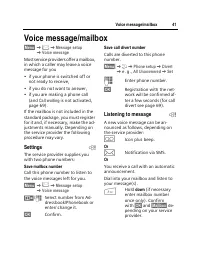
© 41 Voice message/mailbox Voice message/mailbox §Menu§ K]K Message setup K Voice message Most service providers offer a mailbox, in which a caller may leave a voice message for you• if your phone is switched off or not ready to receive, • if you do not want to answer,• if you are making a phone cal...
Page 43 - SMS; Writing and sending; briefly; §Groups§; Displays in the uppermost line:
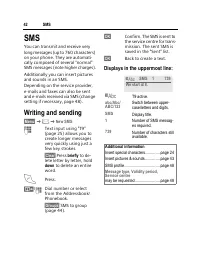
SMS 42 SMS You can transmit and receive very long messages (up to 760 characters) on your phone. They are automati-cally composed of several "normal" SMS messages (note higher charges).Additionally you can insert pictures and sounds in an SMS.Depending on the service provider, e-mails and fa...
Page 44 - Text options
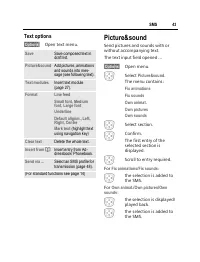
© 43 SMS Text options §Options§ Open text menu. Picture&sound Send pictures and sounds with or without accompanying text.The text input field opened ... §Options§ Open menu. I Select Picture&sound . The menu contains: Fix animations Fix sounds Own animat. Own pictures Own sounds I Select sec...
Page 45 - Validity period
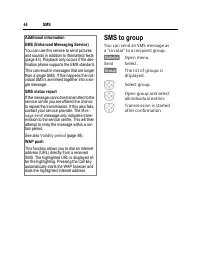
SMS 44 SMS to group You can send an SMS message as a "circular" to a recipient group. §Options§ Open menu. Send Select. §Group§ The list of groups is displayed. I Select group. E Open group and select all/individual entries E Transmission is started after confirmation. Additional information...
Page 46 - Read SMS; Reply options; §Reply§
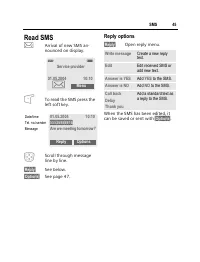
© 45 SMS Read SMS … Arrival of new SMS an-nounced on display. To read the SMS press the left soft key. I Scroll through message line by line. §Reply§ See below. §Options§ See page 47. Reply options §Reply§ Open reply menu. When the SMS has been edited, it can be saved or sent with §Options§ . _ g Se...
Page 47 - Lists; Inbox; Draft; Unsent; Sent; Download ringtones and logos
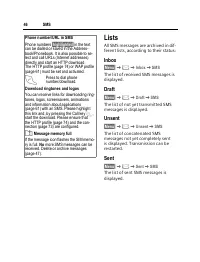
SMS 46 Lists All SMS messages are archived in dif-ferent lists, according to their status: Inbox §Menu§ K]K Inbox K SMS The list of received SMS messages is displayed. Draft §Menu§ K]K Draft K SMS The list of not yet transmitted SMS messages is displayed. Unsent §Menu§ K]K Unsent K SMS The list of c...
Page 48 - List options; SMS archive; Archive options; Options
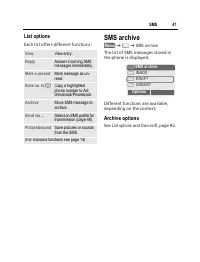
© 47 SMS List options Each list offers different functions: SMS archive §Menu§ K]K SMS archive The list of SMS messages stored in the phone is displayed. Different functions are available, depending on the context: Archive options See List options and Own stuff , page 92. View View entry. Reply Answ...
Page 49 - SMS profiles; Activate profile; §Activate§
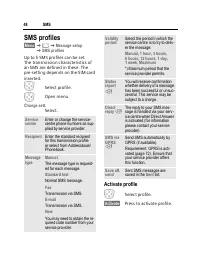
SMS 48 SMS profiles §Menu§ K]K Message setup K SMS profiles Up to 5 SMS profiles can be set. The transmission characteristics of an SMS are defined in these. The pre-setting depends on the SIM card inserted. H Select profile. E Open menu. Change sett. Select. Activate profile H Select profile. §Acti...
Page 50 - MMS; Own stuff
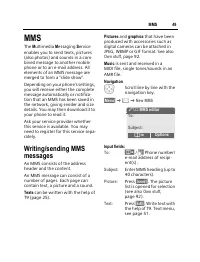
© 49 MMS MMS The M ultimedia M essaging S ervice enables you to send texts, pictures (also photos) and sounds in a com-bined message to another mobile phone or to an e-mail address. All elements of an MMS message are merged to form a "slide show".Depending on your phone's settings, you will ...
Page 51 - Send MMS
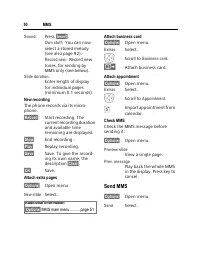
MMS 50 Sound: Press §Insert§ . Own stuff : You can now select a stored melody (see also page 92). Record new : Record new tones, for sending by MMS only (see below). Slide duration: Enter length of display for individual pages (minimum 0.1 seconds). New recording The phone records via its micro-phon...
Page 52 - MMS options; §Receiving§; Menu
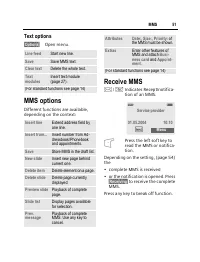
© 51 MMS Text options §Options§ Open menu. MMS options Different functions are available, depending on the context: Receive MMS … / Û Indicates Recept/notifica-tion of an MMS. Press the left soft key to read the MMS or notifica-tion. Depending on the setting, (page 54) the• complete MMS is received•...
Page 53 - Read MMS
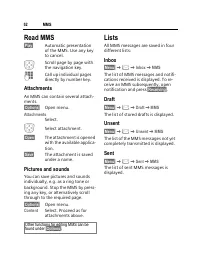
MMS 52 Read MMS §Play§ Automatic presentation of the MMS. Use any key to cancel. I Scroll page by page with the navigation key. J Call up individual pages directly by number key. Attachments An MMS can contain several attach-ments. §Options§ Open menu. Attachments Select. I Select attachment. §Open§...
Page 55 - MMS profiles
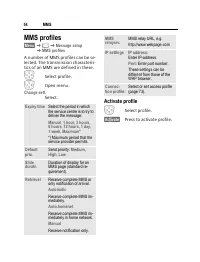
MMS 54 MMS profiles §Menu§ K]K Message setup K MMS profiles A number of MMS profiles can be se-lected. The transmission characteris-tics of an MMS are defined in these. H Select profile. E Open menu. Change sett. Select. Activate profile H Select profile. §Activate§ Press to activate profile. Expiry...
Page 56 - CB services
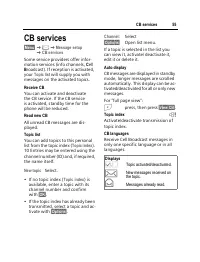
© 55 CB services CB services §Menu§ K]K Message setup K CB services Some service providers offer infor-mation services (info channels, C ell B roadcast). If reception is activated, your Topic list will supply you with messages on the activated topics. Receive CB You can activate and deactivate the C...
Page 57 - Ring tones; K K; Ringer setting
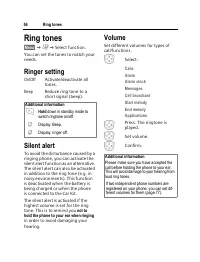
Ring tones 56 Ring tones §Menu§ K K Select function. You can set the tones to match your needs. Ringer setting On / Off Activate/deactivate all tones. Beep Reduce ring tone to a short signal (beep). Silent alert To avoid the disturbance caused by a ringing phone, you can activate the silent alert fu...
Page 58 - Set ring tones
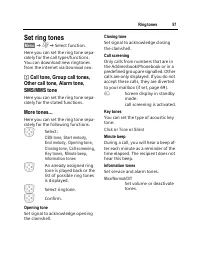
© 57 Ring tones Set ring tones §Menu§ K K Select function. Here you can set the ring tone sepa-rately for the call types/functions. You can download new ringtones from the internet via Download new . d Call tone, Group call tones, Other call tone, Alarm tone, SMS/MMS tone Here you can set the ring t...
Page 59 - Homepage; Internet; Start menu; §Bookmarks§§§§§§§§§§§§§§§§§§§§§§§§§§§§§
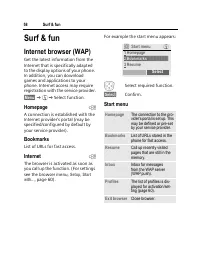
Surf & fun 58 Surf & fun Internet browser (WAP) Get the latest information from the Internet that is specifically adapted to the display options of your phone. In addition, you can download games and applications to your phone. Internet access may require registration with the service provid...
Page 60 - End connection; Browser menu
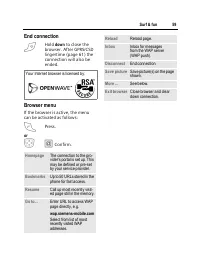
© 59 Surf & fun End connection B Hold down to close the browser. After GPRS/CSD lingertime (page 61) the connection will also be ended. Browser menu If the browser is active, the menu can be activated as follows: A Press. or G Í Confirm. Your Internet browser is licensed by: Homepage The connect...
Page 61 - WAP profiles
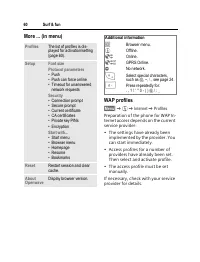
Surf & fun 60 More ... (in menu) WAP profiles §Menu§ K É K Internet K Profiles Preparation of the phone for WAP In-ternet access depends on the current service provider:• The settings have already been implemented by the provider. You can start immediately. • Access profiles for a number of prov...
Page 62 - Profile name
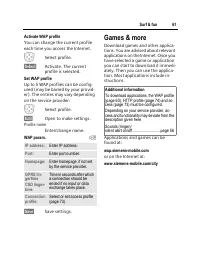
© 61 Surf & fun Activate WAP profile You can change the current profile each time you access the Internet. I Select profile. §Select§ Activate. The current profile is selected. Set WAP profile Up to 5 WAP profiles can be config-ured (may be barred by your provid-er). The entries may vary dependi...
Page 63 - Games and applications; Receive information
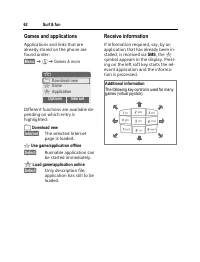
Surf & fun 62 Games and applications Applications and links that are already stored on the phone are found under: §Menu§ K É K Games & more Different functions are available de-pending on which entry is highlighted: £ Download new §Internet§ The selected Internet page is loaded. § Use game/a...
Page 64 - Games & More options
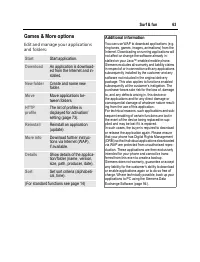
© 63 Surf & fun Games & More options Edit and manage your applications and folders: Start Start application. Download An application is download-ed from the Internet and in-stalled. New folder Create and name new folder. Move Move applications be-tween folders. HTTP profile The list of profi...
Page 65 - Setup; Profiles; Aircraft mode; Profiles
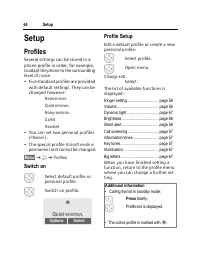
Setup 64 Setup Profiles Several settings can be stored in a phone profile in order, for example, to adapt the phone to the surrounding level of noise.• Five standard profiles are provided with default settings. They can be changed however: Normal envi. Quiet environ. Noisy environ. Carkit Headset • ...
Page 66 - Profile options; Display; Language; Copy from
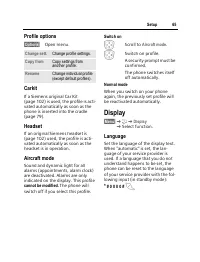
© 65 Setup Profile options §Options§ Open menu. Carkit If a Siemens original Car Kit (page 102) is used, the profile is acti-vated automatically as soon as the phone is inserted into the cradle (page 79). Headset If an original Siemens headset is (page 102) used, the profile is acti-vated automatica...
Page 69 - Brightness; Special case
Setup 68 Brightness This enables you to set the bright-ness for the visual signal. I Press the navigation key repeatedly to adjust up or down. E Confirm. d Calls, Group calls, Other calls You can assign different flash rhythms to the relevant types of call and to each group. During call Select a fla...
Page 70 - Call setup; Hide ID; All Unanswered; Or; Not reachable
© 69 Setup Call setup §Menu§ KmK Call setup K Select function. Hide ID b When you make a call, your phone number can be displayed on the recipient's display (depending on the service providers).To suppress this display, you can enable the "Hide ID" mode for all sub-sequent calls or just for ...
Page 71 - Call waiting
Setup 70 No reply A call is only diverted after a delay that is determined by the network. The period can be set to a maximum of 30 seconds in 5 second intervals. Busy Divert occurs if a call is in progress. If Call waiting is activated (page 69), you will hear the call waiting tone during a call. S...
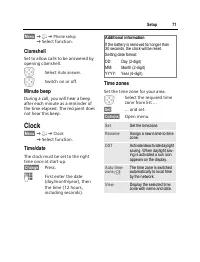
Page 72 - Clamshell; Minute beep; Clock; §Change§; §Set§
© 71 Setup §Menu§ KmK Phone setup K Select function. Clamshell Set to allow calls to be answered by opening clamshell. I Select Auto answer . E Switch on or off. Minute beep During a call, you will hear a beep after each minute as a reminder of the time elapsed. The recipient does not hear this beep...
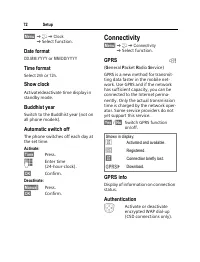
Page 73 - Connectivity
Setup 72 §Menu§ KmK Clock K Select function. Date format DD.MM.YYYY or MM/DD/YYYY Time format Select 24h or 12h . Show clock Activate/deactivate time display in standby mode. Buddhist year Switch to the Buddhist year (not on all phone models). Automatic switch off The phone switches off each day at ...
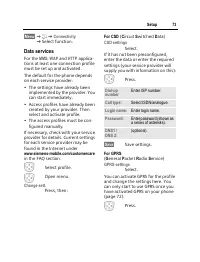
Page 74 - Data services; HTTP
© 73 Setup §Menu§ KmK Connectivity K Select function. Data services For the MMS, WAP and HTTP applica- tions at least one connection profile must be set up and activated. The default for the phone depends on each service provider:• The settings have already been implemented by the provider. You can ...
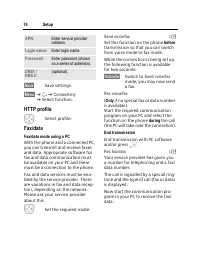
Page 75 - HTTP profile
Setup 74 §Save§ Save settings. §Menu§ KmK Connectivity K Select function. HTTP profile I Select profile. Fax/data Fax/data mode using a PC With the phone and a connected PC, you can transmit and receive faxes and data. Appropriate software for fax and data communication must be available on your PC ...
Page 76 - Direct call; This SIM only
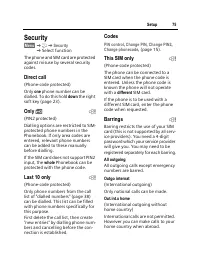
© 75 Setup Security §Menu§ KmK Security K Select function The phone and SIM card are protected against misuse by several security codes. Direct call (Phone-code protected)Only one phone number can be dialled. To do this hold down the right soft key (page 23). Only ‚ b (PIN2 protected)Dialling option...
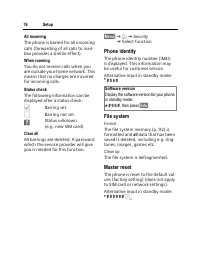
Page 77 - Phone identity; Format; Clean up; Master reset; §Info§
Setup 76 All incoming The phone is barred for all incoming calls (forwarding of all calls to mail-box provides a similar effect). When roaming You do not receive calls when you are outside your home network. This means that no charges are incurred for incoming calls. Status check The following infor...
Page 78 - Network; Line; work; Choose network; Auto network; Preferred network; §List§
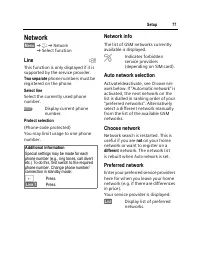
© 77 Setup Network §Menu§ KmK Network K Select function Line b This function is only displayed if it is supported by the service provider. Two separate phone numbers must be registered on the phone. Select line Select the currently used phone number. ‘ Display current phone number. Protect selection...
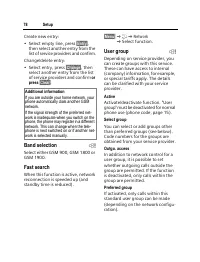
Page 79 - Band selection; User group
Setup 78 Create new entry: • Select empty line, press §Entry§ , then select another entry from the list of service providers and confirm. Change/delete entry:• Select entry, press §Change§ , then select another entry from the list of service providers and confirm or press §Clear§ . Band selection b ...
Page 80 - Accessories; Headset
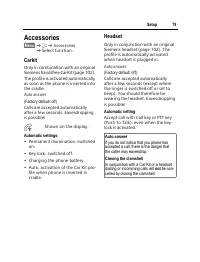
© 79 Setup Accessories §Menu§ KmK Accessories K Select function. Carkit Only in combination with an original Siemens handsfree Car Kit (page 102). The profile is activated automatically as soon as the phone is inserted into the cradle. Auto answer (Factory default: off) Calls are accepted automatica...
Page 81 - Extras; Organiser; Calendar; Agenda; §Agenda§; Appointments; Tu
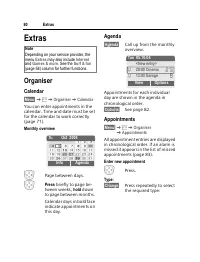
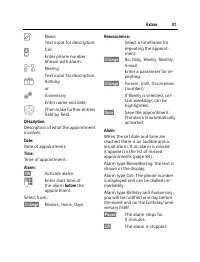
Extras 80 Extras Organiser Calendar §Menu§ K K Organiser K Calendar You can enter appointments in the calendar. Time and date must be set for the calendar to work correctly (page 71). Monthly overview F Page between days. I Press briefly to page be- tween weeks, hold down to page between months. Cal...
Page 83 - Notes; New entry
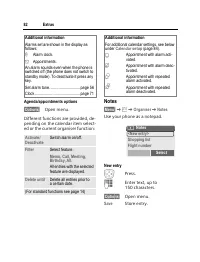
Extras 82 Agenda/appointments options §Options§ Open menu. Different functions are provided, de-pending on the calendar item select-ed or the current organiser function: Notes §Menu§ K K Organiser K Notes Use your phone as a notepad. New entry E Press. J Enter text, up to 150 characters. §Options§ O...
Page 84 - Missed appointments
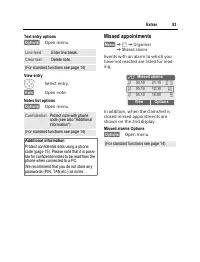
© 83 Extras Text entry options §Options§ Open menu. View entry I Select entry. §View§ Open note. Notes list options §Options§ Open menu. Missed appointments §Menu§ K K Organiser K Missed alarms Events with an alarm to which you have not reacted are listed for read-ing. In addition, when the clamshel...
Page 85 - Calendar setup; Begin of week; Calculator; Calculator functions
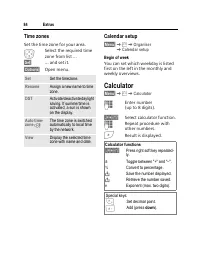
Extras 84 Time zones Set the time zone for your area. I Select the required time zone from list ... §Set§ … and set it. §Options§ Open menu. Calendar setup §Menu§ K K Organiser K Calendar setup Begin of week You can set which weekday is listed first on the left in the monthly and weekly overviews. C...
Page 86 - Currency converter; Convert; Stopwatch; Stopwatch Options
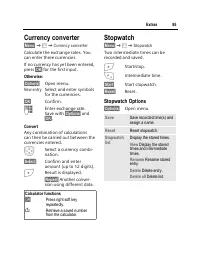
© 85 Extras Currency converter §Menu§ K K Currency converter Calculate the exchange rates. You can enter three currencies.If no currency has yet been entered, press §OK§ for the first input. Otherwise: §Options§ Open menu. New entry Select and enter symbols for the currencies. §OK§ Confirm. J Enter ...
Page 87 - Countdown; Voice command; Voice command; repeat; Voice command options
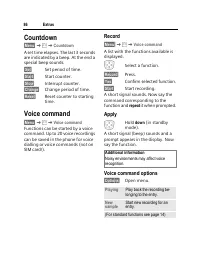
Extras 86 Countdown §Menu§ K K Countdown A set time elapses. The last 3 seconds are indicated by a beep. At the end a special beep sounds. §Set§ Set period of time. §Start§ Start counter. §Stop§ Interrupt counter. §Change§ Change period of time. §Reset§ Reset counter to starting time. Voice command ...
Page 88 - Camera; Picture; Use flash
© 87 Extras Camera (Accessories) You can use the phone to immedi-ately view, save and send photos by MMS that you have taken with the "QuickPic" camera (page 103). A flashlight is integrated into the camera.Pictures can be taken in two differ-ent formats:• Low resolution: QQVGA 160 x 120 pix...
Page 89 - Sending a photo by MMS; Camera menu; Additional notes
Extras 88 Sending a photo by MMS You can easily send a photo as an MMS immediately after taking it. §Options§ Open menu. Send via MMS Select. §Select§ Press and select the desired resolution. §Skip§ Press to skip recording a melody (page 50). The MMS Editor starts. Simply com-plete the following inp...
Page 90 - SIM services
© 89 Extras SIM services (optional) §Menu§ K K SIM services Your service provider may offer spe-cial applications such as mobile banking, share prices, etc. via the SIM card.If you have such a SIM card, the SIM services will appear in the main menu under "Extras" or directly above the left s...
Page 91 - Fast access key; Left soft key; §New SMS§; Phone number; §Carol§
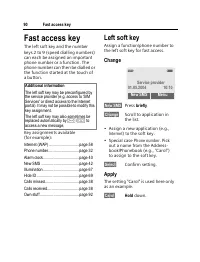
Fast access key 90 Fast access key The left soft key and the number keys 2 to 9 (speed dialling numbers) can each be assigned an important phone number or a function. The phone number can then be dialled or the function started at the touch of a button. Key assignments available (for example): Inter...
Page 92 - Speed dialling keys; Menu speed dialling
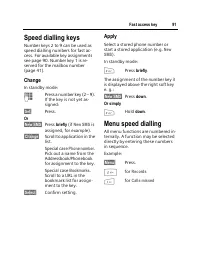
© 91 Fast access key Speed dialling keys Number keys 2 to 9 can be used as speed dialling numbers for fast ac-cess. For available key assignments see page 90. Number key 1 is re-served for the mailbox number (page 41). Change In standby mode: J Press a number key (2 – 9). If the key is not yet as-si...
Page 93 - KÑ; Index structure; Own stuff menu
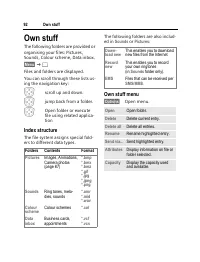
Own stuff 92 Own stuff The following folders are provided or organising your files: Pictures, Sounds, Colour scheme, Data inbox. §Menu§ KÑ Files and folders are displayed. You can scroll through these lists us-ing the navigation key: I scroll up and down. D jump back from a folder. E Open folder or ...
Page 95 - GPRS Modem Assistant
PC Software (Data Exchange Software / GPRS Modem Assistant) 94 PC Software (Data Exchange Software / GPRS Modem Assistant) By using Data Exchange Software and GRPS Modem Assistant from Sie-mens, you extend functionality of your mobile phone together with a Windows® PC. To benefit from these PC-Tools...
Page 96 - Problem
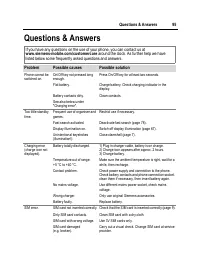
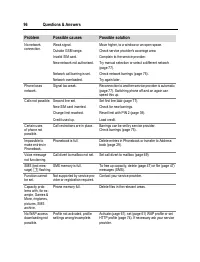
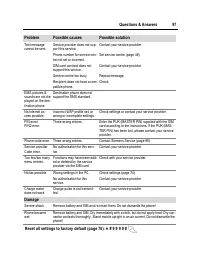
© 95 Questions & Answers Questions & Answers If you have any questions on the use of your phone, you can contact us at www.siemens-mobile.com/customercare around the clock. As further help we have listed below some frequently asked questions and answers. Problem Possible causes Possible solu...
Page 99 - Customer Care; info
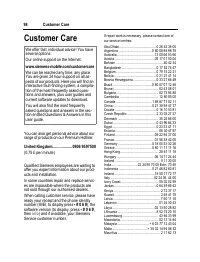
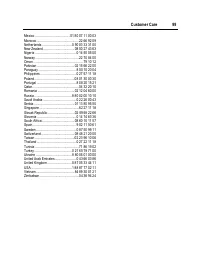
Customer Care 98 Customer Care You can also get personal advice about our range of products on our Premium Hotline: United Kingdom................... 0906 9597500 (0.75 £ per minute) Qualified Siemens employees are waiting to offer you expert information about our prod-ucts and installation.In some ...
Page 101 - Care and maintenance
Care and maintenance 100 Care and maintenance 'Your phone has been designed and manufactured to the highest of standards and should be treated with the greatest of care. The suggestions below will help you to enjoy your phone for many years.• Protect your phone from moisture and humidity! Precipitat...
Page 102 - Product data; Declaration of conformity; Phone ID
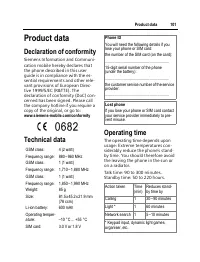
© 101 Product data Product data Declaration of conformity Siemens Information and Communi-cation mobile hereby declares that the phone described in this user guide is in compliance with the es-sential requirements and other rele-vant provisions of European Direc-tive 1999/5/EC (R&TTE). The decla...
Page 103 - Energy
Accessories 102 Accessories Fashion & Carry Carrying Cases A range of carry cases is available from spe-cialist shops or our online shop: Energy Li-Ion Battery 600 mAh EBA-670 Spare battery for additional standby and talktime. Travel Charger Travel Charger ETC-500 (EU) Travel Charger ETC-510 (UK...
Page 104 - Multitainment; QuickPic Camera IQP-500; Office
© 103 Accessories Multitainment QuickPic Camera IQP-500 Plugged into the mobile phone, the QuickPic Camera with integrated flash can be used to take snapshots in any situation. Pictures can be viewed on the mobile’s display, sent us-ing MMS, and stored. For mobile-to-mobile MMS correspondence and op...
Page 105 - Quality; Battery quality statement
Quality 104 Quality Battery quality statement The capacity of your mobile phone battery will reduce each time it is charged/emptied. Storage at too high or low temperatures will also result in a gradual capacity loss. As a result the operating time of your mobile phone may be considerably reduced, e...
Page 112 - Menu tree
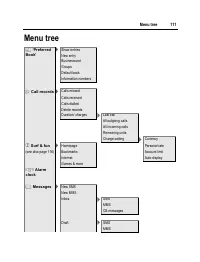
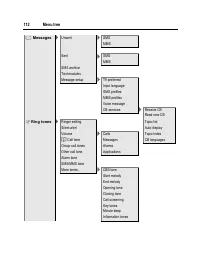
© 111 Menu tree Menu tree è ‘Preferred Book’ > Show entries New entry Businesscard Groups Default book Information numbers Z Call records > Calls missed Calls received Calls dialled Delete records Duration/ charges > Last call All outgoing calls All incoming calls Remaining units Charge set...
Page 117 - Note on
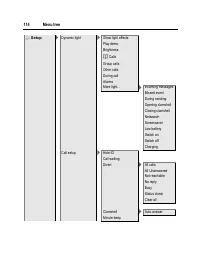
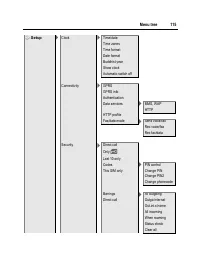
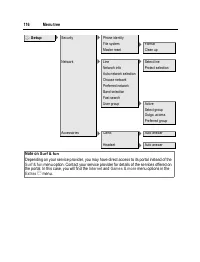
Menu tree 116 m Setup > Security > Phone identity File system > Format Master reset Clean up Network > Line > Select line Network info Protect selection Auto network selection Choose network Preferred network Band selection Fast search User group > Active Select group Outgo. access...
Page 118 - Index
© 117 Index Index A Accessories............................... 102Account limit .............................. 39Addressbook Dial entry ................................ 34New entry............................... 32Read entry .............................. 33 Agenda .....................................




 Siemens A31
User Manual
Siemens A31
User Manual
 Siemens A57
User Manual
Siemens A57
User Manual
 Siemens A65
User Manual
Siemens A65
User Manual
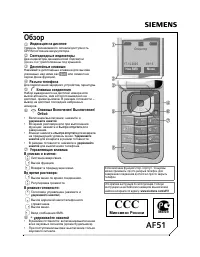 Siemens AF51
User Manual
Siemens AF51
User Manual
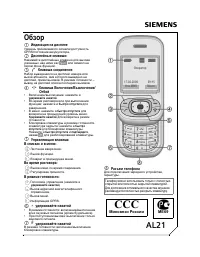 Siemens AL21
User Manual
Siemens AL21
User Manual
 Siemens AP75
User Manual
Siemens AP75
User Manual
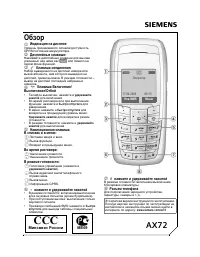 Siemens AX72
User Manual
Siemens AX72
User Manual
 Siemens AX75
User Manual
Siemens AX75
User Manual
 Siemens C45
User Manual
Siemens C45
User Manual
 Siemens C62
User Manual
Siemens C62
User Manual
 Siemens C72
User Manual
Siemens C72
User Manual
 Siemens C75
User Manual
Siemens C75
User Manual
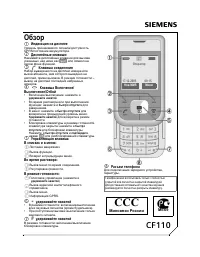 Siemens CF110
User Manual
Siemens CF110
User Manual
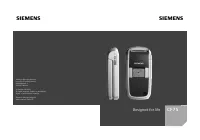 Siemens CF75
User Manual
Siemens CF75
User Manual
 Siemens CFX65
User Manual
Siemens CFX65
User Manual
 Siemens CX65
User Manual
Siemens CX65
User Manual
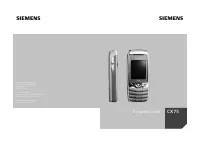 Siemens CX75
User Manual
Siemens CX75
User Manual
 Siemens M50
User Manual
Siemens M50
User Manual
 Siemens M65
User Manual
Siemens M65
User Manual
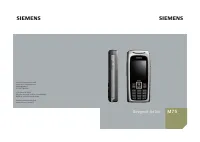 Siemens M75
User Manual
Siemens M75
User Manual