Page 2 - IMPORTANT
IMPORTANT For your assistance in reporting the loss or theft of yourProjector, please record the Serial Number located onthe bottom of the projector and retain this information.Before recycling the packaging, please be sure thatyou have checked the contents of the carton thoroughlyagainst the list o...
Page 3 - Introduction; ENGLISH; CAUTION; INFORMATION
Intr oduction -1 Before using the projector, please read this operation manual carefully. There are two important reasons for prompt warranty registration of your new SHARP Projector, usingthe REGISTRATION CARD packed with the projector. 1. WARRANTY This is to assure that you immediately receive the...
Page 4 - Caution Concerning the Lamp Replacement; PRODUCT DISPOSAL
-2 WARNING: The cooling fan in this projector continues to run for about 90 seconds after the projector is turned off. Duringnormal operation, when turning the power off always use the power ( OFF ) button on the projector or on the remote control. Ensure the cooling fan has stopped before disconnec...
Page 5 - Outstanding Features; Ultra High Brightness from a Compact Projector; Simple lens replacement; Superior PC Compatibility; Using; Advanced Computer & Video lntegrated Composer Technology; Realizes vivid images using the latest image quality circuitry.; Color Management System; Notevision Lock Down
Intr oduction -3 Outstanding Features 1. Ultra High Brightness from a Compact Projector • AC 250W LampUse AC 250W lamp for excellent color uniformity and ultra high brightness. • Power Save mode function enables lower noise levels, reduced powerconsumption and longer lamp life. 2. Simple & Easy ...
Page 6 - Contents; Easy to Use Functions
-4 Contents Adjusting the Picture ........................................ 46 Adjusting Image Preferences .................................. 46Selecting the Signal Type ....................................... 46Progressive Mode .................................................... 47 Adjusting Comput...
Page 7 - Appendix
Introduction -5 Canceling the Keylock Setting ................................ 72 Selecting the Transmission Speed (RS-232C) ..................................................... 72 Setting up a Password ...................................... 73 Entering the Password ...................................
Page 8 - IMPORTANT SAFEGUARDS
-6 1. Read Instructions All the safety and operating instructions should be readbefore the product is operated. 2. Retain Instructions The safety and operating instructions should beretained for future reference. 3. Heed Warnings All warnings on the product and in the operatinginstructions should be...
Page 11 - To install Acrobat Reader from the CD-ROM
Introduction -9 PDF operation manuals in several languages are included in the CD-ROM, so that you canwork with the projector, even if you do not have this manual. To utilize these manuals, youneed to install Adobe Acrobat Reader on your PC (Windows or Macintosh). If you have notinstalled Acrobat Re...
Page 12 - Part Names; Numbers in
-10 Projector (Front and Top View) Part Names 34 34 83 83 39 42 35 38 50 42 35 43 27 27 Power (ON/OFF) buttons Turn the power on or off. Power indicator Illuminates red, when the projector is in standby. When the power is turned on, this indicator will illuminate green. Lamp replacement indicator Il...
Page 15 - Using the Remote Control; When using the remote control:; Inserting the Batteries; Insert the included batteries.; Caution; Available Range of the Remote Control
Introduction -13 23' (7 m) 30 ° 30 ° 45 ° Using the Remote Control ■ The remote control can be used to control the projectorwithin the ranges shown in the illustration. N o t e • The signal from the remote control can be reflected off a screenfor easy operation. However, the effective distance of th...
Page 16 - Accessories; Supplied accessories
-14 Accessories Remote controlRRMCGA029WJSA Two R-6 batteries(“AA” size, UM/SUM-3, HP-7 or similar) Power cord For U.S., Canada, etc.(11'10" (3.6m))QACCDA010WJPZ For Europe, except U.K.(6' (1.8m))QACCV4002CEZZ For U.K., Hong Kong andSingapore(6' (1.8m))QACCBA012WJPZ For Australia, NewZealand and...
Page 17 - Connections and Setup
Page 18 - Connecting the Projector to Other Devices; Before Connecting; This projector can be connected to:; Component video or audio-visual equipment:
-16 Connecting the Projector to Other Devices Before Connecting N o t e • Before connecting, be sure to turn off both the projector and the devices to be connected. After making allconnections, turn on the projector and then the other devices.When connecting a computer, be sure that it is the last d...
Page 21 - “Plug and Play” function (when connecting to a 15-pin terminal)
Connections and Setup -19 “Plug and Play” function (when connecting to a 15-pin terminal) ■ This projector is compatible with VESA-standard DDC 1/DDC 2B. The projector and a VESA DDCcompatible computer will communicate their setting requirements, allowing for quick and easy setup. ■ Before using the...
Page 22 - Connecting to Video Equipment
Connecting to Video Equipment Connecting the Projector to Other Devices -20 1 S-video cable (commercially available) Connecting to VideoEquipment Using anS-video, a CompositeVideo or an Audio Cable Using an S-video, video, or audio cable, a VCR,laser disc player or other audio-visual equip-ment can ...
Page 24 - Connecting to an Amplifier
Connecting to an Amplifier Connecting to anAmplifier or Other AudioComponents Using a ø3.5 mm stereo minijack to RCA au-dio cable, an amplifier or other audio compo-nents can be connected to the AUDIO OUT-PUT terminal. Connect the projector to the amplifierusing a ø3.5 mm stereo minijack toRCA audio...
Page 25 - Controlling the Projector by a Computer
Connections and Setup -23 Connecting to aComputer Using a DIN-D-sub RS-232C Adaptorand an RS-232C SerialControl Cable When the RS-232C terminal on the projectoris connected to a computer with a DIN-D-subRS-232C adaptor and an RS-232C serial con-trol cable (cross type, sold separately), thecomputer c...
Page 26 - Connecting to a Monitor
-24 Optionalcable Computer RGB cable (32'10" (10.0 m))Type: AN-C10BM AN-C10MCAN-C10PC Connecting to a Monitor Watching Images onBoth the Projector anda Monitor You can display computer images on both theprojector and a separate monitor using twosets of an RGB cable. An RGB cable is sup-plied wit...
Page 27 - Press
Connections and Setup -25 FORWARDbutton Using the Wireless Presentation Function of theRemote Control The Wireless Presentation function on the projector works the same as the [Page Up] and[Page Down] keys on a computer keyboard. It can also be used to move forward or backwardwhen viewing images of ...
Page 28 - Using as a Wired Remote Control
Connecting the Projector to Other Devices Using as a Wired Remote Control Connecting the RemoteControl to the Projector When the remote control cannot be used dueto the range or positioning of the projector(rear projection, etc.), connect a ø3.5 mmminijack cable (commercially available ora v a i l a...
Page 29 - Setup
Connections and Setup -27 Up Down Setup Using the AdjustmentFeet The height of the projector can be adjustedusing the adjustment feet at the front and backof the projector when the surface the projec-tor is placed on is uneven or when the screenis slanted.The projection of the image can be madehighe...
Page 30 - Adjusting the Lens
Zoom in Zoom out Zoom knob Focus ring Adjusting the Lens The image is focused and adjusted to thedesired size using the focus ring or zoomknob on the projector. 1 The focus is adjusted by rotat-ing the focus ring. 2 Zooming is adjusted by mov-ing the zoom knob. -28 Setup
Page 31 - Example of Standard Setup; Setting up the Screen; Throw Distance; Side View
Connections and Setup -29 90 ° 90 ° Example of Standard Setup Setting up the Screen Position the projector perpendicular to the screen with all feet flat and level to achieve an optimal image. N o t e • The projector lens should be centered in the middle of the screen. If the horizontal line passing...
Page 32 - Screen Size and Projection Distance
-30 H Screen L Projection distance Lens center Base lineHorizontal line passing throughthe lens center STRETCH Mode (16:9) Picture (Screen) size Projection distance (L) Distance from the lens center Diag. (X) Width Height Maximum (L1) Minimum (L2) to the bottom of the image (H) 300" (762 cm) 240...
Page 34 - Projecting a Reversed/Inverted Image; Projection from behind the screen; Projection using a mirror
-32 When using the default setting. ▼ On-screen Display Projecting a Reversed/Inverted Image Projection from behind the screen ■ Place a translucent screen between the projector and the au-dience. ■ Reverse the image by setting “Rear” in “PRJ Mode”. Seepage 71 for use of this function. Projection us...
Page 35 - Basic Operation
Page 36 - Image Projection; Basic Procedure; Plug the power cord into the; on the projector or on; the keycode input box will appear.
Image Projection ▼ Keycode input box -34 Lamp replacement indicator Power indicator INPUTbutton ' , " , \ , | buttons MENUbutton ENTER button Power (ON)button INPUTbuttons ' , " , \ , | buttons MENU button ENTER button Power (OFF) button Basic Procedure Connect the required external equipmen...
Page 38 - MUTE button
Image Projection Power (ON)button 5 Press to temporarily turn off the sound. N o t e • Pressing again will tur n the sound back on. 6 Press , then press again while the confirmation messageis displayed, to turn off the pro-jector. N o t e • If you accidentally pressed and do not want to turn off the...
Page 40 - KEYSTONE button; Test pattern
Correcting Trapezoidal Distortion ( Keystone Correction ) Correcting TrapezoidalDistortion This function allows for Keystone (On-screenTrapezoidal Distortion) Correction. N o t e • When the image is projected either fromtop or from bottom towards the screen atan angle, the image becomes distortedtra...
Page 42 - Menu Bar Items; This list shows the items that can be set in the projector.
-40 Menu Bar Items This list shows the items that can be set in the projector. ■ INPUT 1 / 2 Mode N o t e • The resolution, vertical frequency and horizontal frequency figures displayed above are for examplepurposes only. • Only when the signal type is set as “Component”, in the “Picture” menu of IN...
Page 44 - Using the Menu Screen; MENU button
This projector has two sets of menu screens that allow you to adjust the image and variousprojector settings.You can operate the menus from the projector or remote control using the following proce-dure. Using the Menu Screen Menu screen for INPUT 1or INPUT 2 RGB mode Menu screen for INPUT 3or INPUT...
Page 48 - Adjusting the Picture; Adjusting Image Preferences; Adjust the “Picture” menu on the menu screen.; Selecting the Signal Type; Select “Signal Type” in the “Picture” menu on the menu screen.
Adjusting the Picture You can adjust the projector’s picture to your preferences with the following picture settings. Selected Item Description \ button | button Contrast Bright Color Tint Sharp Red Blue CLR Temp For adjusting the contrast level For adjusting the brightness of an image For adjusting...
Page 49 - Progressive Mode; For operating the menu screen, see
Basic Operation -47 Progressive Mode This function allows you to select the progres-sive display of a video signal. The progres-sive display projects a smoother video image. Select “Progressive Mode” in the “Pic-ture” menu on the menu screen. ➝ For operating the menu screen, see pages 42 to 45 . N o...
Page 50 - Adjusting Computer Images; When Auto Sync is OFF
Adjusting Computer Images Use the Fine Sync function in case of irregularities such as vertical stripes or flickering inportions of the screen. When Auto Sync is OFF When “ Auto Sync ” is “OFF”, interference such as flickering or vertical stripes may occur ifdisplaying tilings or vertical stripes. S...
Page 51 - Selecting Adjustment Settings; Special Mode Settings; Checking the Input Signal
Basic Operation -49 Selecting Adjustment Settings Adjustment settings stored in the projectorcan be easily accessed. Select “Select Setting” in the “FineSync” menu on the menu screen. ➝ For operating the menu screen, see pages 42 to 45 . N o t e • If a memory position has not been set, aresolution a...
Page 52 - Auto Sync Adjustment
Auto Sync Adjustment Used to automatically adjust a computer image. Select “Auto Sync” in the “Fine Sync”menu on the menu screen. ➝ For operating the menu screen, see pages 42 to 45 . N o t e When setting to “ Normal” or “ High Speed”: • Auto Sync adjustment will occur when theprojector is turned on...
Page 54 - Selecting the Picture Display Mode; Screen display of the picture display mode; COMPUTER
-52 Selecting the Picture Display Mode Switching the PictureDisplay Using DifferentInput Signals Press . • E a c h t i m e i s p r e s s e d , t h e d i s p l a y changes as shown on page 52 and 53 . Info • In the Dot by Dot Mode, images are dis-played in the original resolution, thereforethey will ...
Page 55 - VIDEO
Easy to Use Functions -53 SMART STRETCH 1024 × 576* — — 480 I , 480P, 580 I, 580P, NTSC, PAL, SECAM 540P 720P, 1035 I, 1080 I 4:3 aspect ratio. Letter box, squeeze 16:9 aspect ratio 16:9 aspect ratio NORMAL 1024 × 768 — — BORDER 768 × 576* — — STRETCH 1024 × 576* 480 I , 480P, 580 I , 580P, NTSC, PA...
Page 56 - Displaying a Still Image
54 Storing an Image inStill Image Format 1 Press . • The projected image is frozen. 2 Press again to return to the moving image from the cur-rently connected device. Displaying a Still Image This function allows you to instantly freeze a moving image. This is useful when you want todisplay a still i...
Page 57 - Enlarging a Specific Portion of an Image; buttons
Easy to Use Functions -55 Enlarging a Specific Portion of an Image Displaying an EnlargedPortion of an Image 1 Press . • Enlarges the image. • Pressing or enlarges or re- duces the projected image. N o t e • You can change the location of theenlarged image using ' , " , \ and | . • When an image...
Page 58 - GAMMA button
56 Selected Mode STANDARD PRESENTATION CINEMA CUSTOM Description For Standard picture Brightens darker portions of image for more enhanced presentations. Gives greater depth to darker por tions of image for a more exciting theater experience. Allows you to adjust gamma value using Sharp Advanced Pre...
Page 59 - Displaying Dual Pictures (; Displaying the Inset Picture
Easy to Use Functions -57 Displaying Dual Pictures ( Pict in Pict ) Picture in Picture function allows you to display two pictures on the same screen. You candisplay the image input from INPUT 3 or 4 as an inset picture overlapping the main picturefrom INPUT 1 or 2. Displaying the Inset Picture 1 Pr...
Page 60 - Black Screen Function; This function can be used to display a black screen.
58 Black Screen Function -58 BLACK SCREENbutton " Projected Image This function can be used to display a black screen. Blacking out the Pro-jected Image 1 Press . • The screen turns black and “BLACKSCREEN” is displayed on the screen. 2 To r e t u r n t o t h e o r i g i n a lp ro j e c t e d i m...
Page 61 - Displaying the Break Timer
Easy to Use Functions -59 Displaying the Break Timer " On-screen Display Displaying and Settingthe Break Timer 1 Press . The break timer starts to count down from 5minutes. 2 When “ ” is displayed, press ' ' ' ' ' , " " " " " , \ \ \ \ \ or | | | | | to set the break timer. •...
Page 65 - Setting on/off the Internal Speaker
Easy to Use Functions -63 Setting the Audio Out-put Type Select “Audio Out” in the “Options (1)”menu on the menu screen. ➝ For operating the menu screen, see pages 42 to 45 . Setting on/off the Inter-nal Speaker Select “Speaker” in the “Options (1)”menu on the menu screen. ➝ For operating the menu s...
Page 66 - Auto Search Function; Using Auto Search
-64 Auto Search Function This function automatically searches for and switches to the input mode in which signalsare being received, when the projector is turned on, or when the INPUT button is pressed. -64 Using Auto Search Select “Auto Search” in the “Options(1)” menu on the menu screen. ➝ For ope...
Page 67 - Video Digital Noise Reduction (DNR) System; Reducing Image Noise; Setting On-screen Display
Easy to Use Functions -65 Video Digital Noise Reduction (DNR) System Reducing Image Noise Select “DNR” in the “Options (1)” menuon the menu screen. ➝ For operating the menu screen, see pages 42 to 45 . N o t e • Set a level so as to view a clearer picture. Make sure to set DNR to “OFF” in the fol-lo...
Page 68 - Setting the Video System
-66 Setting the Video System Setting the VideoSystem Select “Video System” in the “Options(1)” menu on the menu screen. ➝ For operating the menu screen, see pages 42 to 45 . N o t e • The video signal can only be set in IN-PUT 3 or INPUT 4 mode. • In “Auto”, images are displayed in PALeven if PAL-N ...
Page 69 - Saving Projected Images; You can capture the images that are input using RGB signals.; Capturing the Image
Easy to Use Functions -67 Saving Projected Images • This projector allows you to capture projected images (RGB signals) and set them as astartup image, or background image when no signals are being received. • You can capture the images that are input using RGB signals. Capturing the Image Select “I...
Page 70 - Setting a Background Image; Background; Selecting a Startup Image
68 Setting a Background Image This function allows you to select the image displayed when no signal is being sent to the projector. *1 You can set a captured image as a background image by selecting “Custom”.*2 If the input signal has interference, the screen will be displayed with the interference....
Page 71 - Selecting the Economy Mode
Easy to Use Functions -69 Selecting the Economy Mode These functions allow you to reduce the power consumption of the projector. Setting the Power SaveMode S e l e c t “ Po w e r S a v e ” i n “ E c o n o myMode” under the “Options (1)” menu onthe menu screen. ➝ For operating the menu screen, see pa...
Page 72 - Displaying the Remaining Lamp Life (Percentage)
-70 -70 Remaining Lamp Life(Percentage) Displaying the Remaining Lamp Life (Percentage) Checking the RemainingLamp Life (Percentage) This function allows you to check the remain-ing lamp life (percentage). Select the “Options (2)” menu on themenu screen. ➝ For operating the menu screen, see pages 42...
Page 73 - Reversing/Inverting Projected Images; Locking the Operation Buttons on the Projector; Setting up the Keylock
Easy to Use Functions -71 Reversing/Inverting Projected Images This projector is equipped with a reverse/invert image function that allows you to reverse orinvert the projected image for various applications. Setting the ProjectionMode Select “PRJ Mode” in the “Options (2)”menu on the menu screen. ➝...
Page 74 - Keylock Level
-72 Canceling the KeylockSetting When the Keylock Level is set to “Normal”,all buttons are functional. Select “ Keylock Level ” in the “Options (2)” menu on the menu screen and set“ Normal”. ➝ For operating the menu screen, see pages 42 to 45 . N o t e • When a password has been set, and“Keylock Lev...
Page 75 - Setting up a Password; Entering the Password; Select “
Easy to Use Functions -73 Setting up a Password Entering the Password Select “ Password ” in the “Options (2)” menu on the menu screen. ➝ For operating the menu screen, see pages 42 to 45 . 1 Press ' ' ' ' ' or " " " " " to select the de- sired number and then press | | | | | . 2...
Page 76 - Changing the Password
-74 Changing the Password Select “Password” in the “Options (2)”menu on the menu screen. ➝ For operating the menu screen, see pages 42 to 45 . 1 Press ' ' ' ' ' , " " " " " and | | | | | to enter the password in “Old Password”and press . 2 Press ' ' ' ' ' , " " " "...
Page 77 - Setting the; Entering the Keycode
Easy to Use Functions -75 Setting the Anti-Theft The anti-theft function prevents unauthorized use of the projector. You can choose to usethis function or not. If you do not want to use this function, just do not enter the keycode.Once the anti-theft function is activated, users will need to enter t...
Page 78 - Setting the Anti-Theft; Changing the Keycode
-76 -76 Setting the Anti-Theft 2 Enter the remaining 3 digits bypressing any buttons you like. 3 Enter the same keycode oncemore in “Reconfirm”. N o t e • The Keylock function will becometemporarily disabled. When “Anti-Theft” is set, the keycodeinputting box appears after the poweris turned on. Whe...
Page 79 - Initializing the Settings
Easy to Use Functions -77 Initializing the Settings This function allows you to initialize the settings you have made in the projector. Returning to theDefault Settings Select “All Reset” in the “Options (2)”menu on the menu screen. ➝ For operating the menu screen, see pages 42 to 45 . N o t e • If ...
Page 80 - Displaying the Adjustment Settings
-78 This function can be used to display all the adjusted settings as a list on the screen. Displaying the Adjustment Settings Overview of All MenuSettings Select the “Status” menu on the menuscreen and press . ➝ For operating the menu screen, see pages 42 to 45 . -78
Page 82 - Maintenance; Cleaning the projector
-80 Cleaning the lens ■ Use a commercially available blower or lenscleaning paper (for glasses and camera lenses)for cleaning the lens. Do not use any liquid typecleaning agents, as they may wear off the coat-ing film on the surface of the lens. ■ As the surface of the lens can easily get dam-aged, ...
Page 83 - Replacing the Air Filter; Remove the bottom filter cover.
Appendix -81 Replacing the Air Filter Air filter Tab M4 M4 M4 M4 • This projector is equipped with air fil- ters to ensure the optimal operatingcondition of the projector. • The air filters should be cleaned ev- ery 100 hours of use. Clean the filtersmore often when the projector is usedin a dusty o...
Page 85 - Maintenance Indicators; About the temperature warning indicator
Appendix -83 Maintenance Indicators ■ The warning lights on the projector indicate problems inside the projector. ■ If a problem occurs, either the temperature warning indicator or the lamp replacement indicator willilluminate red, and the power will turn off. After the power has been turned off, fo...
Page 87 - Lamp; Regarding the Lamp
Appendix -85 Lamp ■ It is recommended that the lamp (sold separately) be replaced when the remaining lamp life be-comes 6% or less, or when you notice a significant deterioration in the picture and color quality. Thelamp life (percentage) can be checked with the on-screen display. See page 70 . ■ Fo...
Page 88 - User service screw; Disconnect the power cord.; Remove the lamp unit cover.; AC socket
Power (OFF) button Lampunit BQC-XGC50X//1 User service screw Removing and Install-ing the Lamp Unit Info • Be sure to remove the lamp unit by thehandle. Be sure not to touch the glasssurface of the lamp unit or the inside ofthe projector. • To avoid injury to yourself and damageto the lamp, be sure ...
Page 89 - Resetting the Lamp Timer; Connect the power cord.
Appendix -87 Securingscrew AC socket INPUT button ENTER button User service screw UNDO buttom Power (ON) button 5 Remove the lamp unit. • Loosen the securing screws from thelamp unit. Hold the lamp unit by thehandle and pull it in the direction ofthe arrow. 6 Insert the new lamp unit. • Press the la...
Page 90 - INPUT 1/2 RGB and OUTPUT Signal Terminal:; Connecting Pin Assignments
-88 RS-232C Terminal: 9-pin Mini DIN female connector Pin No. Signal Name I/O Reference 1 VCC +3.3V (Reserved) Output Not connected 2 RD Receive Data Input Connected to inter nal circuit 3 SD Send Data Output Connected to inter nal circuit 4 EXIR Detector of Option Unit Input Not connected (Reserved...
Page 91 - PC control; Commands
Appendix -89 CONTROL CONTENTS BLACK SCREEN ON BLACK SCREEN OFF INPUT 1 INPUT 2 INPUT 3 INPUT 4 INPUT CHECK FREEZE ON FREEZE OFF AUTO SYNC START OK OR ERR OK OR ERR OK OR ERR OK OR ERR OK OR ERR OK OR ERR OK OR ERR OK OR ERR OK OR ERR OK OR ERR I I I I I I I F F A M M R R V V C R R D B B G G E E H E ...
Page 94 - Wired Remote Control Terminal Specifications; Specifications of wired remote control input
-92 CONTROL ITEM SYSTEM CODE C1 1 1 1 1 1 1 1 1 1 1 1 1 1 1 ON OFF VOLUME + VOLUME – MUTE MENU KEYSTONE BLACK SCREEN ENTER RESIZE UNDO FREEZE ENLARGE (+) ENLARGE (–) 0 0 0 0 0 0 0 0 0 0 0 0 0 0 C2 1 1 1 1 1 1 1 1 1 1 1 1 1 1 C3 1 1 1 1 1 1 1 1 1 1 1 1 1 1 C4 0 0 0 0 0 0 0 0 0 0 0 0 0 0 C5 C6 0 0 0 1...
Page 95 - Computer Compatibility Chart
Appendix -93 Computer Compatibility Chart N o t e • This projector may not be able to display images from notebook computers in simultaneous (CRT/LCD) mode. Should this occur, tur n offthe LCD display on the notebook computer and output the display data in “CRT only” mode. Details on how to change d...
Page 96 - Troubleshooting
-94 Troubleshooting Check • Projector power cord is not plugged into the wall outlet. • Power to the external connected devices is off. • The selected input mode is wrong. • Cables incorrectly connected to rear panel of the projector. • Remote control batteries have run out. • External output has no...
Page 98 - For SHARP Assistance
-96 For SHARP Assistance If you encounter any problems during setup or operation of this projector, first refer to the“Troubleshooting” section on pages 94 and 95 . If this operation manual does not answer your question, please contact the SHARP Service departments listed below. U.S.A. Sharp Electro...
Page 99 - Specifications
Appendix -97 Specifications LCD ProjectorXG-C50XNTSC 3.58/NTSC 4.43/PAL/PAL-M/PAL-N/PAL 60/SECAM/DTV480 I /DTV480P/DTV540P/DTV580 I /DTV580P/DTV720P/DTV1035 I /DTV1080 I LCD panel × 3, RGB optical shutter method Panel size: 0.99" (25.1 mm) (15 [H] × 20 [W] mm) No. of dots: 786,432 dots (1,024 [H...
Page 100 - Dimensions
-98 Dimensions Side View Side View Top View Rear View Front View Bottom View 3 15 / 16 (100.5) 9 1 / 2 (241.5) 15 3 / 8 (390) 5 (126.5) 1 / 16 (1.5) 1 / 16 (1.5) 3 1 / 8 (80) ø 67.5 4 3 / 8 (111.75) 2 15 / 16 (75) M4 M4 M4 M4 2 11 / 16 (67.5) 4 15 / 16 (124.5) 5 / 16 (7.5) 3 7 / 8 (98.8) 8 7 / 16 (2...
Page 101 - Glossary
Appendix -99 Glossary Advanced intelligent compression High quality resizing of lower and higher resolu-tion images to fit the projector’s native resolution. Anti-theft If the “Keycode” set in the projector is not cor-rectly entered, the projector will not operate evenif signals are entered. Aspect ...
Page 102 - Index
-100 2D Progressive .................................................... 473D Progressive .................................................... 47 AC socket ............................................................. 17Adjusting Computer Images ................................ 48Adjusting the Lens ...
Page 104 - SHARP CORPORATION


 Sharp PG-M20X
Manual
Sharp PG-M20X
Manual
 Sharp XV-Z2000
Manual
Sharp XV-Z2000
Manual
 Sharp XV-Z90E
User Manual
Sharp XV-Z90E
User Manual
 Sharp XG-PH50X
Manual
Sharp XG-PH50X
Manual
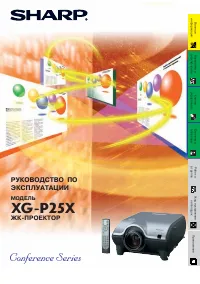 Sharp XG-P25X
Manual
Sharp XG-P25X
Manual
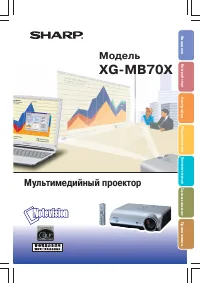 Sharp XG-MB70X
Manual
Sharp XG-MB70X
Manual
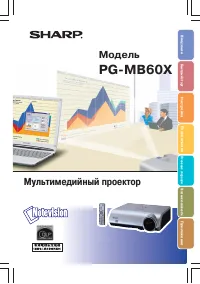 Sharp PG-MB60X
Manual
Sharp PG-MB60X
Manual
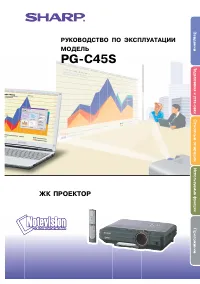 Sharp PG-C45S
Manual
Sharp PG-C45S
Manual
 Sharp PG-A20X
Manual
Sharp PG-A20X
Manual