Schlage BE489WB CEN 619 - Manuals

Schlage BE489WB CEN 619 Electronic Deadbolt – User Manual in PDF format online.
Manuals:
User Manual Schlage BE489WB CEN 619


Summary
Backup Key Touchscreen Assembly Battery Cover Inside Assembly Backplate Reinforcement Plate Bolt Strike Reinforcement Screws Inside Assembly Screws Backplate Screws Bolt/Strike Screws Parts
Communication Icon • Flashes when lock is connecting to WiFi to check for updates. Low Battery Icon • Flashes after code is entered when battery is low. • Solid when battery is critical. The lock will not work without new batteries. Programming and Input LED • Flashes white on every digit that is en...
1 step Remove existing lock. Remove the entire deadbolt, including the bolt. You may also want to remove the strike. A standard Schlage deadbolt is shown. Check with your specific deadbolt manufacturer if you need help. Tools Don’t use a power drill! Phillips screwdriver 1 2 3 4 5
Schlage Electronic Deadbolts Manuals
-
 Schlage 62409
User Manual
Schlage 62409
User Manual
-
 Schlage BE468ZP CAM 619
User Manual
Schlage BE468ZP CAM 619
User Manual
-
 Schlage BE469NX CAM 716
User Manual
Schlage BE469NX CAM 716
User Manual
-
 Schlage BE469ZP CAM 605
User Manual
Schlage BE469ZP CAM 605
User Manual
-
 Schlage BE469ZP CAM 622
User Manual
Schlage BE469ZP CAM 622
User Manual
-
 Schlage BE469ZP CAM 625
User Manual
Schlage BE469ZP CAM 625
User Manual
-
 Schlage BE469ZP CEN 622
User Manual
Schlage BE469ZP CEN 622
User Manual
-
 Schlage BE469ZP V CAM605 + FE285 V CAM 605 GEO
User Manual
Schlage BE469ZP V CAM605 + FE285 V CAM 605 GEO
User Manual
-
 Schlage BE469ZP V CEN 619
User Manual
Schlage BE469ZP V CEN 619
User Manual
-
 Schlage BE469ZP V CEN619 + FE285 V LAT 619 CEN
User Manual
Schlage BE469ZP V CEN619 + FE285 V LAT 619 CEN
User Manual
-
 Schlage BE469ZPVCAM716FE285GCAM716ACCCAM
User Manual
Schlage BE469ZPVCAM716FE285GCAM716ACCCAM
User Manual
-
 Schlage BE479AA V CAM 716
User Manual
Schlage BE479AA V CAM 716
User Manual
-
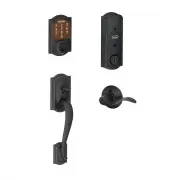 Schlage BE479AA V CAM 716 + FE285 CAM 716 ACC LH
User Manual
Schlage BE479AA V CAM 716 + FE285 CAM 716 ACC LH
User Manual
-
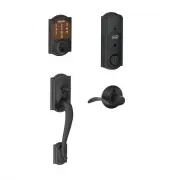 Schlage BE479AA V CAM 716 + FE285 CAM 716 ACC RH
User Manual
Schlage BE479AA V CAM 716 + FE285 CAM 716 ACC RH
User Manual
-
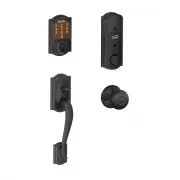 Schlage BE479AA V CAM 716 + FE285 CAM 716 GEO
User Manual
Schlage BE479AA V CAM 716 + FE285 CAM 716 GEO
User Manual
-
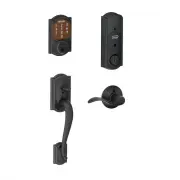 Schlage BE479AAVCAM716FE285GCAM716ACCCAM
User Manual
Schlage BE479AAVCAM716FE285GCAM716ACCCAM
User Manual
-
 Schlage BE489WB CEN 622
User Manual
Schlage BE489WB CEN 622
User Manual
-
 Schlage BE489WB V CAM 716
User Manual
Schlage BE489WB V CAM 716
User Manual