Page 2 - Table of Contents; Basics; Applications
2 Table of Contents Basics 3 Read me first 5 Device overheating situations and solutions 8 Device layout and functions 11 Battery14 SIM or USIM card (nano-SIM card)15 Memory card (microSD card)17 Turning the device on and off18 Keyboard23 Understanding the screen25 Windows34 Entering text35 Screen c...
Page 4 - Instructional icons
Basics 4 • Due to the nature of the product, displaying fixed graphics for extended periods may result in afterimages (screen burn-in) or ghosting. – It is recommended not to use fixed graphics on part or all of the touchscreen for extended periods and turn off the touchscreen when not using the dev...
Page 5 - Device overheating situations and solutions; When the device heats up while charging the battery; Do the following when the device heats up:; When the device heats up during use
Basics 5 Device overheating situations and solutions When the device heats up while charging the battery While charging, the device and the charger may become hot. During wireless charging or fast charging, the device may feel hotter to the touch. This does not affect the device’s lifespan and is in...
Page 7 - Precautions for device overheating
Basics 7 Precautions for device overheating If you begin to feel uncomfortable due to the device overheating, stop using the device.When the device heats up, the features and performance may be limited or the device may turn off to cool down. The feature is only available on supported models. • If t...
Page 8 - Device layout and functions; Package contents
Basics 8 Device layout and functions Package contents Refer to the quick start guide for package contents. • The items supplied with the device and any available accessories may vary depending on the region or service provider. • The supplied items are designed only for this device and may not be co...
Page 9 - Device layout
Basics 9 Device layout Earphone jack Touchscreen Microphone Keyboard Operating status LED Multipurpose jack (USB Type-C) Multipurpose jack (USB Type-C) Power key (Fingerprint recognition sensor) Touchpad Main antenna Light sensor Camera Camera indicator light SIM card / Memory card tray Speaker Spea...
Page 11 - Keys; Battery; Charging the battery
Basics 11 Keys Key Function Power key • Press and hold to turn the device on or off. • Press to turn on or lock the screen. Battery Charging the battery Charge the battery before using it for the first time or when it has been unused for extended periods. Use only Samsung-approved battery, charger, ...
Page 12 - Viewing the remaining charging time; Reducing the battery consumption
Basics 12 2 Plug the USB cable into the device’s multipurpose jack. 3 Plug the USB power adaptor into an electric socket. 4 After fully charging, disconnect the charger from the device. Then, unplug the charger from the electric socket. Viewing the remaining charging time While charging, on the task...
Page 13 - Battery charging tips and precautions; Battery saver
Basics 13 Battery charging tips and precautions • Use the charger supplied with the device. It may take longer to charge the battery if you use other chargers. • When the battery power is low, the battery icon appears empty. • If the battery is completely discharged, the device cannot be turned on i...
Page 14 - Installing the SIM or USIM card
Basics 14 SIM or USIM card (nano-SIM card) Installing the SIM or USIM card Insert the SIM or USIM card provided by the mobile telephone service provider. • Use only a nano-SIM card. • Use caution not to lose or let others use the SIM or USIM card. Samsung is not responsible for any damages or inconv...
Page 15 - Installing a memory card
Basics 15 3 Place the SIM or USIM card on the tray with the gold-coloured contacts facing downwards. 4 Gently press the SIM or USIM card into the tray to secure it. If the card is not fixed firmly into the tray, the SIM card may leave or fall out of the tray. 5 Insert the tray back into the tray slo...
Page 17 - Removing the memory card; Turning the device on and off
Basics 17 Removing the memory card Before removing the memory card, first unmount it for safe removal.On the taskbar, tap → , and then select the ejection option. Do not remove the memory card while the device is transferring or accessing information. Doing so can cause data to be lost or corrupted ...
Page 18 - Restarting the device; Keyboard; Hot keys
Basics 18 Restarting the device To restart the device, on the taskbar, tap → → Restart . In Tablet mode, tap → Restart . If your device is frozen and unresponsive, press and hold the Power key for more than 12 seconds until the device restarts. If your device does not restart automatically, press an...
Page 19 - Hot key functions
Basics 19 Hot key functions Key/Icon Function F1 • Launch Windows Settings . F2 • Adjust the brightness of the display. F3 F4 • Change the display mode when an external display is connected to the device. F5 • Lock or unlock the touchpad. F6 • Mute or unmute the audio. F7 • Adjust the volume. F8F9 •...
Page 20 - Touchpad; Basic touchpad functions; Moving; Clicking
Basics 20 Touchpad Use the touchpad to move the cursor or select items. The left and right buttons of the touchpad function the same as the left and right buttons of a mouse. Use only your fingers on the touchpad. The touchpad may not recognise the other tools. Basic touchpad functions Moving To mov...
Page 21 - Dragging
Basics 21 Double-clicking Double-tap the touchpad or press the left-click button twice. or Right-clicking Press the right-click button to perform the right-click function. Alternatively, tap the touchpad with two fingers. or Dragging To move an item, select and drag it to the target position while p...
Page 22 - Additional functions; Swiping; Spreading and pinching; Configuring touchpad settings; Locking and unlocking the touchpad
Basics 22 Additional functions Swiping To scroll up, down, left, or right to a desired location, swipe with two fingers on the touchpad. or Spreading and pinching Spread two fingers apart on a webpage, map, or image to zoom in a part. Pinch to zoom out. Configuring touchpad settings Configure touchp...
Page 23 - Understanding the screen; Controlling the touchscreen; Tapping
Basics 23 Understanding the screen Controlling the touchscreen • Do not allow the touchscreen to come into contact with other electrical devices. Electrostatic discharges can cause the touchscreen to malfunction. • To avoid damaging the touchscreen, do not tap it with anything sharp or apply excessi...
Page 25 - Windows; Start screen; Moving and removing an item
Basics 25 Windows Microsoft Windows is an operating system that is used to control the device. • Images and available features may differ depending on the model and operating system. • This manual is designed for Windows 10 and content may differ depending on the OS version. • The image displayed on...
Page 26 - Taskbar; Managing shortcuts; Managing notification icons; Search box; Setting up Cortana
Basics 26 Taskbar The bottom area of the screen is the taskbar. You can access the Start menu, launch the search box, view notification icons, and more on the taskbar. Managing shortcuts To add a shortcut, on the taskbar, tap , tap and hold an item, tap More , and then tap Pin to taskbar . To delete...
Page 27 - Start menu; Managing app tiles
Basics 27 Start menu On the taskbar, tap to open the Start menu.From the Start menu, you can access your frequently used apps, shortcuts to other locations on your device, and more. Settings Pictures Documents App tiles Power Your account Frequently used apps Managing app tiles You can pin your favo...
Page 28 - Switching to tablet mode; Lock screen
Basics 28 Switching to tablet mode You can switch between PC mode and tablet mode. In Tablet mode, the full Start menu screen will be the Start screen. Switching to tablet mode makes the device more touch-friendly.To switch to tablet mode, on the taskbar, tap → Tablet mode . Alternatively, Swipe fro...
Page 29 - Change the screen lock method
Basics 29 Change the screen lock method You can change the way that you lock the screen to prevent others from accessing your personal information.On the taskbar, tap → → Accounts → Sign-in options , and then select a screen lock method. The device requires an unlock code whenever unlocking it. • Wi...
Page 30 - ACTION CENTRE; Using quick action buttons
Basics 30 ACTION CENTRE You can view new notifications from Windows and apps, and use quick action buttons. Quick action buttons allow you to easily adjust frequently used settings, such as activating Wi-Fi.To open the action centre panel, on the taskbar, tap . Alternatively, swipe from the right ed...
Page 31 - Multi desktop; Creating new desktops; Deleting desktops; Moving windows to another desktop
Basics 31 Multi desktop Multi desktop allows you to work on various tasks at the same time via multiple desktops. You can use different desktops for a variety of purposes. Creating new desktops 1 On the taskbar, tap . Alternatively, swipe from the left edge of the screen. 2 Tap New desktop . A new d...
Page 32 - Split screen view
Basics 32 Split screen view In Tablet mode, you can open two windows at the same time in the split screen view by selecting windows from the task view screen. Some apps may not support this feature. 1 On the taskbar, tap to view currently open windows. Alternatively, swipe from the left edge of the ...
Page 33 - Adjusting the window size; Help; Using the control panel
Basics 33 Adjusting the window size Drag the handle between the windows left or right to adjust the size of the windows.When you drag the bar between the windows to the left or right edge of the screen, the window will be maximised. Help To access help information, on the taskbar, tap → Tips . Using...
Page 34 - Entering text; Using the on-screen keyboard; Changing the input language; Additional keyboard functions
Basics 34 Entering text Using the on-screen keyboard In Tablet mode, the on-screen keyboard appears automatically when you enter text to send emails, create notes, and more. To use the on-screen keyboard in PC mode, on the taskbar, tap . • Text entry is not supported in some languages. To enter text...
Page 35 - Copying and pasting; Screen capture
Basics 35 • → : Switch the fixed keyboard. • → : Switch the floating keyboard. Tap the top of the on-screen keyboard and drag it to the desired position. • : Change the keyboard settings. • : Activate the dictation feature to convert spoken words into text. To use this feature, launch Window Setting...
Page 36 - Device and data management; Updating the device; Performing a data reset; Connecting to an external display
Basics 36 Device and data management Updating the device Keep the device up to date by downloading and installing updates, such as service packs and patches, for the operating system and other Microsoft apps.The device is set to download and install updates automatically. To check for available upda...
Page 38 - Installing or uninstalling apps; Microsoft Store; Installing apps; Uninstalling apps
38 Applications Installing or uninstalling apps Microsoft Store Purchase and download apps.On the taskbar, tap . Alternatively, on the taskbar, tap → Microsoft Store . For service requests for apps provided by third-party providers, contact the provider. If you contact a Samsung Service Centre, trou...
Page 39 - Samsung Notes; Creating notes; Deleting notes
Applications 39 Samsung Notes Create notes by entering text from the keyboard or by handwriting or drawing on the screen. You can also insert images or voice recordings into your notes. Creating notes 1 On the taskbar, tap → Samsung Notes → All notes → . 2 Select an input method from the toolbar at ...
Page 40 - Introduction; Connecting your device and smartphone
Applications 40 Samsung Flow Introduction Samsung Flow allows you to easily connect your device to a smartphone and use them conveniently, such as checking notifications or sharing contents.Samsung Flow must be installed on both devices that you want to connect. If Samsung Flow is not installed, dow...
Page 41 - Sharing mobile data connection; Viewing the connected smartphone’s content on the device; Checking notifications on the device
Applications 41 Sharing mobile data connection Share the connected smartphone’s mobile data connection with your device using a mobile hotspot when the Internet connection is not available on your device.On the taskbar, tap → Samsung Flow and tap . You can access the Internet on the device using the...
Page 42 - Launching Camera; Taking photos or recording videos
Applications 42 Camera Take photos and record videos using various modes and settings. Camera etiquette • Do not take photos or record videos of other people without their permission. • Do not take photos or record videos where legally prohibited. • Do not take photos or record videos in places wher...
Page 43 - Searching for images
Applications 43 Samsung Gallery Introduction View images and videos stored in your device. You can also manage images and videos by album or create stories. Viewing images 1 On the taskbar, tap → Samsung Gallery , and then tap PICTURES . 2 Select an image. To view the toolbar, tap the screen. Add to...
Page 44 - Viewing videos; Using the spherical view
Applications 44 Viewing videos 1 On the taskbar, tap → Samsung Gallery , and then tap PICTURES . 2 Select a video to play.The video will be played. To view the toolbar, tap the screen. Pause and resume playback. Change the playback speed. Capture the current screen. Switch to the full screen view. S...
Page 45 - Viewing the details of images and videos; Creating stories
Applications 45 Viewing the details of images and videos You can view file details and basic information. If there is auto created content, such as a story, the content will also be displayed. 1 On the taskbar, tap → Samsung Gallery , and then tap PICTURES . 2 Select an image or a video. 3 Tap Detai...
Page 46 - Deleting stories; Syncing images and videos
Applications 46 Deleting stories 1 On the taskbar, tap → Samsung Gallery , tap STORIES . 2 Tap and hold a story to delete, and tap Delete . Syncing images and videos When you sync your Samsung Gallery app with Samsung Cloud, photos and videos you take will also be saved in Samsung Cloud. You can vie...
Page 47 - Using home appliances, TVs, and IoT products; Viewing and controlling connected devices
Applications 47 SmartThings Introduction Control and manage smart appliances and Internet of Things (IoT) products with your device. • Viewing and controlling home appliances, TVs, and IoT products : Register smart refrigerators, washers, air conditioners, air purifiers, TVs, and Internet of Things ...
Page 48 - Samsung DeX
Applications 48 Samsung DeX Introduction Samsung DeX is a service that allows you to use a smartphone like a computer by connecting the smartphone to your device. Accomplish tasks you want done on a smartphone quickly and easily on a large screen using a keyboard and touchpad. While using Samsung De...
Page 49 - Connecting devices and starting Samsung DeX; Controlling the Samsung DeX screen
Applications 49 Connecting devices and starting Samsung DeX You can use Samsung DeX by connecting the smartphone to your device using a USB cable. 1 On the taskbar, tap → Samsung DeX . The screen for the app installation instructions will appear. 2 Follow the on-screen instructions to download the S...
Page 50 - Using Samsung DeX
Applications 50 Using Samsung DeX Use the connected smartphone’s features in an interface environment similar to your device. You can multitask by running multiple apps simultaneously. You can also check the connected smartphone’s notifications and status. Samsung DeX home screen Samsung DeX panel A...
Page 51 - Using Samsung DeX and smartphone simultaneously; Transferring data with your device; Moving files; Copying and pasting text; Ending Samsung DeX
Applications 51 Using Samsung DeX and smartphone simultaneously While using Samsung DeX, you can use separate apps on your device and the connected smartphone simultaneously.For example, while watching a video on your device, you can create a note on the connected smartphone.On your device, launch a...
Page 52 - Galaxy Book
Applications 52 Galaxy Book Configure the Samsung integrated settings and view additional information about your device. To configure the Windows settings, such as the system or language, launch Windows Settings . Refer to Windows Settings for more information. On the taskbar, tap → Galaxy Book . • ...
Page 53 - Settings
53 Settings Windows Settings Customise settings for the device. You can make your device more personalised by configuring various setting options.On the taskbar, tap → . To search for settings by entering keywords, tap the search field at the top of the screen. The available options may vary dependi...
Page 55 - Gaming; Cortana; Search
Settings 55 Gaming Set the Game bar shortcuts. You can capture, record, or stream your gameplay using the Game bar. Ease of Access Change settings to improve the device’s accessibility. Cortana Change Cortana settings. Search Change the search settings and content-filtering service from the Web resu...
Page 56 - Entering the BIOS screen; Shortcuts; Setup menus
Settings 56 Entering the BIOS screen Press the F2 key several times immediately after you turn on your device, before the Samsung logo appears.If the locked screen or the Start screen appears, restart the device and try again. Setup menus Setup items Shortcuts Help information Shortcuts • F1 : View ...
Page 57 - Setting the boot password; Setting a boot password
Settings 57 Setting the boot password Setting a password with the BIOS enhances protection against viruses and hacking attacks.On the BIOS screen, select Security . The following password settings are available: • Supervisor Password : This password is required when turning on the device or entering...
Page 58 - Removing a password; Boot priority
Settings 58 Removing a password 1 Select Set Supervisor Password or Set User Password . 2 Enter the password and press the Enter key. 3 Without entering any characters, press the Enter key, and then select Yes . The password will be removed. Boot priority Change the boot priority from the BIOS setup...
Page 59 - Appendix; Troubleshooting; When you turn on your device or while you are using the device, it
59 Appendix Troubleshooting Before contacting a Samsung Service Centre, please attempt the following solutions. Some situations may not apply to your device. When you turn on your device or while you are using the device, it prompts you to enter one of the following codes: • Password: When the devic...
Page 60 - The touchscreen responds slowly or improperly
Appendix 60 The touchscreen responds slowly or improperly • If you attach a screen protector or optional accessories to the touchscreen, the touchscreen may not function properly. • If you are wearing gloves, if your hands are not clean while touching the touchscreen, or if you tap the screen with s...
Page 61 - The Internet is often disconnected; The battery does not charge properly (For Samsung-approved; The battery depletes faster than when first purchased
Appendix 61 The Internet is often disconnected • Ensure that you are not blocking the device’s internal antenna. • When you are in areas with weak signals or poor reception, you may lose reception. You may have connectivity problems due to issues with the service provider’s base station. Move to ano...
Page 62 - Photo quality is poorer than the preview
Appendix 62 Photo quality is poorer than the preview • The quality of your photos may vary, depending on the surroundings and the photography techniques you use. • If you take photos in dark areas, at night, or indoors, image noise may occur or images may be out of focus. Error messages appear when ...
Page 63 - Bluetooth is not working well; Your device cannot find your current location
Appendix 63 Bluetooth is not working well If another Bluetooth device is not located or there are connection problems or performance malfunctions, try the following: • Ensure that the device you wish to connect with is ready to be scanned or connected to. • Ensure that your device and the other Blue...
Page 64 - Windows recovery function; Resetting your device
Appendix 64 Windows recovery function When a problem occurs with your device, reset your device to reinstall Windows or restore the factory default settings. Reinstalling Windows will erase all apps and data on the device. Back up important apps and data to an external storage device before reinstal...
Page 65 - Removing the battery
Appendix 65 Removing the battery • To remove the battery, contact an authorised service centre. To obtain battery removal instructions, please visit www.samsung.com/global/ecodesign_energy . • For your safety, you must not attempt to remove the battery. If the battery is not properly removed, it may...


 Samsung Galaxy Tab S6
User Manual
Samsung Galaxy Tab S6
User Manual
 Samsung Tab Active Pro
User Manual
Samsung Tab Active Pro
User Manual
 Samsung Galaxy Book
User Manual
Samsung Galaxy Book
User Manual
 Samsung Galaxy Note pro
User Manual
Samsung Galaxy Note pro
User Manual
 Samsung Galaxy Tab 4
User Manual
Samsung Galaxy Tab 4
User Manual
 Samsung Galaxy Tab A
User Manual
Samsung Galaxy Tab A
User Manual
 Samsung Galaxy Tab A7
User Manual
Samsung Galaxy Tab A7
User Manual
 Samsung Galaxy Tab A8
User Manual
Samsung Galaxy Tab A8
User Manual
 Samsung Galaxy Tab A9
User Manual
Samsung Galaxy Tab A9
User Manual
 Samsung Galaxy Tab A9+
User Manual
Samsung Galaxy Tab A9+
User Manual
 Samsung Galaxy Tab Active Pro
User Manual
Samsung Galaxy Tab Active Pro
User Manual
 Samsung Galaxy Tab E
User Manual
Samsung Galaxy Tab E
User Manual
 Samsung Galaxy Tab Lite
User Manual
Samsung Galaxy Tab Lite
User Manual
 Samsung Galaxy Tab S
User Manual
Samsung Galaxy Tab S
User Manual
 Samsung Galaxy Tab S2
User Manual
Samsung Galaxy Tab S2
User Manual
 Samsung Galaxy Tab S6 Lite
User Manual
Samsung Galaxy Tab S6 Lite
User Manual
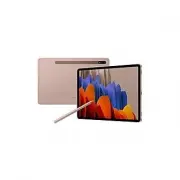 Samsung Galaxy Tab S7
User Manual
Samsung Galaxy Tab S7
User Manual
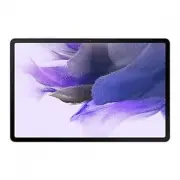 Samsung Galaxy Tab S7 FE
User Manual
Samsung Galaxy Tab S7 FE
User Manual
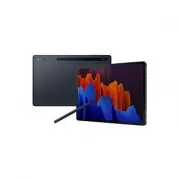 Samsung Galaxy Tab S7+
User Manual
Samsung Galaxy Tab S7+
User Manual
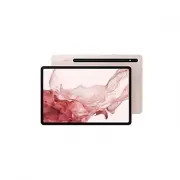 Samsung Galaxy Tab S8
User Manual
Samsung Galaxy Tab S8
User Manual