Page 2 - 简体中文; תירבע
2 About this manual This device provides high quality mobile communication and entertainment using Samsung’s high standards and technological expertise. This user manual is specially designed to detail the device’s functions and features. • Please read this manual before using the device to ensure s...
Page 3 - Safety information; Warning; Failure to comply with safety warnings and regulations can cause; Unsecured connections can cause electric shock or fire.
About this manual 3 • Default applications that come with the device are subject to updates and may no longer be supported without prior notice. If you have questions about an application provided with the device, contact a Samsung Service Centre. For user-installed applications, contact service pro...
Page 6 - Caution; Failure to comply with safety cautions and regulations can cause
Table of Contents 6 Settings 80 About Settings80 Bluetooth80 Wi-Fi81 Data usage81 More settings82 Blocking mode82 Sound83 Display83 Storage84 Power saving mode84 Battery84 Application manager84 Location services85 Lock screen86 Security87 Language and input89 Cloud90 Backup and reset90 Add account90...
Page 7 - Broken glass or acrylic could cause injury to your hands and face.; operating a vehicle; others, use your common sense and remember the following tips:
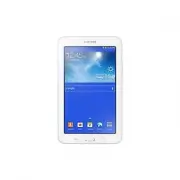
7 Getting started Device layout Touch screen Menu button Home button Back button Microphone Volume button Power button Multipurpose jack Memory card slot Headset jack GPS antenna Speaker Rear camera
Page 8 - Care and use your device properly
Getting started 8 • Do not cover the antenna area with your hands or other objects. This may cause connectivity problems or drain the battery. • Do not use a screen protector. This causes sensor malfunctions. • Do not allow water to contact the touch screen. The touch screen may malfunction in humid...
Page 12 - Malware and viruses
Getting started 12 Inserting a memory card Your device accepts memory cards with maximum capacities of 32 GB. Depending on the memory card manufacturer and type, some memory cards may not be compatible with your device. • Some memory cards may not be fully compatible with the device. Using an incomp...
Page 13 - English; Specific Absorption Rate (SAR) certification information; For more information, visit; Correct disposal of this product; reference levels in EC Directive 2006/66.
Getting started 13 Removing the memory card Before removing the memory card, first unmount it for safe removal. On the Home screen, tap Apps → Settings → Storage → Unmount SD card . Push the memory card until it disengages from the device, and then pull it out. Do not remove the memory card while th...
Page 14 - FCC Information
Getting started 14 Turning the device on and off When turning on the device for the first time, follow the on-screen instructions to set up your device.Press and hold the Power button for a few seconds to turn on the device. • Follow all posted warnings and directions from authorised personnel in ar...
Page 15 - Disclaimer; FOR A PARTICULAR PURPOSE. SAMSUNG DOES NOT GUARANTEE THE ACCURACY,
Getting started 15 Locking and unlocking the device When not in use, lock the device to prevent unwanted operation. Pressing the Power button turns off the screen and puts the device into lock mode. The device automatically gets locked if it is not used for a specified period.To unlock the device, p...
Page 16 - Shqip; Informacione sigurie; Paralajmërim; shkaktojë lëndime serioze ose vdekje; pajisjes mjekësore; Mos e tërhiqni kabllin e energjisë fort kur e shkëputni; Nëse veproni kështu mund të shkaktoni goditje elektrike.
16 Basics Indicator icons The icons displayed at the top of the screen provide information about the status of the device. The icons listed in the table below are most common. Icon Meaning Wi-Fi connectedBluetooth feature activatedGPS activatedSynced with the webConnected to computerAlarm activatedS...
Page 18 - me presion
Basics 18 Dragging To move an icon, thumbnail, or preview to a new location, tap and hold it and drag it to the target position. Double-tapping Double-tap on a webpage, map, or image to zoom in a part. Double-tap again to return.
Page 19 - Kujdes; Mosrespektimi i lajmërimeve dhe rregullave të sigurisë mund të; interferohen nga frekuencat e radios; në anën e trupit tuaj që është në të kundërt me peismeikërin.; Mos e ekspozoni pajisjen në tymra ose avuj të rëndë; të ndikohet nga frekuencat e radios të nxjerra nga pajisja juaj.; sistemet e zërit dhe kullat e radios
Basics 19 Flicking Flick left or right on the Home screen or the Applications screen to see another panel. Flick up or down to scroll through a webpage or a list, such as contacts. Pinching Spread two fingers apart on a webpage, map, or image to zoom in a part. Pinch to zoom out.
Page 20 - Fikeni pajisjen në mjedise ku ekziston mundësia e shpërthimit; njëjtin vend me pajisjen, pjesët ose aksesorët e saj.; shërbimi të Samsung ose në një qendër shërbimi të autorizuar; Xhami i thyer ose akriliku mund të dëmtojë duart ose fytyrën tuaj.; përdorimit të pajisjeve celulare gjatë drejtimit të mjetit; akulli dhe trafiku i rënduar shfaqin rrezikshmëri.
Basics 20 Rotating the screen Many applications allow display in either portrait or landscape orientation. Rotating the device causes the display to automatically adjust to fit the new screen orientation. To prevent the display from rotating automatically, open the notifications panel and deselect S...
Page 21 - Kujdesuni dhe përdoreni mirë pajisjen; Mbajeni pajisjen të thatë
Basics 21 Notifications Notification icons appear on the status bar at the top of the screen to report new messages, calendar events, device status, and more. Drag down from the status bar to open the notifications panel. Scroll the list to see additional alerts. To close the notifications panel, dr...
Page 22 - Përdorni kujdes kur ekspozoheni ndaj dritave vezulluese
Basics 22 Home screen The Home screen is the starting point to access all of the device’s features. It displays indicator icons, widgets, shortcuts to applications, and others.The Home screen can have multiple panels. To view other panels, scroll left or right. Rearranging items Adding an applicatio...
Page 23 - Bëni kujdes kur vini pajisjen
Basics 23 Rearranging panels Adding a new panel Tap → Edit page → . Moving a panel Tap → Edit page , tap and hold a panel preview, and then drag it to a new location. Removing a panel Tap → Edit page , tap and hold a panel preview, and then drag it to the rubbish bin at the top of the screen. Settin...
Page 24 - Mos e çmontoni, mos e ndryshoni apo riparoni pajisjen tuaj
Basics 24 Using widgets Widgets are small applications that provide convenient functions and information on your Home screen. To use them, add widgets from the widgets panel to the Home screen. • Some widgets connect to web services. Using a web-based widget may result in additional charges. • The w...
Page 25 - informacioneve sensitive; mënyrë që të mbroni informatat tuaja personale.; Të mos shpërndahet materiali i mbrojtur me të drejtë të autorit; materialit me të drejtë të autorit.; Maluerët dhe viruset; mos mbulohen nga shërbimi i garancisë; Mos shkarkoni aplikacione të panjohura.
Basics 25 Applications screen The Applications screen displays icons for all applications, including any new applications installed.On the Home screen, tap Apps to open the Applications screen. To view other panels, scroll left or right. Rearranging applications Tap → Edit , tap and hold an applicat...
Page 26 - Për më shumë informacion, vizitoni; Hedhja e këtij produkti sipas rregullave; mund të përzihen me mbeturina të tjera komerciale.; Flakja korrekte e baterive të këtij produkti
Basics 26 Uninstalling applications Tap → Uninstall , and then select an application to uninstall it. Default applications that come with the device cannot be uninstalled. Sharing applications Share downloaded applications with other users via email, Bluetooth, or other methods.Tap → Share app , sel...
Page 27 - Deklarim për mosmbajtje përgjegjësie
Basics 27 Using the Samsung keyboard Break to the next line. Delete a preceding character. Enter numerals and punctuation marks. Enter uppercase. Set options for the Samsung keyboard. Enter a space. Enter uppercase. Add an item from the clipboard. Entering uppercase Tap before entering a character. ...
Page 28 - اةيبرعلا; ناملأااتامولعم; .زاهجلابافلتاعوقوابنجتلو; ريذحت; بيطلاازاهجلل
Basics 28 Connecting to a Wi-Fi network Connect the device to a Wi-Fi network to use the Internet or share media files with other devices. (p. 80) Ensure that the Wi-Fi connection is active before using Internet applications. Turning Wi-Fi on and off Open the notifications panel, and then tap Wi-Fi ...
Page 29 - ةيدعرلاافصاوعلااللاخاجراخلاباكزاهجامدختستالا
Basics 29 Setting up accounts Google applications, such as Play Store , require a Google account, and Samsung Apps requires a Samsung account. Create Google and Samsung accounts to have the best experience with the device. Adding accounts Follow the instructions that appear when opening a Google app...
Page 30 - لياعلا
Basics 30 Transferring files Move audio, video, image, or other types of files from the device to the computer, or vice versa. The following file formats are supported by some applications. Some file formats are not supported depending on the version of the device’s software or the computer operatin...
Page 31 - هيبنت; ىرخلأااةينوتركللإااةزهجلأاانمابرقلابازاهجلاامدختستالا
Basics 31 Connecting as a media device 1 Connect the device to the computer using the USB cable. 2 Open the notifications panel, and then tap Connected as a media device → Media device (MTP) . Tap Camera (PTP) if your computer does not support Media Transfer Protocol (MTP) or not have any appropriat...
Page 32 - ةلمتحماةروصباةيراجفنلاااتائيبلاافيازاهجلااقلاغإ
Basics 32 Setting a PIN On the Applications screen, tap Settings → Lock screen → Screen lock → PIN . Enter at least four numbers, and then enter the password again to verify it. Setting a password On the Applications screen, tap Settings → Lock screen → Screen lock → Password . Enter at least four c...
Page 33 - حيحصالكشباكزاهجامدختساوارذحلااخوت
Basics 33 Upgrading the device The device can be upgraded to the latest software. This feature may not be available depending on the region or service provider. Upgrading with Samsung Kies Launch Samsung Kies and connect the device to the computer. Samsung Kies automatically recognises the device an...
Page 34 - ةضماولااحيباصمللاضرعتلاادنعارذحلااغلاباىخوت; كرحتلااوأاشيلمااءانثأازاهجلاامادختساادنعاًارذحانك
34 Communication Contacts Use this application to manage contacts, including phone numbers, email addresses, and others.Tap Contacts on the Applications screen. Managing contacts Tap Contacts . Creating a contact Tap and enter contact information. • : Add an image. • / : Add or delete a contact fiel...
Page 35 - زاهجلااءادتراادنعااًرذحانك
Communication 35 Once a contact is selected, take one of the following actions: • : Add to favourite contacts. • : Compose an email. Importing and exporting contacts Tap Contacts . Syncing with Google Contacts Tap → Merge accounts → Merge with Google . Contacts synced with Google Contacts appear wit...
Page 37 - شرنلااقوقحاينناوقباةيمحماداوماعيزوتبامقتالا; تاسويرفلاواةراضلااجمابرلا
Communication 37 Business card Tap Contacts . Create a business card and send it to others.Tap Set up my profile , enter details, such as phone number, email address, and postal address, and then tap Save . If user information has been saved when you set up the device, select the business card in ME...
Page 38 - (اددحلمااصاصتملااالدعمادامتعااتامولعم; جتنلماااذهافياةدوجولمااتايراطبلاانماميلسلااصلختلا
Communication 38 Sending scheduled messages While composing a message, tap → Schedule sending . Tick Schedule sending , set a time and date, and then tap Done . The device will send the message at the specified time and date. • If the device is turned off at the scheduled time, is not connected to t...
Page 39 - ةيلوؤسلمااءلاخإ
Communication 39 Google Mail Use this application to quickly and directly access the Google Mail service.Tap Google Mail on the Applications screen. • This application may not be available depending on the region or service provider. • This application may be labelled differently depending on the re...
Page 40 - বাংলা; নিরাপত্া তথ্য; সতক্কতা
Communication 40 Labels Google Mail does not use actual folders, but uses labels instead. When Google Mail is launched, it displays messages labelled Inbox.To add a label to a message, select the message, tap → Change labels , and then select the label to assign. Hangouts Use this application to cha...
Page 43 - ত্তি; র ক্য়ক্নত হরত পারর
Web & network 43 History Tap → History to open a webpage from the list of recently-visited webpages. To clear the history, tap → Clear history . Tap → History → Most visited to open a webpage from the list of most visited webpages. Links Tap and hold a link on the webpage to open it in a new pag...
Page 45 - আপিার নিভাইসটির যত্ন নিি এবং সঠিকভারব ব্যবহার করুি
Web & network 45 Pairing with other Bluetooth devices On the Applications screen, tap Settings → Bluetooth → Scan , and detected devices are listed. Select the device you want to pair with, and then accept the auto-generated passkey on both devices to confirm. Sending and receiving data Many app...
Page 49 - ম্যালওয়্যার এবং ভাইরাস
Media 49 Camera Use this application to take photos or videos.Use Gallery to view photos and videos taken with the device’s camera. (p. 55) Tap Camera on the Applications screen. The camera automatically shuts off when unused. Camera etiquette • Do not take photos or videos of other people without t...
Page 50 - দস্পনসনফক অ্যাবসপ্করি দরট (SAR) সাটি্কনফরকরি নিরয় তথ্য; এই দপ্রািাক্টটি সঠিকভারব দফলা
Media 50 Scene mode Predefined settings make point-and-shoot photos easier to take.Tap → Scene mode . • Landscape : Use this setting to take photos of blue skies and landscapes with richer colours. • Party/Indoor : Use this setting for well-lit indoor scenes. • Sunset : Use this setting for richer c...
Page 51 - অস্বীকৃনতজ্াপি
Media 51 Panoramic photos A panoramic photo is a wide landscape image consisting of multiple shots.Tap → Shooting mode → Panorama . Tap and move the camera in any direction. When two panorama guide frames are aligned, the camera automatically takes another shot in a panoramic sequence. To stop shoot...
Page 52 - Български; Информация за безопасност; Предупреждение; причини сериозни наранявания или смърт
Media 52 Recording mode Change recording mode. Use this for delayed-time shots. Select among various effects that are available. Determine how much light the camera’s sensor receives. Change the white balance setting. Change the camera settings. Indicates which storage is in use. Switch between stil...
Page 55 - Внимание; или имуществени вреди
Media 55 Gallery Use this application to view images and videos.Tap Gallery on the Applications screen. • Some file formats are not supported depending on the software installed on the device. • Some files may not play properly depending on the encoding method used. Viewing images Launching Gallery ...
Page 57 - Използвайте и се грижете за своето устройство правилно
Media 57 Sharing images Use one of the following methods: • In a folder, tap → Select item , select images by ticking, and then tap to send them to others. • When viewing an image, tap to send it to others or share it via social network services. Setting as wallpaper When viewing an image, tap → Set...
Page 61 - Злонамерен софтуер и вируси
61 Application & media stores Play Store Use this application to purchase and download applications and games that are able to run on the device.Tap Play Store on the Applications screen. This application may not be available depending on the region or service provider. Installing applications B...
Page 62 - живот
Application & media stores 62 Samsung Apps Use this application to purchase and download dedicated Samsung applications. For more information, visit apps.samsung.com. Tap Samsung Apps on the Applications screen. This application may not be available depending on the region or service provider. I...
Page 63 - Отказ от права
Application & media stores 63 Play Books Use this application to read and download book files.Tap Play Books on the Applications screen. This application may not be available depending on the region or service provider. Play Music Use this application to listen to music from the device or stream...
Page 64 - 安全資訊; 警告; 不遵照安全警告和規定會導致嚴重傷害或死亡; 請勿使用損壞的電源線或插頭或者鬆動的電源插座
Application & media stores 64 Play Newsstand Use this application to read the latest news articles.Tap Play Newsstand on the Applications screen. This application may not be available depending on the region or service provider. Video Hub Use this application to access and purchase videos.Tap Vi...
Page 67 - 注意; 不遵照安全注意事項和規定會導致人身傷害或財產損失; 不要在其他電子裝置附近使用裝置
Utilities 67 To add an event or task more briefly, tap a date to select it and tap it again. Enter a title and specify which calendar to use or sync with. Then tap Edit event details or Edit task details to add more details, such as how often the event repeats, when it has an advance alert, or where...
Page 69 - 妥善保管和使用您的裝置; 保持裝置乾燥
Utilities 69 POLARIS Office 5 Use this application to edit documents in various formats, including spreadsheets and presentations.Tap POLARIS Office 5 on the Applications screen. Some functions may not be available, depending on the file type. Create a document. Share documents with others. Scroll l...
Page 73 - 惡意軟件和病毒
Utilities 73 Setting alarms Tap , set a time for the alarm to go off, select days for the alarm to repeat, and then tap Save . • Location alarm : Set a location. The alarm goes off only when you are in the location. • Snooze : Set an interval and the number of times for the alarm to repeat after the...
Page 74 - 如需詳細資料,請瀏覽; 免責聲明
Utilities 74 Calculator Use this application for simple or complex calculations.Tap Calculator on the Applications screen. To see the calculation history, tap to hide the keypad. To clear the history, tap → Clear history . S Voice Use this application to command the device by voice to perform variou...
Page 75 - 安全信息; 不遵守安全警告和规定会导致严重伤害或死亡; cm
Utilities 75 Using wake-up commands on the locked screen On the locked screen, you can use various functions with preset wake-up commands.To activate this feature, tap → Settings , and then tick Wake up in lock screen . Tap Set wake-up command , and then set functions and voice commands. Google Use ...
Page 78 - 不遵守安全注意事项和规定会导致人身伤害或财产损失; 请勿在其他电子设备附近使用设备
78 Travel & local Maps Use this application to pinpoint the location of the device, search for places, or get directions.Tap Maps on the Applications screen. This application may not be available depending on the region or service provider. Searching for locations Search for locations by enterin...
Page 80 - 妥善保养和使用设备
80 Settings About Settings Use this application to configure the device, set application options, and add accounts.Tap Settings on the Applications screen. Bluetooth Activate the Bluetooth feature to exchange information over short distances.To use more options, tap . • Visibility timeout : Set dura...
Page 84 - 恶意软件和病毒
Settings 84 Power saving mode Activate power-saving mode and change the settings for power-saving mode. • CPU power saving : Set the device to limit some system resource usage. • Screen power saving : Set the device to decrease the brightness of the display. • Learn about Power saving mode : Discove...
Page 85 - 免责声明
Settings 85 Lock screen Change settings for the locked screen. • Screen lock : Activate the screen lock feature. • Multiple widgets : Set the device to allow use of widgets on the locked screen. • Lock screen widgets : These settings are applied only when you set the swipe lock option. – Clock or pe...
Page 89 - 小心; 不要在其他電子設備附近使用裝置
Settings 89 Voice search • Language : Select a language for the voice recognition. • Speech output : Set the device to provide voice feedback to alert you to the current action. • Block offensive words : Hide offensive words from voice search results. • Offline speech recognition : Download and inst...
Page 95 - 惡意軟體和病毒
Appendix 95 Sound echoes during a call Adjust the volume by pressing the Volume button or move to another area. A cellular network or the Internet is often disconnected or audio quality is poor • Ensure that you are not blocking the device’s internal antenna. • When you are in areas with weak signal...
Page 96 - SAR 認證資訊; 正確棄置
Appendix 96 Your device is hot to the touch When you use applications that require more power or use applications on your device for an extended period of time, your device may feel hot to the touch. This is normal and should not affect your device’s lifespan or performance. Error messages appear wh...
Page 97 - Hrvatski; Sigurnosne informacije; biste spriječili nastajanje štete na svojem uređaju.; Upozorenje; ozbiljnih ozljeda ili smrti; uređaj na udaljenosti većoj od; Neosigurani spojevi mogu izazvati strujni udar ili požar.; drugim mokrim dijelom tijela; Nemojte savijati ili oštetiti kabel za napajanje; To može izazvati strujni udar ili požar.; Ne upotrebljavajte uređaj s mokrim rukama dok se uređaj puni; To može izazvati strujni udar.
Appendix 97 • Your device supports photos and videos captured with the device. Photos and videos captured by other devices may not work properly. • Your device supports multimedia files that are authorised by your network service provider or providers of additional services. Some content circulated ...
Page 98 - Ne koristite uređaj na otvorenom za vrijeme oluja; ili pribora koje tvrtka Samsung nije odobrila.; Nemojte nositi uređaj u stražnjim džepovima ili oko struka; Mogli biste se ozlijediti ako se udarite ili padnete.; Zaštitite uređaj, bateriju i punjač od oštećenja
Appendix 98 Data stored on the device has been lost Always make backup copies of all important data stored on the device. Otherwise, you cannot restore data if it is corrupted or lost. Samsung is not responsible for the loss of data stored on the device. A small gap appears around the outside of the...
Page 99 - spremnika pod visokim tlakom
Appendix 99 Removing the battery • To remove the battery, you must visit an authorised service centre with the provided instructions. • For your safety, you must not attempt to remove the battery. If the battery is not properly removed, it may lead to damage to the battery and device, cause personal...
Page 100 - Oprez; ozbiljnih ozljeda ili štete na imovini; uređaja putem radiofrekvencije; je nasuprot pejsmejkeru.; Uređaj ne izlažite jakom dimu ili parama
Appendix 100 4 Disconnect the battery connectors as shown in the image below. 5 Peel the flap from the battery, and then pull it to remove the battery.
Page 101 - Isključite uređaj u potencijalno eksplozivnim okružjima; kemikalija ili na područjima miniranja.; centru ili odobrenom servisnom centru.; Slomljeno staklo ili akril može uzrokovati ozljede ruku ili lica.; odnose na uporabu mobilnog uređaja
English (EU). 06/2015. Rev.1.2 Some content may differ from your device depending on the region, service provider, or software version, and is subject to change without prior notice. www.samsung.com


 Samsung Galaxy Tab A7 User Manual
 Samsung Galaxy Tab A8 User Manual
 Samsung Galaxy Tab A9 User Manual
 Samsung Galaxy Tab A9+ User Manual
 Samsung Galaxy Tab Active Pro User Manual
 Samsung Galaxy Tab E User Manual
 Samsung Galaxy TabPRO User Manual
 Samsung Galaxy Tab S User Manual
 Samsung Galaxy Tab S2 User Manual
 Samsung Galaxy Tab S6 User Manual
 Samsung Galaxy Tab S6 Lite User Manual
 Samsung Galaxy Tab S7 User Manual