Page 2 - Table of Contents; Basics; Applications
2 Table of Contents Basics 3 Read me first 4 Device overheating situations and solutions 7 Package contents 8 Device layout 12 Battery15 SIM or USIM card (mobile network- enabled models) 17 Memory card (microSD card)20 Turning the device on and off21 Keyboard Cover28 Controlling the touchscreen31 Wi...
Page 4 - Instructional icons; Device overheating situations and solutions; When the device heats up while charging the battery; Do the following when the device heats up:
Basics 4 Instructional icons Warning : situations that could cause injury to yourself or others Caution : situations that could cause damage to your device or other equipment Notice : notes, usage tips, or additional information Device overheating situations and solutions When the device heats up wh...
Page 5 - When the device heats up during use
Basics 5 When the device heats up during use When you use features or apps that require more power or use them for extended periods, your device may temporarily heat up due to increased battery consumption. Close any running apps and do not use the device for a while. The following are examples of s...
Page 6 - Device limitations when the device overheats
Basics 6 Do the following when the device heats up: • Keep the device updated with the latest software. • Conflicts between running apps may cause the device to heat up. Restart the device. • Deactivate the Wi-Fi, GPS, and Bluetooth features when not using them. • Close apps that increase battery co...
Page 7 - Package contents
Basics 7 • Do not place the device in any areas that may overheat, such as on an electric heating mat. • Do not store your device near or in heaters, microwaves, hot cooking equipment, or high pressure containers. • Never use a damaged charger or battery. Package contents Check the product box for t...
Page 8 - Device layout; Device
Basics 8 Device layout Device Keyboard dock port Touchscreen Microphone Front camera Light sensor Speaker Headset jack Multipurpose jack (USB Type-C) Fan vents Volume key Power key LED indicator Speaker GPS antenna Main antenna (mobile network-enabled models) SIM card (mobile network-enabled models)...
Page 9 - Keys
Basics 9 The device and the Keyboard Cover contain magnets. The American Heart Association (US) and the Medicines and Healthcare Products Regulatory Agency (UK) both warn that magnets can affect the operation of implanted pacemakers, cardioverters, defibrillators, insulin pumps or other electro medi...
Page 10 - S Pen
Basics 10 S Pen S Pen button S Pen clip S Pen nib Tweezers Name Functions S Pen nib • Use the S Pen to write, draw, or perform touch actions on the screen. • Hover the S Pen over items on the screen to access additional S Pen features. S Pen button • Hover the S Pen over the screen and press the S P...
Page 11 - Replacing the S Pen nib
Basics 11 Replacing the S Pen nib If the nib is dull, replace it with a new one. 1 Firmly hold the nib with the tweezers and remove it. 2 Insert a new nib into the S Pen.
Page 12 - Battery; Charging the battery
Basics 12 Be careful not to pinch your fingers with the tweezers. • Do not reuse old nibs. Doing so may cause the S Pen to malfunction. • Do not press the nib excessively when inserting the nib into the S Pen. • Do not insert the round end of the nib into the S Pen. Doing so may cause damage to the ...
Page 13 - Viewing the remaining charging time; Reducing the battery consumption
Basics 13 1 Connect the USB cable to the USB power adaptor, and plug the USB cable into the device’s multipurpose jack. 2 Plug the USB power adaptor into an electric socket. 3 After fully charging, disconnect the device from the charger. First unplug the charger from the device, and then unplug it f...
Page 14 - Battery charging tips and precautions; Battery saver
Basics 14 Battery charging tips and precautions • Use the charger supplied with the device. It may take longer to charge the battery if you use other chargers. • When the battery power is low, the battery icon appears empty. • If the battery is completely discharged, the device cannot be turned on i...
Page 15 - SIM or USIM card (mobile network-enabled; Installing the SIM or USIM card
Basics 15 SIM or USIM card (mobile network-enabled models) Installing the SIM or USIM card Insert the SIM or USIM card provided by the mobile telephone service provider. • Use only a nano-SIM card. • Use caution not to lose or let others use the SIM or USIM card. Samsung is not responsible for any d...
Page 16 - Removing the SIM or USIM card
Basics 16 1 Place the device with the bottom facing upwards. 2 Insert the ejection pin into the hole on the tray to loosen the tray. Ensure that the ejection pin is perpendicular to the hole. Otherwise, the device may be damaged. 3 Pull out the tray gently from the tray slot. 4 Place the SIM or USIM...
Page 17 - Installing a memory card
Basics 17 3 Remove the SIM or USIM card. 4 Insert the tray back into the tray slot. Memory card (microSD card) Installing a memory card Your device’s memory card capacity may vary from other models and some memory cards may not be compatible with your device depending on the memory card manufacturer...
Page 19 - Removing the memory card
Basics 19 5 Insert the tray back into the tray slot. • If you insert the tray into your device while the tray is wet, your device may be damaged. Always make sure the tray is dry. • Fully insert the tray into the tray slot to prevent liquid from entering your device. Removing the memory card Before ...
Page 20 - Turning the device on and off; Restarting the device
Basics 20 Turning the device on and off Press and hold the Power key for a few seconds to turn on the device. Before turning on your device for the first time, you must connect the device to a power supply. When you turn on your device for the first time or after performing a data reset, follow the ...
Page 21 - Introduction; Keyboard Cover
Basics 21 Keyboard Cover Introduction Connect the device to the Keyboard Cover. The bottom of the touchpad acts as the left and right buttons of a mouse.When you close the Keyboard Cover, your device will enter sleep mode. When you open the cover, the touchscreen will turn on. To change the settings...
Page 22 - Connecting the Keyboard Cover
Basics 22 Connecting the Keyboard Cover 1 Connect the keyboard dock port at the bottom of the device to the connector on the keyboard. Make sure that the Keyboard Cover is securely attached to your device. If not, check the location of the keyboard dock port and reconnect the Keyboard Cover to your ...
Page 23 - Attaching the S Pen holder
Basics 23 Attaching the S Pen holder Attach the S Pen holder to the S Pen holder slot. You can insert the S Pen into the S Pen holder. • Make sure that the S Pen holder is securely attached after 1 hour. • To avoid detaching the holder from the keyboard cover, do not apply excessive force. Hot keys ...
Page 24 - Hot key functions
Basics 24 Hot key functions Key/Icon Function F1 • Launch Settings . F2 • Adjust the brightness of the display. F3 F4 • Change the display mode when an external display is connected to the device. F5 • Lock or unlock the touchpad. F6 • Mute or unmute the audio. F7 • Adjust the volume. F8F9 • Turn th...
Page 25 - Touchpad; Basic touchpad functions; Moving; Clicking
Basics 25 Touchpad Use the touchpad to move the cursor or select items. The left and right buttons of the touchpad function the same as the left and right buttons of a mouse. Use only your fingers on the touchpad. The touchpad may not recognise the S Pen or the other tools. Basic touchpad functions ...
Page 26 - Dragging
Basics 26 Double-clicking Double-tap the touchpad or press the left-click button twice. or Right-clicking Press the right-click button to perform the right-click function. Alternatively, tap the touchpad with two fingers. or Dragging To move an item, select and drag it to the target position while p...
Page 27 - Additional functions; Swiping; Spreading and pinching; Configuring touchpad settings; Locking and unlocking the touchpad
Basics 27 Additional functions Swiping To scroll up, down, left, or right to a desired location, swipe with two fingers on the touchpad. or Spreading and pinching Spread two fingers apart on a webpage, map, or image to zoom in a part. Pinch to zoom out. Configuring touchpad settings Configure touchp...
Page 28 - Controlling the touchscreen; Tapping
Basics 28 Controlling the touchscreen • Do not allow the touchscreen to come into contact with other electrical devices. Electrostatic discharges can cause the touchscreen to malfunction. • To avoid damaging the touchscreen, do not tap it with anything sharp or apply excessive pressure to it with yo...
Page 29 - Tapping and holding
Basics 29 Tapping and holding Tap and hold an item or the screen for more than 2 seconds to access available options. Dragging To move an item, tap and hold it and drag it to the target position. Double-tapping Double-tap on a webpage or image to zoom in. Double-tap again to return.
Page 31 - Windows; Start screen; Moving and removing an item; Taskbar
Basics 31 Windows Microsoft Windows is an operating system that is used to control a computer. • Images and available features may differ depending on the model and operating system. • This manual is designed for Windows 10 and content may differ depending on the OS version. • The image displayed on...
Page 32 - Managing shortcuts; Search box; Cortana
Basics 32 Managing shortcuts To add a shortcut, on the taskbar, tap , tap and hold an item, tap More or tap → More , and then tap Pin to taskbar . To delete a shortcut, tap and hold a shortcut, and then tap Unpin from taskbar . To move a shortcut to another location, drag it to a new location. Manag...
Page 33 - Start menu; Managing app tiles
Basics 33 Start menu On the taskbar, tap to open the Start menu.From the Start menu, you can access your frequently used apps, shortcuts to other locations on your device, and more. Settings App tiles Power Your account Frequently used apps Apps list Managing app tiles You can pin your favourite app...
Page 34 - Switching to tablet mode; Lock screen
Basics 34 Switching to tablet mode You can switch between PC mode and tablet mode. In Tablet mode, the full Start menu screen will be the Start screen. Switching to tablet mode makes the device more touch-friendly.To switch to tablet mode, on the taskbar, tap → Tablet mode . Alternatively, Swipe fro...
Page 35 - Password; ACTION CENTRE
Basics 35 Password A password consists of characters or numbers. Enter a password, enter the password again to verify it, and then enter a password hint.If you have signed in to your Microsoft account, your account password will be set as the password automatically. PIN A PIN consists of numbers onl...
Page 36 - Using quick action buttons; Multi desktop; Creating new desktops
Basics 36 You can use the following functions on the action centre panel. Clear all notifications. Tap a notification and perform various actions. Quick action buttons Using quick action buttons Tap quick action buttons to activate certain features. To view more detailed settings, tap and hold a but...
Page 37 - Deleting desktops; Split screen view
Basics 37 Currently open windows Multi desktop list Deleting desktops 1 On the taskbar, tap . 2 On the multi desktop list, tap on the desktop to delete. Moving windows to another desktop 1 On the taskbar, tap to view the current desktop’s open windows. 2 Tap and hold a window to move, and then tap M...
Page 38 - Adjusting the window size; Help
Basics 38 2 Tap and hold a window and select Snap left or Snap right . Adjusting the window size Drag the handle between the windows left or right to adjust the size of the windows. Help To access help information, tap → Get Started .
Page 39 - Using the control panel; Entering text; Using the on-screen keyboard; Changing the input language
Basics 39 Using the control panel You can adjust basic system settings, such as hardware, software, or user account settings.Tap → Windows System → Control Panel . Alternatively, press the right-click button on and tap Control Panel . Then, select options you want to change. Entering text Using the ...
Page 40 - Additional keyboard functions
Basics 40 Additional keyboard functions Tap to use various functions. • : Switch to the default keyboard. • : Switch to the floating split keyboard. You can move the keyboard to another location by dragging the keyboard. • : Switch to handwriting mode. This feature may not be available depending on ...
Page 41 - Screen capture; Capturing screenshots with the S Pen; Device and data management; Updating the device; Performing a data reset
Basics 41 Screen capture Capture a screenshot while using the device.You can view captured images in the This PC → Pictures → Screenshots folder. It is not possible to capture a screenshot while using some apps and features. Capturing screenshots with the S Pen You can also use the Air command featu...
Page 42 - Connecting to an external display
Basics 42 InstantGo (Modern standby) InstantGo (Modern standby) is a low-power mode that allows the device to maintain network connectivity. When the screen turns off, the device will enter modern standby mode.While the device is in modern standby mode, the device can still sync content, such as ema...
Page 43 - Installing or uninstalling apps; Store; Installing apps; Uninstalling apps
43 Applications Installing or uninstalling apps Store Purchase and download apps.On the taskbar, tap . Alternatively, on the taskbar, tap → Store . For service requests for apps provided by third-party providers, contact the provider. If you contact a Samsung Service Centre, troubleshooting actions ...
Page 44 - Air Command
Applications 44 Air Command Introduction Air command is a menu that provides S Pen features.To open the Air command panel, hover the S Pen over the screen and press the S Pen button. Alternatively, tap → Samsung → Air Command . Create note Show Window Smart select Screen write View all notes • Creat...
Page 48 - Composing notes in handwriting mode; Changing the pen settings
Applications 48 Composing notes in handwriting mode On the note composer screen, tap Pen to write or draw with the S Pen. Undo Redo Eraser mode Selection mode Changing the pen settings When writing or drawing on the screen, you can change the pen type, line thickness, or pen colour. Change the pen c...
Page 49 - Editing handwritten notes
Applications 49 • You can also erase an area in pen mode by tapping it while pressing and holding the S Pen button. • Even with a smaller eraser, you may still not be able to precisely erase the intended part. Editing handwritten notes Edit handwritten notes using various editing options, such as cu...
Page 50 - Painting with brushes
Applications 50 • Delete : Delete the input. • To front : Send the input to the front. • To back : Send the input to the back. Painting with brushes On the note composer screen, tap Brush to paint with various brushes. When you are finished, tap Done to insert your painting into the note. UndoRedo I...
Page 51 - Samsung Flow
Applications 51 Samsung Flow Introduction Samsung Flow allows you to easily connect your tablet to your smartphone and use them conveniently, such as unlocking your tablet screen or sharing contents.Samsung Flow must be installed on your tablet and smartphone that you want to connect. If Samsung Flo...
Page 52 - Unlocking your tablet screen with fingerprint; Sharing mobile data connection
Applications 52 Unlocking your tablet screen with fingerprint You can unlock your tablet screen with registered fingerprint on your smartphone. 1 On the locked screen of your tablet, touch the NFC antenna area on the back of your smartphone to the nfc tag of your keyboard cover. Samsung Flow will la...
Page 53 - Checking notifications on your tablet; Show Window; Showing a selected area on an external display
Applications 53 Checking notifications on your tablet When you receive new notifications on your smartphone, check notifications from the virtual screen or in pop-up window on your tablet. Sharing contents You can share your smartphone’s contents with your tablet. Show Window Show Window allows you ...
Page 54 - Using tools; Setting the connection notification
Applications 54 5 Drag to select an area to show in full screen mode on the external display, and then tap Done . The selected area will be shown on the external display. To fix the ratio of the selected area to the ratio of the external screen, tap and tap the Fixed ratio switch to activate it. To ...
Page 55 - Taking photos or recording videos
Applications 55 Camera Take photos and record videos using various modes and settings.On the taskbar, tap → Camera . When you launch Camera , the LED indicator turns on. The LED indicator will be automatically turned off after the camera is turned off. Taking photos or recording videos 1 Tap the ima...
Page 58 - Backing up the current system
Applications 58 Backing up the current system Back up important data to an external storage device regularly to prevent data loss. 1 Connect an external storage device. 2 On the taskbar, tap → Samsung → Samsung Recovery . 3 Tap Backup management → New backup . 4 Enter backup information and select t...
Page 59 - Restoring the system
Applications 59 Restoring the system Select a backup point saved on an external storage device to restore the device to that point. 1 Connect the external storage device to your device. 2 On the taskbar, tap → Samsung → Samsung Recovery . 3 Tap Backup management , select a backup image, and then tap...
Page 60 - Settings; Windows Settings
60 Settings Windows Settings Customise settings for functions and apps. You can make your device more personalised by configuring various setting options.On the taskbar, tap → . To search for settings by entering keywords, tap the search field at the top of the screen. The available options may vary...
Page 61 - Personalisation; Ease of Access; Privacy
Settings 61 Network & Internet Change the network and Internet settings. • Your device uses a non-harmonised frequency and is intended for use in all European countries. The WLAN can be operated in the EU without restriction indoors, but cannot be operated outdoors. • Turn off Wi-Fi to save the ...
Page 62 - Setup tools
Settings 62 BIOS (Setup utility) Introduction BIOS is the program that starts the operating system when you turn on your device. Access the BIOS setup screen to set a boot password, perform battery calibration, and more. Be careful when changing BIOS settings. Incorrect changes may cause the system ...
Page 63 - Setting the boot password
Settings 63 • Save : Save the changes and restart the device. • Exit : Restart the device without saving the changes. Setup menus • SysInfo : View the basic specifications of the device. • Advanced : Configure the advanced settings and perform the battery calibration. • Security : Configure security...
Page 64 - Setting a boot password; Boot priority
Settings 64 Setting a boot password To set a user password or HDD password, you must set the supervisor password first. 1 Tap Set Supervisor Password , Set User Password , or Set HDD Password . 2 Enter a password and tap Ok . The password can be up to 20 characters long. 3 Enter the password again a...
Page 66 - Appendix; Troubleshooting; When you turn on your device or while you are using the device, it
66 Appendix Troubleshooting Before contacting a Samsung Service Centre, please attempt the following solutions. Some situations may not apply to your device. When you turn on your device or while you are using the device, it prompts you to enter one of the following codes: • Password: When the devic...
Page 67 - The touchscreen responds slowly or improperly; The device responds slowly
Appendix 67 The touchscreen responds slowly or improperly • If you attach a screen protector or optional accessories to the touchscreen, the touchscreen may not function properly. • If you are wearing gloves, if your hands are not clean while touching the touchscreen, or if you tap the screen with s...
Page 68 - Resetting the device; The Internet is often disconnected; The battery icon is empty; The battery depletes faster than when first purchased
Appendix 68 Resetting the device If the methods above do not solve your problem, perform a factory data reset.On the taskbar, tap → Samsung → Samsung Recovery → Factory image → Recover → Recover → OK . Before performing the factory data reset, remember to make backup copies of all important data sto...
Page 69 - Your device is hot to the touch
Appendix 69 Your device is hot to the touch When you use apps that require more power or use apps on your device for an extended period of time, your device may feel hot to the touch. This is normal and should not affect your device’s lifespan or performance.If the device overheats or feels hot for ...
Page 70 - Another Bluetooth device is not located; A small gap appears around the outside of the device case
Appendix 70 • Your device supports photos and videos captured with the device. Photos and videos captured by other devices may not work properly. • Your device supports multimedia files that are authorised by your network service provider or providers of additional services. Some content circulated ...
Page 71 - Windows recovery function; Removing the battery
Appendix 71 Windows recovery function If the Samsung Recovery app is not supported, reinstall Windows using the Windows recovery function. Reinstalling Windows will erase all apps and data on the device. Back up important apps and data to an external storage device before reinstalling Windows. After...


 Samsung Galaxy Tab S6
User Manual
Samsung Galaxy Tab S6
User Manual
 Samsung Tab Active Pro
User Manual
Samsung Tab Active Pro
User Manual
 Samsung Galaxy Book
User Manual
Samsung Galaxy Book
User Manual
 Samsung Galaxy Note pro
User Manual
Samsung Galaxy Note pro
User Manual
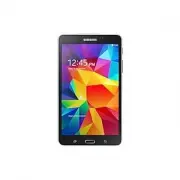 Samsung Galaxy Tab 4
User Manual
Samsung Galaxy Tab 4
User Manual
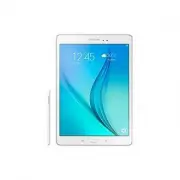 Samsung Galaxy Tab A
User Manual
Samsung Galaxy Tab A
User Manual
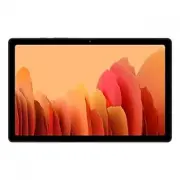 Samsung Galaxy Tab A7
User Manual
Samsung Galaxy Tab A7
User Manual
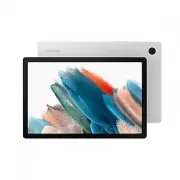 Samsung Galaxy Tab A8
User Manual
Samsung Galaxy Tab A8
User Manual
 Samsung Galaxy Tab A9
User Manual
Samsung Galaxy Tab A9
User Manual
 Samsung Galaxy Tab A9+
User Manual
Samsung Galaxy Tab A9+
User Manual
 Samsung Galaxy Tab Active Pro
User Manual
Samsung Galaxy Tab Active Pro
User Manual
 Samsung Galaxy Tab E
User Manual
Samsung Galaxy Tab E
User Manual
 Samsung Galaxy Tab Lite
User Manual
Samsung Galaxy Tab Lite
User Manual
 Samsung Galaxy Tab S
User Manual
Samsung Galaxy Tab S
User Manual
 Samsung Galaxy Tab S2
User Manual
Samsung Galaxy Tab S2
User Manual
 Samsung Galaxy Tab S6 Lite
User Manual
Samsung Galaxy Tab S6 Lite
User Manual
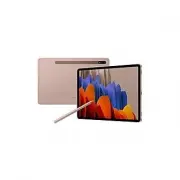 Samsung Galaxy Tab S7
User Manual
Samsung Galaxy Tab S7
User Manual
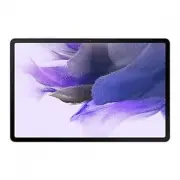 Samsung Galaxy Tab S7 FE
User Manual
Samsung Galaxy Tab S7 FE
User Manual
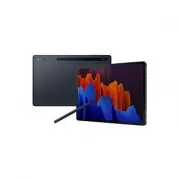 Samsung Galaxy Tab S7+
User Manual
Samsung Galaxy Tab S7+
User Manual
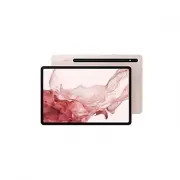 Samsung Galaxy Tab S8
User Manual
Samsung Galaxy Tab S8
User Manual