Page 2 - Table of Contents; Basics; Applications
2 Table of Contents Basics 3 Read me first 4 Package contents 5 Device layout 8 Battery11 SIM or USIM card (mobile network- enabled models) 13 Turning the device on and off13 Keyboard Cover20 Touchscreen23 Start screen26 Lock screen27 ACTION CENTRE29 Search box30 Entering text32 Screen capture32 Ope...
Page 4 - Instructional icons; Package contents
Basics 4 Instructional icons Warning : situations that could cause injury to yourself or others Caution : situations that could cause damage to your device or other equipment Notice : notes, usage tips, or additional information Package contents Check the product box for the following items: • Devic...
Page 5 - Device layout; Device
Basics 5 Device layout Device Keyboard dock port Microphone Light sensor Touchscreen Microphone Front camera Camera indicator light Loud speaker Headset jack Multipurpose jack (USB Type-C ™ ) Volume key Power key Start key Rear camera Loud speaker NFC antenna SIM card tray (mobile network-enabled mo...
Page 6 - Keys
Basics 6 Do not store your device and the Keyboard Cover near magnetic fields. Magnetic stripe cards, including credit cards, phone cards, passbooks, and boarding passes, may be damaged by magnetic fields. • Connectivity problems and battery drain may occur in the following situations: – If you atta...
Page 7 - Keyboard Cover
Basics 7 Keyboard Cover Connector Keyboard Touchpad NFC tag Stand Do not remove keycaps from the keyboard. Doing so may damage the keyboard and the keycaps. The function of the NFC tag may differ depending on the model and region.
Page 8 - Battery; Charging the battery
Basics 8 Battery Charging the battery Charge the battery before using it for the first time or when it has been unused for extended periods. Use only Samsung-approved chargers, batteries, and cables. Unapproved chargers or cables can cause the battery to explode or damage the device. 1 Connect the U...
Page 9 - Viewing the remaining charging time; Reducing the battery consumption
Basics 9 3 After fully charging, disconnect the device from the charger. First unplug the charger from the device, and then unplug it from the electric socket. To save energy, unplug the charger when not in use. The charger does not have a power switch, so you must unplug the charger from the electr...
Page 10 - Battery charging tips and precautions; Battery saver
Basics 10 Battery charging tips and precautions • Use the charger supplied with the device. It may take longer to charge the battery if you use other chargers. • When the battery power is low, the battery icon appears empty. • If the battery is completely discharged, the device cannot be turned on i...
Page 11 - SIM or USIM card (mobile network-enabled; Installing the SIM or USIM card
Basics 11 SIM or USIM card (mobile network-enabled models) Installing the SIM or USIM card Insert the SIM or USIM card provided by the mobile telephone service provider. • Only nano-SIM cards work with the device. • Some LTE services may not be available depending on the service provider. For more i...
Page 12 - Removing the SIM or USIM card
Basics 12 2 Pull out the SIM card tray gently from the SIM card tray slot. 3 Place the SIM or USIM card on the SIM card tray with the gold-coloured contacts facing downwards. Use caution not to lose or let others use the SIM or USIM card. Samsung is not responsible for any damages or inconveniences ...
Page 13 - Turning the device on and off; Restarting the device; Introduction
Basics 13 Turning the device on and off Press and hold the Power key for a few seconds to turn on the device. Before turning on your device for the first time, you must connect the device to a power supply. When you turn on your device for the first time or after performing a data reset, follow the ...
Page 14 - Connecting the Keyboard Cover
Basics 14 Connecting the Keyboard Cover 1 Attach the device to the stand.Ensure that the rear camera is correctly aligned with the camera hole in the stand. 2 Connect the keyboard dock port at the bottom of the device to the connector on the keyboard, and then set the device in position. 1 2 Hot key...
Page 15 - Hot key functions
Basics 15 Hot key functions Key/Icon Function F1 • Launch Settings . F2 • Adjust the brightness of the display. F3 F4 • Change the display mode when an external display is connected to the device. F5 • Lock or unlock the touchpad. F6 • Mute or unmute the audio. F7 • Adjust the volume. F8F9 • Open th...
Page 16 - Touchpad; Basic touchpad functions; Moving; Clicking
Basics 16 Touchpad Use the touchpad to move the cursor or select items. The left and right buttons of the touchpad function the same as the left and right buttons of a mouse. Use only your fingers on the touchpad. Basic touchpad functions Moving To move the cursor, move your finger on the touchpad. ...
Page 18 - Dragging; Additional functions; Swiping
Basics 18 Dragging To move an item, select and drag it to the target position while pressing and holding the left-click button. Alternatively, double-tap and hold the item, and then drag it to the target position. Additional functions Swiping To scroll up, down, left, or right to a desired location,...
Page 19 - Spreading and pinching; Configuring touchpad settings; Locking and unlocking the touchpad
Basics 19 Spreading and pinching Spread two fingers apart on a webpage, map, or image to zoom in a part. Pinch to zoom out. Configuring touchpad settings Configure touchpad settings to use the touchpad more efficiently.Tap → Settings → Devices → Mouse & touchpad , and configure the settings unde...
Page 20 - Touchscreen; Tapping
Basics 20 Touchscreen • Do not allow the touchscreen to come into contact with other electrical devices. Electrostatic discharges can cause the touchscreen to malfunction. • To avoid damaging the touchscreen, do not tap it with anything sharp or apply excessive pressure to it with your fingertips. •...
Page 21 - Tapping and holding
Basics 21 Tapping and holding Tap and hold an item or the screen for more than 2 seconds to access available options. Dragging To move an item, tap and hold it and drag it to the target position. Double-tapping Double-tap on a webpage or image to zoom in. Double-tap again to return.
Page 23 - Start screen; Taskbar
Basics 23 Start screen Start screen The Start screen is the starting point for accessing all of the device’s features. Taskbar Start menu Moving and removing an item Drag an item on the Start screen to a new location.To remove an item, tap and hold the item, and then tap Delete . Taskbar The bottom ...
Page 24 - Managing shortcuts; Start menu; Managing app tiles
Basics 24 Managing shortcuts To add a shortcut, on the taskbar, tap , tap and hold an item, tap More or tap → More , and then tap Pin to taskbar . To delete a shortcut, tap and hold a shortcut, and then tap Unpin from taskbar . To move a shortcut to another location, drag it to a new location. Manag...
Page 25 - Virtual desktop; Adding desktops; Deleting desktops
Basics 25 Virtual desktop Virtual desktop allows you to work on various tasks simultaneously from multiple desktops. You can use different desktops for a variety of purposes.On the taskbar, tap . Alternatively, swipe from the left edge of the screen. If you have added desktops, the desktop thumbnail...
Page 26 - Switching to tablet mode; Lock screen; Password
Basics 26 Switching to tablet mode You can switch between PC mode and tablet mode. In Tablet mode, the full Start menu screen will be the Start screen. Switching to tablet mode makes the device more touch-friendly.To switch to tablet mode, on the taskbar, tap → Tablet mode . Alternatively, Swipe fro...
Page 27 - PIN; ACTION CENTRE; Using the action centre
Basics 27 PIN A PIN consists of numbers only. Enter at least four numbers, and then enter the password again to verify it. Picture password A password consists of circles, straight lines, and taps. Select an image and draw on the image to create gestures. Pattern Log-in To unlock the screen using a ...
Page 28 - Using quick action buttons; Screen mirroring
Basics 28 You can use the following functions on the action centre panel. Clear all notifications. Tap a notification and perform various actions. Quick action buttons Using quick action buttons Tap quick action buttons to activate certain features. To view more detailed settings, tap and hold a but...
Page 29 - Search box
Basics 29 3 Select a device to connect to.Your device’s screen appears on the TV screen. 4 Open or play a file, and then control the display with the keys on your device. • This feature may not be available depending on the region or service provider. • For more information about connecting your dev...
Page 30 - Entering text; Using the on-screen keyboard; Changing the input language
Basics 30 Entering text Using the on-screen keyboard In tablet mode, the on-screen keyboard appears automatically when you enter text to send emails, create notes, and more. To use the on-screen keyboard in PC mode, on the taskbar, tap . Text entry is not supported in some languages. To enter text, ...
Page 31 - Additional keyboard functions
Basics 31 Additional keyboard functions Tap to use various functions. • : Switch to the default keyboard. • : Switch to the floating split keyboard. You can move the keyboard to another location by dragging the keyboard. • : Switch to handwriting mode. This feature may not be available depending on ...
Page 32 - Using the Keyboard Cover; Screen capture; Opening apps; Closing an app; Split screen view
Basics 32 Using the Keyboard Cover When your device is connected to the Keyboard Cover, you can enter text using the traditional keyboard. Refer to Keyboard Cover for more information. Screen capture Capture a screenshot while using the device.Press and hold the Start key and the Volume Down key sim...
Page 33 - Adjusting the window size
Basics 33 2 Tap and hold a window and select Snap left or Snap right . Adjusting the window size Drag the handle between the windows left or right to adjust the size of the windows.
Page 34 - Device and data management; Updating the device; Samsung Update; Backing up and restoring data; Performing a data reset
Basics 34 Device and data management Updating the device Keep the device up to date by downloading and installing updates, such as service packs and patches, for the operating system and other Microsoft apps.The device is set to download and install updates automatically. To check for available upda...
Page 36 - Installing or uninstalling apps; Store; Installing apps; Uninstalling apps
36 Applications Installing or uninstalling apps Store Purchase and download apps.On the taskbar, tap . Alternatively, on the taskbar, tap → All apps → Store . For service requests for apps provided by third-party providers, contact the provider. If you contact a Samsung Service Centre, troubleshooti...
Page 37 - Scrap Box; Capturing screenshots
Applications 37 Scrap Box Capture a screenshot while using the device. You can share or edit captured images. Capturing screenshots 1 When there is content you want to capture, on the taskbar, tap → All apps → Scrap Box . 2 Tap . 3 Drag to select the content you want, and then tap Done . To auto fit...
Page 39 - Restoring the system; Restoring to factory default; Restoring to a backup point
Applications 39 3 Tap Backup management → New backup . 4 Enter backup information and select the external storage device. 5 Tap Backup . 6 When the backup start window appears, tap Yes . 7 When the backup complete window appears, tap OK . When the backup is finished, the backup image will appear on ...
Page 40 - Show Window; Showing a selected area on an external display
Applications 40 Online Support(S Service) This service allows you to chat with a technical engineer via the Internet and resolve problems on your device remotely. • This service may be limited after the expiration date. • This service may not be available depending on the region. 1 On the taskbar, t...
Page 41 - Using tools; Setting the connection notification
Applications 41 3 Tap Start . A white frame for selecting an area will appear. Start is activated only when the display mode is set to Extend . Press and hold the Fn key and press the F4 key simultaneously, and then press the F4 key again to select Extend . 4 Drag to select an area to show in full s...
Page 43 - Devices
Settings 43 • Offline maps : Download maps to search for places and get directions offline and change settings for offline maps. • Default apps : Select a default setting for using apps. • About : Access device information and change the device name or other settings. Devices Change settings related...
Page 45 - Personalisation
Settings 45 Personalisation Change the display settings, such as a wallpaper, colour, and theme.On the Settings screen, tap Personalisation . • Background : Change the wallpaper and related settings. • Colours : Change the colours of the taskbar, items on the Start menu, and more. • Lock screen : Ch...
Page 46 - Ease of Access
Settings 46 Time & language Change settings to control how the device displays the time and date, and select your country or region.On the Settings screen, tap Time & language . If the battery remains fully discharged or removed from the device, the time and date is reset. • Date & time ...
Page 47 - Privacy
Settings 47 Privacy Change the privacy settings.On the Settings screen, tap Privacy . • General : Change the general privacy settings. • Location : Change settings for location information permissions. • Camera : Activate or deactivate the camera feature. Select apps to allow them to use the camera ...
Page 48 - Extras
Settings 48 Update & security Change the Windows update, data backup, and device security settings.On the Settings screen, tap Update & security . • Windows Update : Check for available updates and update Windows to the latest version. • Windows Defender : Activate the Windows Defender featu...
Page 50 - Setup tools; Setting the boot password
Settings 50 Setup tools • Help : View the help information for the BIOS setup. • Default : Restore the device to the default settings. • Restore : Undo changes. • Save : Save the changes and restart the device. • Exit : Restart the device without saving the changes. Setup menus • SysInfo : View the ...
Page 51 - Setting a boot password; Boot priority
Settings 51 Setting a boot password To set a user password or an HDD password, you must set the supervisor password first. 1 Tap Set Supervisor Password , Set User Password , or Set HDD Password . 2 Enter a password and tap Ok . The password can be up to 20 characters long. 3 Enter the password agai...
Page 53 - Appendix; Troubleshooting; When you turn on your device or while you are using the device, it
53 Appendix Troubleshooting Before contacting a Samsung Service Centre, please attempt the following solutions. Some situations may not apply to your device. When you turn on your device or while you are using the device, it prompts you to enter one of the following codes: • Password: When the devic...
Page 54 - The touchscreen responds slowly or improperly; The device responds slowly
Appendix 54 The touchscreen responds slowly or improperly • If you attach a screen protector or optional accessories to the touchscreen, the touchscreen may not function properly. • If you are wearing gloves, if your hands are not clean while touching the touchscreen, or if you tap the screen with s...
Page 55 - The Internet is often disconnected; The battery icon is empty; The battery depletes faster than when first purchased
Appendix 55 The Internet is often disconnected • Ensure that you are not blocking the device’s internal antenna. • When you are in areas with weak signals or poor reception, you may lose reception. You may have connectivity problems due to issues with the service provider’s base station. Move to ano...
Page 56 - Photo quality is poorer than the preview
Appendix 56 Photo quality is poorer than the preview • The quality of your photos may vary, depending on the surroundings and the photography techniques you use. • If you take photos in dark areas, at night, or indoors, image noise may occur or images may be out of focus. Error messages appear when ...
Page 57 - Your device cannot find your current location; A small gap appears around the outside of the device case
Appendix 57 Your device cannot find your current location GPS signals may be obstructed in some locations, such as indoors. Set the device to use Wi-Fi to find your current location in these situations. Data stored in the device has been lost Always make backup copies of all important data stored in...
Page 58 - Windows recovery function
Appendix 58 Windows recovery function If the Samsung Recovery app is not supported, reinstall Windows using the Windows recovery function. Reinstalling Windows will erase all apps and data on the device. Back up important apps and data to an external storage device before reinstalling Windows. After...


 Samsung Galaxy Tab S6
User Manual
Samsung Galaxy Tab S6
User Manual
 Samsung Tab Active Pro
User Manual
Samsung Tab Active Pro
User Manual
 Samsung Galaxy Book
User Manual
Samsung Galaxy Book
User Manual
 Samsung Galaxy Note pro
User Manual
Samsung Galaxy Note pro
User Manual
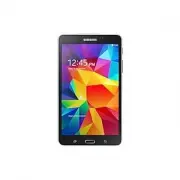 Samsung Galaxy Tab 4
User Manual
Samsung Galaxy Tab 4
User Manual
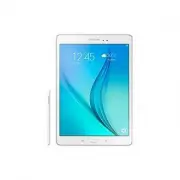 Samsung Galaxy Tab A
User Manual
Samsung Galaxy Tab A
User Manual
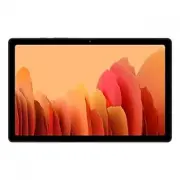 Samsung Galaxy Tab A7
User Manual
Samsung Galaxy Tab A7
User Manual
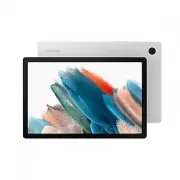 Samsung Galaxy Tab A8
User Manual
Samsung Galaxy Tab A8
User Manual
 Samsung Galaxy Tab A9
User Manual
Samsung Galaxy Tab A9
User Manual
 Samsung Galaxy Tab A9+
User Manual
Samsung Galaxy Tab A9+
User Manual
 Samsung Galaxy Tab Active Pro
User Manual
Samsung Galaxy Tab Active Pro
User Manual
 Samsung Galaxy Tab E
User Manual
Samsung Galaxy Tab E
User Manual
 Samsung Galaxy Tab Lite
User Manual
Samsung Galaxy Tab Lite
User Manual
 Samsung Galaxy Tab S
User Manual
Samsung Galaxy Tab S
User Manual
 Samsung Galaxy Tab S2
User Manual
Samsung Galaxy Tab S2
User Manual
 Samsung Galaxy Tab S6 Lite
User Manual
Samsung Galaxy Tab S6 Lite
User Manual
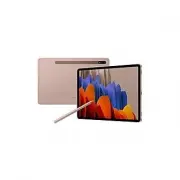 Samsung Galaxy Tab S7
User Manual
Samsung Galaxy Tab S7
User Manual
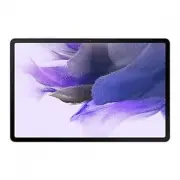 Samsung Galaxy Tab S7 FE
User Manual
Samsung Galaxy Tab S7 FE
User Manual
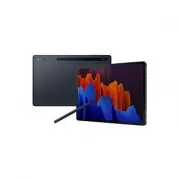 Samsung Galaxy Tab S7+
User Manual
Samsung Galaxy Tab S7+
User Manual
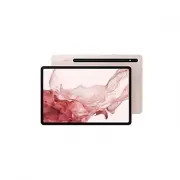 Samsung Galaxy Tab S8
User Manual
Samsung Galaxy Tab S8
User Manual