Page 2 - Table of Contents; Basics; Apps and features
2 Table of Contents Basics 4 Read me first 6 Device overheating situations and solutions 9 Device layout and functions 13 Battery15 Memory card (microSD card)17 Turning the device on and off18 Initial setup20 Samsung account22 Transferring data from your previous device 26 Understanding the screen36...
Page 3 - Appendix
Table of Contents 3 Appendix 110 Troubleshooting116 Removing the battery Settings 81 Introduction81 Connections 82 Wi-Fi84 Bluetooth86 More connection settings 87 Sound88 Notifications89 Display 89 Screensaver 90 Wallpaper90 Advanced features91 Device maintenance93 Apps94 Lock screen 94 Smart Lock 9...
Page 5 - Instructional icons
Basics 5 • Depending on the region or model, some devices are required to receive approval from the Federal Communications Commission (FCC). If your device is approved by the FCC, you can view the FCC ID of the device. To view the FCC ID, launch the Settings app and tap About tablet → Status . • Dep...
Page 6 - Device overheating situations and solutions; When the device heats up while charging the battery; Do the following when the device heats up:; When the device heats up during use
Basics 6 Device overheating situations and solutions When the device heats up while charging the battery While charging, the device and the charger may become hot. During wireless charging or fast charging, the device may feel hotter to the touch. This does not affect the device’s lifespan or perfor...
Page 8 - Device limitations when the device overheats
Basics 8 Device limitations when the device overheats When the device heats up, the features and performance may be limited or the device may turn off to cool down. The feature is only available on supported models. • If the device becomes hotter than usual, a device overheating message will appear....
Page 9 - Device layout and functions; Package contents
Basics 9 Device layout and functions Package contents Check the product box for the following items: • Device • Quick start guide • The items supplied with the device and any available accessories may vary depending on the region or service provider. • The supplied items are designed only for this d...
Page 10 - Device layout
Basics 10 Device layout Volume key Back key Memory card slot Power key Front camera Touchscreen Light sensor Recents key Home key Headset jack GPS antenna Multipurpose jack Microphone Main antenna Rear camera Loud speaker Flash Loud speaker
Page 12 - Keys
Basics 12 Keys Key Function Power • Press and hold to turn the device on or off. • Press to turn on or lock the screen. Recents • Tap to open the list of recent apps. Home • Press to turn on the screen while the screen is locked. • Press to return to the Home screen. • Press and hold to launch Googl...
Page 13 - Battery; Charging the battery
Basics 13 Battery Charging the battery Charge the battery before using it for the first time or when it has been unused for extended periods. Use only Samsung-approved chargers, batteries, and cables. Unapproved chargers or cables can cause the battery to explode or damage the device. Connecting the...
Page 14 - Reducing the battery consumption; Battery charging tips and precautions
Basics 14 Reducing the battery consumption Your device provides various options that help you conserve battery power. • Optimise the device using the device maintenance feature. • When you are not using the device, turn off the screen by pressing the Power key. • Activate power saving mode. • Close ...
Page 15 - Installing a memory card
Basics 15 Memory card (microSD card) Installing a memory card Your device’s memory card capacity may vary from other models and some memory cards may not be compatible with your device depending on the memory card manufacturer and type. To view your device’s maximum memory card capacity, refer to th...
Page 16 - Removing the memory card
Basics 16 3 Push the memory card into the slot until it locks in place. 4 Close the cover of the memory card slot. Removing the memory card Before removing the memory card, first unmount it for safe removal.Launch the Settings app and tap Device maintenance → Storage → → Storage settings → SD card →...
Page 17 - Turning the device on and off; Restarting the device
Basics 17 Turning the device on and off Press and hold the Power key for a few seconds to turn on the device.When you turn on your device for the first time or after performing a data reset, follow the on-screen instructions to set up your device.To turn off the device, press and hold the Power key,...
Page 18 - Initial setup
Basics 18 Initial setup When you turn on your device for the first time or after performing a data reset, follow the on-screen instructions to set up your device. The initial setup procedures may vary depending on the device’s software and your region. 1 Turn on the device. 2 Select your preferred d...
Page 20 - Samsung account; Introduction; Registering a new Samsung account
Basics 20 Samsung account Introduction Your Samsung account is an integrated account service that allows you to use a variety of Samsung services provided by mobile devices, TVs, and the Samsung website. Once your Samsung account has been registered, you can keep your data up to date and secure acro...
Page 21 - Registering an existing Samsung account; Removing your Samsung account
Basics 21 Registering an existing Samsung account If you already have a Samsung account, register it to the device. 1 Launch the Settings app and tap Cloud and accounts → Accounts → Add account . 2 Tap Samsung account → SIGN IN . 3 Enter your email address and password, and then tap SIGN IN . If you...
Page 22 - Transferring data from your previous device; Smart Switch; Transferring data from a mobile device
Basics 22 Transferring data from your previous device You can restore your data, such as images, contacts, messages, and apps from Samsung Cloud. You can also copy them from your previous device via Smart Switch. • This feature may not be supported on some devices or computers. • Limitations apply. ...
Page 23 - Transferring data using external storage
Basics 23 1 On the previous device, launch Smart Switch.If you do not have the app, download it from Galaxy Apps or Play Store . 2 On your device, launch the Settings app and tap Cloud and accounts → Smart Switch . 3 Place the devices near each other. 4 On the previous device, tap WIRELESS → SEND . ...
Page 24 - Transferring backup data from a computer; Viewing imported data
Basics 24 Transferring backup data from a computer Transfer data between your device and a computer. You must download the Smart Switch computer version app from www.samsung.com/smartswitch . Back up data from your previous device to a computer and import the data to your device. 1 On the computer, ...
Page 25 - Samsung Cloud; Backing up data
Basics 25 Samsung Cloud Back up data from your previous device to Samsung Cloud and restore the data to your new device. You must register and sign in to your Samsung account to use Samsung Cloud. Refer to Samsung account for more information. Backing up data 1 On your previous device, sign in to yo...
Page 26 - Syncing data; Understanding the screen; Controlling the touchscreen
Basics 26 Syncing data You can sync data saved in your device with Samsung Cloud and access it from other devices. 1 On your new device, launch the Settings app and tap Cloud and accounts → Samsung Cloud . 2 Tap → Settings → Sync settings . 3 Tap the switches next to the items you want to sync with....
Page 27 - Tapping; Dragging
Basics 27 Tapping Tap the screen. Tapping and holding Tap and hold the screen for approximately 2 seconds. Dragging Tap and hold an item and drag it to the target position.
Page 28 - Swiping
Basics 28 Double-tapping Double-tap the screen. Swiping Swipe upwards, downwards, to the left, or to the right. Spreading and pinching Spread two fingers apart or pinch on the screen.
Page 29 - Home screen and Apps screen
Basics 29 Home screen and Apps screen The Home screen is the starting point for accessing all of the device’s features. It displays widgets, shortcuts to apps, and more.The Apps screen displays icons for all apps, including newly installed apps. A widget Favourite apps A folder A screen indicator Ne...
Page 30 - Switching between Home and Apps screens; Moving items
Basics 30 Switching between Home and Apps screens On the Home screen, swipe upwards or downwards to open the Apps screen.To return to the Home screen, swipe upwards or downwards on the Apps screen. Alternatively, press the Home key or tap the Back key. Home screen Apps screen If you add the Apps but...
Page 31 - Creating folders
Basics 31 Creating folders Create folders and gather similar apps to quickly access and launch apps. 1 On the Home screen or the Apps screen, tap and hold an app, and then drag it over another app. 2 Drop the app when a folder frame appears around the apps.A new folder containing the selected apps w...
Page 32 - Editing the Home screen
Basics 32 Editing the Home screen On the Home screen, tap and hold an empty area, or pinch your fingers together to access the editing options. You can set the wallpaper, add widgets, and more. You can also add, delete, or rearrange Home screen panels. • Adding panels: Swipe to the left, and then ta...
Page 33 - Indicator icons
Basics 33 Indicator icons Indicator icons appear on the status bar at the top of the screen. The icons listed in the table below are most common. The status bar may not appear at the top of the screen in some apps. To display the status bar, drag down from the top of the screen. Icon Meaning Wi-Fi c...
Page 34 - Lock screen
Basics 34 Lock screen Pressing the Power key turns off the screen and locks it. Also, the screen turns off and automatically locks if the device is not used for a specified period.To unlock the screen, swipe in any direction when the screen turns on.If the screen is off, press the Power key or the H...
Page 35 - Changing the screen lock method; Screen capture; Capturing a screenshot
Basics 35 Changing the screen lock method To change the screen lock method, launch the Settings app, tap Lock screen → Screen lock type , and then select a method. When you set a pattern, PIN, or password for the screen lock method, you can protect your personal information by preventing others from...
Page 36 - Notification panel
Basics 36 After capturing a screenshot, use the following options on the toolbar at the bottom of the screen: • Scroll capture : Capture the current content and the hidden content on an elongated page, such as a webpage. When you tap Scroll capture , the screen will automatically scroll down and mor...
Page 37 - Using quick setting buttons
Basics 37 You can use the following functions on the notification panel. View the notification details and perform various actions. Clear all notifications. Launch Settings . Access the notification settings. Quick setting buttons Using quick setting buttons Tap quick setting buttons to activate cer...
Page 38 - Entering text; Keyboard layout; Changing the input language
Basics 38 Entering text Keyboard layout A keyboard appears automatically when you enter text to send messages, create notes, and more. • When the keyboard is opened for the first time, the keyboard setup screen will appear. Set the input language, keyboard type, and keyboard settings and then tap ST...
Page 39 - Additional keyboard functions; Copying and pasting
Basics 39 Additional keyboard functions • : Predict words based on your input and show word suggestions. To return to the keyboard functions list, tap . • : Enter emoticons. • : Enter stickers. • : Attach animated GIFs. • : Enter text by voice. • : Change the keyboard settings. • → : Switch to handw...
Page 40 - Installing or uninstalling apps; Galaxy Apps; Installing apps
40 Apps and features Installing or uninstalling apps Galaxy Apps Purchase and download apps. You can download apps that are specialised for Samsung Galaxy devices.Open the Samsung folder and launch the Galaxy Apps app. This app may not be available depending on the region or service provider. Instal...
Page 41 - Managing apps; Uninstalling or disabling apps
Apps and features 41 Managing apps Uninstalling or disabling apps Tap and hold an app and select an option. • Disable : Disable selected default apps that cannot be uninstalled from the device. • Uninstall : Uninstall downloaded apps. Enabling apps Launch the Settings app, tap Apps → → Disabled , se...
Page 42 - Adding contacts; Creating a new contact
Apps and features 42 Contacts Introduction Create new contacts or manage contacts on the device. Adding contacts Creating a new contact 1 Launch the Contacts app, tap , and then select a storage location. 2 Enter contact information. Select a storage location. Add an image. Open more information fie...
Page 43 - Importing contacts; Searching for contacts
Apps and features 43 Importing contacts Add contacts by importing them from other storages to your device. 1 Launch the Contacts app and tap → Manage contacts → Import/Export contacts → IMPORT . 2 Select a storage location to import contacts from. 3 Tick VCF files or contacts to import and tap DONE ...
Page 44 - Sharing contacts
Apps and features 44 Sharing contacts You can share contacts with others by using various sharing options. 1 Launch the Contacts app and tap → Share . 2 Select contacts and tap SHARE . 3 Select a sharing method. Merging duplicate contacts When you import contacts from other storages, or sync contact...
Page 46 - Using secret mode; Activating secret mode
Apps and features 46 Using secret mode In secret mode, you can separately manage open tabs, bookmarks, and saved pages. You can lock secret mode using a password. Activating secret mode Tap → Turn on Secret mode . If you are using this feature for the first time, set whether to use a password for se...
Page 47 - Email; Setting up email accounts
Apps and features 47 Email Setting up email accounts Set up an email account when opening Email for the first time. 1 Open the Samsung folder and launch the Email app. 2 Enter the email address and password, and then tap SIGN IN . To manually register an email account, tap MANUAL SETUP . 3 Follow th...
Page 48 - Launching Camera
Apps and features 48 Camera Introduction Take photos and record videos using various modes and settings. Camera etiquette • Do not take photos or record videos of other people without their permission. • Do not take photos or record videos where legally prohibited. • Do not take photos or record vid...
Page 49 - Basic shooting; Taking photos or recording videos
Apps and features 49 Basic shooting Taking photos or recording videos 1 Tap the image on the preview screen where the camera should focus. 2 Tap to take a photo or tap to record a video. Preview thumbnailTake a photo. Record a video. Camera settings Switch between the front and rear cameras. Options...
Page 50 - Adding another camera button; Using the focus and exposure features
Apps and features 50 Adding another camera button Add another camera button to the location you want on the screen to capture photos more conveniently.Drag to the preview screen. Zooming in and out Use various methods to zoom in or out. • Spread two fingers apart on the screen to zoom in, and pinch ...
Page 51 - Using shooting modes; Auto mode; Beauty mode; Pro mode; Available options
Apps and features 51 Using shooting modes To change the shooting mode, drag the shooting modes list to the left or right, or swipe to the left or right on the preview screen.Select a shooting mode you want. You can edit the shooting modes list. On the preview screen, tap → Edit camera modes . Altern...
Page 52 - Panorama mode; Night mode; HDR mode
Apps and features 52 Panorama mode Using panorama mode, take a series of photos and then stitch them together to create a wide scene. To get the best shots using panorama mode, follow these tips: • Move the camera slowly in one direction. • Keep the image within the frame on the camera’s viewfinder....
Page 53 - Continuous shot mode
Apps and features 53 Continuous shot mode Take a series of photos of moving subjects.On the shooting modes list, tap CONTINUOUS SHOT . Tap and hold to take several photos continuously. Sports mode Take clearer photos of fast-moving subjects, such as a person running or a pet in motion.On the shootin...
Page 54 - Customising camera settings; Options for current shooting mode
Apps and features 54 Applying beauty effects You can modify facial features, such as your skin tone or face shape, before taking self-portraits. This feature is available only in SELFIE and BEAUTY modes. 1 On the preview screen, tap . 2 Select the options below to apply beauty effects to your face o...
Page 55 - Camera settings
Apps and features 55 Camera settings On the preview screen, tap . Some options may not be available depending on the shooting mode. REAR CAMERA • Picture size : Select a resolution for photos. Using a higher resolution will result in higher quality photos, but they will take up more memory. • Video ...
Page 56 - Gallery
Apps and features 56 • Review pictures : Set the device to show photos after capturing them. • Storage location : Select the memory location for storage. This feature will appear when you insert a memory card. • Floating Camera button : Add a camera button that you can place anywhere on the screen. ...
Page 57 - Viewing images; Searching for images
Apps and features 57 Viewing images 1 Launch the Gallery app and tap PICTURES . 2 Select an image. Access additional options. Apply a filter or effect. Add a sticker. Delete the image. Image and video preview thumbnails Share the image with others. Draw on the image. Modify the image. Add the image ...
Page 58 - Viewing videos
Apps and features 58 Viewing videos 1 Launch the Gallery app and tap PICTURES . 2 Select a video to play. Video files show the icon on the preview thumbnail. 3 Tap to play the video. Lock the playback screen. Switch to the pop-up video player. Rewind or fast-forward by dragging the bar. Capture the ...
Page 59 - Viewing the details of images and videos; Hiding albums
Apps and features 59 Viewing the details of images and videos You can view file details, such as people, location, and basic information. If there is auto created content, such as a story or a GIF, the content will also be displayed.While viewing an image or on the video preview screen, drag upwards...
Page 60 - Viewing stories; Creating stories
Apps and features 60 3 Select albums to hide and tap APPLY . To show albums again, tap → Hide or unhide albums , deselect albums to show, and then tap APPLY . Viewing stories When you capture or save images and videos, the device will read their date and location tags, sort the images and videos, an...
Page 61 - Sharing albums; Creating albums to share
Apps and features 61 Sharing albums Create albums and share them with your family and friends saved in your contacts. They can view shared albums on devices signed in to their Samsung account, such as smartphones, TVs, or refrigerators. To use this feature, you must register and sign in to your Sams...
Page 62 - Adding images or videos to an album; Syncing images and videos with Samsung Cloud; Deleting images or videos; Deleting an image or a video
Apps and features 62 Adding images or videos to an album 1 Launch the Gallery app and tap SHARED . 2 Select an album to add images or videos. 3 Tap ADD and tick images or videos to add. 4 Tap DONE . Syncing images and videos with Samsung Cloud You can sync images and videos saved in Gallery with Sam...
Page 63 - Multi window; Split screen view
Apps and features 63 Multi window Introduction Multi window lets you run two apps at the same time in the split screen view. You can also run multiple apps at the same time in the pop-up view. Some apps may not support this feature. Split screen view 1 Tap the Recents key to open the list of recentl...
Page 64 - Using additional options; Adjusting the window size
Apps and features 64 Using additional options Tap the bar between the app windows to access additional options. Switch the selected window to a pop-up view. Close the app. Switch locations between app windows. Add this app pair to the Home screen. Adjusting the window size Drag the bar between the a...
Page 65 - Adding app pairs to the Home screen
Apps and features 65 Adding app pairs to the Home screen When you add app pairs to the Home screen, you can launch two apps in the split screen view with a single tap.Tap the bar between the app windows and tap .The current app pair will be added on the Home screen. App pair
Page 66 - Moving pop-up windows
Apps and features 66 Pop-up view 1 Tap the Recents key to open the list of recently used apps. 2 Swipe upwards or downwards, tap and hold an app window, and then drag it to Drop here for pop-up view . The app screen will appear in the pop-up view. Minimise the window. Close the app. Maximise the win...
Page 67 - Composing memos; Searching for memos
Apps and features 67 Memo Create memos and organise them by category.On the Apps screen, tap Memo . Composing memos Tap on the memos list and enter a memo. While composing a memo, use the following options: • Category : Create or set a category. • Tasks : Add tick boxes at the beginning of each row ...
Page 69 - Creating tasks
Apps and features 69 Creating tasks 1 Launch the Calendar app and tap VIEW → Tasks . 2 Tap and enter task details. 3 Tap SAVE to save the task. Syncing events and tasks with your accounts 1 Launch the Settings app, tap Cloud and accounts → Accounts and select the account to sync with. 2 Tap Sync acc...
Page 70 - Clock; Setting alarms; Deleting alarms
Apps and features 70 Clock Introduction Set alarms, check the current time in many cities around the world, time an event, or set a specific duration. ALARM Open the Samsung folder, launch the Clock app, and then tap ALARM . Setting alarms Tap in the alarms list, set an alarm time, select the days o...
Page 71 - WORLD CLOCK; Creating clocks; STOPWATCH
Apps and features 71 WORLD CLOCK Open the Samsung folder, launch the Clock app, and then tap WORLD CLOCK . Creating clocks Tap , enter a city name or select a city from the globe, and then tap ADD . Deleting clocks Tap and hold a clock, tick clocks to delete, and then tap DELETE . STOPWATCH 1 Open t...
Page 72 - TIMER; Calculator
Apps and features 72 TIMER 1 Open the Samsung folder, launch the Clock app, and then tap TIMER . 2 Set the duration, and then tap START . To open the keypad to enter the duration, tap the duration input field. 3 Tap DISMISS when the timer goes off. Calculator Perform simple or complex calculations.O...
Page 74 - Connecting to nearby devices; Connecting devices
Apps and features 74 • To use SmartThings, your tablet and other devices must be connected to a Wi-Fi network. • To fully use SmartThings, you must register and sign in to your Samsung account. • The devices you can connect may vary depending on the region or service provider. To see the list of con...
Page 75 - Viewing and controlling connected devices; Adding locations
Apps and features 75 3 Select a device from the list.If there is no device on the list, tap under ADD DEVICE MANUALLY and select a device type. Or, tap Search and enter the device or model name. 4 Follow the on-screen instructions to register devices. Viewing and controlling connected devices You ca...
Page 76 - Adding scenes; Adding automations
Apps and features 76 Adding scenes Add a scene and register devices to it to control multiple devices at the same time with a single tap of a button or with a voice command.Launch the SmartThings app, select a location, tap → Add scene , and then set scene options. You can set the scene name, icon, ...
Page 77 - Sharing content
Apps and features 77 Sharing content Share content by using various sharing options. The following actions are an example of sharing images. 1 Launch the Gallery app and select an image. 2 Tap and select a sharing method, such as message and email. When you have a communication or sharing history, t...
Page 78 - Using additional feature
Apps and features 78 Using additional feature • Share to device : Share content with nearby devices via Wi-Fi Direct or Bluetooth, or with SmartThings supported devices. You can also view your device’s displayed content on a large screen by connecting your device to a Smart View-enabled TV or monito...
Page 79 - Google apps; Chrome; Gmail; Maps; Drive
Apps and features 79 Google apps Google provides entertainment, social network, and business apps. You may require a Google account to access some apps.To view more app information, access each app’s help menu. Some apps may not be available or may be labelled differently depending on the region or ...
Page 80 - YouTube; Photos; Hangouts
Apps and features 80 YouTube Watch or create videos and share them with others. Photos Search for, manage, and edit all your photos and videos from various sources in one place. Google Search quickly for items on the Internet or your device. Hangouts Send messages, images, and emoticons to your frie...
Page 81 - Options
81 Settings Introduction Customise device settings. You can make your device more personalised by configuring various setting options.Launch the Settings app. To search for settings by entering keywords, tap . Connections Options Change settings for various connections, such as the Wi-Fi feature and...
Page 82 - Connecting to a Wi-Fi network
Settings 82 • Flight mode : Set the device to disable all wireless functions on your device. You can use only non-network services. Follow the regulations provided by the airline and the instructions of aircraft personnel. In cases where it is allowed to use the device, always use it in flight mode....
Page 83 - Sending and receiving data; Ending the device connection
Settings 83 Wi-Fi Direct Wi-Fi Direct connects devices directly via a Wi-Fi network without requiring an access point. 1 On the Settings screen, tap Connections → Wi-Fi , and then tap the switch to activate it. 2 Tap Wi-Fi Direct . The detected devices are listed.If the device you want to connect to...
Page 84 - Pairing with other Bluetooth devices
Settings 84 Bluetooth Use Bluetooth to exchange data or media files with other Bluetooth-enabled devices. • Samsung is not responsible for the loss, interception, or misuse of data sent or received via Bluetooth. • Always ensure that you share and receive data with devices that are trusted and prope...
Page 85 - Unpairing Bluetooth devices
Settings 85 Sending and receiving data Many apps support data transfer via Bluetooth. You can share data, such as contacts or media files, with other Bluetooth devices. The following actions are an example of sending an image to another device. 1 Launch the Gallery app and select an image. 2 Tap → B...
Page 86 - More connection settings; Printing; Adding printer plug-ins
Settings 86 More connection settings Customise settings to control other features.On the Settings screen, tap Connections → More connection settings . • Nearby device scanning : Set the device to scan for nearby devices to connect to. • Printing : Configure settings for printer plug-ins installed on...
Page 87 - Printing content; Sound
Settings 87 4 Select the printer plug-in and tap the switch to activate it.The device searches for printers that are connected to the same Wi-Fi network as your device. 5 Select a printer to add. To add printers manually, tap → Add printer . Printing content While viewing content, such as images or ...
Page 88 - Notifications
Settings 88 • Charging sound : Set the device to sound when it is connected to a charger. • Keyboard sound : Set the device to sound when a key is touched. • Sound quality and effects : Configure additional sound settings. • Separate app sound : Set the device to play media sound from a specific app...
Page 89 - Display; Screensaver
Settings 89 Display Options Change the display and the Home screen settings.On the Settings screen, tap Display . • Brightness : Adjust the brightness of the display. • Auto brightness : Set the device to save power by adjusting the brightness of the display automatically. • Font and screen zoom : C...
Page 90 - Wallpaper
Settings 90 3 Tap to select albums for displaying images. 4 When you are finished, tap the Back key.To preview the selected option, tap PREVIEW . When you tap the screen while your screensaver is displayed, the screen will turn on. Wallpaper Change the wallpaper settings for the Home screen and the ...
Page 91 - Using the quick optimisation feature
Settings 91 Device maintenance The device maintenance feature provides an overview of the status of your device’s battery, storage, memory, and system security. You can also automatically optimise the device with a tap of your finger. Battery Storage Device security Memory Using the quick optimisati...
Page 92 - Power saving mode; Managing the battery
Settings 92 Battery Check the remaining battery power and time to use the device. For devices with low battery levels, conserve battery power by activating power saving features.On the Settings screen, tap Device maintenance → Battery . • The usage time left shows the time remaining before the batte...
Page 93 - Storage; Managing the memory; Memory; Apps
Settings 93 Storage Check the status of the used and available memory.On the Settings screen, tap Device maintenance → Storage . • The actual available capacity of the internal memory is less than the specified capacity because the operating system and default apps occupy part of the memory. The ava...
Page 94 - Smart Lock
Settings 94 Lock screen Options Change the settings for the locked screen.On the Settings screen, tap Lock screen . The available options may vary depending on the screen lock method selected. • Screen lock type : Change the screen lock method. • Smart Lock : Set the device to unlock itself when tru...
Page 95 - Security
Settings 95 1 On the Settings screen, tap Lock screen → Smart Lock . 2 Unlock the screen using the preset screen lock method. 3 Select an option and follow the on-screen instructions to complete the setting. Security Options Change the settings for securing the device.On the Settings screen, tap Sec...
Page 96 - Activating private mode
Settings 96 • Secure startup : Protect your device by setting it to require a screen unlock code when turning on the device. You must enter the unlock code to start the device and receive messages and notifications. • Encrypt SD card : Set the device to encrypt files on a memory card. If you reset y...
Page 97 - Viewing hidden content; Unhiding content; Automatically deactivating private mode
Settings 97 Viewing hidden content You can view hidden items only when private mode is activated. 1 On the Settings screen, tap Security → Private mode , and then tap the switch to activate it. 2 Follow the on-screen instructions to enter the preset private mode access code. 3 On the Apps screen, ta...
Page 98 - Secure Folder
Settings 98 Secure Folder Secure Folder protects your private content and apps, such as photos and contacts, from being accessed by others. You can keep your private content and apps secure even when the device is unlocked. Secure Folder is a separate, secured storage area. The data in Secure Folder...
Page 99 - Setting up Secure Folder
Settings 99 Setting up Secure Folder 1 Launch the Secure Folder app. Alternatively, launch the Settings app and tap Security → Secure Folder . 2 Tap START . 3 Tap SIGN IN and sign in to your Samsung account. 4 Select a lock method to use for Secure Folder and follow the on-screen instructions to com...
Page 100 - Moving content to Secure Folder
Settings 100 Moving content to Secure Folder Move content, such as photos and contacts, to Secure Folder. The following actions are an example of moving an image from the default storage to Secure Folder. 1 Launch the Secure Folder app and tap Add files . 2 Tap Images , tick images to move, and then...
Page 101 - Adding apps; Removing apps from Secure Folder; Adding accounts
Settings 101 Adding apps Add an app to use in Secure Folder. 1 Launch the Secure Folder app and tap Add apps . 2 Tick one or more apps installed on the device and tap ADD . To install apps from Play Store or Galaxy Apps , tap DOWNLOAD FROM PLAY STORE or DOWNLOAD FROM GALAXY APPS . Removing apps from...
Page 102 - Backing up and restoring Secure Folder; Uninstalling Secure Folder
Settings 102 Backing up and restoring Secure Folder Back up content and apps in Secure Folder to Samsung Cloud using your Samsung account and restore them later. Backing up data 1 Launch the Secure Folder app and tap → Settings → Backup and restore . 2 Tap Add account and register and sign in to you...
Page 103 - Cloud and accounts
Settings 103 Cloud and accounts Options Sync, back up, or restore your device’s data using Samsung Cloud. You can also register and manage accounts, such as your Samsung account or Google account, or transfer data to or from other devices via Smart Switch.On the Settings screen, tap Cloud and accoun...
Page 104 - Users; Adding users
Settings 104 Users Set up additional user accounts for other users to use the device with personalised settings, such as email accounts, wallpaper preferences, and more. Following types of user accounts are available: • Administrator : The administrator account is created only when setting up the de...
Page 105 - Switching users; Managing users
Settings 105 Switching users Tap the user account icon at the top of the locked screen and select an account to switch to. Locked screen Managing users When using the owner account, you can delete accounts or change the settings for restricted accounts.To delete a user account, tap next to the accou...
Page 106 - Accessibility
Settings 106 Accessibility Configure various settings to improve accessibility to the device.On the Settings screen, tap Accessibility . • Vision : Customise the settings to improve accessibility for visually impaired users. • Hearing : Customise the settings to improve accessibility for users with ...
Page 107 - General management; Adding device languages
Settings 107 General management Customise your device’s system settings or reset the device.On the Settings screen, tap General management . • Language and input : Select device languages and change settings, such as keyboards and voice input types. Some options may not be available depending on the...
Page 108 - Software update; Security updates information; User manual
Settings 108 Software update Update your device’s software via the firmware over-the-air (FOTA) service. You can also schedule software updates.On the Settings screen, tap Software update . If emergency software updates are released for your device’s security and to block new types of security threa...
Page 109 - About tablet
Settings 109 About tablet Access your device’s information.On the Settings screen, tap About tablet . To change your device’s name, tap EDIT . • Status : View various device information, such as the Wi-Fi MAC address and serial number. • Legal information : View legal information related to the devi...
Page 110 - Troubleshooting; When you turn on your device or while you are using the device, it
110 Appendix Troubleshooting Before contacting a Samsung Service Centre, please attempt the following solutions. Some situations may not apply to your device. When you turn on your device or while you are using the device, it prompts you to enter one of the following codes: • Password: When the devi...
Page 111 - The touchscreen responds slowly or improperly; Your device freezes or encounters a fatal error
Appendix 111 The touchscreen responds slowly or improperly • If you attach a screen protector or optional accessories to the touchscreen, the touchscreen may not function properly. • If you are wearing gloves, if your hands are not clean while touching the touchscreen, or if you tap the screen with ...
Page 112 - The Internet is often disconnected; The battery icon is empty; The battery depletes faster than when first purchased
Appendix 112 The Internet is often disconnected • Ensure that you are not blocking the device’s internal antenna. • When you are in areas with weak signals or poor reception, you may lose reception. You may have connectivity problems due to issues with the service provider’s base station. Move to an...
Page 113 - Error messages appear when launching the camera
Appendix 113 Error messages appear when launching the camera Your device must have sufficient available memory and battery power to operate the camera app. If you receive error messages when launching the camera, try the following: • Charge the battery. • Free some memory by transferring files to a ...
Page 114 - Bluetooth is not working well; A connection is not established when you connect the device to a
Appendix 114 Bluetooth is not working well If another Bluetooth device is not located or there are connection problems or performance malfunctions, try the following: • Ensure that the device you wish to connect with is ready to be scanned or connected to. • Ensure that your device and the other Blu...
Page 116 - Removing the battery
Appendix 116 Removing the battery • To remove the battery, contact an authorised service centre. To obtain battery removal instructions, please visit www.samsung.com/global/ecodesign_energy . • For your safety, you must not attempt to remove the battery. If the battery is not properly removed, it ma...


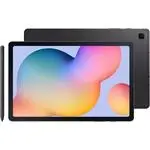 Samsung Galaxy Tab S6
User Manual
Samsung Galaxy Tab S6
User Manual
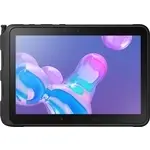 Samsung Tab Active Pro
User Manual
Samsung Tab Active Pro
User Manual
 Samsung Galaxy Book
User Manual
Samsung Galaxy Book
User Manual
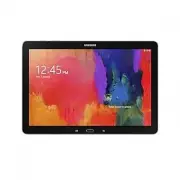 Samsung Galaxy Note pro
User Manual
Samsung Galaxy Note pro
User Manual
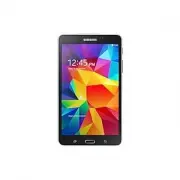 Samsung Galaxy Tab 4
User Manual
Samsung Galaxy Tab 4
User Manual
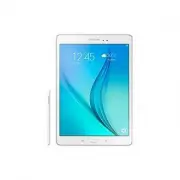 Samsung Galaxy Tab A
User Manual
Samsung Galaxy Tab A
User Manual
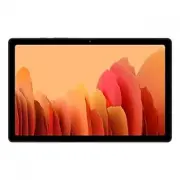 Samsung Galaxy Tab A7
User Manual
Samsung Galaxy Tab A7
User Manual
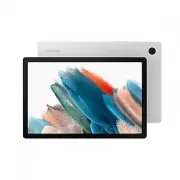 Samsung Galaxy Tab A8
User Manual
Samsung Galaxy Tab A8
User Manual
 Samsung Galaxy Tab A9
User Manual
Samsung Galaxy Tab A9
User Manual
 Samsung Galaxy Tab A9+
User Manual
Samsung Galaxy Tab A9+
User Manual
 Samsung Galaxy Tab Active Pro
User Manual
Samsung Galaxy Tab Active Pro
User Manual
 Samsung Galaxy Tab E
User Manual
Samsung Galaxy Tab E
User Manual
 Samsung Galaxy Tab Lite
User Manual
Samsung Galaxy Tab Lite
User Manual
 Samsung Galaxy Tab S
User Manual
Samsung Galaxy Tab S
User Manual
 Samsung Galaxy Tab S2
User Manual
Samsung Galaxy Tab S2
User Manual
 Samsung Galaxy Tab S6 Lite
User Manual
Samsung Galaxy Tab S6 Lite
User Manual
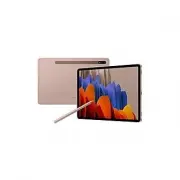 Samsung Galaxy Tab S7
User Manual
Samsung Galaxy Tab S7
User Manual
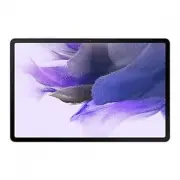 Samsung Galaxy Tab S7 FE
User Manual
Samsung Galaxy Tab S7 FE
User Manual
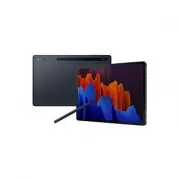 Samsung Galaxy Tab S7+
User Manual
Samsung Galaxy Tab S7+
User Manual
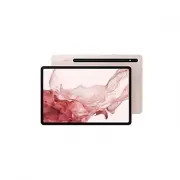 Samsung Galaxy Tab S8
User Manual
Samsung Galaxy Tab S8
User Manual