Page 2 - Safety Warnings; CAUTION; Accessories; WARNING
2 English English 2 English 3 TUNER/AUX FM Antenna User's Manual Remote Control/Batteries Toroidal Ferrite core ( 1 EA) (For Power cable) (Optional) Safety Warnings TO REDUCE THE RISK OF ELECTRIC SHOCK, DO NOT REMOVE THE COVER (OR BACK). NO USER-SERVICEABLE PARTS ARE INSIDE. REFER SERVICING TO QUALI...
Page 3 - Precautions; Holding discs; Handling and Storing Discs
2 English English 2 English 3 Precautions • Ensure that the AC power in your house matches the requirements listed on the identification sticker located on the back of your product. • Do not place the product on amplifiers or other equipment which may become hot. Make sure the ventilation slots are ...
Page 4 - Contents; Symbols
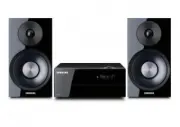
4 English English 4 English 5 Thank you for buying this SAMSUNG mini-compact system. Please take time to read these instructions. They will allow you how to operate your system and take full advantage of its features. Safety Warnings ....................................... 2Accessories ................
Page 5 - Description; Front Panel; • Press this button to switch your mini-compact
4 English English 4 English 5 Description Front Panel 1. POWER button • Press this button to switch your mini-compact system on and off. 2. AUTO CHANGE button 3. EQ button 4. Window Display 5. Search/Skip button 6. STOP/Tuning Mode button 7. USB/BLUETOOTH button 8. MP3/CD button 9. TUNER/AUX button ...
Page 6 - CH Speaker Connector Terminals; Rear Panel
6 English English 6 English 7 1 2 3 4 1. 2.0 CH Speaker Connector Terminals The speaker connector terminals are located on the rear of the system. 1. To achieve the correct sound quality, insert the speaker connector cables identified below into the correct speaker terminals on the back of the syste...
Page 7 - Remote Control; Installing batteries in the Remote Control; Display Function; Pull the fixing tab of the Toroidal ferrite core to open it.
6 English English 6 English 7 Remote Control Installing batteries in the Remote Control Display Function TUNER/AUX 1. POWER 2. TUNER/AUX 3. USB 4. Number(0~9) button • During playback, press the desired track number. The selected track is played. 5. -10 6. Skip 7. STOP 8. PLAY 9. EQ 10. REPEAT 11. E...
Page 8 - Selecting a Track; search; You can also press and hold the
8 English English 8 English 9 Lets you play 12 cm compact discs without an adapter. ☛ This product is designed to play audio CDs, CDs, CD-Rs, CD-RWs, or MP3/WMA-CDs. • Gently open or close the CD tray. Do not apply excessive force. • Do not apply force to or place a heavy object on the product. • Do...
Page 9 - Press the; Auto Change Function
8 English English 8 English 9 Checking or Editing the Programmed Tracks This function is not available during playback of an MP3/WMA-CD. • You can program the playback order of up to 24 tracks of your choice. • However, you must stop playing the CD before selecting tracks. 1. While in CD playback mo...
Page 10 - Playing a USB Device; OFF
10 English English 10 English 11 Connect an external storage device such as a USB flash memory or external HDD (Hard Disk Drive) to the product. You can play files in MP3/WMA format. Before you begin! • Connect the external USB storage device to your product. • Select the USB mode by pressing the US...
Page 11 - Using Bluetooth; To connect the product to a Bluetooth device; or the
10 English English 10 English 11 Using Bluetooth You can use a Bluetooth device to enjoy music with high quality stereo sound, all without wires! What is Bluetooth? Bluetooth technology lets Bluetooth-compliant devices interconnect easily with each other using a short, wireless connection. • A Bluet...
Page 12 - The timer enables you to switch the system on or; Timer Function; During each step, you have a few seconds to set the; Using the Bluetooth Power On; When the product is turned off, you can connect
12 English English 12 English 13 The timer enables you to switch the system on or off at specific times automatically. • Before setting the timer, confirm that the current time is correct. • During each step, you have a few seconds to set the required options. If you exceed this time, you must start...
Page 13 - Select; Selecting a Stored Station; Press
12 English English 12 English 13 You can store up to: 15 FM stations. 1. Select FM by pressing the TUNER/AUX button. 2. To search for a station Press the TUNING MODE button Preset One or more times until PRESET is displayed. You can search the stored frequencies in the Preset mode. Manually One or m...
Page 14 - Recording Speed; You can select the recording speed before recording.; Recording Function
14 English English 14 English 15 Recording Speed • Do not disconnect the USB or the AC Cord during recording as this may cause damage to the file. • WMA/MP2 files can be copied but not recorded. • If you disconnect the USB device during a recording, the unfinished recording file may get damaged and ...
Page 15 - GIGA SOUND Function; Your mini-compact system provides predefined; Selecting EQ Mode
14 English English 14 English 15 The GIGA SOUND function amplifies the bass sound and provides twice the bass for powerful, realistic sound. 1. Press the GIGA SOUND BLAST button on the main unit or the GIGA button on the remote control. Each time you press this button, the sound changes as follows: ...
Page 16 - Troubleshooting; Symptom; I cannot eject the disc.; STOP; RESET
16 English English 16 English 17 Troubleshooting Refer to the chart below when this unit does not function properly. If the problem you are experiencing is not listed below or if the instructions below do not help, turn off the unit, disconnect the power cord, and contact the nearest authorized deal...
Page 17 - Specifications
16 English English 16 English 17 Specifications General Weight (MX-H630) 2.2 Kg Weight (MX-H730) 2.5 Kg Dimensions 203 (W) x 306 (H) x 256.5 (D) mm Operating Temperature Range +5°C~+35°C Operating Humidity Range 10 % to 75 % FM Tuner Signal/noise ratio 55 dB Usable sensitivity 12 dB Total harmonic d...