Page 3 - ABOUT THIS GUIDE; Conventions
© SAMSUNG Electronics Co., Ltd. Page I ABOUT THIS GUIDE This User guide provides instructions for the use of Samsung’s latest ITP-5012L large LCD IP Phone that can be used in connection with the Samsung’s Enterprise IP Solutions OfficeServ System. Please take the time to study this guide to become f...
Page 4 - This page is intentionally left blank.
Page II © SAMSUNG Electronics Co., Ltd. ABOUT THIS GUIDE This page is intentionally left blank.
Page 5 - SAFETY CONCERNS; Symbols
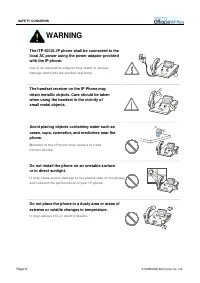
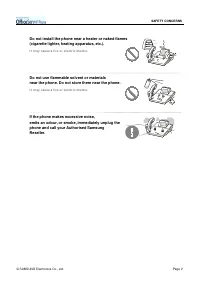
© SAMSUNG Electronics Co., Ltd. Page III SAFETY CONCERNS For product safety and correct operation, the following information must be read before the installation and operation of your ITP-5012L IP phone. Symbols Caution Indication of a general caution Restriction Indication of a prohibited action wh...
Page 8 - CAUTION
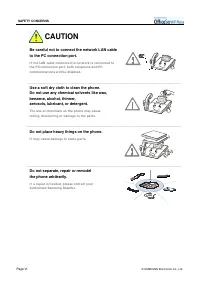
Page VI © SAMSUNG Electronics Co., Ltd. SAFETY CONCERNS Be careful not to connect the network LAN cable to the PC connection port. I f t he LAN cable connect ed t o net w ork is connect ed t o t he PC connect ion por t , bot h t elephone and PC com m unicat ions w ill be disabled. Use a soft dry clo...
Page 9 - TABLE OF CONTENTS
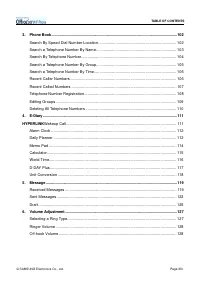
© SAMSUNG Electronics Co., Ltd. Page VII TABLE OF CONTENTS ABOUT THIS GUIDE Conventions .......................................................................................................................... I SAFETY CONCERNS Symbols ..................................................................
Page 10 - GETTING STARTED
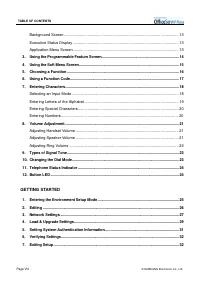
Page VIII © SAMSUNG Electronics Co., Ltd. TABLE OF CONTENTS Background Screen ........................................................................................................... 13 Executive Status Display .........................................................................................
Page 11 - MAKING A CALL
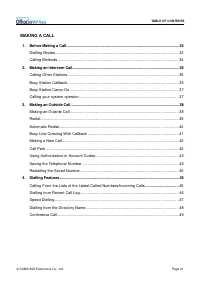
© SAMSUNG Electronics Co., Ltd. Page IX TABLE OF CONTENTS MAKING A CALL 1. Before Making a Call ................................................................................................................... 33 Dialling Modes .........................................................................
Page 12 - ANSWERING A CALL
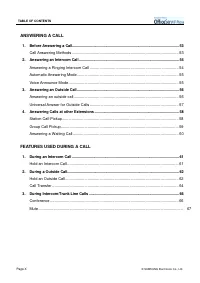
Page X © SAMSUNG Electronics Co., Ltd. TABLE OF CONTENTS ANSWERING A CALL 1. Before Answering a Call............................................................................................................. 53 Call Answering Methods ...................................................................
Page 13 - CONVENIENT FEATURES
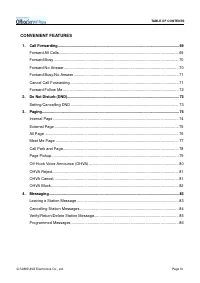
© SAMSUNG Electronics Co., Ltd. Page XI TABLE OF CONTENTS CONVENIENT FEATURES 1. Call Forwarding............................................................................................................................ 69 Forward All Calls..............................................................
Page 14 - APPLICATION MENUS
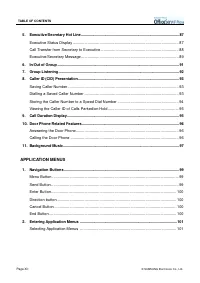
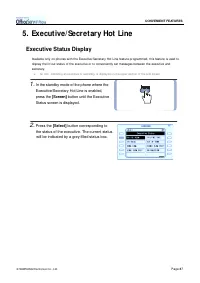
Page XII © SAMSUNG Electronics Co., Ltd. TABLE OF CONTENTS 5. Executive/Secretary Hot Line .................................................................................................... 87 Executive Status Display ...................................................................................
Page 16 - ANNEX
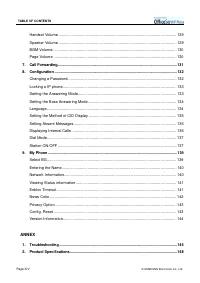
Page XIV © SAMSUNG Electronics Co., Ltd. TABLE OF CONTENTS Handset Volume .............................................................................................................. 129 Speaker Volume ...................................................................................................
Page 17 - PREPARATION; IP Network
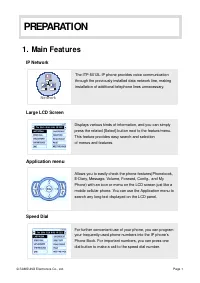
© SAMSUNG Electronics Co., Ltd. Page 1 PREPARATION 1. Main Feat ures IP Network Large LCD Screen Application menu Speed Dial Displays various kinds of information, and you can simply press the related [Select] button next to the feature/menu. This feature provides easy search and selection of menus ...
Page 18 - Pickup
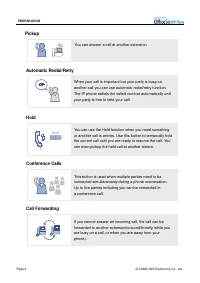
Page 2 © SAMSUNG Electronics Co., Ltd. PREPARATION Pickup Automatic Redial/Retry Hold Conference Calls Call Forwarding When your call is important but your party is busy on another call you can use automatic redial/retry function. The IP phone redials the called number automatically until your party...
Page 19 - Do Not Disturb
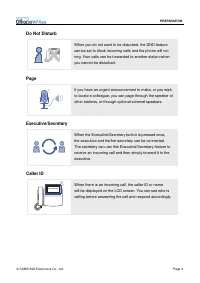
© SAMSUNG Electronics Co., Ltd. Page 3 PREPARATION Do Not Disturb Page Executive/Secretary Caller ID xxx-xxx-xxxx When there is an incoming call, the caller ID or name will be displayed on the LCD screen. You can see who is calling before answering the call and respond accordingly. When the Executiv...
Page 20 - Checking t he Part s in t he Package
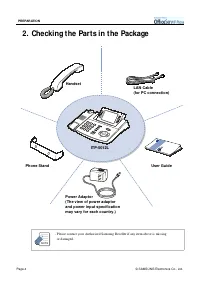
Page 4 © SAMSUNG Electronics Co., Ltd. PREPARATION 2. Checking t he Part s in t he Package - Please contact your Authorised Samsung Reseller if any item above is missing or damaged. NOTE Handset LAN Cable(for PC connection) User Guide Phone Stand ITP-5012L Power Adaptor(The view of power adaptorand ...
Page 21 - Name and Features of the ITP-5012L IP phone; Front Panel
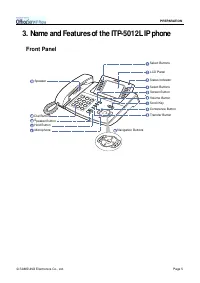
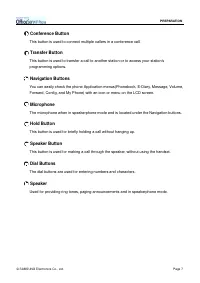
© SAMSUNG Electronics Co., Ltd. Page 5 PREPARATION 3. Name and Features of the ITP-5012L IP phone Front Panel Status Indicator Dial Buttons Select Buttons LCD Panel Navigation Buttons Volume Button Screen Button Speaker Button Hold Button Transfer Button Select Buttons Microphone Conference Button S...
Page 22 - Name and Features of Each PartEMBED; LCD Screen; Status Indicator
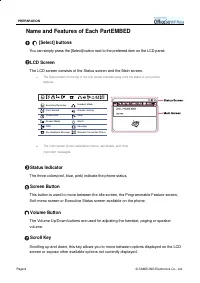
Page 6 © SAMSUNG Electronics Co., Ltd. PREPARATION Name and Features of Each PartEMBED [Select] buttons You can simply press the [Select] button next to the preferred item on the LCD panel. LCD Screen The LCD screen consists of the Status screen and the Main screen. ! The Status screen on the top of...
Page 24 - Bottom Panel of the ITP-5012L
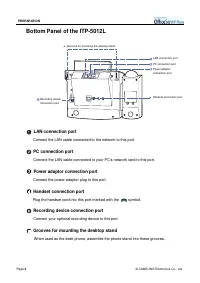
Page 8 © SAMSUNG Electronics Co., Ltd. PREPARATION Bottom Panel of the ITP-5012L LAN connection port Connect the LAN cable connected to the network to this port. PC connection port Connect the LAN cable connected to your PC’s network card to this port. Power adaptor connection port Connect the power...
Page 25 - Connecting lines to the phone
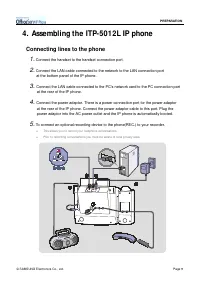
© SAMSUNG Electronics Co., Ltd. Page 9 PREPARATION 4. Assembling t he ITP-5012L IP phone Connecting lines to the phone 1. Connect the handset to the handset connection port. 2. Connect the LAN cable connected to the network to the LAN connection port at the bottom panel of the IP phone. 3. Connect t...
Page 26 - Using the Desktop Stand
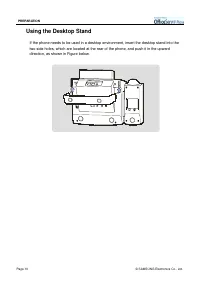
Page 10 © SAMSUNG Electronics Co., Ltd. PREPARATION Using the Desktop Stand If the phone needs to be used in a desktop environment, insert the desktop stand into the two side holes, which are located at the rear of the phone, and push it in the upward direction, as shown in Figure below.
Page 27 - THINGS YOU SHOULD KNOW; About St at ions and Trunk Lines
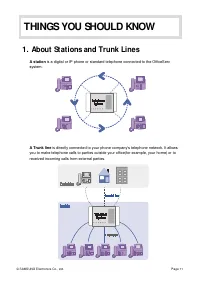
© SAMSUNG Electronics Co., Ltd. Page 11 THINGS YOU SHOULD KNOW 1. About St at ions and Trunk Lines A station is a digital or IP phone or standard telephone connected to the OfficeServ system. A Trunk line is directly connected to your phone company’s telephone network. It allows you to make telephon...
Page 28 - Int roduct ion of Main Screens; Programmable Feature Screen
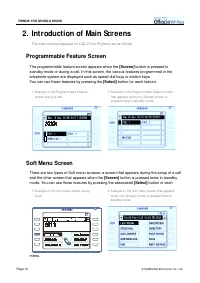
Page 12 © SAMSUNG Electronics Co., Ltd. THINGS YOU SHOULD KNOW 2. Int roduct ion of Main Screens The main screens displayed on LCD of t his I P phone are as follows. Programmable Feature Screen The programmable feature screen appears when the [Screen] button is pressed in standby mode or during a ca...
Page 29 - Background Screen; Executive Status Display
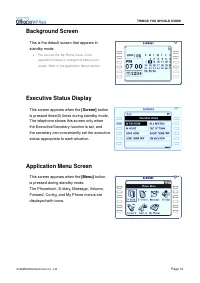
© SAMSUNG Electronics Co., Ltd. Page 13 THINGS YOU SHOULD KNOW Background Screen This is the default screen that appears in standby mode. ! You can use the ‘My Phone’ menu in t he application menus t o change this background screen. Refer t o the Applicat ion Menus sect ion. Executive Status Display...
Page 30 - Using t he Programmable Feat ure Screen
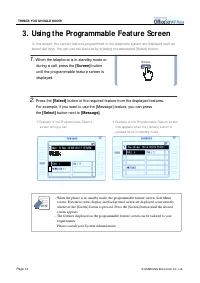
Page 14 © SAMSUNG Electronics Co., Ltd. THINGS YOU SHOULD KNOW Screen 3. Using t he Programmable Feat ure Screen I n this screen, the various features programmed in the telephone syst em are displayed such asspeed dial keys. You can use the features by pressing the associat ed [ Select] button. 1. W...
Page 31 - Using t he Soft Menu Screen
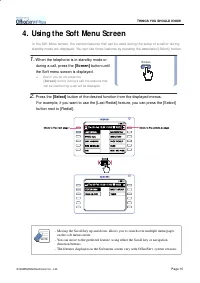
© SAMSUNG Electronics Co., Ltd. Page 15 THINGS YOU SHOULD KNOW Screen 4. Using t he Soft Menu Screen I n the Soft Menu screen, the various features that can be used during the setup of a call or duringstandby mode are displayed. You can use those features by pressing the associated [ Select] button....
Page 32 - Choosing a Funct ion
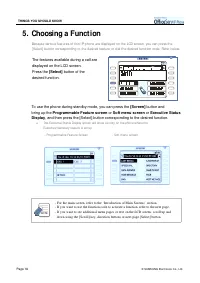
Page 16 © SAMSUNG Electronics Co., Ltd. THINGS YOU SHOULD KNOW 5. Choosing a Funct ion Because various feat ures of t his I P phone are displayed on t he LCD screen, you can press t he[ Select] button corresponding to the desired feature or dial the desired function code. Refer below. The features a...
Page 33 - Using a Funct ion Code
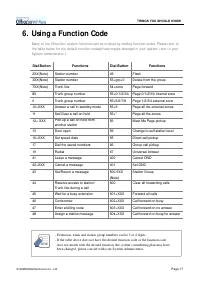
© SAMSUNG Electronics Co., Ltd. Page 17 THINGS YOU SHOULD KNOW 6. Using a Funct ion Code Many of the OfficeServ system funct ions can be invoked by dialling function codes. Please refer tothe table below for the default funct ion codes(these maybe changed in your syst em, refer to yourSyst em Admini...
Page 34 - Ent ering Charact ers; Selecting an Input Mode
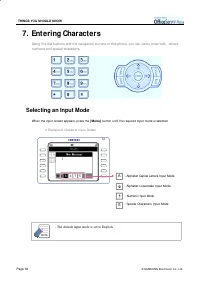
Page 18 © SAMSUNG Electronics Co., Ltd. THINGS YOU SHOULD KNOW 7. Ent ering Charact ers Using the dial buttons and the navigation buttons of this phone, you can easily enter/ edit, letters,numbers and special characters. Selecting an Input Mode When t he input screen appears, press t he [ M enu] but...
Page 35 - EMBEDEntering Letters of the Alphabet
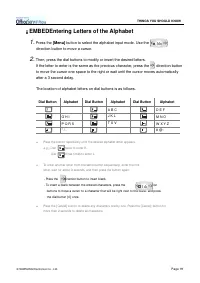
© SAMSUNG Electronics Co., Ltd. Page 19 THINGS YOU SHOULD KNOW EMBEDEntering Letters of the Alphabet 1. Press the [Menu] button to select the alphabet input mode. Use the direction button to move a cursor. 2. Then, press the dial buttons to modify or insert the desired letters. If the letter to ente...
Page 36 - Entering Special Characters; Entering Numbers
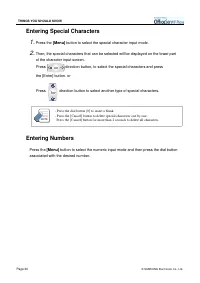
Page 20 © SAMSUNG Electronics Co., Ltd. THINGS YOU SHOULD KNOW Entering Special Characters 1. Press the [Menu] button to select the special character input mode. 2. Then, the special characters that can be selected will be displayed on the lower part of the character input screen. Press direction bu...
Page 37 - Volume Adj ust ment; Adjusting Handset Volume; Adjusting Speaker Volume
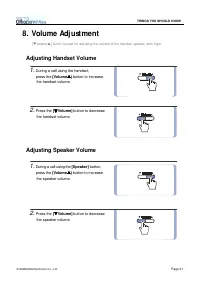
© SAMSUNG Electronics Co., Ltd. Page 21 THINGS YOU SHOULD KNOW 8. Volume Adj ust ment [ ! Volume " ] button is used for adjusting the volume of the handset, speaker, and ringer. Adjusting Handset Volume 1. During a call using the handset, press the [Volume " " " " ] button to inc...
Page 38 - Adjusting Ring Volume
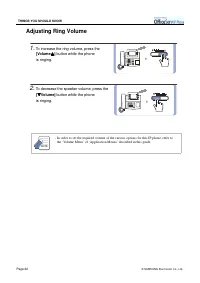
Page 22 © SAMSUNG Electronics Co., Ltd. THINGS YOU SHOULD KNOW Adjusting Ring Volume 1. To increase the ring volume, press the [Volume " " " " ] button while the phone is ringing. 2. To decrease the speaker volume, press the [ ! ! ! ! Volume ] button while the phone is ringing. - In ...
Page 39 - Types of Signal Tone; Changing t he Dial Mode
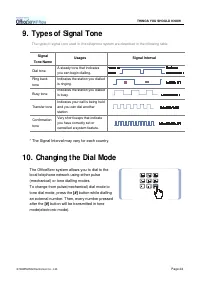
© SAMSUNG Electronics Co., Ltd. Page 23 THINGS YOU SHOULD KNOW 9. Types of Signal Tone The types of signal tone used in this t elephone system are described in the following t able. Signal Tone Name Usages Signal Interval Dial tone A steady tone that indicatesyou can begin dialling. Ring back tone I...
Page 40 - Telephone St at us Indicat or
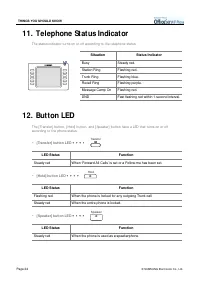
Page 24 © SAMSUNG Electronics Co., Ltd. THINGS YOU SHOULD KNOW 11. Telephone St at us Indicat or The st atus indicator turns on or off according to the telephone st atus. Situation Status Indicator Busy Steady red. Station Ring Flashing red. Trunk Ring Flashing blue. Recall Ring Flashing purple. Mes...
Page 41 - Ent ering t he Environment Set up Mode; Setup Menu Structure
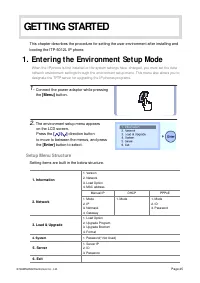
© SAMSUNG Electronics Co., Ltd. Page 25 GETTING STARTED This chapter describes the procedure for setting the user environment after installing and booting the ITP-5012L IP phone. 1. Ent ering t he Environment Set up Mode When the I P phone is first inst alled or the system sett ings have changed, yo...
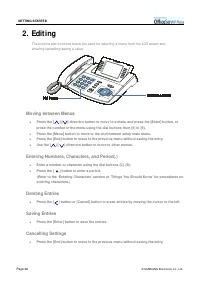
Page 42 - Moving between Menus; Deleting Entries
Page 26 © SAMSUNG Electronics Co., Ltd. GETTING STARTED 2. Edit ing The buttons and functions below are used for selecting a menu from the LCD screen andent ering/ cancelling/ saving a value. Moving between Menus ! Press the [ ]/[ ] direction button to move to a menu and press the [Enter] button, or...
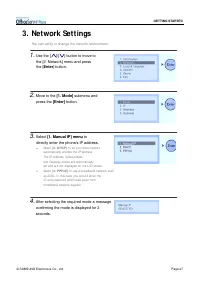
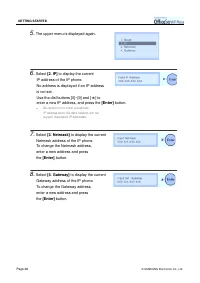
Page 43 - Net work Set t ings
© SAMSUNG Electronics Co., Ltd. Page 27 GETTING STARTED 3. Net work Set t ings You can verify or change the network environment. 1. Use the [ ]/[ ] button to move to the [2. Network] menu and press the [ Enter ] button. 2. Move to the [1. Mode] submenu and press the [Enter] button. 3. Select [1. Man...
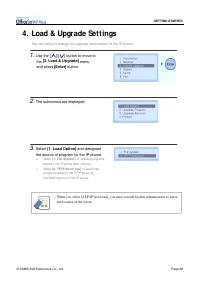
Page 45 - Upgrade Set t ings
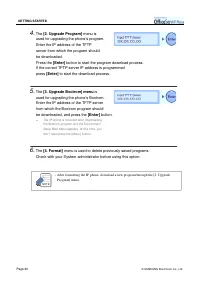
© SAMSUNG Electronics Co., Ltd. Page 29 GETTING STARTED 4. Load & Upgrade Set t ings You can verify or change the upgrade environment of the I P phone. 1. Use the [ ]/[ ] button to move to the [3. Load & Upgrade] menu and press [Enter] button. 2. The submenus are displayed. 3. Select [1. Loa...
Page 47 - Set t ing Syst em Authent icat ion Information
© SAMSUNG Electronics Co., Ltd. Page 31 GETTING STARTED 5. Set t ing Syst em Authent icat ion Information This function is used to set the I P address of the OfficeServ syst em connect ed to the I P phone andthe authentication I D and password of the I P phone. The I D and password of this menu are ...
Page 48 - Verifying Set t ings
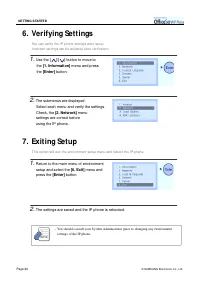
Page 32 © SAMSUNG Electronics Co., Ltd. GETTING STARTED 6. Verifying Set t ings You can verify the I P phone sett ings aft er setup.I ncorrect settings can be adjusted aft er verification. 1. Use the [ ]/[ ] button to move to the [1. Information] menu and press the [Enter] button. 2. The submenus ar...
Page 49 - Before Making a Call; Dialling Modes
© SAMSUNG Electronics Co., Ltd. Page 33 MAKING A CALL 1. Before Making a Call The calling methods and features are summarized in the following table. The detailed description corresponding to each feature then follows. Call Type Intercom Calls Outside Calls Calling method Handset, speakerphone - Mak...
Page 50 - Calling Methods
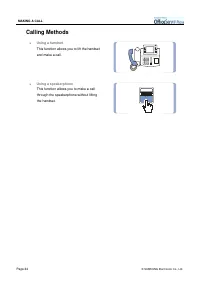
Page 34 © SAMSUNG Electronics Co., Ltd. MAKING A CALL Calling Methods " Using a handset This function allows you to lift the handset and make a call. " Using a speakerphone This function allows you to make a call through the speakerphone without lifting the handset.
Page 51 - Making an Int ercom Call; Calling Other Stations; Calling Through a Speakerphone
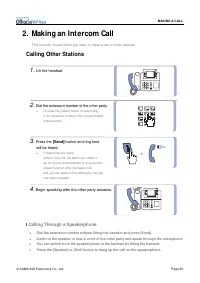
© SAMSUNG Electronics Co., Ltd. Page 35 MAKING A CALL 2. Making an Int ercom Call This function is used when you want to make a call to other stat ions. Calling Other Stations 1. Lift the handset. 2. Dial the extension number of the other party. ! Or, press the [ Select] button corresponding to the ...
Page 52 - Busy Station Callback
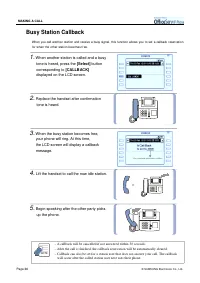
Page 36 © SAMSUNG Electronics Co., Ltd. MAKING A CALL Busy Station Callback When you call anot her st at ion and receive a busy signal, t his funct ion allows you t o set a callback reservat ion for when t he ot her st at ion becomes free. 1. When another station is called and a busy tone is heard, ...
Page 53 - Calling your system operator
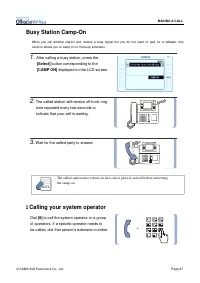
© SAMSUNG Electronics Co., Ltd. Page 37 MAKING A CALL Busy Station Camp-On When you call anot her st at ion and receive a busy signal but you do not want t o wait for a callback, t his funct ion allows you t o camp on t o t he busy ext ension. 1. After calling a busy station, press the [Select] butt...
Page 54 - Making an Out side Call; Making an Outside Call
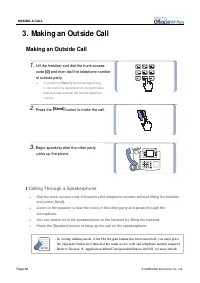
Page 38 © SAMSUNG Electronics Co., Ltd. MAKING A CALL 3. Making an Out side Call Making an Outside Call 1. Lift the handset and dial the trunk access code [0] and then dial the telephone number of outside party. ! Or, press the [ Select ] button corresponding to the trunk line required in the progra...
Page 55 - Redial
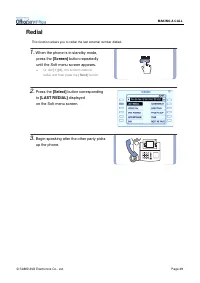
© SAMSUNG Electronics Co., Ltd. Page 39 MAKING A CALL Redial This funct ion allows you t o redial t he last ext ernal number dialled. 1. When the phone is in standby mode, press the [Screen] button repeatedly until the Soft menu screen appears. ! Or, dial [ 1 ] [ 9 ] , t he function code for redial,...
Page 56 - Automatic Redial
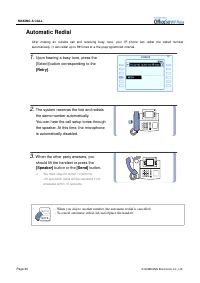
Page 40 © SAMSUNG Electronics Co., Ltd. MAKING A CALL Automatic Redial Aft er making an out side call and receiving busy t one, your I P phone can redial t he called number aut omat ically. I t can redial up t o 99 t imes at a t he preprogrammed int erval. 1. Upon hearing a busy tone, press the [Sel...
Page 57 - Busy Line Queuing With Callback
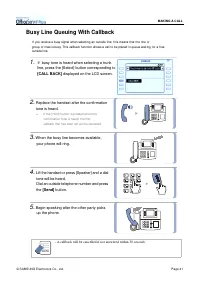
© SAMSUNG Electronics Co., Ltd. Page 41 MAKING A CALL Busy Line Queuing With Callback I f you receive a busy signal when select ing an out side line, t his means t hat t he line or group of lines is busy. This callback funct ion allows a call t o be placed in queue wait ing for a free out side line....
Page 58 - Making a New Call
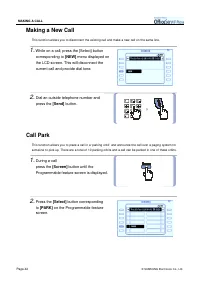
Page 42 © SAMSUNG Electronics Co., Ltd. MAKING A CALL Making a New Call This funct ion allows you t o disconnect t he exist ing call and make a new call on t he same line. 1. While on a call, press the [Select] button corresponding to [NEW] menu displayed on the LCD screen. This will disconnect the ...
Page 59 - Using Authorization or Account Codes; Using Authorization Codes
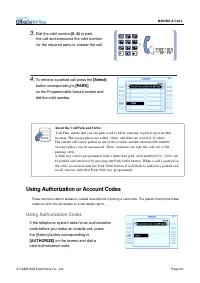
© SAMSUNG Electronics Co., Ltd. Page 43 MAKING A CALL 3. Dial the orbit number (0~9) to park the call and announce the orbit number for the required party to answer the call. 4. To retrieve a parked call press the [Select] button corresponding to [PARK] on the Programmable feature screen and dial th...
Page 60 - Using an Account Code
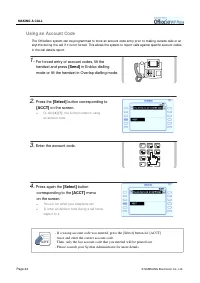
Page 44 © SAMSUNG Electronics Co., Ltd. MAKING A CALL Using an Account Code The OfficeServ syst em can be programmed t o force an account code ent ry prior t o making out side calls or at anyt ime during t he call if it is not forced. This allows t he syst em t o report calls against specific accoun...
Page 61 - Saving the Telephone Number; Redialling the Saved Number; Dialling Feat ures; Calling From the Lists of the Latest Called Numbers/
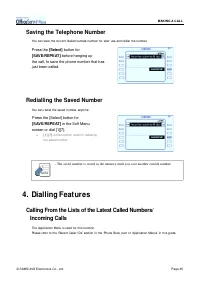
© SAMSUNG Electronics Co., Ltd. Page 45 MAKING A CALL Saving the Telephone Number You can save t he current dialled out side number for lat er use and redial t he number. Press the [Select] button for [SAVE/REPEAT] before hanging up the call, to save the phone number that has just been called. Redia...
Page 62 - Dialling from your Recent Call Log
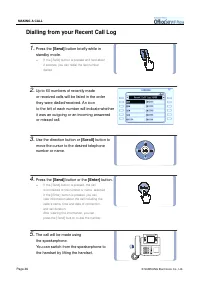
Page 46 © SAMSUNG Electronics Co., Ltd. MAKING A CALL Dialling from your Recent Call Log 1. Press the [Send] button briefly while in standby mode. ! I f the [ Send] button is pressed and held about 2 seconds, you can redial t he last number dialled. 2. Up to 60 numbers of recently made or received c...
Page 63 - Speed Dialling
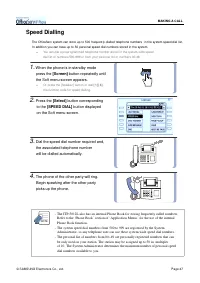
© SAMSUNG Electronics Co., Ltd. Page 47 MAKING A CALL Speed Dialling The OfficeServ syst em can st ore up t o 500 frequent ly dialled t elephone numbers in t he syst em speed dial list . I n addit ion you can have up t o 50 personal speed dial numbers st ored in t he syst em. ! You can dial a prepro...
Page 64 - Dialling from the Directory Name
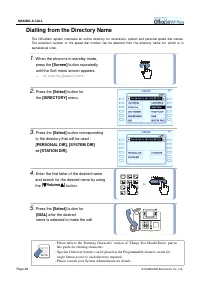
Page 48 © SAMSUNG Electronics Co., Ltd. MAKING A CALL Dialling from the Directory Name The OfficeServ syst em maint ains an online direct ory for ext ensions, syst em and personal speed dial names.The ext ension number or t he speed dial number can be select ed from t he direct ory name list , which...
Page 65 - Conference Call
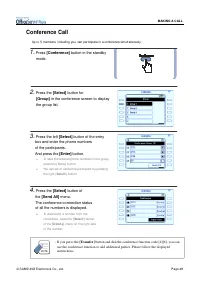
© SAMSUNG Electronics Co., Ltd. Page 49 MAKING A CALL Conference Call Up t o 5 members, including you, can part icipat e in a conference simult aneously. 1. Press [Conference] button in the standby mode. 2. Press the [Select] button for [Group] in the conference screen to display the group list. 3. ...
Page 66 - Conference Groups
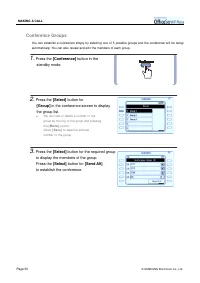
Page 50 © SAMSUNG Electronics Co., Ltd. MAKING A CALL Conference Groups You can est ablish a conference simply by select ing one of 5 possible groups and t he conference will be set up aut omat ically. You can also review and edit t he members of each group. 1. Press the [Conference] button in the s...
Page 67 - To establish a new Conference Group
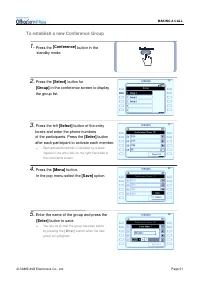
© SAMSUNG Electronics Co., Ltd. Page 51 MAKING A CALL To establish a new Conference Group 1. Press the [Conference] button in the standby mode. 2. Press the [Select] button for [Group] in the conference screen to display the group list. 3. Press the left [Select] button of the entry boxes and enter ...
Page 69 - Before Answering a Call; Call Answering Methods
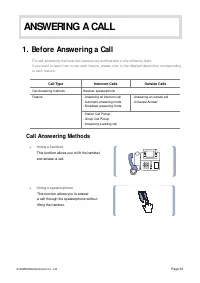
© SAMSUNG Electronics Co., Ltd. Page 53 ANSWERING A CALL 1. Before Answering a Call The call answering methods and features are summarized in the following table. I f you want to learn how to use each feature, please refer to the det ailed description corresponding to each feature. Call Type Interco...
Page 70 - Answering an Int ercom Call; Answering a Ringing Intercom Call; Answering Using the Speakerphone
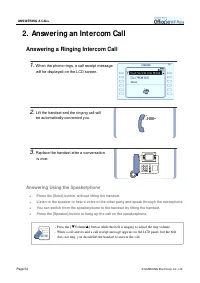
Page 54 © SAMSUNG Electronics Co., Ltd. ANSWERING A CALL 2. Answering an Int ercom Call Answering a Ringing Intercom Call 1. When the phone rings, a call receipt message will be displayed on the LCD screen. 2. Lift the handset and the ringing call will be automatically connected you. 3. Replace the ...
Page 71 - Automatic Answering Mode; Voice Announce Mode
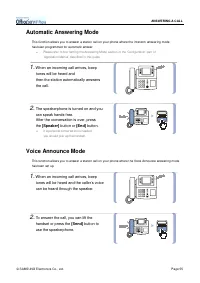
© SAMSUNG Electronics Co., Ltd. Page 55 ANSWERING A CALL Automatic Answering Mode This funct ion allows you t o answer a st at ion call on your phone where t he int ercom answering mode has been programmed for aut omat ic answer. " Please refer to the ‘Sett ing the Answering Mode’ section in the...
Page 72 - Answering an Out side Call; Answering an outside call; To Answer using the Speakerphone
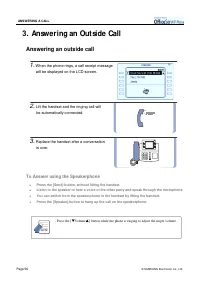
Page 56 © SAMSUNG Electronics Co., Ltd. ANSWERING A CALL 3. Answering an Out side Call Answering an outside call 1. When the phone rings, a call receipt message will be displayed on the LCD screen. 2. Lift the handset and the ringing call will be automatically connected. 3. Replace the handset after...
Page 73 - Universal Answer for Outside Calls
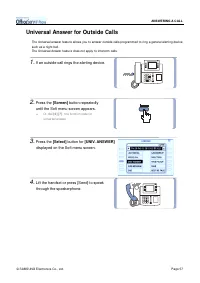
© SAMSUNG Electronics Co., Ltd. Page 57 ANSWERING A CALL Universal Answer for Outside Calls The Universal answer feat ure allows you t o answer out side calls programmed t o ring a general alert ing device such as a night bell. The Universal Answer feat ure does not apply t o int ercom calls. 1. If ...
Page 74 - Answering Calls at Ot her Ext ensions; Station Call Pickup
Page 58 © SAMSUNG Electronics Co., Ltd. ANSWERING A CALL 4. Answering Calls at Ot her Ext ensions The funct ions below describe the methods available to answer calls ringing at unatt ended st ations. Station Call Pickup 1. When you hear an unattended ringing station Lift the handset. 2. Dial [6][5] ...
Page 75 - Group Call Pickup
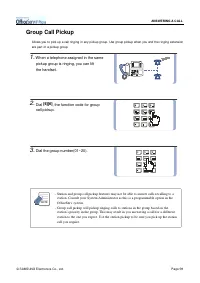
© SAMSUNG Electronics Co., Ltd. Page 59 ANSWERING A CALL Group Call Pickup Allows you t o pick up a call ringing in any pickup group. Use group pickup when you and t he ringing ext ension are part of a pickup group. 1. When a telephone assigned in the same pickup group is ringing, you can lift the h...
Page 76 - Answering a Waiting Call
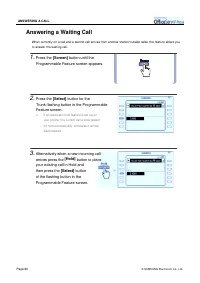
Page 60 © SAMSUNG Electronics Co., Ltd. ANSWERING A CALL Answering a Waiting Call When current ly on a call and a second call arrives from anot her st at ion/ out side caller t his feat ure allows you t o answer t he wait ing call. 1. Press the [Screen] button until the Programmable Feature screen a...
Page 77 - FEATURES USED DURING A CALL; During an Int ercom Call; Hold an Intercom Call
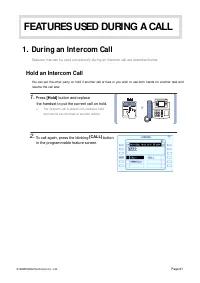
© SAMSUNG Electronics Co., Ltd. Page 61 FEATURES USED DURING A CALL 1. During an Int ercom Call Features that can be used convenient ly during an intercom call are described below. Hold an Intercom Call You can put t he ot her party on hold if anot her call arrives or you wish t o use bot h hands fo...
Page 78 - During a Out side Call; Hold an Outside Call
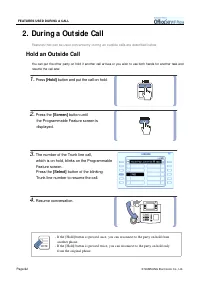
Page 62 © SAMSUNG Electronics Co., Ltd. FEATURES USED DURING A CALL 2. During a Out side Call Features that can be used convenient ly during an out side calls are described below. Hold an Outside Call You can put t he ot her party on hold if anot her call arrives or you wish t o use bot h hands for ...
Page 79 - Hold a Outside Call and Make an Intercom Call
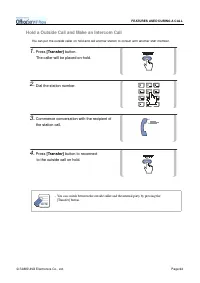
© SAMSUNG Electronics Co., Ltd. Page 63 FEATURES USED DURING A CALL Hold a Outside Call and Make an Intercom Call You can put t he out side caller on hold and call anot her st at ion t o consult wit h anot her st aff member. 1. Press [Transfer] button. The caller will be placed on-hold. 2. Dial the ...
Page 80 - Call Transfer
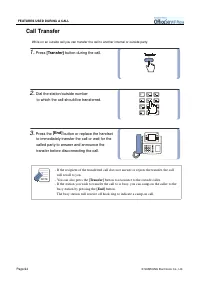
Page 64 © SAMSUNG Electronics Co., Ltd. FEATURES USED DURING A CALL Call Transfer While on an out side call you can t ransfer t he call t o anot her int ernal or out side party. 1. Press [Transfer] button during the call. 2. Dial the station/outside number to which the call should be transferred. 3....
Page 81 - Transfer to the Voice Mailbox
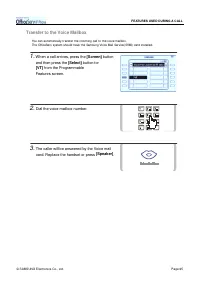
© SAMSUNG Electronics Co., Ltd. Page 65 FEATURES USED DURING A CALL Transfer to the Voice Mailbox You can aut omat ically t ransfer t he incoming call t o t he voice mailbox. The OfficeServ syst em should have t he Samsung Voice Mail Service( SVMi) card inst alled. 1. When a call arrives, press the ...
Page 82 - Conference
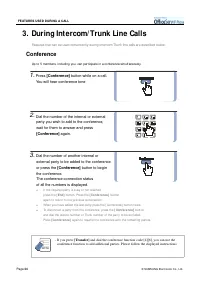
Page 66 © SAMSUNG Electronics Co., Ltd. FEATURES USED DURING A CALL 3. During Int ercom/ Trunk Line Calls Features that can be used conveniently during intercom/ Trunk line calls are described below. Conference Up t o 5 members, including you, can part icipat e in a conference simult aneously. 1. Pr...
Page 83 - Mute
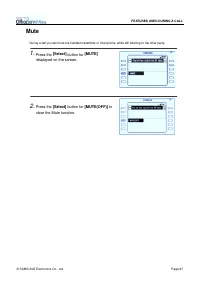
© SAMSUNG Electronics Co., Ltd. Page 67 FEATURES USED DURING A CALL Mute During a call you can mute the handset transmitter or microphone while still listening to the other party . 1. Press the [Select] button for [MUTE] displayed on the screen. 2. Press the [Select] button for [MUTE(OFF)] to clear ...
Page 85 - Forward All Calls
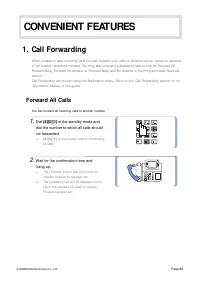
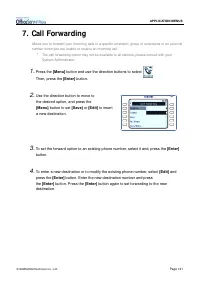
© SAMSUNG Electronics Co., Ltd. Page 69 CONVENIENT FEATURES 1. Call Forwarding When unable to take incoming calls you can forward your calls to another stat ion, group of st ations or an out side t elephone number. You may also program a dedicat ed feature key for Forward All, Forward Busy, Forward ...
Page 86 - Forward Busy
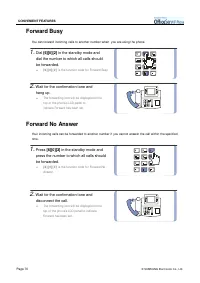
Page 70 © SAMSUNG Electronics Co., Ltd. CONVENIENT FEATURES Forward Busy You can forward incoming calls t o anot her number when you are using t he phone. 1. Dial [6][0][2] in the standby mode and dial the number to which all calls should be forwarded. ! [ 6 ] [ 0 ] [ 2 ] is t he function code for F...
Page 87 - Forward Busy/No Answer; Cancel Call Forwarding
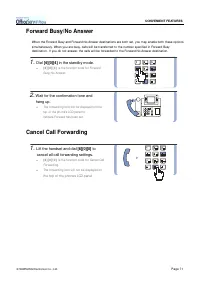
© SAMSUNG Electronics Co., Ltd. Page 71 CONVENIENT FEATURES Forward Busy/No Answer When t he Forward Busy and Forward No Answer dest inat ions are bot h set , you may enable bot h t hese opt ions simult aneously. When you are busy, calls will be t ransferred t o t he number specified in Forward Busy...
Page 88 - Forward Follow Me
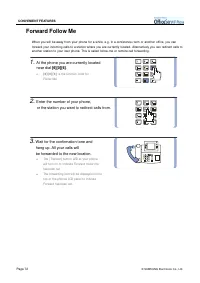
Page 72 © SAMSUNG Electronics Co., Ltd. CONVENIENT FEATURES Forward Follow Me When you will be away from your phone for a while, e.g. in a conference room or anot her office, you can forward your incoming calls t o a st at ion where you are current ly locat ed. Alt ernat ively you can redirect calls...
Page 89 - Setting/Cancelling DND
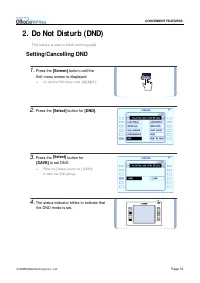
© SAMSUNG Electronics Co., Ltd. Page 73 CONVENIENT FEATURES 2. Do Not Dist urb (DND) This feature is used to block incoming calls. Setting/Cancelling DND 1. Press the [Screen] button until the Soft menu screen is displayed. ! Or, dial t he DND setup code, [ 4 ] [ 0 ] [ 1 ] . 2. Press the [Select] bu...
Page 90 - Internal Page
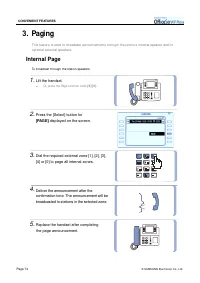
Page 74 © SAMSUNG Electronics Co., Ltd. CONVENIENT FEATURES 3. Paging This feature is used to broadcast announcement s through the phone’s internal speaker and/ or optional external speakers. Internal Page To broadcast t hrough t he st at ion speakers. 1. Lift the handset. ! Or, press t he Page func...
Page 91 - External Page
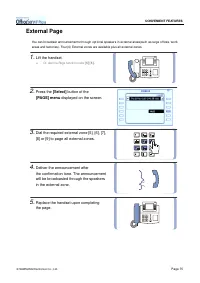
© SAMSUNG Electronics Co., Ltd. Page 75 CONVENIENT FEATURES External Page You can broadcast announcement s t hrough opt ional speakers in ext ernal areas( such as large offices, work areas and fact ories) . Four( 4) Ext ernal zones are available plus all ext ernal zones. 1. Lift the handset. ! Or, d...
Page 92 - All Page
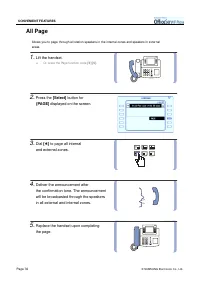
Page 76 © SAMSUNG Electronics Co., Ltd. CONVENIENT FEATURES All Page Allows you t o page t hrough all st at ion speakers in t he int ernal zones and speakers in ext ernal areas. 1. Lift the handset. ! Or, press t he Page function code [ 5 ] [ 5 ] . 2. Press the [Select] button for [PAGE] displayed o...
Page 93 - Meet Me Page
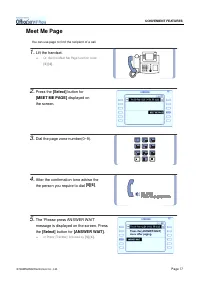
© SAMSUNG Electronics Co., Ltd. Page 77 CONVENIENT FEATURES Meet Me Page You can use page t o find t he recipient of a call. 1. Lift the handset. ! Or, dial t he Meet Me Page function code [ 5 ] [ 4 ] . 2. Press the [Select] button for [MEET ME PAGE] displayed on the screen. 3. Dial the page zone nu...
Page 94 - Call Park and Page
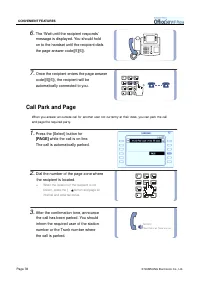
Page 78 © SAMSUNG Electronics Co., Ltd. CONVENIENT FEATURES 6. The ‘Wait until the recipient responds’ message is displayed. You should hold on to the handset until the recipient dials the page answer code([5][6]). 7. Once the recipient enters the page answer code([5][6]), the recipient will be auto...
Page 95 - Page Pickup
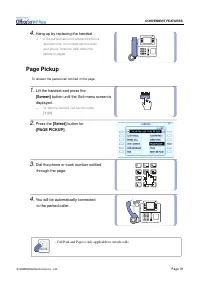
© SAMSUNG Electronics Co., Ltd. Page 79 CONVENIENT FEATURES 4. Hang up by replacing the handset. ! I f the parked call is not answered within a specified t ime, the outside call will recall your phone. I ntercom calls cannot be parked or paged. Page Pickup To answer t he parked call not ified in t h...
Page 97 - OHVA Reject
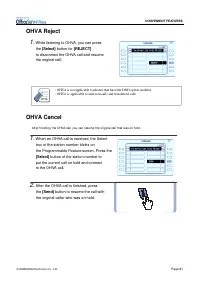
© SAMSUNG Electronics Co., Ltd. Page 81 CONVENIENT FEATURES OHVA Reject 1. While listening to OHVA, you can press the [Select] button for [REJECT] to disconnect the OHVA call and resume the original call. - OHVA is not applicable to phones that have the DND option enabled.- OHVA is applicable to int...
Page 98 - OHVA Block
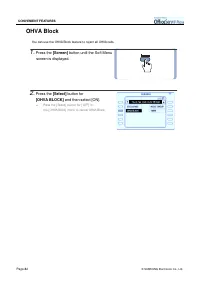
Page 82 © SAMSUNG Electronics Co., Ltd. CONVENIENT FEATURES OHVA Block You can use t he OHVA Block feat ure t o rej ect all OHVA calls. 1. Press the [Screen] button until the Soft Menu screen is displayed. 2. Press the [Select] button for [OHVA BLOCK] and then select [ON]. ! Press the [ Select] butt...
Page 99 - Leaving a Station Message
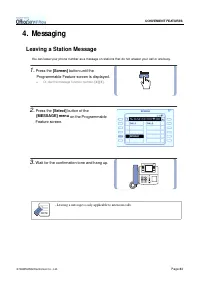
© SAMSUNG Electronics Co., Ltd. Page 83 CONVENIENT FEATURES 4. Messaging Leaving a Station Message You can leave your phone number as a message on st at ions t hat do not answer your call or are busy. 1. Press the [Screen] button until the Programmable Feature screen is displayed. ! Or, dial t he me...
Page 100 - Cancelling Station Messages
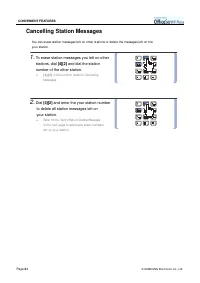
Page 84 © SAMSUNG Electronics Co., Ltd. CONVENIENT FEATURES Cancelling Station Messages You can erase st at ion messages left on ot her st at ions or delet e t he messages left on t he your st at ion. 1. To erase station messages you left on other stations, dial [4][2] and dial the station number of...
Page 102 - Programmed Messages
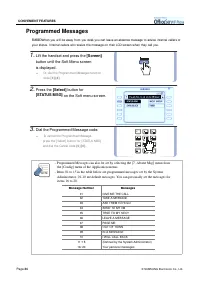
Page 86 © SAMSUNG Electronics Co., Ltd. CONVENIENT FEATURES Programmed Messages EMBEDWhen you will be away from you desk you can leave an absence message t o advise int ernal callers of your st at us. I nt ernal callers will receive t he message on t heir LCD screen when t hey call you. 1. Lift the ...
Page 104 - Call Transfer from Secretary to Executive
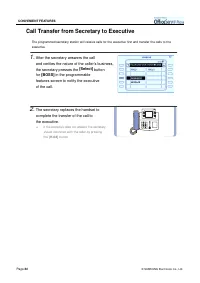
Page 88 © SAMSUNG Electronics Co., Ltd. CONVENIENT FEATURES Call Transfer from Secretary to Executive The programmed secret ary st at ion will receive calls for t he execut ive f irst and t ransfer t he calls t o t he execut ive. 1. After the secretary answers the call and verifies the nature of the...
Page 105 - Executive/Secretary Message
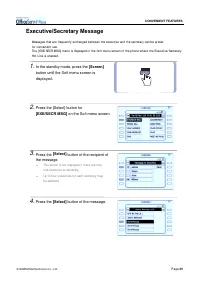
© SAMSUNG Electronics Co., Ltd. Page 89 CONVENIENT FEATURES Executive/Secretary Message Messages t hat are frequent ly exchanged bet ween t he execut ive and t he secret ary can be preset for convenient use. The [ EXE/ SECR MSG] menu is displayed in t he Soft menu screen of t he phone where t he Exe...
Page 106 - Entering the Executive/Secretary Message
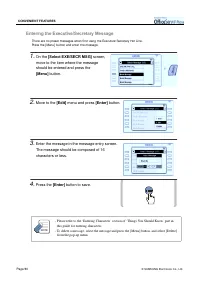
Page 90 © SAMSUNG Electronics Co., Ltd. CONVENIENT FEATURES Entering the Executive/Secretary Message There are no preset messages when first using t he Execut ive/ Secret ary Hot Line. Press t he [ Menu] butt on and ent er t he message. 1. On the [Select EXE/SECR MSG] screen, move to the item where ...
Page 108 - Group List ening
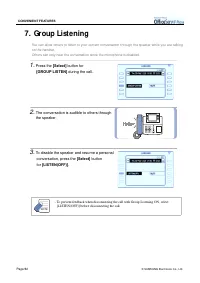
Page 92 © SAMSUNG Electronics Co., Ltd. CONVENIENT FEATURES 7. Group List ening You can allow others to listen to your current conversation t hrough the speaker while you are talking on the handset. Others can only hear the conversat ion since the microphone is disabled. 1. Press the [Select] button...
Page 109 - Saving Caller Number; Dialling a Saved Caller Number
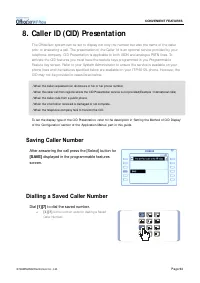
© SAMSUNG Electronics Co., Ltd. Page 93 CONVENIENT FEATURES 8. Caller ID (CID) Present at ion The OfficeServ syst em can be set to display not only the number but also the name of the caller prior to answering a call. The presentat ion of the Caller I d is an opt ional service provided by your telep...
Page 110 - Storing the Caller Number to a Speed Dial Number
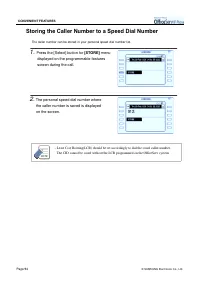
Page 94 © SAMSUNG Electronics Co., Ltd. CONVENIENT FEATURES Storing the Caller Number to a Speed Dial Number The caller number can be st ored in your personal speed dial number list . 1. Press the [Select] button for [STORE] menu displayed on the programmable features screen during the call. 2. The ...
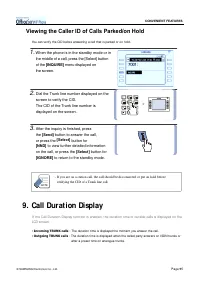
Page 111 - Viewing the Caller ID of Calls Parked/on Hold; Call Durat ion Display
© SAMSUNG Electronics Co., Ltd. Page 95 CONVENIENT FEATURES Viewing the Caller ID of Calls Parked/on Hold You can verify t he CI D before answering a call t hat is parked or on hold. 1. When the phone is in the standby mode or in the middle of a call, press the [Select] button of the [INQUIRE] menu ...
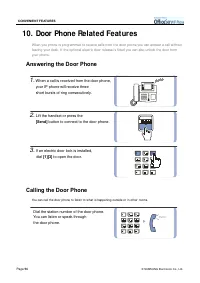
Page 112 - Door Phone Relat ed Feat ures; Answering the Door Phone
Page 96 © SAMSUNG Electronics Co., Ltd. CONVENIENT FEATURES Hello~ 10. Door Phone Relat ed Feat ures When you phone is programmed t o receive calls from t he door phone you can answer a call wit hout leaving your desk. I f t he opt ional elect ric door release is fit t ed you can also unlock t he do...
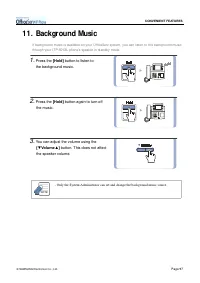
Page 113 - Background Music
© SAMSUNG Electronics Co., Ltd. Page 97 CONVENIENT FEATURES 11. Background Music I f background music is available on your OfficeServ system, you can listen to the background music through your I TP-5012L phone’s speaker in standby mode. 1. Press the [Hold] button to listen to the background music. ...
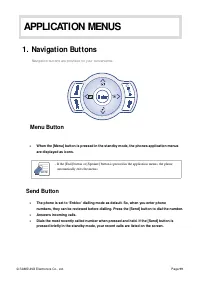
Page 115 - Navigat ion But t ons; Menu Button; Send Button
© SAMSUNG Electronics Co., Ltd. Page 99 APPLICATION MENUS 1. Navigat ion But t ons Navigat ion buttons are provided for your convenience. Menu Button ! When the [Menu] button is pressed in the standby mode, the phones application menus are displayed as icons. - If the [End] button or [Speaker] butto...
Page 116 - Enter Button; Cancel Button; End Button
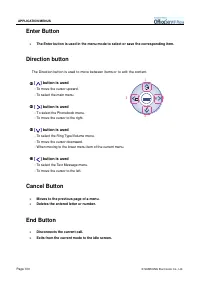
Page 100 © SAMSUNG Electronics Co., Ltd. APPLICATION MENUS ¨ç ¨è ¨é ¨ê Enter Button ! The Enter button is used in the menu mode to select or save the corresponding item. Direction button The Direct ion butt on is used t o move bet ween it ems or t o edit t he cont ent . 1 1 1 1 [ ] button is used - ...
Page 117 - Ent ering Applicat ion Menus; Selecting Application Menus
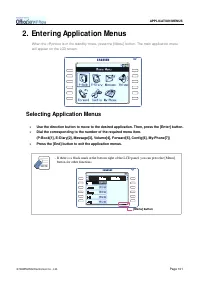
© SAMSUNG Electronics Co., Ltd. Page 101 APPLICATION MENUS 2. Ent ering Applicat ion Menus When the I P phone is in the st andby mode, press the [ Menu] button. The main application menuwill appear on the LCD screen. Selecting Application Menus ! Use the direction button to move to the desired appli...
Page 118 - Search By Speed Dial Number Location
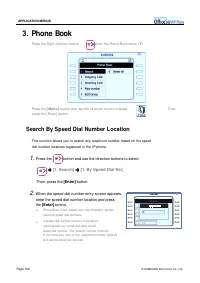
Page 102 © SAMSUNG Electronics Co., Ltd. APPLICATION MENUS 3. Phone Book Press the Right direct ion button to enter the Phone Book menu OR Press the [ M enu] button and use the direction button to select Then, press the [ Enter] button. Search By Speed Dial Number Location This funct ion allows you ...
Page 119 - Search a Telephone Number By Name
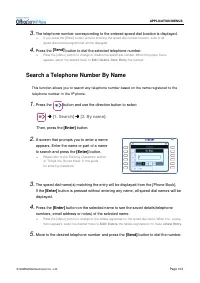
© SAMSUNG Electronics Co., Ltd. Page 103 APPLICATION MENUS 3. The telephone number corresponding to the entered speed dial location is displayed. # I f you press t he [ Enter] button wit hout entering the speed dial number locat ion, a list of all speed dial names programmed will be displayed. 4. Pr...
Page 120 - Search By Telephone Number
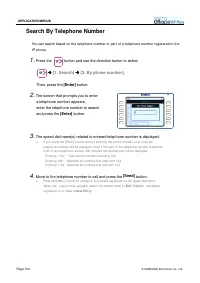
Page 104 © SAMSUNG Electronics Co., Ltd. APPLICATION MENUS Search By Telephone Number You can search based on t he t elephone number or part of a t elephone number regist ered in t he I P phone. 1. Press the button and use the direction button to select " " " " [1. Search] " "...
Page 121 - Search a Telephone Number By Group
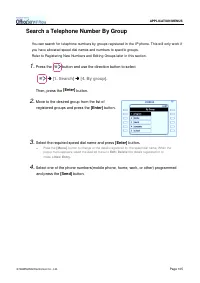
© SAMSUNG Electronics Co., Ltd. Page 105 APPLICATION MENUS Search a Telephone Number By Group You can search for t elephone numbers by groups regist ered in t he I P phone. This will only work if you have allocat ed speed dial names and numbers t o specific groups. Refer t o Regist ering New Numbers...
Page 122 - Search a Telephone Number By Time; Recent Caller Numbers
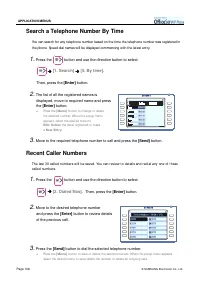
Page 106 © SAMSUNG Electronics Co., Ltd. APPLICATION MENUS Search a Telephone Number By Time You can search for any telephone number based on the time the telephone number was registered in the phone. Speed dial names will be displayed commencing with the latest entry. 1. Press the button and use th...
Page 123 - Recent Called Numbers
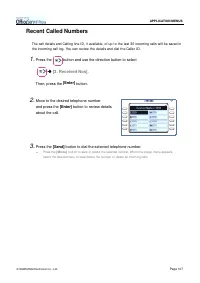
© SAMSUNG Electronics Co., Ltd. Page 107 APPLICATION MENUS Recent Called Numbers The call det ails and Calling line I D, if available, of up t o t he last 30 incoming calls will be saved in t he incoming call log. You can review t he det ails and dial t he Caller I D. 1. Press the button and use the...
Page 124 - Telephone Number Registration
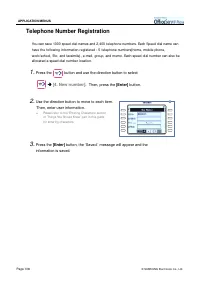
Page 108 © SAMSUNG Electronics Co., Ltd. APPLICATION MENUS Telephone Number Registration You can save 1000 speed dial names and 2,400 t elephone numbers. Each Speed dial name can have t he following informat ion regist ered : 5 t elephone numbers( home, mobile phone, work/ school, Et c, and facsimil...
Page 125 - Editing Groups
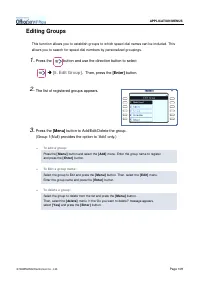
© SAMSUNG Electronics Co., Ltd. Page 109 APPLICATION MENUS Editing Groups This funct ion allows you t o est ablish groups t o which speed dial names can be included. This allows you t o search for speed dial numbers by personalized groupings. 1. Press the button and use the direction button to selec...
Page 126 - Deleting All Telephone Numbers
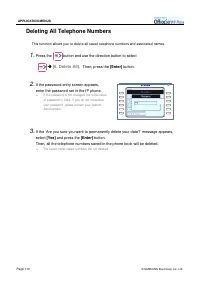
Page 110 © SAMSUNG Electronics Co., Ltd. APPLICATION MENUS Deleting All Telephone Numbers This funct ion allows you t o delet e all saved t elephone numbers and associat ed names. 1. Press the button and use the direction button to select " " " " [6. Delete All]. Then, press the [Ent...
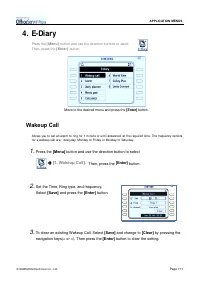
Page 127 - Wakeup Call
© SAMSUNG Electronics Co., Ltd. Page 111 APPLICATION MENUS 4. E-Diary Press the [ M enu] button and use the direct ion buttons to select Then, press the [ Ent er] button. Move to the desired menu and press the [Enter] button. Wakeup Call Allows you t o set an alarm t o ring for 1 minut e or unt il a...
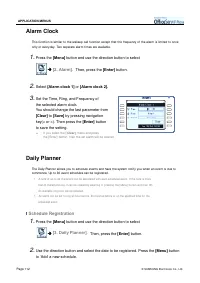
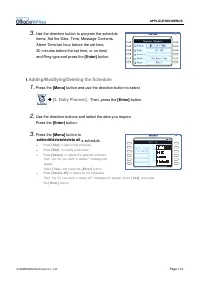
Page 128 - Alarm Clock; Daily Planner; Schedule Registration
Page 112 © SAMSUNG Electronics Co., Ltd. APPLICATION MENUS Alarm Clock This funct ion is similar t o t he wakeup call funct ion except t hat t he frequency of t he alarm is limit ed t o once only or everyday. Two separat e alarm t imes are available. 1. Press the [Menu] button and use the direction ...
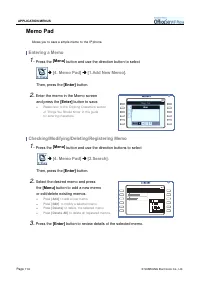
Page 130 - Memo Pad; Entering a Memo
Page 114 © SAMSUNG Electronics Co., Ltd. APPLICATION MENUS Memo Pad Allows you t o save a simple memo t o t he I P phone. Entering a Memo 1. Press the [Menu] button and use the direction button to select ! ! ! ! [4. Memo Pad] ! ! ! ! [1.Add New Memo]. Then, press the [Enter] button. 2. Enter the mem...
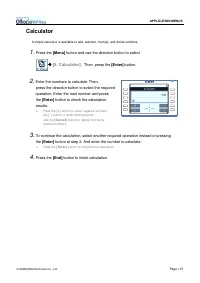
Page 131 - Calculator
© SAMSUNG Electronics Co., Ltd. Page 115 APPLICATION MENUS Calculator A simple calculat or is available t o add, subt ract , mult iply, and divide numbers. 1. Press the [Menu] button and use the direction button to select ! ! ! ! [5. Calculator]. Then, press the [Enter] button. 2. Enter the numbers ...
Page 132 - World Time; Changing the Time Zone
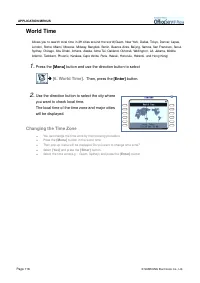
Page 116 © SAMSUNG Electronics Co., Ltd. APPLICATION MENUS World Time Allows you t o search local t ime in 39 cit ies around t he world( Guam, New York, Dallas, Tokyo, Denver, Lapas, London, Rome, Miami, Moscow, Midway, Bangkok, Berlin, Buenos Aires, Beij ing, Samoa, San Francisco, Seoul, Sydney, Ch...
Page 133 - Searching a List of D-Days
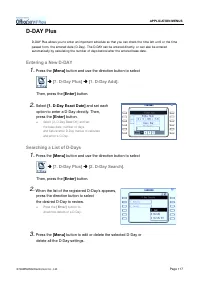
© SAMSUNG Electronics Co., Ltd. Page 117 APPLICATION MENUS D-DAY Plus D-DAY Plus allows you t o ent er an import ant schedule so t hat you can check t he t ime left unt il or t he t ime passed from, t he ent ered dat e ( D-Day) . The D-DAY can be ent ered direct ly, or can also be ent ered aut omat ...
Page 134 - Unit Conversion
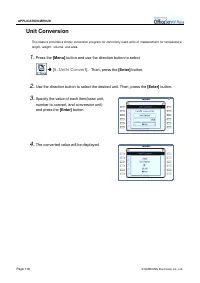
Page 118 © SAMSUNG Electronics Co., Ltd. APPLICATION MENUS Unit Conversion This feat ure provides a simply conversion program for commonly used unit s of measurement for t emperat ure, lengt h, weight , volume, and area. 1. Press the [Menu] button and use the direction button to select ! ! ! ! [8. U...
Page 135 - Received Messages
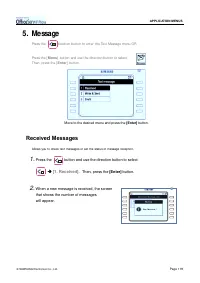
© SAMSUNG Electronics Co., Ltd. Page 119 APPLICATION MENUS 5. Message Press the direction button to ent er the Text Message menu OR Press the [ M enu] button and use the direction button to select Then, press the [ Ent er] button. Move to the desired menu and press the [Enter] button. Received Messa...
Page 136 - Message Charge
Page 120 © SAMSUNG Electronics Co., Ltd. APPLICATION MENUS Message Charge Allows you t o review received t ext messages and t o set up how you wish t o be not if ied on t he arrival of a new t ext message. 1. Press the button and use the direction button to select ! ! ! ! [1. Received] ! ! ! ! [1. M...
Page 137 - Setting Message Arrival Notice Interval; Setting a Message Arrival Alarm
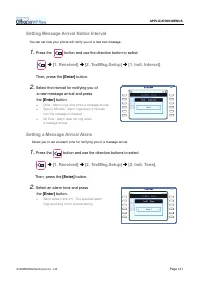
© SAMSUNG Electronics Co., Ltd. Page 121 APPLICATION MENUS Setting Message Arrival Notice Interval You can set how your phone will not ify you of a new t ext message . 1. Press the button and use the direction button to select ! ! ! ! [1. Received] ! ! ! ! [2. TextMsg.Setup] ! ! ! ! [1. Indi. Interv...
Page 138 - Setting/Clearing Message Display; Sent Messages
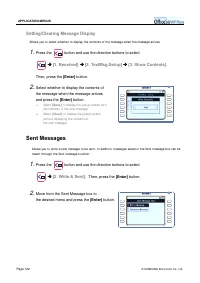
Page 122 © SAMSUNG Electronics Co., Ltd. APPLICATION MENUS Setting/Clearing Message Display Allows you t o select whet her t o display t he cont ent s of t he message when t he message arrives. 1. Press the button and use the direction buttons to select ! ! ! ! [1. Received] ! ! ! ! [2. TextMsg.Setu...
Page 139 - Writing a Message; Retrieving and Sending a Message
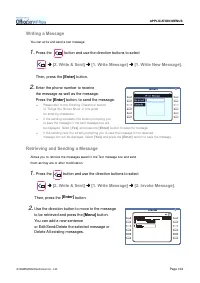
© SAMSUNG Electronics Co., Ltd. Page 123 APPLICATION MENUS Writing a Message You can writ e and send a t ext message. 1. Press the button and use the direction buttons to select ! ! ! ! [2. Write & Sent] ! ! ! ! [1. Write Message] ! ! ! ! [1. Write New Message]. Then, press the [Enter] button. 2...
Page 140 - Managing the Sent Message Box
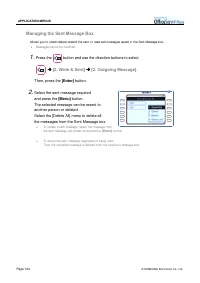
Page 124 © SAMSUNG Electronics Co., Ltd. APPLICATION MENUS Managing the Sent Message Box Allows you t o check/ delet e/ resend t he sent or reserved messages saved in t he Sent Message box. " Messages cannot be modified. 1. Press the button and use the direction buttons to select ! ! ! ! [2. Wri...
Page 141 - Draft; New Draft Message Registration
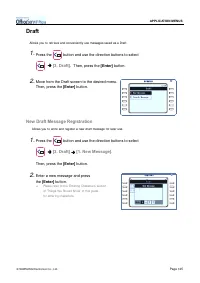
© SAMSUNG Electronics Co., Ltd. Page 125 APPLICATION MENUS Draft Allows you t o ret rieve and convenient ly use messages saved as a Draft . 1. Press the button and use the direction buttons to select ! ! ! ! [3. Draft]. Then, press the [Enter] button. 2. Move from the Draft screen to the desired men...
Page 142 - Searching Messages
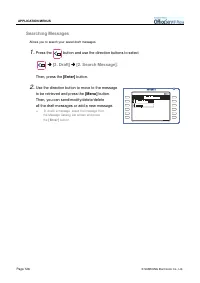
Page 126 © SAMSUNG Electronics Co., Ltd. APPLICATION MENUS Searching Messages Allows you t o search your saved draft messages. 1. Press the button and use the direction buttons to select ! ! ! ! [3. Draft] ! ! ! ! [2. Search Message]. Then, press the [Enter] button. 2. Use the direction button to mo...
Page 143 - Volume Adj ust ment; Selecting a Ring Type
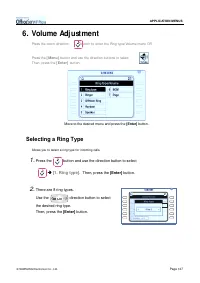
© SAMSUNG Electronics Co., Ltd. Page 127 APPLICATION MENUS 6. Volume Adj ust ment Press the down direction button to ent er the Ring type/ Volume menu OR Press the [ M enu] button and use the direct ion buttons to select Then, press the [ Ent er] button. Move to the desired menu and press the [Enter...
Page 144 - Ringer Volume
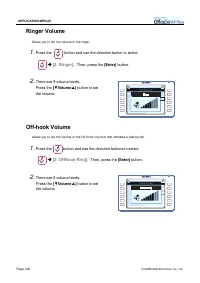
Page 128 © SAMSUNG Electronics Co., Ltd. APPLICATION MENUS Ringer Volume Allows you t o set t he volume of t he ringer. 1. Press the button and use the direction button to select ! ! ! ! [2. Ringer]. Then, press the [Enter] button. 2. There are 8 volume levels. Press the [ ▼ Volume ▲ ] button to set...
Page 145 - Handset Volume; Speaker Volume
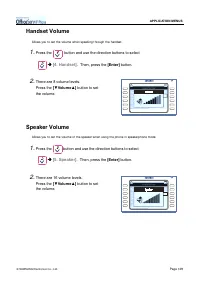
© SAMSUNG Electronics Co., Ltd. Page 129 APPLICATION MENUS Handset Volume Allows you t o set t he volume when speaking t hrough t he handset . 1. Press the button and use the direction buttons to select ! ! ! ! [4. Handset]. Then, press the [Enter] button. 2. There are 8 volume levels. Press the [ ▼...
Page 146 - BGM Volume; Page Volume
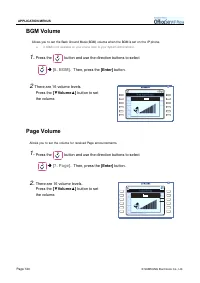
Page 130 © SAMSUNG Electronics Co., Ltd. APPLICATION MENUS BGM Volume Allows you t o set t he Back Ground Music( BGM) volume when t he BGM is set on t he I P phone. " I f BGM is not available on your phone refer to your System Administrator. 1. Press the button and use the direction buttons to s...
Page 148 - Changing a Password
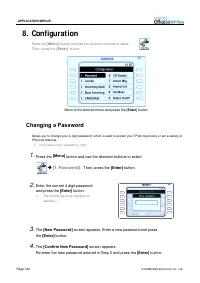
Page 132 © SAMSUNG Electronics Co., Ltd. APPLICATION MENUS 8. Configurat ion Press the [ M enu] button and use the direct ion buttons to select Then, press the [ Ent er] button. Move to the desired menu and press the [ Enter ] button. Changing a Password Allows you t o change your 4-digit password, ...
Page 149 - Locking a IP phone; Setting the Answering Mode
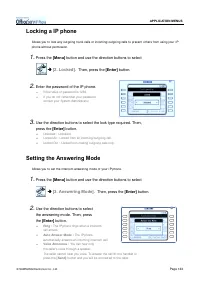
© SAMSUNG Electronics Co., Ltd. Page 133 APPLICATION MENUS Locking a IP phone Allows you t o lock any out going t runk calls or incoming/ out going calls t o prevent ot hers from using your I P phone wit hout permission. 1. Press the [Menu] button and use the direction buttons to select ! ! ! ! [2. ...
Page 150 - Setting the Boss Answering Mode; Language
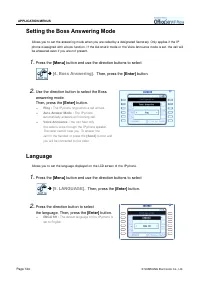
Page 134 © SAMSUNG Electronics Co., Ltd. APPLICATION MENUS Setting the Boss Answering Mode Allows you t o set t he answering mode when you are called by a designat ed Secret ary. Only applies if t he I P phone is assigned wit h a boss funct ion. I f t he Aut omat ic mode or t he Voice Announce mode ...
Page 151 - Setting the Method of CID Display
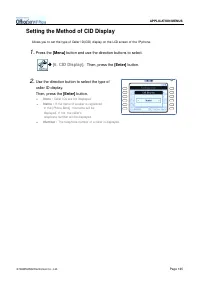
© SAMSUNG Electronics Co., Ltd. Page 135 APPLICATION MENUS Setting the Method of CID Display Allows you t o set t he type of Caller I D( CI D) display on t he LCD screen of t he I P phone. 1. Press the [Menu] button and use the direction buttons to select. ! ! ! ! [6. CID Display]. Then, press the [...
Page 152 - Setting Absent Messages; Displaying Internal Calls
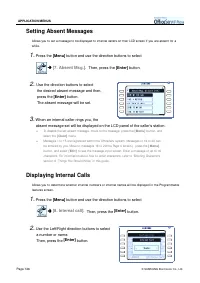
Page 136 © SAMSUNG Electronics Co., Ltd. APPLICATION MENUS Setting Absent Messages Allows you t o set a message t o be displayed t o int ernal callers on t heir LCD screen if you are absent for a while. 1. Press the [Menu] button and use the direction buttons to select ! ! ! ! [7. Absent Msg.]. Then...
Page 153 - Dial Mode
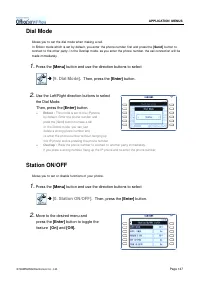
© SAMSUNG Electronics Co., Ltd. Page 137 APPLICATION MENUS Dial Mode Allows you t o set t he dial mode when making a call. I n Enbloc mode which is set by default , you ent er t he phone number first and press t he [ Send] butt on t o connect t o t he ot her party. I n t he Overlap mode, as you ent ...
Page 155 - Select BG
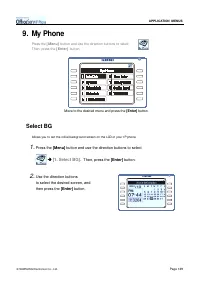
© SAMSUNG Electronics Co., Ltd. Page 139 APPLICATION MENUS 9. My Phone Press the [ M enu] button and use the direct ion buttons to select Then, press the [ Ent er] button. Move to the desired menu and press the [Enter] button. Select BG Allows you t o set t he init ial background screen on t he LCD ...
Page 156 - Entering the Name; Network Information
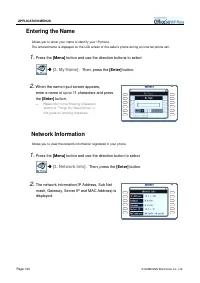
Page 140 © SAMSUNG Electronics Co., Ltd. APPLICATION MENUS Entering the Name Allows you t o ent er your name t o ident ify your I P phone. The ent ered name is displayed on t he LCD screen of t he caller’s phone during an int ernal phone call. 1. Press the [Menu] button and use the direction buttons...
Page 157 - Viewing Status Information; Enbloc Timeout
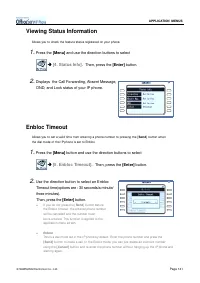
© SAMSUNG Electronics Co., Ltd. Page 141 APPLICATION MENUS Viewing Status Information Allows you t o check t he feat ure st at us regist ered on your phone. 1. Press the [Menu] and use the direction buttons to select ! ! ! ! [4. Status Info]. Then, press the [Enter] button. 2. Displays the Call Forw...
Page 158 - News Color
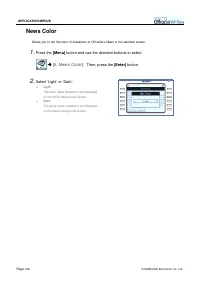
Page 142 © SAMSUNG Electronics Co., Ltd. APPLICATION MENUS News Color Allows you t o set t he color of charact ers of OfficeServ News in t he calendar screen. 1. Press the [Menu] button and use the direction buttons to select ! ! ! ! [6. News Color]. Then, press the [Enter] button. 2. Select ‘Light’...
Page 159 - Privacy Option
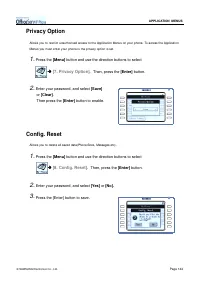
© SAMSUNG Electronics Co., Ltd. Page 143 APPLICATION MENUS Privacy Option Allows you t o rest rict unaut horised access t o t he Applicat ion Menus on your phone. To access t he Applicat ion Menus you must ent er your phone is t he privacy opt ion is set . 1. Press the [Menu] button and use the dire...
Page 160 - Version Information
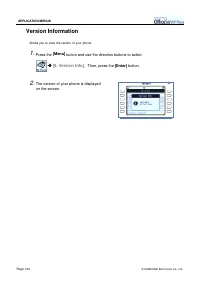
Page 144 © SAMSUNG Electronics Co., Ltd. APPLICATION MENUS Version Information Allows you t o view t he version of your phone. 1. Press the [Menu] button and use the direction buttons to select ! ! ! ! [9. Version Info]. Then, press the [Enter] button. 2. The version of your phone is displayed on th...
Page 161 - The phone does not boot when the power is connected.
© SAMSUNG Electronics Co., Ltd. Page 145 ANNEX 1. Troubleshoot ing Possible problems and troubleshooting st eps for your I P phone are described below: Check the troubleshoot ing st eps before contact ing your Authorised Samsung Reseller. The phone does not boot when the power is connected. ! Check ...
Page 162 - The ITP-5012L phone does not ring and volume is too low.; Conversation quality is reduced due to noise and echo.; Caller IDs are not displayed on the LCD screen.
Page 146 © SAMSUNG Electronics Co., Ltd. ANNEX Nothing appears on the LCD screen while the ITP-5012L phone is beingused. ! Check the data network cable is correctly connected to the LAN socket on the ITP-5012L phone. (Refer to ‘Assembling the ITP-5012L IP phone’ section of ‘Preparation’ in this guid...
Page 163 - An alarm does not ring at the programmed time.
© SAMSUNG Electronics Co., Ltd. Page 147 ANNEX An alarm does not ring at the programmed time. ! Check the current time is set on the ITP-5012L phone correctly. If the current time setting needs to be changed, contact your System Administrator. ! Check if an alarm is set. (Refer to ‘Alarm Clock’ in t...
Page 164 - Product Specificat ions
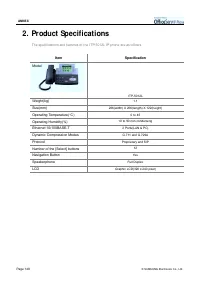
Page 148 © SAMSUNG Electronics Co., Ltd. ANNEX 2. Product Specificat ions The specificat ions and features of the I TP-5012L I P phone are as follows. Item Specification Model ITP-5012L Weight(kg) 1.1 Size(mm) 266(width) X 206(length) X 122(height) Operating Temperature( ° C) 0 to 45 Operating Humid...









 Samsung DS5014D
User Manual
Samsung DS5014D
User Manual
 Samsung DS5021D
User Manual
Samsung DS5021D
User Manual
 Samsung iDCS500
Manual
Samsung iDCS500
Manual
 Samsung ITP-5107S
User Manual
Samsung ITP-5107S
User Manual
 Samsung ITP-5112L
User Manual
Samsung ITP-5112L
User Manual
 Samsung NX-308
User Manual
Samsung NX-308
User Manual
 Samsung WIP-5000
User Manual
Samsung WIP-5000
User Manual