Page 2 - Instruction; Interactive; Operational Modes; Still image warning; Avoid displaying the same TV channel for long periods of time.; Securing the Installation Space; Installation with a stand; English
Figures and illustrations in this User Manual are provided for reference only and may differ in appearance from the actual product. Product design and specifications may be changed without notice. Instruction This TV offers an interactive functionality through a set-back box (SBB/STB) that is connec...
Page 3 - Contents; ENGLISH; Accessories
Contents ENGLISH 3 English y Accessories .................................................................................................................................................................... 4 y Installing the LED TV Stand .................................................................
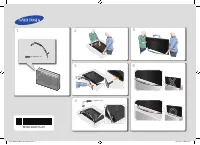
Page 4 - Wall Mount Adapter (Not included with all models); Installing the LED TV Stand; Stand Components; Insert the Stand Guide into the slot on the bottom of the TV.
4 English Accessories ✎ Please make sure the following items are included with your LED TV. If any items are missing, contact your dealer. ✎ The colors and shapes of the following items may vary depending on the model. y Remote Control & Batteries (AAA x 2) y Power Cord y Safety Guide (Not inclu...
Page 5 - Assembling the swivel; angle using BRACKET HOLDER SWIVEL.
5 English Assembling the swivel Some models support the swivel function. Supported swivel angles are 20°, 60° and 90°, and you can change the swivel angle using BRACKET HOLDER SWIVEL. Support the swivel models : HG32EJ470 HG40EJ470 HG43EJ470 HG49EJ470 20° ~ 60° swivel If you assemble the wedge on th...
Page 6 - Hotel Mount Kit (Not included with all models); Top; Affix the stand to a flat surface such as a dresser top, desk
6 English Hotel Mount Kit (Not included with all models) Bolt + Nut Short Bolt (2EA) Long Bolt (2EA) Nut (2EA) Washer (2EA) Top Bottom Affix the stand to a flat surface such as a dresser top, desk top, or entertainment center, as shown in the figure. WARNING : To prevent injury, you must attach this...
Page 7 - Overview of the Connection Panel
7 English Overview of the Connection Panel HG32EJ470 HG40EJ470 HG43EJ470 HG49EJ470 3 6 5 ! 7 9 0 8 1 2 1 4
Page 9 - Display Modes; resolution you choose.; IBM
9 English Display Modes You can also select one of the standard resolutions listed in the Resolution column. The TV will automatically adjust to the resolution you choose. After connecting a computer to the TV, set the screen resolution for the TV on the computer. The optimal resolution is 1920 x 10...
Page 10 - If you are using an HDMI/DVI cable connection, you must use the
10 English ✎ Optimal resolution is 1920 x 1080 @ 60 Hz. Mode Resolution Horizontal Frequency (KHz) Vertical Frequency (Hz) Pixel Clock Frequency (MHz) Sync Polarity (H / V) IBM 720 x 400 31.469 70.087 28.322 -/+ MAC 640 x 480 832 x 624 1152 x 870 35.000 49.726 68.681 66.667 74.551 75.062 30.240 57.2...
Page 11 - Using the TV’s Controller; button on the remote control or TV panel.; : Displays and selects the available video sources.; Standby mode
11 English Using the TV’s Controller The TV Controller, which is a small joystick-like button at the right of the back of the TV, lets you control the TV without the remote control.Turn on the TV using the P button on the remote control or TV panel. ✎ The TV's Controller, which is at the bottom righ...
Page 12 - Viewing the Remote Control; This remote control has Braille points on the; ALARM; GUIDE; HOME
12 English Viewing the Remote Control ✎ This remote control has Braille points on the Power , Channel , and Volume buttons, to support use by the visually impaired. A B C D ALARM SUBT. CLOCK GUIDE CONTENT HOME CH LIST TTX/MIX Turns the TV on and off. Directly enter a channel number. Toggle between T...
Page 13 - control. Avoid using special fluorescent light or neon signs; Using the Sports Mode; MENU
13 English Installing batteries (Battery size: AAA) Rear of the Remote ✎ After you have installed the batteries, use a screwdriver to screw in the screw that holds the battery cover closed. ✎ NOTE y Hold the remote control within 7 m of the TV. y Bright light may affect the performance of the remote...
Page 14 - Connecting the TV with the SBB; Data Cable
14 English Connecting the TV with the SBB ETH MODEM Data Cable TV Rear Panel ✎ Availability depends on the specific model. 1. Connect the DATA jack on the TV to the [ETH MODEM] jack of the STB (SBB) with the Data cable. ✎ Use data communication.
Page 15 - List of Vendors and Compatible Data Cables Supplied with the TV
15 English List of Vendors and Compatible Data Cables Supplied with the TV y Confirm that you are using the correct data cable for your vendor. Refer to the code label on the data cable. ✎ Operation Specifications of Data Cable(RJ12) : RS232
Page 16 - Connecting the Bathroom Speakers; procedure described below.; TV Rear Panel; TV Headphones jack
16 English Connecting the Bathroom Speakers You can connect the Bathroom Speakers using the following method. (Depending on the region) HP-ID An additional Headphone Box can be installed on a bed or business desk for added convenience. To do this, follow the procedure described below. y Detailed Dra...
Page 17 - Connecting the MediaHub HD; Availability will depend on the specific model.
17 English Connecting the MediaHub HD Output to any external source connected to MediaHub HD on the hotel desk. HDMI USB RS/232 TV Rear Panel MediaHub HD Rear 2 HDMI cable 1 RS-232 Data Cable ✎ Availability will depend on the specific model. 1. Connect the RJP port of the TV and the RS/232 port of t...
Page 18 - Audio cable
18 English Connecting the RJP (Remote Jack Pack) Output to any external source connected to RJP on the hotel desk. USB HDMI RS/232 VIDEO AUDIO AUDIO/PC TV Rear Panel RJP Rear 5 1 D-sub / PC Audio cable 2 Audio Cable 3 Video Cable 4 HDMI cable ✎ Availability depends on the specific model. 1. Connect ...
Page 20 - Setting the Hotel Option Data; MUTE
20 English Setting the Hotel Option Data To Enter: Press the MUTE → 1 → 1 → 9 → ENTER E buttons in that order. (From Hospitality mode, Standalone mode is set.) To Exit from this menu: power off and turn on again. No Hotel TV Function Description Category Item Initial value 1 Hospitality Mode Hospita...
Page 25 - An external device such as a Samsung Sound Bar can be connected to; server product for more information on operating it.
25 English No Hotel TV Function Description Category Item Initial value 16 System Self Diagnosis for TV … Enter the Self Diagnosis Menu. y Picture Test: Use this to check for picture problems. If a problem appears in the test picture, select Yes and follow the directions on the screen. y Sound Test:...
Page 26 - TV Action
26 English HP Mode Main Speaker Mute ON/OFF TV Action Output Remarks ON ON OFF Power ON Main Speaker Sound - YES (Last Saved/User defined vol. level applied) HP Sound - N/A ON ON OFF Volume up/ down Main Speaker - volume level changes as per volume OSD HP Sound - N/A ON ON ON Mute Main Speaker - Mut...
Page 27 - Welcome Message; guest in a hotel room.; Only capital letters A to Z are allowed.
27 English Welcome Message The Welcome message feature allows you to display a customized message on the TV every time the TV is turned on by a guest in a hotel room. − Welcome message settings are located in the Hotel Option Menu. − Welcome message should be ON for the message to be displayed when ...
Page 28 - Hotel Logo; Hospitality Logo
28 English Hotel Logo The Hospitality Logo function displays the Hotel’s logo when the TV is powered on. − The Hospitality Logo settings are in the Hospitality mode menus. − The Logo Download and Logo Display Menu items are enabled when you turn the Hospitality Logo option on. − If there is a logo i...
Page 29 - : There is no file to copy on the USB device.
29 English Cloning USB Cloning is a function that allows you to download user configured settings ( Picture , Sound , Input , Channel , Setup , and Hotel Setup ) from one TV set and upload the same settings to other TV sets. All user-defined settings from the TV (Master Set) can be copied to the USB...
Page 30 - Hospitality Plug & Play; REACH” is
30 English Hospitality Plug & Play Hotel Plug & Play automatically performs Hotel mode selection, Local Set and Picture mode Setup. − Hotel Plug & Play is available only one time, when the power is first turned on. − This is available after first setting up the TV and transferring Clone ...
Page 31 - ENTER
31 English 1. Region Settings − Check the Region settings . − If you want to change a setting, select it and press ENTER . − If you don’t want to change any settings, go to the next step. 2. TV Installation Type − If you select “Cloning Mode”, “Select Solution” appears. − Select “TV Basic Setup” or ...
Page 33 - SW Clock; − This feature only works in StandAlone mode.
33 English SW Clock The SW Clock shows the current time on the screen when a user presses the Info remote control key while in standby mode. − If a user presses the Info key when the TV is in standby mode, the TV is turned on and shows the current time on the screen for 10 seconds, then returns to s...
Page 34 - Multi Code Remocon; RETURN; Remote control code is set to 0. If you want to; EXIT; Setting the Time
34 English Multi Code Remocon The Multi Code Remote Control is a special transmitter that can control multiple TVs with one remote.This function is useful in environments where there is more than one TV in one location, such as hospitals. The Set ID number will be displayed in the source OSD. It is ...
Page 35 - Setting the Channel Bank Editor in Stand-alone Mode; Refer to the following when using SMOOVIE Remote Controller
35 English Channel Bank Editor (Smoovie TV Only) Channel Bank Editor can be used to edit channels, with 3 different Bank Options.Depending on the Bank card, there are specific channels that hotel customers can enjoy. Setting the Channel Bank Editor in Stand-alone Mode 1. Enter the Hotel Standalone m...
Page 36 - Channel Editor; Channel Editor edits channel number and name.; Simple Steps for channel Editor in Stand-alone Mode; Action
36 English Channel Editor Channel Editor edits channel number and name. − Use Channel Editor to sort the channels into user-desired channel numbers. Hospitality Mode Standalone System SI Vendor OFF Power On Channel Menu OSD Clock Music Mode Remote Jack Pack External Source HP Management Bathroom Spe...
Page 37 - My Channel; the corresponding channels.; Antenna Mode; Key Guide
37 English My Channel Determines the country and genre for the channels provided by the hotel. If the user selects a country and genre, it shows the corresponding channels. y You must select the country first, or you cannot set a genre. y If you select a genre that has no associated channels, the Ch...
Page 40 - The currently selected country is highlighted.; The other item of the county is highlighted.
40 English Highlight Interaction [Default Genre] y This page is only to indicate possible interactions. It may not be exactly identical to what appears on the actual screen. ENTER / RIGHT LEFT My Channel Current status All Country / All } Keep Previous n Move E Enter All Country Austria Belgium Chin...
Page 41 - Once the country is selected, focus
41 English Mode Change Interaction 1 (1/2) y This page is only to indicate possible interactions. It may not be exactly identical to what appears on the actual screen. ENTER / RIGHT ENTER / RIGHT 6 DOWN LEFT UP DOWN My Channel Current status All Country / All } Keep Previous n Move E Enter All Count...
Page 42 - The genre mode change complete message is displayed.
42 English Mode Change Interaction 1 (2/2) y This page is only to indicate possible interactions. It may not be exactly identical to what appears on the actual screen. ENTER / RETURN / Timeout My Channel Current status All Country / All } Keep Previous n Move E Enter All Country Austria Belgium Chin...
Page 44 - POWER
44 English Mode Change Interaction 2 (2/2) y This page is only to indicate possible interactions. It may not be exactly identical to what appears on the actual screen. POWER POWER Genre Mode changed to Austria / News. Genre Mode changed to Austria / News. Power Off 1 y Current Genre Mode: Austria / ...
Page 45 - Channel Genre Edit; This is an editor to set the genre for each Hotel TV channel.
45 English Genre Editor y Country and Genre selection can be done in the channel list Menu. y Pressing the Red Key enables the country sub list. Here, the viewer can scroll down and select the country of his or her choice. y Genre selection can be done using Left/right key, i.e by scrolling horizont...
Page 46 - “Hotel mode” operation from the Sound Bar
46 English Mixed Channel Map The Mixed Channel Map function mixes Air, Cable and Satellite channels. − The Mixed Channel Map function should be ON in order to mix Air, Cable and Satellite channels. − Use the Channel Editor to sort the channels after turning on the ‘Mixed Channel Map’ function in the...
Page 47 - inches
47 English Wall Mount Kit Specifications (VESA) ✎ The Wall mount kit is not supplied but sold separately. Install your wall mount on a solid wall, perpendicular to the floor. When attaching to other building materials, please contact your nearest dealer. If installing on a ceiling or slanted wall, i...
Page 48 - Securing the TV to the Wall; Caution; To avoid the TV falling; NOTE; Anti-theft Kensington Lock; ” icon on the rear of the TV. A kensington slot is beside
48 English Securing the TV to the Wall Caution : Pulling, pushing, or climbing onto the TV may cause the TV to fall. In particular, ensure that your children do not hang over or destabilize the TV; doing so may cause the TV to tip over, resulting in serious injuries or death. Follow all safety preca...
Page 49 - Specifications; Audio out; attached to the product.
49 English Specifications Items Specification Comment TV System PAL, SECAM DVB-TC, DVB-T2C Audio out Speaker out 32 inches: 5 W x 2 40-49 inches: 10 W x 2 Input PC D-sub, Audio-L/R A/V Audio Video Jack HDMI Compatible with HDMI Specifications Antenna 75 ohm Unbalanced, Din Jack, F Jack DATA DATA RJ-...
Page 50 - Supported Video Formats; Other Restrictions; Supported Subtitle Formats; External; Supported Photo Formats
50 English Supported Video Formats File Extension Container Video Codec Resolution Frame rate(fps) Bit rate(Mbps) Audio Codec *.avi / *.mkv *.asf / *.wmv *.mp4 / *.3gp *.vro / *.mpg*.mpeg / *.ts *.tp / *.trp *.mov / *.flv *.vob / *.svi AVI MKV ASF MP4 3GP MOV FLV VROVOB PS TS MPEG4 SP/ASP 1920 x 108...