Page 2 - About this manual
2 About this manual This device provides high quality mobile communication and entertainment using Samsung’s high standards and technological expertise. This user manual is specially designed to detail the device’s functions and features. • Please read this manual before using the device to ensure s...
Page 3 - Instructional icons; Copyright
About this manual 3 Instructional icons Warning : situations that could cause injury to yourself or others Caution : situations that could cause damage to your device or other equipment Note : notes, usage tips, or additional information Copyright Copyright © 2012 Samsung ElectronicsThis guide is pr...
Page 4 - Table of Contents; Getting started; Basics
4 Table of Contents Getting started 6 Device layout 7 Buttons7 Package contents 8 Charging the battery 10 Inserting a memory card12 Turning the device on and off13 Holding the device13 Locking and unlocking the device13 Adjusting the volume13 Switching to silent mode Basics 14 Using the touch screen...
Page 5 - Troubleshooting
Table of Contents 5 56 HomeGroup56 Windows Update Troubleshooting Application & media stores 44 Store44 Games Utilities 45 Calendar46 SkyDrive46 Box46 Reader Travel & local 47 Maps Settings 48 About Settings48 Personalise48 Users49 Notifications50 Search50 Share51 General53 Privacy54 Devices...
Page 7 - Buttons; Package contents
Getting started 7 • Do not cover the antenna area with your hands or other objects. This may cause connectivity problems or drain the battery. • Do not use a screen protector. This causes sensor malfunctions. • Do not allow water to contact the touch screen. The touch screen may malfunction in humid...
Page 8 - Charging the battery
Getting started 8 • The items supplied with the device and any available accessories may vary depending on the region or service provider. • The supplied items are designed only for this device and may not be compatible with other devices. • Appearances and specifications are subject to change witho...
Page 9 - Charging with the charger
Getting started 9 Charging with the charger Connect the power cable to the AC power adapter, and plug the end of the AC power adapter into the DC jack. Then, plug the power cable into an electric socket. Connecting the charger improperly may cause serious damage to the device. Any damage caused by m...
Page 10 - Reducing the battery consumption; Inserting a memory card
Getting started 10 After fully charging, disconnect the device from the charger. First unplug the charger from the device, and then unplug it from the electric socket. To save energy, unplug the charger when not in use. The charger does not have a power switch, so you must unplug the charger from th...
Page 11 - Removing the memory card
Getting started 11 1 Insert a memory card with the gold-coloured contacts facing downwards. 2 Push the memory card into the slot until it locks in place. Removing the memory card Before removing the memory card, first unmount it for safe removal. Flick from the right edge of the screen towards the m...
Page 12 - Turning the device on and off
Getting started 12 Turning the device on and off When turning on the device for the first time, follow the on-screen instructions to set up your device.Press the Power button to turn on the device. • Follow all posted warnings and directions from authorised personnel in areas where the use of wirele...
Page 13 - Holding the device; Switching to silent mode
Getting started 13 Holding the device Do not cover the antenna area with your hands or other objects. This may cause connectivity problems or drain the battery. Locking and unlocking the device When not in use, lock the device to prevent unwanted operation. Pressing the Power button turns off the sc...
Page 14 - Using the touch screen; Finger gestures; Tapping
14 Basics Using the touch screen Use only fingers to use the touch screen. • Do not allow the touch screen to come into contact with other electrical devices. Electrostatic discharges can cause the touch screen to malfunction. • Do not allow the touch screen to contact water. The touch screen may ma...
Page 15 - Dragging
Basics 15 Dragging To move an icon, thumbnail, or preview to a new location, tap and hold it and drag it to the target position. Double-tapping Double-tap to zoom in a part. Double-tap again to return.
Page 16 - Flicking
Basics 16 Flicking Flick left or right to see another panel. Flick up or down to scroll through a webpage or a list, such as contacts. Pinching Spread two fingers apart on a webpage, map, or image to zoom in a part. Pinch to zoom out.
Page 17 - Rotating the screen; Start screen; Rearranging items; Adding an application tile
Basics 17 Rotating the screen Many applications allow display in either portrait or landscape orientation. Rotating the device causes the display to automatically adjust to fit the new screen orientation.To use this feature, flick from the right edge of the screen towards the middle of the screen to...
Page 18 - Moving an item; Resizing an item; Removing an item; Changing the tile view mode; Using the charms
Basics 18 Moving an item Tap and hold an item and drag it to a new location. Resizing an item Flick up or down on an item. A tick mark appears on the item and the options bar appears at the bottom of the screen. Tap Larger to enlarge it or Smaller to reduce it. Removing an item Flick up or down on a...
Page 19 - Using applications; Opening an application
Basics 19 You can use the following charms: • Search : Search for data in applications. • Share : Share files with others. • Start : Return to the Start screen or open the most recent application. • Devices : Share files with connected devices. • Settings : Access the settings panel to configure set...
Page 20 - Using dual view
Basics 20 Using dual view Switch to dual view to run two applications on the screen at once.While using an application, open the list of active applications, drag an application to the right, and then drop it when the partition appears. Tap and hold the partition, and then drag it to adjust the size...
Page 21 - Applications screen; Installing applications; Uninstalling applications
Basics 21 Applications screen The Applications screen displays icons for all applications, including any new applications installed.On the Start screen, flick upwards from the bottom edge or flick downwards from the top edge of the screen to open the options bar, and then tap All apps to open the Ap...
Page 22 - Windows desktop applications; Microsoft Office 2013 (Office Home and Student 2013 RT; Windows Accessories; Windows Ease of Access; Notifications
Basics 22 Windows desktop applications Use Windows desktop mode like as an ordinary Windows computer. In Windows desktop mode, you can run Windows desktop applications, such as Windows Accessories. On the Applications screen, select a desktop application to open it. Microsoft Office 2013 (Office Hom...
Page 23 - Entering text; Using the Qwerty keyboard; Changing the keyboard layout; Entering uppercase
Basics 23 Entering text Use the Qwerty keyboard to enter text. Text entry is not supported in some languages. To enter text, you must change the input language to one of the supported languages. Using the Qwerty keyboard Changing the keyboard layout To change the keyboard layout, tap and select one ...
Page 24 - Changing language keyboards; Copying and pasting; Connecting to a Wi-Fi network; Turning Wi-Fi on or off
Basics 24 Changing language keyboards You must add keyboards to enter text in other languages. Flick from the right edge of the screen towards the middle of the screen, tap Settings → Change PC settings → General → Language preferences → Add a language , select a language, and then tap Add . To chan...
Page 25 - Joining Wi-Fi networks; Transferring files; Setting a password
Basics 25 Joining Wi-Fi networks Flick from the right edge of the screen towards the middle of the screen, and then tap Settings → Available . Select a network from the list of detected Wi-Fi networks, tap Connect automatically → Connect , enter a password if necessary, and then tap Next . After the...
Page 26 - Setting a picture password; Updating the device
Basics 26 Setting a picture password Flick from the right edge of the screen towards the middle of the screen and tap Settings → Change PC settings → Users → Create a picture password . Enter the current password, tap OK → Choose picture , select one of the images saved in the device, and then tap O...
Page 27 - Communication; Setting up an account; Creating a contact; Editing a contact; Deleting a contact
27 Communication People Use this application to manage contacts, including phone numbers, email addresses, and others.Tap People on the Applications screen. Setting up an account This application requires a Microsoft account. If you have not already registered an account on the device, follow the on...
Page 28 - Searching for contacts; Adding accounts; Viewing posts from social network sites
Communication 28 Searching for contacts Use one of the following search methods: • Scroll left or right on the contacts list. • Pinch on the screen to switch to the index view. Once a contact is selected, take one of the following actions: • Send email : Compose an email. • Call mobile : Make a call...
Page 29 - Mail; Setting up email accounts; Sending messages; Reading messages
Communication 29 Mail Use this application to send or view email messages.Tap Mail on the Applications screen. Setting up email accounts Set up an email account when opening Mail for the first time. Enter the email address and password, and then follow on-screen instructions to complete the setup.To...
Page 30 - Messaging; Adding friends; Chatting with friends; Deleting chat history; ChatON
Communication 30 Messaging Use this application to chat with others.Tap Messaging on the Applications screen. Adding friends Open the options bar, tap Invite → Add a new friend , enter an email address, and then tap Next → Invite . Chatting with friends Tap New message , add recipients, and then ent...
Page 31 - Internet Explorer; Viewing webpages; Opening a new page; History
31 Web & network Internet Explorer Use this application to browse the Internet.Tap Internet Explorer on the Applications screen. Viewing webpages Tap the address field, enter the web address, and then tap . Opening a new page Open the options bar, and then tap .To go to another webpage, open the...
Page 32 - Links; Sharing webpages; Bing
Web & network 32 Links Tap and hold a link on the webpage to open it in a new page or copy. Sharing webpages To share a webpage address with others, flick from the right edge of the screen towards the middle of the screen and tap Share . Bing Use this application to search for information and br...
Page 33 - Pairing with other Bluetooth devices; doubleTwist AirSync
Web & network 33 Pairing with other Bluetooth devices Flick from the right edge of the screen towards the middle of the screen, tap Settings → Change PC settings → Devices → Add a device to view detected devices. Select the device you want to pair with, and then accept the auto-generated passkey...
Page 34 - Reading information from an NFC tag; Sending and receiving data
Web & network 34 Reading information from an NFC tag Place the NFC antenna area ( ) on the back of your device near an NFC tag. Tap Receive content? when it appears on the screen. The information from the tag will appear. Sending and receiving data Select a contact or an image, or open a webpage...
Page 35 - Media; Music; Playing music
35 Media Music Use this application to listen to music.Tap Music on the Applications screen. • Some file formats are not supported depending on the device’s software version. • Some files may not play properly depending on the encoding used. Playing music Scroll left or right to my music , tap Open ...
Page 36 - Taking photos; Taking a photo
Media 36 Camera Use this application to take photos or videos.Use Photos to view photos and videos taken with the device’s camera. (p. 38)Tap Camera on the Applications screen. The camera automatically shuts off when unused. Camera etiquette • Do not take photos or videos of other people without the...
Page 37 - Taking videos; Taking a video; Configuring settings for Camera
Media 37 Taking videos Taking a video Tap Video Mode , and then tap the screen to take a video. To stop recording, tap the screen again. Switch between front and rear camera. Use this for delayed-time shots. Switch to still mode. Change the camera settings. Configuring settings for Camera Tap Camera...
Page 38 - Viewing images; Zooming in and out; Viewing images on other devices
Media 38 Photos Use this application to view images and videos.Tap Photos on the Applications screen. • Some file formats are not supported depending on the software installed on the device. • Some files may not play properly depending on how they are encoded. Viewing images Tap Pictures library , s...
Page 39 - Viewing images on the web
Media 39 Viewing images on the web To view images from your social networking service or SkyDrive storage, select a service name. If a social networking service account is not registered on the device, follow the on-screen instructions to complete the account setup. Playing videos Video files show t...
Page 41 - Video; Playing videos; Finance
Media 41 Video Use this application to play video files.Tap Video on the Applications screen. • Some file formats are not supported depending on the device’s software. • Some files may not play properly depending on how they are encoded. Playing videos Scroll left or right to my videos and tap Open ...
Page 42 - News; Sport; Travel
Media 42 News Use this application to get recent news provided by Bing.Tap News on the Applications screen. Scroll to a category, and select an article to read.To read articles from a specific source, open the options bar and tap Sources . To receive news about a specific topic, open the options bar...
Page 44 - Application & media stores; Games
44 Application & media stores Store Use this application to purchase and download applications and games that are able to run on the device.Tap Store on the Applications screen. This application may not be available depending on the region or service provider. Installing applications Browse appl...
Page 45 - Utilities; Creating events; Changing calendar type
45 Utilities Calendar Use this application to manage events and tasks.Tap Calendar on the Applications screen. Creating events Tap a date or time slot. Enter a title and specify which calendar to use or sync with. Then tap Show more to add more details, such as how often the event repeats or when an...
Page 46 - SkyDrive
Utilities 46 SkyDrive Use this application to save and share your files with others. When you save files to your SkyDrive folder, your device automatically syncs with the web server and any other computers that have SkyDrive installed.Tap SkyDrive on the Applications screen. To upload files to your ...
Page 47 - Maps; Searching for locations
47 Travel & local Maps Use this application to pinpoint the location of the device, search for places, or get directions.Tap Maps on the Applications screen. This application may not be available depending on the region or service provider. Searching for locations Flick from the right edge of th...
Page 48 - About Settings; Your account
48 Settings About Settings Use this application to configure the device, set application options, and add user accounts. Flick from the right edge of the screen towards the middle of the screen and tap Settings → Change PC settings . Personalise Select images and colours for the lock screen, the Sta...
Page 49 - Other users
Settings 49 Sign-in options • Create a password : Set an account password to unlock the device. When a password is created, this option changes to Change your password . • Create a picture password : Set a picture password to unlock the device. • Create a PIN : Set a PIN to unlock the device. • Requ...
Page 50 - Search; Search history; Share; Frequent
Settings 50 Search Change the settings for the Search feature. Search history • Show the apps that I search for most often at the top : Set to show the list of applications you search most frequently. • Let Windows save my searches as future search suggestions : Set the device to save the search key...
Page 51 - General; Time
Settings 51 General Change the general settings for the operating system. Time View the current time and date, change the time zone, or set the device to apply summer time automatically. App switching • Allow switching between recent apps : Set the device to open a list of recent applications when y...
Page 52 - Spelling
Settings 52 • Play key sounds as I type : Set the device to emit a sound when you tap the keys on the keyboard. • Make the standard keyboard layout available : Enable or disable the standard Qwerty keyboard. Spelling • Autocorrect misspelt words : Set the device to automatically correct misspelt wor...
Page 53 - Remove everything and reinstall Windows; Privacy; Let apps use my location
Settings 53 Remove everything and reinstall Windows Refresh the device when it slows down by tapping Get started . This will reset settings to the factory default values and delete all data. Advanced start-up You can restart the device to access the Windows Startup menu that helps you fix system sta...
Page 54 - Wireless; Flight mode
Settings 54 Devices Change the settings for device connection options. Devices View the list of other devices or accessories connected to your device. You can add Bluetooth devices or disconnect your device from the connected devices. Download over metered connections Set to allow the device to down...
Page 55 - Ease of Access; Sync your settings
Settings 55 Ease of Access Access and change the following settings to improve accessibility to the device. • Use high contrast : Reverse the display colours to improve visibility. • Make everything on your screen bigger : Change the font size in all applications. • Pressing Windows + Volume Up will...
Page 56 - HomeGroup; Windows Update
Settings 56 HomeGroup Join a homegroup on your network to share files with other members. To allow other devices in the same group to access your shared files, turn on the file sharing feature in Change sharing settings . Windows Update Check for new updates and update device software by tapping Che...
Page 57 - Your device displays network or service error messages; Your device freezes or has fatal errors
57 Troubleshooting Your device displays network or service error messages • When you are in areas with weak signals or poor reception, you may lose reception. Move to another area and try again. • You cannot access some options without a subscription. Contact your service provider for more details. ...
Page 58 - The device beeps and the battery icon is empty
Troubleshooting 58 The device beeps and the battery icon is empty Your battery is low. Recharge the battery to continue using the device. The battery does not charge properly The battery in the device is not user replaceable. If you have problems with the battery or need it replaced, take the device...
Page 59 - Error messages appear when opening music files; Another Bluetooth device is not located
Troubleshooting 59 Error messages appear when opening music files Some music files may not play on your Samsung device for a variety of reasons. If you receive error messages when opening music files on your device, try the following: • Free some memory by transferring files to a computer or deletin...


 Samsung Galaxy Tab S6
User Manual
Samsung Galaxy Tab S6
User Manual
 Samsung Tab Active Pro
User Manual
Samsung Tab Active Pro
User Manual
 Samsung Galaxy Book
User Manual
Samsung Galaxy Book
User Manual
 Samsung Galaxy Note pro
User Manual
Samsung Galaxy Note pro
User Manual
 Samsung Galaxy Tab 4
User Manual
Samsung Galaxy Tab 4
User Manual
 Samsung Galaxy Tab A
User Manual
Samsung Galaxy Tab A
User Manual
 Samsung Galaxy Tab A7
User Manual
Samsung Galaxy Tab A7
User Manual
 Samsung Galaxy Tab A8
User Manual
Samsung Galaxy Tab A8
User Manual
 Samsung Galaxy Tab A9
User Manual
Samsung Galaxy Tab A9
User Manual
 Samsung Galaxy Tab A9+
User Manual
Samsung Galaxy Tab A9+
User Manual
 Samsung Galaxy Tab Active Pro
User Manual
Samsung Galaxy Tab Active Pro
User Manual
 Samsung Galaxy Tab E
User Manual
Samsung Galaxy Tab E
User Manual
 Samsung Galaxy Tab Lite
User Manual
Samsung Galaxy Tab Lite
User Manual
 Samsung Galaxy Tab S
User Manual
Samsung Galaxy Tab S
User Manual
 Samsung Galaxy Tab S2
User Manual
Samsung Galaxy Tab S2
User Manual
 Samsung Galaxy Tab S6 Lite
User Manual
Samsung Galaxy Tab S6 Lite
User Manual
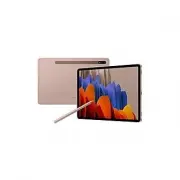 Samsung Galaxy Tab S7
User Manual
Samsung Galaxy Tab S7
User Manual
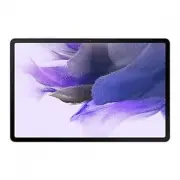 Samsung Galaxy Tab S7 FE
User Manual
Samsung Galaxy Tab S7 FE
User Manual
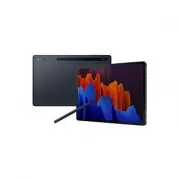 Samsung Galaxy Tab S7+
User Manual
Samsung Galaxy Tab S7+
User Manual
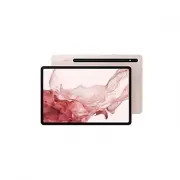 Samsung Galaxy Tab S8
User Manual
Samsung Galaxy Tab S8
User Manual