Page 2 - Using this manual; Read me first
Using this manual 2 Using this manual Congratulations on your purchase of the Samsung P7500. This powerful, “go anywhere” device, puts the best of the web and mobile computing at your fingertips in a lightweight, highly versatile platform that fits your active lifestyle. Built on the Google Android ...
Page 3 - Instructional icons
Using this manual 3 Formatting and delivery of this user manual is based ● on Google Android operating systems and may vary depending on the user’s operating system. Applications and their functions may vary by country, ● region, or hardware specifications. Samsung is not liable for performance issu...
Page 4 - Copyright
Using this manual 4 → Followed by —the order of options or menus you must select to perform a step; for example: From the Home screen, open the application list and select Settings → Wireless and networks (represents Settings , followed by Wireless and networks ) [ ] Square brackets —device keys; fo...
Page 5 - ABOUT DIVX VIDEO
Using this manual 5 ● is a trademark of SRS Labs, Inc. WOW HD technology is incorporated under licence from SRS Labs, Inc. Wi-Fi ● ® , the Wi-Fi CERTIFIED logo, and the Wi-Fi logo are registered trademarks of the Wi-Fi Alliance. DivX ● ® , DivX Certified ® , and associated logos are trademarks of Ro...
Page 6 - Contents
Contents 6 Contents Assembling ................................................................ 9 Unpack ...................................................................................... 9Install the SIM or USIM card ............................................... 10Charge the battery ............
Page 9 - Assembling; Unpack
Assembling 9 Assembling Unpack Check your product box for the following items: Mobile device ● Quick start guide ● Use only Samsung-approved software. Pirated or illegal software may cause damage or malfunctions that are not covered by your manufacturer's warranty. The items supplied with your devic...
Page 10 - Install the SIM or USIM card
Assembling 10 Install the SIM or USIM card When you subscribe to a cellular service, you will receive a Subscriber Identity Module (SIM) card, with subscription details, such as your personal identification number (PIN) and optional services. To use UMTS or HSDPA services, you can purchase a Univers...
Page 13 - Getting started; Turn your device on and off; Switch to Flight mode
Getting started 13 Getting started Turn your device on and off To turn on your device, Press and hold [ 1 ]. If you turn on your device for the first time, follow the on- 2 screen instructions to set up your device. To turn off your device, press and hold [ ] and select Power off → OK . › Switch to ...
Page 14 - Get to know your device; Device layout
Getting started 14 Get to know your device Device layout › 1 2 3 4 5 7 8 9 6 3 12 10 11
Page 15 - Keys
Getting started 15 Number Function 1 Power/Reset/Lock key 2 Volume key 3 Speaker 4 Light sensor 5 Multifunction jack 6 SIM card slot 7 Headset jack 8 Front camera lens 9 Mouthpiece 10 Rear camera lens 11 Internal antenna 12 Flashbulb 1. Connecting a headset to your device improperly can damage the h...
Page 16 - Indicator icons
Getting started 16 Indicator icons › Icons shown on the display may vary depending on your region or service provider. Icon DefinitionGPRS network connectedEDGE network connectedUMTS network connectedOpen WLANs availableWLAN connected Bluetooth activated Receiving GPS dataSynchronised with the webUp...
Page 17 - Use the touch screen
Getting started 17 Icon DefinitionMusic playback in progressError occurred or caution requiredBattery power level Unable to chargeCurrent time 1. If you use a charger that is not approved by Samsung, this indicator will not appear. Use the touch screen Your device’s touch screen lets you easily sele...
Page 18 - Rotate the touch screen; Lock or unlock the touch screen
Getting started 18 You can control your touch screen with the following actions: Tap: Touch once with your finger to select or launch a menu, ● option, or application. Drag: Tap and drag your finger up, down, left, or right to ● move to items on lists. Tap and hold: Tap an item and hold it for more ...
Page 19 - Get to know the Home screen
Getting started 19 Get to know the Home screen When the device is in Idle mode, you will see the Home screen. From the Home screen, you can view your device’s status and access applications. Scroll left or right to a panel of the Home screen. 5 2 4 3 1 The above screen may differ depending on your r...
Page 20 - System bar; Add items to the Home screen
Getting started 20 System bar From the system bar, you can quickly navigate screens, access applications, view system information, and more. 6 3 2 4 1 5 Number Function 1 Capture the current screen. 2 Return to the Home screen; Access the task manager (tap and hold). 3 Return to the previous screen....
Page 21 - Move items on the Home screen
Getting started 21 Wallpaper ● : Set a background image. More ● : Add shortcuts to items, such as bookmarks, contacts, and maps. Select an item to add to the Home screen. 3 Move items on the Home screen › Tap and hold an item to move until the Home screen grid 1 appears.Drag the item to the location...
Page 22 - Access applications; Access recent applications
Getting started 22 You can view the device’s current status and use the following options: Wi-Fi ● : Activate or deactivate the WLAN feature. Notifications ● : Set the device to alert you for various events. GPS ● : Activate or deactivate the GPS feature. Sound/Silent ● : Activate or deactivate Sile...
Page 23 - Customise your device; Change the language of the display
Getting started 23 Customise your device Get more from your device by customising it to match your preferences. Change the language of the display › From the Home screen, open the application list and 1 select Settings → Language and input → Select language . Select a language you want. 2 Set the cu...
Page 24 - Select a wallpaper for the Home screen
Getting started 24 You can set the device to alert you to various events in Silent mode. From the Home screen, open the application list and select Settings → Sound → Vibrate → Always or Only in Silent mode . When you switch to Silent mode, Vibration will appear in place of Silent on the notificatio...
Page 25 - Set a screen lock; Set an unlock pattern
Getting started 25 Drag the slider to adjust the level of brightness. 3 Select 4 OK . The brightness level of the display will affect how quickly the device consumes battery power. › Set a screen lock You can lock the touch screen with an unlock pattern or password to prevent unauthorised people fro...
Page 26 - Set an unlock PIN code; Lock your SIM or USIM card
Getting started 26 Set an unlock PIN code From the Home screen, open the application list and 1 select Settings → Location and security → Configure lock screen → PIN . Enter a new PIN (numeric) and select 2 Continue . Enter the PIN again and select 3 OK . Set an unlock password From the Home screen,...
Page 27 - Activate the mobile tracker
Getting started 27 › Activate the mobile tracker When someone inserts a new SIM or USIM card in your device, the mobile tracker feature will automatically send the contact number to specified recipients to help you locate and recover your device.To use this feature, you need a Samsung account for co...
Page 28 - Enter text; Change the keyboard type
Getting started 28 Enter text You can enter text by selecting characters on the virtual keypad, inputting handwriting on the screen, or speaking words into the microphone. You cannot enter text in some languages. To enter text, you should change the writing language to one of the supported languages...
Page 29 - Enter text using the Samsung keypad
Getting started 29 Number Function 5 Insert an emoticon; Open the emoticon list (tap and hold). 6 Clear your input. 7 Start a new line. 8 Enter text by voice. This feature may be unavailable depending on the selected input language. 9 Insert a space. Enter text using the Samsung keypad › Enter text ...
Page 30 - Enter text using the Swype keypad
Getting started 30 Number Function 6 Clear your input. 7 Attach an item. 8 Insert an emoticon; Open the emoticon list (tap and hold). 9 Insert a space. Enter text using the Swype keypad › Select the first character of a word and drag your finger 1 to the second character without releasing the finger...
Page 32 - Copy and paste text
Getting started 32 Copy and paste text › While you are entering text, you can use the copy and paste feature to use text in other applications. Tap and hold a word. 1 Drag 2 or to select the text you want. Select 3 Copy to copy, or Cut to cut the text onto the clipboard.In another application, tap a...
Page 33 - Web; Browser
Web 33 Web Web services require a data connection. Contact your operator to choose the best data plan. Browser Learn to access and bookmark your favourite web pages. You may incur additional charges for accessing the ● web and downloading data. For details, contact your service provider.The web brow...
Page 35 - Search for information by voice
Web 35 While browsing the web page, use the following options: To zoom in or out, tap the screen with two fingers and ● spread them apart (move your fingers closer together to zoom out). To open a new tab, select ● → New tab . To open a new tab without saving cookies, select ● → New incognito tab . ...
Page 36 - Open multiple pages; Bookmark your favourite web pages; Add a bookmark
Web 36 Open multiple pages › You can open multiple pages and switch back and forth between them. From the Home screen, open the application list and 1 select Browser . Select 2 to open a new tab. Access another web page on the new tab. 3 To switch back and forth between currently open tabs, 4 select...
Page 37 - Create a bookmark folder; Access recent history
Web 37 To use bookmark options, select and tap and hold a bookmark: To open the web page in the current tab, select ● Open . To open the web page in a new tab, select ● Open in new tab . To edit the bookmark, select ● Edit bookmark . To add the bookmark shortcut to the Home screen, select ● Add shor...
Page 38 - Read feeds; Manage feed sources; Customise the reader settings
Web 38 Pulse You can use the Pulse reader to add feeds for your favourite news topics and read news articles on your device. Read feeds › From the Home screen, open the application list and 1 select Pulse . If you are launching this application for the first time, 2 select OK and tap the screen to c...
Page 39 - Market; Download and install an application
Web 39 Market Based on the Android platform, your device’s functionality can be extended by installing additional applications. Android Market provides you an easy and quick way to shop for games and mobile applications. This feature may be unavailable depending on your ● region or service provider....
Page 40 - YouTube; Watch videos
Web 40 YouTube Learn to view and upload videos via YouTube. This feature may be unavailable depending on your region or service provider. › Watch videos From the Home screen, open the application list and 1 select YouTube . Select a video from the list. 2 Select a video screen 3 → to display a full ...
Page 41 - Search for a specific location
Web 41 Maps Learn to use Google Maps ™ to find your location, search the map for streets, cities, or countries, and get directions. Search for a specific location › From the Home screen, open the application list and 1 select Maps . If you are launching this application for the first time, 2 select ...
Page 42 - Get directions to a specific destination; Latitude
Web 42 Get directions to a specific destination › From the Home screen, open the application list and 1 select Maps . Select 2 . Enter the addresses of the starting location and the 3 ending location.To enter an address from your contact list or point the location on the map, select → Contacts , Poi...
Page 44 - Navigation
Web 44 Navigation Learn to use the GPS navigation system to find and show your destination with voice guidance. Navigation maps, your current location, and other ● navigational data may differ from actual location information. You should always pay attention to road conditions, traffic, and any othe...
Page 46 - Communication; Messaging; Send a multimedia message
Communication 46 Communication Messaging Learn to create and send text (SMS) or multimedia (MMS) messages, and view or manage messages you have sent or received. You may incur additional charges for sending or receiving messages while outside your home service area. For details, contact your service...
Page 47 - View a text or multimedia message; Google Mail
Communication 47 Add recipients of your message. 3 Enter phone numbers or email addresses manually, ● separating them with a semicolon or a comma.Select phone numbers or email addresses from the lists ● by selecting . When you enter an email address, the device will convert the message as a multimed...
Page 48 - Send an email message
Communication 48 Send an email message › From the Home screen, open the application list and 1 select Google Mail . Select 2 . Enter a name or address in the recipient field. 3 Enter a subject and message. 4 Select 5 → a file to attach an image file. Select 6 Send to send the message. View an email ...
Page 49 - Email; Set up an email account
Communication 49 To reply to the message, select ● . To reply to the message including all recipients, select ● . To forward the message to other people, select ● . To add a star to the message, select ● . To view an attachment, select ● View or Play . To save it to your device, select Save . Email ...
Page 50 - View an email message
Communication 50 Send an email message › From the Home screen, open the application list and 1 select Email → an email account. Select 2 . Add recipients of your message. 3 Enter email addresses manually, separating them with a semicolon or a comma.Select 4 + Cc/Bcc and add more recipients. Select t...
Page 52 - Talk; Set your status
Communication 52 Talk Learn to chat with friends and family via Google Talk ™ . This feature may be unavailable depending on your region or service provider. Set your status › From the Home screen, open the application list and 1 select Talk . Enter your Google account and password and select 2 Sign...
Page 53 - Start a chat
Communication 53 Start a chat › From the Home screen, open the application list and 1 select Talk . Select a friend from the friend list. The chat screen opens. 2 Enter your message and select 3 . To add a friend to a chat, select → Add to chat . To end the chat, select 4 . Social Hub Learn to acces...
Page 54 - Entertainment; Music player; Add music files to your device
Entertainment 54 Entertainment Music player Learn to listen to your favourite music while on the go with the music player. The music player supports the following file formats: mp4, m4a, 3gp, wma, flac, mp3, aac, ogg (Codec: MP3, AAC, AAC+, eAAC+, FLAC, WMA, Vorbis) Some file formats are not support...
Page 55 - Play music
Entertainment 55 Play music › After transferring music files to your device, From the Home screen, open the application list and 1 select Music player . Select a music category 2 → a music file. Tap the music player field at the right of the screen. 3 Control playback with the virtual keys. 4 While ...
Page 56 - Customise music player settings
Entertainment 56 Customise music player settings › From the Home screen, open the application list and 1 select Music player . Select 2 → Settings . Adjust the following settings to customise your music 3 player: Option Function Equaliser Select a default equaliser type. Sound effects Select a sound...
Page 57 - Capture a photo
Entertainment 57 Camera Learn how to capture and view photos and videos. You can take photos at resolutions up to 2048 x 1536 pixels (3.2 megapixels) and videos at resolutions up to 1280 x 720 pixels. The camera interface appears only in the landscape ● orientation.The camera automatically turns off...
Page 59 - Capture a photo by using preset options for
Entertainment 59 To view photo details, select ● → Details . To view the location information for a photo you captured, ● select → Show on map . This feature is available only when your photo has a location information. To rotate a photo anti-clockwise, select ● → Rotate left . To rotate a photo clo...
Page 60 - Capture a photo in Self shot mode; Capture a photo in Smile shot mode; Capture a panoramic photo
Entertainment 60 Capture a photo in Self shot mode › You can take photos of yourself conveniently using the front camera lens. From the Home screen, open the application list and 1 select Camera to turn on the camera. Select 2 . Make any necessary adjustments. 3 Select 4 to take a photo. Capture a p...
Page 61 - Capture a photo of action; Customise camera settings
Entertainment 61 Make any necessary adjustments. 3 Select 4 to take the first photo. Slowly move the device in any direction and align the 5 green frame with the viewfinder.When you have aligned the green frame and viewfinder, the camera will automatically take the next photo.Repeat step 5 to comple...
Page 62 - Record a video
Entertainment 62 Option Function White balance Adjust the colour balance according to lighting conditions. Effects Apply a special effect, such as sepia or black and white tones. Resolution Change the resolution option. Metering Select a type of exposure metre. GPS tag Set the camera to include loca...
Page 64 - Customise camcorder settings
Entertainment 64 Select 4 to start recording. Select 5 to stop recording. The video is saved automatically. After recording videos, select the image viewer icon to view the recorded videos. To view more videos, scroll left or right. You can also tap the ● screen and scroll through the thumbnails of ...
Page 65 - Video; Supported file formats
Entertainment 65 Video Learn to use the video player to play various kinds of videos. From the Home screen, open the application list and 1 select Video . Select a view mode at the top of the screen. 2 Select a video to play. 3 Control playback with the virtual keys. 4 While playing a video, use the...
Page 66 - View a photo
Entertainment 66 Avoid locking the device’s screen while playing a DivX ● Video-On-Demand. Each time you lock the screen while playing a DivX Video-On-Demand, one of your available rental counts will be decremented.Some file formats are not supported depending on ● the software of the device.If the ...
Page 67 - Play a video
Entertainment 67 To view photo details, select ● → Details . To view the location information for a photo you captured, ● select → Show on map . This feature is available only when your photo has a location information. To rotate a photo anti-clockwise, select ● → Rotate left . To rotate a photo clo...
Page 68 - Personal information; Contacts; Retrieve contacts by your account
Personal information 68 Personal information Contacts Learn to create and manage a list of your personal or business contacts. You can save names, mobile phone numbers, home phone numbers, email addresses, birthdays and more for your contacts. › Create a contact From the Home screen, open the applic...
Page 69 - Find a contact
Personal information 69 Find a contact › From the Home screen, open the application list and 1 select Contacts . Select 2 Find contacts and enter the first few letter of a name.Select the contact’s name. 3 Once you find a contact, you can use the following options: To send an email message, select a...
Page 70 - Copy or move contacts
Personal information 70 To export contacts to your device’s USB storage, From the Home screen, open the application list and 1 select Contacts . Select 2 → Import/Export → Export to USB storage . Select 3 OK to confirm. Copy or move contacts › To copy or move contacts from the SIM or USIM card to yo...
Page 71 - Create your namecard
Personal information 71 Create your namecard › From the Home screen, open the application list and 1 select Contacts . Select 2 → My profile → Edit . Enter your own personal details. 3 Select 4 Done . You can send your namecard by attaching it to an email or transferring it via the Bluetooth wireles...
Page 72 - Calendar; Change the calendar view
Personal information 72 Calendar Learn to create and manage daily, weekly, or monthly events, and set alarms to remind yourself of important events. Change the calendar view › From the Home screen, open the application list and 1 select Calendar . Select a view mode from the top of the calendar. 2 D...
Page 73 - View events
Personal information 73 View events › To view today’s schedule, From the Home screen, open the application list and 1 select Calendar . Select 2 Today . Select an event to view its details. 3 To view events of a specific date, From the Home screen, open the application list and 1 select Calendar . S...
Page 74 - Create a memo; View memos
Personal information 74 Memo Learn to record important information to save and view at a later date. › Create a memo From the Home screen, open the application list and 1 select Memo . Select 2 . Enter your memo text. 3 Select 4 Done . › View memos From the Home screen, open the application list and...
Page 75 - Connectivity; PC connections; Connect with Samsung Kies
Connectivity 75 Connectivity PC connections Learn to connect your device to a PC with a USB cable in various USB connection modes. By connecting the device to a PC, you can synchronise files with Windows Media Player, transfer data to and from your device directly, and use the Samsung Kies program. ...
Page 76 - Synchronise with Windows Media Player
Connectivity 76 › Synchronise with Windows Media Player Ensure that Windows Media Player is installed on your PC. Using the USB cable, connect the multifunction jack on 1 your device to a PC with Windows Media Player installed.When connected, a pop-up window will appear on the PC.Open Windows Media ...
Page 77 - Activate the WLAN feature
Connectivity 77 Wi-Fi Learn to use your device’s wireless networking capabilities to activate and connect to any wireless local area network (WLAN) compatible with the IEEE 802.11 a/b/g/n standards.You can connect to the internet or other network devices anywhere an access point or wireless hotspot ...
Page 78 - Add a WLAN manually
Connectivity 78 Add a WLAN manually › From the Home screen, open the application list and 1 select Settings → Wireless and networks → Wi-Fi settings → Add Wi-Fi network . Enter the SSID for the network and select the security 2 type. Set the security settings depending on the selected 3 security typ...
Page 79 - Set the static IP settings; Bluetooth
Connectivity 79 Set the static IP settings › From the Home screen, open the application list and 1 select Settings → Wireless and networks → Wi-Fi settings . Select an access point on the network list. 2 Select the check box next to 3 IP settings . Select 4 Static . Change the IP settings for the ac...
Page 80 - Turn on the Bluetooth wireless feature
Connectivity 80 › Turn on the Bluetooth wireless feature From the Home screen, open the application list and 1 select Settings → Wireless and networks . Select 2 Bluetooth to turn on the Bluetooth wireless feature. › Find and pair with other Bluetooth-enabled devices From the Home screen, open the a...
Page 81 - Send data using the Bluetooth wireless feature
Connectivity 81 Send data using the Bluetooth wireless feature › Select a file or item, such as a contact, calendar event, or 1 media file, from an appropriate application.Select an option for sending data via Bluetooth. 2 The method for selecting an option may vary by data type. Search for and pair...
Page 82 - Mobile network sharing; Share your device’s mobile network via WLAN
Connectivity 82 Mobile network sharing Learn to set your device as a wireless modem or wireless access point for PCs or other devices, and share your device’s mobile network connection. › Share your device’s mobile network via WLAN From the Home screen, open the application list and 1 select Setting...
Page 83 - Share your device’s mobile network via USB
Connectivity 83 › Share your device’s mobile network via USB Using a USB cable, connect the multifunction jack on your 1 device to a PC.From the Home screen, open the application list and 2 select Settings → Wireless and networks → Tethering and portable hotspot . Select 3 USB tethering to activate ...
Page 84 - GPS; Activate location services
Connectivity 84 GPS Your device is equipped with a global positioning system (GPS) receiver. Learn to activate location services.To receive better GPS signals, avoid using your device in the following conditions: between buildings, in tunnels or underground passages, or ● inside buildings in poor we...
Page 85 - VPN connections; Set up VPN connections
Connectivity 85 VPN connections You can create virtual private networks (VPN) and connect to your private network securely through a public network, such as the internet. Your device should already be configured with internet access. If you have trouble accessing the internet, you need to edit conne...
Page 86 - Connect to a private network
Connectivity 86 Option Function Set user certificate Select a user certificate that the VPN server uses to identify you. You can import certificates from the VPN server or download from the web. Set CA certificate Select a certificate authority (CA) certificate that the VPN server uses to identify y...
Page 87 - Tools; Alarm; Set a new alarm
Tools 87 Tools Alarm Learn to set and control alarms for important events. Set a new alarm › From the Home screen, open the application list and 1 select Alarm . Select 2 . Set alarm details. 3 When you are finished, select 4 Done . Stop an alarm › When the alarm sounds, To stop the alarm, drag ● ri...
Page 88 - Downloads; eBook; Read books
Tools 88 Calculator Learn to perform mathematical calculations directly on your device like a typical hand-held or desktop calculator. From the Home screen, open the application list and 1 select Calculator . Use the keys that correspond to the calculator display to 2 perform a basic or scientific c...
Page 89 - Import book files
Tools 89 While reading a book, use the following options: 4 To move pages, drag your finger left or right or tap near ● the left or right margin of a page.To view the table of contents, bookmarks, or highlights, ● select .To customise the settings for fonts and theme, select ● . To adjust the bright...
Page 90 - MyFiles
Tools 90 Google Search You can search for applications and data in your device and specific data on the web. From the Home screen, open the application list and 1 select Google Search . Enter a letter or a word of the data to search for. 2 Search for information by voice, select .Select the item’s n...
Page 91 - Open a file; Create a folder
Tools 91 Avoid locking the device’s screen while playing a DivX ● Video-On-Demand. Each time you lock the screen while playing a DivX Video-On-Demand, one of your available rental counts will be decremented.Some file formats are not supported depending on ● the software of the device.If the file siz...
Page 92 - Copy or move files; Delete files
Tools 92 Copy or move files › From the Home screen, open the application list and 1 select MyFiles . Select a check box next to folders or files to copy or cut. 2 Select 3 or . Locate a folder and select 4 . Delete files › From the Home screen, open the application list and 1 select MyFiles . Select...
Page 93 - Polaris Office; Create a new document
Tools 93 You can also use the following options: To insert a photo, memo, or map, select ● → Insert . Select ● to undo your last action. Select ● to redo your last action. When you are finished, select 4 Done . Polaris Office Learn to create or view Microsoft Word, Excel, PowerPoint, and Adobe PDF f...
Page 94 - Manage documents online
Tools 94 View the document as desired. 3 To open the toolbar to edit the document (word, text, or ● excel file), select .To zoom in or out, place your two fingers on the screen ● and slowly pinch or spread apart or select → an option.To search for text on the document, select ● . To bookmark the cur...
Page 95 - World Clock
Tools 95 Voice Search Learn to use the voice command feature to dial a number, send a message, or search for locations and information by voice. This feature may be unavailable depending on your region or service provider. From the Home screen, open the application list and 1 select Voice Search . I...
Page 96 - Access the Settings menu; Wireless and networks; Flight mode
Settings 96 Settings Access the Settings menu From the Home screen, open the application list and 1 select Settings . Select a setting category and select an option. 2 Wireless and networks Change the settings for wireless network connections. Flight mode › Disable all wireless functions on your dev...
Page 97 - Bluetooth settings
Settings 97 Bluetooth settings › Bluetooth ● : Turn the Bluetooth wireless feature on or off. ► p. 80 Device name ● : Set a Bluetooth name for your device. Visible ● : Set your device to be visible to other Bluetooth devices. Visible time-out ● : set duration that your device is visible. Show receiv...
Page 98 - VPN settings; Sound
Settings 98 VPN settings › Set up and connect to virtual private networks (VPNs). ► p. 85 Mobile networks › Data enabled ● : Set to allow packet switched data networks for network services. Data roaming ● : Set the device to connect another network when you are roaming or your home network is not av...
Page 99 - Screen
Settings 99 Screen Change the settings for the display. Brightness ● : Set the brightness of the display. Screen display ● : Font style - : Change the font type for the display text. You can download fonts from Android Market by selecting Get fonts online . Wallpaper - : Select a background image fo...
Page 100 - Location and security
Settings 100 Turn off Bluetooth ● : Deactivate the Bluetooth feature when not in use. Turn off GPS ● : Deactivate the GPS feature when not in use. Turn off Sync ● : Turn off sync when the device is not synchronising with a web server. Brightness ● : Activate the brightness setting for Power saving m...
Page 102 - Applications
Settings 102 Applications Change the settings for managing installed applications. Manage applications ● : Access the list of the applications installed on the device and check the application information. Running services ● : View the services you are using and access them to manage. Memory usage ●...
Page 103 - Accounts and sync
Settings 103 Accounts and sync Change the settings for the auto sync feature or manage accounts for synchronisation. Background data ● : Select this setting to use the auto sync feature. The auto sync will run in the background without opening applications and synchronise data. Auto-sync ● : Set the...
Page 104 - Storage; Select language
Settings 104 Storage Check memory information of your device. Language and input Change the settings for text input, the voice recogniser, and the text-to-speech feature. › Select language Select a display language for all menus and applications. Voice recognition settings › Language ● : Select a la...
Page 105 - Current input method
Settings 105 Speech rate ● : Select a speed for the text-to-speech feature. Language ● : Select a language for the text-to-speech feature. Engines ● : View the text-to-speech engines downloaded from Android Market. Current input method › View a default keyboard type for text input. Input method sele...
Page 108 - Accessibility
Settings 108 Accessibility Change the settings for accessibility features. Accessibility ● : Activate an accessibility application you have downloaded, such as Talkback or Kickback, which provide voice, melody, or vibration feedback. Accessibility applications ● : Select an accessibility application...
Page 109 - Troubleshooting; When you turn on your device or while you are; Your device displays network or service error
Troubleshooting 109 Troubleshooting When you turn on your device or while you are using the device, it prompts you to enter one of the following codes: Code Try this to solve the problem: Password When the device lock feature is enabled, you must enter the password you set for the device. PIN When u...
Page 110 - The touch screen responds slowly or improperly
Troubleshooting 110 The touch screen responds slowly or improperly If your device has a touch screen and the touch screen is not responding properly, try the following: Remove any protective covers from the touch screen. ● Protective covers may prevent the device from recognising your inputs and are...
Page 111 - Your device is hot to the touch
Troubleshooting 111 Your device is hot to the touch When you use applications that require more power or use applications on your device for an extended period of time, your device may feel hot to the touch. This is normal and should not affect your device’s lifespan or performance. Error messages a...
Page 112 - Another Bluetooth device is not located
Troubleshooting 112 Another Bluetooth device is not located Ensure that the Bluetooth wireless feature is activated on ● your device. Ensure that the Bluetooth wireless feature is activated on ● the device you wish to connect to, if necessary. Ensure that your device and the other Bluetooth device a...
Page 113 - Safety precautions; explosion
Safety precautions 113 Safety precautions To prevent injury to yourself and others or damage to your device, read all of the following information before using your device. Warning: Prevent electric shock, fire, and explosion Do not use damaged power cords or plugs, or loose electrical sockets Do no...
Page 114 - Caution: Follow all safety warnings and
Safety precautions 114 Never place batteries or devices on or in heating devices, such as microwave • ovens, stoves, or radiators. Batteries may explode when overheated.Never crush or puncture the battery. Avoid exposing the battery to high • external pressure, which can lead to an internal short ci...
Page 115 - Proper care and use of your mobile device
Safety precautions 115 If you are using a hearing aid, contact the manufacturer for information about radio interference Some hearing aids may be interfered with by the radio frequency of your device. Contact the manufacturer to ensure the safety of your hearing aid. Turn off the device in potential...
Page 120 - Specific Absorption Rate (SAR) certification
Safety precautions 120 Specific Absorption Rate (SAR) certification information Your device conforms to European Union (EU) standards that limit human exposure to radio frequency (RF) energy emitted by radio and telecommunications equipment. These standards prevent the sale of mobile devices that ex...
Page 121 - Correct disposal of batteries in this product
Safety precautions 121 Correct disposal of batteries in this product (Applicable in the European Union and other European countries with separate battery return systems)This marking on the battery, manual or packaging indicates that the batteries in this product should not be disposed of with other ...
Page 123 - Index
Index 123 access codes 109alarms creating 87 deactivating 87 stopping 87 application list accessing 22 battery charging 10 Bluetooth activating 80 finding and pairing with devices 80 receiving data 81 sending data 81 brightness, display 24calendar creating events 72 viewing events 73 camera capturin...


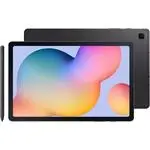 Samsung Galaxy Tab S6
User Manual
Samsung Galaxy Tab S6
User Manual
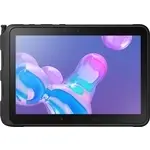 Samsung Tab Active Pro
User Manual
Samsung Tab Active Pro
User Manual
 Samsung Galaxy Book
User Manual
Samsung Galaxy Book
User Manual
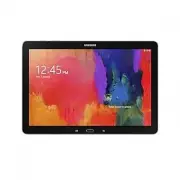 Samsung Galaxy Note pro
User Manual
Samsung Galaxy Note pro
User Manual
 Samsung Galaxy Tab 4
User Manual
Samsung Galaxy Tab 4
User Manual
 Samsung Galaxy Tab A
User Manual
Samsung Galaxy Tab A
User Manual
 Samsung Galaxy Tab A7
User Manual
Samsung Galaxy Tab A7
User Manual
 Samsung Galaxy Tab A8
User Manual
Samsung Galaxy Tab A8
User Manual
 Samsung Galaxy Tab A9
User Manual
Samsung Galaxy Tab A9
User Manual
 Samsung Galaxy Tab A9+
User Manual
Samsung Galaxy Tab A9+
User Manual
 Samsung Galaxy Tab Active Pro
User Manual
Samsung Galaxy Tab Active Pro
User Manual
 Samsung Galaxy Tab E
User Manual
Samsung Galaxy Tab E
User Manual
 Samsung Galaxy Tab Lite
User Manual
Samsung Galaxy Tab Lite
User Manual
 Samsung Galaxy Tab S
User Manual
Samsung Galaxy Tab S
User Manual
 Samsung Galaxy Tab S2
User Manual
Samsung Galaxy Tab S2
User Manual
 Samsung Galaxy Tab S6 Lite
User Manual
Samsung Galaxy Tab S6 Lite
User Manual
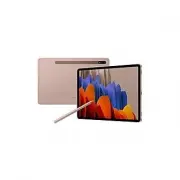 Samsung Galaxy Tab S7
User Manual
Samsung Galaxy Tab S7
User Manual
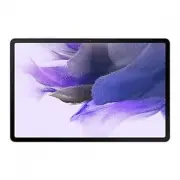 Samsung Galaxy Tab S7 FE
User Manual
Samsung Galaxy Tab S7 FE
User Manual
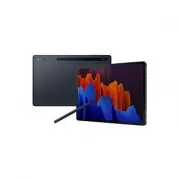 Samsung Galaxy Tab S7+
User Manual
Samsung Galaxy Tab S7+
User Manual
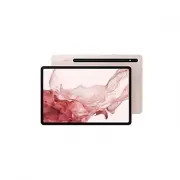 Samsung Galaxy Tab S8
User Manual
Samsung Galaxy Tab S8
User Manual