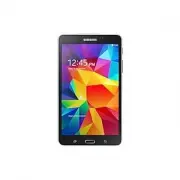
Samsung GT-P5110 - Manuals
Samsung GT-P5110 Tablet – User Manual in PDF format online.
Manuals:
User Manual Samsung GT-P5110
Summary
Using this manual 2 Using this manual Thank you for choosing this Samsung mobile device. This device will provide you with high-quality mobile communication and entertainment based on Samsung’s exceptional technology and high standards.This manual has been specially designed to guide you through the...
Using this manual 3 ● Samsung is not liable for performance issues or incompatibilities caused by edited registry settings or modified operating system software. Attempting to customise the operating system may cause your device or applications to work improperly. ● You can upgrade your device’s sof...
Using this manual 4 Copyright Copyright © 2012 Samsung ElectronicsThis manual is protected under international copyright laws.No part of this manual may be reproduced, distributed, translated, or transmitted in any form or by any means, electronic or mechanical, including photocopying, recording, or...
Using this manual 6 ABOUT DIVX VIDEO DivX ® is a digital video format created by DivX, LLC, a subsidiary of Rovi Corporation. This is an official DivX Certified ® device that has passed rigorous testing to verify that it plays DivX video. Visit www.divx.com for more information and software tools to...
Contents 7 Assembling ........................................................ 11 Unpack ................................................................................................. 11Device layout ..................................................................................... 12Keys .......
Assembling 11 Assembling Unpack Check your product box for the following items: ● Mobile device ● Quick start guide Use only Samsung-approved software. Pirated or illegal software may cause damage or malfunctions that are not covered by your manufacturer's warranty. ● The items supplied with your de...
Assembling 12 Device layout › Front view 1 2 3 34 Number Function 1 Front camera lens 2 Light sensor 3 Speaker 4 Touch screen
Assembling 13 › Rear view 11 12 9 10 567 8 Number Function 5 Rear camera lens 6 Headset jack 7 GPS antenna 1 8 Microphone 9 Memory card slot 10 Power/Reset/Lock key 11 Volume key 12 Multifunction jack 1. Do not touch or cover the area around the antenna with your hands or other objects while using t...
Assembling 14 Keys Key Function Power/ Reset 1 / Lock Turn on the device (press and hold); Access the device options (press and hold); Reset the device (press and hold for 8-10 seconds); Turn off and lock the touch screen or turn it on. Volume Adjust the device’s volume. Charge the battery Before us...
Assembling 16 2 Plug the USB power adapter into a power outlet. ● If the device receives an unstable power supply while charging, the touch screen may not function. If this happens, unplug the USB cable from the device. ● The device may heat up while charging. This is normal and should not affect yo...
Assembling 18 3 Push the memory card into the memory card slot until it locks in place. 4 Close the cover of the memory card slot. › Remove a memory card Ensure that the device is not currently accessing the memory card. 1 In the application list, select Settings → Storage → Unmount SD card → OK . 2...
19 Getting started Getting started Turn on or off your device To turn on your device, press and hold the Power key. If you are turning on your device for the first time, follow the on-screen instructions to set up your device. You must sign in to Google or create a Google account to use applications...
20 Getting started Use the touch screen Your device’s touch screen lets you easily select items or perform functions. Learn basic actions for using the touch screen. ● Do not press the touch screen with your fingertips, or use sharp tools on the touch screen. Doing so may damage the touch screen or ...
23 Getting started Lock or unlock the touch screen and the keys When you do not use the device for a specified period, your device turns off the touch screen and locks the touch screen and the keys automatically to prevent unintended operations. To lock the touch screen and the keys manually, press ...
24 Getting started › System bar From the system bar at the bottom of the screen, you can quickly navigate screen, view system information, and more. 1 2 3 4 5 6 Number Function 1 Return to the previous screen. 2 Return to the Home screen; Access the Google search widget or Google Now (tap and hold)....
25 Getting started › Indicator icons Icons shown on the display may vary depending on your region or service provider. Icon DefinitionWi-Fi AP connectedBluetooth feature activatedGPS-based services in use Connected to computerNew messageAlarm activatedFlight mode activatedError occurred or caution r...
26 Getting started › Use the notifications panel To open the notifications panel, tap the right bottom of the screen. To hide the panel, select .From the notifications panel, you can view your device’s current status and use the following options: ● Wi-Fi : Activate or deactivate the Wi-Fi feature. ...
27 Getting started › Remove an item from the Home screen Tap and hold an item, and then drag it to the rubbish bin. › Add or remove a panel from the Home screen You can add or remove Home screen panels to organise widgets. 1 On the Home screen, place two fingers on the screen and pinch them together...
28 Getting started › Use widgets Widgets are small applications that provide convenient functions and information on your Home screen. The widgets available may vary depending on your region or service provider. 1 In the application list, select Widgets to open the widget panel. 2 Scroll left or rig...
29 Getting started ● You can add an application shortcut to the Home screen by tapping and holding an icon in the application list. ● If you rotate the device while using some features, the interface will rotate as well. To prevent the interface from rotating, tap the right bottom of the screen to o...
30 Getting started › Download an application 1 In the application list, select Play Store or Samsung Apps . 2 Search for an application and download it to the device. To install applications that you downloaded from other sources, you must select Settings → Security → Unknown sources . › Uninstall a...
31 Getting started Launch multiple applications Your device allows you to multitask by running multiple applications at the same time. To launch multiple applications, select while using an application. Then select another application to launch from the Home screen. › Manage applications You can man...
32 Getting started › Turn on or off the touch tones In the application list, select Settings → Sound → Touch sounds . › Adjust the device’s volume 1 Press the Volume key up or down. 2 Select and drag the sliders to adjust the volume level for each sound. › Switch to Silent mode To mute or unmute you...
33 Getting started › Adjust the brightness of the display Your device includes a light sensor, which can detect the level of ambient light and adjust the brightness of the display automatically. You can also manually set the brightness of the display. The brightness of the display will affect how qu...
34 Getting started › Lock your device You can lock your device by activating the screen lock feature. ● If you forget your password, take your device to a Samsung Service Centre to reset it. ● Samsung is not responsible for the loss of passwords or private information, or other damages caused by ill...
35 Getting started Set an unlock PIN 1 In the application list, select Settings → Lock screen → Screen lock → PIN . 2 Enter a new PIN and select Continue . 3 Enter the PIN again and select OK . Set an unlock password 1 In the application list, select Settings → Lock screen → Screen lock → Password ....
36 Getting started Enter text You can enter text by speaking words into the microphone, selecting characters on the virtual keypad, or by writing on the screen. Text entry is not supported in some languages. To enter text, you must change the input language to one of the supported languages. › Chang...
37 Getting started Number Function 1 Change the case. 2 Switch text input modes. 3 Access the keypad settings; Tap and hold to switch to Handwriting mode or enter text by voice. 4 Insert a space. 5 Clear your input. 6 Start a new line. 7 Add an item from the clipboard. › Copy and paste text From a t...
Web and GPS-based services 38 Web and GPS-based services Internet Learn to access and bookmark your favourite webpages. ● This feature may be labelled differently depending on your region or service provider. ● Available icons may vary depending on your region or service provider. › Browse a webpage...
Web and GPS-based services 40 ● To view your download history, select → Downloads . ● To print the webpage via Wi-Fi or USB, select → Print . Your device is compatible only with some Samsung printers. ● To change the browser settings, select → Settings . › Search for information by voice This featur...
Web and GPS-based services 41 To view your bookmarks, select → Bookmarks . From the bookmark list, tap and hold a bookmark to access the following options: ● To open the webpage in the current window, select Open . ● To open a new window, select Open in new tab . ● To edit bookmark details, select E...
Web and GPS-based services 42 › View your recent history 1 In the application list, select Internet → → History . 2 Select a webpage to access. Game Hub Learn to access and download games. 1 In the application list, select Game Hub . 2 Select a game service. 3 Search for and download games from the ...
Web and GPS-based services 43 While viewing the map, use the following options: ● To zoom in or out, place two fingers on the screen and slowly spread them apart or pinch them together. ● To view all of the search results, select Search Results . ● To view your current location, select . To switch t...
Web and GPS-based services 44 Navigation Learn to get spoken directions to your destination. ● Navigation maps, your current location, and other navigational data may differ from actual location information. You should always pay attention to road conditions, traffic, and any other factors that may ...
Web and GPS-based services 46 › Uninstall an application 1 In the application list, select Play Store . 2 Select . 3 Select an item. 4 Select Uninstall → OK . Readers Hub Learn to access various reading materials. 1 In the application list, select Readers Hub . 2 Select a type of reading material. 3...
Web and GPS-based services 47 S Suggest Find and download the latest applications suggested by Samsung. In the application list, select S Suggest . This feature may be unavailable depending on your region or service provider. YouTube Learn to view and upload videos via the YouTube ™ video sharing se...
Web and GPS-based services 48 Number Function 3 Change the quality of the display. 4 Play the video on the full screen. › Upload a video 1 In the application list, select YouTube . 2 Select your Google account if it is linked to YouTube.Alternatively, you can select Sign in and set up an account to ...
Communication 49 Communication Google Mail Learn to send or view email messages via the Google Mail ™ webmail service. ● This feature may be unavailable depending on your region or service provider. ● This feature may be labelled differently depending on your region or service provider. › Send an em...
Communication 50 › View an email message 1 In the application list, select Google Mail . 2 Select to update the message list. 3 Select an email message. From the message view, use the following options: ● To move to the next or previous message, scroll right or left. ● To reply to the message, selec...
Communication 51 Email Learn to send or view email messages via your personal or company email account. › Set up an email account 1 In the application list, select Email . 2 Enter your email address and password. 3 Select Next . To enter account details manually, select Manual setup . 4 Follow the o...
Communication 53 ● To save the email addresses of the recipients to the phonebook as a group of contacts, select → Save as group . ● To delete all messages, select → Delete all . ● To change the email settings, select → Settings . ● To save an attachment to your device, select the attachment tab → ....
Communication 54 › Start a conversation 1 In the application list, select Talk . 2 Select a contact from the friend list.The conversation screen opens. 3 Enter and send your message. ● To add more contacts to the conversation, select → Add to chat . ● To use video chat, select . ● To use voice chat,...
56 Entertainment Entertainment Camera Learn how to take and view photos and videos. ● The camera turns off automatically when you do not use it for a specified period. ● The memory capacity may differ depending on the scene or shooting conditions. › Take a photo 1 In the application list, select Cam...
59 Entertainment › Change the shooting mode You can take photos with various shooting modes. To change the shooting mode, select → Shooting mode → an option. Option Function Panorama Take panoramic photos. Share shot Take a photo and send it to others via Wi-Fi Direct. Buddy photo share Set the devi...
61 Entertainment › Record a video 1 In the application list, select Camera . 2 Drag the slider to switch to the camcorder. 3 Aim the lens at the subject and make any necessary adjustments. 1 2 3 4 5 6 Number Function 1 Use camcorder shortcuts. ● : Switch to the front camera to record a video of your...
63 Entertainment › Customise camcorder settings Before recording a video, select to access the following options: Option Function Edit shortcuts Edit shortcuts to frequently-used options. Self recording Switch to the front camera to record a video of yourself. Recording mode Change the recording mod...
64 Entertainment › Edit the shortcut icons You can add or remove shortcuts to frequently-used options. 1 From the preview screen, select → Edit shortcuts . 2 Tap and hold an icon from the option list, and then drag it to the shortcut area.To remove shortcuts, tap and hold an icon, and then drag it t...
67 Entertainment Gallery Learn to view images and play videos saved in your device. ● Some file formats are not supported depending on the device’s software. ● If a file size exceeds the memory available, an error may occur when you try to open the file. ● Playback quality may vary by content type. ...
68 Entertainment ● To rotate the image anti-clockwise, select → Rotate left . ● To rotate the image clockwise, select → Rotate right . ● To crop a section from the image, select → Crop . ● To edit the image with the image editor, select → Edit . ► p. 70 ● To set the image as your wallpaper or a con...
70 Entertainment Photo Editor You can edit images and apply various effects. 1 In the application list, select Photo Editor . 2 Select an image, or select Select picture → a folder → an image.To take a new photo, select Take picture . 3 Select Selection → OK . 4 Draw a border around the area you wan...
71 Entertainment 6 When you are finished, select . 7 Enter a name for the image and select OK . Video Editor You can edit videos and apply various effects. › Create a video 1 In the application list, select Video Editor . 2 Select a frame theme. 3 Select Add media . 4 Select a category in the left p...
72 Entertainment › Trim a segment of a video 1 Launch the video editor and open a video file. 2 Select the thumbnail. 3 Move the start bracket to the point where trimming should begin. 4 Move the end bracket to the point where the trimming should end. 5 Save the edited video. › Split a video 1 Launc...
73 Entertainment Music Player Learn to listen to your favourite music while on the go. ● Some file formats are not supported depending on the device’s software. ● If a file size exceeds the memory available, an error may occur when you try to open the file. ● Playback quality may vary by content typ...
75 Entertainment Number Function 11 Select a sound effect. 12 Change the repeat mode. 13 Skip to the next file; Scan forwards in the file (tap and hold). You can control the music player with a headset. On the Home screen, press and hold the headset button to launch the music player. Then, press the...
76 Entertainment › Customise music player settings 1 In the application list, select Music Player . 2 Select → Settings . 3 Change the following options: Option Function Advanced → SoundAlive Select a sound effect. Advanced → Play speed Change the playback speed. Advanced → Lyrics Set to show song l...
Personal information 77 Personal information Contacts Learn to create and manage a list of your personal or business contacts. You can save names, phone numbers, email addresses, and more for your contacts. › Create a contact 1 In the application list, select Contacts → Contacts → . 2 Select a memor...
Personal information 78 › Create your namecard 1 In the application list, select Contacts → Contacts . 2 Select your name at the top of the contact list. 3 Select . 4 Enter your personal details and select Save . You can send your namecard to others by selecting → Share namecard via . › Create a gro...
Personal information 79 4 Select an option for importing a single contact file, multiple contact files, or all contact files, and then select OK . 5 Select contact files to import, and then select OK . Export contacts 1 In the application list, select Contacts → Contacts . 2 Select → Import/Export →...
Personal information 80 ● Week : Hourly blocks for the days in one full week ● Day : Hourly blocks for one full day ● List : A list of all the events and holidays scheduled for a specific period ● Task : A list of tasks You can also change the view mode by placing two fingers on the screen and sprea...
Personal information 81 Memo Learn to record important information for viewing at a later date. › Create a memo 1 In the application list, select Memo . 2 Select . 3 Enter your memo text. 4 Select Done . › View a memo 1 In the application list, select Memo . 2 Select a memo to view its details. Whil...
Connectivity 82 Connectivity USB connections Learn to connect your device to a computer with a USB cable. Do not disconnect the USB cable from a computer while the device is transferring or accessing data. Doing so may result in data loss or damage to the device.For best results, connect the USB cab...
Connectivity 83 › Connect with Windows Media Player Ensure that Windows Media Player is installed on your computer. 1 Connect your device to a computer with a USB cable. 2 Open Windows Media Player and synchronise music files. › Connect as a media device You can connect your device to a computer and...
Connectivity 84 Wi-Fi Learn to use your device’s wireless networking capabilities to activate and connect to any wireless local area network (WLAN) compatible with the IEEE 802.11 standards.You can connect to the Internet or other network devices anywhere an access point or wireless hotspot is avail...
Connectivity 85 › Add a Wi-Fi AP manually 1 In the application list, select Settings → Wi-Fi → Add Wi-Fi network . 2 Enter an SSID for the AP and select a security type. 3 Set the security settings according to the security type you selected, and then select Save . › Connect to a Wi-Fi AP with a pro...
Connectivity 86 › Set the static IP settings 1 In the application list, select Settings → Wi-Fi . 2 Select an AP → Show advanced options . 3 Select the IP settings drop-down menu. 4 Select Static . 5 Change the IP settings. 6 Select Connect . › Customise Wi-Fi settings 1 In the application list, sel...
Connectivity 87 Wi-Fi Direct Learn to use the Wi-Fi Direct feature to connect two devices via Wi-Fi without requiring an AP. › Connect your device to another device 1 In the application list, select Settings → Wi-Fi → Wi-Fi Direct . 2 Select Scan . 3 Select a device.When the owner of the other devic...
Connectivity 88 AllShare Play Learn to use the AllShare Play service that enables you to play contents saved on various devices over the Internet. You can play and send any file on any device to another device or web storage server via AllShare Play.To use the AllShare Play service, you must sign in...
Connectivity 89 › Play a file on a remote device ● Supported file formats may differ depending on connected devices as a media player. ● Some files may be buffered while playing depending on the network connection. 1 In the application list, select AllShare Play . 2 Select a device or web storage th...
Connectivity 91 Bluetooth Learn to exchange data or media files with other devices via Bluetooth. ● Samsung is not responsible for the loss, interception, or misuse of data sent or received via the Bluetooth feature. ● Always ensure that you share and receive data with devices that are trusted and p...
Connectivity 92 › Find and pair with another device 1 In the application list, select Settings → Bluetooth → Scan . 2 Select a device. 3 Select OK to match the Bluetooth PIN between two devices. Alternately, enter a Bluetooth PIN and select OK . When the owner of the other device accepts the connect...
Connectivity 93 › Receive data via Bluetooth 1 In the application list, select Settings → Bluetooth and then select the tick box next to your device. To select the length of time that your device will be visible, select → Visible time-out . 2 When prompted, select OK to match the Bluetooth PIN or en...
Connectivity 94 › Activate location services You must activate location services to receive location information or search the map. 1 In the application list, select Settings → Location services . 2 Change the following options: Option Function Use wireless networks Set to use Wi-Fi to find your loc...
Connectivity 95 › Set up a VPN profile 1 In the application list, select Settings → More settings → VPN → Add VPN network . 2 Change the following options: Option Function Name Enter a name for the VPN server. Type Select a VPN type. Server address Enter the address of the VPN server.L2TP secret Ent...
Connectivity 96 Option Function PPP encryption (MPPE) Set to encrypt data before sending it to the VPN server. Show advanced options Set to change the advanced network settings. The options available may vary depending on the VPN type. 3 When you are finished, select Save . › Connect to a private ne...
97 Tools Tools Alarm Learn to set and control alarms for important events. › Set an alarm 1 In the application list, select Alarm . 2 Select . 3 Set the details of the alarm. 4 When you are finished, select Done . To deactivate an alarm, select the clock icon next to the alarm. To delete an alarm, s...
98 Tools Calculator Learn to perform calculations with your device. › Perform a calculation 1 In the application list, select Calculator . 2 Use the keys on the screen to perform basic calculations. › View the calculation history 1 In the application list, select Calculator . 2 Perform a calculation...
99 Tools Dropbox Learn to use the Dropbox cloud storage service to save and share your files with others. When you save files to your Dropbox folder, your device automatically synchronise with the web server and any other computers that have Dropbox installed. › Activate Dropbox 1 In the application...
100 Tools › View a file 1 In the application list, select Dropbox → . 2 Select a file. My Files Learn to access various types of files saved in your device. › Supported file formats Your device supports the following file formats: Type Format Image bmp, gif, jpg, png Video avi, 3gp/mp4, wmv, flv, mk...
102 Tools Polaris Office Learn to create or view documents with your device. This feature may be unavailable depending on your region or service provider. › Create a document 1 In the application list, select Polaris Office . If you are launching this application for the first time, register as an o...
103 Tools From the document view, access the following options: ● To zoom in or out, place two fingers on the screen and slowly spread them apart or pinch them together. ● To undo your last action, select . ● To redo your last action, select . ● To add an item to the document, select . ● To open the...
104 Tools Google Learn to search for data in your device or information on the Internet. 1 In the application list, select Google . 2 Enter a keyword and select .To search for data by voice, select and say a keyword into your device’s microphone. 3 Select a search result. World Clock Learn to view t...
Settings 105 Settings Access the setting options 1 In the application list, select Settings . 2 Select a setting category, and then select an option. Wi-Fi Activate the Wi-Fi feature to connect to a Wi-Fi AP and access the Internet or other network devices.To use options, select . ● Advanced : Custo...
Settings 106 More settings Change the settings to control connections with other devices or networks. › Flight mode Activate Flight mode to disable all wireless functions on your device. You can use only non-network features. › VPN Set up and manage virtual private networks (VPNs). › Nearby devices ...
Settings 107 Blocking mode Select which notifications will be blocked or set to allow notifications for calls from specified contacts in Blocking mode. Sound Change the settings for various sounds on your device. ● Volume : Adjust the volume for various sounds on your device. ● Default notifications...
Settings 108 ● Smart stay : Set to prevent the display backlight from turning off while you are looking at the display. ● Font style : Change the font type for the display text. ● Font size : Change the font size for creating or showing items in applications. ● Quick launch : Select an application t...
Settings 109 Battery View the amount of battery power consumed by your device. Application manager View and manage the applications on your device. Location services Change the settings for location services. ● Use wireless networks : Set to use Wi-Fi for finding your location. ● Use GPS satellites ...
Settings 110 - Information ticker : Set to show news or stock information on the locked screen. This feature may be unavailable depending on your region or service provider. - Clock : Set to show the clock on the locked screen. - Help text : Set to show the help text on the locked screen. ● Owner in...
Settings 111 ● Find my mobile web page : Access the SamsungDive website ( www.samsungdive.com). You can track and control your lost or stolen device on the SamsungDive website. ● Make passwords visible : Set to show your passwords as you enter them. ● Device administrators : View the administrators ...
Settings 112 › Google voice typing Activate the Google voice input feature to enter text by voice. To change the voice input settings, select . ● Choose input languages : Select input languages for Google voice recognition. ● Block offensive words : Set to prevent the device from recognising offensi...
Settings 113 › Voice search ● Language : Select a language for Google voice recognition. ● Speech output : Set the device to provide voice feedback to alert you to the current action. ● Block offensive words : Set to hide offensive words from voice search results. ● Download offline speech recogniti...
Settings 114 Add account Add your email or SNS accounts. Accessory Dock sound : Set the device to play a sound when your device is connected to or removed from a desktop dock. Date and time Change the settings to control how time and date appears on your device. If the battery remains fully discharg...
Settings 116 Developer options Activate and change the settings for application development. ● Desktop backup password : Set a password to secure your backup data. ● Stay awake : Set the screen to remain on while you are charging the battery. ● Protect SD card : Set to request a confirmation when re...
Settings 117 ● Disable hardware overlays : Set to hide hardware overlays. ● Force GPU rendering : Set to use 2D hardware acceleration to improve graphic performance. ● Strict mode : Set the device to flash the screen when applications perform long operations. ● Show CPU usage : Set to list all activ...
Troubleshooting 118 Troubleshooting Your device displays network or service error messages ● When you are in areas with weak signals or poor reception, you may lose reception. Move to another area and try again. ● You cannot access some options without a subscription. Contact your service provider f...
Troubleshooting 119 The device beeps and the battery icon is empty Your battery is low. Recharge the battery to continue using the device. The battery does not charge properly or the device turns off If the battery will no longer charge completely, you need to replace it with a new battery. Take you...
Troubleshooting 120 Error messages appear when opening music files Some music files may not play on your device for a number of reasons. If you receive error messages when opening music files on your device, try the following: ● Free some memory by transferring files to a computer or deleting files ...
Index 121 alarms 97AllShare Play 88applications closing 31 downloading 30 launching 28 multitasking 31 organising 29 uninstalling 30 battery charging 14 Bluetooth 91calculator 98calendar creating events 79 viewing events 80 camera changing camcorder settings 63 changing camera settings 59 recording ...
Samsung Tablets Manuals
-
Samsung Galaxy Tab S6
User Manual
-
Samsung Tab Active Pro
User Manual
-
Samsung Galaxy Book
User Manual
-
Samsung Galaxy Note pro
User Manual
-
Samsung Galaxy Tab 4
User Manual
-
Samsung Galaxy Tab A
User Manual
-
Samsung Galaxy Tab A7
User Manual
-
Samsung Galaxy Tab A8
User Manual
-
Samsung Galaxy Tab A9
User Manual
-
Samsung Galaxy Tab A9+
User Manual
-
Samsung Galaxy Tab Active Pro
User Manual
-
Samsung Galaxy Tab E
User Manual
-
Samsung Galaxy Tab Lite
User Manual
-
Samsung Galaxy Tab S
User Manual
-
Samsung Galaxy Tab S2
User Manual
-
Samsung Galaxy Tab S6 Lite
User Manual
-
Samsung Galaxy Tab S7
User Manual
-
Samsung Galaxy Tab S7 FE
User Manual
-
Samsung Galaxy Tab S7+
User Manual
-
Samsung Galaxy Tab S8
User Manual