Page 2 - Using this manual; Read me first
Using this manual 2 Available features and additional services may vary by device, software, • or service provider.Formatting and delivery of this user manual is based on Google Android • operating systems and may vary depending on the user’s operating system.Applications and their functions may var...
Page 3 - Copyright
Using this manual 3 Copyright Copyright © 2011 Samsung ElectronicsThis user manual is protected under international copyright laws.No part of this user manual may be reproduced, distributed, translated, or transmitted in any form or by any means, electronic or mechanical, including photocopying, rec...
Page 5 - Contents
Contents 5 Web ........................................................................... 22 Browser ........................................................................................ 22Readers Hub ................................................................................ 25News & W...
Page 8 - Charge the battery; Assembling; Unpack
Assembling 8 Charge the battery Your device has a built-in battery. Before using the device for the first time, you must charge the battery. Use only Samsung-approved chargers. Unauthorised chargers can cause batteries to explode or damage your device. Charge the battery only with the supplied charg...
Page 10 - Format the memory card
Assembling 10 Push the memory card gently until it disengages from the device. 3 Pull the memory card out of the memory card slot. 4 Do not remove a memory card while the device is transferring or accessing information, as this could result in loss of data or damage to the memory card or device. For...
Page 11 - Get to know your device; Device layout; Getting started; Turn your device on and off; Switch to Flight mode
Getting started 11 Get to know your device Device layout › 12 13 14 15 16 6 1 2 5 8 7 7 4 3 10 9 11 Getting started Turn your device on and off To turn on your device, Press and hold [ 1 ]. If you turn on your device for the first time, follow the on-screen 2 instructions to set up your device. To t...
Page 12 - Keys
Getting started 12 Keys › Key Function Power Turn on the device (press and hold); Access the quick menus (press and hold); Lock the touch screen. Volume Adjust the device’s volume. Menu Open a list of options available on the current screen. Home Return to the home screen; Open the list of recent ap...
Page 13 - Indicator icons
Getting started 13 Icon DefinitionFlight mode activatedMusic playback in progressError occurred or caution requiredBattery power level Unable to charge 10:00 Current time 1. If you use a charger that is not approved by Samsung, this indicator will not appear. 1 Indicator icons › Icons shown on the d...
Page 14 - Rotate the touch screen; Lock or unlock the touch screen; Use the touch screen
Getting started 14 Tap and hold: Tap an item and hold it for more than 2 seconds to open a • pop-up option list.Drag and drop: Tap and hold your finger on an item, and then drag your • finger to move the item.Double-tap: Tap twice quickly with your finger to zoom in or out while • viewing photos. Ro...
Page 15 - Add items to the home screen; Get to know the home screen
Getting started 15 Number Function 1 Display indicator icons and your device's current status. 2 Search the web with the Google Search widget. 3 Launch applications with shortcuts. 4 Open the web browser. 5 Access Menu mode. 6 Select a dot at the top of the screen to move to the corresponding panel ...
Page 16 - Use the shortcuts panel; Access applications; Move items on the home screen
Getting started 16 Use the shortcuts panel › In Idle mode or while using an application, tap the indicator icons area and drag your finger down to open the shortcuts panel. To hide the list, drag the bottom of the list up.You can view the device's current status and use the following options: Wi-Fi ...
Page 17 - Customise your device
Getting started 17 Customise your device Get more from your device by customising it to match your preferences. Change the language of the display › In Menu mode, select 1 Settings → Locale and text → Select locale . Select a language you want. 2 Set the current time and date › In Menu mode, select ...
Page 18 - Activate animation for switching windows
Getting started 18 Once you set a screen lock, your device will require an unlock code • each time you turn it on or unlock the touch screen.If you forget your PIN or password, bring your device to a Samsung • Service Centre to reset it.Samsung is not responsible for any loss of security codes or pr...
Page 19 - Enter text using the Swype keyboard; Enter text; Change the text input method
Getting started 19 Enter text using the Swype keyboard › Select the first character of a word and drag your finger to the second 1 character without releasing the finger from the screen. Continue until you have finished the word. 2 Release the finger on the last character. 3 When the word displays c...
Page 20 - Enter text using the Samsung keypad
Getting started 20 Enter text using the Samsung keypad › Enter text by selecting alphanumeric keys and you can use the following keys: 8 7 9 10 1 2 4 5 6 3 Number Function 1 Change case. 2 Hide the keypad. 3 Switch between Number/Symbol mode and ABC mode. 4 Change the input language; Select an input...
Page 21 - Copy and paste text
Getting started 21 Number Function 6 Insert a space; Insert a period (double-tap). 7 Clear your input. 8 Start a new line. 9 Access the keypad settings; Change the text input method (tap and hold). 10 Enter frequently used symbols. Copy and paste text › While you are entering text, you can use the c...
Page 22 - Web; Browser
Web 22 Navigate web pages with the following keys: 2 1 3 2 4 5 The above screen may differ depending on your region or service provider. Number Function 1 Move backward or forward to web pages in history; View the recent internet history (tap and hold). 2 Reload the current web page; While the devic...
Page 23 - Search for information by voice
Web 23 Search for information by voice › This feature may be unavailable depending on your region or service provider. In Menu mode, select 1 Browser . Select the URL input field. 2 Select 3 and say a keyword into your device’s microphone. The device searches for information and web pages related wi...
Page 24 - Add an RSS feed address
Web 24 Edit bookmarks To create a new bookmark folder, In Menu mode, select 1 Browser . Select 2 → Bookmarks → Edit → New folder . Enter a name for the bookmark folder and select 3 OK . To delete bookmark folders or bookmarked web pages, In Menu mode, select 1 Browser . Select 2 → Bookmarks → Edit →...
Page 25 - View the weather information; Samsung Apps; Access frequently visited pages or recent history; Readers Hub
Web 25 View the weather information › In Menu mode, select 1 News & Weather . Select 2 Weather at the top of the screen. Your device searches for your current location and displays the weather information. You can change the location to view the weather information in another region. Press [ ] →...
Page 26 - Uninstall an application; YouTube; Watch videos; Market; Download and install an application
Web 26 Select an item category 3 → an item. Select 4 Install (for free items) or Buy . If you select Install , select OK to download the item immediately. If you select Buy , you need to enter your credit card information. Follow the on-screen instructions. Uninstall an application › In Menu mode, s...
Page 27 - Daily Briefing; Customise daily briefing settings
Web 27 Enter your user name and password and select 8 Sign in (if necessary). Enter details of the upload and select 9 Upload . Daily Briefing Learn to get weather forecast, stock information, news, and schedules for today. Customise daily briefing settings › In Menu mode, select 1 Daily Briefing . ...
Page 28 - Get directions to a specific destination; Latitude; View daily briefing; Maps; Search for a specific location
Web 28 Get directions to a specific destination › In Menu mode, select 1 Maps . Press [ 2 ] → Directions . Enter the addresses of the starting location and the ending location. 3 To enter an address from your contact list or point the location on the map, select → Contacts or Point on map . Select a...
Page 29 - Navigation
Web 29 Navigation Learn to use the GPS navigation system to find and show your destination with voice guidance. This feature may be unavailable depending on your region or • service provider.Before using location services, ensure that the wireless connection • is active. In Menu mode, select 1 Navig...
Page 31 - Send an email message; Communication; Qik Video
Communication 31 Send an email message › In Menu mode, select 1 Google Mail . Press [ 2 ] → Compose . Enter a name or address in the recipient field. 3 Enter a subject and message. 4 To attach an image file, press [ 5 ] → Attach → a file. Press [ 6 ] → Send to send the message. View an email message...
Page 32 - Email; Set up an email account
Communication 32 Email Learn to send or view email messages via your personal or company email account. Set up an email account › 1 In Menu mode, select Email . Enter your email address and password. 2 Select 3 Next (for general email accounts) or Manual setup (for other company email accounts).Foll...
Page 33 - Talk; Add friends to your friend list
Communication 33 Select 2 to update the message list. Select an email message. 3 From the message view, use the following options: To move to the previous or next message, select • or . To move the message to another folder, select • . To delete the message, select • . To reply to the message, selec...
Page 34 - Start a chat; Social Hub
Communication 34 Press [ 2 ] → Add friend . Enter an email address of the friend and select 3 Send invitation . When your friend accepts the invitation, the friend is added to your friend list. Start a chat › In Menu mode, select 1 Talk . Select a friend from the friend list. The chat screen opens. ...
Page 35 - Entertainment; Music
Entertainment 35 Control playback with the following keys: 4 6 4 1 2 3 5 8 10 11 9 7 Number Function 1 View file details. 2 Set the file as your favourite track. 3 Adjust the volume. 4 Move to a point of the file by dragging or tapping the bar. 5 Activate Shuffle mode. 6 Skip backward; Scan backward...
Page 36 - Customise music player settings; Music Hub; Create a playlist
Entertainment 36 Customise music player settings › In Menu mode, select 1 Music . Press [ 2 ] → Settings . Adjust the following settings to customise your music player: 3 Option Function Equaliser Select a default equaliser type. Effect Select a sound effect. Music menu Select music categories to di...
Page 37 - Capture a photo
Entertainment 37 Number Function 1 Check the camera status and settings. • : Resolution • : Number of photos you can take (according to available memory) • : Default storage location 2 Change the shooting mode. 3 Change the scene mode. 4 Change the flash setting; You can manually turn the flash on o...
Page 38 - Capture a panoramic photo
Entertainment 38 Capture a panoramic photo › You can take wide panoramic photos using Panorama shooting mode. This mode is convenient for photographing landscapes. In Menu mode, select 1 Camera to turn on the camera. Rotate the device anti-clockwise to landscape view. 2 Select 3 → Panorama . Make an...
Page 39 - Capture a photo in Self shot mode; Customise camera settings
Entertainment 39 Option Function Effects Apply a special effect. ISO Adjust the sensitivity of the camera imaging sensor. Image quality Set the quality level for your photos. Before taking a photo, select → Setup to access the following settings: Setting Function Review Set the camera to display the...
Page 40 - Record a video
Entertainment 40 Number Function 4 Change the camcorder settings. 5 Switch to the camera. 6 Record a video. 7 Open the image viewer to view videos you recorded. Select 5 to start recording. Select 6 to stop recording. The video is saved automatically. The camera may not be able to properly record vi...
Page 41 - Customise camcorder settings
Entertainment 41 Video Learn to use the video player to play various kinds of videos. In Menu mode, select 1 Video . Select a category at the top of the screen. 2 Select a video to play. 3 Rotate the device anti-clockwise to landscape view. 4 Control playback with the following keys: 5 8 7 6 5 4 1 2...
Page 42 - Play a video; Gallery; View a photo
Entertainment 42 Play a video › 1 In Menu mode, select Gallery . Select a folder. 2 To change the view mode, select 3 or at the top right of the screen.Select a video (with the 4 icon) to play. Rotate the device anti-clockwise to landscape view. 5 Control playback with the virtual keys. 6 ► p. 41 Nu...
Page 43 - Create your namecard; Personal information; Contacts; Create a contact
Personal information 43 Once you find a contact, you can use the following options: To send an email message, select an email address. • To edit the contact information, select • Edit . To delete the contact, select • Delete . Create your namecard › In Menu mode, select 1 Contacts . Press [ 2 ] → My...
Page 44 - View events; Calendar; Change the calendar view
Personal information 44 View events › To view today’s schedule, In Menu mode, select 1 Calendar . Select 2 Today . Select an event to view its details. 3 To view events of a specific date, In Menu mode, select 1 Calendar . Select a date on the calendar. 2 To move to a specific day by entering a date...
Page 45 - Create a memo; View memos
Personal information 45 Memo Learn to record important information to save and view at a later date. Create a memo › In Menu mode, select 1 Memo . Select 2 . Enter your memo text. 3 Select 4 Done . View memos › In Menu mode, select 1 Memo . Select a memo to view its details. 2 You can send the memo ...
Page 46 - Synchronise with Windows Media Player; Connectivity; PC connections; Connect with Samsung Kies
Connectivity 46 › Synchronise with Windows Media Player Ensure that Windows Media Player is installed on your PC. In Menu mode, select 1 Settings → Wireless and network → USB settings → Media player . Press [ 2 ] to return to Idle mode. Using the PC data cable, connect the multifunction jack on your...
Page 47 - Activate the WLAN feature
Connectivity 47 You can connect to the internet or other network devices anywhere an access point or wireless hotspot is available. Your device uses non-harmonised frequency and is intended for use in all European countries. The WLAN can be operated in the EU without restriction indoors, but cannot ...
Page 48 - Bluetooth; Turn on the Bluetooth wireless feature
Connectivity 48 Bluetooth Bluetooth is a short-range wireless communications technology capable of exchanging information over a distance of about 10 m without requiring a physical connection.You do not need to line up the devices to beam information with Bluetooth. If the devices are within range o...
Page 49 - AllShare; Customise DLNA settings for sharing media files
Connectivity 49 AllShare Learn to use the Digital Living Network Alliance (DLNA) service that enables you to share media files between DLNA-enabled devices in your home over a WLAN. You must first activate the WLAN feature and add a WLAN profile. ► p. 47 Customise DLNA settings for sharing media fil...
Page 50 - Activate location services; GPS
Connectivity 50 To receive better GPS signals, avoid using your device in the following conditions: between buildings, in tunnels or underground passages, or inside • buildingsin poor weather • around high voltage or electromagnetic fields • Do not touch the internal antenna area or cover this area ...
Page 51 - Look up a word in the dictionary; Tools; eBook; Read books
Tools 51 Look up a word in the dictionary › In Menu mode, select 1 eBook . Open a book. 2 Tap and hold a word, and release your finger from the screen when the 3 magnifying glass appears.Select 4 Dictionary from the pop-up window. Import book files › You can import book files (in epub format) from a...
Page 52 - View and edit a document on your device; My files; Create a new document
Tools 52 View and edit a document on your device › In Menu mode, select 1 ThinkFree Office . Select 2 My Docs → a document. Select a text encoding type (if necessary). 3 View and edit the document as desired. 4 To zoom in or out, use the two finger zoom; Place your two fingers on • the screen and sl...
Page 53 - Create a folder; Digital Frame; Supported file formats
Tools 53 Create a folder › In Menu mode, select 1 My files . Press [ 2 ] → New folder . Enter a name and select 3 Done . Copy or cut files › In Menu mode, select 1 My files → Select . Select folders or files to copy or cut. 2 Select 3 Copy or Cut . Locate a folder and select 4 Paste . Delete files ›...
Page 54 - Alarm Clock
Tools 54 Alarm Clock Learn to set and control alarms for important events. Set a new alarm › In Menu mode, select 1 Alarm Clock . Select 2 or press [ ] → Add alarm . Set alarm details. 3 When you are finished, select 4 Done . Stop an alarm › When the alarm sounds, To stop the alarm, drag • right unt...
Page 55 - World Clock; Change the clock style; Calculator
Tools 55 Active applications • : View the list of all the applications currently running on your device. Package • : View the package size of applications installed on your device. RAM manager • : Check and manage the RAM memory. Summary • : View the used and available memory on your device and memo...
Page 57 - Bluetooth settings; Sound settings; Settings; Access the Settings menu; Flight mode
Settings 57 Bluetooth settings › Bluetooth • : Turn the Bluetooth wireless feature on or off. ► p. 48 Device name • : Set a Bluetooth name for your device. Visible • : Set your device to be visible to other Bluetooth devices. Scan devices • : Search for available Bluetooth devices. VPN settings › Se...
Page 58 - Display settings
Settings 58 Black colour density • : Adjust the colour density for black tones to enhance the image depth. Saturation • : Adjust the colour saturation. Animation • : Set the device to display animation when you switch between windows. Screen timeout • : Set the length of time the device waits before...
Page 59 - Applications
Settings 59 Applications Change the settings for managing installed applications. Unknown sources • : Select to download applications from any source. If you do not select this option, you can download applications only from Android Market. Manage applications • : Access the list of the applications...
Page 60 - Search; Select locale; Accounts and sync
Settings 60 Search Change the Google Search settings. Google search • : Show web suggestions - : Set the device to display suggestions while you are entering a keyword. Use My Location - : Set the device to use your current location for Google search and other Google services. Search history - : Set...
Page 61 - Samsung keypad; Voice input and output; Swype
Settings 61 Samsung keypad › • Input language : Select languages to be used for text input. You cannot enter text in some languages. To enter text, you should change the writing language to one of the supported languages. XT9 • : Activate XT9 mode to enter text using Predictive input mode. XT9 advan...
Page 62 - Accessibility; Voice recognition settings
Settings 62 Accessibility Change the settings for accessibility features. Accessibility • : Activate an accessibility application you have downloaded, such as Talkback or Kickback, which provide voice, melody, or vibration feedback. Accessibility services • : Select an accessibility application to u...
Page 63 - Your device freezes or has fatal errors; The device beeps and the battery icon flashes; Your device is hot to the touch; Troubleshooting; The touch screen responds slowly or improperly
Troubleshooting 63 Your device freezes or has fatal errors If your device freezes or hangs, you may need to close programs or reset the device to regain functionality. If your device is still responsive but a program is frozen, close the program using the task manager. If your device is frozen and u...
Page 64 - Another Bluetooth device is not located; Error messages appear when launching the camera; Error messages appear when opening music files
Troubleshooting 64 Another Bluetooth device is not located Ensure that the Bluetooth wireless feature is activated on your device. • Ensure that the Bluetooth wireless feature is activated on the device you • wish to connect to, if necessary.Ensure that your device and the other Bluetooth device are...
Page 65 - Caution: Follow all safety warnings and regulations when; Safety precautions
Safety precautions 65 Handle and dispose of batteries and chargers with care Use only Samsung-approved batteries and chargers specifically designed for your device. • Incompatible batteries and chargers can cause serious injuries or damage to your device.Never dispose of batteries or devices in a fi...
Page 66 - Comply with all safety warnings and regulations regarding
Safety precautions 66 Electronic devices in a motor vehicle may malfunction due to the radio frequency of your device Electronic devices in your car may malfunction due to radio frequency of your device. Contact the manufacturer for more information. Comply with all safety warnings and regulations r...
Page 68 - Specific Absorption Rate (SAR) certification information
Safety precautions 68 Install mobile devices and equipment with caution Ensure that any mobile devices or related equipment installed in your vehicle are securely • mounted. Avoid placing your device and accessories near or in an air bag deployment area. • Improperly installed wireless equipment can...
Page 69 - Correct disposal of batteries in this product
Safety precautions 69 Correct disposal of batteries in this product (Applicable in the European Union and other European countries with separate battery return systems)This marking on the battery, manual or packaging indicates that the batteries in this product should not be disposed of with other h...
Page 71 - Index
Index 71 Index ebook downloading 25 importing 51 reading 25 , 51 email sending 33 setting accounts 32 viewing 33 file manager copying or cutting files 53 deleting files 53 opening files 53 supported file formats 53 gallery playing videos 42 viewing photos 42 Google mail 31 Google Maps 28 Google Talk...
Page 76 - Using a PC data cable, connect your device to your PC.
Some of the contents in this manual may differ from your device depending on the software of the device or your service provider. www.samsungmobile.com English (EU). 04/2011. Rev. 1.1 To install Kies (PC Sync) Download the latest version of Kies from the Samsung website 1. ( www.samsungmobile.com ) ...


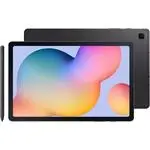 Samsung Galaxy Tab S6
User Manual
Samsung Galaxy Tab S6
User Manual
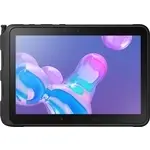 Samsung Tab Active Pro
User Manual
Samsung Tab Active Pro
User Manual
 Samsung Galaxy Book
User Manual
Samsung Galaxy Book
User Manual
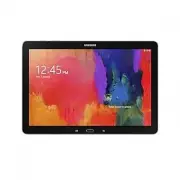 Samsung Galaxy Note pro
User Manual
Samsung Galaxy Note pro
User Manual
 Samsung Galaxy Tab 4
User Manual
Samsung Galaxy Tab 4
User Manual
 Samsung Galaxy Tab A
User Manual
Samsung Galaxy Tab A
User Manual
 Samsung Galaxy Tab A7
User Manual
Samsung Galaxy Tab A7
User Manual
 Samsung Galaxy Tab A8
User Manual
Samsung Galaxy Tab A8
User Manual
 Samsung Galaxy Tab A9
User Manual
Samsung Galaxy Tab A9
User Manual
 Samsung Galaxy Tab A9+
User Manual
Samsung Galaxy Tab A9+
User Manual
 Samsung Galaxy Tab Active Pro
User Manual
Samsung Galaxy Tab Active Pro
User Manual
 Samsung Galaxy Tab E
User Manual
Samsung Galaxy Tab E
User Manual
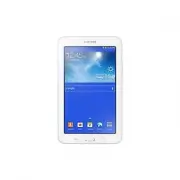 Samsung Galaxy Tab Lite
User Manual
Samsung Galaxy Tab Lite
User Manual
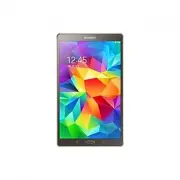 Samsung Galaxy Tab S
User Manual
Samsung Galaxy Tab S
User Manual
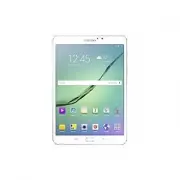 Samsung Galaxy Tab S2
User Manual
Samsung Galaxy Tab S2
User Manual
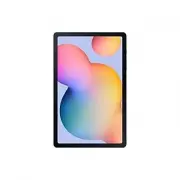 Samsung Galaxy Tab S6 Lite
User Manual
Samsung Galaxy Tab S6 Lite
User Manual
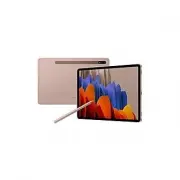 Samsung Galaxy Tab S7
User Manual
Samsung Galaxy Tab S7
User Manual
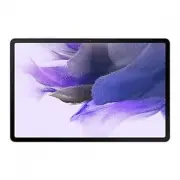 Samsung Galaxy Tab S7 FE
User Manual
Samsung Galaxy Tab S7 FE
User Manual
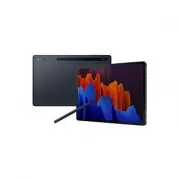 Samsung Galaxy Tab S7+
User Manual
Samsung Galaxy Tab S7+
User Manual
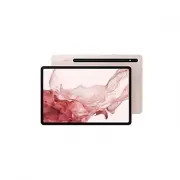 Samsung Galaxy Tab S8
User Manual
Samsung Galaxy Tab S8
User Manual