Page 2 - Table of Contents; Basics; Apps and features
2 About this manual This device provides high quality mobile communication and entertainment using Samsung’s high standards and technological expertise. This user manual is specially designed to detail the device’s functions and features. • Please read this manual before using the device to ensure s...
Page 3 - Appendix
About this manual 3 • Default applications that come with the device are subject to updates and may no longer be supported without prior notice. If you have questions about an application provided with the device, contact a Samsung Service Centre. For user-installed applications, contact service pro...
Page 6 - Instructional icons
Table of Contents 6 124 Downloads125 KNOX Travel & local 126 Maps Settings 127 About Settings127 Connections130 Device135 Controls139 General142 Google Settings Appendix 143 Troubleshooting148 Removing the battery Media 91 Music93 Camera100 Gallery104 Video105 YouTube106 Flipboard Application &a...
Page 7 - Device overheating situations and solutions; When the device heats up while charging the battery; Do the following when the device heats up:; When the device heats up during use
7 Getting started Device layout Recent apps button Home button Touch screen Back button Multipurpose jack Light sensor Front camera Volume button Microphone IrLED Power button Speaker Speaker GPS antenna Headset jack Rear camera Flash Memory card slot
Page 9 - Precautions for device overheating
Getting started 9 Package contents Check the product box for the following items: • Device • Quick start guide • The items supplied with the device and any available accessories may vary depending on the region or service provider. • The supplied items are designed only for this device and may not b...
Page 10 - Device layout and functions; Package contents
Getting started 10 Charging the battery Use the charger to charge the battery before using it for the first time. Use only Samsung-approved chargers, batteries, and cables. Unapproved chargers or cables can cause the battery to explode or damage the device. • When the battery power is low, the batte...
Page 11 - Device layout
Getting started 11 Connecting the charger improperly may cause serious damage to the device. Any damage caused by misuse is not covered by the warranty. • The device can be used while it is charging, but it may take longer to fully charge the battery. • If the device receives an unstable power suppl...
Page 12 - Hard keys
Getting started 12 Reducing the battery consumption Your device provides options that help you save battery power. By customising these options and deactivating features in the background, you can use the device longer between charges: • When you are not using the device, switch to sleep mode by pre...
Page 13 - Soft buttons; Charging the battery; Wired charging
Getting started 13 1 Open the cover of the memory card slot. 2 Insert a memory card with the gold-coloured contacts facing downwards. 3 Push the memory card into the slot until it locks in place. 4 Close the cover of the memory card slot. Removing the memory card Before removing the memory card, fir...
Page 14 - Reducing the battery consumption
Getting started 14 Formatting the memory card A memory card formatted on a computer may not be compatible with the device. Format the memory card on the device.On the Home screen, tap → Settings → General → Storage → Format SD card → Format SD card → Erase everything . Before formatting the memory c...
Page 15 - SIM or USIM card; Installing the SIM or USIM card
Getting started 15 Holding the device Do not cover the antenna area with your hands or other objects. This may cause connectivity problems or drain the battery. Locking and unlocking the device When not in use, lock the device to prevent unwanted operation. Pressing the Power button turns off the sc...
Page 16 - Memory card; Installing a memory card
16 Basics Indicator icons The icons displayed at the top of the screen provide information about the status of the device. The icons listed in the table below are most common. Icon Meaning Wi-Fi connectedBluetooth feature activatedGPS activatedSmart screen feature activatedSynced with the webConnect...
Page 17 - Removing the memory card
Basics 17 Using the touch screen Use only fingers to use the touch screen. • Do not allow the touch screen to come into contact with other electrical devices. Electrostatic discharges can cause the touch screen to malfunction. • To avoid damaging the touch screen, do not tap it with anything sharp o...
Page 18 - Formatting the memory card; Turning the device on and off; Turning the device on; Turning the device off; Forcing restart
Basics 18 Tapping and holding Tap and hold an item for more than 2 seconds to access available options. Dragging To move an icon, thumbnail, or preview to a new location, tap and hold it and drag it to the target position.
Page 19 - Initial setup; Introduction; Taking photos
Basics 19 Double-tapping Double-tap on a webpage or image to zoom in a part. Double-tap again to return. Flicking Flick left or right on the Home screen or the Applications screen to see another panel. Flick up or down to scroll through a webpage or a list, such as contacts.
Page 21 - Using zoom features; Options for current shooting mode
Basics 21 To prevent the display from rotating automatically, open the notifications panel and deselect Screen rotation . • Some applications do not allow screen rotation. • Some applications display a different screen depending on the orientation. Panning to browse When an image is zoomed in, tap a...
Page 22 - Photo mode; Taking selfies
Basics 22 Tilting Tap and hold two points on the screen, and then tilt the device back and forth to zoom in or out. Palm motions Use palm motions to control the device by touching the screen.Before using motions, make sure the palm motion feature is activated. On the Home screen, tap → Settings → Co...
Page 23 - Video mode; Live focus mode
Basics 23 Covering Cover the screen with a palm to pause media playback. Samsung Smart Pause Use this feature to pause videos when you look away from the screen.On the Home screen, tap → Settings → Controls → Smart screen , and then tick Smart pause . During video playback, look away from the screen...
Page 24 - Panorama mode; Pro mode; Available options
Basics 24 Using Multi Window Use this feature to run multiple applications on the screen at the same time. • Only applications on the Multi Window tray can run. • This feature may not be available depending on the region or service provider. To use Multi Window, on the Home screen, tap → Settings → ...
Page 25 - Customising camera settings
Basics 25 Using a split screen Multi Window Use this feature to run applications in a split screen. Launching applications in a split screen Multi Window 1 Drag your finger from the right edge of the screen towards the middle of the screen. Alternatively, tap and hold .The Multi Window tray appears ...
Page 28 - Samsung account; Finding your ID and resetting your password
Basics 28 Creating a Multi Window combination Use this feature to save currently-running Multi Window applications as a combination. 1 Launch multiple applications in a split screen Multi Window. 2 Open the Multi Window tray and tap → Create . 3 Enter a title and tap OK . The currently-running Multi...
Page 29 - Transferring data from your previous device; Transferring data wirelessly
Basics 29 2 Tap an application icon on the Multi Window tray.A pop-up window appears on the screen. Minimise the window. Maximise the window. Close the window. You can launch the same application in multiple pop-up windows at the same time. Only applications with next to its icon support this featur...
Page 30 - Transferring backup data from a computer
Basics 30 Notifications Notification icons appear on the status bar at the top of the screen to report new messages, calendar events, device status, and more. Drag down from the status bar to open the notifications panel. Scroll the list to see additional alerts. To close the notifications panel, dr...
Page 31 - Understanding the screen; Controlling the touchscreen
Basics 31 Home screen The Home screen is the starting point to access all of the device’s features.The Home screen has two different kinds of panels. The Classic home screen panel displays shortcuts to applications and widgets, and the Content home screen panel displays Content widgets.The Home scre...
Page 32 - Hiding the navigation bar
Basics 32 Viewing all applications On the Home screen, tap to view all applications. <Home screen> <Applications screen>
Page 33 - Home screen and Apps screen; Switching between Home and Apps screens
Basics 33 To return to the Home screen, press the Home button.
Page 34 - Editing the Home screen; Displaying all apps on the Home screen
Basics 34 Using the Classic home screen The Classic home screen displays indicator icons, widgets, shortcuts to applications, and others. Adding an item 1 Tap on the Home screen. 2 Tap and hold an item from the Apps or Widgets tab and drag it to the desired location. Added icon Move to the Content h...
Page 35 - Launching Finder; Moving items; Creating folders
Basics 35 Adding or removing a panel from the Classic home screen 1 Pinch your fingers together on the Classic home screen. 2 Tap to add a panel.To remove a panel, tap and hold a panel and drag it to the rubbish bin at the top of the screen. Setting wallpaper Set an image or photo stored in the devi...
Page 36 - Edge panel
Basics 36 Using the Content home screen The Content home screen displays Content widgets. You can access an application directly by selecting a Content widget on the Content home screen. Adding a widget or panel 1 Pinch your fingers together on the Content home screen.
Page 37 - Lock screen; Changing the screen lock method; Indicator icons
Basics 37 2 On the Widgets screen, select a panel to edit or tap to create a new panel ( 1 ). Select widgets to add to the panel from the bottom pane of the screen ( 2 ). Scroll left or right on the bottom pane of the screen to view more widgets. 3 Tap Done .
Page 39 - Notification panel; Using quick setting buttons
Basics 39 Applications screen The Applications screen displays icons for all applications, including any new applications installed.On the Home screen, tap to open the Applications screen.To view other panels, scroll left or right. Rearranging applications This feature is available only in the custo...
Page 40 - Controlling media playback; Controlling nearby devices
Basics 40 Disabling applications Tap → Uninstall/disable apps , and then select an application to disable it. To enable the application, on the Applications screen, tap Settings → General → Application manager , scroll to DISABLED , select the application, and then tap Enable . • Downloaded applicat...
Page 41 - Entering text; Keyboard layout; Changing the input language
Basics 41 Help Access help information to learn how to use the device and applications or configure important settings.Tap Help on the Applications screen. Select a category to view tips. To sort categories by an alphabetical order, tap .To search for keywords, tap . Entering text Use the Samsung ke...
Page 42 - Copying and pasting
Basics 42 Entering uppercase Tap before entering a character. For all caps, tap it twice. Changing the keyboard type Tap and hold , and then tap to change the keyboard type.On the floating keyboard, tap and hold and move the floating keyboard to another location. Changing language keyboards Add lang...
Page 43 - Installing or uninstalling apps; Galaxy Store; Uninstalling or disabling apps
Basics 43 Entering text by voice Activate the voice input feature and then speak into the microphone. The device displays what you speak.If the device does not recognise your words correctly, tap the underlined text and select an alternative word or phrase from the dropdown list.To change the langua...
Page 44 - Setting app permissions
Basics 44 Joining Wi-Fi networks On the Applications screen, tap Settings → Connections → Wi-Fi , and then drag the Wi-Fi switch to the right.Select a network from the list of detected Wi-Fi networks, enter a password if necessary, and then tap Connect . Networks that require a password appear with ...
Page 45 - Phone; Making calls from call logs or contacts list
Basics 45 Removing accounts On the Applications screen, tap Settings → General → Accounts , select an account name under My accounts , select the account to remove, and then tap Remove account . Setting up user profiles Set up user profiles and then select one when unlocking the device to use person...
Page 46 - Using speed dial; Receiving calls; Answering a call
Basics 46 Connecting with Samsung Kies Samsung Kies is a computer application that manages media contents and personal information with Samsung devices. Download the latest Samsung Kies from the Samsung website. 1 Connect the device to the computer using the USB cable.Samsung Kies launches on the co...
Page 47 - Blocking phone numbers
Basics 47 Securing the device Prevent others from using or accessing personal data and information stored in the device by using the security features. The device requires an unlock code whenever unlocking it. Setting a pattern On the Applications screen, tap Settings → Device → Lock screen → Screen...
Page 48 - Contacts; Creating a new contact; Searching for contacts
Basics 48 Unlocking the device Turn on the screen by pressing the Power button or the Home button, and enter the unlock code. If the unlock code is forgotten, take the device to a Samsung Service Centre to reset it. Upgrading the device The device can be upgraded to the latest software. This feature...
Page 49 - Deleting contacts
49 Communication Contacts Use this application to manage contacts, including phone numbers, email addresses, and others.Tap Contacts on the Applications screen. Managing contacts Tap Contacts . Creating a contact Tap and enter contact information. • : Add an image. • / : Add or delete a contact fiel...
Page 51 - Viewing messages; Sorting messages; Changing message settings
Communication 51 Importing and exporting contacts Tap Contacts . Importing contacts Tap → Settings → Import/Export , and then select an import option. Exporting contacts Tap → Settings → Import/Export , and then select an export option. Sharing contacts Tap → Share namecard via → Multiple contacts ,...
Page 52 - Internet; Using secret mode
Communication 52 Contact groups Tap Groups . Creating a group Tap , set details for the group, add contacts, and then tap Save . Adding contacts to a group Select a group, and then tap → Add member . Select contacts to add, and then tap Done . Managing groups Tap , and then take one of the following...
Page 53 - Grouping similar images
Communication 53 Business card Tap Contacts . Create a business card and send it to others.Tap Set up my profile , enter details, such as phone number, email address, and postal address, and then tap Save . If user information has been saved when you set up the device, select the business card, and ...
Page 54 - Viewing images; Cropping enlarged images
Communication 54 Sending scheduled messages While composing a message, tap → Schedule sending . Tick Schedule sending , set a time and date, and then tap Done . The device will send the message at the specified time and date. • If the device is turned off at the scheduled time, is not connected to t...
Page 55 - Viewing videos
Communication 55 Google Mail Use this application to quickly and directly access the Google Mail service.Tap Google Mail on the Applications screen. • This application may not be available depending on the region or service provider. • This application may be labelled differently depending on the re...
Page 56 - Albums; Using the recycle bin feature
Communication 56 Reading messages Preview attachment. Delete the message. Keep the message for long-term storage. Reply to the message. Mark the message as unread. Move the message to another mailbox. Reply to all recipients or print the message. Forward the message to others. Add this email address...
Page 57 - Multi window; Split screen view; Launching apps from the Edge panel
Communication 57 Hangouts Use this application to chat with others.Tap Hangouts on the Applications screen. This application may not be available depending on the region or service provider. Select a friend from the friends list or enter data to search and select a friend from the results to start c...
Page 58 - Adding app pairs; Moving pop-up windows
Communication 58 Photos Use this application to view and share images or videos via Google’s social network services.Tap Photos on the Applications screen. This application may not be available depending on the region or service provider. Select one of the following categories: • CAMERA : View all t...
Page 59 - Creating notes; Deleting notes
59 Web & network Internet Use this application to browse the Internet.Tap Internet on the Applications screen. Viewing webpages Tap the address field, enter the web address, and then tap Go . Tap to share, save, or print the current webpage while viewing a webpage.To change the search engine, ta...
Page 60 - Samsung Members; Creating events
Web & network 60 History Tap → History to open a webpage from the list of recently-visited webpages. To clear the history, tap . Saved pages To view saved webpages, tap → Saved pages . Links Tap and hold a link on the webpage to open it in a new page, save, or copy.To view saved links, use Downl...
Page 61 - Reminder; Starting Reminder; Restoring reminders; Deleting reminders
Web & network 61 Bookmarks To bookmark the current webpage, tap → Save . To open a bookmarked webpage, tap → Bookmarks , and then select one. Searching the web by voice Tap , speak a keyword, and then select one of the suggested keywords that appear. Syncing with other devices Sync open tabs and...
Page 62 - Clock; Calculator
Web & network 62 Pairing with other Bluetooth devices On the Applications screen, tap Settings → Connections → Bluetooth → Scan , and detected devices are listed. Select the device you want to pair with, and then accept the auto-generated passkey on both devices to confirm. Sending and receiving...
Page 63 - Sharing content; Quick Share; Sharing content with nearby devices
Web & network 63 e-Meeting Use this application to host or attend an e-meeting. You can share files with attendees during a meeting. To use this application, all devices to be used in the meeting must be connected to the same access point. Creating a meeting session Create a meeting to host the ...
Page 64 - Google apps
Web & network 64 3 Check the network information to share with others, set details for the meeting, and then tap Done . To add files to the meeting, tap . Use a password. Check the network information to share with others. Meeting information Set a password and the security level for the meeting...
Page 65 - Samsung Kids; Using parental control features; Closing Samsung Kids; Screen capture
Web & network 65 4 A meeting session is created.The file added when the meeting session is created appears on the screen, or if no file is added, the whiteboard appears on the screen. Access additional options. <Meeting session with a file> View the shared file. 5 Share the network informa...
Page 67 - Options
Web & network 67 Using the Meeting session screen Host screen When you are the host, you can open a file and move to the next pages in the file, or display the whiteboard and write on it.The host screen is displayed on the attendees’ screens. Opening files 1 Tap Files ( 1 ) → Add ( 2 ), and then...
Page 68 - Connecting to a Wi-Fi network
Web & network 68 2 The selected file is added to the file list. Tap a file to open it. Host icon Display the whiteboard. File list Access additional options. Displaying the whiteboard Tap Show Whiteboard at the top right of the screen. The whiteboard appears on the screen.
Page 69 - Sharing Wi-Fi network passwords
Web & network 69 Using additional options Tap to use one of the following: Access additional options. • Open new file : Open new files. • Enable script view : Display the notes pane under the presentation. • Message Box : Send messages to attendees. • Show received messages : Set the device to d...
Page 70 - Pairing with other Bluetooth devices; Sending and receiving data
Web & network 70 Attendee’s screen View the screen the host shares and write on the screen.While scrolling through the document, tap to move to the page the presenter is viewing.To be the presenter, tap . The screen changes to the presenter mode. Tap to return to the attendee mode. Closing or ex...
Page 71 - Data saver (Mobile network enabled models); Mobile data only apps (Mobile network enabled models); Mobile Hotspot (Mobile network enabled models)
Web & network 71 WebEx Use this application to host and attend teleconferences. You can use various features, such as content sharing and HD video meeting. Before using this application • Ensure that the device is connected to a Wi-Fi network. • Ensure that you have a WebEx account. • This appli...
Page 72 - More connection settings; Printing; Adding printer plug-ins
Web & network 72 3 The webpage for joining WebEx will appear on the screen. You cannot use this application if a pop-up window appears on the screen informing that WebEx is not available in the region. 4 Follow the on-screen instructions to setup the account. Some features are not available when...
Page 73 - Printing content; Sounds and vibration
Web & network 73 5 Tap to create a meeting session. 6 Enter a topic for the meeting, set a password, and then tap Start now . 7 Tap → Connect using Internet . 8 The microphone will be turned on and appears at the top of the screen. You can have an audio meeting with others. View the session numb...
Page 74 - Sound quality and effects; Notifications
Web & network 74 Inviting people to a meeting Invite others to a meeting by sending an invitation email. You can also share a session number or the session’s phone number with others to invite them to a meeting. Inviting people by email 1 Tap → Invite by email . 2 Enter an email address and tap ...
Page 75 - Display; Wallpaper
Web & network 75 3 Tap → Join by number . 4 Enter a session number to join and tap Join . A session number is created when a host creates a meeting session. If you do not know the number, contact the host. 5 Tap → Connect using Internet . 6 The microphone will be turned on and appears at the top...
Page 76 - Smart Lock
Web & network 76 Joining a meeting by selecting one in My Meetings 1 Tap WebEx on the Applications screen. 2 Sign in to your WebEx account. 3 Select a meeting in My Meetings and tap Join . 4 Tap → Connect using Internet . 5 The microphone will be turned on and appears at the top of the screen. Y...
Page 77 - Security
Web & network 77 Joining a meeting by calling a session phone number You can join a meeting by calling the session’s phone number on a smartphone. Call the session phone number provided in the invitation email. This feature may not be available depending on the region or service provider. Runnin...
Page 78 - Location
Web & network 78 Sharing the screen Share the current screen on your device with participants. Only the person designated as the presenter can share one’s screen. The person who creates a meeting is designated as the presenter at the beginning of a meeting. 1 Tap at the top of the screen if you ...
Page 79 - Adding users
Web & network 79 Closing or exiting the meeting Tap → End meeting or Leave meeting . When the network connection fails during a meeting If the meeting is still running, reconnect to the meeting.If the meeting has ended, restart the meeting. Remote PC Use this application to view and control your...
Page 80 - Switching users; Managing users
Web & network 80 Registering the device 1 Tap Remote PC on the Applications screen. 2 Tap Start on the greeting page. Start the application. 3 Tap Sign in , enter your Samsung account and password, and then tap Sign in again. If a Samsung account is not registered, follow the on-screen instructi...
Page 81 - Samsung Cloud; Backing up data
Web & network 81 Registering a computer 1 On your computer, launch the web browser and visit remotepc.rview.com. 2 Sign in to your Samsung account.You must sign in to the same Samsung account that you use on your device. 3 Install the Agent if it is not installed on your computer.Follow the on-s...
Page 82 - Advanced features; Motions and gestures
Web & network 82 Connecting the device and a computer remotely 1 Tap Remote PC on the Applications screen. 2 Tap Check Connection (Refresh) . View the name of the computer. Connect the device and the computer remotely. 3 Tap ON computer . 4 Enter the password for the connection and tap OK . Tap ...
Page 83 - Digital Wellbeing and parental controls; Using the auto optimisation feature
Web & network 83 Controlling the computer on the device After connecting the devices, you can view and control your computer’s screen on the device. You can also open or edit files in the computer and transfer them to the device. Scroll through the screen. Access additional options. Connection s...
Page 84 - Battery
Web & network 84 Transferring files between your device and the computer 1 Tap → Remote Explorer . 2 Tap and hold a file on the computer’s file manager panel. Then, drag it to the device’s file manager panel. You can also move a file vice versa. The computer's file manager The device's file mana...
Page 85 - Apps
Web & network 85 Connecting your tablet and a smartphone 1 Tap SideSync 3.0 on the Applications screen of your tablet. To start SideSync 3.0 , you need to download and install the application. Tap Install and follow the on-screen instructions. 2 Launch SideSync 3.0 on a smartphone. 3 The tablet ...
Page 86 - Accessibility
Web & network 86 5 The smartphone’s virtual screen is displayed on your tablet and the smartphone’s screen is turned off.
Page 87 - Software update; Security updates information; About tablet
Web & network 87 Using the virtual smartphone screen Browse the screen and use applications in the virtual smartphone screen. You can send or receive messages, or chat with others. Some features, such as Camera and Screen Mirroring , may not work in the virtual smartphone screen. Close SideSync ...
Page 89 - Troubleshooting; When you turn on your device or while you are using the device, it
Web & network 89 Entering text When you enter text in the virtual smartphone screen, the tablet’s keyboard appears. Enter text using the keyboard. Switching between the smartphone screen and the virtual smartphone screen It is not possible to use the smartphone screen and the virtual smartphone ...
Page 90 - The touchscreen responds slowly or improperly; Restarting the device; Calls are not connected
Web & network 90 Playing music or videos on the tablet Play music or videos stored in the smartphone via the screen and speaker of the tablet. 1 Open a music or video file in the virtual smartphone screen on the tablet. 2 The selected file is played using the tablet’s screen and speaker. Adjust ...
Page 92 - Error messages appear when launching the camera
Media 92 To listen to songs at equal volume levels, tap → Settings → Player → Smart Volume . When Smart Volume is activated, the volume may end up louder than the device volume level. Use caution to avoid long-term exposure to loud sounds to prevent damage to your hearing. Smart Volume may not be ac...
Page 94 - Data stored in the device has been lost; Removing the battery
Media 94 Shooting mode Several photo effects are available.Tap MODE , and then scroll up or down the screen at the right side of the screen. • Auto : Use this to allow the camera to evaluate the surroundings and determine the ideal mode for the photo. • Beauty face : Take a photo with lightened face...


 Samsung Galaxy Tab S6
User Manual
Samsung Galaxy Tab S6
User Manual
 Samsung Tab Active Pro
User Manual
Samsung Tab Active Pro
User Manual
 Samsung Galaxy Book
User Manual
Samsung Galaxy Book
User Manual
 Samsung Galaxy Note pro
User Manual
Samsung Galaxy Note pro
User Manual
 Samsung Galaxy Tab 4
User Manual
Samsung Galaxy Tab 4
User Manual
 Samsung Galaxy Tab A
User Manual
Samsung Galaxy Tab A
User Manual
 Samsung Galaxy Tab A7
User Manual
Samsung Galaxy Tab A7
User Manual
 Samsung Galaxy Tab A8
User Manual
Samsung Galaxy Tab A8
User Manual
 Samsung Galaxy Tab A9
User Manual
Samsung Galaxy Tab A9
User Manual
 Samsung Galaxy Tab A9+
User Manual
Samsung Galaxy Tab A9+
User Manual
 Samsung Galaxy Tab Active Pro
User Manual
Samsung Galaxy Tab Active Pro
User Manual
 Samsung Galaxy Tab E
User Manual
Samsung Galaxy Tab E
User Manual
 Samsung Galaxy Tab Lite
User Manual
Samsung Galaxy Tab Lite
User Manual
 Samsung Galaxy Tab S
User Manual
Samsung Galaxy Tab S
User Manual
 Samsung Galaxy Tab S2
User Manual
Samsung Galaxy Tab S2
User Manual
 Samsung Galaxy Tab S6 Lite
User Manual
Samsung Galaxy Tab S6 Lite
User Manual
 Samsung Galaxy Tab S7
User Manual
Samsung Galaxy Tab S7
User Manual
 Samsung Galaxy Tab S7 FE
User Manual
Samsung Galaxy Tab S7 FE
User Manual
 Samsung Galaxy Tab S7+
User Manual
Samsung Galaxy Tab S7+
User Manual
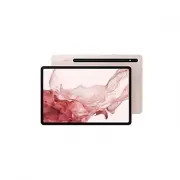 Samsung Galaxy Tab S8
User Manual
Samsung Galaxy Tab S8
User Manual