Page 2 - Table of Contents
2 Table of Contents Read me first Getting started 7 Package contents 8 Device layout 11 Charging the battery13 Using a memory card16 Turning the device on and off18 Locking and unlocking the screen Basics 19 Using the touch screen22 Home screen layout25 Notifications and quick setting panels26 Openi...
Page 4 - Device & data manager; Settings
Table of Contents 4 Device & data manager 118 Upgrading the device119 Transferring files between the device and a computer 120 Backing up and restoring data121 Performing a data reset Settings 122 About Settings122 CONNECTIONS126 DEVICE133 GENERAL139 APPLICATIONS Appendix 140 Troubleshooting145 ...
Page 5 - Read me first
5 Read me first Please read this manual before using the device to ensure safe and proper use. • Descriptions are based on the device’s default settings. • Some content may differ from your device depending on the region, service provider, model specifications, or device’s software. • Content (high ...
Page 6 - Instructional icons
Read me first 6 Instructional icons Warning : situations that could cause injury to yourself or others Caution : situations that could cause damage to your device or other equipment Note : notes, usage tips, or additional information
Page 7 - Getting started
7 Getting started Package contents Check the product box for the following items: • Device • Quick start guide • The items supplied with the device and any available accessories may vary depending on the region or service provider. • The supplied items are designed only for this device and may not b...
Page 8 - Device layout
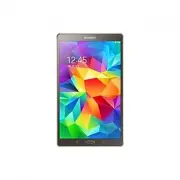
Getting started 8 Device layout – Type 1 (SM-T800): Back button Recent apps button Home button IrLED Touch screen Front camera Speaker Light sensor Multipurpose jack Memory card slot Volume button Power button Headset jack Rear camera Flash Push clip GPS antenna Push clip Speaker Microphone
Page 10 - Buttons
Getting started 10 • Do not cover the antenna area with your hands or other objects. This may cause connectivity problems or drain the battery. • Using a Samsung-approved screen protector is recommended. Unapproved screen protectors may cause the sensors to malfunction. • Do not allow water to conta...
Page 11 - Charging the battery
Getting started 11 Charging the battery Use the charger to charge the battery before using it for the first time. Use only Samsung-approved chargers, batteries, and cables. Unapproved chargers or cables can cause the battery to explode or damage the device. • When the battery power is low, the batte...
Page 13 - Reducing the battery consumption; Using a memory card; Installing a memory card
Getting started 13 Reducing the battery consumption Your device provides options that help you save the battery power. By customising these options and deactivating features in the background, you can use the device longer between charges: • When you are not using the device, switch to sleep mode by...
Page 15 - Removing the memory card; Formatting the memory card
Getting started 15 Removing the memory card Before removing the memory card, first unmount it for safe removal. On the Home screen, tap → Settings → GENERAL → Storage → SD card → Unmount . 1 Open the cover of the memory card slot. 2 Push the memory card until it disengages from the device, and then ...
Page 16 - Turning the device on and off
Getting started 16 Turning the device on and off Press and hold the Power button for a few seconds to turn on the device.When you turn on your device for the first time or after performing a data reset, follow the on-screen instructions to set up your device.To turn off the device, press and hold th...
Page 17 - Restarting the device
Getting started 17 Restarting the device If your device is frozen and unresponsive, press and hold the Power button and the Volume Down button simultaneously for more than 7 seconds to restart it. – Type 1 (SM-T800): Power buttonVolume Down button – Type 2 (SM-T700): Power button Volume Down button
Page 18 - Locking and unlocking the screen
Getting started 18 Locking and unlocking the screen Pressing the Power button turns off the screen and locks it. Also, the screen turns off and automatically locks if the device is not used for a specified period.To unlock the screen, press the Power button or the Home button and flick your finger i...
Page 19 - Basics; Using the touch screen; Tapping
19 Basics Using the touch screen • Do not allow the touch screen to come into contact with other electrical devices. Electrostatic discharges can cause the touch screen to malfunction. • To avoid damaging the touch screen, do not tap it with anything sharp or apply excessive pressure to it with your...
Page 20 - Tapping and holding
Basics 20 Tapping and holding Tap and hold an item or the screen for more than 2 seconds to access available options. Dragging To move an item, tap and hold it and drag it to the target position. Double-tapping Double-tap on a webpage or image to zoom in. Double-tap again to return.
Page 21 - Flicking
Basics 21 Flicking Flick left or right on the Home screen or the Apps screen to see another panel. Flick up or down to scroll through a webpage or a list of items, such as contacts. Spreading and pinching Spread two fingers apart on a webpage, map, or image to zoom in a part. Pinch to zoom out.
Page 22 - Home screen layout; Home screen
Basics 22 Home screen layout Home screen The Home screen is the starting point for accessing all of the device’s features. The Home screen has two different kinds of panels. The Classic Home screen panel displays widgets, shortcuts to apps, and more, and the Content Home screen panel displays Conten...
Page 23 - Apps screen
Basics 23 Apps screen The Apps screen displays icons for all apps, including newly installed apps.On the Home screen, tap to open the Apps screen. To view other panels, scroll left or right, or select a screen indicator at the bottom of the screen. To customise the Apps screen, refer to Managing the...
Page 24 - Indicator icons
Basics 24 Indicator icons Indicator icons appear on the status bar at the top of the screen. The icons listed in the table below are most common. The status bar may not appear at the top of the screen in some apps. To display the status bar, drag down from the top of the screen. Icon Meaning Wi-Fi c...
Page 25 - Notifications and quick setting panels; Using the notifications panel
Basics 25 Notifications and quick setting panels Using the notifications panel When you receive new notifications, such as messages, indicator icons appear on the status bar. To see more information about the icons, open the notifications panel and view the details.To open the notifications panel, d...
Page 26 - Rearranging quick setting buttons; Using the quick setting panel; Opening apps; Closing an app
Basics 26 Rearranging quick setting buttons To rearrange quick setting buttons on the notifications panel, tap → , tap and hold an item, and then drag the item to another location. Using the quick setting panel You can activate or deactivate some features on the notifications panel. To activate or d...
Page 27 - Installing or uninstalling apps; Galaxy Apps; Play Store; Installing apps; Downloading suggested apps
Basics 27 Installing or uninstalling apps Galaxy Apps Use this app to purchase and download apps.Tap Galaxy Apps on the Apps screen. This app may not be available depending on the region or service provider. Installing apps Browse apps by category or tap SEARCH to search for a keyword. Select an app...
Page 28 - Managing apps; Uninstalling or disabling apps; Enabling apps
Basics 28 Managing apps Uninstalling or disabling apps To disable default apps, open the Apps screen, tap → Uninstall/Disable apps . appears on the apps that you can disable. Select an app and tap DISABLE . To uninstall downloaded apps, open the Apps screen, tap → Downloaded apps → Uninstall . Alter...
Page 29 - Entering text; Keyboard layout; Changing the input language; Using additional keyboard functions
Basics 29 Entering text Keyboard layout A keyboard appears automatically when you enter text to send messages, create memos, and more. Text entry is not supported in some languages. To enter text, you must change the input language to one of the supported languages. Break to the next line. Delete a ...
Page 31 - Copying and pasting; Screen capture
Basics 31 Copying and pasting 1 Tap and hold over text. 2 Drag or to select the desired text, or tap Select all to select all text. 3 Tap Copy or Cut . The selected text is copied to the clipboard. 4 Place the cursor where the text is to be inserted and tap → Paste . To paste text that you have prev...
Page 32 - About My Files
Basics 32 My Files About My Files Use this app to access various files stored in the device or in other locations, such as cloud storage services.Tap My Files on the Apps screen. Alternatively, tap on the Classic Home screen. Access additional options. View files that are grouped by date. View files...
Page 33 - Viewing files
Basics 33 Viewing files Tap My Files on the Apps screen. Select a folder, tap , and then use one of the following options: • Select : Select files or folders to apply options. • Delete : Delete files or folders. • Sort by : Sort files or folders. • Add to favourite folders : Add a shortcut to a fold...
Page 34 - Power saving feature; Power saving mode
Basics 34 Power saving feature Power saving mode Save the battery power by limiting the device’s functions.On the Apps screen, tap Settings → GENERAL → Power saving , and then tap the Power saving mode switch to activate it. Alternatively, open the quick setting panel and tap Power saving to activat...
Page 35 - Viewing help information
Basics 35 Viewing help information To view help information to learn how to use the device and apps, open the Apps screen, tap Help . To view help information for an app while you are using the app, tap → Help . Some apps may not include help information.
Page 36 - Network connectivity; Adding Wi-Fi networks
36 Network connectivity Wi-Fi Connect the device to a Wi-Fi network to use the Internet or share media files with other devices. Refer to Wi-Fi for additional options. • Your device uses a non-harmonised frequency and is intended for use in all European countries. The WLAN can be operated in the EU ...
Page 37 - Motions & usability features; Motions; Mute; Placing palm on screen
37 Motions & usability features Motions Excessive shaking or impact on the device may result in unintended inputs. Control motions properly. Mute On the Apps screen, tap Settings → DEVICE → Motions , and then tap the Mute switch to activate it. Placing palm on screen Cover the screen with your p...
Page 38 - Multi window; About Multi window
Motions & usability features 38 Palm swipe to capture On the Apps screen, tap Settings → DEVICE → Motions , and then tap the Palm swipe to capture switch to activate it. Place the side of your hand on the screen and sweep it across the screen from the right to the left or vice versa to capture a...
Page 40 - Creating a Multi window combination; Adjusting the window size
Motions & usability features 40 Creating a Multi window combination Use this feature to save the combination of the currently-running Multi window apps. 1 Launch two apps in a split-screen Multi window. 2 Open the Multi window tray and tap → Create . The Multi window combination is added at the ...
Page 41 - Using Multi window options
Motions & usability features 41 Using Multi window options When you use Multi window apps, select the app window and a blue frame will appear around it. Tap the circle between the app windows to access the following options: • : Switch locations between Multi window apps. • : Drag and drop text ...
Page 42 - Rearranging apps on the Multi window tray
Motions & usability features 42 Some apps may not support this feature. • : Maximise the window. • : Close the app. Rearranging apps on the Multi window tray You can rearrange the apps on the Multi window tray. 1 On the Apps screen, tap Settings → DEVICE → Multi window , and then tap the Multi w...
Page 43 - Toolbox
Motions & usability features 43 3 Tap and hold an app and drag it to the Multi window tray. 4 Tap Done . Toolbox You can easily launch various apps from the toolbox while using other apps.On the Apps screen, tap Settings → DEVICE → Toolbox , and then tap the Toolbox switch to activate it. Altern...
Page 44 - Personalising; Managing the Home and Apps screens; Adding items; Moving and removing an item; Creating a folder
44 Personalising Managing the Home and Apps screens Managing the Classic Home screen Adding items Tap and hold an app or a folder from the Apps screen, and then drag it to the Classic Home screen.To add widgets, open the Classic Home screen, tap and hold an empty area, tap Widgets , tap and hold a w...
Page 45 - Managing folders; Managing panels; Managing the Content Home screen
Personalising 45 Managing folders To rename a folder, select a folder, and then tap the existing folder name. Enter a new name for the folder and tap Done . To change the colour of a folder, select a folder, tap , and then select a colour.To move more apps to a folder, tap and hold an app, and then ...
Page 46 - Adding a widget or panel; Adjusting widget size
Personalising 46 Adding a widget or panel 1 Pinch your fingers together on the Content Home screen. 2 On the Widgets screen, select a panel to edit or tap to create a new panel ( 1 ). Select widgets to add to the panel from the bottom pane of the screen ( 2 ). Scroll left or right on the bottom pane...
Page 47 - Moving a widget; Changing view mode
Personalising 47 Moving a widget 1 On the Content Home screen, tap and hold a widget. 2 Tap and hold a widget and then drag it to a new location.To arrange the widgets on the current panel in random locations, tap Change layout . Removing a panel 1 Pinch your fingers together on the Content Home scr...
Page 48 - Moving items
Personalising 48 Moving items On the Apps screen, tap → Edit . Tap and hold an item and drag it to a new location. To move the item to another panel, drag it to the side of the screen.To move an item to a new panel, drag it to Create page that appears at the top of the screen. You can move folders o...
Page 49 - Setting wallpaper and ringtones; Setting wallpaper; Changing ringtones
Personalising 49 Setting wallpaper and ringtones Setting wallpaper Set an image or photo stored in the device as wallpaper for the Classic Home screen or the locked screen. 1 On the Classic Home screen, tap and hold an empty area, and then tap Wallpapers . Alternatively, on the Apps screen, tap Sett...
Page 50 - Changing the screen lock method; Pattern
Personalising 50 Changing the screen lock method You can change the way that you lock the screen to prevent others from accessing your personal information.On the Apps screen, tap Settings → DEVICE → Lock screen → Screen lock , and then select a screen lock method. The device requires an unlock code...
Page 51 - Finger Scanner; For better fingerprint recognition
Personalising 51 Finger Scanner For better fingerprint recognition When you scan your fingerprints on the device, be aware of the following conditions that may affect the feature’s performance: • The Home button contains a fingerprint recognition sensor. Ensure that the Home button is not scratched ...
Page 53 - Managing registered fingerprints
Personalising 53 Managing registered fingerprints You can delete or rename your registered fingerprints.On the Apps screen, tap Settings → DEVICE → Finger Scanner → Fingerprint manager . To delete fingerprints, tap → Deregister , select fingerprints, and then tap DONE . To rename a fingerprint, tap ...
Page 54 - Private mode; About private mode
Personalising 54 Private mode About private mode Use this mode to prevent others from using or accessing specific content, such as images and documents, stored on the device. You can save content to a specific location and deactivate private mode to hide items securely. Hiding content 1 On the Apps ...
Page 55 - Viewing hidden content; Multiple users; Adding users
Personalising 55 Viewing hidden content You can only view hidden items when private mode is activated. 1 On the Apps screen, tap Settings → DEVICE → Private mode , and then tap the Private mode switch to activate it. Alternatively, open the quick setting panel and tap Private mode to activate it. 2 ...
Page 56 - Adding restricted profiles; Switching users; Managing users
Personalising 56 Adding restricted profiles 1 On the Apps screen, tap Settings → DEVICE → Users . 2 Tap Add user or profile → Restricted profile . 3 Set an unlock code, and then select the apps and content that restricted users are allowed to access. Switching users 1 On the Apps screen, tap Setting...
Page 57 - Transferring data from your previous device; Using backup accounts; Using Samsung Smart Switch; Using Smart Switch Mobile
Personalising 57 Transferring data from your previous device Using backup accounts You can transfer backup data from your previous device to your new device using your Google or Samsung account. Refer to Backing up and restoring data for more information. Using Samsung Smart Switch You can transfer ...
Page 58 - Using Smart Switch with computers; Using Samsung Kies; Setting up accounts; Adding accounts; Removing accounts
Personalising 58 Using Smart Switch with computers Use this feature to import a backup of your data (from selected manufacturer’s mobile devices) from a computer to your device. You can download the app from www.samsung.com/smartswitch . 1 Back up data from a previous device to the computer. For mor...
Page 59 - Contacts; Adding contacts; Moving contacts from other devices; Creating contacts manually
59 Contacts Adding contacts Moving contacts from other devices You can move contacts from other devices to your device. Refer to Transferring data from your previous device for more information. Creating contacts manually 1 On the Apps screen, tap Contacts → Contacts . 2 Tap and enter contact inform...
Page 60 - Managing contacts; Editing a contact; Deleting a contact
Contacts 60 3 Place a business card on the flat surface. 4 Adjust the device to fit the card inside the frames on the screen. When the frames turn green, the device automatically takes a photo. The device also reads the contact information from the business card and converts it to a contact entry. •...
Page 61 - Managing groups; Creating a new group; Importing and exporting contacts
Contacts 61 Managing groups On the Apps screen, tap Contacts → Groups . Creating a new group Tap , enter a group name, and then tap SAVE . Adding contacts to a group Select a group, and then tap → Add member . Select contacts to add, and then tap DONE . Deleting a group Tap → Delete groups , select ...
Page 62 - Searching for contacts; Adding shortcuts for contacts to the Classic Home screen
Contacts 62 Searching for contacts On the Apps screen, tap Contacts → Contacts . Use one of the following search methods: • Scroll up or down the contacts list. • Drag a finger along the index at the left side of the contacts list to scroll through it quickly. • Tap the search field at the top of th...
Page 63 - Basic shooting; Taking photos or recording videos
63 Camera Basic shooting Taking photos or recording videos 1 Tap Camera on the Apps screen. 2 Tap the image on the preview screen where the camera should focus. 3 Tap to take a photo or tap to record a video. • Spread two fingers apart on the screen to zoom in, and pinch to zoom out. • To capture an...
Page 64 - Reorganising camera shortcuts
Camera 64 • The camera automatically shuts off when unused. • Make sure that the lens is clean. Otherwise, the device may not work properly in some modes that require high resolutions. • The front camera lens is suitable for taking wide-angle photos. Minor distortion may occur in wide-angle photos a...
Page 65 - Shooting modes; Auto
Camera 65 Shooting modes Auto Use this mode to allow the camera to evaluate the surroundings and determine the ideal mode for the photo.On the Apps screen, tap Camera → MODE → Auto . Beauty face Use this mode to take a photo with lightened faces for gentler images.On the Apps screen, tap Camera → MO...
Page 67 - Dual camera
Camera 67 4 Select a shooting mode and apply an effect to the photos. • Best photo : Take a series of photos and save the best one. To view other photos in the series, scroll left or right. The device recommends the best photo and identifies it with . • Best face : Take multiple group shots at the s...
Page 68 - Managing shooting modes
Camera 68 On the Apps screen, tap Camera → MODE → Dual camera to switch to dual camera mode. Tap to take a photo or tap to record a video. Select among various styles that are available. Tap to resize it or move the location. Switch between the front and rear cameras. • You can record videos in dual...
Page 69 - Camera settings
Camera 69 Camera settings On the Apps screen, tap Camera → . Not all of the following options are available in both still camera and video camera modes. • Picture size : Select a resolution. Use higher resolution for higher quality. But it takes up more memory. • Burst shots : Take a series of photo...
Page 71 - Viewing photos or videos; Viewing content on the device; Viewing content stored on other devices
71 Gallery Viewing photos or videos Viewing content on the device On the Apps screen, tap Gallery and select an image or a video. Video files show the icon on the preview thumbnail.To hide or show the menu bar and the preview thumbnails, tap the screen. Access additional options. Delete the image. S...
Page 72 - Accessing content on a nearby device; Selecting a sorting option
Gallery 72 Accessing content on a nearby device Tap and select a device in Nearby devices to access content. You can view the photos and videos on the devices that have the content sharing feature activated.On the Apps screen, tap Settings → CONNECTIONS → Nearby devices , and then tap the Nearby dev...
Page 73 - Photo studio
Gallery 73 Editing photos or videos Photo studio Edit images by applying various effects. 1 Tap Gallery on the Apps screen. 2 Tap → Studio → Photo studio . 3 Select an image to edit. 4 Edit the image by applying various effects. Draw on the image. Apply effects to the image. Decorate the image by ad...
Page 74 - Collage studio
Gallery 74 Collage studio Combine several images together to create a collage. 1 Tap Gallery on the Apps screen. 2 Tap → Studio → Collage studio . 3 Select images to combine and tap DONE . 4 Edit the image by applying various effects. Delete the image. Change the collage style. Add images. Hide the ...
Page 76 - Video editor
Gallery 76 Video editor Edit or create videos with multiple images and videos. To use this feature, you need to download and install the required app. 1 Tap Gallery on the Apps screen. 2 Tap → Studio → Video editor . 3 Select videos to edit and tap DONE . You can also select images to create a video...
Page 77 - Video trimmer
Gallery 77 Video trimmer Trim video segments. 1 Tap Gallery on the Apps screen. 2 Tap → Studio → Video trimmer . 3 Select a video to edit. 4 Move the start bracket to the desired starting point, move the end bracket to the desired ending point, tap DONE . End bracket Current position Start bracket 5...
Page 78 - Gallery settings
Gallery 78 Gallery settings 1 Tap Gallery on the Apps screen. 2 Tap → Settings . 3 Use the following options: • Tags → Tag buddy : Tag photos with information, such as date and location. To edit tags, tap the information on an image, tap , edit the details, and then tap DONE . • Tags → Face tag : As...
Page 79 - Multimedia; Playing music
79 Multimedia Music Playing music Tap Music on the Apps screen. Select a music category, and then select a song to play. View a list of recommended songs based on the song that is currently playing. Skip to the next song. Tap and hold to move forwards quickly. Pause and resume playback. Access addit...
Page 80 - Setting a song as ringtone or alarm tone; Creating playlists
Multimedia 80 To listen to songs at equal volume levels, tap → Settings → Advanced , and then tick Smart volume . When Smart volume is activated, the volume may end up louder than the device volume level. Use caution to avoid long-term exposure to loud sounds to prevent damage to your hearing. Smart...
Page 81 - Playing music by mood; Playing music stored on other devices; Accessing music on a nearby device
Multimedia 81 Playing music by mood Use this feature to play music that suits your mood.Tap Music on the Apps screen. Tap MUSIC SQUARE . Songs are automatically categorised by mood. Tap a mood cell or drag multiple cells to listen to the music in the cells. Song categories are based on available inf...
Page 82 - Playing videos
Multimedia 82 Video Playing videos Tap Video on the Apps screen. Select a video to play. Move the control panel to the left. Move forwards or backwards by dragging the bar. Switch to the pop-up video player. Search for other devices to play the file. Skip to the previous video. Tap and hold to move ...
Page 83 - Using the pop-up video player; Sharing or deleting videos; Accessing a video on a nearby device
Multimedia 83 Using the pop-up video player Use this feature to use other apps without closing the video player. While watching videos, tap to use the pop-up video player.Spread two fingers apart on the screen to enlarge the player or pinch to reduce it. To move the player, drag the player to anothe...
Page 84 - Useful apps and features; Starting Kids Mode
84 Useful apps and features Kids Mode Starting Kids Mode Use this widget to provide a fun and safe environment for children by restricting children’s access to certain apps or content.Before you use this widget, you need to download and install it. On the Classic Home screen, tap Kids Mode → INSTALL...
Page 85 - Kids mode home screen
Useful apps and features 85 Kids mode home screen The Home screen is the starting point for accessing all of apps in kids mode. Exit kids mode. Access parental controls. Kids Gallery Kids Camera Use this app to view saved images, drawings, voice recordings, and media files that you allow your child ...
Page 86 - Parental control; S Finder; Searching for content
Useful apps and features 86 Parental control Use this feature to set restrictions for kids mode to control access to content and apps. You can change kids mode settings, usage time limits, and more.On the Home screen, tap and enter the PIN.To exit parental control, press the Home button. • Children’...
Page 87 - S Planner; Starting S Planner
Useful apps and features 87 S Planner Starting S Planner Use this app to manage events and tasks.Tap S Planner on the Apps screen. Access additional options. Search for events or tasks. Create events or tasks. Go to today's date. Change the view mode. Tap and use the following: • Select date to view...
Page 88 - Creating events or tasks
Useful apps and features 88 Creating events or tasks 1 Tap S Planner on the Apps screen. 2 Tap . Alternatively, select a date with no events or tasks in it and tap the date again.If the date already has saved events or tasks in it, tap the date and tap . 3 Select either event or task and enter detai...
Page 89 - Syncing events and tasks with your accounts
Useful apps and features 89 Syncing events and tasks with your accounts Tap S Planner on the Apps screen. To sync events and tasks with your accounts, tap → Sync now . To add accounts to sync with, tap → Calendars → Add account . Then, select an account to sync with and sign in. When an account is a...
Page 90 - Internet; Email; Setting up email accounts
Useful apps and features 90 Internet 1 Tap Internet on the Apps screen. 2 Tap the address field. 3 Enter the web address or a keyword, and then tap Go . To search the web by voice, tap . To view the toolbars, drag your finger downwards slightly on the screen. Close the tab. Move to the previously-vi...
Page 91 - Sending messages; Accessing additional options
Useful apps and features 91 Sending messages Tap Email on the Apps screen. Tap at the top of the screen to compose a message. Enter a message. Insert files into the message, or use editing options. Add a CC or BCC. Add recipients. Discard the message. Attach images, videos and others. Save the messa...
Page 92 - Reading messages; About S Voice
Useful apps and features 92 Reading messages Tap Email on the Apps screen. Select an email account to use, and new messages are retrieved. To manually retrieve new messages, tap . Tap a message to read. Open attachments. Reply to the message. Compose a message. Change the screen layout. Add this ema...
Page 93 - Setting the language; Waking up S Voice in standby mode
Useful apps and features 93 Setting the language Tap → Settings → General → Language , and then select a language. The selected language is applied to S Voice only, not to the language displayed on the device. Using S Voice When you launch S Voice , the device starts voice recognition and the microp...
Page 94 - Correcting unwanted voice commands; Calculator; ALARM; Setting alarms; Stopping alarms
Useful apps and features 94 Correcting unwanted voice commands You can edit the voice commands if the device does not recognise them correctly.To correct a voice command, tap the last speech bubble that contains your spoken text and edit the text with the keyboard. Calculator Use this app for simple...
Page 95 - Deleting alarms; WORLD CLOCK; Creating clocks; Downloading an article
Useful apps and features 95 Deleting alarms Tap → Delete , select alarms, and then tap . WORLD CLOCK On the Apps screen, tap Clock → WORLD CLOCK . Creating clocks Tap and enter a city name or select a city from the cities list.To apply summer time, tap and hold a clock, and then tap . Deleting clock...
Page 96 - Opening and viewing articles
Useful apps and features 96 Opening and viewing articles When the download has completed, tap the cover of the issue and flick through pages.While viewing an article, you can use one of the following options: • : Access the downloaded issues list. • : Play the available video or audio clip. • : Acce...
Page 98 - Composing notes; Deleting notes
Useful apps and features 98 Composing notes You can create a note using images, voice recordings, and other attachments. Select an option for composing a note.While composing a note, use the following options: • : Set a reminder to the note. • : Attach files or use additional options. • : Take a pho...
Page 99 - About Hancom Office Viewer; Searching documents
Useful apps and features 99 Hancom Office Viewer About Hancom Office Viewer Use this app to view documents in various formats, including spreadsheets and presentations.Tap Hancom Office Viewer on the Apps screen. This app may not be available depending on the region or service provider. Searching do...
Page 100 - Reading documents; Managing documents
Useful apps and features 100 Reading documents Tap Hancom Office Viewer on the Apps screen. Tap a document in Recent Documents or in a folder. Managing documents Tap Hancom Office Viewer on the Apps screen. While browsing a document, tap , select documents or folders, and then use one of the followi...
Page 101 - Google apps; Chrome; Gmail; Maps
Useful apps and features 101 Google apps Google provides entertainment, social network, and business apps. You may require a Google account to access some apps. Refer to Setting up accounts for more information. To view more app information, access each app’s help menu. Some apps may not be availabl...
Page 103 - Connecting with other devices; Bluetooth; About Bluetooth
103 Connecting with other devices Bluetooth About Bluetooth Bluetooth creates a direct wireless connection between two devices over short distances. Use Bluetooth to exchange data or media files with other devices. • Samsung is not responsible for the loss, interception, or misuse of data sent or re...
Page 104 - Pairing with other Bluetooth devices; Sending an image
Connecting with other devices 104 Pairing with other Bluetooth devices 1 On the Apps screen, tap Settings → CONNECTIONS → Bluetooth , tap the Bluetooth switch to activate it, and then tap SCAN . The detected devices are listed.To set the device as visible to other devices, tap the device name. 2 Sel...
Page 105 - Receiving an image; Unpairing Bluetooth devices
Connecting with other devices 105 Receiving an image When another device sends you an image, accept the Bluetooth authorisation request. The received image is saved in the Gallery → → Album → Download folder. Unpairing Bluetooth devices 1 On the Apps screen, tap Settings → CONNECTIONS → Bluetooth . ...
Page 106 - Sending and receiving data; Ending the device connection
Connecting with other devices 106 Sending and receiving data You can share data, such as contacts or media files, with other devices. The following actions are an example of sending an image to another device. Sending an image 1 On the Apps screen, tap Gallery . 2 Select an image. 3 Tap → Wi-Fi Dire...
Page 107 - Quick connect; About Quick connect; Before using this feature; Connecting to other devices; Re-searching for devices
Connecting with other devices 107 Quick connect About Quick connect Use this feature to easily search and connect to nearby devices. • Connection methods may vary depending on the type of connected devices or the shared content. • Device name may vary depending on the Bluetooth devices to pair with....
Page 108 - Sharing content; SideSync; Introduction; Before you start
Connecting with other devices 108 Sharing content Share content with the connected devices. 1 Open the notifications panel and tap Quick connect . 2 Select a device from the list of detected devices. 3 Tap Share content and select a media category. 4 Select the content to share and tap DONE . Your d...
Page 109 - Connecting to computers or smartphones; Connecting to a computer; Connecting to a smartphone via Wi-Fi Direct
Connecting with other devices 109 Connecting to computers or smartphones Connecting to a computer 1 Connect your tablet to your computer using a USB cable.Alternatively, connect both devices to the same access point. 2 Launch SideSync on both devices. 3 Tap START on both devices. Both devices will s...
Page 110 - Connecting devices automatically; Using the dashboard; Continuing media playback
Connecting with other devices 110 Connecting devices automatically If two devices have been previously connected, you can set them to reconnect automatically.On the tablet, tap SideSync → MORE → Settings , and then tap the Auto connect devices switch to activate the auto connection feature. Alternat...
Page 111 - Sharing a webpage; Using the virtual screen
Connecting with other devices 111 Sharing a webpage You can open a webpage on your tablet and display it in the web browser of the connected device.While browsing webpages on your tablet, a web access notification will appear on the dashboard. On the dashboard, select the notification. Then, the sam...
Page 112 - Switching between screens
Connecting with other devices 112 Tap to use the following options: • Always on top : Set the virtual screen to always stay on top. • Rotate : Rotate the screen. • Window transparency : Adjust the transparency level of the virtual screen. • Capture : Capture a screenshot. • Enable Presentation mode ...
Page 113 - Sharing files and clipboard; Copying files to the computer; Copying files to your tablet; Sharing clipboard
Connecting with other devices 113 Sharing files and clipboard Copying files to the computer 1 Tap and hold a file to enter edit mode on the virtual tablet screen. 2 Tick more files to copy. 3 Tap and hold the selected files, and then drag and drop them outside of the virtual screen.The files will be...
Page 114 - Sharing the computer’s keyboard and mouse
Connecting with other devices 114 Sharing the computer’s keyboard and mouse Use your tablet’s screen as a dual monitor and control it with the computer’s keyboard and mouse. 1 On the dashboard, tap MORE → Enable Keyboard and mouse sharing . If the virtual screen is open, it will disappear from the c...
Page 115 - About Screen Mirroring
Connecting with other devices 115 Screen Mirroring About Screen Mirroring Use this feature to connect your device to a large screen with an AllShare Cast dongle or HomeSync and then share your contents. Screen Mirroring -enabled devices (AllShare Cast dongle, HomeSync) • This feature may not be avai...
Page 116 - Viewing content on a TV
Connecting with other devices 116 Viewing content on a TV Before you connect a TV to your device, connect the TV and the screen mirroring-enabled device. To set up the connection, refer to the device’s user manual. The following actions are an example of viewing content on a TV connected via an AllS...
Page 117 - Mobile printing; Connecting to a printer; Printing content
Connecting with other devices 117 Mobile printing Connect the device to a printer via Wi-Fi or Wi-Fi Direct, and print image or documents. Some printers may not be compatible with the device. Connecting to a printer On the Apps screen, tap Settings → CONNECTIONS → Printing , select a printer type, a...
Page 118 - Upgrading the device; Upgrading over the air; Upgrading with Samsung Kies
118 Device & data manager Upgrading the device The device can be upgraded to the latest software. Upgrading over the air The device can be directly upgraded to the latest software by the firmware over-the-air (FOTA) service.On the Apps screen, tap Settings → GENERAL → About device → Download upd...
Page 119 - Transferring files between the device and a; Connecting as a media device
Device & data manager 119 Transferring files between the device and a computer Move audio, video, image, or other types of files from the device to the computer, or vice versa. Do not disconnect the USB cable from the device when you are transferring files. Doing so may cause data loss or device...
Page 120 - Connecting with Samsung Kies; Using a Google account
Device & data manager 120 Connecting with Samsung Kies Samsung Kies is a computer app that manages media contents and personal information with Samsung devices. Download the latest Samsung Kies from the Samsung website. 1 Connect the device to the computer using the USB cable.Samsung Kies launch...
Page 121 - Using a Samsung account; Performing a data reset
Device & data manager 121 Using a Samsung account 1 On the Apps screen, tap Settings → GENERAL → Accounts → Add account → Samsung account , and then sign in to your Samsung account. 2 Tap Settings on the Apps screen. 3 Tap GENERAL → Cloud → Backup , select the items to back up, and then tap BACK...
Page 122 - About Settings; CONNECTIONS
122 Settings About Settings Use this app to configure the device, set app options, and add accounts.Tap Settings on the Apps screen. To search for settings by entering keywords, tap . CONNECTIONS Wi-Fi Activate the Wi-Fi feature to connect to a Wi-Fi network and access the Internet or other network ...
Page 123 - Setting Wi-Fi sleep policy; Setting Network notification; Flight mode
Settings 123 Setting Wi-Fi sleep policy Tap → Advanced → Keep Wi-Fi on during sleep . When the screen is turned off, the device automatically turns off Wi-Fi connections. When this happens, the device automatically accesses mobile networks if it is set to use them. This may incur data transfer fees....
Page 124 - Data usage; VPN
Settings 124 Data usage Keep track of your data usage amount.On the Settings screen, tap CONNECTIONS → Data usage . To use more options, tap . • Mobile hotspots : Select mobile hotspots to prevent apps that are running in the background from using them. Location Change settings for location informat...
Page 126 - DEVICE; Sounds and notifications
Settings 126 DEVICE Sounds and notifications Change settings for various sounds on the device.On the Settings screen, tap DEVICE → Sounds and notifications . • Notifications : Adjust the volume level for notifications. • Media : Adjust the volume level for music and videos. • System : Adjust the vol...
Page 127 - Display
Settings 127 Display Change the display settings.On the Settings screen, tap DEVICE → Display . • Font : – Font style : Change the font type for display text. – Font size : Change the font size. • Brightness : Set the brightness of the display. • Screen rotation : Set the content to rotate automatic...
Page 128 - Wallpaper
Settings 128 Wallpaper Change the wallpaper settings.On the Settings screen, tap DEVICE → Wallpaper . • Home screen : Select a background image for the Classic Home screen. • Lock screen : Select a background image for the locked screen. • Home and lock screen : Select a background image for the Cla...
Page 129 - Notification panel
Settings 129 Notification panel Customise the items that appear on the notifications panel.On the Settings screen, tap DEVICE → Notification panel . • Brightness adjustment : Set the device to display the brightness adjustment bar on the notifications panel. • Recommended apps : Set the device to di...
Page 130 - Accessibility
Settings 130 Accessibility Use this feature to improve accessibility to the device.On the Settings screen, tap DEVICE → Accessibility . • Vision : Customise the settings to improve accessibility for visually impaired users. – Switch Access : Set the device to control on-screen menus by pressing the ...
Page 132 - Users
Settings 132 Users Set up and manage user profiles for personalised settings. Refer to Multiple users for more information.On the Settings screen, tap DEVICE → Users . Private mode Set the device to prevent others from accessing your personal content by activating private mode.On the Settings screen...
Page 133 - Accounts; Language
Settings 133 GENERAL Accounts Add email or SNS accounts.On the Settings screen, tap GENERAL → Accounts . Cloud Change settings for syncing data or files with your Samsung account or Dropbox cloud storage.On the Settings screen, tap GENERAL → Cloud . Backup and reset Change the settings for managing ...
Page 134 - Default
Settings 134 Default Select a default keyboard type for text input. Samsung keyboard The available options may vary depending on the region or service provider. • Select input languages : Select languages for text input. • Predictive text : Activate predictive text mode to predict words based on you...
Page 135 - Google voice typing
Settings 135 Google voice typing • Languages : Select languages for text input. • “Ok Google” detection : Set the device to begin voice recognition when you say “Ok Google” while using the search app. This feature may not be available depending on the region or service provider. • Hands-free : Set t...
Page 136 - Date and time; Accessories; Battery
Settings 136 Date and time Access and alter the following settings to control how the device displays the time and date.On the Settings screen, tap GENERAL → Date and time . If the battery remains fully discharged or removed from the device, the time and date is reset. • Automatic date and time : Au...
Page 137 - Power saving; Storage
Settings 137 Power saving Activate power-saving mode and change the settings for power-saving mode. Refer to Power saving feature for more information. On the Settings screen, tap GENERAL → Power saving . • Power saving mode : Activate power-saving mode and change the settings for power- saving mode...
Page 138 - Security
Settings 138 Security Change settings for securing the device and the SIM or USIM card.On the Settings screen, tap GENERAL → Security . • Device administrators : View device administrators installed on the device. You can allow device administrators to apply new policies to the device. • Unknown sou...
Page 139 - About device; APPLICATIONS; Application manager
Settings 139 • Pin windows : Set the device to pin the selected app on the screen. • Usage data access : View which app can access your device’s usage history. • Smart Lock : Set the device to bypass the lock screen when trusted devices or locations have been detected. • Do not disturb permission : ...
Page 140 - Appendix; Troubleshooting; When you turn on your device or while you are using the device, it
140 Appendix Troubleshooting Before contacting a Samsung Service Centre, please attempt the following solutions. Some situations may not apply to your device. When you turn on your device or while you are using the device, it prompts you to enter one of the following codes: • Password: When the devi...
Page 141 - The touch screen responds slowly or improperly; Your device freezes or encounters a fatal error
Appendix 141 The touch screen responds slowly or improperly • If you attach a screen protector or optional accessories to the touch screen, the touch screen may not function properly. • If you are wearing gloves, if your hands are not clean while touching the touch screen, or if you tap the screen w...
Page 142 - The Internet is often disconnected; The battery icon is empty; The battery does not charge properly (For Samsung-approved; The battery depletes faster than when first purchased
Appendix 142 The Internet is often disconnected • Ensure that you are not blocking the device’s internal antenna. • When you are in areas with weak signals or poor reception, you may lose reception. You may have connectivity problems due to issues with the service provider’s base station. Move to an...
Page 143 - Error messages appear when launching the camera
Appendix 143 Error messages appear when launching the camera Your device must have sufficient available memory and battery power to operate the camera app. If you receive error messages when launching the camera, try the following: • Charge the battery. • Free some memory by transferring files to a ...
Page 145 - Removing the battery
Appendix 145 Removing the battery • To remove the battery, you must visit an authorised service centre with the provided instructions. • For your safety, you must not attempt to remove the battery. If the battery is not properly removed, it may lead to damage to the battery and device, cause persona...


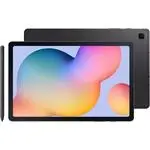 Samsung Galaxy Tab S6
User Manual
Samsung Galaxy Tab S6
User Manual
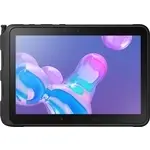 Samsung Tab Active Pro
User Manual
Samsung Tab Active Pro
User Manual
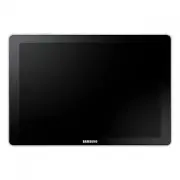 Samsung Galaxy Book
User Manual
Samsung Galaxy Book
User Manual
 Samsung Galaxy Note pro
User Manual
Samsung Galaxy Note pro
User Manual
 Samsung Galaxy Tab 4
User Manual
Samsung Galaxy Tab 4
User Manual
 Samsung Galaxy Tab A
User Manual
Samsung Galaxy Tab A
User Manual
 Samsung Galaxy Tab A7
User Manual
Samsung Galaxy Tab A7
User Manual
 Samsung Galaxy Tab A8
User Manual
Samsung Galaxy Tab A8
User Manual
 Samsung Galaxy Tab A9
User Manual
Samsung Galaxy Tab A9
User Manual
 Samsung Galaxy Tab A9+
User Manual
Samsung Galaxy Tab A9+
User Manual
 Samsung Galaxy Tab Active Pro
User Manual
Samsung Galaxy Tab Active Pro
User Manual
 Samsung Galaxy Tab E
User Manual
Samsung Galaxy Tab E
User Manual
 Samsung Galaxy Tab Lite
User Manual
Samsung Galaxy Tab Lite
User Manual
 Samsung Galaxy Tab S2
User Manual
Samsung Galaxy Tab S2
User Manual
 Samsung Galaxy Tab S6 Lite
User Manual
Samsung Galaxy Tab S6 Lite
User Manual
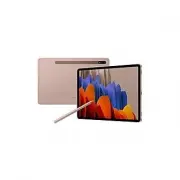 Samsung Galaxy Tab S7
User Manual
Samsung Galaxy Tab S7
User Manual
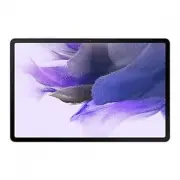 Samsung Galaxy Tab S7 FE
User Manual
Samsung Galaxy Tab S7 FE
User Manual
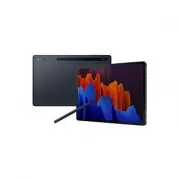 Samsung Galaxy Tab S7+
User Manual
Samsung Galaxy Tab S7+
User Manual
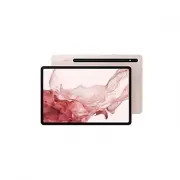 Samsung Galaxy Tab S8
User Manual
Samsung Galaxy Tab S8
User Manual
 Samsung Galaxy Tab S8 Ultra
User Manual
Samsung Galaxy Tab S8 Ultra
User Manual