Page 2 - Table of Contents; Basics; Apps and features
2 Table of Contents Basics 4 Read me first 5 Device overheating situations and solutions 8 Device layout and functions 15 Battery17 Memory card (microSD card)19 Turning the device on and off20 Initial setup21 Samsung account23 Transferring data from your previous device 26 Understanding the screen35...
Page 3 - Appendix
Table of Contents 3 Appendix 110 Troubleshooting116 Removing the battery (non-removable type) Settings 90 Introduction90 Connections 91 Wi-Fi93 Bluetooth95 More connection settings 96 Sound97 Notifications97 Display98 Wallpaper98 Advanced features99 Device maintenance101 Apps101 Lock screen and secu...
Page 6 - Maintaining water and dust resistance
Basics 6 When the device heats up during use When you use features or apps that require more power or use them for extended periods, your device may temporarily heat up due to increased battery consumption. Close any running apps and do not use the device for a while. The following are examples of s...
Page 7 - Instructional icons
Basics 7 Do the following when the device heats up: • Keep the device updated with the latest software. • Conflicts between running apps may cause the device to heat up. Restart the device. • Deactivate the Wi-Fi, GPS, and Bluetooth features when not using them. • Close apps that increase battery co...
Page 8 - Device overheating situations and solutions; When the device heats up while charging the battery; Do the following when the device heats up:; When the device heats up during use
Basics 8 Device layout and functions Package contents Check the product box for the following items: • Device • Quick start guide • The items supplied with the device and any available accessories may vary depending on the region or service provider. • The supplied items are designed only for this d...
Page 10 - Precautions for device overheating
Basics 10 – Type 2 (SM-P550, SM-T550) : Touch screen Light sensor Recents key Home key Back key Headset jack Volume key Power key Microphone Front camera Multipurpose jack Memory card slot Rear camera GPS antenna (SM-T550) S Pen (SM-P550) Speaker Speaker GPS antenna (SM-P550) Push clip Push clip
Page 11 - Device layout and functions; Package contents
Basics 11 • Connectivity problems and battery drain may occur in the following situations: – If you attach metallic stickers on the antenna area of the device – If you attach a device cover made with metallic material to the device • Using a Samsung-approved screen protector is recommended. Unapprov...
Page 12 - Device layout
Basics 12 S Pen S Pen is only included in some devices. S Pen button S Pen nib Tweezers Name Functions S Pen nib • Use the S Pen to write, draw, or perform touch actions on the screen. • Hover the S Pen over items on the screen to access additional S Pen features, such as Air Button and the air view...
Page 14 - Keys; Setting the Side key
Basics 14 2 Insert a new nib into the S Pen. Be careful not to pinch your fingers with the tweezers. • Do not reuse old nibs. Doing so may cause the S Pen to malfunction. • Do not press the nib excessively when inserting the nib into the S Pen. • Do not insert the round end of the nib into the S Pen...
Page 15 - Using the S Pen
Basics 15 Battery Charging the battery Charge the battery before using it for the first time or when it has been unused for extended periods. Use only Samsung-approved chargers, batteries, and cables. Unapproved chargers or cables can cause the battery to explode or damage the device. Connecting the...
Page 16 - Replacing the S Pen nib; Charging the battery
Basics 16 Reducing the battery consumption Your device provides various options that help you conserve battery power. • Optimise the device using the device maintenance feature. • When you are not using the device, turn off the screen by pressing the Power key. • Activate power saving mode. • Close ...
Page 17 - Installing the battery
Basics 17 Memory card (microSD card) Installing a memory card Your device’s memory card capacity may vary from other models and some memory cards may not be compatible with your device depending on the memory card manufacturer and type. To view your device’s maximum memory card capacity, refer to th...
Page 18 - Removing the battery
Basics 18 Removing the memory card Before removing the memory card, first unmount it for safe removal.Launch the Settings app and tap Device maintenance → Storage → → Storage settings → SD card → UNMOUNT . 1 Open the cover of the memory card slot. 2 Push the memory card until it disengages from the ...
Page 19 - Wired charging; Reducing the battery consumption
Basics 19 Turning the device on and off Press and hold the Power key for a few seconds to turn on the device.When you turn on your device for the first time or after performing a data reset, follow the on-screen instructions to set up your device.To turn off the device, press and hold the Power key,...
Page 20 - Battery charging tips and precautions
Basics 20 Initial setup When you turn on your device for the first time or after performing a data reset, follow the on-screen instructions to set up your device. The initial setup procedures may vary depending on the device’s software and your region. 1 Turn on the device. 2 Select your preferred d...
Page 21 - SIM or USIM card; Installing the SIM or USIM card
Basics 21 6 Sign in to your Samsung account. You can enjoy Samsung services and keep your data up to date and secure across all of your devices. Refer to Samsung account for more information. 7 Select features you want to use and complete the initial setup.The Home screen will appear. Samsung accoun...
Page 22 - Memory card; Installing a memory card
Basics 22 Registering your Samsung account Registering a new Samsung account If you do not have a Samsung account, you should create one. 1 Launch the Settings app and tap Cloud and accounts → Accounts → Add account . 2 Tap Samsung account → CREATE ACCOUNT . 3 Follow the on-screen instructions to co...
Page 23 - Removing the memory card; Formatting the memory card; Protective case; Attaching the protective case
Basics 23 Transferring data from your previous device You can transfer contacts, images, and other data from a previous device to your device via Smart Switch or Samsung Cloud. • This feature may not be supported on some devices or computers. • Limitations apply. Visit www.samsung.com/smartswitch fo...
Page 24 - Removing the protective case
Basics 24 4 On the previous device, tap WIRELESS → SEND → CONNECT . 5 On your device, tap WIRELESS → RECEIVE and select the previous device type. 6 Follow the on-screen instructions to transfer data from your previous device. Transferring backup data from a computer Transfer data between your device...
Page 25 - Turning the device on and off; Turning the device on; Turning the device off; Forcing restart; Initial setup
Basics 25 Samsung Cloud Back up data from your previous device to Samsung Cloud and restore the data to your new device. You must register and sign in to your Samsung account to use Samsung Cloud. Refer to Samsung account for more information. Backing up data 1 On your previous device, sign in to yo...
Page 26 - Fingerprint recognition; For better fingerprint recognition
Basics 26 Understanding the screen Controlling the touchscreen • Do not allow the touchscreen to come into contact with other electrical devices. Electrostatic discharges can cause the touchscreen to malfunction. • To avoid damaging the touchscreen, do not tap it with anything sharp or apply excessi...
Page 27 - Registering fingerprints
Basics 27 Tapping and holding Tap and hold the screen for approximately 2 seconds. Dragging Tap and hold an item and drag it to the target position.
Page 28 - Unlocking the screen with your fingerprints; Face recognition; Precautions for using face recognition
Basics 28 Double-tapping Double-tap the screen. Swiping Swipe upwards, downwards, to the left, or to the right. Spreading and pinching Spread two fingers apart or pinch on the screen.
Page 29 - For better face recognition
Basics 29 Home screen and Apps screen The Home screen is the starting point for accessing all of the device’s features. It displays widgets, shortcuts to apps, and more.The Apps screen displays icons for all apps, including newly installed apps. The screen may appear differently depending on the reg...
Page 30 - Deleting the registered face data; Camera; Introduction
Basics 30 Switching between Home and Apps screens On the Home screen, swipe upwards or downwards to open the Apps screen. To return to the Home screen, swipe upwards or downwards on the Apps screen. Alternatively, press the Home key or tap the Back key. Home screen Apps screen Moving items Tap and h...
Page 32 - Using zoom features; Options for current shooting mode
Basics 32 Editing the Home screen On the Home screen, tap and hold an empty area, or pinch your fingers together to access the editing options. You can set the wallpaper, add widgets, and more. You can also add, delete, or rearrange Home screen panels. • Adding panels: Swipe to the left, and then ta...
Page 33 - Photo mode; Scene optimiser
Basics 33 Indicator icons Indicator icons appear on the status bar at the top of the screen. The icons listed in the table below are most common. The status bar may not appear at the top of the screen in some apps. To display the status bar, drag down from the top of the screen. Icon Meaning Wi-Fi c...
Page 34 - Video mode; Pro mode; Available options
Basics 34 Lock screen Pressing the Power key turns off the screen and locks it. Also, the screen turns off and automatically locks if the device is not used for a specified period.The screen is locked with Swipe , the default screen lock method. Press the Power key or the Home key and swipe in any d...
Page 35 - Separating the focus area and the exposure area; Panorama mode; Food mode
Basics 35 Screen capture Capture a screenshot while using the device.Press and hold the Home key and the Power key simultaneously. You can view captured images in Gallery . You can also capture screenshots by swiping your hand to the left or right across the screen. If this feature is not activated,...
Page 36 - Portrait mode; Hyperlapse mode
Basics 36 You can use the following functions on the notification panel. Tap a notification and perform various actions. Clear all notifications. Launch Settings . Access the notification settings. Quick setting buttons Using quick setting buttons Tap quick setting buttons to activate certain featur...
Page 37 - Customising camera settings
Basics 37 Entering text Keyboard layout A keyboard appears automatically when you enter text to send emails, create memos, and more. Text entry is not supported in some languages. To enter text, you must change the input language to one of the supported languages. Break to the next line. Delete a pr...
Page 40 - Samsung account; Finding your ID and resetting your password
Apps and features 40 Managing apps Uninstalling apps and using app sleep mode Tap and hold an app and select an option. • Disable : Disable selected default apps that cannot be uninstalled from the device. • Sleep : Put apps in sleep mode to save the battery by preventing them from running in the ba...
Page 41 - Transferring data from your previous device; Transferring data wirelessly
Apps and features 41 Contacts Introduction Create new contacts or manage contacts on the device. Adding contacts Creating a new contact 1 Launch the Contacts app, tap , and then select a storage location. 2 Enter contact information. Add an image. Open more information fields. Enter contact informat...
Page 42 - Transferring backup data from a computer
Apps and features 42 Importing contacts Add contacts by importing them from other storages to your device. 1 Launch the Contacts app and tap → Manage contacts → Import/Export contacts → IMPORT . 2 Select a storage location to import contacts from. 3 Tick VCF files or contacts to import and tap DONE ...
Page 43 - Understanding the screen; Controlling the touchscreen
Apps and features 43 Sharing contacts You can share contacts with others by using various sharing options. 1 Launch the Contacts app and tap → Share . 2 Select contacts and tap SHARE . 3 Select a sharing method. Merging duplicate contacts When you import contacts from other storages, or sync contact...
Page 44 - Hiding the navigation bar
Apps and features 44 Internet Introduction Browse the Internet to search for information and bookmark your favourite webpages to access them conveniently. Browsing webpages 1 Launch the Internet app. 2 Tap the address field. 3 Enter the web address or a keyword, and then tap Go . To view the toolbar...
Page 45 - Home screen and Apps screen; Switching between Home and Apps screens
Apps and features 45 Using secret mode In secret mode, you can separately manage open tabs, bookmarks, and saved pages. You can lock secret mode using a password. Activating secret mode Tap → Turn on Secret mode . If you are using this feature for the first time, set whether to use a password for se...
Page 46 - Editing the Home screen; Displaying all apps on the Home screen
Apps and features 46 Email Setting up email accounts Set up an email account when opening Email for the first time. 1 Launch the Email app. 2 Enter the email address and password, and then tap SIGN IN . To manually register an email account, tap MANUAL SETUP . 3 Follow the on-screen instructions to ...
Page 47 - Moving items
Apps and features 47 Camera Introduction Take photos and record videos using various modes and settings. Camera etiquette • Do not take photos or record videos of other people without their permission. • Do not take photos or record videos where legally prohibited. • Do not take photos or record vid...
Page 48 - Lock screen; Changing the screen lock method
Apps and features 48 Switching cameras On the preview screen, swipe upwards or downwards to switch between cameras. Rear camera preview Front camera preview Changing shooting modes On the preview screen, swipe to the right to open the shooting modes list.Select a shooting mode you want. Rear camera ...
Page 49 - Indicator icons
Apps and features 49 Viewing filter effects On the preview screen, swipe to the left to open the list of filter effects. You can apply a unique effect to your photos.After selecting a filter, tap the preview screen and take a photo or record a video.To remove the applied filter, open the filters lis...
Page 50 - Notification panel; Using quick setting buttons
Apps and features 50 Basic shooting Taking photos or recording videos 1 Tap the image on the preview screen where the camera should focus. 2 Tap to take a photo or tap to record a video. Camera settings Switch between the front and rear cameras. Record a video. Take a photo. Filter effects Shooting ...
Page 51 - Controlling media playback; Controlling nearby devices
Apps and features 51 Changing shooting modes On the preview screen, swipe to the right to open the shooting modes list and select a mode. • Auto : Take the best possible photos by setting the device to adjust the exposure and colour of photos automatically. • Panorama : Create a panorama by taking c...
Page 52 - Entering text; Keyboard layout; Changing the input language
Apps and features 52 Continuous shot Take a series of photos of moving subjects.On the shooting mode list, tap Continuous shot . Tap and hold to take several photos continuously. Beauty face Take a photo with lightened faces for gentler images.On the shooting modes list, tap Beauty face . Sports Tak...
Page 53 - Additional keyboard functions; Copying and pasting
Apps and features 53 Sound & shot Take a photo with sound. The device identifies the photos with in Gallery . On the shooting modes list, tap Sound & shot . Camera settings Quick settings On the preview screen, use the following quick settings. The available options may vary depending on the...
Page 54 - Installing or uninstalling apps; Galaxy Store; Uninstalling or disabling apps
Apps and features 54 COMMON • Full screen view (16:9) : Set the device to preview photos or videos using the full screen ratio. • Grid lines : Display viewfinder guides to help composition when selecting subjects. • Location tags : Attach a GPS location tag to the photo. • GPS signal strength may de...
Page 55 - Setting app permissions
Apps and features 55 Viewing images and videos 1 Launch the Gallery app and tap PICTURES . 2 Select an image. Access additional options. Modify the image. Delete the image. Share the image with others. Add the image to favourites. You can create a GIF animation or collage from multiple images. Tap →...
Page 56 - Phone; Making calls from call logs or contacts list
Apps and features 56 Viewing stories When you capture or save images and videos, the device will read their date and location tags, sort the images and videos, and then create stories. To create stories automatically, you must capture or save multiple images and videos. Creating stories Create stori...
Page 57 - Using speed dial; Receiving calls; Answering a call
Apps and features 57 Deleting images or videos Deleting an image or a video Select an image or a video and tap at the bottom of the screen. Deleting multiple images and videos 1 On the Gallery screen, tap and hold an image or a video to delete. 2 Tick the images or videos to delete. 3 Tap DELETE . S...
Page 58 - Blocking phone numbers
Apps and features 58 • Action memo : Write memos quickly and link actions to them. You can send emails, search the web, and more. Refer to Action memo for more information. • Smart select : Collect content quickly. Refer to Smart select for more information. • Screen write : Capture, edit, and write...
Page 59 - Contacts; Creating a new contact; Searching for contacts
Apps and features 59 4 Select an app to use with the selected memo information.The selected app will launch from Action memo . Search the web. Create a task. Create a contact. Send an email. Search for a location. Viewing memos On the Action memo screen, tap List . Select a memo to view and edit it....
Page 60 - Deleting contacts
Apps and features 60 Smart select Use the S Pen to select an area and perform actions, such as sharing or saving. 1 When there is content you want to collect, such as a part of a webpage, open the air command panel and tap Smart select . 2 Select a desired shape icon on the toolbar and drag the S Pe...
Page 61 - Sending messages
Apps and features 61 Screen write Capture screenshots to write or draw on them. 1 When there is content you want to capture, open the Air command panel and tap Screen write . The current screen is automatically captured and the editing toolbar appears on the screen. 2 If you capture content that con...
Page 62 - Viewing messages; Sorting messages; Changing message settings
Apps and features 62 S Note Create custom notes by recording your thoughts and ideas. You can insert multimedia files and create Photo notes. Using the S Note widget You can launch some S Note features directly from the S Note widget. On the Home screen, tap an icon in the S Note widget. Launch S No...
Page 63 - Internet; Using secret mode
Apps and features 63 Changing the pen settings When writing or drawing on the screen, tap Pen once more to change the pen type, line thickness, or pen colour. Change the line thickness. Change the pen colour. Change the pen type. Select a new colour using the colour picker. Fountain pen Calligraphy ...
Page 64 - Grouping similar images
Apps and features 64 Editing handwritten notes Edit handwritten notes using various editing options, such as cutting, moving, resizing, or transforming. 1 When there is handwriting or a drawing on the note, tap MORE → Selection mode . 2 Tap or draw a line around the input to select and edit it.To mo...
Page 65 - Viewing images; Cropping enlarged images
Apps and features 65 Air view Hover over an item on the screen with the S Pen to perform various functions. If this feature is not activated, launch the Settings app and tap Advanced features → S Pen → Air view , and then tap the switch to activate it. Previewing information Point at the screen to p...
Page 66 - Viewing videos; Viewing brighter and clearer videos
Apps and features 66 Pen Select While pressing and holding the S Pen button, drag the S Pen over text or item lists to select multiple items or text. You can also copy and paste the selected items or text into another app or share them with others. Direct pen input Fill in forms and write messages u...
Page 67 - Albums; Using the recycle bin feature
Apps and features 67 Multi window Introduction Multi window lets you run two apps at the same time in the split screen view. You can also run multiple apps at the same time in the pop-up view. Some apps may not support this feature. Split screen view 1 Tap to open the list of recently used apps. 2 S...
Page 68 - Multi window; Split screen view; Launching apps from the Edge panel
Apps and features 68 Using additional options Tap the bar between the app windows to access additional options. Switch locations between app windows. Close the currently selected app. Switch the selected window to a pop-up view. Adjusting the window size Drag the bar between the app windows up or do...
Page 69 - Adding app pairs; Moving pop-up windows
Apps and features 69 Minimising the split screen view Press the Home key to minimise the split screen view. The icon will appear on the status bar. The app in the lower window will close and the app in the upper window will remain active in the minimised split screen view.To close the minimised spli...
Page 70 - Galaxy Shop
Apps and features 70 Pop-up view 1 Tap to open the list of recently used apps. 2 Swipe upwards or downwards, tap and hold an app window, and then drag it to Drop here for pop-up view . The app screen will appear in the pop-up view. Minimise the window. Close the app. Maximise the window. Moving pop-...
Page 71 - Calendar; Creating events
Apps and features 71 SideSync Introduction SideSync allows you to easily share your screen and data between Samsung Android smartphones, tablets, and any computers. After you connect your devices, a virtual screen will appear on the connected tablet or computer. You can check notifications, such as ...
Page 72 - Reminder; Starting Reminder; Restoring reminders; Deleting reminders
Apps and features 72 Connecting to computers or smartphones Connecting to a computer 1 Connect your tablet to your computer using a USB cable.Alternatively, connect both devices to the same access point. 2 Launch SideSync on both devices. 3 Tap START on both devices. Both devices will scan each othe...
Page 73 - Calculator
Apps and features 73 4 On the smartphone, accept the connection request.The dashboard will appear on your tablet. Connecting devices automatically If two devices have been previously connected, you can set them to reconnect automatically.On the tablet, tap SideSync → MORE → Settings , and then tap t...
Page 74 - Smart View
Apps and features 74 Using the dashboard Launch frequently used apps or view notifications from your tablet.When you tap a notification, the related app or program will launch. The following is an image of the tablet’s dashboard on the computer. Turn on the virtual tablet screen. Access additional o...
Page 75 - Sharing content; Quick Share; Sharing content with nearby devices
Apps and features 75 Using the virtual screen SideSync mirrors a device’s screen on another device. You can use a device’s functions via the virtual screen. The following is an image of the virtual tablet screen on the computer.On the dashboard, tap Tablet screen . • Some functions may not work thro...
Page 76 - Link Sharing
Apps and features 76 To move the virtual screen, click and drag the top of the virtual screen to a new location.To adjust the size of the virtual screen, place the mouse pointer over the edge of the virtual screen, then click and drag it. Switching between screens To use your tablet’s actual screen,...
Page 77 - Google apps
Apps and features 77 For example, when you move an image from your tablet to an open Word document on your computer, the image will be inserted into the Word document. Copying files to your tablet Select files on the computer and drag them to the dashboard or the virtual tablet screen. The files wil...
Page 78 - S Pen; Air command
Apps and features 78 Sharing the computer’s keyboard and mouse Use your tablet’s screen as a dual monitor and control it with the computer’s keyboard and mouse. 1 On the dashboard, tap MORE → Enable Keyboard and mouse sharing . If the virtual screen is open, it will disappear from the computer’s scr...
Page 79 - Air command icon; Smart select
Apps and features 79 Music Listen to music sorted by category and customise playback settings.Launch the Music app. Select a category and then select a song to play.Tap the album image at the bottom of the screen to open the music player screen. Change the repeat mode. Skip to the next song. Tap and...
Page 80 - Capturing an area from a video
Apps and features 80 Video Watch videos stored in the device and customise playback settings.Launch the Video app. Select a video to play. Lock the playback screen. Switch to the pop-up video player. Rewind or fast-forward by dragging the bar. Skip to the previous video. Tap and hold to rewind. Skip...
Page 81 - Screen write
Apps and features 81 Scrapbook Collect content from various sources to create your own digital scrapbook. While viewing webpages or videos, you can select and add a desired area to scrapbooks. This app may not be available depending on the region or service provider. When you launch this app for the...
Page 82 - Live messages
Apps and features 82 Calendar Introduction Manage your schedule by entering upcoming events or tasks in your planner. Creating events 1 Launch the Calendar app and tap or double-tap a date. If the date already has saved events or tasks in it, tap the date and tap . 2 Enter event details. Select a ca...
Page 83 - Glance
Apps and features 83 Creating tasks 1 Launch the Calendar app and tap VIEW → Tasks . 2 Tap and enter task details. 3 Tap SAVE to save the task. Syncing events and tasks with your accounts Launch the Settings app, tap Cloud and accounts → Accounts , select an account service, and then tap Calendar (S...
Page 84 - Write on calendar; Air view
Apps and features 84 Memo Create memos and organise them by category.Launch the Memo app. This app may not be available depending on the region or service provider. Composing memos Tap on the memos list and enter a memo. While composing a memo, use the following options: • Category : Create or set a...
Page 85 - Pen Select
Apps and features 85 Clock Introduction Set alarms, check the current time in many cities around the world, time an event, or set a specific duration. ALARM Launch the Clock app and tap ALARM . Setting alarms Tap in the alarms list, set an alarm time, select the days on which the alarm will repeat, ...
Page 86 - Deleting notes; Composing notes with handwriting
Apps and features 86 STOPWATCH 1 Launch the Clock app and tap STOPWATCH . 2 Tap START to time an event. To record lap times while timing an event, tap LAP . 3 Tap STOP to stop timing. To restart the timing, tap RESUME . To clear lap times, tap RESET . TIMER 1 Launch the Clock app and tap TIMER . 2 S...
Page 87 - Using the eraser; Editing handwritten notes; Straightening content horizontally
Apps and features 87 Sharing content Share content by using various sharing options. The following actions are an example of sharing images. 1 Launch the Gallery app and select an image. 2 Tap and select a sharing method, such as Bluetooth and email. When you have a communication or sharing history,...
Page 88 - Changing styles; Converting handwriting to text; Using the easy writing pad
Apps and features 88 Google apps Google provides entertainment, social network, and business apps. You may require a Google account to access some apps.To view more app information, access each app’s help menu. Some apps may not be available or may be labelled differently depending on the region or ...
Page 89 - Automatically fixing shapes; Recording voice to notes; Adding memos to PDF files; Pinning a note to the Home screen
Apps and features 89 Play Newsstand Read news and magazines that interest you in one convenient location. Play Games Download games from Play Store and play them with others. Drive Store your content on the cloud, access it from anywhere, and share it with others. YouTube Watch or create videos and ...
Page 91 - Starting Bixby
Settings 91 • Flight mode : Set the device to disable all wireless functions on your device. You can use only non-network services. Make sure the device is turned off during takeoff and landing. After takeoff, you can use the device in flight mode if allowed by aircraft personnel. • Location : Chang...
Page 92 - Waking up Bixby using your voice; Communicating by typing text
Settings 92 Wi-Fi Direct Wi-Fi Direct connects devices directly via a Wi-Fi network without requiring an access point. 1 On the Settings screen, tap Connections → Wi-Fi , and then tap the switch to activate it. 2 Tap Wi-Fi Direct . The detected devices are listed.If the device you want to connect to...
Page 94 - Bixby Routines; Adding recommended routines
Settings 94 Sending and receiving data Many apps support data transfer via Bluetooth. You can share data, such as contacts or media files, with other Bluetooth devices. The following actions are an example of sending an image to another device. 1 Launch the Gallery app and select an image. 2 Tap → B...
Page 95 - Using routines; Running auto routines
Settings 95 More connection settings Customise settings to control other features.On the Settings screen, tap Connections → More connection settings . • Nearby device scanning : Set the device to scan for nearby devices to connect to. • Printing : Configure settings for printer plug-ins installed on...
Page 96 - Connecting your tablet and smartphone; Checking notifications on your tablet; Sharing contents
Settings 96 Printing content While viewing content, such as images or documents, access the options list, tap Print → → All printers... , and then select a printer. Printing methods may vary depending on the content type. Sound Change settings for various sounds on the device.On the Settings screen,...
Page 97 - Daily Board; Using Daily Board; Playing the slide show
Settings 97 Notifications Change the notification settings for each app.On the Settings screen, tap Notifications . To customise notification settings, tap ADVANCED and select an app. • Allow notifications : Allow notifications from the selected app. • Show silently : Set the device to mute notifica...
Page 98 - Making a note on Daily Board; Configuring settings for Daily Board
Settings 98 Wallpaper Change the wallpaper settings for the Home screen and the locked screen.On the Settings screen, tap Wallpaper . Advanced features Activate advanced features and change the settings that control them.On the Settings screen, tap Advanced features . Excessive shaking or impact to ...
Page 99 - Samsung DeX; Wired connection to external displays
Settings 99 Device maintenance The device maintenance feature provides an overview of the status of your device’s battery, storage, memory, and system security. You can also automatically optimise the device with a tap of your finger. Battery Storage Memory Device security Using the quick optimisati...
Page 101 - Controlling the Samsung DeX screen; Controlling with an external keyboard and mouse
Settings 101 Memory On the Settings screen, tap Device maintenance → Memory . To speed up your device by reducing the amount of memory you are using, tick apps from the apps list, and tap CLEAN NOW . Device security Check the device’s security status. This feature scans your device for malware.On th...
Page 102 - Using your tablet as a touchpad; Using the screen keyboard
Settings 102 • App shortcuts : Select apps to display shortcuts to them on the locked screen. • Find My Mobile : Activate or deactivate the Find My Mobile feature. Access the Find My Mobile website ( findmymobile.samsung.com ) to track and control your lost or stolen device. • Unknown sources : Set ...
Page 103 - Using Samsung DeX; Using the external display and tablet simultaneously
Settings 103 2 Follow the on-screen instructions to enter the preset private mode access code.Private mode is activated and the icon appears on the status bar. You can view and access the hidden items only when private mode is activated. To hide items stored in the private folder, deactivate private...
Page 104 - Screen capture and screen record; Screen capture; How to capture a screenshot
Settings 104 Automatically deactivating private mode You can set the device to automatically deactivate private mode each time the screen turns off. 1 On the Settings screen, tap Lock screen and security → Private mode , and then tap the switch to activate it. 2 Follow the on-screen instructions to ...
Page 105 - Screen record
Settings 105 Backup and restore Keep your personal information, app data, and settings safe on your device. You can back up your sensitive information and access it later. You must sign in to your Google or Samsung account to back up or restore data. Using a Samsung account On the Settings screen, t...
Page 107 - Options
Settings 107 • Report diagnostic information : Set the device to automatically send the device’s diagnostic and usage information to Samsung. This feature may not be available depending on the region or service provider. • Marketing information : Set whether to receive Samsung marketing information,...
Page 108 - Connecting to a Wi-Fi network
Settings 108 Software update Update your device’s software via the firmware over-the-air (FOTA) service. You can also schedule software updates.On the Settings screen, tap Software update . If emergency software updates are released for your device’s security and to block new types of security threa...
Page 109 - Viewing the Wi-Fi network quality information
Settings 109 About tablet Access your device’s information.On the Settings screen, tap About tablet . • Status : View various device information, such as Wi-Fi MAC address and serial number. • Legal information : View legal information related to the device, such as safety information and the open s...
Page 110 - Pairing with other Bluetooth devices; Sending and receiving data
110 Appendix Troubleshooting Before contacting a Samsung Service Centre, please attempt the following solutions. Some situations may not apply to your device. When you turn on your device or while you are using the device, it prompts you to enter one of the following codes: • Password: When the devi...
Page 111 - Reading information from NFC tags
Appendix 111 The touchscreen responds slowly or improperly • If you attach a screen protector or optional accessories to the touchscreen, the touchscreen may not function properly. • If you are wearing gloves, if your hands are not clean while touching the touchscreen, or if you tap the screen with ...
Page 112 - Data saver (Mobile network enabled models); Mobile data only apps (Mobile network enabled models); Mobile Hotspot (Mobile network enabled models)
Appendix 112 The Internet is often disconnected • Ensure that you are not blocking the device’s internal antenna. • When you are in areas with weak signals or poor reception, you may lose reception. You may have connectivity problems due to issues with the service provider’s base station. Move to an...
Page 113 - More connection settings; Printing; Adding printer plug-ins
Appendix 113 Error messages appear when launching the camera Your device must have sufficient available memory and battery power to operate the camera app. If you receive error messages when launching the camera, try the following: • Charge the battery. • Free some memory by transferring files to a ...
Page 114 - Printing content; Sounds and vibration
Appendix 114 Another Bluetooth device is not located • Ensure that the Bluetooth wireless feature is activated on your device. • Ensure that the Bluetooth wireless feature is activated on the device you wish to connect to. • Ensure that your device and the other Bluetooth device are within the maxim...
Page 115 - Sound quality and effects; Notifications
Appendix 115 A small gap appears around the outside of the device case • This gap is a necessary manufacturing feature and some minor rocking or vibration of parts may occur. • Over time, friction between parts may cause this gap to expand slightly. There is not enough space in the device’s storage ...
Page 116 - Display
Appendix 116 Removing the battery (non-removable type) • These instructions are only for your service provider or an authorised repair agent. • Damage or faults caused by the unauthorised removal of the battery are not covered by the warranty. • To remove or replace the battery, contact your service...
Page 118 - Biometrics and security
Appendix 118 Type 2 (SM-T350): 1 Insert the device opening tool into the gap between the device’s screen and the back cover.Then, start separating the screen from the back cover by using the tool to pry them apart as shown in the image below. Take care when inserting the tool to avoid damaging the d...
Page 119 - Secure Folder; Setting up Secure Folder
Appendix 119 4 Disconnect the battery connector as shown in the image below. 5 Peel the flap from the battery, and then pull it to remove the battery.
Page 120 - Setting an auto lock condition for Secure Folder; Removing apps from Secure Folder
Appendix 120 Type 3 (SM-T550): 1 Insert the device opening tool into the gap between the device’s screen and the back cover.Then, start separating the screen from the back cover by using the tool to pry them apart as shown in the image below. Take care when inserting the tool to avoid damaging the d...
Page 121 - Adding accounts
Appendix 121 4 Loosen and remove the screws as shown in the image below. 5 Disconnect the battery connector as shown in the image below. 6 Remove the battery.
Page 122 - Selecting apps to protect using Secure Wi-Fi; Purchasing protection plan
Copyright Copyright © 2017 Samsung ElectronicsThis manual is protected under international copyright laws.No part of this manual may be reproduced, distributed, translated, or transmitted in any form or by any means, electronic or mechanical, including photocopying, recording, or storing in any info...


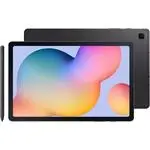 Samsung Galaxy Tab S6
User Manual
Samsung Galaxy Tab S6
User Manual
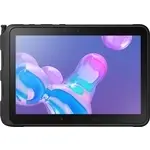 Samsung Tab Active Pro
User Manual
Samsung Tab Active Pro
User Manual
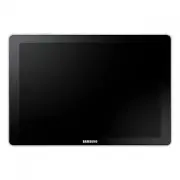 Samsung Galaxy Book
User Manual
Samsung Galaxy Book
User Manual
 Samsung Galaxy Note pro
User Manual
Samsung Galaxy Note pro
User Manual
 Samsung Galaxy Tab 4
User Manual
Samsung Galaxy Tab 4
User Manual
 Samsung Galaxy Tab A7
User Manual
Samsung Galaxy Tab A7
User Manual
 Samsung Galaxy Tab A8
User Manual
Samsung Galaxy Tab A8
User Manual
 Samsung Galaxy Tab A9
User Manual
Samsung Galaxy Tab A9
User Manual
 Samsung Galaxy Tab A9+
User Manual
Samsung Galaxy Tab A9+
User Manual
 Samsung Galaxy Tab Active Pro
User Manual
Samsung Galaxy Tab Active Pro
User Manual
 Samsung Galaxy Tab E
User Manual
Samsung Galaxy Tab E
User Manual
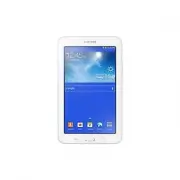 Samsung Galaxy Tab Lite
User Manual
Samsung Galaxy Tab Lite
User Manual
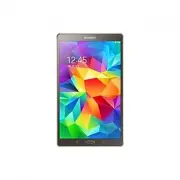 Samsung Galaxy Tab S
User Manual
Samsung Galaxy Tab S
User Manual
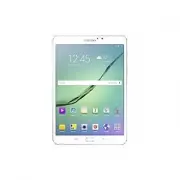 Samsung Galaxy Tab S2
User Manual
Samsung Galaxy Tab S2
User Manual
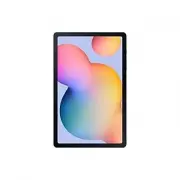 Samsung Galaxy Tab S6 Lite
User Manual
Samsung Galaxy Tab S6 Lite
User Manual
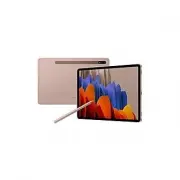 Samsung Galaxy Tab S7
User Manual
Samsung Galaxy Tab S7
User Manual
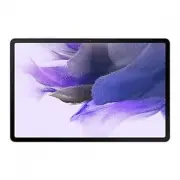 Samsung Galaxy Tab S7 FE
User Manual
Samsung Galaxy Tab S7 FE
User Manual
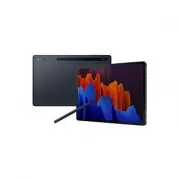 Samsung Galaxy Tab S7+
User Manual
Samsung Galaxy Tab S7+
User Manual
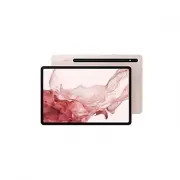 Samsung Galaxy Tab S8
User Manual
Samsung Galaxy Tab S8
User Manual
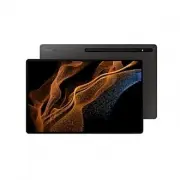 Samsung Galaxy Tab S8 Ultra
User Manual
Samsung Galaxy Tab S8 Ultra
User Manual