Samsung Galaxy Tab 4 - Manuals
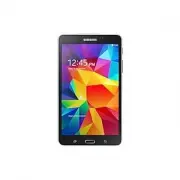
User Manual Samsung Galaxy Tab 4
Summary
2 About this manual This device provides high quality mobile communication and entertainment using Samsung’s high standards and technological expertise. This user manual is specially designed to detail the device’s functions and features. • Please read this manual before using the device to ensure s...
About this manual 3 • Default applications that come with the device are subject to updates and may no longer be supported without prior notice. If you have questions about an application provided with the device, contact a Samsung Service Centre. For user-installed applications, contact service pro...
About this manual 4 Trademarks • SAMSUNG and the SAMSUNG logo are registered trademarks of Samsung Electronics. • Bluetooth ® is a registered trademark of Bluetooth SIG, Inc. worldwide. • Wi-Fi ® , Wi-Fi Protected Setup ™ , Wi-Fi Direct ™ , Wi-Fi CERTIFIED ™ , and the Wi-Fi logo are registered trade...
5 Table of Contents Getting started 7 Device layout 8 Buttons9 Package contents 10 Charging the battery12 Inserting a memory card14 Turning the device on and off15 Holding the device15 Locking and unlocking the device15 Adjusting the volume15 Switching to silent mode Basics 16 Indicator icons17 Usin...
Table of Contents 6 Travel & local 85 Maps Settings 86 About Settings86 Connections89 Device94 Controls97 General101 Google Settings Appendix 102 Troubleshooting107 Removing the battery Application & media stores 67 Play Store68 Samsung Apps68 Play Books69 Play Movies & TV69 Play Music69...
7 Getting started Device layout Recent apps button Home button Touch screen Front camera Back button Multipurpose jack Volume button Memory card slot Microphone Power button GPS antenna Rear camera Speaker Headset jack
Getting started 8 • Do not cover the antenna area with your hands or other objects. This may cause connectivity problems or drain the battery. • Using a Samsung-approved screen protector is recommended. Unapproved screen protectors may cause the sensors to malfunction. • Do not allow water to contac...
Getting started 9 Package contents Check the product box for the following items: • Device • Quick start guide • The items supplied with the device and any available accessories may vary depending on the region or service provider. • The supplied items are designed only for this device and may not b...
Getting started 10 Charging the battery Use the charger to charge the battery before using it for the first time. Use only Samsung-approved chargers, batteries, and cables. Unapproved chargers or cables can cause the battery to explode or damage the device. • When the battery power is low, the batte...
Getting started 11 Connecting the charger improperly may cause serious damage to the device. Any damage caused by misuse is not covered by the warranty. • The device can be used while it is charging, but it may take longer to fully charge the battery. • If the device receives an unstable power suppl...
Getting started 12 Reducing the battery consumption Your device provides options that help you save battery power. By customising these options and deactivating features in the background, you can use the device longer between charges: • When you are not using the device, switch to sleep mode by pre...
Getting started 13 1 Open the cover of the memory card slot. 2 Insert a memory card with the gold-coloured contacts facing downwards. 3 Push the memory card into the slot until it locks in place. 4 Close the cover of the memory card slot. Removing the memory card Before removing the memory card, fir...
Getting started 14 Formatting the memory card A memory card formatted on a computer may not be compatible with the device. Format the memory card on the device.On the Home screen, tap → Settings → General → Storage → Format SD card → Format SD card → Erase everything . Before formatting the memory c...
Getting started 15 Holding the device Do not cover the antenna area with your hands or other objects. This may cause connectivity problems or drain the battery. Locking and unlocking the device When not in use, lock the device to prevent unwanted operation. Pressing the Power button turns off the sc...
16 Basics Indicator icons The icons displayed at the top of the screen provide information about the status of the device. The icons listed in the table below are most common. Icon Meaning Wi-Fi connectedBluetooth feature activatedGPS activatedSmart screen feature activatedConnected to computerAlarm...
Basics 17 Using the touch screen Use only fingers to use the touch screen. • Do not allow the touch screen to come into contact with other electrical devices. Electrostatic discharges can cause the touch screen to malfunction. • To avoid damaging the touch screen, do not tap it with anything sharp o...
Samsung Tablets Manuals
-
Samsung Galaxy Tab S6
User Manual
-
Samsung Tab Active Pro
User Manual
-
Samsung Galaxy Book
User Manual
-
Samsung Galaxy Note pro
User Manual
-
Samsung Galaxy Tab A
User Manual
-
Samsung Galaxy Tab A7
User Manual
-
Samsung Galaxy Tab A8
User Manual
-
Samsung Galaxy Tab A9
User Manual
-
Samsung Galaxy Tab A9+
User Manual
-
Samsung Galaxy Tab Active Pro
User Manual
-
Samsung Galaxy Tab E
User Manual
-
Samsung Galaxy Tab Lite
User Manual
-
Samsung Galaxy Tab S
User Manual
-
Samsung Galaxy Tab S2
User Manual
-
Samsung Galaxy Tab S6 Lite
User Manual
-
Samsung Galaxy Tab S7
User Manual
-
Samsung Galaxy Tab S7 FE
User Manual
-
Samsung Galaxy Tab S7+
User Manual
-
Samsung Galaxy Tab S8
User Manual
-
Samsung Galaxy Tab S8 Ultra
User Manual