Page 2 - Before you start; Open the battery cover on the back of the; Remote Control; Table of Contents; Accessories; Precautions
ENG-3 Before you start Install Batteries in the Remote 1. Open the battery cover on the back of the remote. 2. Insert two AAA batteries. Make sure that the polarities (+ and -) are aligned correctly. 3. Replace the battery cover. If remote doesn’t operate properly: • Check the polarity + - of the ba...
Page 3 - Disc Type and Characteristics; Disc Markings; STEREO; PAL; DivX Certification; General Features; Recording Types
ENG-5 Disc Type and Characteristics Disc Markings Play Region Number ~ DIGITAL SOUND STEREO PAL Play Region Number PAL broadcast system in U.K, France,Germany, etc. Dolby Digital disc Stereo disc Digital Audio disc DTS disc MP3 disc Both the DVD player and the discs are coded by region.These regiona...
Page 4 - Display Indicators
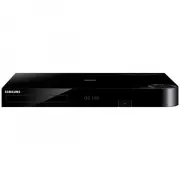
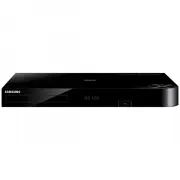
ENG-7 ENG-6 Description-Front Panel Description-Front Panel STANDBY/ON EZ VIEW LOADING PLAY 1 2 3 4 5 6 7 8 9 10 11 Front Panel Controls 1. STANDBY/ON ( ) • When the player is plugged in, the Power LED lights. If you press the STANDBY/ON button to turn on the player, the LED goes out. 2. SKIP ( ) / ...
Page 5 - DVD Function Buttons; Tour of the Remote Control; Rear Panel; DIGITAL AUDIO OUT JACKS; Important Note
ENG-9 ENG-8 6. STOP Button ( ) 7. MENU Button • Brings up the DVD player’s menu. 8. RETURN Button • Returns to a previous menu. 9. REPEAT A-B Button • Use to mark a segment to repeat between A and B. 10. SUBTITLE Button 11. OPEN/CLOSE ( ) Button • To open and close the disc tray. 12. CLEAR Button • ...
Page 6 - Method 1; Choosing a Connection; Before Connecting the DVD Player; particular components.; Connection to an Audio System; Method 1
ENG-11 ENG-10 Choosing a Connection Connection to a TV (For Video) TV (Normal, Widescreen, Projection, etc..) Method 1 DVD Player + TV with Video Input Jack(The Video Output in Setup Menu must be set to S-Video or SCART Output.) Method 2 DVD Player + TV with S-Video Input Jack (The Video Output in S...
Page 7 - Searching through a Chapter or Track; Playing a Disc; Before Play; Note
ENG-13 ENG-12 Using the Display Function When Playing a DVD/VCD/CD 1. During play, press the INFO button on the remote. 2. Use the UP/DOWN buttons to select the desired item. 3. Use the LEFT/RIGHT buttons to make the desired setup and then press ENTER.• You may use the number buttons of the remote c...
Page 8 - Repeat Play; • Press the REPEAT A-B button to select the point where; Using the Function Menu; Using the Display Function; Using the Disc Menu; Title
ENG-15 ENG-14 Repeat Play Repeat the current track, chapter, title, a chosen section (A-B), or all of the disc. When playing a DVD/VCD/CD 1. Press the REPEAT button on the remote. Repeat screen appears. 2. Select Chapter, Title or A-B using the LEFT/RIGHT buttons. • Chapter ( ) : repeats the chapter...
Page 9 - Program Play & Random Play; When playing a DVD/VCD; Slow Repeat Play
ENG-17 ENG-16 Adjusting the Aspect Ratio (EZ View) To play back using aspect ratio (DVD) Press the EZ VIEW button. • The screen size changes when the button is pressed repeatedly. • The screen zoom mode operates differently depending on a screen setting in the initial setupmenu. • To ensure correct ...
Page 10 - Using the ANGLE button; Selecting the Audio Language; Using the AUDIO button; Selecting the Subtitle Language; Using the SUBTITLE button
ENG-19 ENG-18 Using the Instant Replay/Skip Function Changing the Camera Angle When a DVD contains multiple angles of aparticular scene, you can use the ANGLEfunction. Using the ANGLE button If the disc contains multiple angles, the ANGLE appears on the screen. 1. Press the ANGLE button, then ANGLE ...
Page 11 - Using the Zoom Function; - During DVD play, press ENTER to zoom in; Using the Bookmark Function; Recalling a Marked Scene
ENG-21 ENG-20 Using the Zoom Function Using the Zoom Function (DVD/VCD) 1. During play or pause mode, press the MENU button on the remote. 2. Use the UP/DOWN buttons to highlight Function, then press the RIGHT or ENTER button. 3. Select Zoom using the UP/DOWN buttons, then press the RIGHT or ENTER b...
Page 12 - • Use a decompression transfer rate of at least 128; • Important: The above recommendations cannot be taken; Folder Selection; • To select the Parent Folder; MPEG4 Playback; MPEG4 Play Function
ENG-23 ENG-22 MP3/WMA Playback MP3/WMA Playback 1. Open the disc tray. 2. Place the disc on the tray. - Place the disc with the labeled side up. 3. Close the tray. - The tray closes and you should get a screen that looks like the one below. MP3/WMA Play Function 1. Select the desired folder. 2. Use ...
Page 13 - Picture CD Playback; MPEG4 Function Description
ENG-25 Picture CD Playback 1. Select the desired folder. (See page 22 to select the folder) 2. Use the UP/DOWN buttons to select a Picture file in clips menu and then press the ENTER button. Youshould get a screen that looks like the one below. • Use the INFO button on the remote control to select t...
Page 14 - Setting Up the Language Features; Audio Setup : Setup of the Audio Options.; Using the Setup Menu; Using the Audio Language
ENG-27 ENG-26 Using the Disc Menu Language This function changes the text language only on thedisc menu screens. 1. With the unit in Stop mode, press the MENU button. 2. Select Setup using UP/DOWN buttons, then press the RIGHT or ENTER button. 3. Select Language Setup using UP/DOWN buttons, then pre...
Page 15 - Setting Up the Audio Options; Note There is no analog audio output when you play; Using the Subtitle Language; Setting Up the Display Options
ENG-29 ENG-28 1. With the unit in Stop mode, press the MENU button. 2. Select Setup using UP/DOWN buttons, then press the RIGHT or ENTER button. 3. Select Audio Setup using UP/DOWN buttons, then press the RIGHT or ENTER button. 4. Use the UP/DOWN buttons to select the desired item. Then press the RI...
Page 16 - TV System
ENG-31 ENG-30 The Parental Control function works in conjunctionwith DVDs that have been assigned a rating - whichhelps you control the types of DVDs that your familywatches. There are up to 8 rating levels on a disc. 1. With the unit in Stop mode, press the MENU button. 2. Select Setup using UP/DOW...
Page 17 - Firmware upgrade; Introduction; Setting Up the Parental Control; Setting Up the Rating Level; - To cancel the Rating Level, select No using RIGHT or; The Change Password screen appears.
ENG-33 Firmware upgrade 4. Press the ENTER button. Firmware upgrade starts 5. In the middle of the writing, the tray will open automatically. After taking out the disc, pleasewait for about 2 minutes. 6. If the unit was successfully updated, the unit will turn off and on after closing the tray autom...
Page 18 - Action
ENG-35 ENG-34 Specifications *: Nominal specification Power Requirements Power Consumption Weight Dimensions Operating Temperature Range Operating Humidity Range DVD (DIGITAL VERSATILE DISC) CD : 12Cm (COMPACT DISC) CD : 8Cm (COMPACT DISC) VCD : 12Cm Composite Video SCART Jack Component Video S-VIDE...