Page 3 - ABOUT THIS GUIDE; Conventions
© SAMSUNG Electronics Co., Ltd. Page I ABOUT THIS GUIDE This User guide provides instructions for the use of Samsung’s latest DS-5021D and DS-5014D 2 line LCD digital phones that can be used in connection with Samsung’s Enterprise IP Solutions, OfficeServ System. Please take the time to study this g...
Page 4 - This page is intentionally left blank.
Page II © SAMSUNG Electronics Co., Ltd. SAFETY CONCERNS This page is intentionally left blank.
Page 5 - Symbols
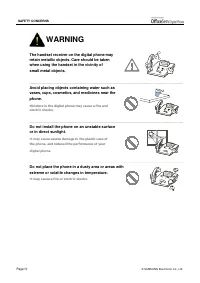
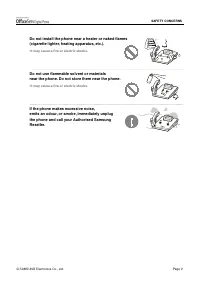
© SAMSUNG Electronics Co., Ltd. Page III SAFETY CONCERNS For product safety and correct operation, the following information must be read before the installation and operation of your DS-5021D/5014D digital phone. Symbols Caution Indication of a general caution Restriction Indication of a prohibited...
Page 8 - CAUTION
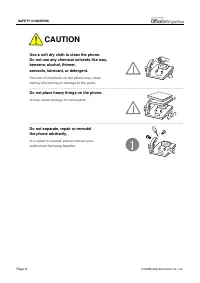
Page VI © SAMSUNG Electronics Co., Ltd. SAFETY CONCERNS Use a soft dry cloth to clean the phone. Do not use any chemical solvents like wax, benzene, alcohol, thinner, aerosols, lubricant, or detergent. The use of chemicals on the phone may causefading/discoloring or damage to the parts. Do not place...
Page 9 - TABLE OF CONTENTS
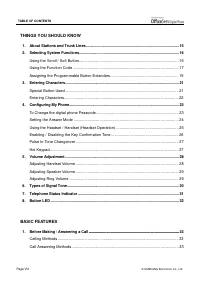
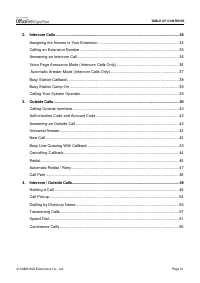
© SAMSUNG Electronics Co., Ltd. Page VII TABLE OF CONTENTS ABOUT THIS GUIDE Conventions .......................................................................................................................... I SAFETY CONCERNS Symbols ..................................................................
Page 10 - THINGS YOU SHOULD KNOW; BASIC FEATURES
Page VIII © SAMSUNG Electronics Co., Ltd. TABLE OF CONTENTS THINGS YOU SHOULD KNOW 1. About Stations and Trunk Lines............................................................................................... 15 2. Selecting System Functions...........................................................
Page 12 - CONVENIENT FEATURES
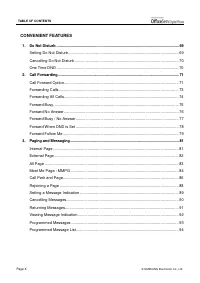
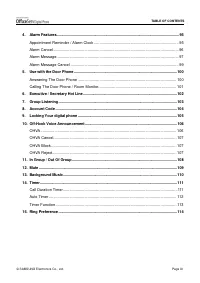
Page X © SAMSUNG Electronics Co., Ltd. TABLE OF CONTENTS CONVENIENT FEATURES 1. Do Not Disturb ............................................................................................................................. 69 Setting Do Not Disturb ........................................................
Page 14 - APPLICATION MENUS; ANNEX
Page XII © SAMSUNG Electronics Co., Ltd. TABLE OF CONTENTS APPLICATION MENUS 1. Navigation Buttons ................................................................................................................... 115 Menu Button ........................................................................
Page 15 - PREPARATION; Application menu
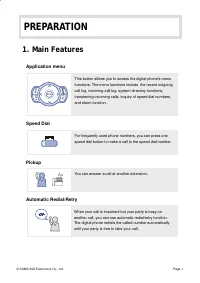
© SAMSUNG Electronics Co., Ltd. Page 1 PREPARATION 1. Main Features Application menu Speed Dial Pickup Automatic Redial/Retry When your call is important but your party is busy on another call, you can use automatic redial/retry function. The digital phone redials the called number automatically unt...
Page 17 - Page
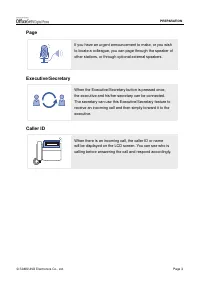
© SAMSUNG Electronics Co., Ltd. Page 3 PREPARATION Page Executive/Secretary Caller ID If you have an urgent announcement to make, or you wish to locate a colleague, you can page through the speaker of other stations, or through optional external speakers. When the Executive/Secretary button is press...
Page 18 - Checking Parts in the Package
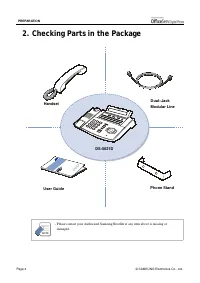
Page 4 © SAMSUNG Electronics Co., Ltd. PREPARATION 2. Checking Parts in the Package - Please contact your Authorised Samsung Reseller if any item above is missing or damaged. Handset Dual–Jack Modular Line User Guide Phone Stand DS-5021D NOTE
Page 19 - Digital phone; Front Panel
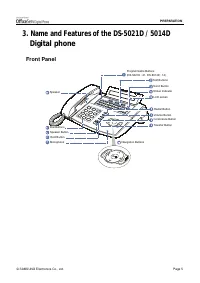
© SAMSUNG Electronics Co., Ltd. Page 5 PREPARATION 3. Name and Features of the DS-5021D / 5014D Digital phone Front Panel Me nu S en d E n d Transfer Button Programmable Buttons (DS-5021D : 21, DS-5014D : 14) Dial Buttons Speaker Button Navigation Buttons Speaker Scroll Button Status Indicator Volum...
Page 20 - Name and Features of Each Part
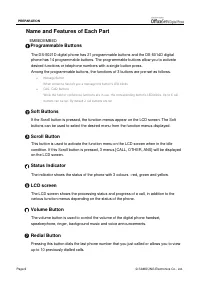
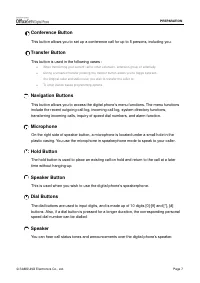
Page 6 © SAMSUNG Electronics Co., Ltd. PREPARATION Name and Features of Each Part EMBEDEMBED Programmable Buttons The DS-5021D digital phone has 21 programmable buttons and the DS-5014D digital phone has 14 programmable buttons. The programmable buttons allow you to activate desired functions or tel...
Page 23 - Additional Module; KDB
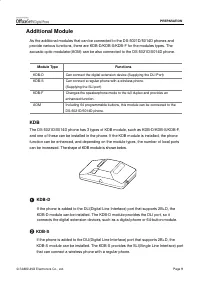
© SAMSUNG Electronics Co., Ltd. Page 9 PREPARATION Additional Module As the additional modules that can be connected to the DS-5021D/5014D phones and provide various functions, there are KDB-D/KDB-S/KDB-F for the modules types. The acoustic optic modulator(AOM) can be also connected to the DS-5021D/...
Page 24 - AOM
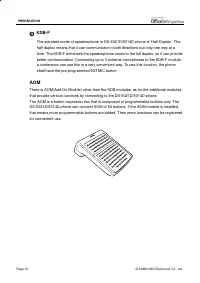
Page 10 © SAMSUNG Electronics Co., Ltd. PREPARATION KDB-F The standard mode of speakerphone in DS-5021D/5014D phone is ‘Half Duplex’. The half duplex means that it can communicate in both directions but only one way at a time. The KDB-F enhances the speakerphone mode to the full duplex, so it can pr...
Page 25 - phone; Connecting lines to the phone; Using the Desktop Stand
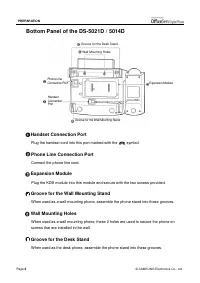
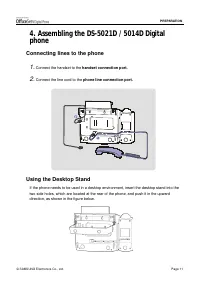
© SAMSUNG Electronics Co., Ltd. Page 11 PREPARATION 4. Assembling the DS-5021D / 5014D Digital phone Connecting lines to the phone 1. Connect the handset to the handset connection port. 2. Connect the line cord to the phone line connection port. Using the Desktop Stand If the phone needs to be used ...
Page 26 - When used as the wall mounting digital phone
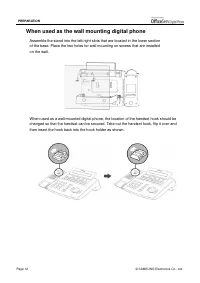
Page 12 © SAMSUNG Electronics Co., Ltd. PREPARATION When used as the wall mounting digital phone Assemble the stand into the left/right slots that are located in the lower section of the base. Place the two holes for wall mounting on screws that are installed on the wall. When used as a wall mounted...
Page 27 - Adding a KDB Module
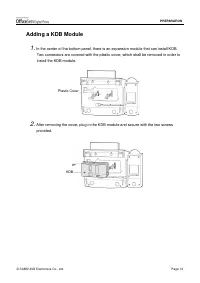
© SAMSUNG Electronics Co., Ltd. Page 13 PREPARATION Adding a KDB Module 1. In the center of the bottom panel, there is an expansion module that can install KDB. Two connectors are covered with the plastic cover, which shall be removed in order to install the KDB module. 2. After removing the cover, ...
Page 28 - Adding an AOM
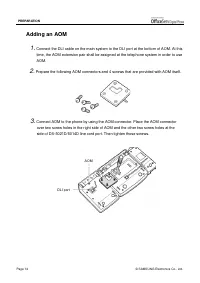
Page 14 © SAMSUNG Electronics Co., Ltd. PREPARATION Adding an AOM 1. Connect the DLI cable on the main system to the DLI port at the bottom of AOM. At this time, the AOM extension pair shall be assigned at the telephone system in order to use AOM. 2. Prepare the following AOM connectors and 4 screws...
Page 29 - About Stations and Trunk Lines; Outs id e
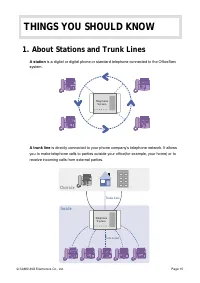
© SAMSUNG Electronics Co., Ltd. Page 15 THINGS YOU SHOULD KNOW 1. About Stations and Trunk Lines A station is a digital or digital phone or standard telephone connected to the OfficeServ system. A trunk line is directly connected to your phone company’s telephone network. It allows you to make telep...
Page 30 - Selecting System Functions; Using the Scroll / Soft Button
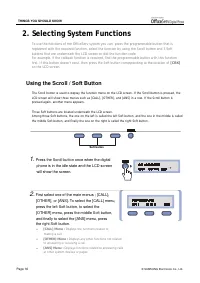
Page 16 © SAMSUNG Electronics Co., Ltd. THINGS YOU SHOULD KNOW 2. Selecting System Functions To use the functions of the OfficeServ system you can: press the programmable button that isregistered with the required function, select the function by using the Scroll button and 3 Softbuttons that are un...
Page 31 - Using the Function Code
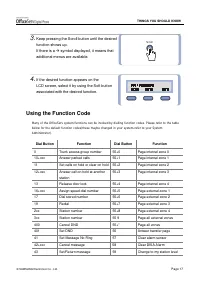
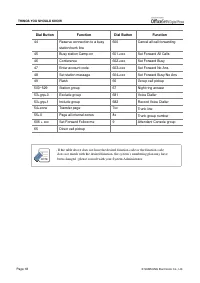
© SAMSUNG Electronics Co., Ltd. Page 17 THINGS YOU SHOULD KNOW 3. Keep pressing the Scroll button until the desired function shows up. If there is a " symbol displayed, it means that additional menus are available. 4. If the desired function appears on the LCD screen, select it by using the Soft...
Page 33 - Assigning the Programmable Button Extenders
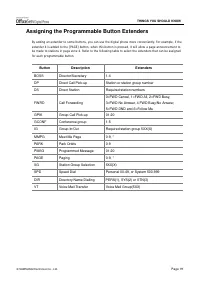
© SAMSUNG Electronics Co., Ltd. Page 19 THINGS YOU SHOULD KNOW Assigning the Programmable Button Extenders By adding an extender to some buttons, you can use the digital phone more conveniently. For example, if theextender 4 is added to the [PAGE] button, when this button is pressed, it will allow a...
Page 35 - Entering Characters; Special Button Used
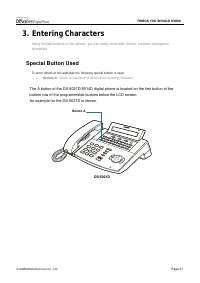
© SAMSUNG Electronics Co., Ltd. Page 21 THINGS YOU SHOULD KNOW 3. Entering Characters Using the dial buttons of this phone, you can easily enter/edit, letters, numbers and specialcharacters. Special Button Used To enter letters of the alphabet the following special button is used. ! Button A : Switc...
Page 36 - Entering Characters; Procedures for entering characters are described below.
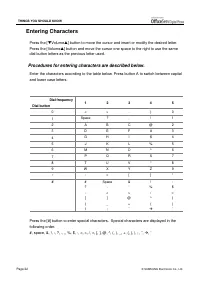
Page 22 © SAMSUNG Electronics Co., Ltd. THINGS YOU SHOULD KNOW Entering Characters Press the [ ! Volume " ] button to move the cursor and insert or modify the desired letter. Press the [Volume " ] button and move the cursor one space to the right to use the same dial button letters as the pr...
Page 37 - Configuring My Phone; To Change the Digital phone Passcode
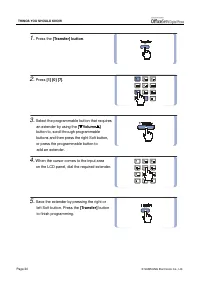
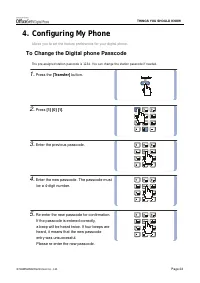
© SAMSUNG Electronics Co., Ltd. Page 23 THINGS YOU SHOULD KNOW 4. Configuring My Phone Allows you to set the feature preferences for your digital phone. To Change the Digital phone Passcode The pre-assigned station passcode is 1234. You can change the station passcode if needed. 1. Press the [Transf...
Page 38 - Setting the Answer Mode
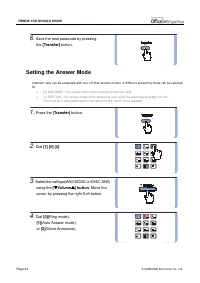
Page 24 © SAMSUNG Electronics Co., Ltd. THINGS YOU SHOULD KNOW 6. Save the new passcode by pressing the [Transfer] button. Setting the Answer Mode Intercom calls can be answered with one of three answer modes. A different answering mode can be selectedfor ! [0] ANS MODE : the answer mode when answer...
Page 40 - Enabling / Disabling the Key Confirmation Tone
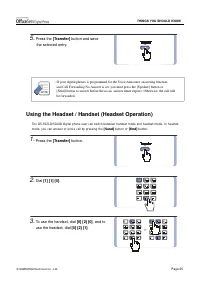
Page 26 © SAMSUNG Electronics Co., Ltd. THINGS YOU SHOULD KNOW 4. Save the selected entry by pressing the [Transfer] button. - The digital phone can have a headset mode button. If so, press this button when its LED is off and the digital phone is changed to headset mode and the LED will light up.Pre...
Page 41 - Pulse to Tone Changeover
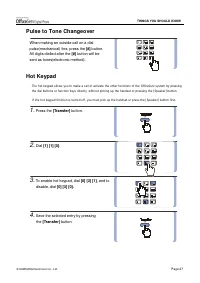
© SAMSUNG Electronics Co., Ltd. Page 27 THINGS YOU SHOULD KNOW Pulse to Tone Changeover When making an outside call on a dial pulse(mechanical) line, press the [#] button. All digits dialled after the [#] button will be sent as tones(electronic method). Hot Keypad The hot keypad allows you to make a...
Page 42 - Adjusting Handset Volume
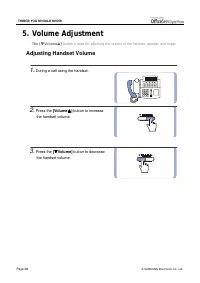
Page 28 © SAMSUNG Electronics Co., Ltd. THINGS YOU SHOULD KNOW 5. Volume Adjustment The [ ! ! ! ! Volume " " " " ] button is used for adjusting the volume of the handset, speaker, and ringer. Adjusting Handset Volume 1. During a call using the handset. 2. Press the [Volume " "...
Page 43 - Adjusting Speaker Volume; Adjusting Ring Volume
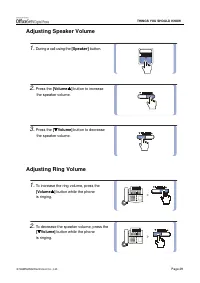
© SAMSUNG Electronics Co., Ltd. Page 29 THINGS YOU SHOULD KNOW Adjusting Speaker Volume 1. During a call using the [Speaker] button. 2. Press the [Volume " " " " ] button to increase the speaker volume. 3. Press the [ ! ! ! ! Volume ] button to decrease the speaker volume. Adjusting ...
Page 44 - Types of Signal Tone
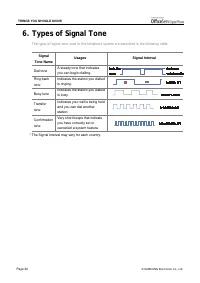
Page 30 © SAMSUNG Electronics Co., Ltd. THINGS YOU SHOULD KNOW 6. Types of Signal Tone The types of signal tone used in this telephone system are described in the following table. Signal Tone Name Usages Signal Interval Dial tone A steady tone that indicates you can begin dialling. Ring back tone In...
Page 45 - Telephone Status Indicator
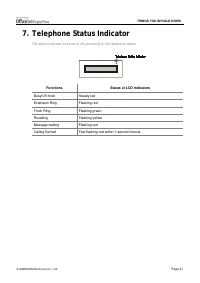
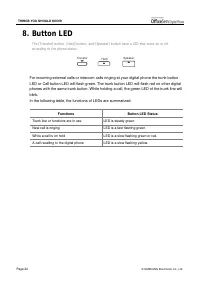
© SAMSUNG Electronics Co., Ltd. Page 31 THINGS YOU SHOULD KNOW 7. Telephone Status Indicator The status indicator turns on or off according to the telephone status. Functions Status of LCD Indicators Busy/Off-hook Steady red Extension Ring Flashing red Trunk Ring Flashing green Recalling Flashing ye...
Page 47 - Calling Methods; Call Answering Methods
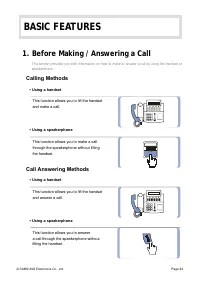
© SAMSUNG Electronics Co., Ltd. Page 33 BASIC FEATURES 1. Before Making / Answering a Call This section provides you with information on how to make or answer a call by using the handset orspeakerphone. Calling Methods ▪ Using a handset This function allows you to lift the handset and make a call. ▪...
Page 48 - Assigning the Names to Your Extension
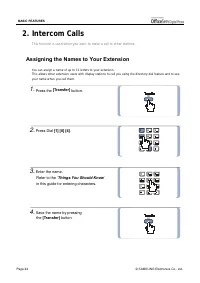
Page 34 © SAMSUNG Electronics Co., Ltd. BASIC FEATURES 2. Intercom Calls This function is used when you want to make a call to other stations. Assigning the Names to Your Extension You can assign a name of up to 11 letters to your extension.This allows other extension users with display stations to ...
Page 49 - Calling an Extension Number
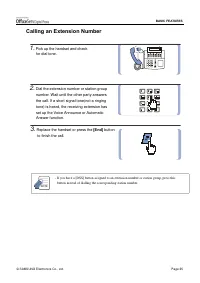
© SAMSUNG Electronics Co., Ltd. Page 35 BASIC FEATURES Calling an Extension Number 1. Pick up the handset and check for dial tone. 2. Dial the extension number or station group number. Wait until the other party answers the call. If a short signal tone(not a ringing tone) is heard, the receiving ext...
Page 50 - Answering an Intercom Call
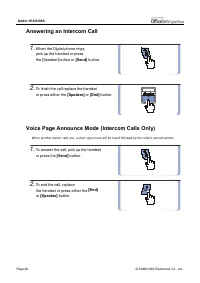
Page 36 © SAMSUNG Electronics Co., Ltd. BASIC FEATURES Answering an Intercom Call 1. When the Digital phone rings, pick up the handset or press the [Speaker] button or [Send] button. 2. To finish the call replace the handset or press either the [Speaker] or [End] button. Voice Page Announce Mode (In...
Page 51 - Automatic Answer Mode (Intercom Calls Only)
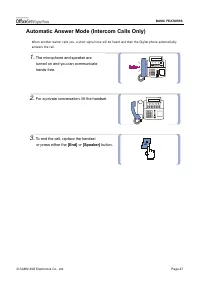
© SAMSUNG Electronics Co., Ltd. Page 37 BASIC FEATURES Automatic Answer Mode (Intercom Calls Only) When another station calls you, a short signal tone will be heard and then the Digital phone automaticallyanswers the call. 1. The microphone and speaker are turned on and you can communicate hands-fre...
Page 52 - Busy Station Callback
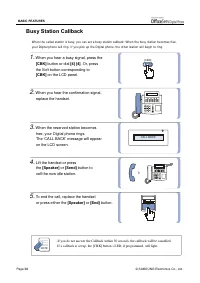
Page 38 © SAMSUNG Electronics Co., Ltd. BASIC FEATURES Busy Station Callback When the called station is busy, you can set a busy station callback. When the busy station becomes free,your Digital phone will ring. If you pick up the Digital phone, the other station will begin to ring. 1. When you hear...
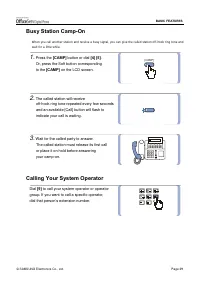
Page 53 - Calling Your System Operator
© SAMSUNG Electronics Co., Ltd. Page 39 BASIC FEATURES Busy Station Camp-On When you call another station and receive a busy signal, you can give the called station off-hook ring tone andwait for a little while. 1. Press the [CAMP] button or dial [4] [5] . Or, press the Soft button corresponding to ...
Page 54 - Calling Outside numbers
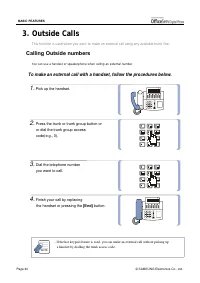
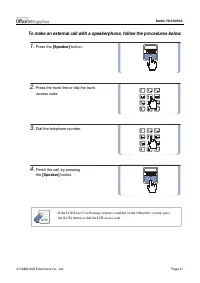
Page 40 © SAMSUNG Electronics Co., Ltd. BASIC FEATURES 3. Outside Calls This function is used when you want to make an external call using any available trunk line. Calling Outside numbers You can use a handset or speakerphone when calling an external number. To make an external call with a handset,...
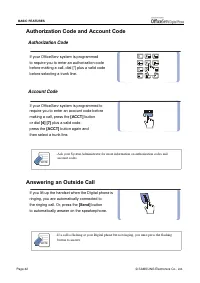
Page 56 - Authorization Code and Account Code; Authorization Code; Answering an Outside Call
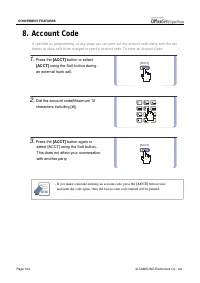
Page 42 © SAMSUNG Electronics Co., Ltd. BASIC FEATURES Authorization Code and Account Code Authorization Code If your OfficeServ system is programmed to require you to enter an authorization code before making a call, dial [*] plus a valid code before selecting a trunk line. Account Code If your Off...
Page 57 - Universal Answer
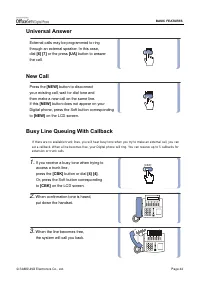
© SAMSUNG Electronics Co., Ltd. Page 43 BASIC FEATURES Universal Answer External calls may be programmed to ring through an external speaker. In this case, dial [6] [7] or the press [UA] button to answer the call. New Call Press the [NEW] button to disconnect your existing call, wait for dial tone a...
Page 58 - Cancelling Callback
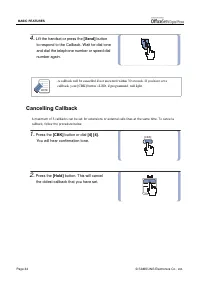
Page 44 © SAMSUNG Electronics Co., Ltd. BASIC FEATURES 4. Lift the handset or press the [Send] button to respond to the Callback. Wait for dial tone and dial the telephone number or speed dial number again. - A callback will be cancelled if not answered within 30 seconds. If you have set a callback,...
Page 59 - Redial
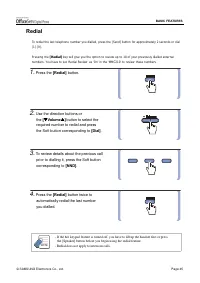
© SAMSUNG Electronics Co., Ltd. Page 45 BASIC FEATURES Redial To redial the last telephone number you dialled, press the [Send] button for approximately 2 seconds or dial[1] [9]. Pressing the [Redial] key will give you the option to review up to 10 of your previously dialled external numbers. You ha...
Page 60 - Save Number with Redial
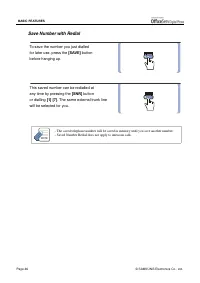
Page 46 © SAMSUNG Electronics Co., Ltd. BASIC FEATURES Save Number with Redial To save the number you just dialled for later use, press the [SAVE] button before hanging up. This saved number can be redialled at any time by pressing the [SNR] button or dialling [ 1 ] [7] . The same external trunk lin...
Page 61 - Automatic Redial / Retry
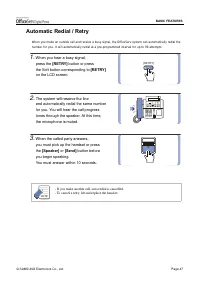
© SAMSUNG Electronics Co., Ltd. Page 47 BASIC FEATURES Automatic Redial / Retry When you make an outside call and receive a busy signal, the OfficeServ system can automatically redial thenumber for you. It will automatically redial at a pre-programmed interval for up to 99 attempts. 1. When you hear...
Page 62 - Call Park
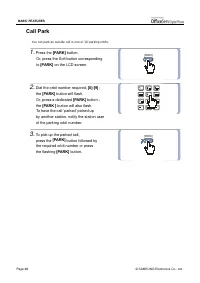
Page 48 © SAMSUNG Electronics Co., Ltd. BASIC FEATURES Call Park You can park an outside call in one of 10 ‘parking orbits’. 1. Press the [PARK] button. Or, press the Soft button corresponding to [PARK] on the LCD screen. 2. Dial the orbit number required, [0]-[9] ; the [PARK] button will flash. Or,...
Page 63 - Holding a Call; System Hold
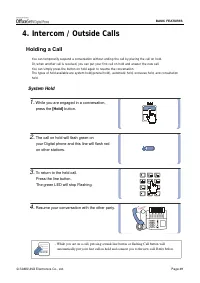
© SAMSUNG Electronics Co., Ltd. Page 49 BASIC FEATURES 4. Intercom / Outside Calls Holding a Call You can temporarily suspend a conversation without ending the call by placing the call on hold.Or, when another call is received, you can put your first call on hold and answer the new call.You can simp...
Page 64 - Automatic Hold
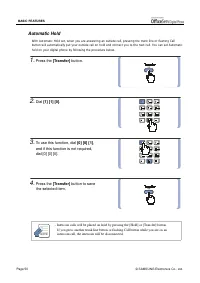
Page 50 © SAMSUNG Electronics Co., Ltd. BASIC FEATURES Automatic Hold With Automatic Hold set, when you are answering an outside call, pressing the trunk line or flashing Callbutton will automatically put your outside call on hold and connect you to the next call. You can set Automatichold on your d...
Page 65 - Exclusive Hold
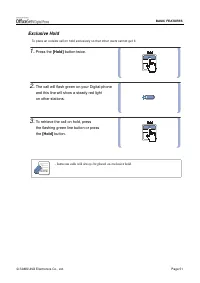
© SAMSUNG Electronics Co., Ltd. Page 51 BASIC FEATURES Exclusive Hold To place an outside call on hold exclusively so that other users cannot get it. 1. Press the [Hold] button twice. 2. The call will flash green on your Digital phone and this line will show a steady red light on other stations. 3. ...
Page 66 - Consultation Hold
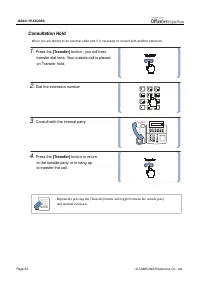
Page 52 © SAMSUNG Electronics Co., Ltd. BASIC FEATURES Consultation Hold When you are talking to an external caller and it is necessary to consult with another extension. 1. Press the [Transfer] button ; you will hear transfer dial tone. Your outside call is placed on Transfer hold. 2. Dial the exte...
Page 67 - Hold Recall
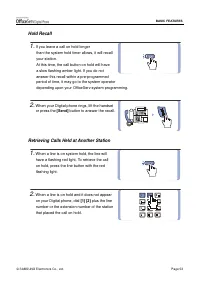
© SAMSUNG Electronics Co., Ltd. Page 53 BASIC FEATURES Hold Recall 1. If you leave a call on hold longer than the system hold timer allows, it will recall your station. At this time, the call button on hold will have a slow flashing amber light. If you do not answer this recall within a pre-programm...
Page 68 - Call Pickup; Station Call Pickup
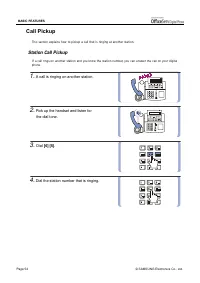
Page 54 © SAMSUNG Electronics Co., Ltd. BASIC FEATURES Call Pickup This section explains how to pickup a call that is ringing at another station. Station Call Pickup If a call rings on another station and you know the station number, you can answer the call on your digitalphone. 1. A call is ringing...
Page 69 - Group Call Pickup
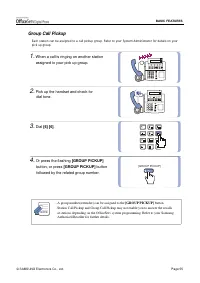
© SAMSUNG Electronics Co., Ltd. Page 55 BASIC FEATURES Group Call Pickup Each station can be assigned to a call pickup group. Refer to your System Administrator for details on yourpick up group. 1. When a call is ringing on another station assigned to your pick up group. 2. Pick up the handset and c...
Page 70 - Dialling by Directory Name
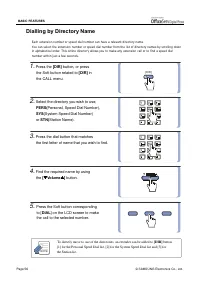
Page 56 © SAMSUNG Electronics Co., Ltd. BASIC FEATURES Dialling by Directory Name Each extension number or speed dial number can have a relevant directory name.You can select the extension number or speed dial number from the list of directory names by scrolling downin alphabetical order. This onlin...
Page 71 - Transferring Calls; Reconnection with the Outside Party
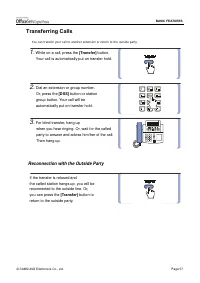
© SAMSUNG Electronics Co., Ltd. Page 57 BASIC FEATURES Transferring Calls You can transfer your call to another extension or return to the outside party. 1. While on a call, press the [Transfer] button. Your call is automatically put on transfer hold. 2. Dial an extension or group number. Or, press ...
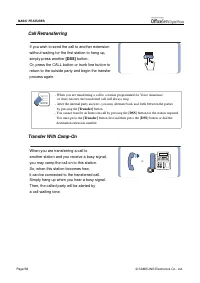
Page 72 - Call Retransferring; Transfer With Camp-On
Page 58 © SAMSUNG Electronics Co., Ltd. BASIC FEATURES Call Retransferring If you wish to send the call to another extension without waiting for the first station to hang up, simply press another [DSS] button. Or, press the CALL button or trunk line button to return to the outside party and begin th...
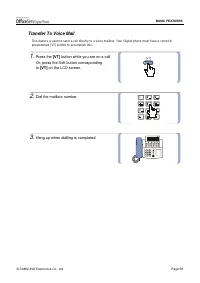
Page 73 - Transfer To Voice Mail
© SAMSUNG Electronics Co., Ltd. Page 59 BASIC FEATURES Transfer To Voice Mail This feature is used to send a call directly to a voice mailbox. Your Digital phone must have a correctlyprogrammed [VT] button to accomplish this. 1. Press the [VT] button while you are on a call. Or, press the Soft butto...
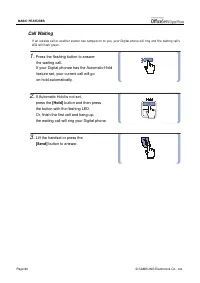
Page 74 - Call Waiting
Page 60 © SAMSUNG Electronics Co., Ltd. BASIC FEATURES Call Waiting If an outside call or another station has camped-on to you, your Digital phone will ring and the waiting call’sLED will flash green. 1. Press the flashing button to answer the waiting call. If your Digital phonee has the Automatic H...
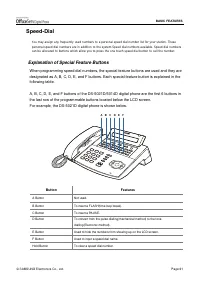
Page 75 - Explanation of Special Feature Buttons
© SAMSUNG Electronics Co., Ltd. Page 61 BASIC FEATURES Speed-Dial You may assign any frequently used numbers to a personal speed dial number list for your station. Thesepersonal speed dial numbers are in addition to the system Speed dial numbers available. Speed dial numberscan be allocated to butto...
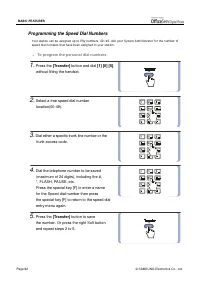
Page 76 - Programming the Speed Dial Numbers
Page 62 © SAMSUNG Electronics Co., Ltd. BASIC FEATURES Programming the Speed Dial Numbers Your station can be assigned up to fifty numbers, 00~49. Ask your System Administrator for the number ofspeed dial numbers that have been assigned to your station. ! To program the personal dial numbers, 1. Pre...
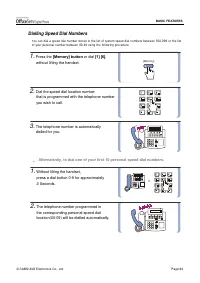
Page 77 - Dialling Speed Dial Numbers
© SAMSUNG Electronics Co., Ltd. Page 63 BASIC FEATURES Dialling Speed Dial Numbers You can dial a speed dial number stored in the list of system speed dial numbers between 500-999 or the listof your personal number between 00-49 using the following procedure. 1. Press the [Memory] button or dial [ 1...
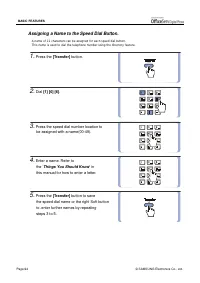
Page 78 - Assigning a Name to the Speed Dial Button.
Page 64 © SAMSUNG Electronics Co., Ltd. BASIC FEATURES Assigning a Name to the Speed Dial Button. A name of 11 characters can be assigned for each speed dial button.This name is used to dial the telephone number using the directory feature. 1. Press the [Transfer] button. 2. Dial [ 1 ] [0] [6] . 3. ...
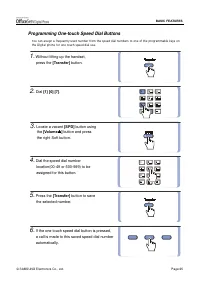
Page 79 - Programming One-touch Speed Dial Buttons
© SAMSUNG Electronics Co., Ltd. Page 65 BASIC FEATURES Programming One-touch Speed Dial Buttons You can assign a frequently used number from the speed dial numbers to one of the programmable keys onthe Digital phone for one touch speed dial use. 1. Without lifting up the handset, press the [Transfer...
Page 80 - Using Chain Dialling; Conference Calls
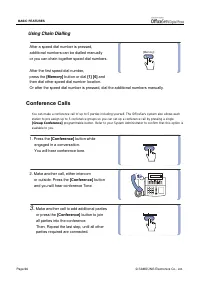
Page 66 © SAMSUNG Electronics Co., Ltd. BASIC FEATURES Using Chain Dialling After a speed dial number is pressed, additional numbers can be dialled manually or you can chain together speed dial numbers. After the first speed dial number, press the [Memory] button or dial [ 1 ] [6] and then dial othe...
Page 81 - Programming Conference Groups.
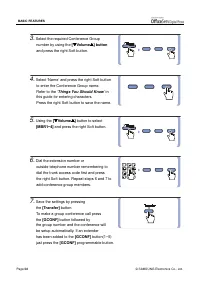
© SAMSUNG Electronics Co., Ltd. Page 67 BASIC FEATURES 4. To drop a person from your conference call, press the [Conference] button and dial the extension or trunk number that is to be dropped. Press the [Conference] button again to re-establish the conference. - When attempting to add another perso...
Page 83 - Setting Do Not Disturb
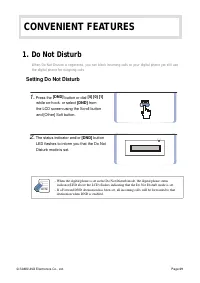
© SAMSUNG Electronics Co., Ltd. Page 69 CONVENIENT FEATURES 1. Do Not Disturb When Do Not Disturb is registered, you can block incoming calls to your digital phone yet still usethe digital phone for outgoing calls. Setting Do Not Disturb 1. Press the [DND] button or dial [4] [0] [1] while on-hook, o...
Page 84 - Cancelling Do Not Disturb
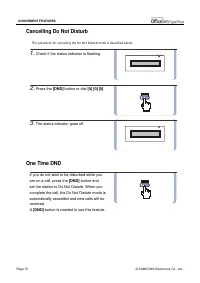
Page 70 © SAMSUNG Electronics Co., Ltd. CONVENIENT FEATURES Cancelling Do Not Disturb The procedure for cancelling the Do Not Disturb mode is described below. 1. Check if the status indicator is flashing. 2. Press the [DND] button or dial [4] [0] [0] . 3. The status indicator goes off. One Time DND ...
Page 85 - Call Forward Option
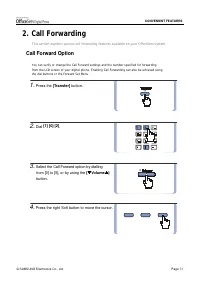
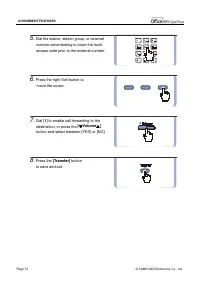
© SAMSUNG Electronics Co., Ltd. Page 71 CONVENIENT FEATURES 2. Call Forwarding This section explains various call forwarding features available on your OfficeServ system. Call Forward Option You can verify or change the Call Forward settings and the number specified for forwardingfrom the LCD screen...
Page 87 - Forwarding Calls
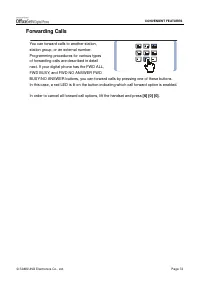
© SAMSUNG Electronics Co., Ltd. Page 73 CONVENIENT FEATURES Forwarding Calls You can forward calls to another station, station group, or an external number. Programming procedures for various types of forwarding calls are described in detail next. If your digital phone has the FWD ALL, FWD BUSY, and...
Page 88 - Forwarding All Calls
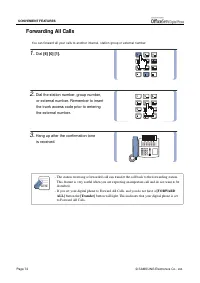
Page 74 © SAMSUNG Electronics Co., Ltd. CONVENIENT FEATURES Forwarding All Calls You can forward all your calls to another internal, station group or external number. 1. Dial [6] [0] [1]. 2. Dial the station number, group number, or external number. Remember to insert the trunk access code prior to ...
Page 89 - Forward Busy
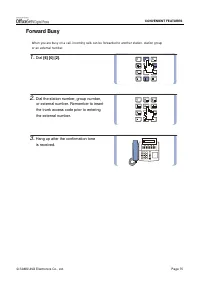
© SAMSUNG Electronics Co., Ltd. Page 75 CONVENIENT FEATURES Forward Busy When you are busy on a call, incoming calls can be forwarded to another station, station groupor an external number. 1. Dial [6] [0] [2] . 2. Dial the station number, group number, or external number. Remember to insert the tru...
Page 90 - Forward No Answer
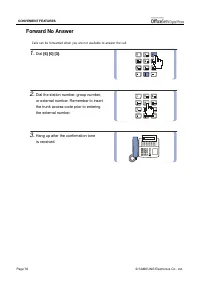
Page 76 © SAMSUNG Electronics Co., Ltd. CONVENIENT FEATURES Forward No Answer Calls can be forwarded when you are not available to answer the call. 1. Dial [6] [0] [3] . 2. Dial the station number, group number, or external number. Remember to insert the trunk access code prior to entering the exter...
Page 91 - Forward Busy / No Answer
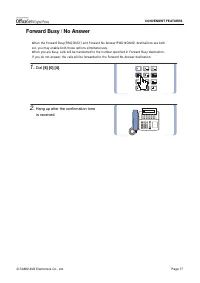
© SAMSUNG Electronics Co., Ltd. Page 77 CONVENIENT FEATURES Forward Busy / No Answer When the Forward Busy(FWD BUSY) and Forward No Answer(FWD NOANS) destinations are bothset, you may enable both these options simultaneously.When you are busy, calls will be transferred to the number specified in For...
Page 92 - Forward When DND is Set
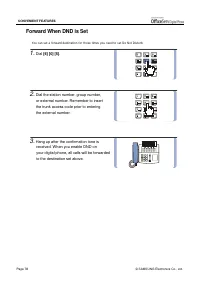
Page 78 © SAMSUNG Electronics Co., Ltd. CONVENIENT FEATURES Forward When DND is Set You can set a forward destination for those times you need to set Do Not Disturb. 1. Dial [6] [0] [5] . 2. Dial the station number, group number, or external number. Remember to insert the trunk access code prior to ...
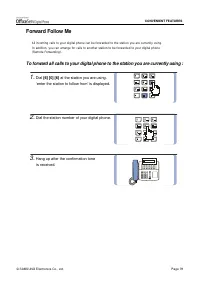
Page 93 - Forward Follow Me
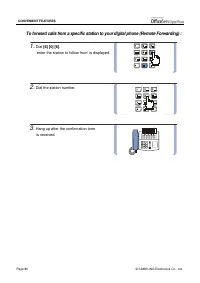
© SAMSUNG Electronics Co., Ltd. Page 79 CONVENIENT FEATURES Forward Follow Me All incoming calls to your digital phone can be forwarded to the station you are currently using.In addition, you can arrange for calls to another station to be forwarded to your digital phone(Remote Forwarding). To forwar...
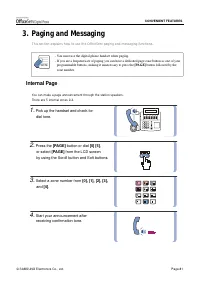
Page 95 - Paging and Messaging; Internal Page
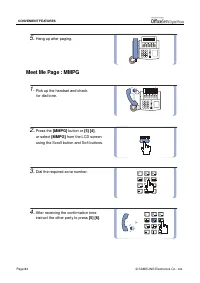
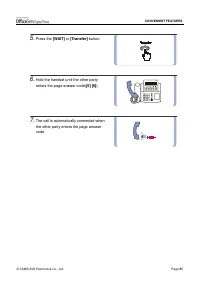
© SAMSUNG Electronics Co., Ltd. Page 81 CONVENIENT FEATURES 3. Paging and Messaging This section explains how to use the OfficeServ paging and messaging functions. - You must use the digital phone handset when paging.- If you are a frequent user of paging you can have a dedicated page zone button as...
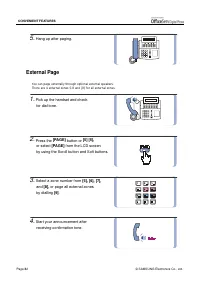
Page 96 - External Page
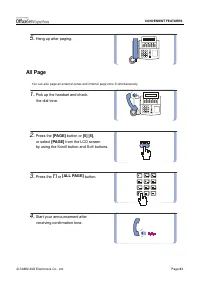
Page 82 © SAMSUNG Electronics Co., Ltd. CONVENIENT FEATURES 5. Hang up after paging. External Page You can page externally through optional external speakers.There are 4 external zones 5-8 and [9] for all external zones. 1. Pick up the handset and check for dial tone. 2. Press the [PAGE] button or [...
Page 97 - All Page
© SAMSUNG Electronics Co., Ltd. Page 83 CONVENIENT FEATURES 5. Hang up after paging. All Page You can also page all external zones and internal page zone 0 simultaneously. 1. Pick up the handset and check the dial tone. 2. Press the [PAGE] button or [5] [5] , or select [PAGE] from the LCD screen by ...
Page 100 - Call Park and Page
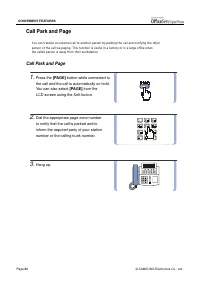
Page 86 © SAMSUNG Electronics Co., Ltd. CONVENIENT FEATURES Call Park and Page You can transfer an external call to another person by parking the call and notifying the otherperson of the call via paging. This function is useful in a factory or in a large office whenthe called person is away from th...
Page 101 - Retrieving the parked call
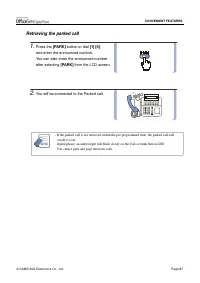
© SAMSUNG Electronics Co., Ltd. Page 87 CONVENIENT FEATURES Retrieving the parked call 1. Press the [PARK] button or dial [1] [0] , and enter the announced number. You can also enter the announced number after selecting [PARK] from the LCD screen. 2. You will be connected to the Parked call. - If th...
Page 102 - Rejoining a Page
Page 88 © SAMSUNG Electronics Co., Ltd. CONVENIENT FEATURES Rejoining a Page With this option, you can listen to the latter part of a page announcement after finishing a call. 1. Press the [Transfer] button or [1] [1] [0] . 2. Dial [0] [5] [1] to enable this option, and [0] [5] [0] to disable it. 3....
Page 103 - Setting a Message Indication
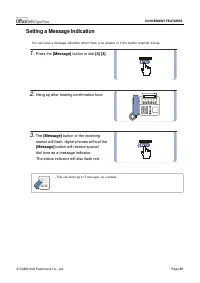
© SAMSUNG Electronics Co., Ltd. Page 89 CONVENIENT FEATURES Setting a Message Indication You can leave a message indication when there is no answer or if the station required is busy. 1. Press the [Message] button or dial [4] [3] . 2. Hang up after hearing confirmation tone. 3. The [Message] button ...
Page 104 - Cancelling Messages
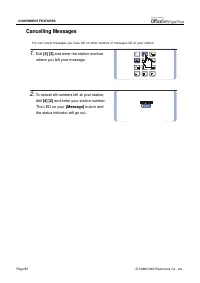
Page 90 © SAMSUNG Electronics Co., Ltd. CONVENIENT FEATURES Cancelling Messages You can cancel messages you have left on other stations or messages left at your station. 1. Dial [4] [2] and enter the station number where you left your message. 2. To cancel all numbers left at your station, dial [4] ...
Page 105 - Returning Messages
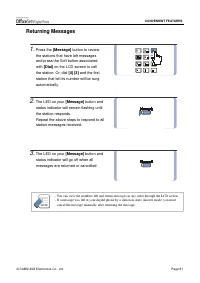
© SAMSUNG Electronics Co., Ltd. Page 91 CONVENIENT FEATURES Returning Messages 1. Press the [Message] button to review the stations that have left messages and press the Soft button associated with [Dial] on the LCD screen to call the station. Or, dial [4] [3] and the first station that left its num...
Page 106 - Viewing Message Indication
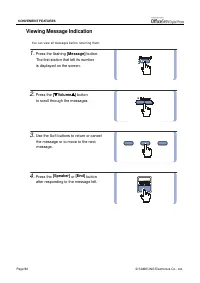
Page 92 © SAMSUNG Electronics Co., Ltd. CONVENIENT FEATURES Viewing Message Indication You can view all messages before returning them. 1. Press the flashing [Message] button. The first station that left its number is displayed on the screen. 2. Press the [ ! ! ! ! Volume " " " " ] b...
Page 107 - Programmed Messages
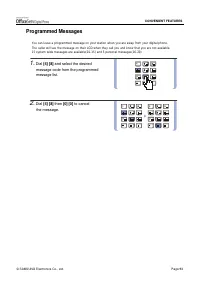
© SAMSUNG Electronics Co., Ltd. Page 93 CONVENIENT FEATURES Programmed Messages You can leave a programmed message on your station when you are away from your digital phone.The caller will see the message on their LCD when they call you and know that you are not available.15 system wide messages are...
Page 108 - Programmed Message List
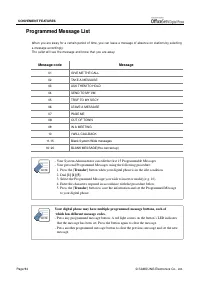
Page 94 © SAMSUNG Electronics Co., Ltd. CONVENIENT FEATURES Programmed Message List When you are away for a certain period of time, you can leave a message of absence on stations by selectinga message accordingly.The caller will see the message and know that you are away. Message code Message 01 GIV...
Page 109 - Appointment Reminder / Alarm Clock
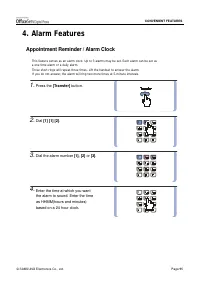
© SAMSUNG Electronics Co., Ltd. Page 95 CONVENIENT FEATURES 4. Alarm Features Appointment Reminder / Alarm Clock This feature serves as an alarm clock. Up to 3 alarms may be set. Each alarm can be set asa one time alarm or a daily alarm.Three short rings will repeat three times. Lift the handset to ...
Page 110 - Alarm Cancel
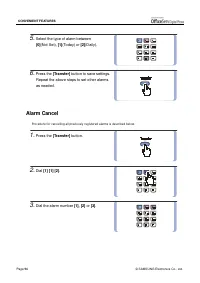
Page 96 © SAMSUNG Electronics Co., Ltd. CONVENIENT FEATURES 5. Select the type of alarm between [0] (Not Set), [1] (Today) or [2] (Daily). 6. Press the [Transfer] button to save settings. Repeat the above steps to set other alarms as needed. Alarm Cancel Procedure for cancelling all previously regis...
Page 111 - Alarm Message
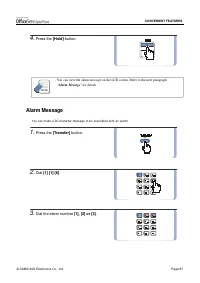
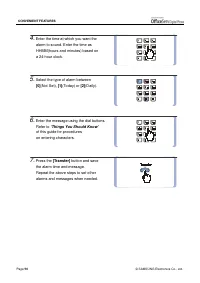
© SAMSUNG Electronics Co., Ltd. Page 97 CONVENIENT FEATURES 4. Press the [Hold] button. - You can view the alarm message on the LCD screen. Refer to the next paragraph ‘Alarm Message’ for details. Alarm Message You can make a 16-character message to be associated with an alarm. 1. Press the [Transfe...
Page 113 - Alarm Message Cancel
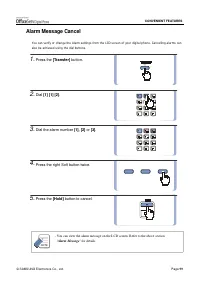
© SAMSUNG Electronics Co., Ltd. Page 99 CONVENIENT FEATURES Alarm Message Cancel You can verify or change the Alarm settings from the LCD screen of your digital phone. Cancelling alarms canalso be achieved using the dial buttons. 1. Press the [Transfer] button. 2. Dial [1] [1] [2] . 3. Dial the alar...
Page 114 - Use with the Door Phone; Answering The Door Phone
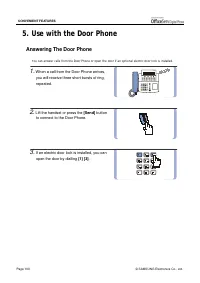
Page 100 © SAMSUNG Electronics Co., Ltd. CONVENIENT FEATURES 5. Use with the Door Phone Answering The Door Phone You can answer calls from the Door Phone or open the door if an optional electric door lock is installed. 1. When a call from the Door Phone arrives, you will receive three short bursts o...
Page 115 - Calling The Door Phone / Room Monitor
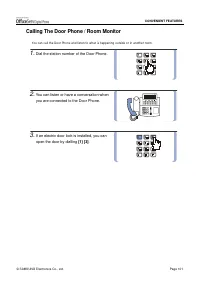
© SAMSUNG Electronics Co., Ltd. Page 101 CONVENIENT FEATURES Calling The Door Phone / Room Monitor You can call the Door Phone and listen to what is happening outside or in another room. 1. Dial the station number of the Door Phone. 2. You can listen or have a conversation when you are connected to ...
Page 119 - Locking Your digital phone
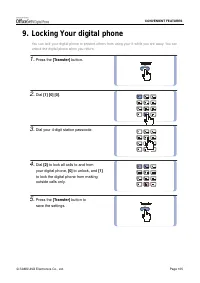
© SAMSUNG Electronics Co., Ltd. Page 105 CONVENIENT FEATURES 9. Locking Your digital phone You can lock your digital phone to prevent others from using your it while you are away. You canunlock the digital phone when you return. 1. Press the [Transfer] button. 2. Dial [1] [0] [0] . 3. Dial your 4-di...
Page 120 - OHVA
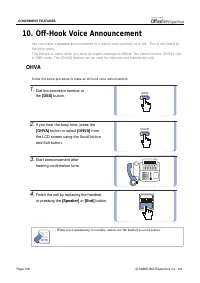
Page 106 © SAMSUNG Electronics Co., Ltd. CONVENIENT FEATURES [DSS] [OHVA] 10. Off-Hook Voice Announcement You can make a separate announcement to a station user currently on a call. This is not heard bythe other party.This feature is useful when you have an urgent message to deliver. You cannot rece...
Page 121 - OHVA Cancel
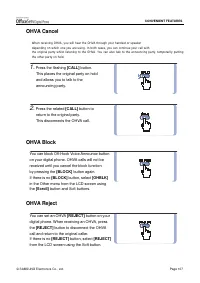
© SAMSUNG Electronics Co., Ltd. Page 107 CONVENIENT FEATURES OHVA Cancel When receiving OHVA, you will hear the OHVA through your handset or speakerdepending on which one you are using. In both cases, you can continue your call withthe original party whilst listening to the OHVA. You can also talk t...
Page 125 - Call Duration Timer
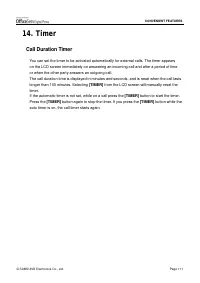
© SAMSUNG Electronics Co., Ltd. Page 111 CONVENIENT FEATURES 14. Timer Call Duration Timer You can set the timer to be activated automatically for external calls. The timer appears on the LCD screen immediately on answering an incoming call and after a period of time or when the other party answers ...
Page 126 - Auto Timer
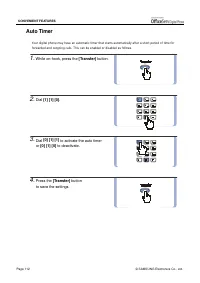
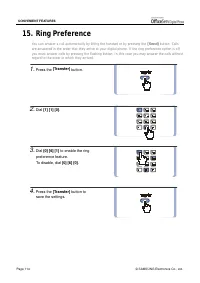
Page 112 © SAMSUNG Electronics Co., Ltd. CONVENIENT FEATURES Auto Timer Your digital phone may have an automatic timer that starts automatically after a short period of time forforwarded and outgoing calls. This can be enabled or disabled as follows. 1. While on-hook, press the [Transfer] button. 2....
Page 127 - Timer Function
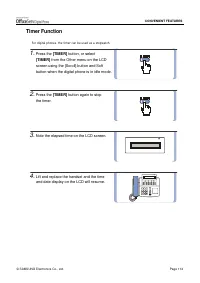
© SAMSUNG Electronics Co., Ltd. Page 113 CONVENIENT FEATURES Timer Function For digital phones, the timer can be used as a stopwatch. 1. Press the [TIMER] button, or select [TIMER] from the Other menu on the LCD screen using the [Scroll] button and Soft button when the digital phone is in idle mode....
Page 129 - Navigation Buttons; Menu Button
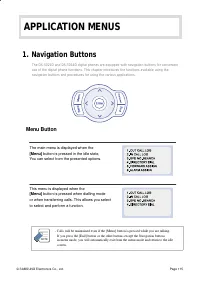
© SAMSUNG Electronics Co., Ltd. Page 115 APPLICATION MENUS 1. Navigation Buttons The DS-5021D and DS-5014D digital phones are equipped with navigation buttons for convenientuse of the digital phone functions. This chapter introduces the functions available using thenavigation buttons and procedures ...
Page 130 - Send Button; End Button
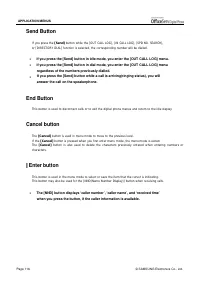
Page 116 © SAMSUNG Electronics Co., Ltd. APPLICATION MENUS Send Button If you press the [Send] button while the [OUT CALL LOG], [IN CALL LOG], [SPD NO. SEARCH], or [DIRECTORY DIAL] function is selected, the corresponding number will be dialled. ! If you press the [Send] button in idle mode, you ente...
Page 131 - Direction button
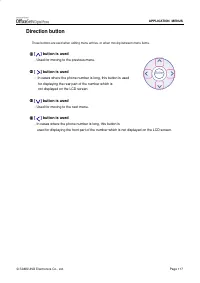
© SAMSUNG Electronics Co., Ltd. Page 117 APPLICATION MENUS Direction button These buttons are used when editing menu entries, or when moving between menu items. 1 1 1 1 [ ] button is used - Used for moving to the previous menu. 2 2 2 2 [ ] button is used - In cases where the phone number is long, th...
Page 132 - How to Select Items
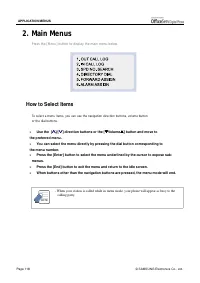
Page 118 © SAMSUNG Electronics Co., Ltd. APPLICATION MENUS 2. Main Menus Press the [Menu] button to display the main menu below. How to Select Items To select a menu items, you can use the navigation direction buttons, volume buttonor the dial buttons. ! Use the [ ∧ ∧∧ ∧ ]/[ ∨ ∨∨ ∨ ] direction butto...
Page 133 - Reviewing and Calling Recently Called Numbers
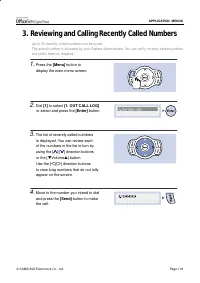
© SAMSUNG Electronics Co., Ltd. Page 119 APPLICATION MENUS 3. Reviewing and Calling Recently Called Numbers Up to 50 recently called numbers can be saved.The actual number is allocated by your System Administrator. You can verify recently called numbersand redial them as required. 1. Press the [Menu...
Page 134 - Reviewing and Calling Recently Received Numbers
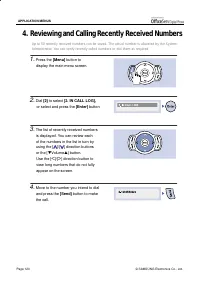
Page 120 © SAMSUNG Electronics Co., Ltd. APPLICATION MENUS 4. Reviewing and Calling Recently Received Numbers Up to 50 recently received numbers can be saved. The actual number is allocated by the SystemAdministrator. You can verify recently called numbers or dial them as required. 1. Press the [Men...
Page 135 - Reviewing and Calling Speed Dial Numbers
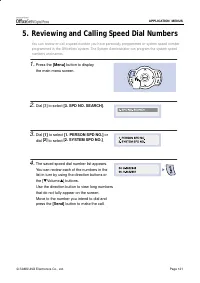
© SAMSUNG Electronics Co., Ltd. Page 121 APPLICATION MENUS 5. Reviewing and Calling Speed Dial Numbers You can review or call a speed number you have personally programmed or system speed numberprogrammed in the OfficeServ system. The System Administrator can program the system speednumbers and name...
Page 136 - Reviewing and Calling Numbers by Name
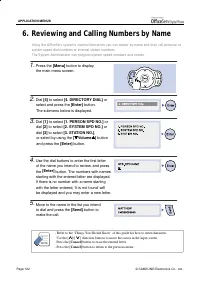
Page 122 © SAMSUNG Electronics Co., Ltd. APPLICATION MENUS 6. Reviewing and Calling Numbers by Name Using the OfficeServ system’s internal directories you can review by name and then call personal orsystem speed dial numbers or internal station numbers.The System Administrator can program system spe...
Page 137 - Setting Forward Type and Number
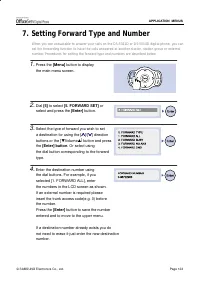
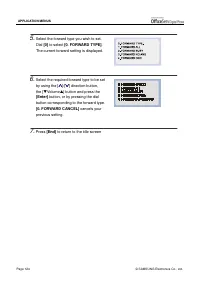
© SAMSUNG Electronics Co., Ltd. Page 123 APPLICATION MENUS 7. Setting Forward Type and Number When you are unavailable to answer your calls on the DS-5021D or DS-5014D digital phone, you canset the forwarding function to have the calls answered at another station, station group or externalnumber. Pr...
Page 139 - Setting Alarm Reminders
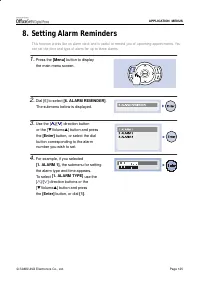
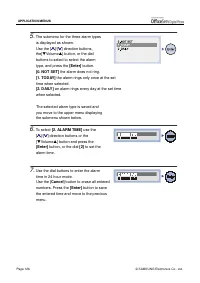
© SAMSUNG Electronics Co., Ltd. Page 125 APPLICATION MENUS 8. Setting Alarm Reminders This function works like an alarm clock and is useful to remind you of upcoming appointments. Youcan set the time and type of alarm for up to three alarms. 1. Press the [Menu] button to display the main menu screen...
Page 141 - The DS-5021D/5014D Phone does not ring and volume is too low.; Conversation quality is reduced due to noise and echo.
© SAMSUNG Electronics Co., Ltd. Page 127 ANNEX 1. Troubleshooting Possible problems and troubleshooting steps for your digital phone are described below.Check the troubleshooting steps before contacting your Authorised Samsung Reseller. Dial tone is not heard when you lift the handset or press the[S...
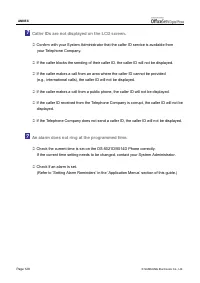
Page 142 - Caller IDs are not displayed on the LCD screen.; An alarm does not ring at the programmed time.
Page 128 © SAMSUNG Electronics Co., Ltd. ANNEX Caller IDs are not displayed on the LCD screen. ! Confirm with your System Administrator that the caller ID service is available from your Telephone Company. ! If the caller blocks the sending of their caller ID, the caller ID will not be displayed. ! I...
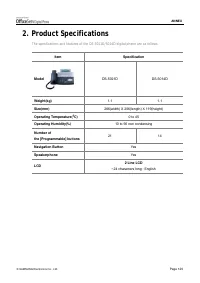
Page 143 - Product Specifications
© SAMSUNG Electronics Co., Ltd. Page 129 ANNEX 2. Product Specifications The specifications and features of the DS-5021D/5014D digital phone are as follows. Item Specification Model DS-5021D DS-5014D Weight(kg) 1.1 1.1 Size(mm) 266(width) X 206(length) X 119(height) Operating Temperature( °°°° C) 0 ...






 Samsung DS5014D
User Manual
Samsung DS5014D
User Manual
 Samsung iDCS500
Manual
Samsung iDCS500
Manual
 Samsung ITP5012L
User Manual
Samsung ITP5012L
User Manual
 Samsung ITP-5107S
User Manual
Samsung ITP-5107S
User Manual
 Samsung ITP-5112L
User Manual
Samsung ITP-5112L
User Manual
 Samsung NX-308
User Manual
Samsung NX-308
User Manual
 Samsung WIP-5000
User Manual
Samsung WIP-5000
User Manual