Page 2 - Table of contents; Before Using the Product
2 Table of contents Before Using the Product Securing the Installation Space 4 Precautions for storage 4 Safety Precautions 4 Symbols 4Cleaning 5Electricity and Safety 5 Installation 6Operation 7 Preparations Parts 9 Control Panel 9 Direct Key guide 10 Function Key Guide 11 Changing Brightness, Cont...
Page 3 - Setup and Reset; Specifications
3 Table of contents Setup and Reset FreeSync 27 Eco Saving Plus 29 Off Timer 29 PC/AV Mode 29 Source Detection 29 Key Repeat Time 29 Power LED On 30 Reset All 30 Information 30 Installing the Software Easy Setting Box 31 Troubleshooting Guide Requirements Before Contacting Samsung Customer Service C...
Page 4 - Securing the Installation Space; Precautions for storage; Safety Precautions; Caution; Symbols; Warning
4 Securing the Installation Space Ensure some space around the product for ventilation. An internal temperature rise may cause fire and damage the product. Be sure to allow the amount of space as shown below or greater when installing the product. ― The exterior may differ depending on the product. ...
Page 5 - Cleaning; Electricity and Safety
5 Cleaning ― Exercise care when cleaning as the panel and exterior of advanced LCDs are easily scratched. ― Take the following steps when cleaning. 1 Power off the product and computer. 2 Disconnect the power cord from the product. ― Hold the power cable by the plug and do not touch the cable with w...
Page 6 - Installation
6 Warning • DO NOT PLACE CANDLES, INSECT REPELLANTS OR CIGARETTES ON TOP OF THE PRODUCT. DO NOT INSTALL THE PRODUCT NEAR HEAT SOURCES. • Do not install the product in poorly ventilated spaces such as a bookcase or closet. • Install the product at least 10cm away from the wall to allow ventilation. •...
Page 7 - Operation
7 Warning • There is a high voltage inside the product. Never disassemble, repair or modify the product yourself. ‒ Contact Samsung Customer Service Center for repairs. • To move the product, first disconnect all the cables from it, including the power cable. • If the product generates abnormal soun...
Page 9 - Preparations; Parts; Control Panel; Return
9 Preparations Chapter 02 Parts Control Panel ― The color and shape of parts may differ from what is shown. Specifications are subject to change without notice to improve quality. LEFT Return JOG Button Function Key Guide RIGHT DOWN PRESS(ENTER) UP Power LED Icons Description JOG Button Multi direct...
Page 10 - Direct Key guide
10 Analog mode Brightness Auto Adjustment Volume Features Eye Saver Mode Off ― Analog mode option • : Adjust Brightness , Contrast , Sharpness . • : Auto Adjustment ― Changing the resolution in Display Properties will activate the Auto Adjustment function. ― This function is only available in Analog...
Page 13 - Changing Brightness, Contrast and Sharpness settings; Brightness; Changing the Volume setting
13 Changing Brightness, Contrast and Sharpness settings You can adjust Brightness , Contrast or Sharpness by moving the JOG button up or down, if no OSD menu is displayed. Brightness Contrast Sharpness 100 ― The displayed image may differ depending on the model. Brightness ― This menu is not availab...
Page 14 - Reverse Side; Adjusting the Product Tilt
14 Reverse Side ― The color and shape of parts may differ from what is shown. Specifications are subject to change without notice to improve quality. Port Description Connects to a PC using a DP cable. Connects to a source device using an HDMI cable or HDMI-DVI cable. Connect to a PC using the D-SUB...
Page 15 - Precautions for moving the monitor
15 Anti-theft Lock ― An anti-theft lock allows you to use the product securely even in public places. ― The locking device shape and locking method depend on the manufacturer. Refer to the user guide provided with your anti-theft locking device for details. To lock an anti-theft locking device: 1 Fi...
Page 16 - Attaching the Stand
16 Installation Attaching the Stand ― Before assembling the product, place the product down on a flat and stable surface so that the screen is facing downwards. : The product is curved. Placing pressure on the product when on a flat surface may damage the product. When the product is on the ground f...
Page 17 - Removing the Stand
17 1 Place the protective Styrofoam (cushion) included in the package on the floor and place the product facing down on the Styrofoam, as shown in the image. ― Make sure to use the styrofoam (cushion) that came with the monitor. 2 Unfasten the two screws on the stand base to remove it. 3 While holdi...
Page 18 - Connecting and Using a Source Device; Read below before installing the monitor.
18 Connecting and Using a Source Device Chapter 03 Read below before installing the monitor. 1 Check the shapes of both ends of the cables that came with the monitor, and check the shapes and positions of the matching ports on the monitor and external devices. 2 Before connecting signal cables, disc...
Page 19 - Connection Using the HDMI Cable; Connection Using an HDMI-DVI Cable; Connection Using an DP Cable; Connecting to Headphones
19 Connection Using the HDMI Cable Check to make sure that the power cables for the monitor and external devices, such as computers and set-top boxes, are not connected to the power outlet. HDMI IN Connection Using an HDMI-DVI Cable Check to make sure that the power cables for the monitor and extern...
Page 20 - Connecting the Power; Correct posture to use the product
20 Connecting the Power 1 3 2 1 Connect the power cable to the AC/DC adapter. Then, connect the AC/DC adapter to the DC 14V port on the back of the product. 2 Next, connect the power cable to the power outlet. 3 Press the JOG button on the back of the monitor to turn it on. ― The input voltage is sw...
Page 22 - Screen Setup; SAMSUNG MAGIC Bright; In PC mode
22 Screen Setup Configure the screen settings such as brightness.A detailed description of each function is provided. Refer to your product for details. Chapter 04 SAMSUNG MAGIC Bright This menu provides an optimum picture quality suitable for the environment where the product will be used. ― This m...
Page 23 - Sharpness; Color
23 Brightness You can adjust the general brightness of the picture. (Range: 0~100)A higher value will make the picture appear brighter. ― This menu is not available when SAMSUNG M A G I C Bright is set to Dynamic Contrast mode. ― This menu is not available when Eco Saving Plus is enabled. ― This men...
Page 24 - SAMSUNG MAGIC Upscale; HDMI Black Level; Response Time
24 SAMSUNG MAGIC Upscale SAMSUNG M A G I C Upscale function can enhance the layers of the picture details and the vividness of the picture. The function has more obvious effects on low-resolution pictures. ― This menu is not available when SAMSUNG M A G I C Bright is set to Cinema or Dynamic Contras...
Page 25 - Picture Size; In AV mode; Screen Adjustment; Configuring Coarse; Configuring Fine
25 Picture Size Change the picture size. In PC mode • Auto : Display the picture according to the aspect ratio of the input source. • Wide : Display the picture in full screen regardless of the aspect ratio of the input source. In AV mode • 4:3 : Display the picture with an aspect ratio of 4:3. Suit...
Page 26 - Adjusting OSD (On Screen Display) settings; Transparency; Position; Language
26 Adjusting OSD (On Screen Display) settings A detailed description of each function is provided. Refer to your product for details. Chapter 05 Transparency Set the transparency for the menu windows. 한국어 OnScreen Display TransparencyPositionLanguageDisplay Time Configure the transparency of the men...
Page 27 - FreeSync
27 Setup and Reset A detailed description of each function is provided. Refer to your product for details. Chapter 06 FreeSync FreeSyncEco Saving PlusOff TimerPC/AV ModeSource DetectionKey Repeat TimePower LED On System Return OffOff Auto Acceleration Stand-by ― The displayed image may differ depend...
Page 28 - The models in the Graphic Cards list supports FreeSync; How do you enable FreeSync?
28 The models in the Graphic Cards list supports FreeSync FreeSync can only be used with specific AMD graphics card models. Refer to the following list for supported graphics cards:Make sure to install the latest official graphics drivers from AMD that support FreeSync . ― For additional AMD graphic...
Page 29 - Eco Saving Plus; Off Timer; Source Detection
29 Eco Saving Plus The Eco Saving Plus function reduces power consumption by controlling the electric current used by the monitor panel. ― This option is not available when SAMSUNG M A G I C Bright is in Dynamic Contrast mode. ― This menu is not available when Game Mode is enabled. ― This menu is no...
Page 30 - Power LED On; Reset All
30 Power LED On Configure the settings to enable or disable the power LED located at the lower part of the product. • Working : The power LED is on when the product is turned on. • Stand-by : The power LED is on when the product is turned off. Reset All Return all the settings for the product to the...
Page 31 - Installing the Software; Easy Setting Box; Restrictions and Problems with the Installation; System Requirements
31 Installing the Software Chapter 07 Easy Setting Box Easy Setting Box Easy Setting Box enables users to use the monitor by partitioning multiple sections. To install the latest version of Easy Setting Box , download it from the Samsung Electronics website at http://www.samsung.com. ― The software ...
Page 32 - Troubleshooting Guide; Requirements Before Contacting Samsung; Checking the Resolution and Frequency; Screen issue
32 Troubleshooting Guide Chapter 08 Requirements Before Contacting Samsung Customer Service Center ― Before calling Samsung Customer Service Center, test your product as follows. If the problem persists, contact Samsung Customer Service Center. Testing the Product Check if your product is operating ...
Page 35 - General
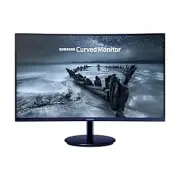
35 Specifications Chapter 09 General Model Name C27F581FD* / C27H580FD* Size 27 Class (27.0 Inches / 68.6 cm) Display area 597.89 mm (H) x 336.31 mm (V)23.539 Inches (H) x 13.24 Inches (V) Pixel Pitch 0.3114 mm (H) x 0.3114 mm (V)0.01226 Inches (H) x 0.01226 Inches (V) Maximum Pixel Clock 148.5 MHz ...
Page 38 - Appendix; Responsibility for the Pay Service (Cost to; Others
38 Appendix Chapter 10 Responsibility for the Pay Service (Cost to Customers) ― When the service is requested, in spite of in warranty, we may charge you for a visit from a service technician in the following cases. Not a product defect Cleaning of the product, Adjustment, Explanation, Re-installati...