Ring B07RM61WQ6 - Manuals
Ring B07RM61WQ6 Security System – User Manual in PDF format online.
Manuals:
User Manual Ring B07RM61WQ6


Summary
1. Set up your Stick Up Cam Wired. Download the Ring app. The app walks you through setting up and managing your Stick Up Cam Wired. Search for “Ring ” in one of the app stores below, or visit : ring.com /app Download from Windows Store Your Wi-Fi password Grab your Wi-Fi password. You’ll need it to...
Let ’s get your Stick Up Cam ready. First , slide off the bottom cover. Do not reattach this cover until setup is complete! Powering your Stick Up Cam You can power Stick Up Cam in one of two ways: Plug it into an outlet (with USB), or plug it into an Ethernet port that supplies Power over Ethernet ...
Security Cams Blue light flashing? If the light on the front of your Stick Up Cam is flashing after setup, it ’s updating its software. Do not unplug your Stick Up Cam while the light is flashing! Set up your Stick Up Cam in the Ring app. In the Ring app, select Set Up a Device . When prompted, sele...
Ring Security Systems Manuals
-
 Ring 4AR1SZ-0EN0
User Manual
Ring 4AR1SZ-0EN0
User Manual
-
 Ring 4K11SZ-0EN0
User Manual
Ring 4K11SZ-0EN0
User Manual
-
 Ring 4K18SZ-0EN0
User Manual
Ring 4K18SZ-0EN0
User Manual
-
 Ring 4K19SZ-0EN0
User Manual
Ring 4K19SZ-0EN0
User Manual
-
 Ring B071DZYTKY
User Manual
Ring B071DZYTKY
User Manual
-
 Ring B07M943G7L
User Manual
Ring B07M943G7L
User Manual
-
 Ring B07Q3T177V
User Manual
Ring B07Q3T177V
User Manual
-
Ring B07Q6ZZFLS
User Manual
-
Ring B07RGSG4TN
User Manual
-
 Ring B07ZB2DFMB
User Manual
Ring B07ZB2DFMB
User Manual
-
 Ring B07ZB2QF2V
User Manual
Ring B07ZB2QF2V
User Manual
-
 Ring B07ZB2QLC2
User Manual
Ring B07ZB2QLC2
User Manual
-
 Ring B08HSRZ58F
User Manual
Ring B08HSRZ58F
User Manual
-
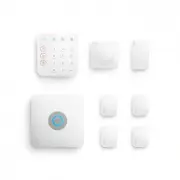 Ring B08HSTJPM5
User Manual
Ring B08HSTJPM5
User Manual
-
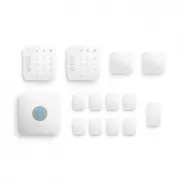 Ring B08HSVCB5M
User Manual
Ring B08HSVCB5M
User Manual
-
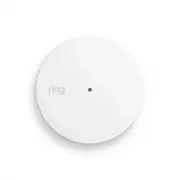 Ring B08TG6NCTS
User Manual
Ring B08TG6NCTS
User Manual
-
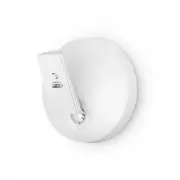 Ring B093QYHXXH
User Manual
Ring B093QYHXXH
User Manual
-
 Ring B09BY4LKKG
User Manual
Ring B09BY4LKKG
User Manual
-
 Ring B09NXDQ5YM
User Manual
Ring B09NXDQ5YM
User Manual