Ring B071DZYTKY - Manuals
Ring B071DZYTKY Security System – User Manual in PDF format online.
Manuals:
User Manual Ring B071DZYTKY


Summary
Welcome Congratulations on your new Ring Video Doorbell Elite. Ring Doorbell is the foundation of the Ring of Security around your home. We hope your Ring Doorbell brings you an increased sense of security and convenience, as well as the joy that comes from being able to connect with visitors when y...
Elite Power Kit Includes power adapter and plugs for different types of outlets. 3’ Ethernet Cable Use this cable to connect the Elite Power Kit to your internet access point. 50’ Ethernet Cable Run this cable from the Elite Power Kit to your Ring Doorbell. Elite Mounting Bracket (optional) If insta...
How it all fits together If you need a visual overview, see the diagram to the right . This is how is all fits together. Note that as you screw the Elite Mounting Bracket into your wall, the “wings” will rotate and lock the bracket into place. 9 8
Ring Security Systems Manuals
-
 Ring 4AR1SZ-0EN0
User Manual
Ring 4AR1SZ-0EN0
User Manual
-
 Ring 4K11SZ-0EN0
User Manual
Ring 4K11SZ-0EN0
User Manual
-
 Ring 4K18SZ-0EN0
User Manual
Ring 4K18SZ-0EN0
User Manual
-
 Ring 4K19SZ-0EN0
User Manual
Ring 4K19SZ-0EN0
User Manual
-
 Ring B07M943G7L
User Manual
Ring B07M943G7L
User Manual
-
 Ring B07Q3T177V
User Manual
Ring B07Q3T177V
User Manual
-
Ring B07Q6ZZFLS
User Manual
-
 Ring B07RGSG4TN
User Manual
Ring B07RGSG4TN
User Manual
-
Ring B07RM61WQ6
User Manual
-
 Ring B07ZB2DFMB
User Manual
Ring B07ZB2DFMB
User Manual
-
 Ring B07ZB2QF2V
User Manual
Ring B07ZB2QF2V
User Manual
-
 Ring B07ZB2QLC2
User Manual
Ring B07ZB2QLC2
User Manual
-
 Ring B08HSRZ58F
User Manual
Ring B08HSRZ58F
User Manual
-
 Ring B08HSTJPM5
User Manual
Ring B08HSTJPM5
User Manual
-
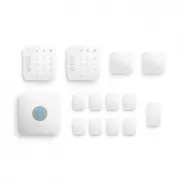 Ring B08HSVCB5M
User Manual
Ring B08HSVCB5M
User Manual
-
 Ring B08TG6NCTS
User Manual
Ring B08TG6NCTS
User Manual
-
 Ring B093QYHXXH
User Manual
Ring B093QYHXXH
User Manual
-
 Ring B09BY4LKKG
User Manual
Ring B09BY4LKKG
User Manual
-
 Ring B09NXDQ5YM
User Manual
Ring B09NXDQ5YM
User Manual