Page 2 - Contents; Installation and Configuration
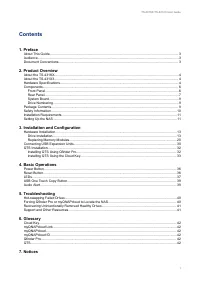
Contents 1. Preface About This Guide.......................................................................................................................................... 3Audience.......................................................................................................................
Page 4 - Symbol
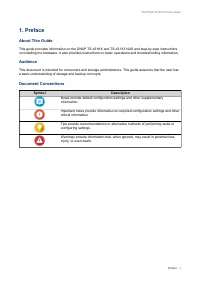
1. Preface About This Guide This guide provides information on the QNAP TS-431KX and TS-431X3 NAS and step-by-step instructionson installing the hardware. It also provides instructions on basic operations and troubleshooting information. Audience This document is intended for consumers and storage a...
Page 5 - Hardware Specifications; QNAP Warranty Terms and Conditions
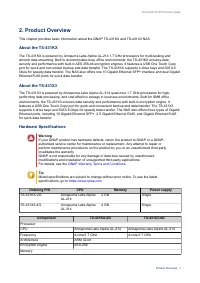
2. Product Overview This chapter provides basic information about the QNAP TS-431KX and TS-431X3 NAS. About the TS-431KX The TS-431KX is powered by Annpurna Labs Alpine AL-214 1.7 GHz processors for multi-tasking andsmooth data streaming. Built to accommodate busy office environments, the TS-431KX e...
Page 7 - Components
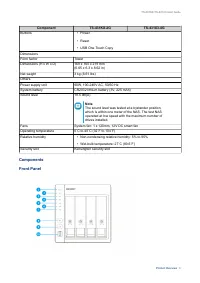
Component TS-431KX-2G TS-431X3-4G Buttons • Power • Reset • USB One Touch Copy DimensionsForm factor Tower Dimensions (H x W x D) 169 x 160 x 219 mm(6.65 x 6.3 x 8.62 in) Net weight 3 kg (6.61 lbs) OthersPower supply unit 90W, 100-240V AC, 50/60 Hz System battery CR2032 lithium battery (3V, 225 mAh)...
Page 8 - Rear Panel; Component
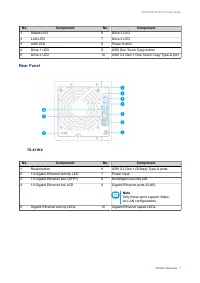
No. Component No. Component 1 Status LED 6 Drive 3 LED 2 LAN LED 7 Drive 4 LED 3 USB LED 8 Power button 4 Drive 1 LED 9 USB One Touch Copy button 5 Drive 2 LED 10 USB 3.2 Gen 1 One Touch Copy Type-A port Rear Panel TS-431KX No. Component No. Component 1 Reset button 6 USB 3.2 Gen 1 (5Gbps) Type-A po...
Page 10 - System Board; Memory slot; Drive Numbering; Item; AC power adapter
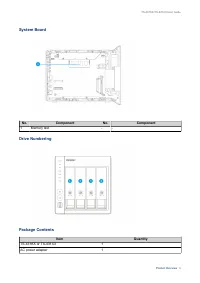
System Board No. Component No. Component 1 Memory slot - - Drive Numbering Package Contents Item Quantity TS-431KX or TS-431X3 1 AC power adapter 1 TS-431KX/TS-431X3 User Guide Product Overview 9
Page 11 - Safety Information; components have cooled before touching them.
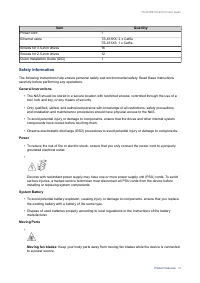
Item Quantity Power cord 1 Ethernet cable TS-431KX: 2 x Cat5eTS-431X3: 1 x Cat5e Screws for 3.5-inch drives 16 Screws for 2.5-inch drives 12 Quick Installation Guide (QIG) 1 Safety Information The following instructions help ensure personal safety and environmental safety. Read these instructionscar...
Page 12 - Installation Requirements; Category; Setting Up the NAS; Important
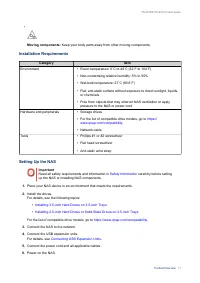
• Moving components: Keep your body parts away from other moving components. Installation Requirements Category Item Environment • Room temperature: 0˚C to 40˚C (32˚F to 104˚F) • Non-condensing relative humidity: 5% to 95% • Wet-bulb temperature: 27˚C (80.6˚F) • Flat, anti-static surface without exp...
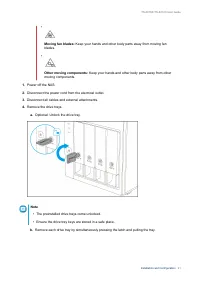
Page 14 - Hardware Installation; Warning; • Installing a drive deletes all data on the drive.; Other moving components:; Keep your hands and other body parts away from other
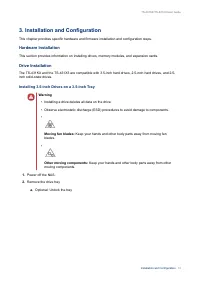
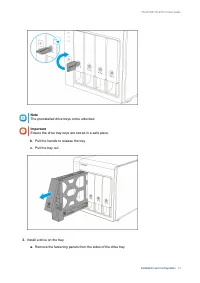
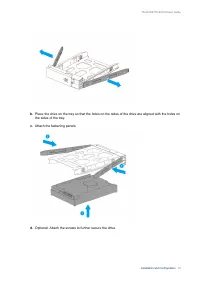
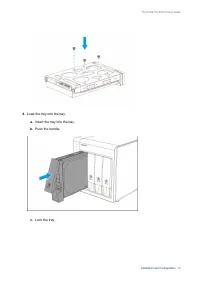
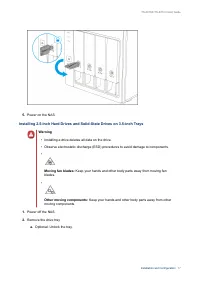
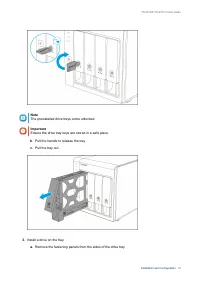
3. Installation and Configuration This chapter provides specific hardware and firmware installation and configuration steps. Hardware Installation This section provides information on installing drives, memory modules, and expansion cards. Drive Installation The TS-431KX and the TS-431X3 are compati...
Page 15 - Note; The preinstalled drive trays come unlocked.; Ensure the drive tray keys are stored in a safe place.
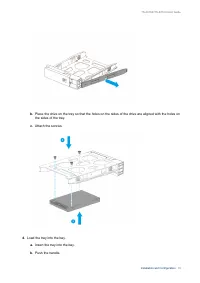
Note The preinstalled drive trays come unlocked. Important Ensure the drive tray keys are stored in a safe place. b. Pull the handle to release the tray. c. Pull the tray out. 3. Install a drive on the tray. a. Remove the fastening panels from the sides of the drive tray. TS-431KX/TS-431X3 User Guid...
Page 21 - Replacing Memory Modules
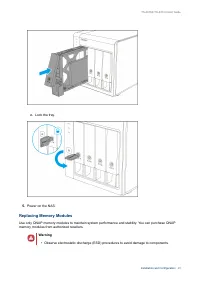
c. Lock the tray. 5. Power on the NAS. Replacing Memory Modules Use only QNAP memory modules to maintain system performance and stability. You can purchase QNAPmemory modules from authorized resellers. Warning • Observe electrostatic discharge (ESD) procedures to avoid damage to components. TS-431KX...
Page 23 - Remove the case cover.; The case cover screws are longer than other removed screws.
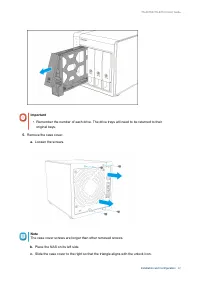
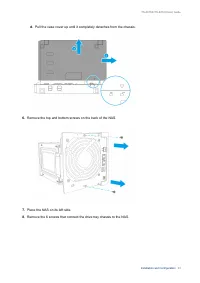
Important • Remember the number of each drive. The drive trays will need to be returned to their original bays. 5. Remove the case cover. a. Loosen the screws. Note The case cover screws are longer than other removed screws. b. Place the NAS on its left side. c. Slide the case cover to the right so ...
Page 25 - Carefully remove the drive tray chassis.
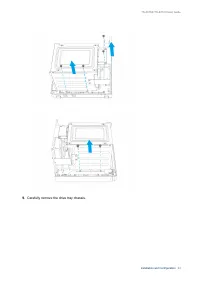
9. Carefully remove the drive tray chassis. TS-431KX/TS-431X3 User Guide Installation and Configuration 24
Page 26 - Remove an existing module.; Hold the module by the edges.
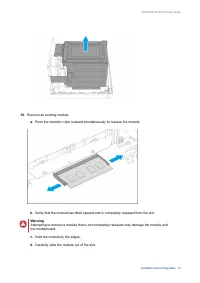
10. Remove an existing module. a. Push the retention clips outward simultaneously to release the module. b. Verify that the module has tilted upward and is completely released from the slot. Warning Attempting to remove a module that is not completely released may damage the module andthe motherboar...
Page 27 - • Do not bend the module.
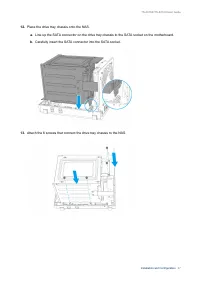
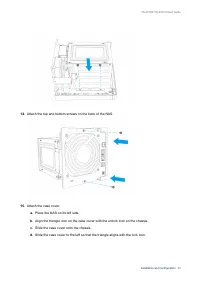
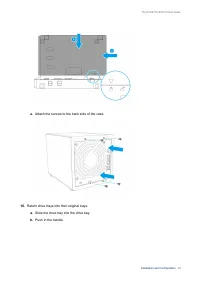
Warning • Do not touch the internal components, particularly the metal connectors. • Do not bend the module. 11. Install a new module. a. Align the notch with the ridge in the slot. b. Insert the module into the slot. c. Verify that the metal connectors are completely inserted into the slot. d. Care...
Page 31 - Connecting USB Expansion Units
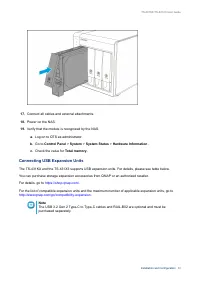
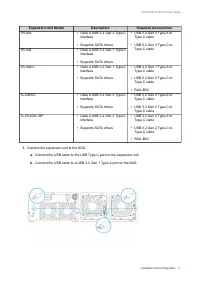
17. Connect all cables and external attachments. 18. Power on the NAS. 19. Verify that the module is recognized by the NAS. a. Log on to QTS as administrator. b. Go to Control Panel > System > System Status > Hardware Information . c. Check the value for Total memory . Connecting USB Expans...
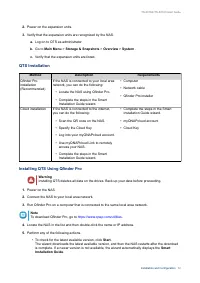
Page 34 - Installing QTS Using the Cloud Key
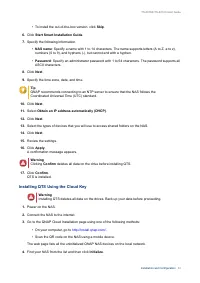
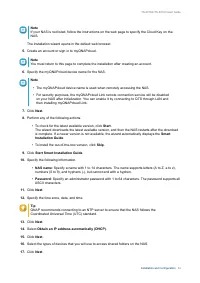
• To install the out-of-the-box version, click Skip . 6. Click Start Smart Installation Guide . 7. Specify the following information. • NAS name : Specify a name with 1 to 14 characters. The name supports letters (A to Z, a to z), numbers (0 to 9), and hyphens (-), but cannot end with a hyphen. • Pa...
Page 36 - Click; Apply; A confirmation message appears.; Clicking; deletes all data on the drive before installing QTS.; Confirm
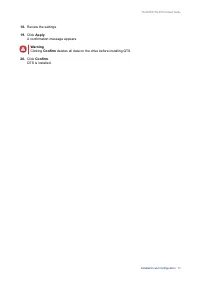
18. Review the settings. 19. Click Apply . A confirmation message appears. Warning Clicking Confirm deletes all data on the drive before installing QTS. 20. Click Confirm . QTS is installed. TS-431KX/TS-431X3 User Guide Installation and Configuration 35
Page 38 - LEDs
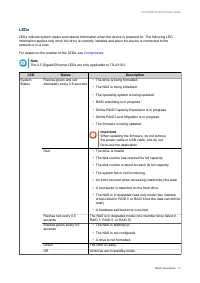
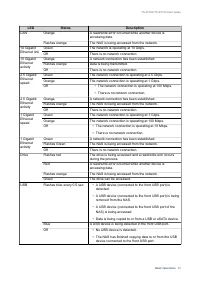
LEDs LEDs indicate system status and related information when the device is powered on. The following LEDinformation applies only when the drive is correctly installed and when the device is connected to thenetwork or to a host. For details on the location of the LEDs, see Components . Note The 2.5 ...
Page 40 - Duration
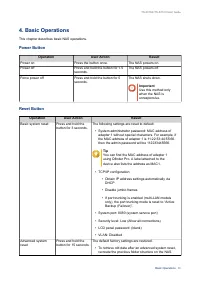
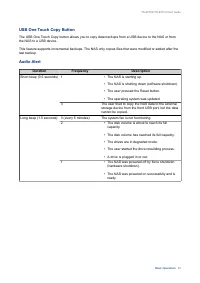
USB One Touch Copy Button The USB One Touch Copy button allows you to copy data backups from a USB device to the NAS or fromthe NAS to a USB device. This feature supports incremental backups. The NAS only copies files that were modified or added after thelast backup. Audio Alert Duration Frequency D...
Page 41 - Hot-swapping Failed Drives; Main Menu; Rebuilding; Forcing Qfinder Pro or myQNAPcloud to Locate the NAS
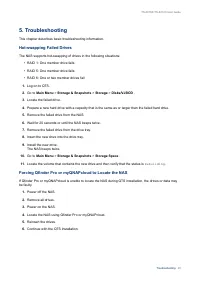
5. Troubleshooting This chapter describes basic troubleshooting information. Hot-swapping Failed Drives The NAS supports hot-swapping of drives in the following situations: • RAID 1: One member drive fails • RAID 5: One member drive fails • RAID 6: One or two member drives fail 1. Log on to QTS. 2. ...
Page 42 - Recovering Unintentionally Removed Healthy Drives; Disk Volume; Support and Other Resources; Resource
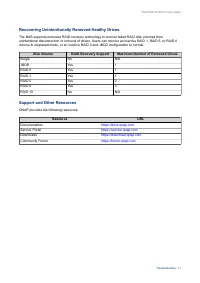
Recovering Unintentionally Removed Healthy Drives The NAS supports exclusive RAID recovery technology to recover failed RAID disk volumes fromunintentional disconnection or removal of drives. Users can recover an inactive RAID 1, RAID 5, or RAID 6volume to degraded mode, or an inactive RAID 0 and JB...
Page 44 - Limited Warranty; be amended from time to time by QNAP in its discretion.; Disclaimer; Further, the ® or TM symbols are not used in the text.; GNU Public License; Preamble
7. Notices This chapter provides information about warranty, disclaimers, licensing, and federal regulations. Limited Warranty QNAP offers limited warranty service on our products. Your QNAP-branded hardware product is warrantedagainst defects in materials and workmanship for a period of one (1) yea...
Page 45 - Terms and Conditions
Free Software Foundation, use the GNU General Public License for most of our software; it applies also toany other work released this way by its authors. You can apply it to your programs, too. When we speak of free software, we are referring to freedom, not price. Our General Public Licenses aredes...
Page 46 - Conveying Verbatim Copies.
tells the user that there is no warranty for the work (except to the extent that warranties are provided),that licensees may convey the work under this License, and how to view a copy of this License. If theinterface presents a list of user commands or options, such as a menu, a prominent item in th...
Page 52 - FCC Class B Notice
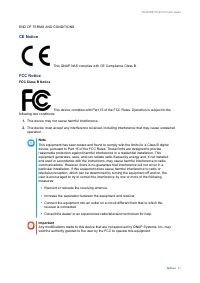
END OF TERMS AND CONDITIONS CE Notice This QNAP NAS complies with CE Compliance Class B. FCC Notice FCC Class B Notice This device complies with Part 15 of the FCC Rules. Operation is subject to the following two conditions: 1. This device may not cause harmful interference. 2. This device must acce...
Page 53 - VCCI Notice; VCCI–B; BSMI Notice; RoHS
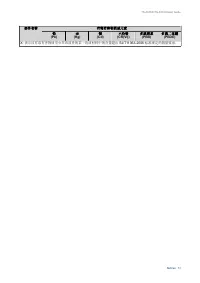
VCCI Notice VCCI–B BSMI Notice SJ/T 11364-2006 本产品符合中国 RoHS 标准。以下表格标示此产品中某有毒物质的含量符合中国 RoHS 标准规定的限量要求。 本产品上会附有”环境友好使用期限”的标签,此期限是估算这些物质”不会有泄漏或突变”的年限。本产品可能包含有较短的环境友好使用期限的可替换元件,像是电池或灯管,这些元件将会单独标示出来。 部件名称 有毒有害物质或元素 铅 (Pb) 汞 (Hg) 镉 (Cd) 六价铬 (CR(VI)) 多溴联苯 (PBB) 多溴二苯醚 (PBDE) 壳体 0 0 0 0 0 0 显示 0 0 0 0 0 0 印刷...