Page 2 - Contents; Installation and Configuration
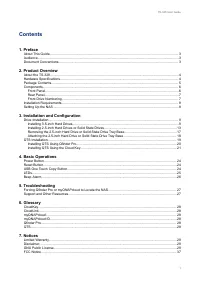
Contents 1. Preface About This Guide.......................................................................................................................................... 3Audience.......................................................................................................................
Page 4 - Symbol
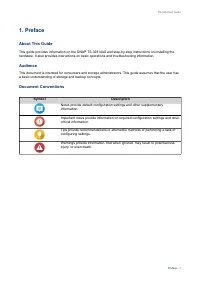
1. Preface About This Guide This guide provides information on the QNAP TS-328 NAS and step-by-step instructions on installing thehardware. It also provides instructions on basic operations and troubleshooting information. Audience This document is intended for consumers and storage administrators. ...
Page 5 - This chapter provides basic information about the QNAP TS-328 NAS.; Hardware Specifications; Important; Architecture; Note; x SATA 6 Gbps; Tip
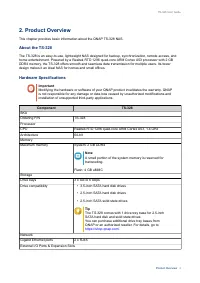
2. Product Overview This chapter provides basic information about the QNAP TS-328 NAS. About the TS-328 The TS-328 is an easy-to-use, lightweight NAS designed for backup, synchronization, remote access, andhome entertainment. Powered by a Realtek RTD 1296 quad-core ARM Cortex A53 processor with 2 GB...
Page 6 - Package Contents
Component TS-328 USB ports • Front: 1 x USB 3.0 Type-A Note You can use the One Touch Copy button with this port. • Back: 1 x USB 2.0 Type-A • Back: 1 x USB 3.0 Type-A InterfaceButtons • Power • USB One Touch Copy • Reset Maintenance port 1 x 3.5 mm maintenance port DimensionsForm factor Tower Dimen...
Page 7 - Components; Component
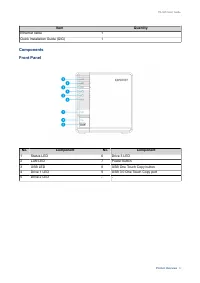
Item Quantity Ethernet cable 1 Quick Installation Guide (QIG) 1 Components Front Panel No. Component No. Component 1 Status LED 6 Drive 3 LED 2 LAN LED 7 Power button 3 USB LED 8 USB One Touch Copy button 4 Drive 1 LED 9 USB 3.0 One Touch Copy port 5 Drive 2 LED - - TS-328 User Guide Product Overvie...
Page 8 - Rear Panel; Front Drive Numbering
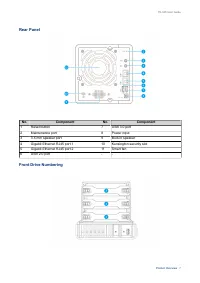
Rear Panel No. Component No. Component 1 Reset button 7 USB 3.0 port 2 Maintenance port 8 Power input 3 3.5 mm speaker port 9 Built-in speaker 4 Gigabit Ethernet RJ45 port 1 10 Kensington security slot 5 Gigabit Ethernet RJ45 port 2 11 Smart fan 6 USB 2.0 port - - Front Drive Numbering TS-328 User G...
Page 9 - Installation Requirements; Category; Setting Up the NAS; Installing 2.5-inch Hard Drives or Solid State Drives
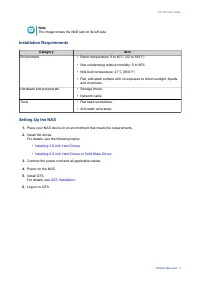
Note The image shows the NAS laid on its left side. Installation Requirements Category Item Environment • Room temperature: 0 to 40˚C (32 to 104˚F) • Non-condensing relative humidity: 5 to 95% • Wet-bulb temperature: 27˚C (80.6˚F) • Flat, anti-static surface with no exposure to direct sunlight, liqu...
Page 10 - Drive Installation; Warning; • Installing a drive deletes all data on the drive.
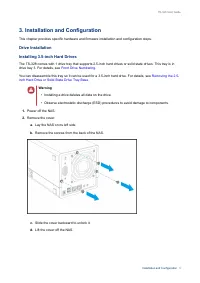
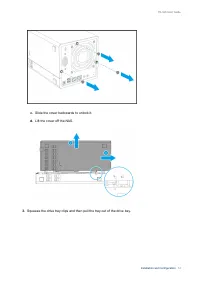
3. Installation and Configuration This chapter provides specific hardware and firmware installation and configuration steps. Drive Installation Installing 3.5-inch Hard Drives The TS-328 comes with 1 drive tray that supports 2.5-inch hard drives or solid state drives. This tray is indrive bay 3. For...
Page 11 - Install the drive on the caddy.
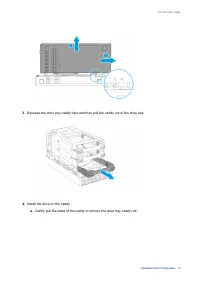
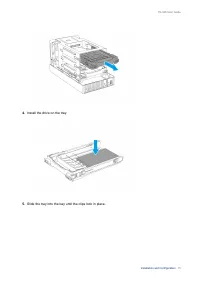
3. Squeeze the drive tray caddy clips and then pull the caddy out of the drive bay. 4. Install the drive on the caddy. a. Gently pull the sides of the caddy to remove the drive tray caddy rod. TS-328 User Guide Installation and Configuration 10
Page 12 - Slide the caddy into the bay until the clips lock in place.
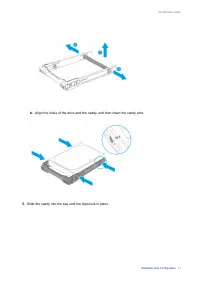
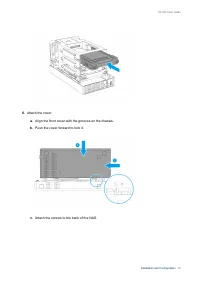
b. Align the holes of the drive and the caddy, and then insert the caddy pins. 5. Slide the caddy into the bay until the clips lock in place. TS-328 User Guide Installation and Configuration 11
Page 14 - Place the NAS in its normal upright position.
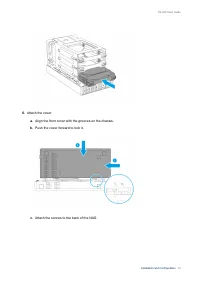
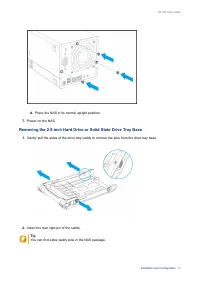
d. Place the NAS in its normal upright position. 7. Power on the NAS. Installing 2.5-inch Hard Drives or Solid State Drives The TS-328 comes with 1 drive tray base that supports 2.5-inch hard drives or solid state drives. This traybase is pre-installed in drive bay 3. For details, see Front Drive Nu...
Page 18 - Removing the 2.5-inch Hard Drive or Solid State Drive Tray Base; Insert the rear right pin of the caddy.; You can find extra caddy pins in the NAS package.
d. Place the NAS in its normal upright position. 7. Power on the NAS. Removing the 2.5-inch Hard Drive or Solid State Drive Tray Base 1. Gently pull the sides of the drive tray caddy to remove the pins from the drive tray base. 2. Insert the rear right pin of the caddy. Tip You can find extra caddy ...
Page 19 - Attaching the 2.5-inch Hard Drive or Solid State Drive Tray Base; Remove the rear right pin from the caddy.
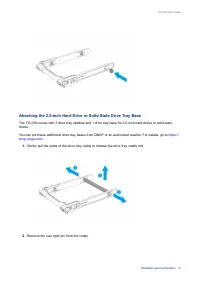
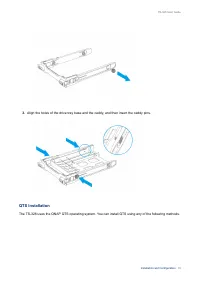
Attaching the 2.5-inch Hard Drive or Solid State Drive Tray Base The TS-328 comes with 3 drive tray caddies and 1 drive tray base for 2.5-inch hard drives or solid statedrives. You can purchase additional drive tray bases from QNAP or an authorized reseller. For details, go to https:// shop.qnap.com...
Page 20 - QTS Installation
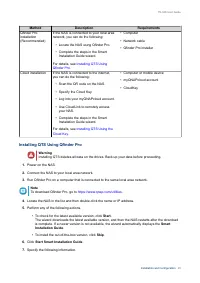
3. Align the holes of the drive tray base and the caddy, and then insert the caddy pins. QTS Installation The TS-328 uses the QNAP QTS operating system. You can install QTS using any of the following methods. TS-328 User Guide Installation and Configuration 19
Page 21 - Installing QTS Using Qfinder Pro
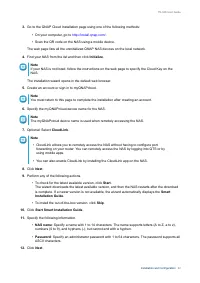
Method Description Requirements Qfinder Proinstallation(Recommended) If the NAS is connected to your local areanetwork, you can do the following: • Locate the NAS using Qfinder Pro. • Complete the steps in the Smart Installation Guide wizard. For details, see Installing QTS Using Qfinder Pro . • Com...
Page 22 - Installing QTS Using the Cloud Key
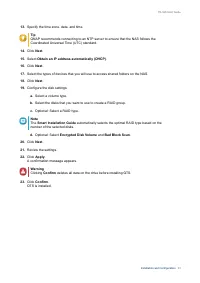
• NAS name : Specify a name with 1 to 14 characters. The name supports letters (A to Z, a to z), numbers (0 to 9), and hyphens (-), but cannot end with a hyphen. • Password : Specify an administrator password with 1 to 64 characters. The password supports all ASCII characters. 8. Click Next . 9. Spe...
Page 26 - LEDs; LED
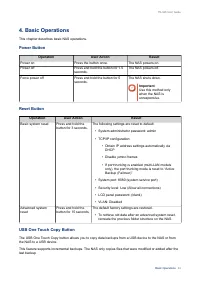
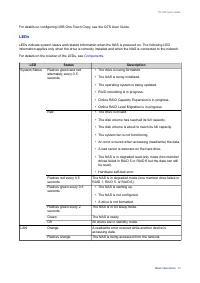
For details on configuring USB One Touch Copy, see the QTS User Guide. LEDs LEDs indicate system status and related information when the NAS is powered on. The following LEDinformation applies only when the drive is correctly installed and when the NAS is connected to the network. For details on the...
Page 27 - Beep Alarm
LED Status Description Drive Flashes red The data is being accessed and a read/write error occursduring the process. Red A drive read/write error occured. Flashes green The data is being accessed. Green The drive can be accessed. USB Flashes blue every 0.5 sec • A USB device (connected to the front ...
Page 28 - Resource
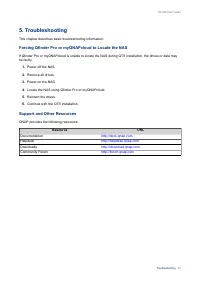
5. Troubleshooting This chapter describes basic troubleshooting information. Forcing Qfinder Pro or myQNAPcloud to Locate the NAS If Qfinder Pro or myQNAPcloud is unable to locate the NAS during QTS installation, the drives or data maybe faulty. 1. Power off the NAS. 2. Remove all drives. 3. Power o...
Page 30 - Limited Warranty; be amended from time to time by QNAP in its discretion.; Disclaimer; Further, the ® or TM symbols are not used in the text.; GNU Public License; Preamble
7. Notices This chapter provides information about warranty, disclaimers, licensing, and federal regulations. Limited Warranty QNAP offers limited warranty service on our products. Your QNAP-branded hardware product is warrantedagainst defects in materials and workmanship for a period of one (1) yea...
Page 31 - Terms and Conditions
Free Software Foundation, use the GNU General Public License for most of our software; it applies also toany other work released this way by its authors. You can apply it to your programs, too. When we speak of free software, we are referring to freedom, not price. Our General Public Licenses aredes...
Page 32 - Conveying Verbatim Copies.
tells the user that there is no warranty for the work (except to the extent that warranties are provided),that licensees may convey the work under this License, and how to view a copy of this License. If theinterface presents a list of user commands or options, such as a menu, a prominent item in th...
Page 38 - FCC Notice; FCC Class B Notice; CE Notice
END OF TERMS AND CONDITIONS FCC Notice FCC Class B Notice This device complies with Part 15 of the FCC Rules. Operation is subject to the following two conditions: 1. This device may not cause harmful interference. 2. This device must accept any interference received, including interference that may...