Page 2 - Аксессуары; RU
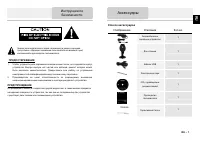
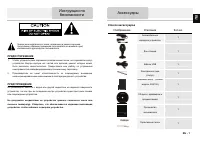
RU-2 Список аксессуаров Изображение Описание Кол - во Автомобильное зарядное устройство 1 Чехол ( для GV5700/5700BT ) 1 USB- кабель 1 Электронное перо 1 CD с драйвером и документацией 1 Руководство пользователя 1 Гарантийный талон Крепление Smart Mount Инструкция ( для крепления smart mount) Аксессу...
Page 3 - Обзор
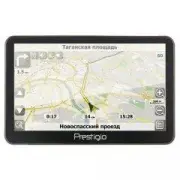
RU-3 Вид спереди и сбоку 1. Сенсорный ЖК - экран Для выбора команд в меню или ввода информации нажмите по нему пальцем или электронным пером . 2. Светочувствительный датчик 3. Разъем для наушников Используется для подключения наушников . При подключении разъема наушников звук из динамика будет выклю...
Page 5 - Системные
RU-5 Установка карт памяти microSD z Устанавливая microSD карту , поверните ее коннектором к устройству ( этикетка должна быть повернута к передней панели устройства ). z Чтобы извлечь microSD карту , слегка нажмите на край карты , чтобы снять защитную защелку , и вытяните карту из слота . Внимание ...
Page 8 - Начало
RU-8 1. Чтобы включить устройство , нажмите и удерживайте кнопку питания (Power) . 2. Вскоре после приветствия на экране появится главное меню . 3. Для выбора функций воспользуйтесь электронным пером . 4. Нажмите и удерживайте кнопку питания (Power) , чтобы выключить устройство или перевести его в с...
Page 9 - Функция
RU-9 Функция Bluetooth ( опционально ) В этом разделе содержится информация о включении , выключении и работе с функцией Bluetooth. 1. Нажмите на пиктограмму Функция в главном меню . 2. Нажмите на пиктограмму Bluetooth , чтобы начать использование функции Bluetooth. 3. Нажмите на пиктограмму ВКЛ / В...
Page 10 - Соединение
RU-10 Работа с функцией Bluetooth. 1. Нажмите пиктограмму DUN или HF в главном меню . 2. Нажмите Сопряженные устройства , чтобы начать сопряжение с мобильным телефоном ( при наличии у последнего функции GPRS). 3. Убедитесь , что мобильный телефон доступен для соединения с другими Bluetooth- устройст...
Page 12 - Hands Free Function
RU-12 8. Нажмите на пиктограмму Адресная книга , чтобы просмотреть контакты . 9. Нажмите , чтобы просмотреть контакты адресной книги , хранящиеся на SIM- карте . 10. Нажмите / , чтобы прокрутить страницы вверх / вниз . 11. Выберите контакт в адресной книге и нажмите для совершения звонка . 12. Выбер...
Page 14 - Интерфейс
RU-14 No. Название Краткое описание функций 1 Следующий маневр Знак предстоящего маневра . На сером фоне – различные повороты , развороты , расстояние до следующего маневра в метрах или километрах и т . д . Нажатие по знаку – прекращение ведения по маршруту и другие опции маршрута . 2 Компас Нажатие...
Page 19 - Автороутинг
RU-19 Автороутинг Эта функция работает только на картах , которые содержат информацию для прокладки маршрутов . Для того , чтобы программа автоматически проложила маршрут от Вашего местоположения до конечного пункта следования , нажмите на место на карте , где находится конечная точка , выберите мен...
Page 21 - Навител; Дополнительно
RU-21 В случае , если модель Вашего навигатора обладает в c троенным GPRS- модулем или имеет возможность выхода в Интернет через GPRS модуль вашего телефона по Bluetooth соединению , Вам будут доступны некоторые полезные дополнительные функции , такие как « Навител . Пробки » и « Навител . SMS». « Н...
Page 22 - Решение
RU-22 При наличии проблем в работе устройства , прежде чем обратиться в сервисный центр , сверьтесь с приведенной ниже таблицей . Проблема Причина Решение Устройство не включается Адаптер прохо подсоединен . Проверьте правильность подключения адаптера . Батарея разряжена . Подключите адаптер для зар...
Page 23 - Технические
RU-23 МОДЕЛЬ GV4700/4700BT GV5700/5700BT Навигационное ПО Navitel Navitel GPS- чипсет SiRF Atlas V 500M Гц SiRF Atlas V 500M Гц Каналы 64 64 Антенна Внутренняя Внутренняя Интерфейс USB USB Размер экрана 4.3" 5" Разрешение 480*270 800*480 Тип экрана TFT Touch screen TFT Touch screen RAM 128M ...
Page 24 - Примечание
RU-24 Для соединения с ПК с целью синхронизации и доступа к данным запустите установочный файл , содержащийся на компакт - диске с драйвером и документацией , или загрузите файл с вебсайта компании Microsoft, чтобы установить : ПО Microsoft Active Sync® для операционной системы Microsoft XP или боле...
Page 26 - Important Safety; EN
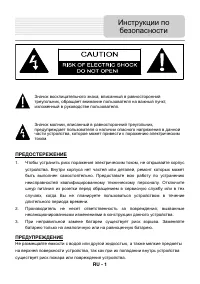
EN-1 CAUTION 1. To reduce the risk of electric shock, do not remove the cover (or back). No user-serviceable parts inside. Refer servicing to qualified service personnel. 2. The manufacturer should not hold responsibility for the damage caused by any substitutions and modifications of the product wi...
Page 27 - Accessories
EN-2 Accessories List ITEM NAME QTY Car Charger 1 Pouch ( for GV5700/5700BT ) 1 USB Cable 1 Stylus Pen 1 Driver/Documentation CD 1 User Manual 1 Warranty Card Smart Mount User guide (for smart mount) Accessories 1 EN 1 1
Page 28 - Front and Side View; View of Main Unit
EN-3 Front and Side View 1. LCD Touch Screen Tap the screen with touch pen or finger to select menu commands or to enter information. 2. Light sensor 3. Headphone Port Connects to stereo headphones or headsets. 4. microSD Slot Receives microSD memory card for data access or memory expansion. 5. Rese...
Page 29 - Top and Bottom View
EN-4 Top and Bottom View 1. Power Button Press to power ON/OFF device. 2. Mini-USB Port Connect to USB Cable for data access or battery charging View of Main Unit 1 EN 2
Page 30 - Device Connections
EN-5 Inserting microSD Card z To insert a microSD card, place connector towards device and card label towards the front side of the device. z To remove a microSD card, gently press the edge of the card to release the safety lock and pull the card out of the slot. NOTE: Please always make sure that n...
Page 31 - Connecting to Earphones; Connecting to Car Charger
EN-6 Connecting to Earphones z Insert earphone jack (earphones not included) into the appropriate earphone port to switch audio output from device speaker to earphone. NOTE: High volume level is a potential risk to your hearing. Please turn down the volume before connecting the earphone and graduall...
Page 32 - About Rechargeable Battery; Cautions on Battery
EN-7 About Rechargeable Battery The device is equipped with a built-in rechargeable battery. Please fully charge the battery (for at least 8 hours) before initial use. The battery status indicator glows in red color when charging, and turns green color when the battery is full. Charging time is appr...
Page 33 - Getting Started
EN-8 1. Press and hold Power Button to turn on the device. 2. Shortly after the loading screen is shown, the main menu will be displayed. 3. Tap the corresponding buttons with touch pen included to navigate various functions. 4. Press and hold Power Button to turn off the device or to allow the devi...
Page 34 - Bluetooth Function
EN-9 Bluetooth function (optional) The following is shown how to select, switch on/off the Bluetooth function 1. Tap on Function icon on the main menu. 2. Tap on Bluetooth icon to start using Bluetooth function. 3. Tap on ON / OFF icon to enable/ disable Bluetooth function. 4. Tap Info icon to revie...
Page 35 - Bluetooth Connection
EN-10 How to operate the Bluetooth function. 1. Tap on DUN icon or HF icon on the main menu. 2. Tap on Paired List icon to start pairing with mobile phone device with GPRS function. 3. Please make sure Bluetooth function on mobile phone is detectable by other devices. 4. Tap on to start searching pr...
Page 38 - FM Function
EN-13 FM function (optional) 1. Tap on Function icon on the main menu. 2. Tap on FM icon to start using Bluetooth function. 3. Tap on / to tune FM frequency down/up. 4. Tap on to open the selected frequency for broadcast. 5. Tap on to save current FM station. 6. Tap on to cancel settings and exit. F...
Page 39 - Program interface
EN-14 No. Name Function 1 Next maneuver Next maneuver on the way and distance up to it. Press this Icon to open route options menu. 2 Compass Press the compass loon to edit map rotation mode, map view and day/night mode. 3 Sound Press this button to turn on/off voice and sound effects. 4 Information...
Page 43 - Autorouting
EN-18 Autorouting In order to create a route automatically, from the current position to the destination point, tap with the stylus pen on the place on the map where the final point is, tap on the “Cursor” button and in the context menu choose "Go to" (Fig. 1). The calculated route will be s...
Page 45 - Additional features
EN-20 If your device has GPRS-module, or provides Internet connection via the GPRS-module of your mobile phone through Bluetooth, you will be able to use some «Navitel.Navigator» software features like «Navitel.Traffic» and «Navitel.SMS» services. Navitel.Traffic Using this service you can see the t...
Page 46 - Troubleshooting
EN-21 NOTE: Immediately turn off the device and disconnect the power adapter if the device is not working properly. Never try to repair the unit without authorized professionals for it may damage the unit. Troubleshooting PROBLEM POSSIBLE CAUSE POSSIBLE SOLUTION There is no sound. The volume may be ...
Page 48 - Technical specifications
EN-23 MODEL GV4700/4700BT GV5700/5700BT Navigation Software Navitel Navitel GPS Chipset SiRF Atlas V 500MHZ SiRF Atlas V 500MHZ Channels 64 64 Antenna Internal Internal Interface USB USB Display size 4.3" 5" Resolution 480*270 800*480 Display type TFT Touch screen TFT Touch screen RAM 128MB,...
Page 49 - Disclaimer
EN-24 To establish connection with PC for data access and synchronization, please execute setup file included in the Driver/Documentation CD or download the file from Microsoft website to install: Microsoft Active Sync® software for operating system Microsoft XP or earlier versions (http://www.micro...