Page 3 - microSD
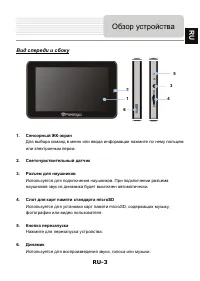
RU-3 В 1. - . 2. 3. . . 4. microSD microSD, , . 5. . 6. , . 1 2 3 4 6 R U 5
Page 9 - Bluetooth
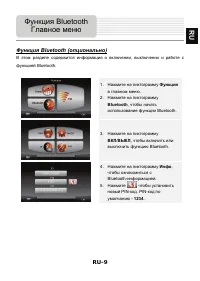
RU-9 Bluetooth ( ь ) , Bluetooth. 1. . 2. Bluetooth , Bluetooth. 3. В / В , Bluetooth. 4. , Bluetooth- . 5. , PIN- . PIN- - 1234 . Bluetooth R U
Page 11 - HF; Hands Free
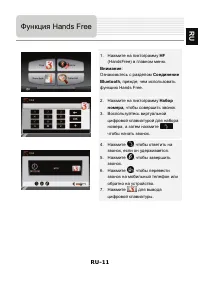
RU-11 1. HF (HandsFree) . В : Bluetooth, , Hands Free. 2. , . 3. , , . 4. , , . 5. , . 6. , . 7. . Hands Free R U
Page 12 - Hands Free Function
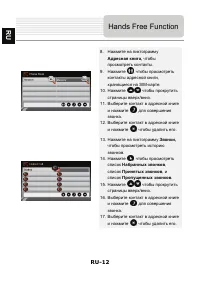
RU-12 8. А , . 9. , , SIM- . 10. / , / . 11. . 12. , . 13. , . 14. , , , . 15. / , / . 16. . 17. , . Hands Free Function R U
Page 13 - FM
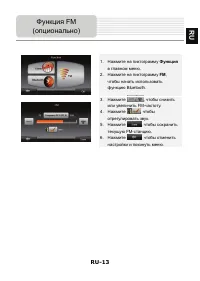
RU-13 1. . 2. FM , Bluetooth. 3. / , FM- . 4. , . 5. , FM- . 6. , . FM ( ) R U
Page 23 - RAM
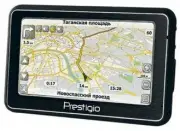
RU-23 GV4700/4700BT GV5700/5700BT Navitel Navitel GPS- SiRF Atlas V 500M SiRF Atlas V 500M 64 64 А USB USB 4.3" 5" 480*270 800*480 TFT Touch screen TFT Touch screen RAM 128M , DDR2 128M , DDR2 2 2 Micro SD, . 8 Micro SD, . 8 / - 950 A/ - 1250 A/ Microsoft Window CE6.0 Microsoft W indow CE6.0...
Page 26 - CAUTION; WARNING; Important Safety
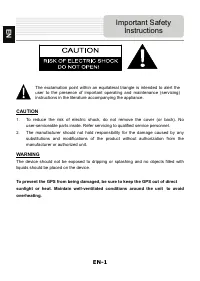
EN-1 CAUTION 1. To reduce the risk of electric shock, do not remove the cover (or back). No user-serviceable parts inside. Refer servicing to qualified service personnel. 2. The manufacturer should not hold responsibility for the damage caused by any substitutions and modifications of the product wi...
Page 27 - Accessories
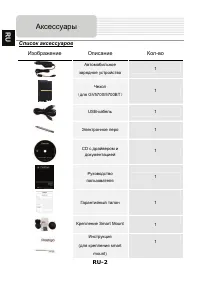
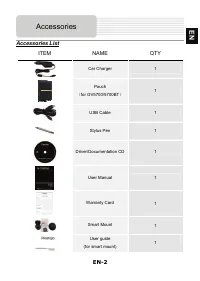
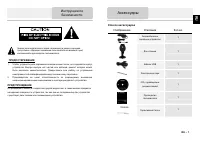
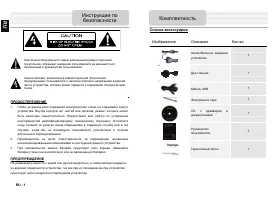
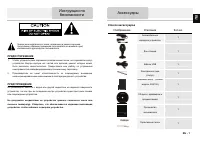
EN-2 Accessories List ITEM NAME QTY Car Charger 1 Pouch ′ for GV5700/5700BT ″ 1 USB Cable 1 Stylus Pen 1 Driver/Documentation CD 1 User Manual 1 Warranty Card Smart Mount User guide (for smart mount) Accessories 1 EN 1 1
Page 28 - Front and Side View; LCD Touch Screen; Slot; Button; View of Main Unit
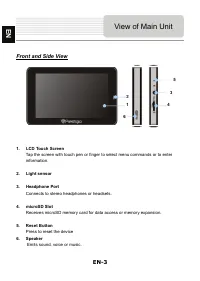
EN-3 Front and Side View 1. LCD Touch Screen Tap the screen with touch pen or finger to select menu commands or to enter information. 2. Light sensor 3. Headphone Port Connects to stereo headphones or headsets. 4. microSD Slot Receives microSD memory card for data access or memory expansion. 5. Rese...
Page 29 - Top and Bottom View
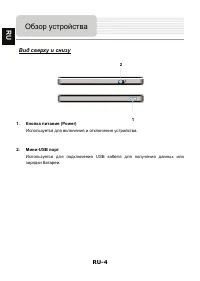
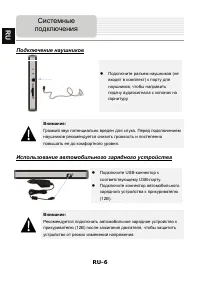
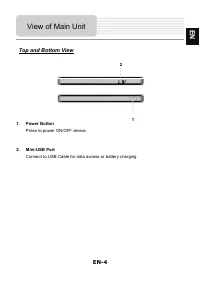
EN-4 Top and Bottom View 1. Power Button Press to power ON/OFF device. 2. Mini-USB Port Connect to USB Cable for data access or battery charging View of Main Unit 1 EN 2
Page 30 - Device Connections
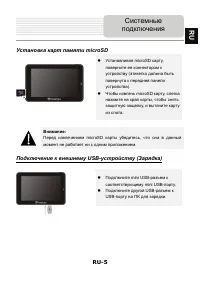
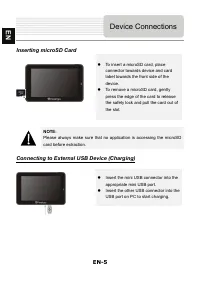
EN-5 Inserting microSD Card ” To insert a microSD card, place connector towards device and card label towards the front side of the device. ” To remove a microSD card, gently press the edge of the card to release the safety lock and pull the card out of the slot. NOTE: Please always make sure that n...
Page 32 - About Rechargeable Battery; Cautions on Battery
EN-7 About Rechargeable Battery The device is equipped with a built-in rechargeable battery. Please fully charge the battery (for at least 8 hours) before initial use. The battery status indicator glows in red color when charging, and turns green color when the battery is full. Charging time is appr...
Page 33 - Getting Started; Sleep OFF
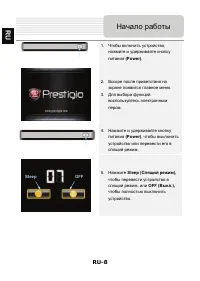
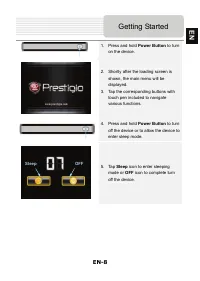
EN-8 1. Press and hold Power Button to turn on the device. 2. Shortly after the loading screen is shown, the main menu will be displayed. 3. Tap the corresponding buttons with touch pen included to navigate various functions. 4. Press and hold Power Button to turn off the device or to allow the devi...
Page 34 - Bluetooth Function
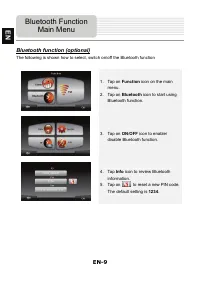
EN-9 Bluetooth function (optional) The following is shown how to select, switch on/off the Bluetooth function 1. Tap on Function icon on the main menu. 2. Tap on Bluetooth icon to start using Bluetooth function. 3. Tap on ON / OFF icon to enable/ disable Bluetooth function. 4. Tap Info icon to revie...
Page 35 - DUN; Bluetooth Connection
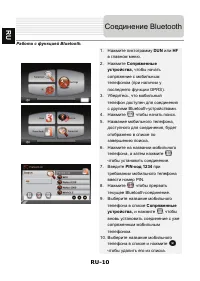
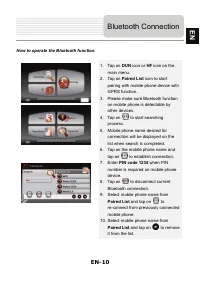
EN-10 How to operate the Bluetooth function. 1. Tap on DUN icon or HF icon on the main menu. 2. Tap on Paired List icon to start pairing with mobile phone device with GPRS function. 3. Please make sure Bluetooth function on mobile phone is detectable by other devices. 4. Tap on to start searching pr...
Page 37 - Calls List; Dialed Call
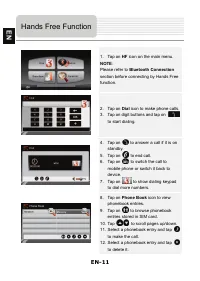
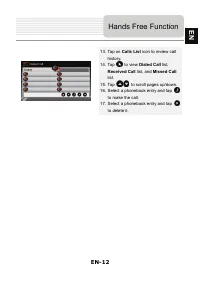
EN-12 13. Tap on Calls List icon to review call history. 14. Tap to view Dialed Call list, Received Call list, and Missed Call list. 15. Tap / to scroll pages up/down. 16. Select a phonebook entry and tap to make the call. 17. Select a phonebook entry and tap to delete it. Hands Free Function EN
Page 38 - FM Function
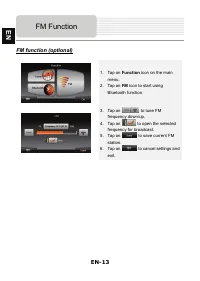
EN-13 FM function (optional) 1. Tap on Function icon on the main menu. 2. Tap on FM icon to start using Bluetooth function. 3. Tap on / to tune FM frequency down/up. 4. Tap on to open the selected frequency for broadcast. 5. Tap on to save current FM station. 6. Tap on to cancel settings and exit. F...
Page 39 - Function; Program interface
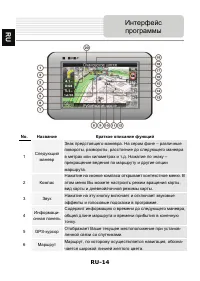
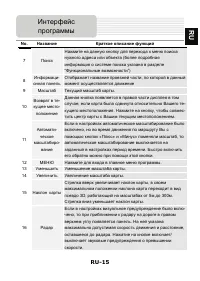
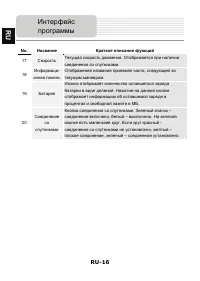
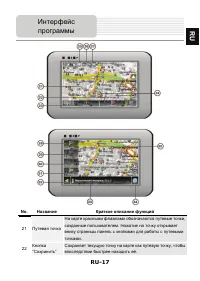
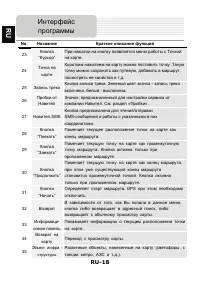
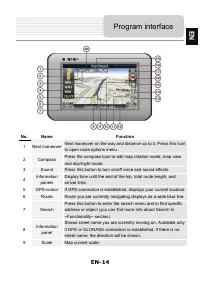
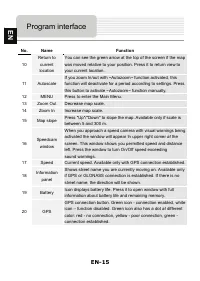
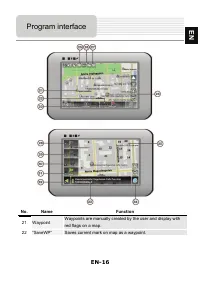
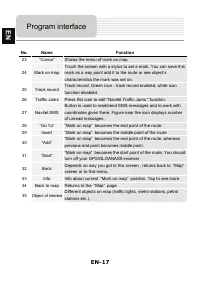
EN-14 No. Name Function 1 Next maneuver Next maneuver on the way and distance up to it. Press this Icon to open route options menu. 2 Compass Press the compass loon to edit map rotation mode, map view and day/night mode. 3 Sound Press this button to turn on/off voice and sound effects. 4 Information...
Page 43 - Autorouting
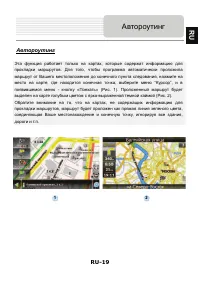
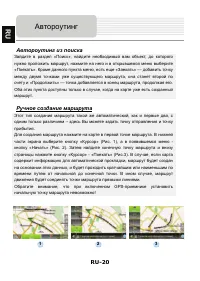
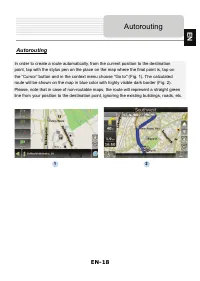
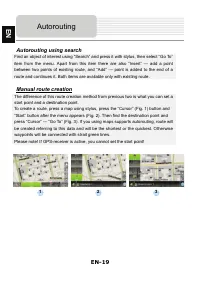
EN-18 Autorouting In order to create a route automatically, from the current position to the destination point, tap with the stylus pen on the place on the map where the final point is, tap on the “Cursor” button and in the context menu choose "Go to" (Fig. 1). The calculated route will be s...
Page 45 - Note; Additional features
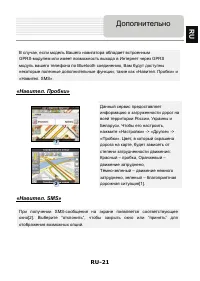
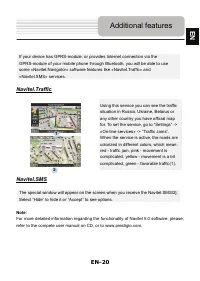
EN-20 If your device has GPRS-module, or provides Internet connection via the GPRS-module of your mobile phone through Bluetooth, you will be able to use some «Navitel.Navigator» software features like «Navitel.Traffic» and «Navitel.SMS» services. Navitel.Traffic Using this service you can see the t...
Page 46 - Troubleshooting
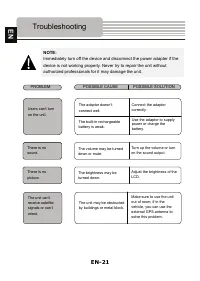
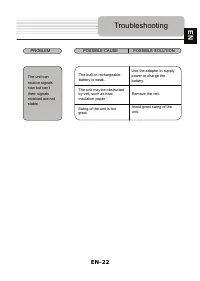
EN-21 NOTE: Immediately turn off the device and disconnect the power adapter if the device is not working properly. Never try to repair the unit without authorized professionals for it may damage the unit. Troubleshooting PROBLEM POSSIBLE CAUSE POSSIBLE SOLUTION There is no sound. The volume may be ...
Page 48 - Technical specifications
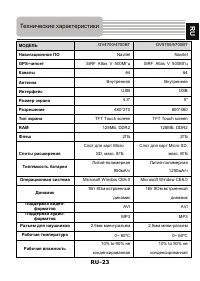
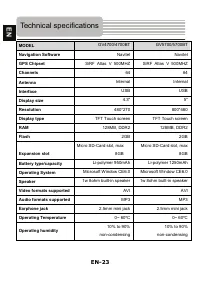
EN-23 MODEL GV4700/4700BT GV5700/5700BT Navigation Software Navitel Navitel GPS Chipset SiRF Atlas V 500MHZ SiRF Atlas V 500MHZ Channels 64 64 Antenna Internal Internal Interface USB USB Display size 4.3" 5" Resolution 480*270 800*480 Display type TFT Touch screen TFT Touch screen RAM 128MB,...
Page 49 - Microsoft Active Sync®; Microsoft XP or earlier; Microsoft Vista; Disclaimer
EN-24 To establish connection with PC for data access and synchronization, please execute setup file included in the Driver/Documentation CD or download the file from Microsoft website to install: Microsoft Active Sync® software for operating system Microsoft XP or earlier versions (http://www.micro...