Prestigio GeoVision 450 BT - Manuals
Prestigio GeoVision 450 BT GPS Unit – User Manual in PDF format online.
Manuals:
User Manual Prestigio GeoVision 450 BT
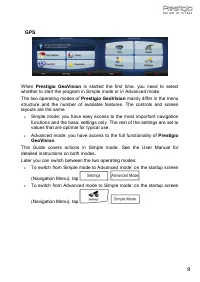
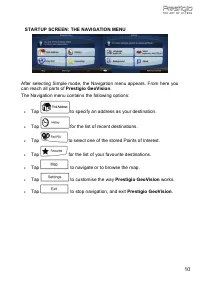
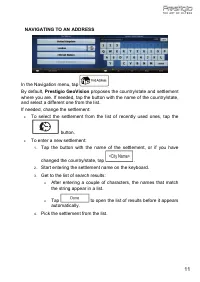
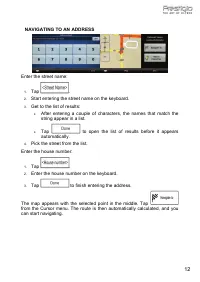
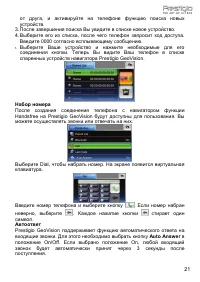
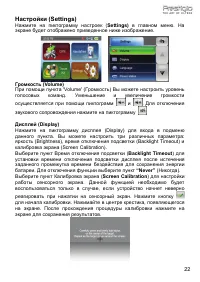
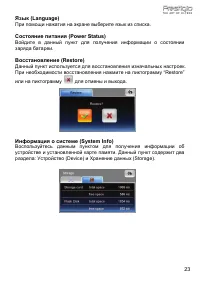
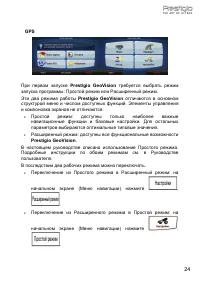
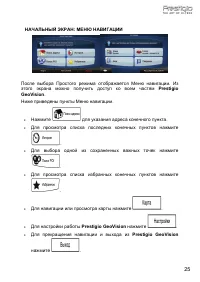
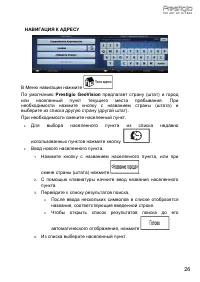
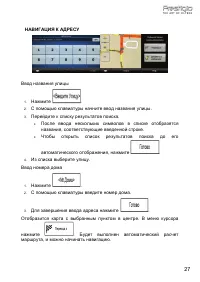
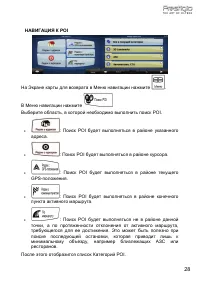
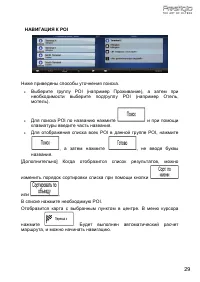
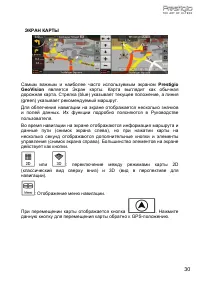
Summary
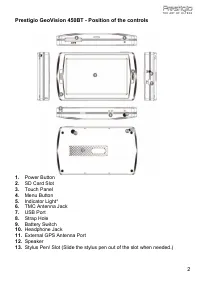
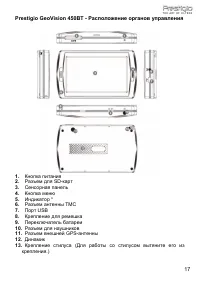
Prestigio GeoVision 450BT - Position of the controls 1. Power Button 2. SD Card Slot 3. Touch Panel 4. Menu Button 5. Indicator Light* 6. TMC Antenna Jack 7. USB Port 8. Strap Hole 9. Battery Switch 10. Headphone Jack 11. External GPS Antenna Port 12. Speaker 13. Stylus Pen/ Slot (Slide the stylus p...
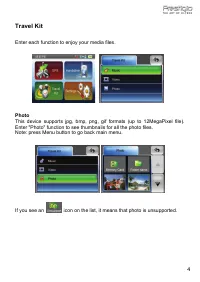
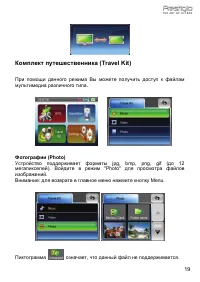
Travel Kit Enter each function to enjoy your media files . Photo This device supports jpg, bmp, png, gif formats (up to 12MegaPixel file). Enter "Photo" function to see thumbnails for all the photo files. Note: press Menu button to go back main menu. If you see an icon on the list, it means ...
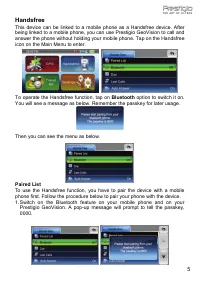
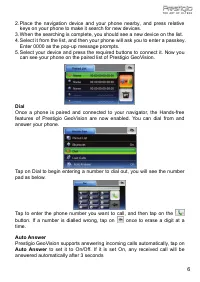
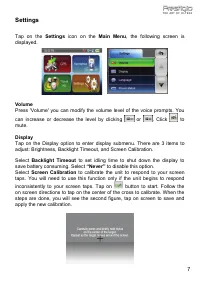
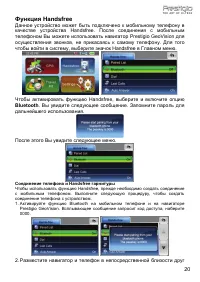
Handsfree This device can be linked to a mobile phone as a Handsfree device. After being linked to a mobile phone, you can use Prestigio GeoVision to call and answer the phone without holding your mobile phone. Tap on the Handsfree icon on the Main Menu to enter. To operate the Handsfree function, t...
Prestigio GPS Units Manuals
-
 Prestigio GeoVision 3120
User Manual
Prestigio GeoVision 3120
User Manual
-
 Prestigio GeoVision 3200
User Manual
Prestigio GeoVision 3200
User Manual
-
 Prestigio GeoVision 360
User Manual
Prestigio GeoVision 360
User Manual
-
 Prestigio GeoVision 400
User Manual
Prestigio GeoVision 400
User Manual
-
 Prestigio GeoVision 4000
User Manual
Prestigio GeoVision 4000
User Manual
-
 Prestigio GeoVision 4050
User Manual
Prestigio GeoVision 4050
User Manual
-
 Prestigio GeoVision 4050 Navitel
User Manual
Prestigio GeoVision 4050 Navitel
User Manual
-
 Prestigio GeoVision 4120
User Manual
Prestigio GeoVision 4120
User Manual
-
 Prestigio GeoVision 4120BT
User Manual
Prestigio GeoVision 4120BT
User Manual
-
 Prestigio GeoVision 4130 Navitel
User Manual
Prestigio GeoVision 4130 Navitel
User Manual
-
 Prestigio GeoVision 4150 Navitel
User Manual
Prestigio GeoVision 4150 Navitel
User Manual
-
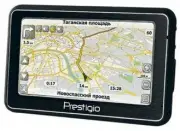 Prestigio GEOVISION 4200 BT
User Manual
Prestigio GEOVISION 4200 BT
User Manual
-
 Prestigio GeoVision 4250 GPRS
User Manual
Prestigio GeoVision 4250 GPRS
User Manual
-
 Prestigio GeoVision 4250(BT) Navitel
User Manual
Prestigio GeoVision 4250(BT) Navitel
User Manual
-
 Prestigio GeoVision 4266(BT) Navitel
User Manual
Prestigio GeoVision 4266(BT) Navitel
User Manual
-
 Prestigio GeoVision 4300(BT) Navitel
User Manual
Prestigio GeoVision 4300(BT) Navitel
User Manual
-
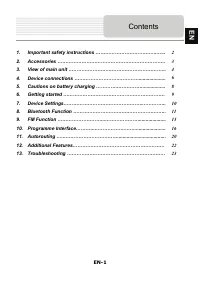 Prestigio GeoVision 4400
User Manual
Prestigio GeoVision 4400
User Manual
-
 Prestigio GeoVision 4466
User Manual
Prestigio GeoVision 4466
User Manual
-
 Prestigio GeoVision 4700(BT) Navitel
User Manual
Prestigio GeoVision 4700(BT) Navitel
User Manual
-
 Prestigio GeoVision 4766(BT) Navitel
User Manual
Prestigio GeoVision 4766(BT) Navitel
User Manual