Page 2 - Important Safety
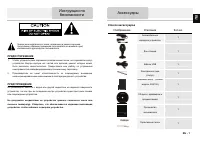
EN-2 CAUTION 1. To reduce the risk of electric shock, do not remove the cover (or back). No user-serviceable parts inside. Refer servicing to qualified service personnel. 2. The manufacturer should not hold responsibility for the damage caused by any substitutions and modifications of the product wi...
Page 3 - ITEM NAME QTY; Accessories
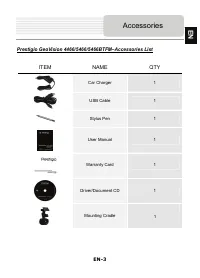
EN-3 Prestigio GeoVision 4466/5466/5466BTFM–Accessories List ITEM NAME QTY Car Charger 1 USB Cable 1 Stylus Pen 1 User Manual 1 Warranty Card 1 Driver/Document CD 1 Mounting Cradle Accessories EN 1
Page 4 - View of Main Unit
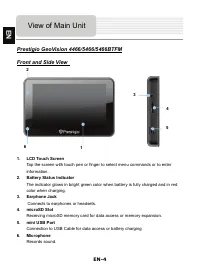
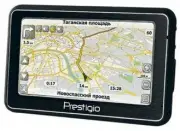
EN-4 Prestigio GeoVision 4466/5466/5466BTFM Front and Side View 1. LCD Touch Screen Tap the screen with touch pen or finger to select menu commands or to enter information. 2. Battery Status Indicator The indicator glows in bright green color when battery is fully charged and in red color when charg...
Page 5 - Rear and Top View
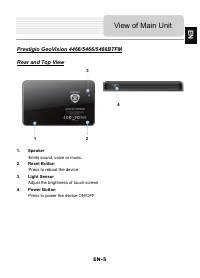
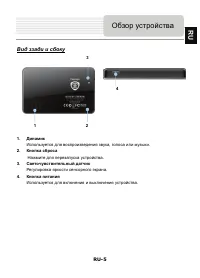
EN-5 Prestigio GeoVision 4466/5466/5466BTFM Rear and Top View 1. Speaker Emits sound, voice or music. 2. Reset Button Press to reboot the device. 3. Light Sensor Adjust the brightness of touch screen 4. Power Button Press to power the device ON/OFF. View of Main Unit 1 4 2 3 EN
Page 6 - Device Connections
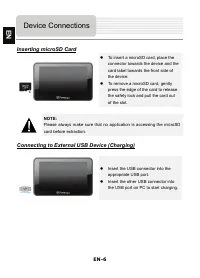
EN-6 Inserting microSD Card z To insert a microSD card, place the connector towards the device and the card label towards the front side of the device. z To remove a microSD card, gently press the edge of the card to release the safety lock and pull the card out of the slot. NOTE: Please always make...
Page 7 - Connecting to Car Charger
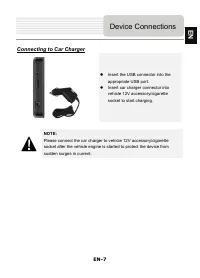
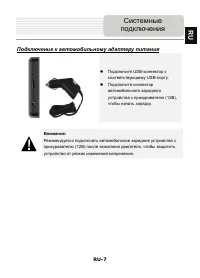
EN-7 Connecting to Car Charger z Insert the USB connector into the appropriate USB port. z Insert car charger connector into vehicle 12V accessory/cigarette socket to start charging. NOTE: Please connect the car charger to vehicle 12V accessory/cigarette socket after the vehicle engine is started to...
Page 8 - About Rechargeable Battery; Cautions on Battery
EN-8 About Rechargeable Battery The device is equipped with a built-in rechargeable battery. Please fully charge the battery (for at least 5 hours) before initial use. The battery status indicator glows in red color when charging and turns bright green color when charging is complete. Charging time ...
Page 9 - Getting Started
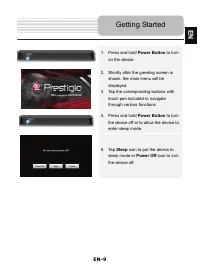
EN-9 1. Press and hold Power Button to turn on the device. 2. Shortly after the greeting screen is shown, the main menu will be displayed. 3. Tap the corresponding buttons with touch pen included to navigate through various functions. 4. Press and hold Power Button to turn the device off or to allow...
Page 10 - Device Settings
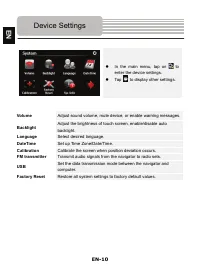
EN-10 z In the main menu, tap on to enter the device settings. z Tap to display other settings. Volume Adjust sound volume, mute device, or enable warning messages. Backlight Adjust the brightness of touch screen, enable/disable auto backlight. Language Select desired language. DateTime Set up Time ...
Page 11 - Bluetooth Function
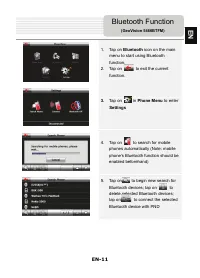
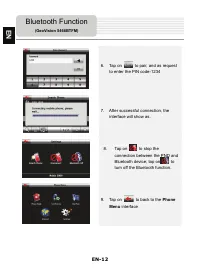
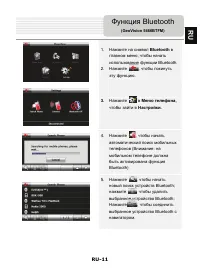
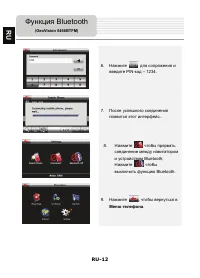
EN-11 1. Tap on Bluetooth icon on the main menu to start using Bluetooth function. 2. Tap on to exit the current function. 3. Tap on in Phone Menu to enter Settings 4. Tap on to search for mobile phones automatically (Note: mobile phone’s Bluetooth function should be enabled beforehand) 5. Tap on to...
Page 13 - to
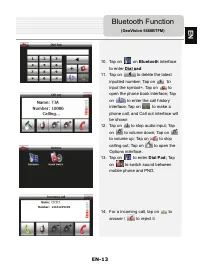
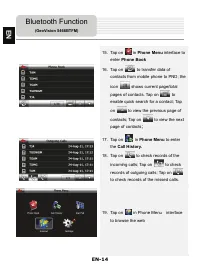
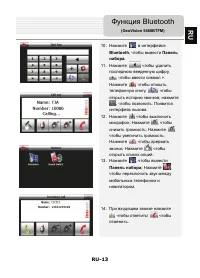
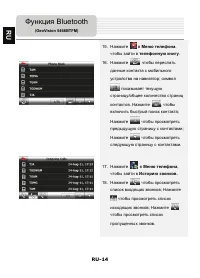
EN-13 10. Tap on on Bluetooth interface to enter Dial pad 11. Tap on to delete the latest inputted number; Tap on to input the symbol+. Tap on to open the phone book interface; Tap on to enter the call history interface; Tap on to make a phone call, and Call out interface will be shown 12. Tap on to...
Page 15 - FM Function
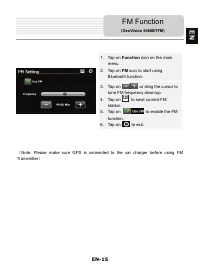
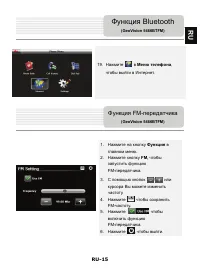
EN-15 1. Tap on Function icon on the main menu. 2. Tap on FM icon to start using Bluetooth function. 3. Tap on / or drag the cursor to tune FM frequency down/up. 4. Tap on to save current FM station. 5. Tap on to enable the FM function. 6. Tap on to exit. ( Note: Please make sure GPS is connected to...
Page 16 - Program interface
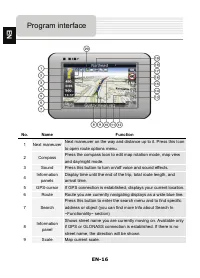
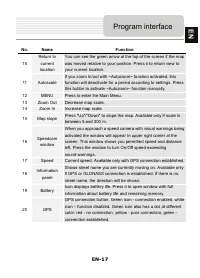
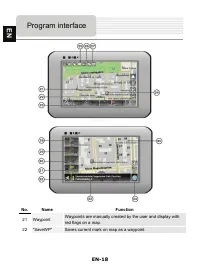
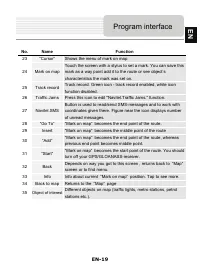
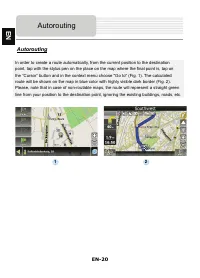
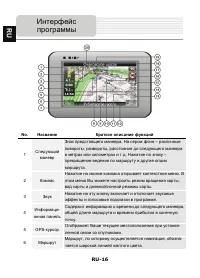
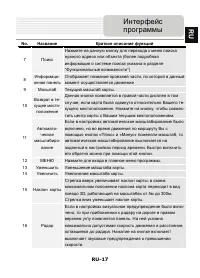
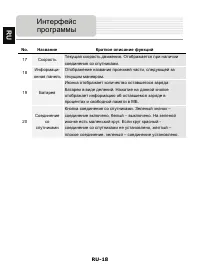
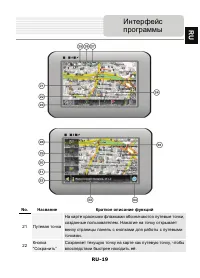
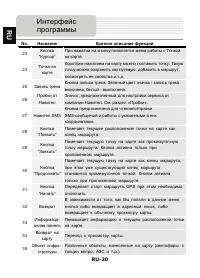
EN-16 No. Name Function 1 Next maneuver Next maneuver on the way and distance up to it. Press this Icon to open route options menu. 2 Compass Press the compass loon to edit map rotation mode, map view and day/night mode. 3 Sound Press this button to turn on/off voice and sound effects. 4 Information...
Page 21 - Autorouting
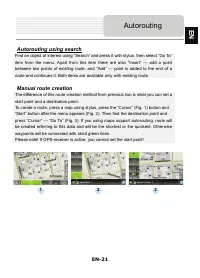
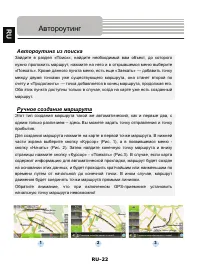
EN-21 Autorouting using search Find an object of interest using “Search” and press it with stylus, then select “Go To” item from the menu. Apart from this item there are also “Insert” — add a point between two points of existing route, and “Add” — point is added to the end of a route and continues i...
Page 22 - Additional features
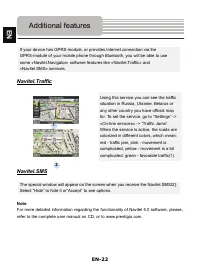
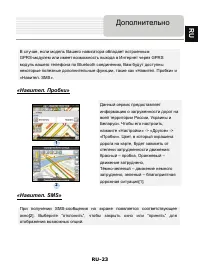
EN-22 If your device has GPRS-module, or provides Internet connection via the GPRS-module of your mobile phone through Bluetooth, you will be able to use some «Navitel.Navigator» software features like «Navitel.Traffic» and «Navitel.SMS» services. Navitel.Traffic Using this service you can see the t...
Page 23 - Troubleshooting
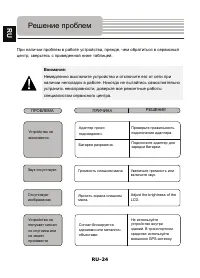
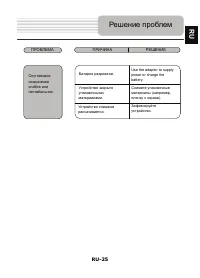
EN-23 Take the steps described in the tables below to solve simple problems before contacting customer service centers. NOTE: Immediately turn off the device and disconnect the power adapter if the device is not working properly. Never try to repair the unit without authorized personnel for it may d...
Page 25 - Содержание
RU-1 1. Инструкции по безопасности ……………………………… 2. Список аксессуаров ….…………………………………...... 3. Обзор устройства …..………………….………………... .... 4. Системные подключения ….……………….………….. ..... 5. Питание устройства ................………………………… ..... 6. Начало работы …...……………………………………........ 7. Настройки ………...
Page 26 - Инструкции
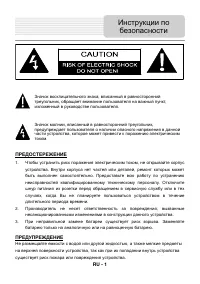
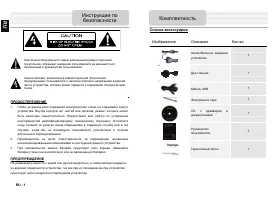
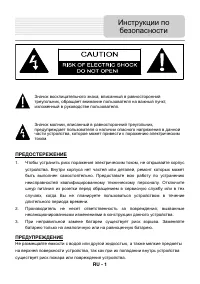
RU-2 ПРЕДОСТЕРЕЖЕНИЕ 1. Чтобы устранить риск поражения электрическим током , не открывайте корпус устройства . Внутри корпуса нет частей или деталей , ремонт которых может быть выполнен самостоятельно . Предоставьте всю работу по устранению неисправностей квалифицированному техническому персоналу . ...
Page 27 - Изображение; Список
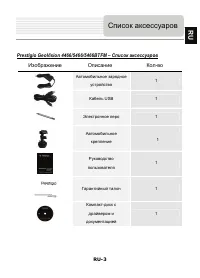
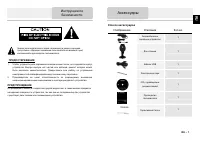
RU-3 Prestigio GeoVision 4466/5466/5466BTFM – Список аксессуаров Изображение Описание Кол - во Автомобильное зарядное устройство 1 Кабель USB 1 Электронное перо 1 Автомобильное крепление Руководство пользователя 1 Гарантийный талон 1 Компакт - диск с драйвером и документацией 1 Список аксессуаров RU...
Page 28 - Обзор
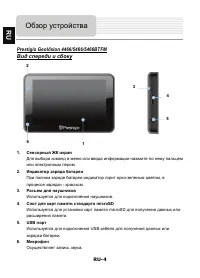
RU-4 Prestigio GeoVision 4466/5466/5466BTFM Вид спереди и сбоку 1. Сенсорный ЖК - экран Для выбора команд в меню или ввода информации нажмите по нему пальцем или электронным пером . 2. Индикатор заряда батареи При полном заряде батареи индикатор горит ярко - зеленым цветом , в процессе зарядки - кра...
Page 30 - Подключение; Системные
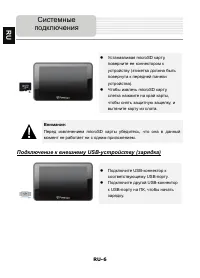
RU-6 z Устанавливая microSD карту , поверните ее коннектором к устройству ( этикетка должна быть повернута к передней панели устройства ). z Чтобы извлечь microSD карту , слегка нажмите на край карты , чтобы снять защитную защелку , и вытяните карту из слота . Внимание : Перед извлечением microSD ка...
Page 33 - Начало
RU-9 1. Чтобы включить устройство , нажмите и удерживайте кнопку питания . 2. Вскоре после приветствия на экране появится главное меню . 3. Для выбора функций воспользуйтесь электронным пером . 4. Нажмите и удерживайте кнопку питания , чтобы выключить устройство или перевести его в спящий режим . 5....
Page 34 - Настройки
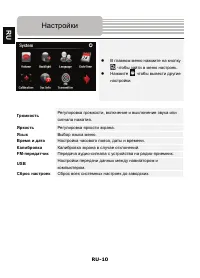
RU-10 z В главном меню нажмите на кнопку , чтобы зайти в меню настроек . z Нажмите , чтобы вывести другие настройки . Громкость Регулировка громкости , включение и выключение звука или сигнала нажатия . Яркость Регулировка яркости экрана . Язык Выбор языка меню . Время и дата Настройка часового пояс...
Page 35 - Функция
RU-11 1. Нажмите на символ Bluetooth в главном меню , чтобы начать использование функции Bluetooth. 2. Нажмите , чтобы покинуть эту функцию . 3. Нажмите в Меню телефона , чтобы зайти в Настройки . 4. Нажмите , чтобы начать автоматический поиск мобильных телефонов ( Внимание : на мобильном телефоне д...
Page 40 - Интерфейс
RU-16 No. Название Краткое описание функций 1 Следующий маневр Знак предстоящего маневра . На сером фоне – различные повороты , развороты , расстояние до следующего маневра в метрах или километрах и т . д . Нажатие по знаку – прекращение ведения по маршруту и другие опции маршрута . 2 Компас Нажатие...
Page 45 - Автороутинг
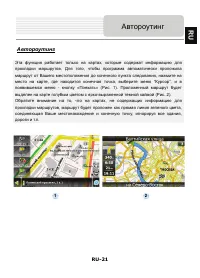
RU-21 Автороутинг Эта функция работает только на картах , которые содержат информацию для прокладки маршрутов . Для того , чтобы программа автоматически проложила маршрут от Вашего местоположения до конечного пункта следования , нажмите на место на карте , где находится конечная точка , выберите мен...
Page 47 - Навител; Дополнительно
RU-23 В случае , если модель Вашего навигатора обладает в c троенным GPRS- модулем или имеет возможность выхода в Интернет через GPRS модуль вашего телефона по Bluetooth соединению , Вам будут доступны некоторые полезные дополнительные функции , такие как « Навител . Пробки » и « Навител . SMS». « Н...
Page 48 - Решение
RU-24 При наличии проблем в работе устройства , прежде , чем обратиться в сервисный центр , сверьтесь с приведенной ниже таблицей . Внимание : Немедленно выключите устройство и отключите его от сети при наличии неполадок в работе . Никогда не пытайтесь самостоятельно устранить неисправности , доверь...
Page 50 - Соединение
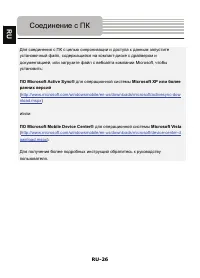
RU-26 Для соединения с ПК с целью синронизации и доступа к данным запустите установочный файл , содержащийся на компакт - диске с драйвером и документацией , или загрузите файл с вебсайта компании Microsoft, чтобы установить : ПО Microsoft Active Sync® для операционной системы Microsoft XP или более...