Page 3 - Contents
1 EN Contents 1 Important 2 Safety 2 2 Notice 4 3 Your Mini Hi-Fi System 6 Introduction 6 What's in the box 6 Over view of the main unit 7 Over view of the remote control 8 4 Connect 10 Connect FM antenna 10 Connect AM antenna 10 Connect power 10 5 Get started 12 Prepare the remote control 12 Turn o...
Page 4 - Important; Safety; Know these safety symbols; Important Safety Instructions
2 EN 1 Important Safety Know these safety symbols This 'bolt of lightning' indicates uninsulated material within your unit may cause an electrical shock. For the safety of ever yone in your household, please do not remove product covering. The 'exclamation point' calls attention to features for whic...
Page 6 - Notice
4 EN 2 Notice Any changes or modifications made to this device that are not expressly approved by WOOX Innovations may void the user’s authority to operate the equipment. Notice for the USA and Canada This device complies with Par t 15 of the FCC Rules and RSS standard of Industr y Canada. Operation...
Page 8 - System; Introduction
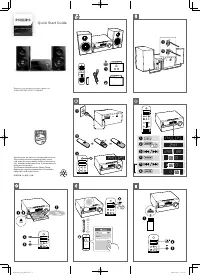
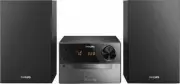
6 EN 3 Your Mini Hi-Fi System Congratulations on your purchase, and welcome to Philips! To fully benefit from the suppor t that Philips offers, register your product at www.Philips.com/welcome. Introduction With this unit, you can • enjoy audio from discs, USB storage devices, Bluetooth enabled devi...
Page 9 - Overview of the main unit
7 EN Overview of the main unit a Disc slot b DELETE • In USB A mode, delete audio files stored on a USB device. c A/B • Connect USB mass storage devices. d REC • In USB A mode, record to a USB device. e AUDIO IN A/B • Connect an external audio device. f MIC 1/2 (Microphone ports) • Connect a microph...
Page 12 - Connect; Connect FM antenna; Connect AM antenna; Connect power
10 EN 4 Connect Connect FM antenna Connect the supplied FM antenna to the FM jack on the back of the main unit. Connect AM antenna Note • For better reception, adjust the position of the AM antenna. 1 Assemble the AM loop antenna. 2 Connect the AM loop antenna to the AM jack on the back of the main ...
Page 14 - Get started; Prepare the remote control; Turn on; Switch to standby mode
12 EN 5 Get started Caution • Use of controls or adjustments or performance of procedures other than herein may result in hazardous radiation exposure or other unsafe operation. Always follow the instructions in this chapter in sequence. If you contact Philips, you will be asked for the model and se...
Page 15 - Play from a disc or USB device; Play disc; Play from a USB A device
13 EN 6 Play Play from a disc or USB device Play disc Note • Make sure that the disc contains playable audio contents. 1 Press CD to select the disc source. 2 Slide CROSS FADER to the far left. 3 Press on the main unit to eject the disc slot. 4 Inser t a disc into the disc slot, with the printed sid...
Page 16 - Play from a USB B device
14 EN Record to a USB device MP3 files, radio, and audio from external devices are recorded in .mp3 format. The first time you record to a USB device, a folder is automatically created on the USB device. Each time you record to a USB device, the recorded files are stored in a subfolder of this folde...
Page 17 - Play audio through Bluetooth; Play from external audio; Play from an MP3 player
15 EN Note • Random play cannot be selected when you play the programmed tracks. Program tracks You can program a maximum of 40 tracks. 1 In Disc or USB A mode, press to stop playing. 2 Press PROG to activate the program mode. » A number flashes on the screen. 3 For MP3 tracks, press ALB/PRESET+/- t...
Page 18 - Play from other audio device
16 EN • the AUDIO IN A socket on the unit, and • the headphone socket on the MP3 player. 4 Play audio on the MP3 player (refer to its user manual). Tip • If the MP3 player is connected to the AUDIO IN B socket, rotate the source selector on the main unit to select the Audio In B source. Play from ot...
Page 19 - Listen to radio
17 EN 7 Listen to radio Tune to a radio station Tip • Keep the unit away from other electronic devices to avoid radio interference. • For better reception, fully extend and adjust the position of the antenna. 1 Slide CROSS FADER to the far left. 2 Press TUNER on the remote control, or (Left) on the ...
Page 20 - Adjust volume level; Apply DJ effects manually; Select a preset sound effect
18 EN 8 Adjust volume level and sound effect Adjust volume level During play, press VOL +/- to increase or decrease volume. Mute sound During play, press MUTE to mute or unmute sound. Apply AUTO DJ effect The AUTO DJ function adds various sound and playback effects to your music automatically: Effec...
Page 21 - Enhance bass; Apply NX Bass; Adjust equalizer settings
19 EN Enhance bass The best Dynamic Bass Enhancement (DBB) setting is generated automatically for each DSC selection. You can manually select the DBB setting that best suits your listening environment. • During play, press DBB repeatedly to select: • DBB 1 • DBB 2 • DBB 3 • DBB OFF Apply NX Bass NX ...
Page 22 - Other features; Mix sound
20 EN 9 Other features Mix sound You can play from Source A (Disc/USB A/ Bluetooth/Tuner/Audio in A mode) and from Source B (USB B/Audio in B mode) at the same time. 1 Play from Source A . • Disc: Select the CD source, and play a track in the loaded disc. • Tuner : Tune to a radio station. • Audio i...
Page 23 - information; Amplifier; General information; USB playability information
21 EN 10 Product information Note • Product information is subject to change without prior notice. Specifications Amplifier Total Output Power 650 W (THD 30%) Frequency Response 60 Hz - 16 kHz Audio In/Mp3 Link 500mV/2000mV Disc Laser Type Semiconductor Disc Diameter 12cm/8cm Suppor t Disc CD, CD-R,...
Page 24 - Supported MP3 disc formats
22 EN • Unsuppor ted file formats are skipped. For example, Word documents (.doc) or MP3 files with extension .dlf are ignored and not played. • AAC, WAV, PCM audio files • WMA files Supported MP3 disc formats • ISO9660, Joliet • Maximum title number : 999 (depending on file name length) • Maximum a...
Page 25 - 1 Troubleshooting; About Bluetooth device
23 EN 11 Troubleshooting Caution • Never remove the casing of this unit. To keep the warranty valid, never tr y to repair the system yourself. If you encounter problems when using this unit, check the following points before requesting ser vice. If the problem remains unsolved, go to the Philips web...