Page 2 - Contents
2 EN Contents 1 Important 3 Safety 3 2 Your micro system 5 Introduction 5 What's in the box 5 Over view of the main unit 6 Over view of the remote control 7 3 Connect 8 Place the unit 8 Connect speakers 8 Connect video cables 8 Connect an external audio device 9 Connect power 9 4 Get started 10 Prep...
Page 3 - Important; Safety; Important Safety Instructions
3 EN 1 Important Safety This 'bolt of lightning' indicates uninsulated material within the device may cause an electrical shock. For the safety of ever yone in your household, please do not remove the covering. The 'exclamation mark' calls attention to features for which you should read the enclosed...
Page 5 - Introduction
5 EN 2 Your micro system Congratulations on your purchase, and welcome to Philips! To fully benefit from the suppor t that Philips offers, register your product at www.philips.com/welcome. Introduction With this unit, you can: • Watch video from DVD/VCD/SVCD, or USB storage devices; • enjoy audio fr...
Page 6 - Overview of the main unit
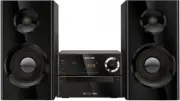
6 EN Overview of the main unit a • Turn the unit on or off. • Switch to standby mode or Eco standby mode. b SOURCE • Select a source: DISC, USB, FM, AUX. c Display panel • Show current status. d • Jack for a USB device. e MIC IN • Connect a microphone. f Disc compartment abc f de g kji h g • Open/cl...
Page 8 - Connect; Place the unit; Connect speakers; Connect video cables; Option 1: Connect through a; TV
8 EN 3 Connect Place the unit 1 Place the unit near to the TV. 2 Place the left and right speakers at equal distance from the TV and at an angle of approximately 45 degrees from the listening position. Note • To avoid magnetic interference or unwanted noise, never place this apparatus and speakers t...
Page 9 - Connect an external audio; Connect power
9 EN Option 2: Connect through component video cables Note • The progressive scan video quality is only available when a progressive scan TV is connected. • If your TV does not suppor t progressive scan, you cannot view the picture. • For how to activate progressive scan on your TV, refer to the TV ...
Page 10 - Get started; Prepare the remote control; Set clock; Turn on; Switch to standby mode
10 EN 4 Get started Caution • Use of controls or adjustments or performance of procedures other than herein may result in hazardous radiation exposure or other unsafe operation. Always follow the instructions in this chapter in sequence. If you contact Philips, you will be asked for the model and se...
Page 12 - Play from disc; Use the disc menu; Select an audio language; Select a subtitle language; Play from USB or recored
12 EN 5 Play Play from disc Caution • Risk of product damage! Never play discs with accessories such as disc stabilizer rings or disc treatment sheets. • Never put any objects other than discs into the disc compar tment. 1 Press DISC repeatedly to select DISC source. [Fig. 9] 2 Press to open the dis...
Page 13 - Play a slideshow with; Resume video play from last; Control play
13 EN 1 Select a source. • Press DISC/USB repeatedly to select DISC or USB source. 2 Inser t the USB storage device or disc. » The play star ts automatically. To select a specified file to play: 1 Press to stop play. 2 Press / to select a folder, and then press OK to confirm. • To return to the prev...
Page 14 - Play options; Change the audio channel
14 EN SOUND (sound) Enrich sound effect with DSC: balanced, clear, powerful, warm, and bright. DISPLAY (display) View playback information. Play options In DISC/USB play mode, press OPTION (option) to select different play options. • [PBC] (PBC): turn PlayBack Control on/off. • [Aspect Ratio] (Aspec...
Page 15 - Enjoy karaoke; Adjust Karaoke settings
15 EN 6 Enjoy karaoke You can connect a microphone (not supplied) to sing along with a music source. Note • Before you connect a microphone, set the microphone volume to the minimum to prevent howling. 1 Inser t a Karaoke disc. 2 Connect a microphone to the MIC IN jack on this product. 3 Press , and...
Page 17 - Other features; Set the alarm timer; Set the sleep timer; Listen to an external device
17 EN 8 Other features Set the alarm timer This unit can be used as an alarm clock. You can select CD, FM, or USB as alarm source. Note • Make sure that you have set the clock correctly. 1 In standby mode, press and hold TIME/ SLEEP for more than two seconds. » The hour digits are displayed and begi...
Page 18 - Adjust settings; General setup; Video setup; Audio setup
18 EN 9 Adjust settings 1 Press . 2 Select the [Setup] (Setup) page. 3 Select a setting and press OK . • To return to the previous menu, press . • To exit the menu, press . General setup On the [General] (general) page, you can set the following options: [Disc Lock] (disc lock) Lock or unlock a disc...
Page 19 - Preferences
19 EN [Surround Mode] (Surround Mode) • [Stereo] (Stereo) • [LT/RT] (left/right) [Sound Mode] (Sound Mode) Turn off or select your preferred sound mode. • [3D] (3D) • [Movie Mode] (Movie Mode) • [Music Mode] (Music Mode) [Night Mode] (Night Mode) Make loud sound level softer and soft sound level lou...
Page 20 - information; Amplifier; Speakers
20 EN Note • Ensure that the subtitle file has the exact same file name as the movie file. If for example the file name of the movie is ‘Movie.avi’, and then you will need to name the text file ‘Movie.sub’ or ‘Movie.sr t’. [Version Info] (Version Information) Display the software version of this dev...
Page 21 - General information; Supported disc formats; USB playability information
21 EN USB USB Direct Version 2.0 full speed USB 5 V Power ≤500 mA Disc Laser Type Semiconductor Disc Diameter 12 cm/8 cm Video Decoding MPEG-1 / MPEG-2 / DivX Video DAC 12 Bits Signal System PAL / NTSC Video Format 4:3 / 16:9 Video S/N >57 dB Audio DAC 24 Bits / 96 kHz Total Harmonic Distor tion ...
Page 22 - 1 Troubleshooting
22 EN • Number of tracks/titles: maximum 999 • ID3 tag v2.0 or later • File name in Unicode UTF8 (maximum length: 32 bytes) Unsupported formats: • Empty albums: an empty album is an album that does not contain MP3/WMA files, and will not be shown in the display. • Unsuppor ted file formats are skipp...