Page 2 - Contents
3 5 Play 18 Play a disc 18 Use the disc menu 18 Select an audio language 18 Select a subtitle language 18 Play from USB 18 Play DivX video 19 Play MP3/WMA/picture fi les 19 Play control 19 Select repeat/shuffl e play options 19 Repeat A-B (DVD/VCD/CD/MP3/ WMA) 20 Search forward/backward 20 Search by t...
Page 4 - Important; Safety; Important Safety Instructions
5 g Do not block any ventilation openings. Install in accordance with the manufacturer’s instructions. h Do not install near any heat sources such as radiators, heat registers, stoves, or other apparatus (including amplifi ers) that produce heat. i Protect the power cord from being walked on or pinch...
Page 5 - Hearing safety
6 Hearing safety Listen at a moderate volume. Using headphones at a high volume can • impair your hearing. This product can produce sounds in decibel ranges that may cause hearing loss for a normal person, even for exposure less than a minute. The higher decibel ranges are offered for those that may...
Page 6 - Notice
7 DivX, DivX Cer tifi ed, and associated logos are trademarks of DivX, Inc. and are used under license. The USB-IF Logos are trademarks of Universal Serial Bus Implementers Forum, inc. This apparatus includes this label: Note The type plate is located on the bottom of the • apparatus. Notice Any chan...
Page 7 - What’s in the box; Your; Introduction
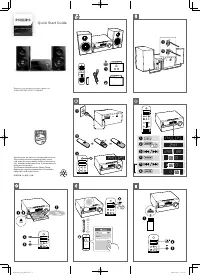
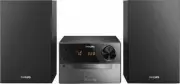
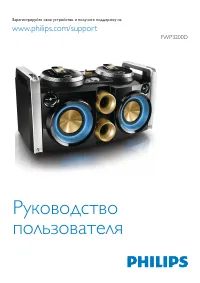
8 DVD region code Countries Asia Pacifi c, Taiwan, Korea Australia, New Zealand What’s in the box Check and identify the contents of your package: Main unit • 2 speakers • Subwoofer • Remote control with batter y • Composite video cable (yellow) • Power cord • FM wire antenna • MP3 Link cable • User ...
Page 8 - Overview of the main unit; a b
9 d / Skip to the previous/next track. • Skip to the previous/next title or • chapter.Select a preset radio station. • e Disc compartment f Headphone socket. • g MP3-LINK Jack for an external audio device. • Overview of the main unit a Turn on the apparatus; switch to • standby mode. b SOURCE Select...
Page 11 - Connect FM antenna; Connect; Place the unit
12 Connect speakers and subwoofer Note Ensure that the colors of the speaker wires and • terminals are matched.For optimal sound, use the supplied speakers only. • Connect only speakers with impedance that is the • same or higher than the supplied speakers. Refer to the Specifi cations section of thi...
Page 12 - Connect TV; Connect video cables; TV
13 Note The progressive scan video quality is only available • when a progressive scan TV is connected.If your TV does not suppor t progressive scan, you • cannot view the picture.For how to activate progressive scan on your TV, refer • to the TV user manual. Connect a progressive scan TV through co...
Page 13 - Connect power; Connect audio cables
14 Connect power Caution Risk of product damage! Ensure that the power supply • voltage corresponds to the voltage printed on the back or the underside of the unit.Before connecting the AC power cord, ensure you have • completed all other connections. 1 Connect the AC power cord to the wall socket. ...
Page 14 - Set clock; Turn on; Switch to standby mode; started; Prepare the remote control
15 Set clock 1 In the standby mode, press and hold CLOCK to activate the clock setting mode. The hour digits are displayed and begin » to blink. 2 Press + VOL - to set the hour. The minute digits are displayed and » begin to blink. 3 Press + VOL - to set the minute. 4 Press CLOCK to confi rm the cloc...
Page 15 - Select the correct TV system
16 You have connected this unit with the • TV through component video. 1 Turn on the TV. 2 Ensure that the TV progressive scan mode is deactivated (see the TV user manual). 3 Switch the TV to the correct viewing channel for this unit. 4 Press DISC . 5 Press SYSTEM MENU . 6 Press / to select [Video S...
Page 16 - Select an audio language; Select a subtitle language; Play a disc; Use the disc menu
17 To access or exit the menu manually: 1 Press DISC MENU . For VCD with PlayBack Control (PBC) feature (version 2.0 only): With the PBC feature, you can play VCD interactively according to the menu screen. 1 During play, press DISC MENU to enable/ disable PBC . When PBC is enabled, the menu » scree...
Page 17 - Play DivX video; Play from USB
18 Play DivX video You can play DivX fi les copied onto a CD-R/RW, recordable DVD or USB device. 1 Inser t a disc or connect a USB device. 2 Select a source: For discs, press • DISC . For USB devices, press • USB . 3 Select a fi le to play and press . To stop play, press • . To pause or resume play, p...
Page 18 - Play options; Display play information; Play control; Select repeat/shuffl e play options; Search forward/backward
19 Play star ts automatically at your • selected point. Resume video play from last stopped point Note This feature is only available for DVD/VCD play. • 1 In stop mode and when the disc has not been removed, press . To cancel resume mode and stop play completely: 1 In stop mode, press . Play option...
Page 19 - Select a camera angle; Picture view options; Preview pictures; Select a slide show play mode; Change the audio channel
20 Select a camera angle Note This feature is only available for DVDs recorded with • multiple camera angles. 1 During play, press ANGLE/PROG repeatedly to select a camera angle. Picture view options Preview pictures 1 During play, press . The thumbnails of 12 pictures are » displayed. 2 Select one ...
Page 20 - Audio setup; Adjust; General setup
21 • [On] – Enable the screen saver. • [Off] – Disable the screen saver. [DIVX (R) VOD] Display the DivX® registration code. Tip Enter this DivX registration code when you rent or • purchase video from http://vod.divx.com/. The DivX videos rented or purchased through the DivX® VOD (Video On Demand) ...
Page 21 - Video setup
22 [TV Type] Change this setting if the video does not appear correctly. By default, this setting matches the most common setting for TVs in your countr y. • [PAL] - For TV with PAL color system. • [Auto] - For TV that is compatible with both PAL and NTSC . • [NTSC] - For TV with NTSC color system. ...
Page 23 - Tune to a preset radio station; Tune to FM
24 Program radio stations manually Note You can program a maximum of 20 preset radio • stations. 1 Tune to a radio station. 2 Press ANGLE/PROG to activate programming. 3 Press / to allocate a number from 1 to 20 to this radio station, then press ANGLE/PROG to confi rm. The preset number and the frequ...
Page 24 - Select automatic loudness control; Mute sound; Listen through headphone; Adjust; Adjust volume level; Select a preset sound effect; Enhance bass
25 Select automatic loudness control Automatic loudness control increases the treble and bass effect at low volume levels (the higher the volume, the lower the treble and bass levels). 1 To turn on automatic loudness control, press LOUD/DBB during play until the loudness icon is displayed. To turn o...
Page 25 - Set the sleep timer; Connect other devices; Listen to an audio player; Other; Activate demonstration mode; Set the alarm timer
26 To deactivate the alarm timer, select » [OFF] (off) at step 6. Set the sleep timer 1 When the unit is turned on, press SLEEP/ TIMER repeatedly to select a set period of time (in minutes). The unit turns off automatically after » the set period of time. Connect other devices Listen to an audio pla...
Page 26 - Record to a digital recorder
27 For audio players with headphone • sockets:Connect the supplied MP3 Link cable to the MP3 LINK socket and to the headphone socket on the audio player. 2 Select the MP3 Link/AUX source. 3 Star t play on the audio player. Record to a digital recorder You can record audio from this unit to a digital...
Page 27 - information; Specifi cations; Amplifi er
28 Tuner (FM) Tuning Range 87.5 - 108MHz Tuning grid 50KHz Sensitivity - Mono, 26dB S/N Ratio <22 dBf Sensitivity - Stereo, 46dB S/N Ratio >43 dBf Search Selectivity >28dBf Total Harmonic Distor tion <3%Signal to Noise Ratio >55dB Speakers Speaker Impedance 2X4ohm + 8ohmSpeaker Driver...
Page 29 - 1 Troubleshooting
30 A distor ted picture may appear during • progressive scan setup. The aspect ratio of the TV screen cannot be changed even though you have set the TV display format. The aspect ratio if fi xed on the loaded • DVD disc.The aspect ratio may not be changed for • some TV systems. No sound or poor sound...