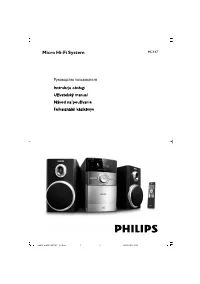
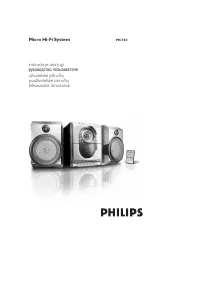
Page 2 - Italia
Norge Typeskilt finnes på apparatens underside. Observer: Nettbryteren er sekundert innkoplet . Den innebygde netdelen er derfor ikke frakoplet nettet så lenge apparatet er tilsluttet nettkontakten. For å redusere faren for brann eller elektrisk støt , skal apparatet ikke utsettes for regn eller fukt...
Page 3 - Contents
1 English EN 6 Play iPhone/iPod 18 Compatible iPod/iPhone 18 Load the iPhone/iPod 18 Listen to the iPhone/iPod 19 Charge the iPhone/iPod 19 Remove the iPhone/iPod 19 7 Listen to radio 19 Tune to a radio station 19 Program radio stations automatically 19 Program radio stations manually 20 Tune to a p...
Page 4 - Important; Safety; Know these safety symbols
2 or other apparatus (including amplifiers) that produce heat . i Protect the power cord from being walked on or pinched, particularly at plugs, convenience receptacles, and the point where they exit from the apparatus. j Only use attachments/accessories specified by the manufacturer. k Use only with ...
Page 5 - Notice; Hearing safety
3 To establish a safe volume level: Set your volume control at a low set ting. • Slowly increase the sound until you can • hear it comfor tably and clearly, without distor tion. Listen for reasonable periods of time: Prolonged exposure to sound, even • at normally ‘safe’ levels, can also cause heari...
Page 6 - Trademark notice; Copyright notice
4 Trademark notice ABOUT DIV X VIDEO: DivX® is a digital video format created by DivX , Inc. This is an of ficial DivX Cer tified device that plays DivX video. Visit w w w.div x.com for more information and sof tware tools to conver t your files into DivX video. ABOUT DIV X VIDEO-ON-DEMAND: This DivX C...
Page 7 - What’s in the box; Your; Introduction
5 You can play DVD discs marked with the following region code: DVD region code Countries Europe What’s in the box Check and identify the contents of your package: Main unit • 2 speakers • Remote control with bat teries • Composite video cable (yellow) • Power cord • MP3 link cable (leng th: 60 cm) ...
Page 8 - Overview of the main unit
6 g Headphone socket. • h USB socket. • i Disc compartment j Display panel Display current status. • k SOURCE Select a source. • l Turn on the apparatus or switch to • the standby mode. m VOLUME Adjust volume. • Adjust time. • Overview of the main unit a Dock for iPod/iPhone b DBB/LOUDNESS Turn on o...
Page 10 - Connect; Place the unit; Connect speakers
8 3 Connect Place the unit 1 Place the unit near to the T V. 2 Place the lef t and right speakers at equal distance from the T V and at an angle of approximately 45 degrees from the listening position. Note To avoid magnetic inter ference or unwanted • noise, never place this appar atus and speaker ...
Page 12 - Connect video cables; TV
10 Option 1: Connect through an S-Video cable 1 Connect an S -video cable (not supplied) to: the • S -Video socket on this unit. the • S -Video socket on the T V. Option 2: Connect through a composite video cable 1 Connect the composite video cable (supplied) to: the • VIDEO socket on this unit. the...
Page 14 - started; Prepare the remote control; Connect power
12 4 Get started Caution Use of controls or adjustments or • per for mance of procedures other than herein may result in ha zardous r adiation exposure or other unsafe oper ation. Always follow the instructions in this chapter in sequence.If you contact Philips, you will be asked for the model and s...
Page 15 - Switch to standby mode
13 3 Press . The unit automatically stores radio » stations with sufficient signal strength.After all available radio stations are » stored, the first stored radio station is broadcast automatically. Set clock1 In standby mode, press and hold CLOCK for over 2 seconds to activate the clock set ting mod...
Page 16 - Turn on Progressive Scan; Select the correct TV system
14 Turn on Progressive Scan Progressive scan displays twice the number of frames per seconds than interlaced scanning (ordinar y TV system). With nearly double the number of lines, progressive scan offers higher picture resolution and quality.Before you turn on this feature, ensure that: The T V sup...
Page 17 - Select an audio language; Select a subtitle language; Play a disc; Use the disc menu
15 1 Press MENU/ . For VCD with PlayBack Control (PBC) feature (version 2 .0 only): The PBC feature allows you to play VCD interactively according to the menu screen. 1 During play, press MENU/ to enable/ disable playback control. When PBC is enabled, the menu » screen is displayed.When PBC is disab...
Page 18 - Play control; Select repeat/shuffle play options
16 Play a slideshow with background music This apparatus can play MP3/WMA files and JPEG photos simultaneously. Note The MP3/ WMA and JPEG files must be stored • on the same disc or USB stor age device. 1 Play an MP3/ WMA file. 2 Navigate to the photo folder/album and press to star t the slideshow. Sli...
Page 19 - Display play information; Play options; Program tracks
17 To remove a programmed track • from the list, access the list of programmed tracks, press / to select a track , and then press ANGLE/PROG . To erase the program, remove all • programmed tracks from the list. For MP3/ WMA /DivX (Ultra) files stored on a CD-R /RW, recordable DVD, or USB storage devi...
Page 20 - Play; Compatible iPod/iPhone; Change camera angle; Picture view options; Select a slide show play mode
18 6 Play iPhone/iPod You can enjoy audio from iPhone/iPod through this unit. Note The audio is only output through the supplied • speaker s. Compatible iPod/iPhone The unit suppor ts the following iPod and iPhone models. “ Made for iPod ” and “ Made for iPhone ” mean that an electronic accessor y h...
Page 21 - Listen to radio; Charge the iPhone/iPod
19 7 Listen to radio The unit can automatically search and store radio stations (see “Get star ted” > “Store radio stations automatically”). You can also search and store radio stations manually. Tune to a radio station1 Press FM . 2 Press and hold / for more than 2 seconds. The radio tunes to a ...
Page 22 - Synchronize clock with RDS station; Show RDS information
20 Note There are definitions of RDS progr am types • (see “Produc t infor mation” > “RDS progr am types”). Synchronize clock with RDS station You can synchronize the clock time on the unit with an RDS station. 1 Tune to an RDS radio station that transmits time signals. 2 Press DISPL AY / RDS for ...
Page 23 - General setup; Audio setup; Adjust; Select a sound effect; Select a preset sound effect
21 9 Adjust settings 1 Press SYSTEM MENU . 2 Select a setup page. 3 Select an option and then press . 4 Select a set ting and then press OK . To return to the previous menu, • press . To exit the menu, press • SYSTEM MENU . General setup On the [General Setup] page, you can set the following options...
Page 24 - Preferences; Video setup
22 • [4:3 Letter Box] – For 4:3 screen T V: wide-screen display with black bars on the top and bot tom of the screen. • [ Wide Screen] – For wide-screen T V: display ratio 16:9. [Picture Setting] Customize picture color set tings. [Component Video] Set the video output according to the video connect...
Page 25 - 0 Other features; Activate demonstration mode
23 10 Other features Activate demonstration mode You can see an over view of all features. 1 In the standby mode with clock display (if set), press on the main unit to activate the demonstration mode. A demonstration of major available » features star ts. To deactivate the demonstration mode: 1 Pres...
Page 26 - information; Specifications; Amplifier; Set the sleep timer; Listen to an audio device
24 11 Product information Note Produc t infor mation is subjec t to change • without prior notice. Specifications Amplifier Rated Output Power 2 X 30 W RMS Frequency Response 40 Hz - 20 0 0 0 Hz, ±3 dB Signal to Noise Ratio > 65 dB Aux Input 1 V RMS 20k ohm Disc Laser Type Semiconductor Disc Diamet...
Page 27 - Supported disc formats; Speakers
25 Supported disc formats Digital Video Discs (DVDs) • Video CDs ( VCDs) • Super Video CDs (SVCDs) • Digital Video Discs + Rewritable • (DVD+RW ) Compact Discs (CDs) • Picture (Kodak , JPEG) files on CDR( W ) • DivX(R) disc on CD-R( W ): • DivX 3.11, 4.x and 5.x • WMA • Supported MP3-CD formats: ISO ...
Page 29 - 2 Troubleshooting
27 A distor ted picture may appear during • progressive scan setup. The aspect ratio of the TV screen cannot be changed even though you have set the TV display format. The aspect ratio is fixed on the loaded • DVD disc.The aspect ratio may not be changed for • some T V systems. No sound or poor sound...