Page 2 - Discover your phone; Phonebook
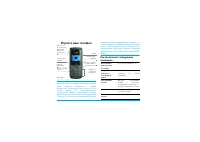
Discover your phone Philips continuously strives to improve its products.Therefore, Philips reserves the rights to revise this userguide or withdraw it at any time without prior notice.Philips provides this user guide «as is» and does not ac-cept, except as required by applicable law, liability fora...
Page 3 - The carousel
1 A carousel is a circular loop of icons displayed on thescreen. Each icon represents a feature or operation ofyour phone. All icons don’t fit within the screen; the hidden ones ap-pear when scrolling < or > . You access the main carousel by pressing , when in idle mode. Move < (anti clockw...
Page 4 - Events
2 Browse carousels and lists until you reach the desiredfeature or option. When navigating in a list, a scroll barlocated on the right hand side of the screen shows youractual position in the list. With the navigation key, youcan then select or adjust all the functions of your phoneas described in t...
Page 5 - Table of contents
Table of contents 3 Table of contents 1. Get started ......................................... 7 Insert the SIM card ...........................................7Switch on the phone ........................................8Set date and time ..............................................8Copy the SIM ...
Page 6 - Table of contents
4 Table of contents Get started ...................................................... 25 Activate tracks ..................................... 25Change track melodies and instruments 26Change the tempo ................................ 26Start recording .................................... 27Manage ...
Page 9 - Get started; • Get started; Insert the SIM card
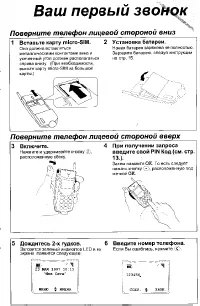
Get started 7 1 • Get started Read the safety instructions in the «Precautions» section be-fore use. To use your phone, you must insert a valid SIM cardsupplied by your GSM operator or retailer. The SIMcard contains your subscription, your mobile number,and memory in which you can store phone number...
Page 10 - To switch on the phone, press the; Switch on the phone
8 Get started 5. Remove the protective film covering the screenbefore using the phone. 1. To switch on the phone, press the ) key. 2. When you switch on the phone, you may beprompted to enter the PIN code, which is the 4to 8-digit secret code of your SIM card to protectit from unauthorised use. It i...
Page 11 - and select; LEFT; hand socket at the base of the phone on one; Charge the battery
Get started 9 book, press , and select Phonebook > Phonebook settings > Phonebook select > In SIM card . Your phone is powered by a rechargeable battery. Anew battery is partially charged and an alarm will warnyou when the battery reaches low. We recommend that you do not remove the battery...
Page 12 - Main features; • Main features; View Names List; Access and consult the phonebook; Answer and end a call
10 Main features 2 • Main features In idle mode, press - . Depending on the selected phonebook (in SIM or inphone), the content that appears on the screen may vary: see “Phonebook” page 29 for detailson this subject.To consult the phonebook during a call, press , , se- lect View Names List , press ,...
Page 13 - If already on the phone, press; Change the ringer; Activate the silence mode
Main features 11 carousel, then select Call handsfree and press , to dial the number. 2. If you selected the phonebook in your phone,proceed the same way to call the default number,or press < or > , select another number in the list, then press , and select Call handsfree . If already on the p...
Page 14 - Foto Talk: add voice to pictures
12 Main features This feature, which is available when using the cameraand also from the Picture album , allows you to quickly send a message made of a picture and a sound. 1. When in idle mode, press C to activate the camera. 2. Press C to take a picture, then press , to access the option and selec...
Page 15 - If you select
Main features 13 During a call, move the side key up or down to in-crease/decrease the volume. You can mute the microphone so thatyour caller cannot hear you.During a call, press , , select Mute and confirm by pressing , . To unmute the microphone during acall, press , , select Unmute and con- firm ...
Page 16 - You can also delete all the SMS messages from the; Clear the phonebook
14 Main features You can also delete all the SMS messages from the SMS Archive menu. Deleting your SMS list is useful to free memory space in order to receive new messages. To clear the content of your phonebook at once, press , and select Phonebook > Phonebook set. > Delete all . Press , to r...
Page 17 - Menu tree; • Menu tree; List of available hotkeys
Menu tree 15 3 • Menu tree The table below describe the complete menu tree (firstto third levels) of your mobile phone, as well as thepage reference you should refer to for more informa-tion concerning each feature or setting. Settings p36 Sounds p36 Silent / Ringer volume / Ringer / MessagesRinger ...
Page 18 - For each available mail box; Multimedia p71; List of available pictures
16 Menu tree E-Mail p52 For each available mail box Settings / Open mailbox / Send mail Broadcast Message p60 Reception / Topics / District codes Instant message p60 MMS p61 Create an MMS / Receive an MMS / Managefolders / Settings Multimedia p71 Camera p73 Picture album p71 List of available pictur...
Page 19 - Call information p78; GSM counters / GPRS counters; Operator services p87
Menu tree 17 Brick Game p77 Infrared p68 Data / Receive Call information p78 Call settings p78 Call forward / Mailboxes / Auto redial / Anykey answer / Call waiting / Caller ID Call list p79 Call list / Reset Call counters p80 GSM counters / GPRS counters Phonebook p29 View names list Phonebook sett...
Page 20 - Text or number entry; • Text or number entry; Good; T9 ® text Input
18 Text or number entry 4 • Text or number entry Text can be entered in editing screens in two differentways: by using T9 ® predictive Text Input, or basic text input. Two other modes for numbers and punctuationmarks, are also available. Icons appearing on the screenshow the active text mode. What i...
Page 21 - MN; Basic text input
Text or number entry 19 If you wish to access the basic text input, select «Abc»basic text input using * key. This method requires multiple key presses to reach the desired character: theletter «h» is the second letter on the 4 key, so you must press it twice to enter «h». Using this mode re-quires ...
Page 22 - Taking pictures; • Taking pictures; key will cancel any current action and bring; Preview mode settings; to access any of them.; Pictures shots
20 Taking pictures 5 • Taking pictures Your mobile phone features a digital camera thatallows you to take pictures, store them in your phone,use them as wallpaper or send them to your friends andrelatives. Within any menu related to the camera, a long press onthe c key will cancel any current action...
Page 23 - Camera mode; Take a picture; With the
Taking pictures 21 Camera mode Two modes are available: Normal and Night mode . According to ambiant light level, press * to toggle between modes, which are reflected by the icons in thebottom of the screen (sun & moon). Picture resolution The default picture size of the standard format is 128 x...
Page 24 - Number of pictures
22 Taking pictures With the self-timer 1. If the self-timer option is On , press C to acti- vate it (or press 0 if the option is Off ). 2. The count-down starts at -10 seconds (this valuecannot be changed). A beep is played 2 secondsbefore the picture is taken, then again when it’sactually shot. Bee...
Page 25 - Settings
Taking pictures 23 This will send one message to one person, without text.See “MMS” page 61 for details on this feature. Review the pictures The pictures you save are automatically stored in the Multimedia > Picture album > Own pictures menu. Select a picture in the list and press > to acce...
Page 27 - Activate tracks; Press
Music & Mix 25 6 • Music & Mix With BeDJ, you can create your own sound by using apredefined BeDJ style (as explained below), or any SP-MIDI or MIDI ring tones present in your phone, orthat you downloaded via WAP, Infrared, etc. (refer torelevant chapters in the present user manual for com-p...
Page 28 - Off; Change track melodies and instruments; Melody; Change the tempo; Tempo
26 Music & Mix 2. In the BeDJ screen that appears, the defaultmusic style is selected (e.g., Groovy, Techno, etc.). 3. In the upper left part of the screen, a small tabledisplays the current tempo value, the status of therecording ( Off by default) and the name of the track. 4. In the bottom par...
Page 29 - Start recording; for memory information.; Manage the recording; list as well as; Record a mix; Send by MMS; Create your own style and mix
Music & Mix 27 Start recording 1. When ready to record your mix, press 0 . The timer starts and the On air red icon is selected. 2. While recording your mix, you can: 3. Press 0 to stop recording. The recording will stop automatically when the mixreaches 50 KB (approximately 2 min). Capacity de-...
Page 30 - From existing files; Mix ringers; From scratch; Advanced; Save your own styles
28 Music & Mix The ringers list includes the MIDI files you might havedownloaded via e-mail, WAP, IrDA, etc. From existing files 1. When the BeDJ screen is active, press , to access the options list. 2. When selecting Mix ringers or BeDJ styles , simply choose one of the available melodies in th...
Page 31 - • Phonebook; The; SIM card phonebook
Phonebook 29 7 • Phonebook Your mobile phone has two phonebooks. The SIMphonebook is located on the SIM card and the numberof entries depends on the card capacity.The secondphonebook is built into the mobile’s memory and canhold up to 299 names. The SIM card capacity depends on the type of card youh...
Page 32 - Reset phonebook; In the SIM card; New; In the phone; Phone’s phonebook
30 Phonebook When you copy the contents of yourSIM phonebook into your phone, youcan still use the phonebook of your SIM card, even though it features less fields of information. Your mobile phone only manages one phonebook at atime and will ignore the information relative to theother one: e.g., if ...
Page 33 - Add a name field; Own numbers
Phonebook 31 Add a record in the phone’s phonebook Add a name field 1. Press - to enter the Phonebook , select <New> , and then press , . 2. Enter the last name of your contact and confirmby pressing , , then enter their first name and confirm by pressing , . One of the two name fields can be ...
Page 34 - and; Edit and manage names
32 Phonebook For that important person, why not set up a group justfor them. Use the camera to save their picture in the Pic- ture album and Sound recording to save their voice as a ringer. When they call, you will truly be able to see andhear them (for camera, see page 20 and for sound re-cording, ...
Page 35 - Add a field
Phonebook 33 In the phone Add a field 1. To add a new field to an existing record, select thename of your choice, select Show and press , . 2. Select <New> and press , . Choose the type of field to be added and press , . Enter the number or text, then press , to save changes. 3. Repeat steps 1...
Page 36 - Emergency number; or; Enter a number; or; Make calls
34 Phonebook Call , Call handsfree or Send SMS option. To change the default number (e.g. make the «Work» number defaultinstead of the «Home» number), repeat steps 1 to 3 ofthe “Change a field content” paragraph. Then select Make default in the carousel menu, and press , to confirm. Copy to SIM As m...
Page 37 - default; and press
Phonebook 35 - press , twice to access the next carousel, then select Call or Call handsfree and press , to dial the number. 3. If you selected the phonebook in your phone: • To call the default number: - once the record selected, simply press ( to dial, or - press , to access the record carousel, t...
Page 38 - • Settings; Sounds
36 Settings 8 • Settings The Settings menu allows you to customise your phone and change the settings related to each available option(sounds, time and date, security, etc.). The Profiles menu allows you to change several settings at once (seepage 47). Silent Allows you to set the Silence mode On or...
Page 39 - Display
Settings 37 Sounds Alerts Allows you to set alert beeps On or Off for the following items: - when an Event you programmed in your organiser is due, - when you have missed a call,- when the Battery is low and requires charging, - to manage the duration of your calls, first after 45 seconds, then ever...
Page 40 - Only JPEG type pictures can be used as Wallpapers.; Hotkeys
38 Settings saver will start according to the time limit youhave set. 3. Then select the Display period and press , . The timing you have set will be applied between eachpicture of the slideshow. Animation Allows you to set the animation of thecarousel menus On or Off . When On , this option will al...
Page 42 - ALL; Subscription dependent; Voice command
40 Settings Instead of entering the various menusand browsing the lists, you can also set avoice tag that will activate a feature (e.g., launch the Calculator). Opens the E-mail menu for access to the mail boxes. Displays the remaining credit balance. Subscription dependent Displays the Accumulated ...
Page 43 - mail» and «Alarm clock».; Voice dial
Settings 41 You can associate a Voice command to all the functionssupported by the Hotkeys (see page 38), except for «Get mail» and «Alarm clock». 1. Select Settings > Voice Command > <New> and press , , then browse the list to select the func- tion to be set with a voice tag. Press , to...
Page 44 - values by pressing; Public names; Call restriction; Call barring; Security
42 Settings Keypad lock Allows you to lock/unlock your keypadby pressing and holding the c key when in idle mode. The keypad auto- matically unlocks when receiving a call. You can also choose immediate or delayed lock by se-lecting Settings > Security > Keypad lock , then one of the values by ...
Page 45 - Outgoing calls; Change codes; You cannot change your PIN code if this option is; Network
Settings 43 Outgoing calls The Outgoing menu allows you to select between All calls, International calls and Intl. Exc. Home calls (the latter allowing you to call your home country when you are abroad).You can also Deactivate the bar on outgoing calls. These menus then allow you to bar, within each...
Page 46 - Always on; Register again; Manual; Preferred list
44 Settings GPRS attach Your mobile integrates features that sup-port GPRS (Global Packet Radio Serv-ice), a service allowing you to exchange data with high speed rates and to stay always on-line(i.e. have a permanent connection to the Internet andWAP). Contact your phone operator to have full infor...
Page 47 - OR; GPRS settings
Settings 45 be stored automatically. Please contact your networkoperator for detailed information on this subject. Change name Allows you to enter or change the nameof the selected profile. Press , , enter the name of your choice and press , to confirm. Some pre-configured profiles might be locked, ...
Page 48 - Time and date
46 Settings This menu allows you to set the time and date, timezone, daylight savings, and change the clock displaymode. Clock display Allows you to select Analogue , Digital or Tiny time formats when shown in idle mode, by pressing + or - . In all cases, press , to confirm. Set date Allows you to s...
Page 49 - activates; Language
Settings 47 This menu allows you to select a language for all menutext. A long press on 0 when in the idle screen au- tomatically displays this menu. This menu allows you to access a group of predefinedsettings, which let you quickly adapt your phone toyour environment by changing several settings a...
Page 50 - sonal; Vibra alert; Ringer volume; Medium; Key tones; Any key answers; On
48 Settings When connecting an accessory, the settings describedin the table below also become available. When discon-necting the accessory, the phone goes back to the Per- sonal profile. AccessoriesProfiles CLA or Charger Vibra alert Off Off Ringer volume Medium High Key tones Headset Activate Car ...
Page 51 - Messages; • Messages; feature is; Send a SMS; To a name in the list; To the number of your choice (phone name list only); To any other name; SMS
Messages 49 9 • Messages The Send SMS item of the Messages menu allows you to: • send a standard or customised short text messageto someone, • edit the last message sent and send it again, • add an iMelody, pre-defined sounds, an anima-tion or a picture to your message. The features above are not av...
Page 52 - Together with an attachment; Read SMS; Received Messages
50 Messages Together with an attachment This option allows you to attach a sound, icon or ani-mation to your message and press , to confirm and attach it to your message. Depending on the type of fileyou want to attach, select Add graphic to attach a bit- map image or an animation, and/or Add sound ...
Page 53 - or in the; SMS centre; If not available on your SIM card,; Signature
Messages 51 - Delete the selected message, - Store number of the sender if it is attached to the message, - Store melody if a melody was sent together with the SMS, - Store graphic(s) if one or several graphics and/or ani- mations were sent together with the message, - Extract a number included in t...
Page 54 - SMS Archive
52 Messages Validity period This feature is subscription dependent. Allows you to select the length of timeyour message is to be stored in your SMScentre. This is useful when the recipient is not connected to the network (and thus cannot re-ceive your message immediately). Reply path This feature is...
Page 55 - Network access
Messages 53 To enter text and numbers, including specific signs suchas @ or %, see the characters table described page 19. Settings Network access This menu allows you to configure your phone and tohandle the connection to the network, whether GSMor GPRS, in order to then connect to the appropriate ...
Page 56 - receive; Account name
54 Messages Contact your ISP to know what type of number youshould select. Auto disconnection : allows you to select an inactivity time period after which the phone automatically dis-connects (if a connection was is progress) from the net-work. Press + or - to select a value from 3 to 10min. and pre...
Page 57 - In most European countries, this menu should be set to; Write and send an e-mail; To one or several recipients
Messages 55 Advanced The menus described in this section feature advancedsettings that may have been pre-configured, so youshouldn’t have to change any of them. If the fields of these menus are empty, or if you encoun-ter connection problems, contact your ISP. Port POP3 : allows you to enter the POP...
Page 58 - menu before sending; Receive and read e-mails
56 Messages 7. In the next window, enter the text of your e-mail(you can also leave this field empty). Press , when you are ready to send your e-mail. To learn how to enter text, see “Text or number entry”page 18. If you exit the Send e-mail menu before sending your e-mail, its content is deleted wi...
Page 59 - Connect to the server; Connection process; You can also press
Messages 57 Connect to the server Connection process 1. Press , and select Messages > E-mail , then E- mail 1 or E-mail 2 depending on the one you wish to use. Select Open mailbox and press , . Mailboxes 1 and 2 feature the same settings and op-tions. Configuring them differently will allow you t...
Page 60 - Get and store attachments
58 Messages Get and store attachments If the e-mail you have received contains attachments(JPEG picture, text file or another e-mail), they arecharacterised by a specific icon: You must have stored a picture before being able toview it via the Picture album menu. See “Picture al- bum” page 71 for mo...
Page 61 - Add an e-mail address to the phonebook
Messages 59 Add an e-mail address to the phonebook You must have selected the phonebook in your phone tobe able to add an e-mail address; this menu item willNOT appear if you selected the SIM phonebook. You can add the sender’s e-mail addressto your phonebook, even when you ha-ven’t yet downloaded h...
Page 62 - The Broadcast SMS feature is network-dependent.; Broadcast Message; Instant message
60 Messages page 57). From the Forward to option, proceed as de- scribed above in “Reply to an e-mail”. In both cases (reply to an e-mail or forward it), yourphone will disconnect from the server when reachingthe network inactivity time out set in the Auto discon- nection menu (see “Bearer” page 53)...
Page 63 - Select the addressees; You can select one of the items and press
Messages 61 Your mobile phone allows you to sendand receive MMS (multimedia messag-es), featuring texts, pictures and sounds, including music mixes you have created with BeDJ ormemos that you have recorded.A multimedia message can be made of one slide (in-cluding text, sound and image), or of severa...
Page 64 - if you don’t want to insert any
62 Messages Warning! The bigger the picture size, the longer it willtake to send it. A copyright-protected picture cannot besent. Select None if you don’t want to insert any picture. 3. The Text icon is automatically selected: press , to access the text editing screen, enter the text of your message...
Page 65 - Send your Message; Receive an MMS; Download and play an MMS
Messages 63 When browsing the lists, specific icons show the type ofthe selected message (read MMS, delivery report, tem-plate, etc.). The information about the message (sender,recipients, subject) scrolls horizontally automaticallywhen selected. Send your Message As described above, you can either:...
Page 66 - Get and store attachments
64 Messages 1. If you activated the Automatic retrieval mode (see page 66), the message is automatically down-loaded and placed in the Inbox . Select it in the Inbox list and press > to play it. 2. If the Manual mode is activated: •Press c to go back to idle mode and to save the notification in t...
Page 67 - Messages you have saved can only be sent from the
Messages 65 Manage folders The MMS menu allows you to manage your messagesin 4 different folders. The default (active) folder is thelast one you selected. To change the active folder, press c to return to the main MMS menu and select the folder of your choice: Messages you have saved can only be sen...
Page 68 - If selecting; Retrieval mode; , without you having to launch
66 Messages from your operator the information items described inthe present section and enter them as given.With some operators, access parameters can be set «overthe air». Please check directly by your operator. Network account Allows you to choose a data profile from the ones youhave set (see “Ac...
Page 70 - Send; Position of devices
68 Infrared 10 • Infrared Your mobile phone integrates the infrared technology(also called IrDA), that allows you to send or receivedata to and from other IrDA-compliant devicesthrough a wireless link (e.g., another mobile phone, aPC or PDA, a printer etc.). Instead of sending a mes-sage, you can de...
Page 71 - Activate IrDA; key to cancel the process.; Save the data received; Names; Receive data
Infrared 69 Send the selected item As soon as your phone finds another IrDA-compliantdevice to communicate with, the sending automatical-ly takes place. Messages are displayed on the screen, foryou to follow the process.If the phone finds several IrDA devices, a list is dis-played on the screen, for...
Page 72 - Macintosh
70 Infrared Press , Gives you access to the options menu, from which thefollowing options are available: Use the phone as a modem You can also use your mobile phone to-gether with a PC or a PDA, e.g. to surfthe Internet or send faxes. To fully benefit from the services available via IrDA(send and re...
Page 73 - Multimedia; 1 • Multimedia; Pictures in the; Picture album; Sound album
Multimedia 71 11 • Multimedia JPEG pictures must have the correct size and formatfor your mobile phone to store and display them cor-rectly. Please check “Get and store attachments”page 58 for complete information on this subject. This menu allows you to manage anddisplay the pictures stored in your...
Page 74 - folder
72 Multimedia Select a sound and press , to access the following options: You will not be able to send sounds that are protectedby a copyright. Sounds in the Standard melodies folder cannot be deleted. Press , to launch the Demo movie. If you turned the phone on without having inserted aSIM card, th...
Page 75 - BeDJ
Multimedia 73 If «List full» appears when saving a new item or to freememory space, you must delete an item to be able to cre-ate or add a new one. This menu allows you to record a soundof 1 min. maximum, and up to 20 differ-ent sounds, depending on the Memorystatus. Press , and select Multimedia &g...
Page 77 - Create a new event; This menu only applies to; Modify an event; Change an event
Games & Appli. 75 Create a new event The Events menu allows to create events and store them in your organiser. Eventscan be Meetings , Holidays or ToDos . When the organiser alert is On (see page 37), a beepalerts you when an event is due. 1. Select Organiser > Events > <New> and pre...
Page 78 - Deleting an event; Deleting a single event; Views of events
76 Games & Appli. 2. When your phone displays the details of theselected event, press , , select Change and press , again. Changing a repeated event will also modify all instanc-es of this event: in this case, press , to confirm. 3. Change any information as needed and asdescribed above. Deletin...
Page 80 - Call information; 3 • Call information; Call forward; Mailboxes
78 Call information 13 • Call information This menu allows you to set all the calloptions (call forward, waiting, etc.). Call forward Allows you to divert incoming calls ei-ther to your mailbox or to a number(whether in your Phonebook or not) and applies to: Data calls , Voice calls and Fax calls . ...
Page 81 - The time between redials increases with each attempt.; Any key answer; With GSM call; Caller ID; Call list
Call information 79 Auto redial Allows you to set the auto redial On or Off . When On and if the person you are calling is busy, your phone automatically redials this number until a successful connection ismade, or until the maximum number of attempts isreached (10). The phone emits one beep at the ...
Page 82 - Total duration; Call counters
80 Call information Call list From the main carousel, press , then select Call Info > Call list > Call list to dis- play the call list. Use + and - ar- rows to scroll the list and press , again to consult the date, time, number, call status of any selected calland to know if it was sent or rec...
Page 83 - Total cost; GPRS counters; This feature is subscription and network dependent.
Call information 81 Allows you to activate or deactivate thesystematic display of the length and/orcost of each call when hanging up. Total cost This feature is subscription dependent. Allows you to display the accumulatedcost and to set the counter to zero. It maybe protected by PIN or PIN2 codes. ...
Page 84 - You can also select; End a WAP session; Homepage; Internet services
82 WAP 14 • WAP Your mobile phone supports servicesbased on the Wireless Application Proto-col (WAP). The built-in WAP browser allows you to access services supplied with your net-work, such as news, sports, weather, etc. Your mobile phone readily supports the WAP functionif it is included in your s...
Page 85 - This can also be done while browsing: press; Enter address; to reconnect to the corresponding page,; Edit Homepage
WAP 83 Bookmarks This menu allows you to store your favourite WAP siteaddresses, rename them if desired and access themquickly from the list. This can also be done while browsing: press @ to ac- cess the Options , then select Bookmarks . In this case, the Name and URL fields will be automatically fi...
Page 86 - Connection
84 WAP of your choice, then press < or > to select / deselect it and press , to confirm. All connection settings described below will apply to theselected profile, which you can then rename for easieridentification. Connection Select connection Allows you to select one of the data profiles you...
Page 87 - Rename Profile; Push inbox; Options
WAP 85 Rename Profile This menu allows you to rename the currently selectedprofile: enter the new name (an edit screen automati-cally appears), then press , to save the name you entered. Browser Options This menu allows you to activate/deactivate the down-loading of images attached to WAP pages. Sel...
Page 89 - Operator services; 5 • Operator services; book; Pause and wait characters; GSM strings
Operator services 87 15 • Operator services Most items of the Operator Services menu (e.g. Servicenumbers, Services +) are subscription-dependent andspecific to operators: your mobile phone readily sup-ports them if they are included in your subscription.Consequently, the menus shown following may o...
Page 90 - Switch calls; Make a second call
88 Operator services phone number) and then waits for the call to be con-nected before sending the rest of the digits as DTMFtones. Any subsequent pause character is an ordinarypause that generates a delay of 2.5 seconds. For example: access your answering machine To hear all messages (e.g. code 3) ...
Page 91 - Switch; Answer a third call
Operator services 89 To receive a second call, you must have:- subscribed to this feature,- deactivated the Call forward option for voice calls (seepage 78),- activated the Call waiting option (see page 79). If you receive a second call, press , , then you can: • accept the second call: the first on...
Page 92 - Explicit call transfer
90 Operator services Conference . Repeat the above process until five mem- bers are connected.If there is an incoming call during the conference calland there are less than five members, you can acceptthis new call by pressing , . Press , again and then select Conference to add this member to the co...
Page 93 - Precautions; Your cellular mobile phone is a; dio transmitter and receiver; Your cellular mobile phone is your; responsibility; local recommendations and regula-; when using your cellular phone both at home; Regulations on the use of cellular; Radio waves
Precautions 91 Precautions Your cellular mobile phone is a low power ra- dio transmitter and receiver . When it is op- erating, it sends and receives radio waves. Theradio waves carry your voice or data signal to a base station that is connected to the telephone net-work. The network controls the po...
Page 94 - Always switch off your phone
92 Precautions phone complies with all applicable safety standards and the Radio Equipment and TelecommunicationsTerminal Equipment Directive 1999/5/EC. Inadequately protected or sensitive electronic equip- ment may be affected by radio energy. This interfer- ence can lead to accidents. Before board...
Page 95 - improve the performance of your phone; Performance improvement
Precautions 93 In order to improve the performance of your phone , reduce radio energy emission, reduce battery con- sumption and ensure safe operation adhere to the fol-lowing guidelines: For the optimal and satisfactory operation ofthe phone you are recommended to use thephone in the normal operat...
Page 96 - Do not use your phone while driving
94 Precautions It lowers concentration, which can be danger-ous. Adhere to the following guidelines:Give your full attention to driving. Pull offthe road and park before using the phone. Respect the local regulations in countries where youdrive and use your GSM phone.If you want to use your phone in...
Page 97 - Troubleshooting
Troubleshooting 95 Troubleshooting The phone does not switch on Remove and reinstall the bat-tery (see page 7). Then chargethe phone until the batteryicon has stopped flashing. Fi-nally, unplug from the charg-er and try to switch themobile on. The display shows BLOCKED when you switch on Somebody tr...
Page 101 - Philips authentic accessories; Philips authentic; Charger
Philips authentic accessories 99 Philips authentic accessories Charges your battery in any AC outlet. Small enoughto carry in a briefcase/handbag. Designed to operate your Philips mobile phone hands-free and easy to use, this compact hands-free solutionoffers a high audio quality. Simply plug the ki...
Page 102 - declare under our sole responsibility that the product
Declaration of conformity We, Philips FranceMobile Telephony Business Creation TeamRoute d’Angers72081 Le Mans cedex 9FRANCE declare under our sole responsibility that the product Philips 535CT 5358 Cellular Mobile Radio GSM 900/GSM 1800TAC: 352751 to which this declaration relates, is in conformity...