Page 2 - Contents
Contents 1 My new TV 4 1.1 Ultra HD TV 4 1.2 Smart TV 4 1.3 App gallery 4 1.4 Rental videos 4 1.5 Social networks 4 1.6 Ambilight+hue 4 1.7 Skype 5 1.8 Smartphones and tablets 5 1.9 Pause TV and recordings 5 1.10 Gaming 5 1.11 EasyLink 6 2 Setting up 7 2.1 Read safety 7 2.2 TV stand and wall mountin...
Page 4 - My new TV; Ultra HD TV
1 My new TV 1.1 Ultra HD TV This TV has an Ultra HD display. Its resolution is four times as much as normal HD displays. Ultra HD means 8 million pixels for the most refined and lifelike picture on TV.On top, the new Ultra Pixel HD Engine converts continuously any incoming TV signal into Ultra HD re...
Page 6 - EasyLink
need a pair of 3D glasses for each player. In Help , press Keywords and look up Game console or Two player games for more information. 1.11 EasyLink With EasyLink you can operate a connected device, like a Bluray Disc player, with the remote control of the TV.EasyLink uses HDMI CEC to communicate ...
Page 7 - Setting up; Read safety; Tips on placement
2 Setting up 2.1 Read safety Read the safety instructions first before you use the TV.In Help, go to Safety and care > Safety . 2.2 TV stand and wall mounting TV stand You can find the instructions for mounting the TV stand in the Quick Start Guide that came with the TV. In case you lost this gui...
Page 8 - Antenna cable; Satellite dish
2.5 Antenna cable Insert the antenna plug firmly into the ANTENNA socket at the back of the TV.You can connect your own antenna or an antenna signal from an antenna distribution system. Use an IEC Coax 75 Ohm RF antenna connector.Use this antenna connection for DVB-T and DVB-C input signals. 2.6 Sat...
Page 9 - Network; Wireless network
3 Network 3.1 Wireless network What you need To connect the TV wirelessly to the Internet, you need a wireless router. Use a high-speed (broadband) connection to the Internet. Network devices The TV can connect to other devices in your wireless network, like your computer or smartphone. You can use ...
Page 10 - Wired network; Network settings
Network problems Wireless network not found or distorted • Microwave ovens, DECT phones or other Wi-Fi 802.11b/g/n devices in your proximity might disturb the wireless network. • Make sure that the firewalls in your network allow access to the TV's wireless connection. • If the wireless network does...
Page 12 - Connections; Tips on connections
4 Connections 4.1 Tips on connections Connectivity guide Always connect a device to the TV with the highest quality connection available. Also, use good quality cables to ensure a good transfer of picture and sound.If you need help to connect several devices to the TV, you can visit the Philips TV c...
Page 13 - EasyLink HDMI CEC
Y Pb Pr - Audio L R Y Pb Pr - Component Video is a high quality connection. The YPbPr connection can be used for High Definition (HD) TV signals. Next to the Y, Pb and Pr signals add the Audio Left and Right signals for sound. Scart SCART is a good quality connection. The SCART connection can be use...
Page 14 - Common interface - CAM
Operate devices To operate a device connected to HDMI and set up with EasyLink, select the device - or its activity - in the list of TV connections. Press SOURCES , select a device connected to an HDMI connection and press OK . Once the device is selected, the TV remote control can control the dev...
Page 17 - DVD player
3 - If the volume difference is large, select More . If the volume difference is small, select Less . 4 - Press , repeatedly if necessary, to close the menu. Audio Out levelling affects both the Audio Out - Optical and HDMI ARC sound signals. Problems with HTS sound Sound with loud noise If you wa...
Page 18 - USB Hard Drive; USB keyboard or mouse
SCART to Audio/Video If your game console only has a Video (CVBS) and Audio L/R connection, use a Video/Audio L/R (cinch) to SCART adapter (not supplied) to connect to the SCART connection. 4.10 USB Hard Drive What you need If you connect a USB Hard Drive, you can pause or record a TV broadcast. The...
Page 19 - USB flash drive
Install the keyboard To install the USB keyboard, switch on the TV and connect the USB keyboard to one of the USB connections on the TV. When the TV detects the keyboard for the first time, you can select your keyboard layout and test your selection. If you select a Cyrillic or Greek keyboard layout...
Page 20 - Computer
to Ultra HD if the resolution of the photo is higher. You cannot play a native Ultra HD video on any of the USB connections.For more information on watching or playing content from a USB flash drive, press Keywords and look up Your photos, videos and music . 4.13 Photo camera To view photos stored...
Page 21 - Headphones
Alternatively, you can use a DVI to HDMI adapter to connect the PC to HDMI and an audio L/R cable (mini-jack 3.5mm) to AUDIO IN L/R on the back of the TV. Settings Ideal monitor setting If your computer is added as a Computer type of device in the Source menu (the list of connections), the TV is set...
Page 22 - Switch on; On or Standby
5 Switch on 5.1 On or Standby Make sure you plugged in the mains power on the back of the TV before you switch on the TV. If the red indicator light is off, press the Joystick on the right side or on the back of the TV to put the TV in standby - the red indicator will light up. With the TV in standb...
Page 23 - Remote control; Key overview
6 Remote control 6.1 Key overview Top 1 - Standby / On To switch the TV On or back to Standby. 2 - Playback and record keys • Play , to playback. • Pause , to pause playback • Stop , to stop playback • Rewind , to rewind • Fast forward , to go fast forward • Record , to record now 3 - ...
Page 24 - Keyboard
To switch subtitles on, off or Automatically on. 4 - LIST To open or close the channel list. 5 - Channel To switch to the next or previous channel in the channel list. To open the next or previous page in Text. To start the next or previous chapter on a disc. 6 - Mute To mute the sound or to r...
Page 25 - IR sensor
Uppercase and lowercase • To type an uppercase character, press the (Shift) key just before you type the character. • To type several uppercase characters consecutively, press and hold the key while typing. • To type uppercase constantly, press the key for 2 seconds to switch the keyboard in u...
Page 27 - TV channels; Watching TV channels
7 TV channels 7.1 Watching TV channels Switch channels To watch TV channels, press . The TV tunes to the TV channel you last watched.Alternatively, press to open the Home menu and select Watch TV and press OK . To switch channels, press + or - . If you know the channel number, type in the nu...
Page 31 - Channel installation
press OK . 3 - Select the language you want and press OK . 4 - Press , repeatedly if necessary, to close the menu. Interactive TV About iTV With interactive TV, some digital broadcasters combine their normal TV programme with information or entertainment pages. On some pages, you can respond to a ...
Page 35 - Satellite channels; Watching satellite channels; Favourite satellite channels
8 Satellite channels 8.1 Watching satellite channels To watch satellite channels . . . Press and select Satellite and press OK . The TV tunes to the satellite channel you last watched. Change channel To change channels, press + or . The TV will tune to the next channel in the selected channe...
Page 36 - Lock satellite channels
Favourite channels You can mark channels as favourite channels. Your favourite satellite channels are collected in the Favourites list of the satellite channel list. Watching favourite channels Set up a favourite channel list to easily switch between the channels you want to watch. To only switch be...
Page 37 - Satellite installation
Child lock code You can set or change the Child lock code.To set the lock code or to change the current code . . . 1 - Press and select Setup and press OK . 2 - Select Satellite settings > Child lock > Change code and press OK . 3 - If a code is set already, enter the current Child lock code...
Page 41 - Problems with satellites
1 - Press and select Setup and press OK . 2 - Select Satellite settings > Channel installation > Manual installation and press OK . 3 - If you have more than 1 satellite installed, select the satellite/LNB for which you want to add channels. 4 - Set the Polarization you need. If you set the ...
Page 42 - Home menu
9 Home menu From the Home menu, you can start any activity you can do with the TV.Open the Home menu to start watching TV or start watching a disc on your Home Theatre System. Also in the Home menu, you can open Smart TV to surf the Internet, start Skype or open Help if you need information on using...
Page 43 - TV guide; Recordings
10 TV guide 10.1 What you need With the TV guide you can view a list of the current and scheduled TV programmes of your channels. Depending on where the TV guide information (data) is coming from, analogue and digital channels or only digital channels are shown. Not all channels offer TV guide infor...
Page 44 - Sources; Sources list
11 Sources 11.1 Sources list In the list of connections - the Source menu - you can find the devices connected to the TV. From this Source menu, you can switch to a device. Sources menu To open the Sources menu, press SOURCES . To switch to a connected device, select the device with the arrows (...
Page 45 - Timers and clock; Sleep timer
12 Timers and clock 12.1 Sleep timer With the Sleep timer, you can set the TV to switch to standby automatically after a preset time.To set the Sleep timer . . . 1 - Press and select Setup and press OK . 2 - Select TV settings > General settings > Sleep timer . With the slider bar you can se...
Page 48 - Games; Play a game
14 Games 14.1 Play a game With a game console connected to the TV, you can play games on TV.For more information on connecting a game console, press Keywords and look up Game console, connect . Start a game 1 - Switch on the game console. 2 - Press , select the game console and press OK . 3 - St...
Page 49 - and music; From a USB connection or
15 Your photos, videos and music 15.1 From a USB connection or network computer What you need You can view your photos or play your music and videos from a connected USB flash drive or USB Hard Drive. If you have a computer in your home network, you can view and play your files from your computer on...
Page 52 - Pause TV
16 Pause TV You can pause a TV broadcast and resume watching it later. Only digital TV channels can be paused. You must connect a USB Hard Drive to buffer the broadcast. You can pause a broadcast for a maximum time span of 90 minutes. For more information, press Keywords and look up USB Hard Drive...
Page 53 - Recording; Watch a recording
17 Recording 17.1 What you need To record a TV programme you need . . .• a connected USB Hard Drive formatted on this TV • digital TV channels installed on this TV (the channels you watch with Watch TV) • to receive channel information for the built-in TV guide (from the broadcaster or from the Inte...
Page 55 - Skype; About Skype
18 Skype 18.1 About Skype With Skype™ you can make video calls on your TV for free. You can call and see your friends from anywhere in the world. Talk to your friends while watching them on the big screen of your TV. 18.2 What you need To make a video call on Skype, you need the separately sold Phil...
Page 56 - Skype menu
4 - When Skype confirms that your new account is successfully created, leave the web browser and go back to the Sign in page of Skype on TV. 5 - Enter your Skype name and Password to sign in. Skype Name A Skype Name must begin with a letter, upper or lowercase. It must have 6 to 32 characters and ca...
Page 57 - People
You can change your online status. Select the status you want your contacts to see when you are online. 18.6 People Your contacts In People , you can find the list of your Skype contacts . Your contacts are shown with their Skype Name . Contacts are online and available for a Skype call when a green...
Page 58 - Calling on Skype
18.7 Calling on Skype Video or voice call Make a Video call Make a Video call to call and see your friends on your TV screen.To make a Video call… 1 - On the Contacts page, select the contact you want to call. 2 - Select Video call and press OK . If your contact is on Skype, has a Skype camera conne...
Page 60 - Sign out
Privacy You can set Skype to restrict incoming Skype calls.You can allow calls from Anyone or from From people in my contact list only . To set the Privacy settings… 1 - Sign in to Skype with your account. 2 - In the Skype menu , select Settings and press OK . 3 - Select Privacy . 4 - Press (right...
Page 61 - Quit Skype
2 - Select Sign out in the Skype menu and press OK . The TV will ask you to quit Skype or to use Skype with another Skype account. 18.11 Quit Skype When you sign out of Skype, the Skype application on TV is still active. Another Skype account can sign in or you can create a new account. To stop the ...
Page 62 - Smart TV; About Smart TV
19 Smart TV 19.1 About Smart TV Connect this Philips Smart LED TV to the Internet and discover a new world of television. You can make a wired connection to your router or you can link up wirelessly with Wi-Fi.With the TV connected to your home network, a smartphone can show a photo on TV, you can p...
Page 64 - Multi view
With this TV, you can watch rental movies sent as a streaming video format. You can almost instantly watch the movie. You might need a USB Hard Drive to store some video buffer. If you have a USB Hard Drive connected, you can also download rental movies from video stores that offer movie downloading...
Page 65 - Multi room; About Multi room
20 Multi room 20.1 About Multi room With Multi Room you can watch a TV programme that comes from another TV in your home. The programme is streamed from one TV to the other. You can stream a programme to a TV that has no antenna connection or has no Smart card subscription of its own. You can also s...
Page 66 - Share this...
21 Share this… With the Share this key on the back of the Remote Control, you can share the channel and programme name you’re watching or share the Internet address of the site you’re on. You can share the title and info of a programme selected in the TV Guide or share the App name and its icon fr...
Page 67 - MyRemote App; About MyRemote App
22 MyRemote App 22.1 About MyRemote App What this App can do The MyRemote App and this TV, offer . . .• SimplyShare - share photos, music and videos from your smartphone or tablet • Control - use your smartphone or tablet as a TV remote control • TV guide - consult the TV schedule and switch the TV ...
Page 68 - App download
TV network name TV network name If you have more than one TV in your home network, you can rename the TV in Network settings.To rename your TV . . . 1 - Press and select Setup and press OK . 2 - Select Network settings and press OK . 3 - Select TV network name and press OK to show the current name...
Page 71 - Setup menu
23 Settings 23.1 Setup menu Quick picture settings With Quick picture settings you can set your basic picture preferences in a few easy steps. The settings you made are stored under the Picture style - Personal . You can return to your picture preference if some settings were changed. You can set a ...
Page 72 - Picture
Network settings Press Keywords and look up Network, settings . Update software Press Keywords and look up Software, Internet update or Software, USB update . Software settings Press Keywords and look up Software, current version . Watch demo With Watch demos in the Setup menu, you can watch s...
Page 75 - Sound
MPEG artefact reduction With MPEG artefact reduction , you can smoothen the digital transitions in the picture. MPEG artefacts are mostly visible as small blocks or jagged edges in images.To reduce the MPEG artefacts . . . 1 - Press and select Setup and press OK . 2 - Select TV settings > Pictu...
Page 77 - Ambilight
1 - Press and select Setup and press OK . 2 - Select TV settings > Sound > Advanced > Clear sound . 3 - Press (right) and select On or Off . 4 - Press , repeatedly if necessary, to close the menu. HDMI ARC If you do not need an Audio Return Channel (ARC) on any of the HDMI connections...
Page 80 - Universal access
ISF tuning When an ISF expert calibrates the TV, a static Ambilight colour can be calibrated. You can select any colour you want to calibrate. With the ISF Calibration done, you can select the static ISF colour.To select the ISF static colour…Press (Ambilight) and click ISF . For more information,...
Page 82 - Specifications; Environmental
24 Specifications 24.1 Environmental Saving energy The Eco settings bundle the settings that help the environment. While you are watching TV channels, press to open Eco settings . Active settings are marked with a . You can mark or unmark each setting with the OK key. Press again to close Eco ...
Page 83 - Reception for satellite TVs; Display; Dimensions and weights
Please find out for yourself about the local rules on separate collection of batteries because correct disposal will help to prevent negative consequences for the environment and human health. 24.2 Reception for satellite TVs • Aerial input : 75 ohm coaxial (IEC75) • Tuner bands : Hyperband, S-Chann...
Page 85 - Software; Software update; Software version
25 Software 25.1 Software update Update from USB It might be necessary to update the TV software. You need a computer with an high-speed Internet connection and a USB flash drive to upload the software on the TV. Use a USB flash drive with at least 256MB free space. Make sure that write protection i...
Page 86 - Open source license
25.4 Open source license Acknowledgements and License Texts for any open source software used in this Philips TV. This is a document describing the distribution of the source code used on the Philips TV, which fall either under the GNU General Public License (the GPL), or the GNU Lesser General Publ...
Page 91 - Troubleshooting
26 Troubleshooting and support 26.1 Troubleshooting Channels No digital channels found during the installation See the technical specifications to make sure that your TV supports DVB-T or DVB-C in your country. Make sure that all cables are properly connected and that the correct network is selected...
Page 92 - Register
Picture signals from some devices may not fit the screen correctly. Check the signal output of the connected device. Computer picture is not stable Make sure that your PC uses the supported resolution and refresh rate. Sound No sound or poor sound quality If no audio signal is detected, the TV autom...
Page 94 - Safety and care; Safety
27 Safety and care 27.1 Safety Important Read and understand all safety instructions before you use the TV. If damage is caused by failure to follow instructions, the warranty does not apply. Secure the TV from falling over Always use the supplied wall bracket to secure the TV from falling over. Mou...
Page 95 - Screen care
Lightning storms Disconnect the TV from the power outlet and antenna before lightning storms. During lightning storms, never touch any part of the TV, power cord or antenna cable. Risk of hearing damage Avoid using earphones or headphones at high volumes or for prolonged periods of time. Low tempera...
Page 96 - copyrights and licenses; Terms of use
28 Terms of use, copyrights and licenses 28.1 Terms of use 2014 © TP Vision Europe B.V. All rights reserved.This product was brought to the market by TP Vision Netherlands B.V. or one of its affiliates, hereinafter referred to as TP Vision, which is the manufacturer of the product. TP Vision is the ...
Page 98 - Index
Index 3 3D backlight contrast 72 3D, 2D to 3D conversion 46 3D, health warning 47 3D, optimal viewing 47 A Active control 72 Activity style 75 Ambilight style 77 Ambilight+hue 78 Ambilight, ISF 80 Ambilight, Lounge light 79 Ambilight, TV placement 7 Ambilight, TV switch off 79 Ambilight, wall colour...


 Philips 14PT6107_58
User Manual
Philips 14PT6107_58
User Manual
 Philips 15PF5121
User Manual
Philips 15PF5121
User Manual
 Philips 15PT6807_01
User Manual
Philips 15PT6807_01
User Manual
 Philips 19PFL3403_10
User Manual
Philips 19PFL3403_10
User Manual
 Philips 19PFL5403S_60
User Manual
Philips 19PFL5403S_60
User Manual
 Philips 19PFL5522D
User Manual
Philips 19PFL5522D
User Manual
 Philips 19PFL5602D
User Manual
Philips 19PFL5602D
User Manual
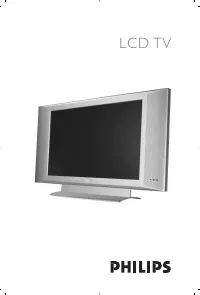 Philips 20PF4110
User Manual
Philips 20PF4110
User Manual
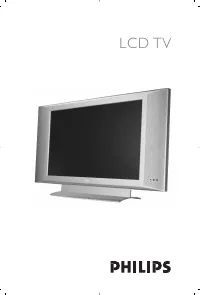 Philips 20PF4110S
User Manual
Philips 20PF4110S
User Manual
 Philips 20PF5121
User Manual
Philips 20PF5121
User Manual
 Philips 20PFL5122
User Manual
Philips 20PFL5122
User Manual
 Philips 20PFL5522D
User Manual
Philips 20PFL5522D
User Manual
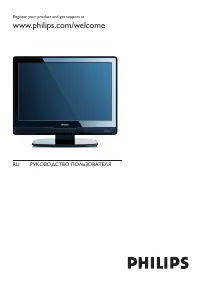 Philips 22PFL5403(D)(S)
User Manual
Philips 22PFL5403(D)(S)
User Manual
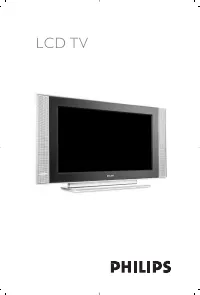 Philips 23PF5320
Manual
Philips 23PF5320
Manual
 Philips 23PF5321
User Manual
Philips 23PF5321
User Manual
 Philips 23PFL5322
User Manual
Philips 23PFL5322
User Manual
 Philips 24HFL2839T
User Manual
Philips 24HFL2839T
User Manual
 Philips 24HFL2849T
User Manual
Philips 24HFL2849T
User Manual
 Philips 26PFL3312S_60
User Manual
Philips 26PFL3312S_60
User Manual