Page 4 - Contents
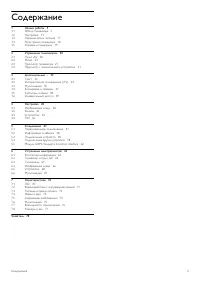
1 1.11.21.31.41.5 2 2.12.22.32.4 3 3.13.23.33.43.53.6 4 4.14.24.34.4 5 5.15.25.35.45.5 6 6.16.26.36.46.56.6 7 7.17.27.37.47.57.67.77.8 Contents To begin 5 TV tour 5Setting up 11Power switch 17Register your TV 18Help and support 19 Use your TV 20 Remote control 20Menus 23Watch TV 27Watch a connected ...
Page 5 - To begin; TV tour; Econova; The remote control
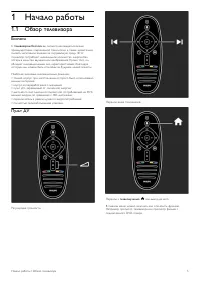
1 1.1 To begin TV tour Econova With this Econova TV , you can enjoy best-in -class technology and minimise your environmental impact. This is a TV with the lowestenergy consumption without compromising on picture and soundquality. Packed with environmental innovations for a better future. Most impor...
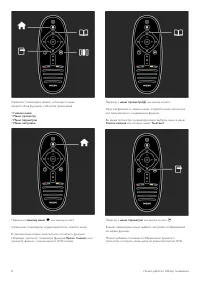
Page 7 - The TV menus
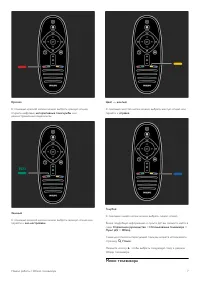
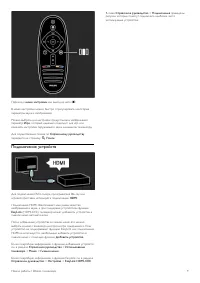
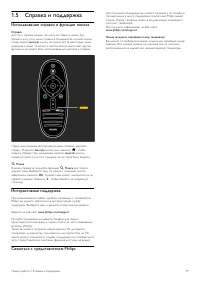
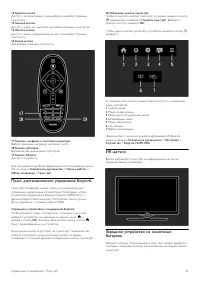
Red With the red key, you select the red option or open digital Interactive TV services or some TV demonstration clips. Green With the green key, you select the green option or the Eco settings . Yellow With the yellow key, you select the yellow option or the Help menu . Blue With the blue key, you ...
Page 9 - Connecting devices
To open or close the Adjust menu s Open the Adjust menu to quickly adjust the picture and soundsettings. You can set the Smart picture setting to Game , which is ideal for gaming, or change the Surround setting of the TV speakers. Go to the ¬ Search page to look for any topic in Help . Connecting de...
Page 10 - High Definition TV
High Definition TV This TV can display High Definition programmes, but to enjoy HDTV you need to get programmes in HD first. If you are not watchingHD programmes, the picture quality will be that of a normal TV. Watch HD TV programmes from . . . • a Blu-ray Disc player• a Digital HD receiver connect...
Page 11 - Wall or stand mounting
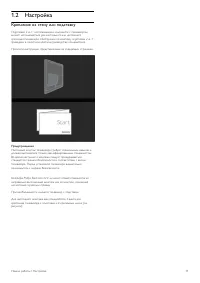
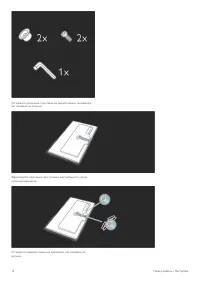
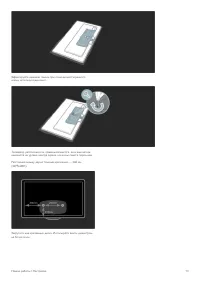
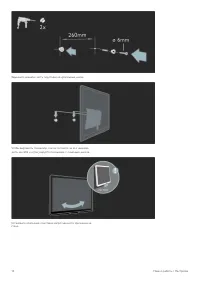
1.2 Setting up Wall or stand mounting The 2 - in- 1 stand that comes with the TV, can be used as a table - topstand or as a wall mount bracket. Instructions to mount the 2 - in- 1 standare also included in the printed Start guide. Read the instructions on the following pages. Caution Wall mounting t...
Page 15 - VESA info; Positioning the TV
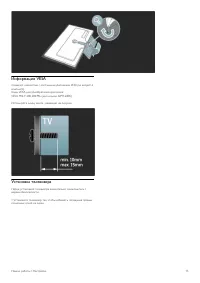
VESA info Your TV is prepared for a VESA- compliant wall mount bracket (notincluded). VESA codes to purchase the bracket:VESA MIS-F 200,200,M6 (for 42PFL6805) Use a screw length as shown in the drawing. Positioning the TV Carefully read the safety precautions before positioning the TV. • Position th...
Page 16 - Safety and care
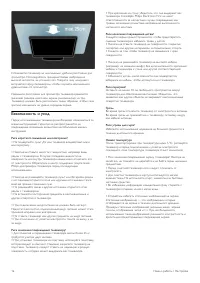
Position the TV at the ideal viewing distance. Get more from HD TVpicture or any picture without straining your eyes. Find the 'sweet spot',right in front of the TV, for the best possible TV experience and relaxedviewing. The ideal distance to watch TV from is three times its diagonalscreen size. Wh...
Page 20 - Use your TV; Remote control; Overview
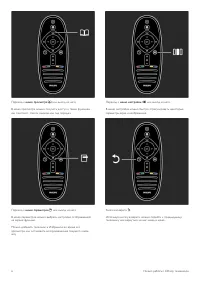
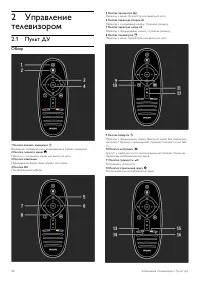
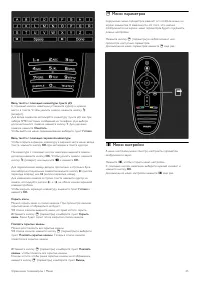
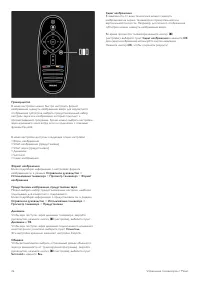
2 2.1 Use your TV Remote control Overview 1 Standby O To switch the TV on or back to standby. 2 Home h To open or close the Home menu. 3 Navigation key To navigate up, down, left or right. 4 OK key To activate a selection. 5 Browse e To open or close the Browse menu. 6 Next W To switch to the next c...
Page 22 - Cleaning
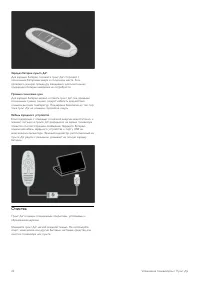
Charge the remote control battery To charge the battery, lay the remote control on a table with thesolar cells facing up. Put away the remote control on a location witha reasonable amount of daylight. If you do this every day, the batterywill hardly need additional charging. Direct sunlight You can ...
Page 28 - Programme guide; Smart picture and sound settings
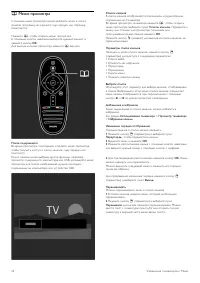
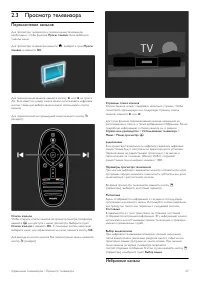
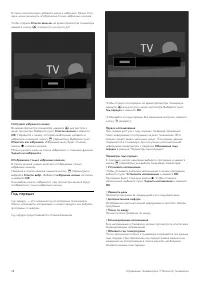
In the Channel list you can mark a channel as a favourite. You can setthe Channel list to only show your favourite channels. To open the Channel list , while watching TV, press e (Browse) on your remote control. Set up a favourite channel While watching TV, press e to open the Browse menu. Select Ch...
Page 31 - Watch a connected device; Select a device
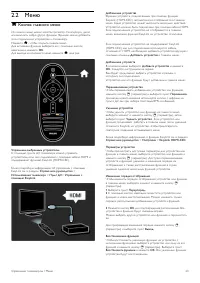
2.4 Watch a connected device Select a device When a connected devices is added to the Home menu, you can easilyselect it. To select and watch a connected device or activity, press h to open the Home menu and select the device or its activity and press OK . Make sure the device is switched on. Read m...
Page 32 - Text; Text pages
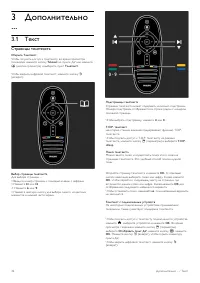
3 3.1 More on ... Text Text pages Open Text To open Text while watching TV, press Teletext on the remote control or press e (Browse) and select Text . To close Text, press b (Back). Select a Text page To select a page …• Enter the page number with the number keys.• Press W or X • Press u or v . • Pr...
Page 33 - Text setup
In Text, press o (Options) to select the following: • Freeze page• Dual screen• T.O.P. overview• Enlarge• Reveal• Cycle subpages• Language Freeze page To stop the automatic rotation of subpages, press o (Options) and select Freeze page . Dual screen / Full screen To show the TV channel and Text alon...
Page 34 - Benefits; Use iTV
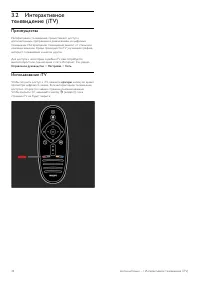
3.2 Interactive TV Benefits Interactive TV can offer additional infotainment or programmes on adigital TV channel. Interactive TV is dependent on the country orbroadcast. Benefits range from enhanced text to online TV and muchmore. For some iTV services, you need a high -speed connection to theInter...
Page 37 - Subtitles and languages; Subtitles
3.5 Subtitles and languages Subtitles Programme subtitles are available most of the time. You can set subtitlesto be constantly displayed. How to set constant subtitles depends onwhether a channel is analogue or digital. For digital channels, a preferredsubtitle language can be set. For analogue cha...
Page 39 - Setup; Picture and Sound; Smart settings; Eco settings
4 4.1 Setup Picture and Sound Smart settings You can adjust each Smart setting with the settings in Picture orSound in Setup, TV settings. Adjust the brightness for a particularSmart picture or adjust the bass for a Smart sound. To return to the original smart setting values, undoing theadjustments ...
Page 46 - Connections; First connections; Power cable; Antenna cable
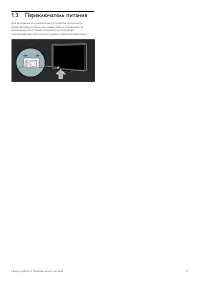
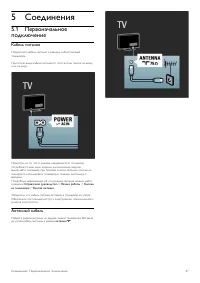
5 5.1 Connections First connections Power cable Insert the power cable in the power socket of the TV. When disconnecting the power cable, always pull the plug, never thecable. Although this TV has a very low standby power consumption, switchoff the TV with the power switch to save energy if you do n...
Page 47 - Cable quality; HDMI; Y Pb Pr
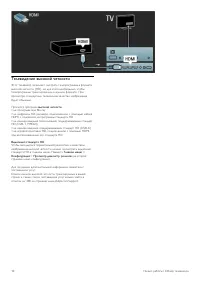
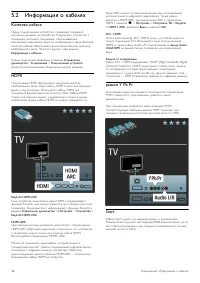
5.2 About cables Cable quality Before you connect devices to the TV, check which connectors areavailable on the device. Connect the device to the TV with thehighest quality connection available. Good quality cables ensure agood transfer of picture and sound. Read the other chapters of About cables ....
Page 48 - Video; VGA
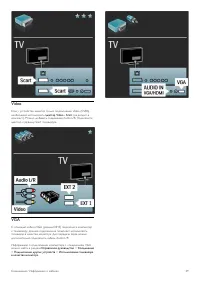
Video If you have a device with only a Video (CVBS) connection , you needto use a Video to Scart adapter (not supplied). You can add the Audio L/R connections. Connect the adapter to a Scart connectionof the TV. VGA Use a VGA cable (DE15 connector) to connect a computer to theTV. With this connectio...
Page 49 - SoundBar
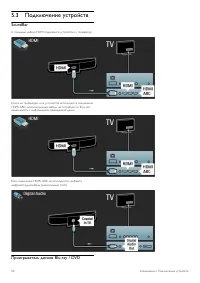
5.3 Connect devices SoundBar Use an HDMI cable to connect the device to the TV. If you use the HDMI-ARC connections on both TV and device, noother cable is needed. If not, read on. If you do not use the HDMI-ARC connection, add a digital audiocable (cinch coaxial). Blu-ray Disc / DVD player Use an H...
Page 50 - Home Theatre System with disc player
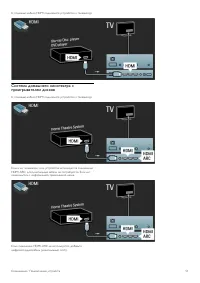
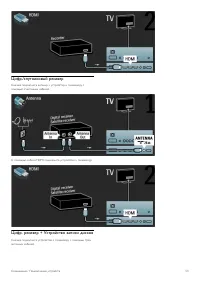
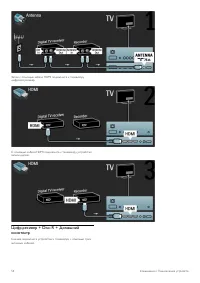
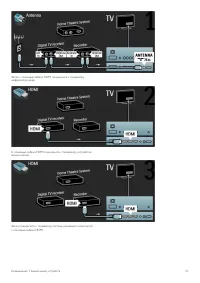
Home Theatre System with disc player Use an HDMI cable to connect the device to the TV. If you use the HDMI-ARC connections on both TV and device, noother cable is needed. If not, read on. If you do not use the HDMI-ARC connection, add a digital audiocable (cinch coaxial). 50 Connections / Connect d...
Page 51 - Recorder
Audio to Video synchronisation (sync) If the sound does not match with the video on screen, you can set adelay on most DVD Home Theatre Systems to match the sound andvideo.Read more about Audio to Video sync in Help > Setup > Devices > Audio to Video sync . Do not connect the audio signal f...
Page 55 - Digital HD receiver
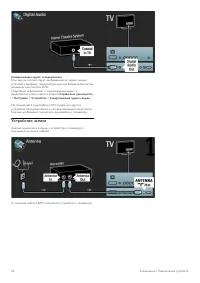
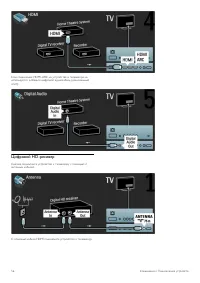
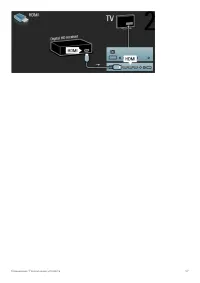
If you do not use the HDMI-ARC connection on the TV and thedevice, add a digital audio cable (cinch coaxial). Digital HD receiver First, use 2 antenna cables to connect the device to the TV. Use an HDMI cable to connect the device to the TV. Connections / Connect devices 55
Page 57 - Connect more devices; Game
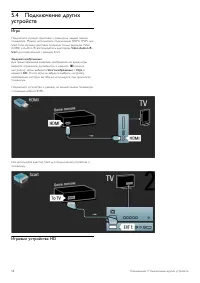
5.4 Connect more devices Game Connect a game console to the side or back of the TV. You can usean HDMI, YPbPr or Scart connection. If your game console only hasVideo (CVBS) and Audio L/R output, use a Video Audio L/R to Scart adapter to connect to the Scart connection. Picture delay To prevent pictu...
Page 58 - Camcorder
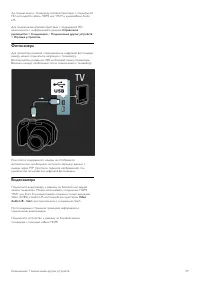
To view pictures stored on your digital photo camera, you canconnect the camera directly to the TV. Use the USB connection onthe side of the TV to connect. Switch on the camera after you madethe connection. If the list with the content of the camera does not appearautomatically, your camera might ne...
Page 59 - TV as PC monitor
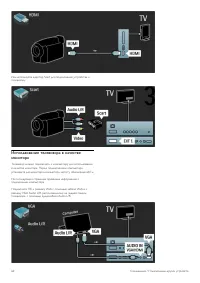
TV as PC monitor You can connect the TV to your computer as a PC monitor. Beforeconnecting the PC, set the PC monitor refresh rate to 60 Hz. See the following pages for how to connect your computer. Use a VGA cable to connect the PC to the VGA connector and anaudio L/R cable to connect the VGA Audio...
Page 60 - Decoder
Ideal TV setting Set the TV Picture format to Unscaled for the sharpest picturequality. While watching TV, press o , select Picture format and select Unscaled . For a list of supported resolutions see Help > Specifications > Display resolutions . Decoder Use a scart cable to connect a decoder ...
Page 61 - Common Interface CAM; CAM
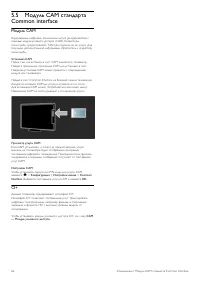
5.5 Common Interface CAM CAM Scrambled digital TV channels can be decoded with a Conditional AccessModule (CAM). Digital TV service operators provide the CAM when yousubscribe to their services. Contact a digital TV service operator for moreinformation and to see terms & conditions. Insert a CAM...
Page 62 - Troubleshooting; Contact information
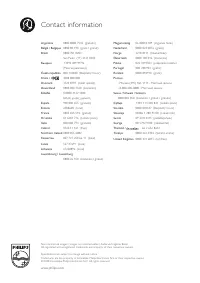
6 6.1 Troubleshooting Contact information If the advice and suggestions in Troubleshooting do not help resolvethe problem, try switching the TV off and back on again. Warning If your TV breaks down, NEVER try to repair the TV yourself. Consumer Care If the TV problem is not solved you can call the P...
Page 63 - TV and remote control
6.2 TV and remote control The TV does not switch on • Switch the TV off and on again with the switch on the bottom ofthe TV.• Check the power cable connection. The TV does not respond to the remote control • The remote control might run low on power. To charge theremote control, use the charger cabl...
Page 65 - Picture and sound
6.4 Picture and sound No picture • Check if the antenna is connected properly.• Check if the correct device is selected and connected properly.• Check the contrast or brightness setting in h > Setup > TV settings > Contrast or Brightness . The picture is poor • Bad weather can influence the...
Page 68 - Specifications; Software; Software version
7 7.1 Specifications Software Software version To view the current TV software version, press h > Setup > Software settings and press OK . Select Current software info and read Version: . Open source software This television contains open source software. Philips hereby offersto deliver or mak...
Page 70 - Power and reception; Reception
7.3 Power and reception Power Product specifications are subject to change without notice. For morespecification details of this product see www.philips.com/support. Power • Mains power : AC 220-240V +/ -10%• Ambient temperature : 5°C to 35°C• Standby power consumption : < 0.075W• Power saving fe...
Page 71 - Display and sound
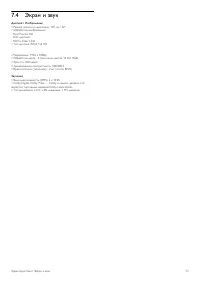
7.4 Display and sound Display / Picture • Diagonal size : 107cm / 42"• Picture enhancement :- Pixel Precise HD- LED display- 100Hz Clear LCD• Display type : LCD Full HD • Panel resolution : 1920 x 1080p• Color processing : 4 trillion colors 14bit RGB• Brightness : 450 cd/m2• Dynamic contrast : 5...
Page 72 - Display resolutions
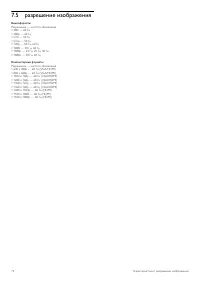
7.5 Display resolutions Video formats Resolution — Refresh rate• 480i - 60 Hz• 480p - 60 Hz• 576i - 50 Hz• 576p - 50 Hz• 720p - 50 Hz, 60 Hz• 1080i - 50 Hz, 60 Hz• 1080p - 24 Hz, 25 Hz, 30 Hz• 1080p - 50 Hz, 60 Hz Computer formats Resolution — Refresh rate• 640 x 480p — 60 Hz (VGA/HDMI)• 800 x 600p ...
Page 75 - Dimensions and weights
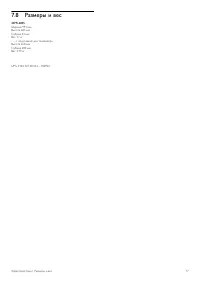
7.8 Dimensions and weights 42PFL6805 Width 991 mmHeight 605 mmDepth 43 mmWeight ±17 kg. . . with TV standHeight 658 mmDepth 200 mmWeight ±19 kg UMv 3104 327 0043.2 - 100902 Specifications / Dimensions and weights 75
Page 76 - Index
Index 2 2-in -1 stand 11 A Add your devices 23Adjust menu 25Audio Out delay 44Auto subtitle shift 44Auto switch off 40 B Balance 39Black bars 29Browse menu 23 C CAM 61Channel list 24Channel list options 24Channels 27CI+ 61Clock 42Common interface slot 61Component Video YPbPr 47Connections 47Consumer...
Page 77 - Philips Consumer Lifestyle; EC DECLARATION OF CONFORMITY; TUSSENDIEP 4, 9206 AD DRACHTEN, NETHERLANDS
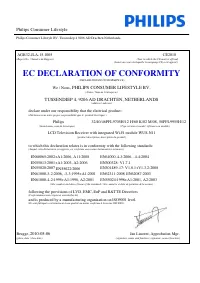
Philips Consumer Lifestyle Philips Consumer Lifestyle BV. Tussendiep 4 9206 AD Drachten Netherlands . (Report No. / Numéro du Rapport) (Year in which the CE mark is affixed) (Année au cours de laquelle le marquage CE a été apposé) EC DECLARATION OF CONFORMITY (DECLARATION DE CONFORMITE CE) We / Nous...