Page 2 - IMPORTANT INFORMATION
IMPORTANT INFORMATION When requesting information, supplies or service always refer to the model and serial number of yourmachine. The model and serial number plate (Main Name Plate) is located on the machine as shown below.For your convenience, space is provided below to record information you may ...
Page 3 - Table of Contents; Getting to Know Your Machine
3 Table of Contents Safety Information .......................................................................................................... 6 Function Key................................................................................................................... 9 External View ...........
Page 6 - Safety Information; WARNING
6 Getting to Know Your Machine Safety Information WARNING ! denotes a potential hazard that could result in serious injury or death. • TO PREVENT FIRE OR SHOCK, DO NOT EXPOSE THIS PRODUCT TO RAIN OR ANY TYPE OF MOISTURE. • TO MINIMIZE THE POSSIBILITY OF SHOCK OR DAMAGE TO THE MACHINE, IT MUST BE PRO...
Page 7 - CAUTION; IMPORTANT SAFETY INSTRUCTIONS
Safety Information 7 Ge tt in g t o K n o w Yo u r M a c h in e CAUTION ! denotes hazards that could result in minor injury or damage to the machine. • TO REDUCE THE RISK OF SHOCK OR FIRE, USE ONLY NO. 26 AWG OR LARGER TELEPHONE LINE CABLE. • DISCONNECT ALL POWER TO THE MACHINE BEFORE COVER(S) ARE R...
Page 9 - Function Key
9 Ge tt in g t o K n o w Yo u r M a c h in e Function Key Any function can be started by first pressing and then enter the function number, or by pressing or scroll keys repeatedly until the desired function appears on the display. FUNCTION 1 3 6 7 8 Deferred Communication1=SET2=CANCEL Polling Print...
Page 10 - External View; NOTE
10 External View NOTE 1 For some countries, the handset may not be available because of the country’s regulation or specification. Paper Tray Cover Document Sub Tray Control Panel Document Return Tray Recording Paper Tray Handset(Available as an option,see page 112) Paper Tray
Page 11 - Control Panel
11 Ge tt in g t o K n o w Yo u r M a c h in e Control Panel One-Touch Keys (01-16)- Used for One-Touch Dialling. (See pages 44 and 48)Program Keys (P1-P2)- Used to record long dialling procedures or Group Dialling Number keys. (See pages 70 to 74)UPPER/LOWER Key - Used to switch between upper and lo...
Page 13 - Main Unit and Accessories
13 In st al li n g Y o u r Ma c h in e Installing Your Machine Main Unit and Accessories Unpack the carton and check that you have all the accessories illustrated. NOTE 1 The Starter Toner Cartridge yields approx. 1,000 pages. (Based on 3% Black, ITU-T Image No. 1 Chart) 2 The Telephone Line Cable A...
Page 14 - Installing the Accessories
14 Installing the Accessories NOTE 1 For some countries, the handset may not be available because of the country’s regulation or specification. Final Installed View Handset [Available as an Option] Handset Cord [Available as an Option] Handset Cradle [Available as an Option] Hook the projections int...
Page 15 - Installing the Drum Unit/Toner Cartridge Assembly
15 In st al li n g Y o u r Ma c h in e Installing the Drum Unit/Toner Cartridge Assembly 1 Unpack the Toner Cartridge and rock it back and forth as shown for 5 or 6 times to even the toner inside. 2 Remove the protective seal. Note: Pull on the seal slowly and straight out. 3 Slide the Toner Cartrid...
Page 17 - Loading the Recording Paper; How to Load the Recording Paper; Paper Specifications
17 In st al li n g Y o u r Ma c h in e Loading the Recording Paper In general, most bond papers will produce excellent results. Most photocopy papers will also work very well. There are many "name" and "generic" brands of paper available. We recommend that you test various papers unt...
Page 18 - Connecting the Telephone Line Cable and Power Cord
18 Connecting the Telephone Line Cable and Power Cord Power Cord Plug one end of the power cord into an ordinary AC outlet and the other end into the receptacle on the rear of the machine. Warning: This apparatus must be properly grounded. Do not modify the AC outlet. Telephone Line Cable Plug one e...
Page 20 - Setting the Dialling Method (Tone or Pulse)
20 Setting the Dialling Method (Tone or Pulse) Your machine can operate with either of two dialling methods (Tone or Pulse), depending on the type of telephone line you are connected to. If you need to change the dialling method to Tone or Pulse, follow the procedure below. NOTE 1 For some countries...
Page 22 - User Parameters; General Description
22 User Parameters Your facsimile machine has several basic settings (User Parameters) to help you keep records of the documents you send or receive. For example, the built-in clock keeps the current date and time, and your LOGO and ID Number help to identify you when you send or receive documents. ...
Page 24 - Setting Your Character ID
User Parameters 24 If the remote machine has a Character ID capabilities, when you are sending or receiving, your Character ID will appear on the remote machine's display and the remote machine's Character ID will appear on your display. NOTE 1 The special characters of Å, Ä, Ö, Ü, Æ, È , É and Ñ ca...
Page 25 - Setting Your ID Number (Fax Telephone Number)
User Parameters 25 In st al li n g Y o u r Ma c h in e If the remote machine does not have a Character ID but it has an ID Number, when sending or receiving, your ID Number will appear on the remote machine's display and their ID Number will appear on your display. We suggest you use your facsimile ...
Page 26 - Entering Characters
26 Entering Characters The Keypad also serves as character and symbol input key when recording LOGO, Character ID and station name. Select the desired characters according to the following table Keys Character Table Number of times key is pressed 1 2 3 4 5 6 7 8 9 10 11 12 13 Å Ä Ö Ü È É Æ Ñ 1 A B C...
Page 27 - Entering One-Touch/Abbreviated Dialling Numbers
27 P rogr am m in g Y our M a c h in e Programming Your Machine One-Touch/Abbreviated Dialling Numbers One-Touch and Abbreviated Dialling are two fast ways of dialling full telephone numbers. To use these dialling methods, you must first store the telephone number using the following procedure. NOTE...
Page 29 - Editing One-Touch/Abbreviated Dialling Numbers
One-Touch/Abbreviated Dialling Numbers 29 P rogr am m in g Y our M a c h in e If you have to change or erase any of the One-Touch/Abbreviated dialling numbers, follow the steps below. NOTE 1 If you make a mistake, use or to move the cursor one space beyond the incorrect number, press then re-enter t...
Page 31 - Printing Out a Directory Sheet
One-Touch/Abbreviated Dialling Numbers 31 P rogr am m in g Y our M a c h in e After programming a one-touch dialling number, you can print out the directory sheet which includes the first 12 characters of each station name. Cut along the dotted line and place it over the One-Touch keys under the Dir...
Page 32 - Customizing Your Machine
32 Customizing Your Machine Your facsimile machine has a variety of adjustable Fax Parameters. These parameters, listed in the Parameter Table, are preset for you and do not need to be changed. If you do want to make a change, read the table carefully. Some parameters, such as the Resolution and Con...
Page 33 - Fax Parameter Table
Customizing Your Machine 33 P rogr am m in g Y our M a c h in e Fax Parameter Table No. Parameter Setting Number Setting Comments 01 CONTRAST (HOME) 1 Normal Setting the home position for the CONTRAST. 2 Lighter 3 Darker 02 RESOLUTION (HOME) 1 Standard Setting the home position for the RESOLUTION. 2...
Page 37 - Loading Documents; Documents You Can Send
37 B asi c O p er at io ns Basic Operations Loading Documents In general, your machine will send any document printed on A4 size paper. Note: The maximum document width that can be sent through the machine is 257mm. However, the effective scanning width is 208mm. You must never try to send documents...
Page 38 - How to Load Documents
Loading Documents 38 1. Be sure the document(s) is free of staples, paper clips and is not torn, greasy or covered by foreign objects. 2. Place the document(s) FACE DOWN on the Automatic Document Feeder (ADF) until the leading edge placed into the machine stops.If you are sending multiple pages, mak...
Page 39 - Basic Transmission Settings
39 B asi c O p er at io ns Basic Transmission Settings You can temporarily change the transmission settings either before or after you place the document on the ADF. These settings are as follows • Contrast• Resolution• Communication Journal After your document(s) have been sent, your machine will a...
Page 41 - Sending Documents
41 B asi c O p er at io ns Sending Documents You can choose either Memory or Direct Transmission. Use Memory Transmission if: • You want to send the document(s) to multiple stations.• You have to retrieve the document immediately.• You want to take advantage of Dual Operation design. Use Direct Tran...
Page 42 - Memory Transmission
Sending Documents 42 Your machine quickly stores the document(s) into the machine's memory.Then, starts to dial the telephone number.If the transmission fails, your machine will re-transmit the remaining unsuccessful page(s) automatically. NOTE 1 If memory overflow occurs while storing document(s), ...
Page 43 - Manual Number Dialling
Sending Documents 43 Memory Transmission B asi c O p er at io ns Manual Number Dialling To dial the telephone number manually, follow the steps below. NOTE 1 If you need a special access number to get an outside line, dial it first then press to enter a pause (represented by a "-") before di...
Page 44 - Abbreviated Dialling
Sending Documents 44 Memory Transmission One-Touch Dialling One-Touch Dialling allows you to dial a full telephone number by pressing a single key. To set up the One-Touch keys, see page 27. Abbreviated Dialling Abbreviated dialling is a speedy way to dial a frequently dialed telephone number by pre...
Page 45 - Directory Search Dialling
Sending Documents 45 Memory Transmission B asi c O p er at io ns Directory Search Dialling Directory Search dialling allows you to dial a full telephone number by searching the station name entered in One-Touch keys or Abbreviated dialling numbers. 1 Set document(s) face down. DOCUMENT SET 2 ENTER L...
Page 47 - Manual Number Dialling (Direct Transmission); Direct Transmission
Sending Documents 47 B asi c O p er at io ns If your machine's memory is full or you wish to send the document(s) immediately, use Direct Transmission. Manual Number Dialling (Direct Transmission) To dial the telephone number manually, follow the steps below. NOTE 1 If you need a special access numb...
Page 49 - Abbreviated Dialling (Direct Transmission)
Sending Documents 49 Direct Transmission B asi c O p er at io ns Abbreviated Dialling (Direct Transmission) Abbreviated dialling is a speedy way to dial a frequently dialed telephone number by preprogramming the telephone number into the built-in auto-dialer with a 2-digit abbreviated code. To progr...
Page 50 - Directory Search Dialling (Direct Transmission)
Sending Documents 50 Direct Transmission Directory Search Dialling (Direct Transmission) Directory Search dialling allows you to dial a full telephone number by searching the station name entered in One-Touch keys or Abbreviated dialling numbers. 1 Set document(s) face down. DOCUMENT SET 2 MEMORY XM...
Page 51 - Voice Mode Transmission
Sending Documents 51 B asi c O p er at io ns If you wish to send the document after talking with other party, use Voice Mode Transmission. Your machine requires an optional fax handset or an external telephone. Off-Hook Dialling For Off-Hook Dialling, follow the steps below. NOTE 1 To stop the trans...
Page 55 - Automatic Redialling; Redialling
Sending Documents 55 B asi c O p er at io ns Automatic Redialling Manual Redialling You can also redial the last dialed number manually by pressing key. Redialling If a busy line is detected, the machine will redial the number up to 3 times at 3 minutes interval. During that time, a message will app...
Page 57 - Receiving Documents; Reception Modes
57 B asi c O p er at io ns Receiving Documents You can select one of the four modes as shown below. NOTE 1 Depending on the model of the Telephone Answering Machine (TAM) that is connected, some of the features may not be compatible with your fax machine operating in the TAM Interface mode. 2 If you...
Page 58 - Setting the Telephone Mode
Receiving Documents 58 When your machine is set to this mode, your machine will not receive documents automatically. If you receive a fax call, follow the procedure below to receive documents manually. Setting the Telephone Mode Operation of Telephone Mode NOTE 1 This procedure is called "REMOTE...
Page 59 - Setting the Fax / Tel Auto Switching Mode
Receiving Documents 59 B asi c O p er at io ns When your machine is set to this mode, your machine will switch to document reception or voice communication automatically. Setting the Fax / Tel Auto Switching Mode Operation of Fax / Tel Auto Switching Mode NOTE 1 The length of time the machine signal...
Page 60 - Setting the Fax Mode; Fax Mode
Receiving Documents 60 When your machine is set to this mode, it will immediately begin to receive documents automatically when a call is received. Setting the Fax Mode Operation of Fax Mode Your machine will begin receiving automatically when a fax call is received. Fax Mode 1 Change Fax Parameter ...
Page 61 - Installing your TAM
Receiving Documents 61 B asi c O p er at io ns Your machine is equipped with a unique feature called TAM Interface which enables it to automatically switch a single telephone line either to Fax or TAM. You can connect most TAMs in the market to your machine and use your existing telephone line very ...
Page 62 - Setting the TAM Interface Mode
Receiving Documents 62 TAM (Telephone Answering Machine) Interface Mode Setting the TAM Interface Mode Operation of TAM Interface Mode 1 Change Fax Parameter No. 17 (RECEIVE MODE) to 4: TAM I/F. (See page 33) If it is a Fax call, 1 When your TAM and Fax receives an incoming call, the TAM always answ...
Page 63 - Selecting the Print Reduction Mode; Print Reduction
Receiving Documents 63 B asi c O p er at io ns This machine can use Letter, Legal or A4 size plain paper for recording. Sometimes, oversized documents sent to you by the other parties cannot be printed within a single page. When this occurs, the document will be divided into separate pages. This mac...
Page 64 - Receiving Oversize Documents
Receiving Documents 64 If the received document is extremely long (over 39% longer than the recording paper), the document will be divided into separate pages. When printing on separate pages, the bottom 10 mm (0.4 in) of the first page will be overlapped on top of the next page. NOTE 1 If the reduc...
Page 65 - Substitute Memory Reception
Receiving Documents 65 B asi c O p er at io ns If the recording paper runs out or jams or if the toner runs out during reception, the machine automatically starts receiving documents into its image data memory. Stored documents are printed automatically after replacing the recording paper or the ton...
Page 66 - Making Copies
66 Making Copies Your machine has a copy function which can make single or multiple copies. NOTE 1 The copy will be reduced automatically depending on the length of the original document. If you wish to be prompted for the reduction ratio when making copies, change the setting of Fax Parameter No. 3...
Page 67 - Timer Controlled Communications
67 A d vanced Feat ur es Advanced Features Timer Controlled Communications You can send document(s) to one or multiple stations at any preset time within the next 24 hours. Up to 5 built-in timers can be set for deferred communication. NOTE 1 If you enter a wrong number in Step 4, press then re-ente...
Page 69 - To Poll Documents from Another Station
Polling 69 A d vanced Feat ur es The following procedure lets you poll document(s) from one or multiple stations. Be sure to set the polling password before polling. (See page 68) NOTE 1 You can review the entered stations in Step 4 by pressing or key, press to erase the displayed station or group a...
Page 70 - Program Keys
70 Program Keys Your fax machine has special Program Keys. These keys are useful if you frequently need to send or poll the same group of stations. You can use these keys to store a One-Touch group key, a sequence of stations to be polled, a deferred transmission sequence or an additional One-Touch ...
Page 71 - Setting for Deferred Transmission
Program Keys 71 A d vanced Feat ur es Setting for Deferred Transmission To set a Program Key for deferred transmission 1 PROGRAM DIAL? 2 PRESS P-KEY 3 Ex: [P1]ENTER NAME 4 Enter the Key Name (up to 15 characters) by using the Character keys. (See page 26) Ex: PROG. A and press PRESS FUNCTION 5 START...
Page 73 - Setting for One-Touch Key
Program Keys 73 A d vanced Feat ur es Setting for One-Touch Key To set a Program Key for One-Touch Key 1 ONE-TOUCH DIAL? 2 PRESS P-KEY 3 Ex: [P1]ENTER NAME 4 Enter the station name (up to 15 characters) by using the Character keys. (See page 26) Ex: PROG. A and press [P1]ENTER TEL.# 5 Enter a teleph...
Page 75 - Access Code
75 A d vanced Feat ur es Access Code The Access Code prevents an unauthorized user from operating the machine. Once a 4-digit Access Code is registered, no one can operate the machine without entering the correct access code. Automatic Receiving, however, is always available. After you complete any ...
Page 77 - At Your Location with
77 A d vanced Feat ur es Distinctive Ring Detector (DRD) Your machine has a special feature in conjunction with an optional service provided by many local telephone companies. It can distinguish up to 2 telephone numbers with a corresponding ring pattern identifying each number. "DRD" lets y...
Page 78 - PIN Code Access
78 PIN Code Access If your PBX requires a PIN (Personal Identification Number) code to get an outside line, your machine can be set to prompt the user to enter a PIN code before any dialling. General Description Selecting the Access Method (Prefix or Suffix) 1 SET MODE (1-8) 2 NO.= ❚ (01-99) 3 NONE&...
Page 79 - Dialling with a PIN Code
PIN Code Access 79 A d vanced Feat ur es NOTE 1 The PIN code is shown as " " on the display when dialling the number.2 This feature is not available when dialling a number by using Off-Hook or On-Hook Direct Dialling mode. 3 This feature is available in certain countries only. Dialling with ...
Page 80 - Fax Forward; Setting Fax Forward
80 Fax Forward This feature allows all incoming faxes to be forwarded to the station registered in the one-touch or abbreviated dialling number. Once the faxes are received in the memory, the machine will forward the received document(s) to the telephone number registered in the one-touch or abbrevi...
Page 83 - Sending a Fax with Sub-Address
Sub-Addressing 83 N e tw or k F e at u re s Use to separate the Telephone number and the Sub-Address. NOTE 1 separates the Sub-Address from the Telephone number and is indicated by an "s" in the display. 2 Manual Off-Hook or On-Hook Dialling cannot be used with the Sub-Addressing Transmissio...
Page 84 - Journals and Lists
84 Printout Journals and Lists Journals and Lists To help you maintain records of the documents you sent and received, as well as lists of the numbers you record, your facsimile machine is equipped to print the following journals and lists: Transaction Journal, Individual Transmission Journal, Commu...
Page 93 - Program List
Journals and Lists 93 P ri n to u t Jour nal s and Li st s To print a Program List of the Dialling Patterns that you have previously entered into the Program Keys Sample Program List Explanation of Contents Program List 1 PROGRAM LIST? 2 * PRINTING * *************** -PROGRAM LIST- ******************...
Page 94 - FAX Parameter List
Journals and Lists 94 To print a Fax Parameter List Sample FAX Parameter List Explanation of Contents FAX Parameter List 1 FAX PARAM. LIST? 2 * PRINTING * *************** -FAX PARAMETER LIST- ************** DATE dd-mmm-yyyy ***** TIME 15:00 ******** (1) (2) (3) (4) (5) PARAMETER DESCRIPTION SELECTIO...
Page 95 - Toner Cartridge and Drum Unit Supply Order Forms
Journals and Lists 95 P ri n to u t Jour nal s and Li st s To print the Supply Order Forms Sample Supply Order Forms Toner Cartridge and Drum Unit Supply Order Forms 1 MAINTENANCE(1-3) 2 1:TONER 2:DRUM 3 To print a Toner Cartridge Order Form To print a Drum Unit Order Form * PRINTING * *************...
Page 96 - Troubleshooting
96 Problem Solving Troubleshooting If You Have Any of These Problems Mode Symptom Cause / Action page During Standby The display is blinking The battery is completely discharged. This may happen at first installation. After setting the clock, the blinking will stop. -- During Transmission Document d...
Page 102 - Clearing a Recording Paper Jam
Troubleshooting 102 If the recording paper becomes jammed in the machine, the display will show an Information Code 001 or 007. NOTE 1 The Recording Paper Jam message display is reset only by opening and closing of the Printer Cover. Clearing a Recording Paper Jam To clear the jam, Info. Code 001 1 ...
Page 103 - Clearing a Document Jam
Troubleshooting 103 Pr o b le m So lv in g If a document becomes jammed in the machine, the display will show the Information Code 030 or 031. Clearing a Document Jam To clear the jam 1 (1) Open the ADF Door. (2) Remove the jammed document. (1) (2)
Page 105 - Cleaning the Printer Roller
Troubleshooting 105 Pr o b le m So lv in g If you find toner on the back of the recording paper, the printer roller in the Fuser unit is probably dirty. Cleaning the Printer Roller To clean the rollers 1 MAINTENANCE(1-3) 2 The machine will print out 3 Cleaning Charts.Then, return to standby. * PRINT...
Page 107 - Checking the Telephone Line
Troubleshooting 107 Pr o b le m So lv in g If you do not hear a dial tone when the key is pressed or the incoming call does not ring on your machine (no automatic receive). Checking the Telephone Line 1 Unplug the Telephone Line Cable from the telephone jack that was supplied by the telephone compan...
Page 108 - Specifications
108 Appendix Specifications Compatibility ITU-T Group 3 Coding Scheme MH, MR, MMR (Conforms to ITU-T Recommendations) Modem Type ITU-T V.34, V.17, V.29, V.27 ter and V.21 Modem Speed 33600 - 2400 bps Document Size Max. : 257 x 2000 mm (with operator's assistance) Min. : 148 x 128 mm Document Thickne...
Page 110 - Recording Paper Specifications
110 Recording Paper Specifications In general, most photocopy papers will also work very well. There are many "name" and "generic" brands of paper available. We recommend that you test various papers until you obtain the results you are looking for. The following table summarizes the...
Page 111 - Options and Supplies
111 A p p e ndi x Options and Supplies Please contact your local Panasonic dealer for availability. A. Options: B. Supplies: Order No. Picture Description UE-403117 Handset Kit Order No. Picture Description UG-3221UG-3222 Toner CartridgeUG-3221: For 6000 pages printingUG-3222: For 3000 pages printin...
Page 112 - Regulatory Information
112 Regulatory Information Declaration of Conformity (DoC) Panasonic Communications Co., Ltd. declares that this G3 Facsimile equipment is in compliance with the essential requirements and other relevant provisions of Directive 1999/5/EC.If you want to get a copy of the original Declaration of Confo...
Page 115 - Glossary
115 A p p e ndi x Glossary ABBR. No.(Abbreviated Number) The ability to store full phone numbers into the dialer and then utilizing a short series of keystrokes to speed dial that number in the future. Access Code A 4-digit programmable access code that prevents unauthorized operation of your Fax. A...
Page 119 - Index
Index 119 A ABBR Number List ................................90, 91 Abbreviated Dialling Numbers ........................27 Access Code ..............................................75 ADF Capacity ...........................................108 Automatic Document Feeder .........................38 A...
Page 121 - memo


 Panasonic KX-F1010RS
User Manual
Panasonic KX-F1010RS
User Manual
 Panasonic KX-F680RS
User Manual
Panasonic KX-F680RS
User Manual
 Panasonic KX-F780RS
User Manual
Panasonic KX-F780RS
User Manual
 Panasonic KX-F910RS
User Manual
Panasonic KX-F910RS
User Manual
 Panasonic KX-FB423R
User Manual
Panasonic KX-FB423R
User Manual
 Panasonic KX-FC195RU
User Manual
Panasonic KX-FC195RU
User Manual
 Panasonic KX-FC228 RU-T
User Manual
Panasonic KX-FC228 RU-T
User Manual
 Panasonic KX-FC233RU
User Manual
Panasonic KX-FC233RU
User Manual
 Panasonic KX-FC278 RU-T
User Manual
Panasonic KX-FC278 RU-T
User Manual
 Panasonic KX-FC965RU
User Manual
Panasonic KX-FC965RU
User Manual
 Panasonic KX-FC966 RU-T
User Manual
Panasonic KX-FC966 RU-T
User Manual
 Panasonic KX-FC968RU
User Manual
Panasonic KX-FC968RU
User Manual
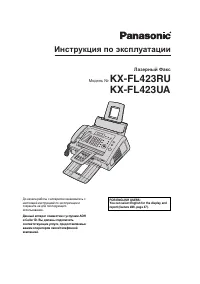 Panasonic KX-FL423RU(UA)
User Manual
Panasonic KX-FL423RU(UA)
User Manual
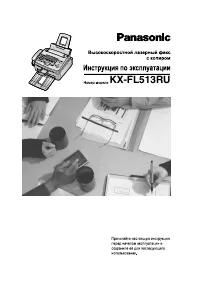 Panasonic KX-FL513RU
User Manual
Panasonic KX-FL513RU
User Manual
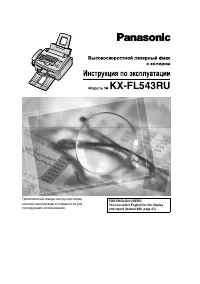 Panasonic KX-FL543RU
User Manual
Panasonic KX-FL543RU
User Manual
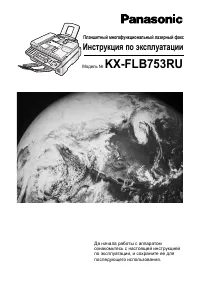 Panasonic KX-FLB753RU
User Manual
Panasonic KX-FLB753RU
User Manual
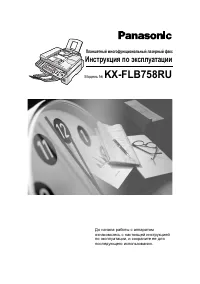 Panasonic KX-FLB758RU
User Manual
Panasonic KX-FLB758RU
User Manual
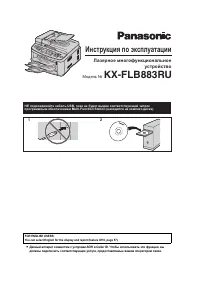 Panasonic KX-FLB883RU
User Manual
Panasonic KX-FLB883RU
User Manual
 Panasonic KX-FLM663
User Manual
Panasonic KX-FLM663
User Manual
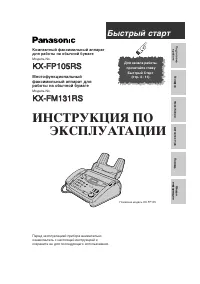 Panasonic KX-FM131RS
User Manual
Panasonic KX-FM131RS
User Manual