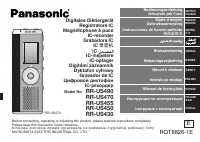
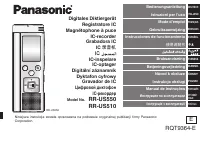
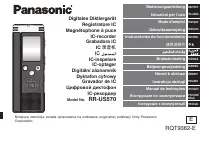
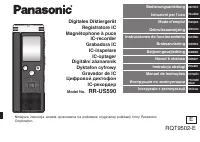
Page 2 - Recording; Playback; Instruction flow chart
2 RQT8841 Recording For IC Recorder operation… Recording Page 12 Playing Page 16 Playback Instruction flow chart This unit
Page 3 - Table of contents; Preparation
3 RQT8841 Table of contents Preparation Instruction flow chart ....................................... 2 Inserting batteries ............................................ 4 Before use ......................................................... 4 Before operating, switch Hold off, when finished, switch ...
Page 4 - The battery indicator
4 RQT8841 Remove the seal from the display before use. 2 1 AAA (LR03) batteries (not included) 3 Make sure the batteries face the right directions. Inserting batteries Before use * R e p l a c e t h e b a t t e r i e s w i t h i n 3 0 s e c o n d s t o preserve the settings. (Recordings remain intac...
Page 5 - Point; Hold function
5 RQT8841 Preparation * This function prevents accidental operation when you put the unit in your pocket or bag. It also prevents battery loss from accidental unit operation. Point 1 Before operating, switch Hold off, when finished, switch Hold on Hold function Button operations are ignored even if ...
Page 6 - Recordings; Before use
6 RQT8841 File File MEETING FOLDERS (A, B, C and S) DICTATION FOLDER (M) Point 2 Recordings become audio fi les and the fi les are stored in folders. g Approximate total recording time of all folders A new audio file is created each time you record. * A maximum of 99 files can be stored in each fold...
Page 7 - Choose a
7 RQT8841 To record a low-level sound source… • Place the unit on a desk etc. closer to the source. • Use “L” microphone sensitivity for close proximity hand-held recording. Preparation Point 3 Choose a recording method that best suits the situation U s i n g d i f f e r e n t c o m b i n a t i o n ...
Page 8 - Part names; Display
8 RQT8841 MENU MIC (PLUG IN PO WER) Part names bl bm 1 23 4 5 6 789 bk 1 Built-in microphone 2 Recording indicator 3 Record/pause 4 Stop 5 Display 6 Folder/menu 7 Erase 8 Quick search dial 9 Hold bk Speaker bl External microphone jack bm Headphone/earphone jack bn bn Battery cover File Recording lev...
Page 9 - How to use the quick search dial
9 RQT8841 Basic operations A Dial: Turn the dial to right or left to select an item. B Joystick: Press to confirm the item. In this manual A : Turn [ ]. * Avoid pressing too much when you turn the quick search dial. Volume control C : Tilt the stick to left and right. D : Tilt the stick up and down....
Page 10 - List of menus
10 RQT8841 1 Press and hold [ * FOLDER/ MENU] for 1 second or longer (while stopped) to display menus. 2 Turn [ ] and press [ q / g ] to confirm. Ú 1 Displayed only when a Meeting Recording folder (A, B, C or S) is selected. Ú 2 Displayed only when there is a recorded file. Ú 3 Displayed only when t...
Page 11 - Canceling the operation beep; Setting the time
11 RQT8841 * The clock operates w i t h t h e m o n t h l y e r r o r m a r g i n o f +/– 60 seconds at room temperature. * W h e n t h e y e a r i s flashing (e.g. “ ” on the display), begin from step 4 . * T h e c l o ck r e t u r n s t o s t a n d b y w h e n you perform no time s e t t i n g o p...
Page 12 - Meeting recording; Display during recording
12 RQT8841 Meeting recording Using different combinations of recording modes and microphone sensitivity levels, you can adjust audio quality according to recording situations. Recording L i g h t s t ay s o n while recording. (Flashes while paused.) Recording elapsed time (Flashes while paused.) Dis...
Page 13 - Dictation recording; Confirming the remaining time; Stop and pause
13 RQT8841 As the dictation recording settings are all factory-set, dictation can be recorded quickly and simply. Dictation recording When you press [ * FOLDER/ MENU] while recording, the remaining recording time appears. * To return to the initial menu, press [ * FOLDER/ MENU] again. * R e m a i n ...
Page 14 - Other recording methods
14 RQT8841 Other recording methods g Listening to the recording in progress Connect earphones (not included). Plug type: ø 3.5 mm (1/8 in.) mini plug * The volume is fixed for recording. g Recording through an external microphone * When you attach an external microphone, the built-in microphone auto...
Page 15 - Select “ ”
15 RQT8841 Basic use Turn [ ] and press [ q / g ] to confirm. 1 Turn [ ] and press [ q / g ] to confirm . 2 Press [STOP]. Turn [ ] and press [ q / g ] to confirm. Turn [ ] and press [ q / g ] to confirm. Turn [ ] and press [ q / g ] to confirm. Turn [ ] and press [ q / g ] to confirm. 1 Display the ...
Page 16 - Playing
16 RQT8841 Playing Press [ * FOLDER/ MENU]. Each time you press g While a file is being played Adjusting the volume Tilt the joystick to [ [ / ] ]. (Volume range is 0 to 20. Factory setting is 13.) Moving forward Tilt the joystick to [ o ]. Tilt and hold to search ( page 17). Moving backward Tilt th...
Page 17 - Other playing methods
17 RQT8841 Other playing methods Basic use The playback speed rises as the flashing bars move right. The illustration shows the display for the normal speed playback. g Searching points for listening (fast forward and fast backward) Quick search Turn[ ] while playing. * You can search forward/backwa...
Page 19 - Organizing files; vanced use
19 RQT8841 Press [ERASE]. Press and hold [ * FOLDER/ MENU] for 1 second on longer. g Deleting (a file/ all files in a folder/ all folders except S/ all folders) g Lock (file protection) 1 Display the menu 2 Select “LOCK” 3 Select the file you want to lock * To unlock, select the file you want t o u ...
Page 20 - Security function; Folder S and password
20 RQT8841 Security function This unit has a security function. Folder S and password Press and hold [ * FOLDER/ MENU] for 1 second or longer. 1 Display the menu 2 Select “ ” 3 Select “ ” Turn [ ] and press [ q / g ] to confirm. Turn [ ] and press [ q / g ] to confirm. Setting the password * Folder ...
Page 21 - Playback using the password
21 RQT8841 This security function is only to limit a playback function for files by password, not by encryption. We do not guarantee any kind of loss in case your password gets broken up. Ad vanced use Playback using the password 1 Press [ * FOLDER/ MENU]. 2 Select “ ”. 1 Select folder S 2 Select a ...
Page 22 - Recording to / from a cassette tape
22 RQT8841 MIC (PLUG IN POWER) Start playing Audio cable (not included) Headphone jack Monaural mini plug Monaural mini plug Stereo mini plug Monaural mini plug Monaural mini plug Monaural mini plug Record Press [REC/PAUSE] Audio cable (not included) Audio cable (not included) g Recording to a casse...
Page 23 - Troubleshooting guide
23 RQT8841 Ad vanced use / Ref erence Before requesting service, make the following checks. If you are in doubt about some of the check points, or if the remedies indicated in the chart do not solve the problem, refer to “Customer Services Directory” ( page 33). Troubleshooting guide Symptom Checkpo...
Page 26 - Specifications
26 RQT8841 • Specifications are subject to change without notice. Specifications Marking sign is located on bottom of the unit. Power requirement: DC 3.0 V (2 AAA size/LR03 batteries) Power output: 300 mW (max.) Frequency response: 300 Hz to 5,000 Hz (HQ mode) 300 Hz to 3,400 Hz (FQ mode) 300 Hz to ...
Page 27 - Maintenance
27 RQT8841 Ref erence Do not use such solvents as benzine, paint thinner and alcohol for cleaning. • Solvents may cause casing to deform and coating to go off. • Wipe dust and fingerprints off using a soft, dry cloth. Soak the cloth in water, wring it thoroughly and use it for cleaning when the unit...
Page 28 - Care and use
28 RQT8841 Care and use To reduce risk of radio interference caused by headphone-, earphone- or microphone cables, only use adequate accessories with the cable length less than 3 m (9.8 ft). g Unit • Avoid using or placing this unit near sources of heat. Do not leave it in an automobile exposed to d...
Page 30 - Product service
30 RQT8841 Product information 1. Damage requiring service – The unit should be serviced by qualified service personnel if: (a) Objects or liquids have gotten into the unit; or (b) The unit has been exposed to rain; or (c) The unit does not operate normally or exhibits a marked change in performance...
Page 31 - Ref
31 RQT8841 DATE OF PURCHASE DEALER NAME DEALER ADDRESS TELEPHONE NUMBER User memo: When shipping the unit carefully pack and send it prepaid, adequately insured and preferably in the original carton. Include a letter detailing the complaint and provide a day time phone number where you can be reache...
Page 32 - Limited Warranty; Panasonic Portable Audio Products Limited Warranty
32 RQT8841 Limited Warranty Panasonic Consumer Electronics Company, Division of Panasonic Corporation of North America One Panasonic Way Secaucus, New Jersey 07094 Panasonic Puerto Rico, Inc. Ave. 65 de Infantería, Km. 9.5 San Gabriel Industrial Park, Carolina, Puerto Rico 00985 Limited Warranty Cov...
Page 34 - MEMO