Page 2 - Information for your safety; Use only the recommended accessories.; Figure A
2 VQT1A34 Information for your safety IF THE POWER CORD OF THIS EQUIPMENT IS DAMAGED, IT MUST BE REPLACED WITH AN ELECTRICALLY APPROVED POWER CORD. Use only the recommended accessories. ≥ Do not use any other AV cables, component cable and USB cables except the supplied one. ≥ When you use the cable...
Page 3 - Carefully observe copyright laws; SD Memory Card and SDHC Memory Card
3 VQT1A34 -If you see this symbol- ª Indemnity concerning recording content The manufacturer shall in no event be liable for the loss of recordings due to malfunction or defect of this unit, its accessories or recordable media. ª Carefully observe copyright laws Recording of pre-recorded tapes or di...
Page 4 - Features of the High Definition Video; Setup
4 VQT1A34 Contents Information for your safety ................... 2 Before using Features of the High Definition Video Camera................................................. 6 Accessories .......................................... 11Parts identification and handling ....... 12Using the LCD monitor...
Page 6 - Before using; Features of the High Definition Video Camera; High definition images (1440; High definition images; About the compatibility of the recorded motion pictures; Very clear high definition pictures
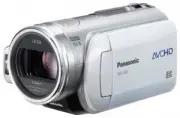
Before using 6 VQT1A34 Before using Features of the High Definition Video Camera This unit is an AVCHD format video camera for recording highly detailed high definition images on an SD card.You can watch images in high-resolution HD video if you connect this unit and a high definition TV and then pl...
Page 7 - When connecting to a TV that does not have a HDMI terminal
Before using 7 VQT1A34 If you connect this unit and a high definition TV with a HDMI cable (optional) and then play back the pictures, you can enjoy watching them in high definition. A High definition TV B HDMI cable (optional) ≥ If you connect this unit to a TV that does not support high definition...
Page 8 - Other linked operations; Turning the power on and off; Using the remote control for the TV for playback
Before using 8 VQT1A34 If you connect this unit to a Panasonic TV (VIERA) compatible with VIERA Link (HDAVI Control TM ) with a HDMI cable, you can use the remote control for the TV for playback. Refer to the operating instructions of the TV for details. A TV (VIERA) compatible with VIERA Link B HDM...
Page 9 - Internal microphones; AV amplifier with HDMI terminal; Listening in 5.1 channel surround sound
Before using 9 VQT1A34 This unit has 5 internal microphones and a Dolby Digital 5.1 Creator so you can record sound with presence that is even closer to the actual sound. The low bass area is sent to the 0.1 channel subwoofer and you can playback sound with three-dimensional presence if you connect ...
Page 10 - What you can do with HD Writer; Important note
Before using 10 VQT1A34 When the SD card is full or to prevent the data from being deleted, use the supplied software (HD Writer Ver1.0E for SD1) to copy the data on the SD card to the hard disk of the computer. A USB cable (supplied) ª What you can do with HD Writer [Copy to PC] You can copy motion...
Page 11 - Accessories; Optional accessories
11 VQT1A34 Before using Accessories Check the accessories before using this unit. Some optional accessories may not be available in some countries. SDHC memory card (4 GB) Battery pack VW-VBG130 AC adaptor VW-AD21E AC cable A K2CT3CA00004 B K2CJ2DA00008 C K2CQ2CA00006 A Hong Kong Special Administrat...
Page 12 - Parts identification and handling; About the cooling fan
Before using 12 VQT1A34 Parts identification and handling 1) Lens (LEICA DICOMAR)2) Built-in flash ( l 53) 3) Recording lamp ( l 102) 4) White balance sensor/remote control sensor ( l 19, 61) 5) Lens cover 6) Status indicator ( l 26) 7) Mode dial ( l 26) 8) LCD monitor open part ( l 18) 9) Menu butt...
Page 15 - Open the battery cover.; Open the battery cable cover.
Before using 15 VQT1A34 31) Speaker32) Grip belt ( l 16) 33) Outlet34) USB terminal [ ] ( l 85, 94) 35) HDMI terminal [HDMI] ( l 76, 78, 82) Open the battery cable cover when you use the battery pack holder kit (VW-VH04; optional). 1 Open the battery cover. ≥ Push A while sliding it. 2 Open the batt...
Page 16 - Put your hand through the grip belt.; order to attach it, place into slot
16 VQT1A34 Before using Adjust the length of the grip belt so that it fits your hand, and hold it properly. 1 Flip the belt. 2 Put your hand through the grip belt. A Rubber grip 1 Loosen the belt. 2 Put your hand through the belt as far as it goes. ≥ Slip your hand through the belt as far as it goes...
Page 17 - Tripod receptacle
17 VQT1A34 Before using Attach the lens cap to protect the surface of the lens. ≥ When the MC protector or the ND filter of the Filter Kit (VW-LF43NE; optional) is attached to the front of the lens hood, use the lens cap included in the Filter Kit. 1 Pass the end of the lens cap cord through the bel...
Page 18 - Using the LCD monitor; Using the remote control
18 VQT1A34 Before using Using the LCD monitor You can record the image while viewing it on the LCD monitor. 1 Place your finger on LCD monitor open part and pull the LCD monitor out in the direction of the arrow. ≥ It can open up to 90 o . 2 Adjust the angle of the LCD monitor as desired. ≥ It can b...
Page 19 - Install a button-type battery; Concerning the button-type battery; Remote control usable range; CAUTION; Warning
19 VQT1A34 Before using ª Install a button-type battery Install the supplied button-type battery in the remote control before using it. 1 While pressing the stopper A , pull out the battery holder. 2 Set the button-type battery with its ( i ) mark facing upward and then put the battery holder back i...
Page 20 - Cards that you can use with this unit; About SD cards that you can use for motion picture recording
Before using 20 VQT1A34 Cards that you can use with this unit ¢ The recording may suddenly stop during motion picture recording depending on the SD card you use. ( l 41) ª About SD cards that you can use for motion picture recording We recommend using SD Memory cards and SDHC Memory cards conforming...
Page 21 - Handling precautions
21 VQT1A34 Before using ≥ Use this unit to format SD cards. If an SD card is formatted on other products (such as a computer), the time spent for recording may become longer and you may not be able to use the SD card. ( l 74) (Do not format it on a PC etc.) ≥ When the write-protect switch A on SD ca...
Page 22 - Charging the battery; Charging lamp
22 VQT1A34 Setup Setup Charging the battery When this unit is purchased, the battery is not charged. Charge the battery before using this unit. ≥ Connect the battery to an AC adaptor to recharge it.The battery cannot be recharged by simply inserting it into the unit. ≥ If the DC cable is connected t...
Page 23 - Inserting/removing the battery
23 VQT1A34 Setup Inserting/removing the battery 1 Open the battery cover. ≥ Push A while sliding it. 2 Insert the battery until it clicks paying attention to the direction of the battery. B Push the centre of the battery until it locks. 3 Close the battery cover. 1 Open the battery cover. 2 Remove t...
Page 24 - Charging time and recordable time; About batteries that you can use for this unit; The Panasonic battery that can be used with this unit is VW-VBG130.; Charging time
Setup 24 VQT1A34 Charging time and recordable time ª About batteries that you can use for this unit The Panasonic battery that can be used with this unit is VW-VBG130. VW-VBG130 comes with a function to check whether the battery and unit can be safely used together. ≥ Batteries made by other compani...
Page 25 - Connecting to the AC outlet
25 VQT1A34 Setup ª About the remaining battery capacity indication The remaining battery capacity is displayed in minutes when using the Panasonic battery that you can use for this unit. It may take time to display the remaining battery capacity. ≥ The display changes as the battery capacity reduces...
Page 26 - Selecting a mode; Rotate the mode dial slowly.; Set the mode dial to OFF.; How to turn on the power; PC; How to turn off the power; OFF
26 VQT1A34 Setup Selecting a mode (Turning the unit on/off) Rotate the mode dial to switch to recording, playback, PC connection or power OFF. ≥ Rotate the mode dial slowly. While pressing the lock release button, set the mode dial to , or . ≥ Rotate the mode dial while at the same time pressing in ...
Page 27 - Quick start
27 VQT1A34 Setup The power can be turned on and off with the LCD monitor when the mode dial is set to . ª To turn on the power Open the LCD monitor. The status indicator A lights and the power turns on. ª To turn off the power Close the LCD monitor. The status indicator A goes off and the power turn...
Page 28 - Open the LCD monitor.; To cancel Quick start; Inserting/removing an SD
28 VQT1A34 Setup 3 Open the LCD monitor. The status indicator A lights red and the unit is put into recording pause approx. 1.7 seconds after it is turned on. ª To cancel Quick start Press the MENU button, then select [SETUP] # [QUICK START] # [OFF] and press the cursor button. ≥ The status indicato...
Page 29 - Concerning the SD card; How to use the cursor button; Select by moving down.; Basic operations
29 VQT1A34 Setup ª Concerning the SD card ≥ Do not touch the terminals on the back of the SD card. ≥ Electrical noise, static electricity or the failure of this unit or the SD card may damage or erase the data stored on the SD card. Save important data recorded on this unit to a PC using the USB cab...
Page 30 - Rotate the mode dial to select; Operations during recording
30 VQT1A34 Setup ¬ Rotate the mode dial to select . 1 Press the centre of the cursor button, and icons will be displayed on the screen. ≥ The indication disappears when the centre of the cursor button is pressed again. ≥ The indication changes each time the cursor button is moved down. 2 Move the cu...
Page 31 - Recording mode; Icon
Setup 31 VQT1A34 Recording mode Set the AUTO/MANUAL/FOCUS switch to MANUAL. Set the AUTO/MANUAL/FOCUS switch to FOCUS. ≥ The shaded operation icons are not displayed while recording. ≥ About switching between AUTO and MANUAL ( l 39) About the operation icons displayed in each mode Icon Direction Fun...
Page 32 - In motion picture playback)
Setup 32 VQT1A34 Playback mode ( In motion picture playback) Playback mode ( In still picture playback) Icon Direction Function Page 1 / ; 3 Playback/pause 63 ∫ 4 Stop playback and show thumbnails 63 6 2 Rewind (during playback) 63 2; Reverse slow/frame playback (during pause) 64 5 1 Fast forward (d...
Page 33 - To exit the help mode; Using the menu screen; Help mode
33 VQT1A34 Setup The help mode explains the operation icons displayed when the AUTO/MANUAL/FOCUS switch is set to AUTO in recording mode. ¬ Rotate the mode dial to select . 1 Press the cursor button to display the icon. 2 Move the cursor button right to select [ ]. 3 Move the cursor button up, left ...
Page 34 - To get back to the previous screen; To exit the menu screen; Press the MENU button.; Operating with remote control
34 VQT1A34 Setup 4 Move the cursor button up or down in order to select the submenu item. C Current settings on menus 5 Move the cursor button right or press the cursor button. 6 Move the cursor button up or down in order to select the desired item. 7 Press the cursor button to enter the selection. ...
Page 35 - Setting date and time; and press the cursor; Changing the date and time display style; Changing the display style; Display style
35 VQT1A34 Setup Setting date and time When the unit is turned on for the first time, a message asking you to set the date and time will appear. ≥ Move the cursor button up or down to select [YES], press the centre of the cursor button and then perform steps 2 and 3 below to set the date and time. I...
Page 36 - To recharge the built-in lithium battery:; Switching the language; WARNING
36 VQT1A34 Setup To recharge the built-in lithium battery: If you connect the AC adaptor or insert the battery in this unit, the built-in lithium battery will be recharged. Leave the unit as it is for approx. 24 hours and the battery will save the date and time for approx. 6 months. (The battery is ...
Page 37 - Press the POWER LCD button.
37 VQT1A34 Setup ª In order to increase the brightness of the entire LCD monitor Press the POWER LCD button. The [ ] indication appears on the LCD monitor. ≥ Press the POWER LCD button if the surroundings are bright and the LCD monitor is difficult to see. The entire LCD monitor will become approx. ...
Page 38 - Recording; Before recording; Basic camera positioning
Recording 38 VQT1A34 Recording Before recording First, format the SD card if one which has been used on another device is going to be used for the first time on this unit. ( l 74) When the SD card is formatted, all of the recorded data is deleted. Once the data is deleted, it cannot be restored. Cop...
Page 39 - About auto mode; Turning the AGS function on/off
39 VQT1A34 Recording ª About auto mode Set the AUTO/MANUAL/FOCUS switch to AUTO, and colour balance (white balance) and focusing will be adjusted automatically. – Automatic white balance ( l 118) – Auto focus ( l 119) Depending on the brightness of the subject etc., the aperture and shutter speed ar...
Page 40 - Recording motion pictures; To end the recording
40 VQT1A34 Recording Recording motion pictures Record motion pictures on an SD card. ≥ Use an SD card that can be used for motion picture recording. ( l 20) ≥ This unit records high definition images that are compatible with the 16:9 aspect ratio of a wide-screen TV. 1 Rotate the mode dial to select...
Page 42 - Recording modes/recordable time available for the motion; desired item and press the; Recordable time using the battery (
Recording 42 VQT1A34 Recording modes/recordable time available for the motion picture Switch the picture quality of the motion pictures to be recorded. ¬ Rotate the mode dial to select . Press the MENU button, then select [VIDEO] # [REC MODE] # desired item and press the cursor button. Approximate r...
Page 43 - Recording still pictures; To record still pictures clearly
43 VQT1A34 Recording Recording still pictures (JPEG) Record the still picture on an SD card. ≥ This number of recording pixels for still pictures is compatible with the 16:9 aspect ratio of a wide-screen TV. They are recorded at 1920 k 1080. 1 Rotate the mode dial to select . The lens cover opens au...
Page 44 - Quality of still pictures; About the focus indication; Concerning the focusing area; A B C D E F G H
44 VQT1A34 Recording ≥ The PHOTO SHOT button on the remote control cannot be pressed halfway. ≥ If the [PICT. QUALITY] is set to [ ], mosaic-pattern noise may appear on a playback image depending on the picture content. ≥ While this unit accesses the SD card ( is displayed/the card access lamp is li...
Page 46 - Picture Quality/Approximate; together and on the subject being recorded.; Picture quality; Picture size
46 VQT1A34 Recording Picture Quality/Approximate Number of Recordable Pictures on an SD Card Selecting the picture quality. Press the MENU button, then select [PICTURE] # [PICT. QUALITY] # desired item and press the cursor button. : Still pictures with a high picture quality are recorded. : Priority...
Page 47 - Various recording functions; desired item; VOL; Digital zoom function
47 VQT1A34 Recording Various recording functions You can zoom in up to 12 k optically. ¬ Rotate the mode dial to select . Move the zoom lever. T side: Close-up recording (zoom in) W side: Wide-angle recording (zoom out) ≥ If you take your finger off the zoom lever during zoom operation, the operatio...
Page 48 - and; Recording yourself
48 VQT1A34 Recording The zoom microphone is linked to the zooming operation and the sound sensitivity direction (directivity) of the microphone changes as you zoom. Far away sounds are recorded more clearly if you zoom in (close-up) and the surrounding sound is recorded with presence if you zoom out...
Page 49 - To return to normal recording; Backlight compensation
49 VQT1A34 Recording Use this function when the light is emanating from behind the subject and the subject appears dark. ¬ Rotate the mode dial to select . 1 Press the cursor button. Then move the cursor button down to display the icon shown in the illustration. 2 Move the cursor button up to select...
Page 50 - To cancel fading; and press the; Press the cursor button. Then; To cancel the colour night view function; To select the colour for fade in/out; Colour night view function; This allows recording in dark
50 VQT1A34 Recording Pause recording. (Fade out) The image/audio gradually disappears. After the image/audio completely disappears, recording stops. ≥ After recording, the fade setting is cancelled. To cancel fading Select [ ] again. The colour which appears in fading pictures can be selected. Press...
Page 51 - To cancel the soft skin mode; To cancel the tele macro function; Soft skin mode
51 VQT1A34 Recording This is more effective if you record the bust image of a person. ¬ Rotate the mode dial to select . 1 Press the cursor button. Then move the cursor button down to display the icon shown in the illustration. 2 Move the cursor button left to select [ ]. To cancel the soft skin mod...
Page 52 - Press the PHOTO SHOT button.; To stop the timer midway through
52 VQT1A34 Recording You can record still pictures on an SD card using the timer. ¬ Rotate the mode dial to select . 1 Press the cursor button. Then move the cursor button down to display the icon shown in the illustration. 2 Move the cursor button up to select [ Ø ]. Each time the cursor button is ...
Page 53 - When the flash is not used
53 VQT1A34 Recording Use the built-in flash in order to record still pictures in dark places. ¬ Rotate the mode dial to select . 1 Press the cursor button. Then move the cursor button down to display the icon shown in the illustration. 2 Move the cursor button left to select [ ß ]. ≥ Each time the c...
Page 54 - and press; To cancel the image stabilizer function; Red eye reduction function; Image stabilizer function
54 VQT1A34 Recording Reduces the phenomena where human eyes become red from flashes. 1 Press the cursor button. Then move the cursor button down to display the icon shown in the illustration. 2 Move the cursor button right to select [ ]. ≥ The flash is activated 2 times. Do not move until the second...
Page 55 - desired item and; To cancel the guide line function; Guide line function
55 VQT1A34 Recording You can check if the image is level while recording or playing back motion pictures and still pictures. The function can also be used to estimate the balance of the composition. ¬ Rotate the mode dial to select or rotate the mode dial to and then select the (motion picture playb...
Page 56 - Microphone level
56 VQT1A34 Recording When recording, the input level from the built-in microphones and the external microphone terminal can be adjusted. ¬ Rotate the mode dial to select . 1 Press the MENU button, then select [VIDEO] # [MIC LEVEL] # [SET r AGC] or [SET] and press the cursor button. AGC: Auto Gain Co...
Page 57 - To return to automatic setting; To cancel the zebra display; Zebra display
57 VQT1A34 Recording To return to automatic setting Press the MENU button, then select [VIDEO] # [MIC LEVEL] # [AUTO], and press the cursor button. ≥ Adjust the gain value so that the last 2 bars of the microphone input level on the centre of the screen will not light red. (Otherwise, the sound is d...
Page 58 - To cancel the colour bar; Manual recording functions; Colour bar
58 VQT1A34 Recording This unit displays a 7 colour bar which is useful for adjusting the picture quality of the TV or the external monitor. ¬ Rotate the mode dial to select . Press the MENU button, then select [ADVANCED] # [COLOUR BARS] # [ON] and press the cursor button. To cancel the colour bar Pr...
Page 59 - To cancel the scene mode function; Sports mode; Manual focus adjustment
59 VQT1A34 Recording To cancel the scene mode function Press the MENU button, then select [BASIC] # [SCENE MODE] # [OFF]. ≥ You can also cancel the scene mode function by setting the AUTO/MANUAL/FOCUS switch to AUTO. Sports mode ≥ For slow-motion playback or playback pause of recorded pictures, this...
Page 60 - To restore to the automatic adjustment; Outdoor mode; About the MF assist function; White balance
60 VQT1A34 Recording 4 Move the cursor button left or right to bring the subject into focus. The centre of the screen is enlarged. The normal screen returns approximately 2 seconds after you finish bringing the subject into focus. ≥ The centre of the screen is not enlarged when [MF ASSIST] is [OFF]....
Page 61 - About the white balance sensor
61 VQT1A34 Recording [ ]: Manual adjustment mode ≥ Mercury-vapor lamps, sodium lamps, some fluorescent lights ≥ Lights used for wedding receptions at hotels, stage spotlights in theatres ≥ Sunrise, sunset etc. To restore to the automatic adjustment Set the white balance mode to [ ]. ≥ You can also r...
Page 62 - CLOSE; To restore to automatic adjustment; Manual shutter speed adjustment; Manual shutter speed/aperture
62 VQT1A34 Recording Shutter Speed: Adjust it when recording fast-moving subjects. Aperture: Adjust it when the screen is too bright or too dark. ¬ Rotate the mode dial to select . 1 Set the AUTO/MANUAL/FOCUS switch to MANUAL. The icon shown in the illustration is displayed automatically. 2 Move the...
Page 63 - Playback; Motion picture playback
63 VQT1A34 Playback Playback Motion picture playback Play back motion pictures. 1 Rotate the mode dial to select . The lens cover closes. 2 Press the cursor button up and then left to select the (motion picture playback) tab. A Motion picture playback tab The motion pictures are displayed as thumbna...
Page 65 - Towards “; To adjust the volume
65 VQT1A34 Playback The motion picture is advanced one frame at a time. 1 Move the cursor button up during playback to pause the playback. 2 Move the cursor button right. (The frames will be advanced one at a time in the reverse direction when you move the cursor button left.) ≥ Normal playback is r...
Page 66 - To return to playing back all the scenes; Playing back motion pictures
66 VQT1A34 Playback Recorded scenes are grouped by date on this unit.Scenes recorded on the same day can be played back in succession. 1 Press the MENU button, then select [PLAY SETUP] # [PLAY MODE] # [BY DATE] and press the cursor button. 2 Select the date for playback, then press the cursor button...
Page 67 - To cancel the resume playback function; Resuming the previous
67 VQT1A34 Playback If playback of a scene was stopped halfway, the playback can be resumed from where it was stopped. Press the MENU button, then select [PLAY SETUP] # [RESUME PLAY] # [ON] and press the cursor button. If playback of a motion picture is stopped, [ ] appears on the thumbnail view of ...
Page 68 - Press the cursor button.; About still picture compatibility
68 VQT1A34 Playback ≥ If 9 or more files have been recorded, the next (or previous) page can be displayed by moving the cursor button left and right or moving the cursor button down, selecting / by moving the cursor button left and right and then pressing the centre of the cursor button. ≥ The file ...
Page 69 - Editing; Editing scenes; The deleted scenes cannot be restored.; Deleting scenes; Deleting scenes one at a time
69 VQT1A34 Editing Editing Editing scenes The deleted scenes cannot be restored. ¬ Rotate the mode dial to select and then select the (motion picture playback) tab. 1 Press the button during playback. 2 When the confirmation message appears, select [YES], then press the cursor button. ¬ Rotate the m...
Page 70 - To complete the settings; Protecting scenes
70 VQT1A34 Editing 4 (Only when [SELECT] is selected in step 2) Press the button. 5 When the confirmation message appears, select [YES], then press the cursor button. (Only when [SELECT] is selected in step 2) To continue deleting other scenes Repeat steps 3-5. To complete editing Press the MENU but...
Page 71 - Editing still pictures; The deleted files cannot be restored.; Deleting still pictures
71 VQT1A34 Editing Editing still pictures The deleted files cannot be restored. ¬ Rotate the mode dial to select and then select the (still picture playback) tab. 1 Press the button during playback. 2 When the confirmation message appears, select [YES], then press the cursor button. ¬ Rotate the mod...
Page 72 - To continue deleting other files; Protecting still pictures
72 VQT1A34 Editing 5 When the confirmation message appears, select [YES], then press the cursor button. (Only when [SELECT] is selected in step 2) To continue deleting other files Repeat steps 3-5. To complete editing Press the MENU button. ª Deleting still picture files recorded on an SD card by ot...
Page 73 - To cancel all DPOF settings; DPOF setting
73 VQT1A34 Editing You can write the data of the still pictures to be printed and the number of prints (DPOF data) onto the SD card. ¬ Rotate the mode dial to select and then select the (still picture playback) tab. 1 Press the MENU button, then select [PLAY SETUP] # [DPOF SET] # [SET] and press the...
Page 74 - Card management; Formatting; Formatting an SD card; This is for initializing cards.
74 VQT1A34 Card management Card management Formatting Please be aware that if an SD card is formatted, then all the data recorded on the card will be erased. Store important data on a computer etc. ¬ Rotate the mode dial to select or . 1 Press the MENU button, then select [SETUP] # [FORMAT CARD] # [...
Page 75 - With other products; With a TV
75 VQT1A34 With other products With other products With a TV The motion pictures and still pictures recorded on this unit can be played back on a TV screen. Connect this unit to a TV with one of the following terminals. When connecting to a HDMI terminal, a connection cable (optional) is necessary. ...
Page 76 - Set the mode dial to
With other products 76 VQT1A34 1 Connect this unit and a TV with the HDMI cable (optional). Use a HDMI cable (optional) A with the logo shown above. 2 Set the mode dial to to turn on the power. 3 Select the input channel on the TV. Example: Select the [HDMI] channel etc. (The name of the channel may...
Page 77 - HDMI output resolution; Information from the; Interlace method/progressive method
77 VQT1A34 With other products ª About the settings when connecting with HDMI When this unit is connected to another device with a HDMI cable, the output setting on this unit can be changed. HDMI output resolution You can switch the method to output the images. Press the MENU button, then select [SE...
Page 78 - Listening in 5.1 channel sound
With other products 78 VQT1A34 If you connect this unit and an AV amplifier with a HDMI terminal with a HDMI cable and then playback, you can listen to 5.1 channel sound recorded from the internal microphones. ≥ Please read the operating instructions for the AV amplifier, speakers and TV for more in...
Page 79 - AUDIO IN
With other products 79 VQT1A34 1 Connect this unit and a TV with the component cable (supplied) and the AV cable (supplied). A Component cable (supplied) B AV cable (supplied) ≥ Connect to terminals of the same colour. ≥ The component terminal C is for outputting images only so be sure to also conne...
Page 81 - If the image or audio from this unit is not output on the TV; VIDEO IN
With other products 81 VQT1A34 1 Connect this unit and a TV with the AV cable (supplied). A AV cable (supplied) 2 Set the mode dial to to turn on the power. 3 Change the input channel on the TV. Example: Select the [Video 2] channel etc. (The name of the channel may differ depending on the connected...
Page 82 - Playback using VIERA Link (HDAVI Control); Set so that VIERA Link is activated on the connected TV.
With other products 82 VQT1A34 Playback using VIERA Link (HDAVI Control) If you connect this unit to a Panasonic TV (VIERA) compatible with VIERA Link (HDAVI Control) with a HDMI cable, the following linked operations become possible. 1 Connect this unit and a Panasonic TV (VIERA) compatible with VI...
Page 83 - Operate with the remote control for the TV.; To cancel VIERA Link
With other products 83 VQT1A34 5 Operate with the remote control for the TV. 1) Press the button up, down, left or right to select a scene or file to be played back, and then press the button in the centre to set it. 2) Operate the operation icons that are displayed on TV screen with the remote cont...
Page 84 - Dubbing images onto a; Images are dubbed in standard quality.; Connect this unit and a video; To stop dubbing
84 VQT1A34 With other products Dubbing images onto a connected DVD recorder or video device This is for dubbing images recorded on this unit onto a DVD recorder, video device etc. ≥ Images are dubbed in standard quality. ≥ Use the AC adaptor to free you from worrying about the battery running down. ...
Page 85 - to turn on the power.; Connect this unit and a printer.
85 VQT1A34 With other products With a printer (PictBridge) To print pictures by directly connecting this unit to the printer, use a printer compatible with PictBridge. (Read the operating instructions for the printer.) ≥ Use the AC adaptor to free you from worrying about the battery running down. ¬ ...
Page 86 - When you stop printing halfway
86 VQT1A34 With other products 7 Select the layout setting on [PAGE LAYOUT]. [STANDARD] : Layout specific to the printer [ ] : No frame print [ ] : Frame print ≥ You cannot set page layouts not supported on the printer. 8 Select [PRINT] # [YES] and press the cursor button to print the pictures. ≥ Ex...
Page 87 - With a computer; Before using with a computer; What you can do with a computer; Data type
With a computer 87 VQT1A34 With a computer Before using with a computer *Compatible media are SD card and discs (DVD-RAM, DVD-RW, DVD-R and DVD-R DL). ≥ When you connect this unit and a computer, always insert the battery and connect the AC adaptor. If you do not insert the battery and connect the A...
Page 88 - HD Writer Ver1.0E for SD1; Contents on provided CD-ROM
With a computer 88 VQT1A34 The following software applications are contained on the provided CD-ROM. ª HD Writer Ver1.0E for SD1 You can acquire data of motion pictures and still pictures on an SD card to the hard disk of the computer, easily edit (split, merge, delete) the motion pictures, then wri...
Page 89 - End User License Agreement
89 VQT1A34 With a computer Before opening the CD-ROM package, please read the following. You (“Licensee”) are granted a license for the Software defined in this End User Software Agreement (“Agreement”) on condition that you agree to the terms and conditions of this Agreement. If Licensee does not a...
Page 90 - Operating environment for HD Writer Ver1.0E for SD1; Operating environment
With a computer 90 VQT1A34 ≥ A CD-ROM drive is necessary to install the supplied software applications. (A compatible drive and media are necessary for writing to a DVD.) ≥ When 2 or more USB devices are connected to a computer, or when devices are connected through USB hubs or by using extension ca...
Page 91 - Operating environment for the card reader function (mass storage)
With a computer 91 VQT1A34 ≥ Operation cannot be guaranteed on all DVD drives. ≥ DVD discs authored with this software are not guaranteed to play in all DVD players that do not support the AVCHD. ≥ Operation is not guaranteed on Microsoft Windows XP Media Center Edition, Tablet PC Edition and not co...
Page 92 - Installation; on the top right of the window.; Installing HD Writer Ver1.0E for
92 VQT1A34 With a computer Installation When installing the software, log on to your computer as the Administrator or with a user name with equivalent authorization. (If you do not have authorization to do this, consult your manager.) ≥ Before starting the installation, close any other software appl...
Page 93 - Reading the operating
93 VQT1A34 With a computer 6 Click [Finish]. For details on how to use the software applications, read the PDF operating instructions. ≥ You will need Adobe Acrobat Reader 5.0 or later to read the PDF operating instructions. Select [start] # [All Programs (Programs)] # [Panasonic] # [HD Writer Ver1....
Page 94 - to turn on; Connection and recognition
94 VQT1A34 With a computer Connection and recognition After the software applications are installed, this unit must be connected to the computer and be correctly recognised by the computer. ≥ Connect after installing the software applications. ≥ Remove the supplied CD-ROM if it is inserted in the co...
Page 95 - Set the mode dial on the unit to; About the computer display
95 VQT1A34 With a computer When the unit is connected to a computer, it is recognised as an external drive.[Removable Disk] is displayed in [My Computer]. Example folder structure of an SD card: ≥ AVCHD format motion picture files ([00000.MTS] etc.) are saved in the [BDMV] folder. ≥ The motion pictu...
Page 96 - Double click the; To disconnect USB cable safely
96 VQT1A34 With a computer 1 Double click the icon in task tray displayed on the computer. Hardware disconnect dialogue appears. ≥ Depending on your computer’s settings, this icon may not be displayed. 2 Select [USB Mass Storage Device] and click [Stop]. 3 Verify [MATSHITA HDC-SD1 USB Device] is sel...
Page 97 - Using HD Writer Ver1.0E for
97 VQT1A34 With a computer Using HD Writer Ver1.0E for SD1 Using HD Writer Ver1.0E for SD1, you can copy images recorded on this unit to the hard disk of the computer. When you want to playback images, write back the images from the hard disk of the computer to an SD card. You can then connect this ...
Page 98 - Writing back to an SD card
98 VQT1A34 With a computer 6 Click the [Start copying] button. ≥ A confirmation message appears. Click [Yes] and copying starts. ≥ After copying is complete, a message appears. If [Yes] is clicked, all the motion pictures and still pictures on the SD card will be deleted. ª Writing back to an SD car...
Page 99 - If using Macintosh
With a computer 99 VQT1A34 If using Macintosh ≥ Even if the system requirements mentioned in these operating instructions are fulfilled, some personal computers cannot be used. ≥ Apple, Mac OS is either registered trademarks or trademarks of Apple Computer, Inc. in the United States and/or other cou...
Page 100 - Menus and Indications; Recording menus; Menu list
100 VQT1A34 Others Others Menus and Indications Recording menus ª [BASIC] [SCENE MODE] ( l 58) [D.ZOOM] ( l 47) [O.I.S.] ( l 54) [GUIDE LINES] ( l 55) [CLOCK SET] ( l 35) ª [VIDEO] [REC MODE] ( l 42) [FADE COLOUR] ( l 50) [WIND CUT] ( l 55) [ZOOM MIC] ( l 48) [MIC LEVEL] ( l 56) [AGS] ( l 39) ª [PIC...
Page 102 - Beeps
102 VQT1A34 Others ª [REC LAMP] The recording lamp lights during recording and flashes when the unit receives a signal from the remote control or when the self-timer is counting down. When this is set to [OFF], it does not light during recording. ª [DISPLAY] The screen indications are selected as sh...
Page 103 - Recording indications; Indications
103 VQT1A34 Others ª Recording indications Motion picture recording Still picture recording(when the PHOTO SHOT button is pressed halfway) Indications Remaining battery power 30min Remaining battery time R30min Remaining time for motion picture recording 0h00m00s Elapsed recording time 15.12.2007 Da...
Page 104 - Playback indications; Play mode
104 VQT1A34 Others ª Playback indications Motion picture playback Still picture playback ª PC connection indications ª Confirmatory indications 1 Playback ; Pause 5 / 6 Cue/Review playback 7 / 8 Last/first scene paused 9 / : Skip playback D / E Slow motion playback ;1 / 2; Frame-by-frame playback 0h...
Page 105 - Messages
Others 105 VQT1A34 Messages CANNOT RECORD. Data writing to the SD card has failed. NO DATA. There are no motion pictures or still pictures recorded on the SD card.If this message appears although data is recorded on the SD card, the condition of the card is probably not stable.Turn off the power and...
Page 107 - About recovery; CONTROL DATA ERROR HAS BEEN
Others 107 VQT1A34 When the SD card is accessed, you try to playback a scene or faulty control information is read, one of the messages below may be displayed. (Depending on the error, this may take time.) When connecting to AC adaptor or the remaining capacity of the battery is enough: [FINISHED.] ...
Page 108 - Functions that cannot be used simultaneously; Functions
Others 108 VQT1A34 Functions that cannot be used simultaneously Some functions in this unit are disabled or cannot be selected due to the unit’s specifications. The table below shows examples of functions restricted by various conditions. Functions Conditions which disable the functions Backlight co...
Page 109 - Troubleshooting; Unit operations; Problem
Others 109 VQT1A34 Troubleshooting ª Unit operations Problem Check points This unit cannot be turned on. ≥ Is the battery fully charged? # Charge it with the AC adaptor. ( l 22) ≥ The battery protection circuit may have operated. Attach the battery to the AC adaptor for 5 to 10 seconds. If the unit ...
Page 112 - The screen is frozen.
Others 112 VQT1A34 Problem Check points Scenes cannot be deleted. ≥ Is the scene on the SD card protected? # Protected scenes cannot be deleted. Release the protect setting. ( l 70) ≥ Scene which cannot be displayed as thumbnails (the thumbnails are displayed as ) cannot be deleted. If the scenes ar...
Page 114 - When connected to another device
Others 114 VQT1A34 ª When connected to another device ª With a computer Problem Check points VIERA Link does not work. ≥ Are you connecting with the component cable or the AV cable? # Connect with a HDMI cable (optional). ( l 82) ≥ Is the [VIERA Link] setting appropriate? # Press the MENU button, th...
Page 115 - Cautions for use; About this unit
115 VQT1A34 Others Cautions for use (For Australia)In the event of abnormal operation (e.g. if the unit emits smoke or an unusual smell), immediately stop operating the unit and consult the Panasonic Customer Care Centre on 132600. The unit and the SD card become warm during use. However, this is no...
Page 116 - About the battery
116 VQT1A34 Others The battery used in this unit is a rechargeable lithium-ion battery. It is susceptible to humidity and temperature and the effect increases the more the temperature rises or falls. In cold areas, the full charge indication may not appear or the low battery indication may appear ab...
Page 117 - About the SD card
117 VQT1A34 Others ≥ The memory capacity indicated on the label of an SD card is the total of the capacity for copyright protection and management and the capacity which can be used on the unit, a computer etc. ≥ During prolonged use, the unit’s surfaces and the SD card will heat up slightly. This i...
Page 118 - Causes of condensation; Explanation of terms; Automatic white balance; About condensation
118 VQT1A34 Others When condensation forms on the unit, the lens will cloud up and the unit may not work properly. Make every effort to ensure that condensation does not form. If it does form, take the actions described below. Causes of condensation Condensation takes place when the ambient temperat...
Page 119 - Auto focus has the following characteristics.; Recording a subject in dark surroundings
119 VQT1A34 Others Outside of the effective range of automatic white balance adjustment, the image will become reddish or bluish. Even within the effective range of automatic white balance adjustment, the automatic white balance adjustment may not function properly if there is more than one light so...
Page 120 - Specifications
Others 120 VQT1A34 Specifications High Definition Video Camera Information for your safety Power source: Power consumption: DC 9.3 V (When using AC adaptor)DC 7.2 V (When using battery)Recording: 8.0 W Signal system 1080/50i Recording format AVCHD format compliant Image sensor 1/4 z 3CCD image senso...


 Panasonic AG-DVX100B
Manual
Panasonic AG-DVX100B
Manual
 Panasonic AJ-HPX2100E
User Manual
Panasonic AJ-HPX2100E
User Manual
 Panasonic AJ-HPX3000G
User Manual
Panasonic AJ-HPX3000G
User Manual
 Panasonic HC-V10
User Manual
Panasonic HC-V10
User Manual
 Panasonic HC-V100(M)
User Manual
Panasonic HC-V100(M)
User Manual
 Panasonic HC-V260
Manual
Panasonic HC-V260
Manual
 Panasonic HC-V760
Manual
Panasonic HC-V760
Manual
 Panasonic HC-V770
Manual
Panasonic HC-V770
Manual
 Panasonic HC-V800
Manual
Panasonic HC-V800
Manual
 Panasonic HC-VXF990
Manual
Panasonic HC-VXF990
Manual
 Panasonic HDC-DX1EE
User Manual
Panasonic HDC-DX1EE
User Manual
 Panasonic HDC-SD5
User Manual
Panasonic HDC-SD5
User Manual
 Panasonic HDC-TM40EE
User Manual
Panasonic HDC-TM40EE
User Manual
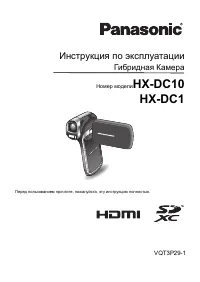 Panasonic HX-DC1
User Manual
Panasonic HX-DC1
User Manual