Page 2 - LICENSES; This DivX Certified
2 LICENSES LICENSES Supported licenses may differ by model. For more information about licenses, visit www.lg.com. Manufactured under license from Dolby Laboratories. Dolby and the double-D symbol are trademarks of Dolby Laboratories. This DivX Certified ® device has passed rigorous testing to ensur...
Page 3 - This device meets the EMC requirements for home appliances (Class; NOTE
3 LICENSES This device meets the EMC requirements for home appliances (Class B) and is intended for home usage. This device can be used in all regions.  • Image shown may differ from your projector. • Your projector’s OSD (On Screen Display) may differ slightly from that shown in this manual. NOTE
Page 4 - SAFETY PRECAUTIONS; Indoor Installation; a fire or electric shock.
4 SAFETY PRECAUTIONS SAFETY PRECAUTIONS Please take note of safety instructions to prevent any potential accident or misuse of the product. • Safety precautions are given in two forms, i.e. WARNING and CAUTION. WARNING and CAUTION are understood to mean as follows: WARNING : Failure to follow the in...
Page 5 - CAUTION
5 SAFETY PRECAUTIONS • Do not place flammable materials such as aerosols near the projector. - This may result in fire. • Do not allow children to cling to or climb up to the projector. - This may cause the projector to fall, causing injury or death. • Do not install the product in a place with no v...
Page 6 - Power; WARNING
6 SAFETY PRECAUTIONS • Be careful not to tip the projector over when connecting external devices to the projector. - This may cause personal injury or damage to the projector. Power WARNING • The appliance coupler is used as the disconnect device. - Please make sure the device is installed near the ...
Page 7 - When in Use; This may result in fire or
7 SAFETY PRECAUTIONS • Place the projector where people will not trip over or tread on the power cord to protect the power cord and plug from any damage. - This may result in fire or electric shock. • Do not turn the projector on or off by plugging in the power plug or unplugging it from the wall ou...
Page 8 - Sparks may cause fire or
8 SAFETY PRECAUTIONS • Never open any cover on the projector. - There is a high risk of electric shock. • Do not look directly into the lens when the projector is in use. - The bright light may damage your eyes. • When the lamp is on or has just been turned off, avoid touching the air vent or lamp, ...
Page 9 - by the reflected heat.; Cleaning; inside and may create a fire
9 SAFETY PRECAUTIONS • Do not drop anything onto the projector or allow anything to impact the projector. - This may cause personal injury or the projector to malfunction. • It is recommended that you maintain a distance of more than 5 - 7 times the diagonal length of the screen. - If you watch the ...
Page 10 - This may also create a fire; Others
10 SAFETY PRECAUTIONS • When cleaning plastic parts, such as the projector case, disconnect the product from the power first and wipe with a soft cloth. Do not spray with water or wipe with a wet cloth. Never use glass cleaner, automobile or industrial shiner, abrasives or wax, benzene, alcohol, etc...
Page 11 - in fire or electric shock due to
11 SAFETY PRECAUTIONS • Keep it out of reach of children. - Failure to do so may result in personal injury and damage to the product. CAUTION • Do not use or store the projector outdoors for long periods of time. • Be sure to unplug if the projector is not to be used for a long period. - Accumulated...
Page 12 - This prevent explosion or fire.; Antenna
12 SAFETY PRECAUTIONS • Do not store batteries at temperatures higher than 60 °C or in high humidity. - This may result in explosion or fire. • Make sure that the battery is connected correctly. - This prevent explosion or fire. • Incorrect battery replacement may cause fire. • Make sure you use the...
Page 13 - For USA; particular, specifies that the cable
13 SAFETY PRECAUTIONS For USA NOTE TO CABLE/TV INSTALLERThis reminder is provided to call the CATV system installer’s attention to Article 820 - 40 of the National Electric Code (U.S.A.). The code provides guidelines for proper grounding and, in particular, specifies that the cable ground shall be c...
Page 14 - USA; FCC Notice; Any changes or modifications in; Risk Group 2
14 SAFETY PRECAUTIONS USA FCC Notice (For USA) This equipment has been tested and found to comply with the limits for a Class B digital device, pursuant to Part 15 of the FCC Rules. These limits are designed to provide reasonable protection against harmful interference in a residential installation....
Page 15 - CONTENTS; Screen Size; REMOTE CONTROL
15 CONTENTS CONTENTS LICENSES 2 SAFETY PRECAUTIONS 4 PREPARATION 17 Accessories 17 Optional Extras 18 Parts and Components 19 - Main Unit 19 - Back 20 Installation 21 - Installation Precautions 21 - Projection Distance per Screen Size 22 - How to Install the Projector On a Tripod 23 - Kensington Sec...
Page 16 - CHANNEL
16 CONTENTS MY MEDIA 39 Before Using 39 - Connecting a USB Device 39 - Removing a USB Device 39 To Use My Media 41 - Watching the Videos 43 - Viewing the Photos 49 - Listening to Music 52 - Viewing Files 55 CUSTOMIZING SETTINGS 59 SETTINGS 59 PICTURE Settings 60 AUDIO Settings 65 CHANNEL Settings 67...
Page 17 - PREPARATION; The pictures may differ slightly from the actual product.; Accessories; Power cord
17 PREPARATION PREPARATION The pictures may differ slightly from the actual product. Accessories Accessories included with the project are show below. Accessories are subject to change without prior notice. New accessories may be added or old ones removed.  Remote Control, Lithium Battery (CR2032 /...
Page 18 - Optional Extras
18 PREPARATION • When connecting an HDMI or USB cable, or connecting a USB flash drive to the HDMI or USB port, use a product that has a width of 18 mm or less and a height of 10 mm or less. If the USB cable or USB flash drive does not fit the USB ports of the projector, use an extension cable that ...
Page 19 - Parts and Components; Main Unit; Button
19 PREPARATION Parts and Components This projector is manufactured using high-precision technology. You may, however, see tiny black dots and/or bright colored dots (red, blue or green) that continuously appear on the projector screen. This is a normal result of the manufacturing process and does no...
Page 20 - Back
20 PREPARATION Back  HDMI / MHL OFF / ON ANTENNA IN DC IN 2 3 4 5 6 8 7 1 No. Description 1 (Headphone Port) 2 HDMI/MHL Port 3 OFF/ON Switch - OFF : Turns the projector off completely. - ON : Turns the projector on and the projector goes into Standby mode. Place the switch to OFF when you move the ...
Page 21 - Installation; Installation Precautions; There is a risk of fire.
21 PREPARATION Installation Installation Precautions • Place the projector in a well- ventilated environment. - To prevent internal overheating, install the projector in a well-ventilated place. Do not place anything near the projector. That may block its air vents. If the air vents are blocked, the...
Page 22 - Projection Distance per Screen Size; Place the projector on a sturdy, level surface, together with the; Screen
22 PREPARATION Projection Distance per Screen Size 1 Place the projector on a sturdy, level surface, together with the computer or audio/video source. 2 Place the projector an appropriate distance away from the screen. The distance between the projector and the screen determines the actual size of...
Page 23 - How to Install the Projector On a Tripod; When stabilizing the tripod, we recommend using a locking bolt of
23 PREPARATION How to Install the Projector On a Tripod • You can install the projector using a camera tripod. • As shown below, you can mount the projector instead of a camera on the tripod. • When stabilizing the tripod, we recommend using a locking bolt of standard size 4.5 mm or less. The maximu...
Page 24 - Kensington Security System; The Kensington Security System is an optional accessory.
24 PREPARATION Kensington Security System • This projector has a Kensington Security Standard connector as an anti-theft mechanism. Connect a Kensington Security System cable as shown below. • For more information on installation and use of the Kensington Security System, refer to the user’s guide p...
Page 25 - Open the lid at the back of the remote control; CH
25 REMOTE CONTROL REMOTE CONTROL Open the lid at the back of the remote control and insert the batteries as described in the instructions. Use new batteries.   POWER Turns the projector on or off. MUTE Mutes the sound of the projector. INPUT Changes the input source. VOL +, - Adjusts the volume le...
Page 26 - MY MEDIA; FLASHBK; Color buttons
26 REMOTE CONTROL Number buttons Enter a number. Playback Control Buttons Controls playback of MY MEDIA . LIST Accesses the saved channel list. - (Dash) Inserts a dash between numbers such as 2 - 1 and 2 - 2. FLASHBK Tunes to the last channel viewed. Color buttons Sets detailed settings or gesture f...
Page 27 - USING THE PROJECTOR; Connecting the Antenna or Cable
27 USING THE PROJECTOR USING THE PROJECTOR Connecting the Antenna or Cable To watch TV using an indoor/outdoor antenna, connect a wall terminal and the ANTENNA IN port of the projector using an RF cable (75 Ω). You can watch public TV or cable (analog, digital) TV. (The RF cable is sold separately.)...
Page 28 - Using the battery; It is displayed when the battery is running out.; Battery using time information; Time and Display; Step 1 Step 2 Step 3 Step 4
28 USING THE PROJECTOR Using the battery  Low battery! The projector will turn off soon. • It is displayed when the battery is running out. • As your battery is low, Projector will be turned off in a minute. • If the screen shows a low battery message, be sure to charge the battery. Battery using t...
Page 30 - Watching Projector; Turning the Projector On; ON; Focus of the Screen Image
30 USING THE PROJECTOR Watching Projector Turning the Projector On The menu screen display in this owner's manual is an example to help users understand how to operate the product and may look different from the actual screen. 1 Connect the power cord correctly to turn the projector on. 2 Place th...
Page 31 - Using the projector
31 USING THE PROJECTOR Using the projector 1 When in standby mode, press the POWER button to turn the projector on. 2 Press the INPUT button and select the input signal you want. 3 Control the projector using the following buttons while watching the screen. Button Description CH , Changes the TV ...
Page 32 - Setting Channel; Saving Currently Broadcasting Channel; When you are finished, press the
32 USING THE PROJECTOR Setting Channel Image shown may differ from your projector. Saving Currently Broadcasting Channel Using the Auto Tuning function Saves a channel which is currently broadcasting. Be sure to activate Auto Tuning when you move to a new home or change the position of your projecto...
Page 34 - Set as Favorite
34 USING THE PROJECTOR Favorite Channel Setup 1 Press the SETTINGS button. 2 Press the , , , or button to select CHANNEL and press the OK button. 3 Press the , button to select Channel Edit and press the OK button. 4 Move to your desired channel. 5 Press the FAV button to access the Set as Favo...
Page 35 - Additional Options; Adjusting Aspect Ratio
35 USING THE PROJECTOR Additional Options Adjusting Aspect Ratio 1 Press the Q.MENU button. 2 Press the , buttons to select Aspect Ratio and press the OK button. Menu Description 16:9 Resizes images to the 16:9 ratio. Just Scan Displays video images in the original size without removing parts of t...
Page 36 - Using the Keystone Function; To prevent the screen image from becoming trapezoidal,; button when finished.; Changing input device; Connected inputs are displayed first.
36 USING THE PROJECTOR Using the Keystone Function To prevent the screen image from becoming trapezoidal, Keystone adjusts the top and bottom width of the image if the projector is not set up at a right angle to the screen.Because the Keystone function may cause inferior screen image quality, use th...
Page 37 - Selecting an Input Label; INPUT; Blank Function; Using the Blank Function; become overheated and deformed or even cause a fire.
37 USING THE PROJECTOR Selecting an Input Label Displays which devices are connected to which input ports.  Input Label HDMI Close 1 Press the INPUT button on the remote control to display the input selection screen. 2 Use the Red button. 3 Use the or button to select one of the input labels. Bl...
Page 38 - Using the Quick Menu; You can easily customize your frequently used menus.
38 USING THE PROJECTOR Selecting the background color of the blank image 1 Press the SETTINGS button. 2 Press the , , , or buttons to select OPTION 2 and press the OK button. 3 Press the , buttons to select Blank Image and press the OK button. 4 Press the or button to move to the setting or opti...
Page 39 - Before Using; Connecting a USB Device; of projector to enjoy the content files; Removing a USB Device; USB Device
39 MY MEDIA MY MEDIA Before Using Connecting a USB Device Connect a USB device (external HDD, USB memory) to the USB port of projector to enjoy the content files stored in the USB device with your projector. You cannot write or delete data in the USB device. Connect a USB flash drive as shown below....
Page 40 - Tips for using a USB device; recognized or may not work properly.
40 MY MEDIA Tips for using a USB device • If the USB storage device has a built-in auto recognition program or uses its own driver, it may not work. • Some USB storage devices may not work or may work incorrectly. • If you use a USB extension cable, the USB device may not be recognized or may not wo...
Page 41 - To Use My Media; Press the
41 MY MEDIA To Use My Media 1 Press the SETTINGS button on the remote control. 2 Select MY MEDIA . Select desired file from the list. Watch the chosen file. Sets play related settings by checking option during disk playback. My Media supporting file • Maximum data transmission rate: 20 Mbps (Mega ...
Page 42 - HEAAC
42 MY MEDIA Supported audio files File Format Item Info MP3 Bit rate 32 Kbps to 320 Kbps Sampling Rate 32 kHz to 48 kHz AC3 Bit rate 32 kbps to 640 kbps Sampling Rate 32 kHz, 44.1 kHz, 48 kHz MPEG Bit rate 32 kbps to 448 kbps Sampling Rate 32 kHz to 48 kHz AAC, HEAAC Bit rate 24 kbps to 3844 kbps Sa...
Page 43 - Watching the Videos; The file size limit is dependent on the encoding environment.
43 MY MEDIA Watching the Videos In the Movie List , you can watch movies stored on the connected USB device.Controls playback and sets options while viewing videos. Tips for Playing Video Files • Some subtitles created by users may not work properly. • The video and subtitle files should be placed i...
Page 44 - Description; Abnormal file; Item
44 MY MEDIA No. Description 1 Thumbnails Abnormal file File not supported 2 File List 3 Moves to the upper level folder. 4 Current page/Total no. of folder pages 5 Displays the remaining battery life. 6 Current page/Total no. of file pages 7 Moves to the top level folder. 8 Moves to the upper level ...
Page 45 - Selects the size of a playback screen.
45 MY MEDIA Item Description Pauses the media player.If no button is pressed on the remote control for 10 minutes after pausing, the playback is restarted. Displays in slow motion. Whenever this button is pressed, the playback speed is changed.: x2, x4, x8, x16, x32Reduces power consumption by adjus...
Page 46 - : If a subtitle is not synchronized with its video,
46 MY MEDIA Item Description Subtitle Language The subtitle can be turned on or off. • Language : One of any of the available languages can be selected. • Code Page : A character set used for a subtitle can be selected. By default, the subtitle is displayed in a language configured in OPTION 1 → Lan...
Page 47 - Registering the DivX code; Registration; Registration Code
47 MY MEDIA Registering the DivX code Checks DivX Reg. Code for replaying DivX protected videos. Register at http://vod.divx.com.Use Reg. Code to rent or purchase movies at www.divx.com/vod. 1 In the Settings menu, move to OPTION 1 and press DivX(R) VOD .  Registration Deregistration Close 2 Pres...
Page 48 - To deregister the DivX code; In the Settings menu, move to; OPTION 1; and press; Deregistration; and press the; Select
48 MY MEDIA To deregister the DivX code Use the DivX deregistration code to deactivate the DivX DRM function. 1 In the Settings menu, move to OPTION 1 and press DivX(R) VOD . 2 Use the or button to go to Deregistration and press the OK button. 3 Select Yes .  No No Yes Yes Your device is already...
Page 49 - Viewing the Photos; button to select the file you want and press
49 MY MEDIA Viewing the Photos You can view photos stored on a connected device. Supported Photo Files PHOTO (*.JPEG)Baseline: 64-pixel (width) x 64-pixel (height) - 15360-pixel (width) x 8640-pixel (height)Progressive: 64-pixel (width) x 64-pixel (height) - 1920-pixel (width) x 1440-pixel (height) ...
Page 50 - You can listen to music while viewing photos in full size.
50 MY MEDIA No. Description 1 Thumbnails Abnormal file File not supported 2 File List 3 Moves to the upper level folder. 4 Current page/Total no. of folder pages 5 Displays the remaining battery life. 6 Current page/Total no. of file pages 7 Moves to the top level folder. 8 Moves to the upper level ...
Page 51 - Hides the menu on the full size screen.
51 MY MEDIA Item Description Rotates photos. • Rotates a photo 90°, 180°, 270°, 360° clockwise. • Photos cannot be rotated if their width is greater than the height of the max. supported resolution. Views the photo in full mode or original mode.Press the blue button to enlarge the image. Reduces pow...
Page 52 - Listening to Music; You can play audio files stored on the connected device.
52 MY MEDIA Set Video. You can change video settings. (Refer to "PICTURE Settings" on page 60.) Set Audio. You can change audio settings. (Refer to "AUDIO Settings" on page 65.) Listening to Music You can play audio files stored on the connected device. Supported Music Files *.MP3Bit...
Page 55 - Viewing Files; You can see document files stored on a connected device.; Supported File Formats; the realigning process.
55 MY MEDIA Viewing Files You can see document files stored on a connected device. Supported File Formats XLS, XLSX, DOC, DOCX, PPT, PPTX, TXT, PDF, HWP Microsoft Office: 97/2000/2002/2003/2007 Version Adobe PDF: 1.0/1.1/1.2/1.3/ 1.4 VersionHangul: 97/2003/2007 Version • File Viewer realigns a docum...
Page 57 - button to zoom in or zoom out.
57 MY MEDIA 6 Control playback by using the following buttons. • Click Go Page then the pop-up window for selecting the number of page appears. Input the page to move to the page you want. • Press the VOLUME +, - button to zoom in or zoom out. Press the OK button and then use the Up/Down/Left/Right...
Page 58 - Loads all pages of a file to memory before it
58 MY MEDIA Options for File List 1 Press the Q.MENU button. 2 Use the , , , or button to set up each item. Set FileViewer Option Item Description Single Page Loading On Loads and displays pages one by one. The initial loading time is short but a content heavy page may be displayed slowly. Off Loa...
Page 59 - CUSTOMIZING SETTINGS; SETTINGS; Customizes the general settings.
59 CUSTOMIZING SETTINGS CUSTOMIZING SETTINGS SETTINGS 1 Press the SETTINGS button. 2 Use the , , , or button to select the desired item and press the OK button. 3 Use the , , , or button to set up the desired item and press the OK button. Menu Description PICTURE Adjusts the image quality for opt...
Page 60 - PICTURE Settings
60 CUSTOMIZING SETTINGS PICTURE Settings 1 Press the SETTINGS button. 2 Use the , , , or buttons to select PICTURE and press the OK button. 3 Use the , , , or button to set up the desired item and press the OK button. - To return to the previous menu, press the button. • ꕊ Energy Saving : Minimum...
Page 62 - Resets values customized by the user.
62 CUSTOMIZING SETTINGS Menu Description Picture Reset Resets values customized by the user. Each picture mode is reset. Select the picture mode you wish to reset. Aspect Ratio Resizes the picture. Advanced Control Menu Description Dynamic Contrast Adjusts contrast and color to the optimal level acc...
Page 63 - Filters a specific color spectrum in RGB colors to
63 CUSTOMIZING SETTINGS Expert Control Menu Description Dynamic Contrast Adjusts contrast and color to the optimal level according to the screen’s brightness. Color Gamut Selects the range of colors that can be expressed. • Standard : Displays the original colors of an input signal regardless of the...
Page 64 - Optimizes the screen for movie viewing.
64 CUSTOMIZING SETTINGS Menu Description Color Management System Adjusts Red/Green/Blue/Cyan/Magenta/Yellow colors. Allows an expert to adjust the tint using a test pattern. Six colors (Red/Green/Blue/Cyan/Magenta/ Yellow) can be selectively adjusted without affecting other colors. You may not see c...
Page 65 - AUDIO Settings; Sets audio optimized for a specific genre.
65 CUSTOMIZING SETTINGS AUDIO Settings 1 Press the SETTINGS button. 2 Use the , , , or button to select AUDIO and press the OK button. 3 Use the , , , or button to set up the desired item and press the OK button. - To return to the previous menu, press the button. AUDIO • Sound Mode : Standard • ...
Page 66 - choice using the Equalizer.
66 CUSTOMIZING SETTINGS Menu Description Sound Effect The user can select various sound effects. Mode Clear Voice II Makes the voice from the projector crisp and clear. Virtual Surround LG’s proprietary audio processing technology allows 5 channel-like surround sound from two speakers. • When Clear ...
Page 68 - TIME Settings
68 CUSTOMIZING SETTINGS TIME Settings 1 Press the SETTINGS button. 2 Use the , , , or button to select TIME and press the OK button. 3 Use the , , , or button to set up the desired item and press the OK button. - To return to the previous menu, press the button. TIME • Clock • Off Time : Off • On...
Page 70 - LOCK Settings
70 CUSTOMIZING SETTINGS LOCK Settings 1 Press the SETTINGS button. 2 Use the , , , or button to select LOCK and press the OK button. - Enter the preset password to enter the LOCK settings. The initial password is 0000. 3 Use the , , , or button to set up the desired item and press the OK button. ...
Page 73 - Menu
73 CUSTOMIZING SETTINGS Menu Description Key Lock Locks control buttons on projector. • Key Lock function remains intact even in case of power outage or when the power cord is removed from the wall socket. • Key Lock function can only be set by remote control, and not by the button on the projector....
Page 74 - OPTION 1 Settings
74 CUSTOMIZING SETTINGS OPTION 1 Settings 1 Press the SETTINGS button. 2 Use the , , , or button to select OPTION 1 and press the OK button. 3 Use the , , , or button to set up the desired item and press the OK button. - To return to the previous menu, press the button. OPTION 1 • Language • Capt...
Page 75 - Set up the size and color of the subtitles
75 CUSTOMIZING SETTINGS Menu Description Caption Digital Option Set up the size and color of the subtitles on Digital Option . Please select Set by Program or Custom . Select Custom to adjust minute options such as the subtitles’ size and color. Item Size Selects the wordsize. Font Selects a typefac...
Page 76 - OPTION 2 Settings
76 CUSTOMIZING SETTINGS OPTION 2 Settings 1 Press the SETTINGS button. 2 Use the , , , or button to select OPTION 2 and press the OK button. 3 Use the , , , or button to set up the desired item and press the OK button. - To return to the previous menu, press the button. OPTION 2 • Keystone 0 - + ...
Page 78 - CONNECTING DEVICES; You can connect various external devices to the projector.
78 CONNECTING DEVICES CONNECTING DEVICES You can connect various external devices to the projector.  Computer/Notebook Digital Device Headphone DVD Mobile Phone Video USB Games Console HDMI - 79 Page USB Device - 39 Page Headphone - 80 Page Mobile Phone (MHL/Slimport) - 81 Page
Page 79 - Connecting HD; HDMI Connection; NEC
79 CONNECTING DEVICES Connecting HD Receiver, DVD Player, or VCR Player You can use various features after connecting a HD receiver, DVD player,VCR player, PC, laptop, etc. to the projector with an HDMI cable. HDMI Connection With an HDMI cable, you can enjoy high quality picture and sound.Using a H...
Page 80 - Connecting; You can listen to the audio through
80 CONNECTING DEVICES Connecting Headphones You can listen to the audio through a headphone.  HDMI / MHL OFF / ON ANTENNA IN DC IN HDMI / MHL OFF / ON ANTENNA IN DC IN Optional Extras
Page 81 - Using the Mirroring Function of a Mobile; MHL/Slimport Connection
81 CONNECTING DEVICES Using the Mirroring Function of a Mobile Phone MHL/Slimport Connection You must use a HDMI adapter to connect your cell phone to the projector and to output images and sound from your cell phone to the projector.The compatible HDMI adapters are different, depending upon your ce...
Page 82 - MAINTENANCE; Clean your Projector to keep it in optimal condition.; Cleaning the Lens; cleaning agent onto a swab or soft cloth to lightly rub the lens.; Cleaning the Projector Case; To clean the projector case, first unplug the power cord.
82 MAINTENANCE MAINTENANCE Clean your Projector to keep it in optimal condition. Cleaning Cleaning the Lens If there is any dust or staining on the lens surface, you must clean the lens.Use an air spray or a cleaning cloth to clean the lens.To remove dust or stains, use an air spray or apply a small...
Page 83 - SPECIFICATIONS
83 SPECIFICATIONS SPECIFICATIONS MODELS PH300 (PH300-NA) / PH300W (PH300W-NA) Resolution (Pixel) 1280 (Horizontal) × 720 (Vertical) Aspect Ratio 16:9 (Horizontal:Vertical) Projection Distance (Video size) 0.74 m to 3.76 m (50.8 cm to 254 cm) Ratio of Upward Projection 100 % Working range of the remo...
Page 84 - * Contents in this manual may be changed without prior notice due to
84 SPECIFICATIONS Operation environment TemperatureOperation 0 °C to 40 °C Storage -20 °C to 60 °C Relative humidityOperation 0 % to 80 % Storage 0 % to 85 % * Contents in this manual may be changed without prior notice due to upgrade of product functions. Supported HDMI (PC) Modes Resolution Horizo...
Page 85 - Resolution; To provide the best picture quality, a 1280 x 720 (720p) resolution is; Open Source Software Notice Information; To obtain the source code under GPL, LGPL, MPL, and other open source
85 SPECIFICATIONS Supported HDMI/DVI-DTV Mode Resolution Horizontal Frequency (kHz) Vertical Frequency (Hz) 480p 31.4731.4731.50 60 59.94 60 576p 31.25 50 720p 45.0044.96 37.5 60.0059.94 50 1080i 33.7533.72 28.125 60 59.94 50 1080p 67.50067.43227.000 26.9733.7533.7156.25 60 59.93924.00023.97630.000 ...
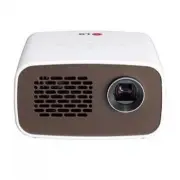


 LG HU715QW
User Manual
LG HU715QW
User Manual
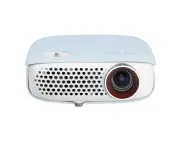 LG PW800G
User Manual
LG PW800G
User Manual
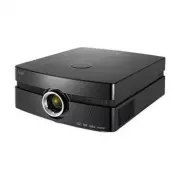 LG AF115
User Manual
LG AF115
User Manual
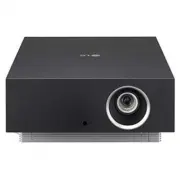 LG AU810PB
User Manual
LG AU810PB
User Manual
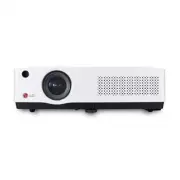 LG BD450
User Manual
LG BD450
User Manual
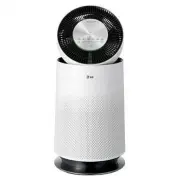 LG BF50NST
User Manual
LG BF50NST
User Manual
 LG BF50RG
User Manual
LG BF50RG
User Manual
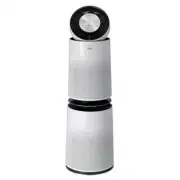 LG BF60PST
User Manual
LG BF60PST
User Manual
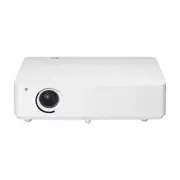 LG BG630
User Manual
LG BG630
User Manual
 LG BG650
User Manual
LG BG650
User Manual
 LG BU50NST
User Manual
LG BU50NST
User Manual
 LG BU50RG
User Manual
LG BU50RG
User Manual
 LG BU53PST
User Manual
LG BU53PST
User Manual
 LG BU53RG
User Manual
LG BU53RG
User Manual
 LG BU60PST
User Manual
LG BU60PST
User Manual
 LG BU70QGA
User Manual
LG BU70QGA
User Manual
 LG BX327
User Manual
LG BX327
User Manual